7.1 Approval - Approval
Detailed information about the Approval data segment in Appetite Management Approval stage.
Note:
In this chapter, only procedure to Approve, Reject, Send Back the facility is provided.For information on managing Collateral, referInitiation - Collateral
Figure 7-3 Approval - Approval
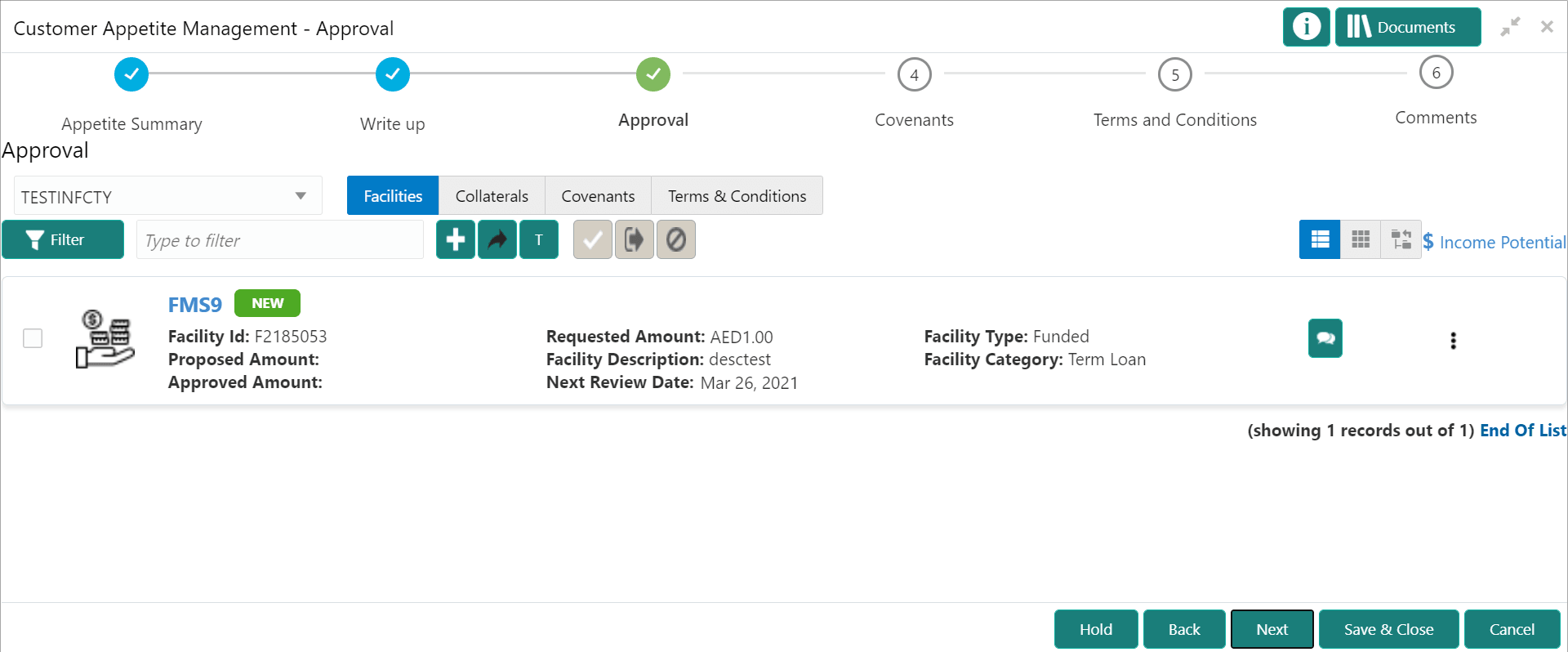
- To approve a facility, select the facility and click
 the Approve icon.The Approve Facility window is displayed.
Figure 7-4 Approve Facility
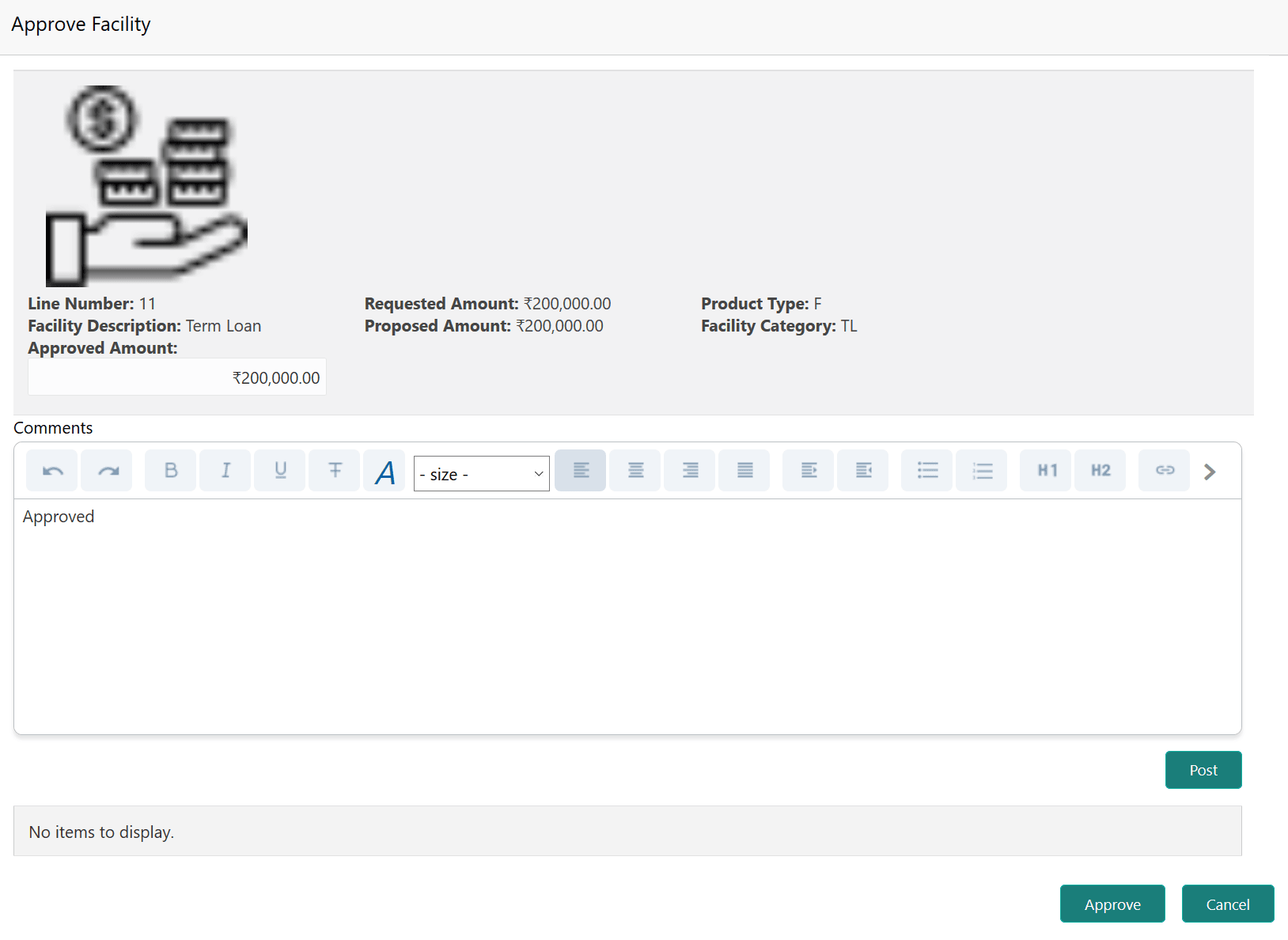
For information on fields in the Approve Facility screen, refer the below table.
Table 7-1 Approve Facility
Fields Description Approved Amount Specify the Approved Amount. Comments Post the approval Comments. Approve Click Approve. - To send back the facility to previous stage for modification, select the
facility and click
 the Send Facility Back for More Info icon. The Send Facility Back window is displayed.
Figure 7-5 Send Facility Back for More Info
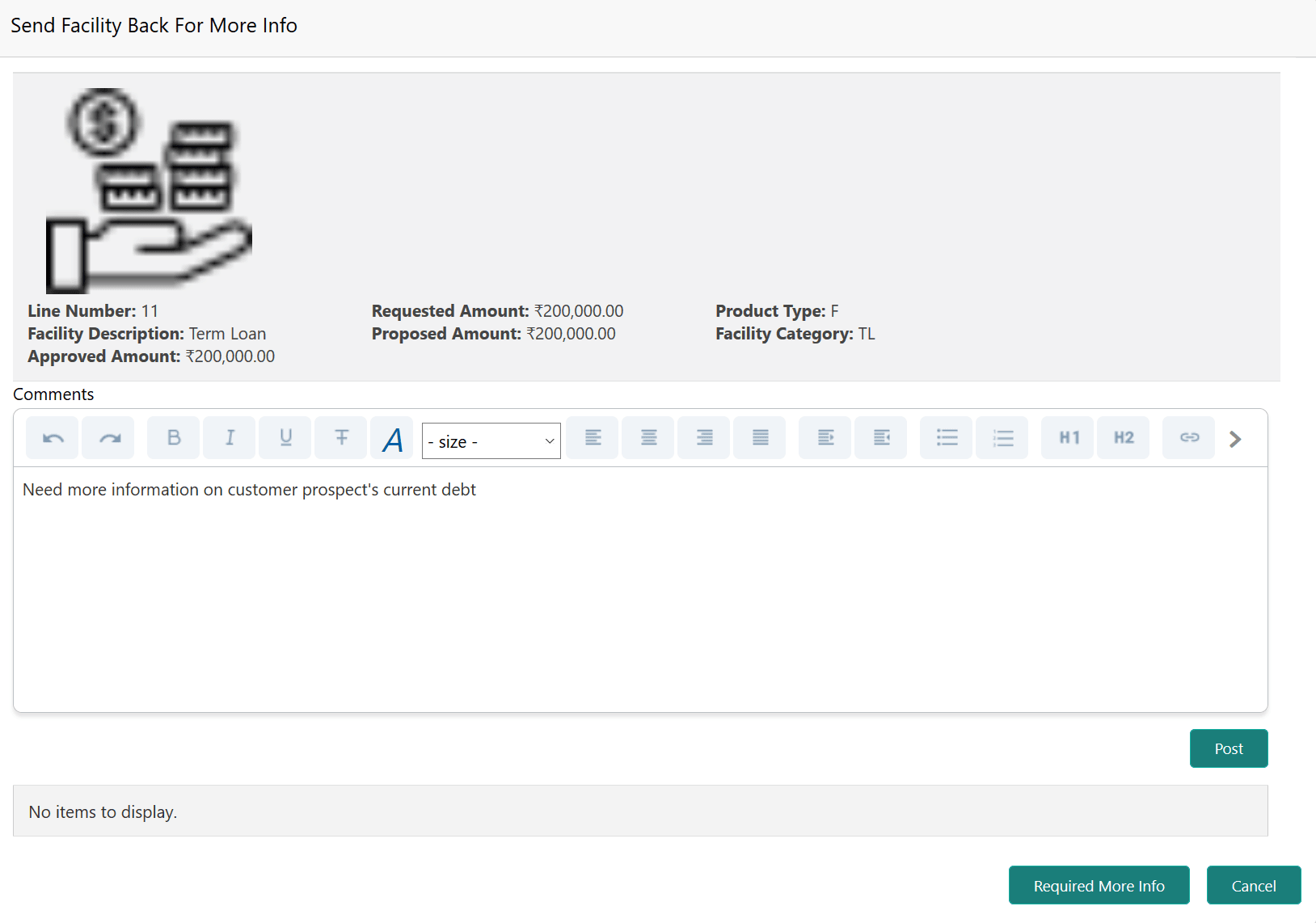
For information on fields in the Send Facility Back for More Info screen, refer the below table.
Table 7-2 Send Facility Back for More Info
Fields Description Comments Type the necessary comments for requesting additional information in Comments box. Post Click Post. Comment is posted below the Comments box. Required More Info Click Required More Info - To reject a facility, select the facility and click
 the Reject icon. The Reject Facility window is displayed.
Figure 7-6 Reject Facility
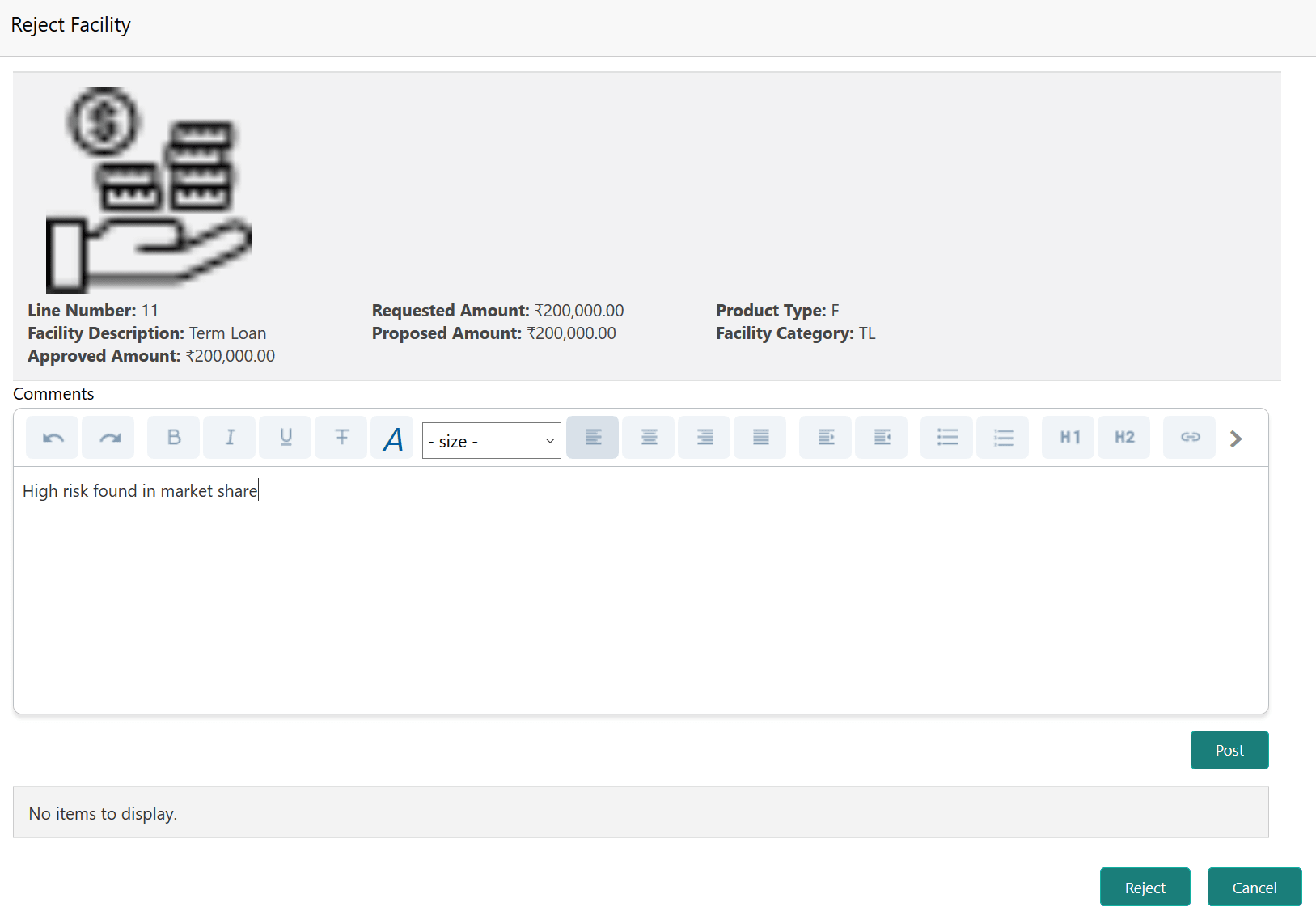
For information on fields in the Reject Facility screen, refer the below table.
Table 7-3 Reject Facility
Fields Description Comments Type the rejection comments in the Comments box. Post Click Post. Comment is posted below the Comments box. Reject Click Reject.