3.4 Initiation - Collateral
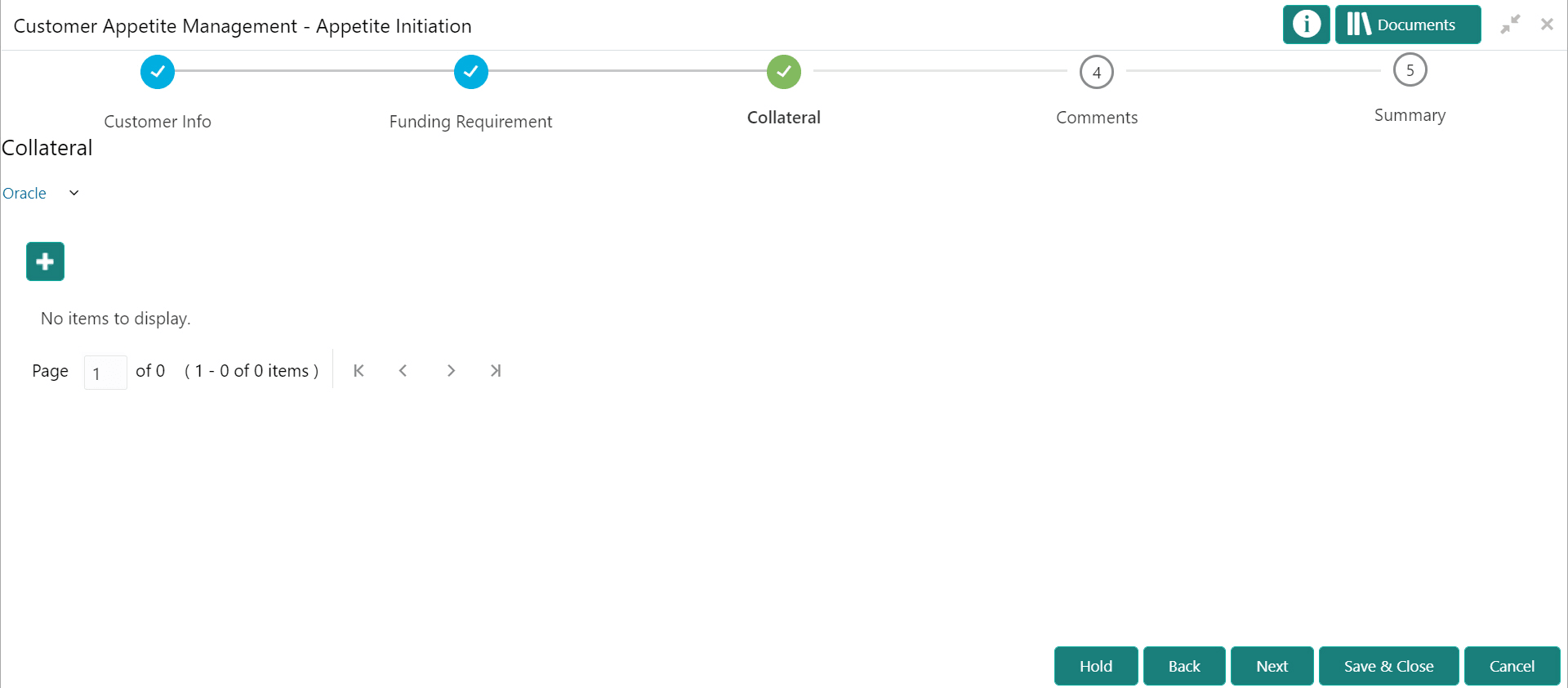
This topci provides systematic instructions about the Initiatin - Collateral data segment in Appetite Management Initiation stage.
Figure 3-15 Appetite Initiation - Collateral
Collateral Insurance
In this page, you can capture insurance details of the collateral.
Figure 3-16 Collateral Insurance
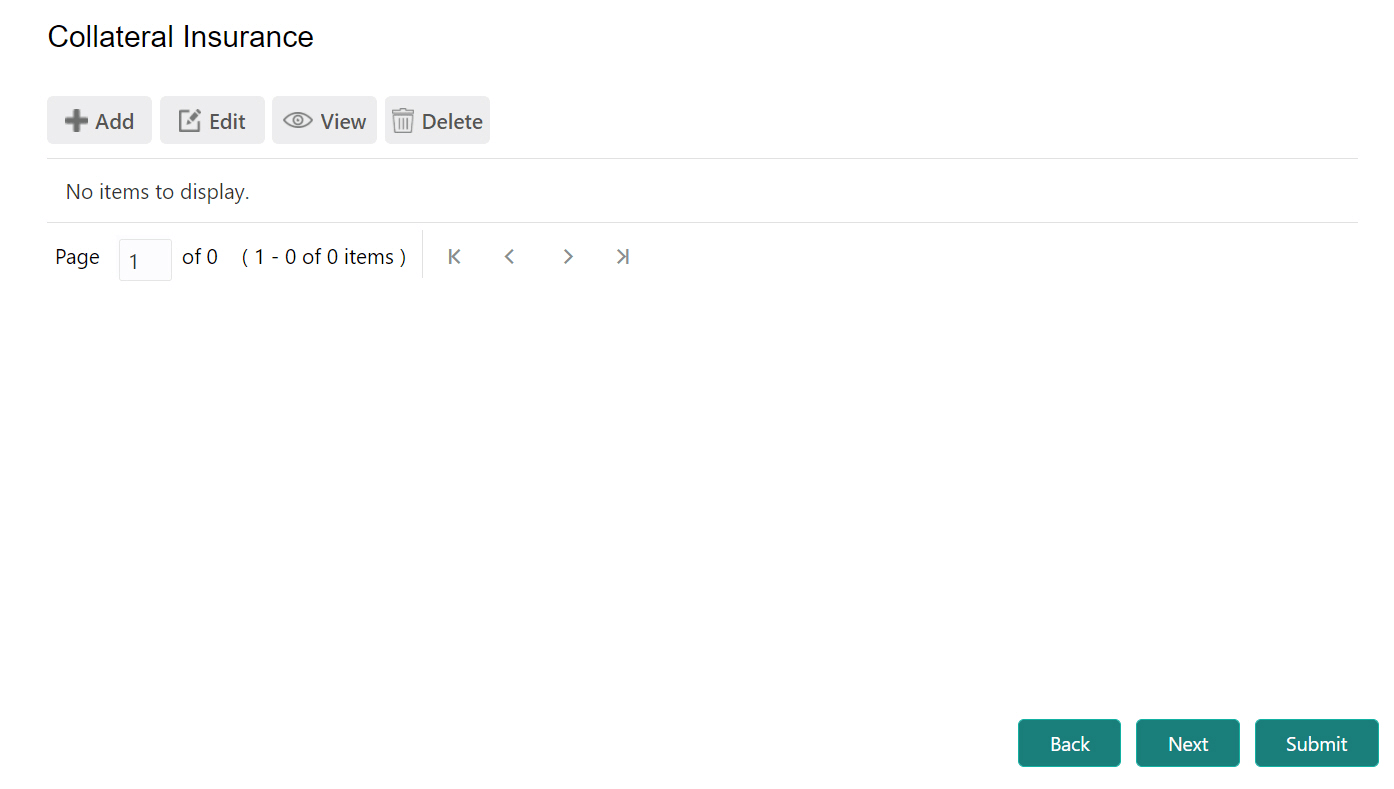
- To add insurance details, click +Add. The Collateral Details window is displayed.
Figure 3-17 Collateral Details
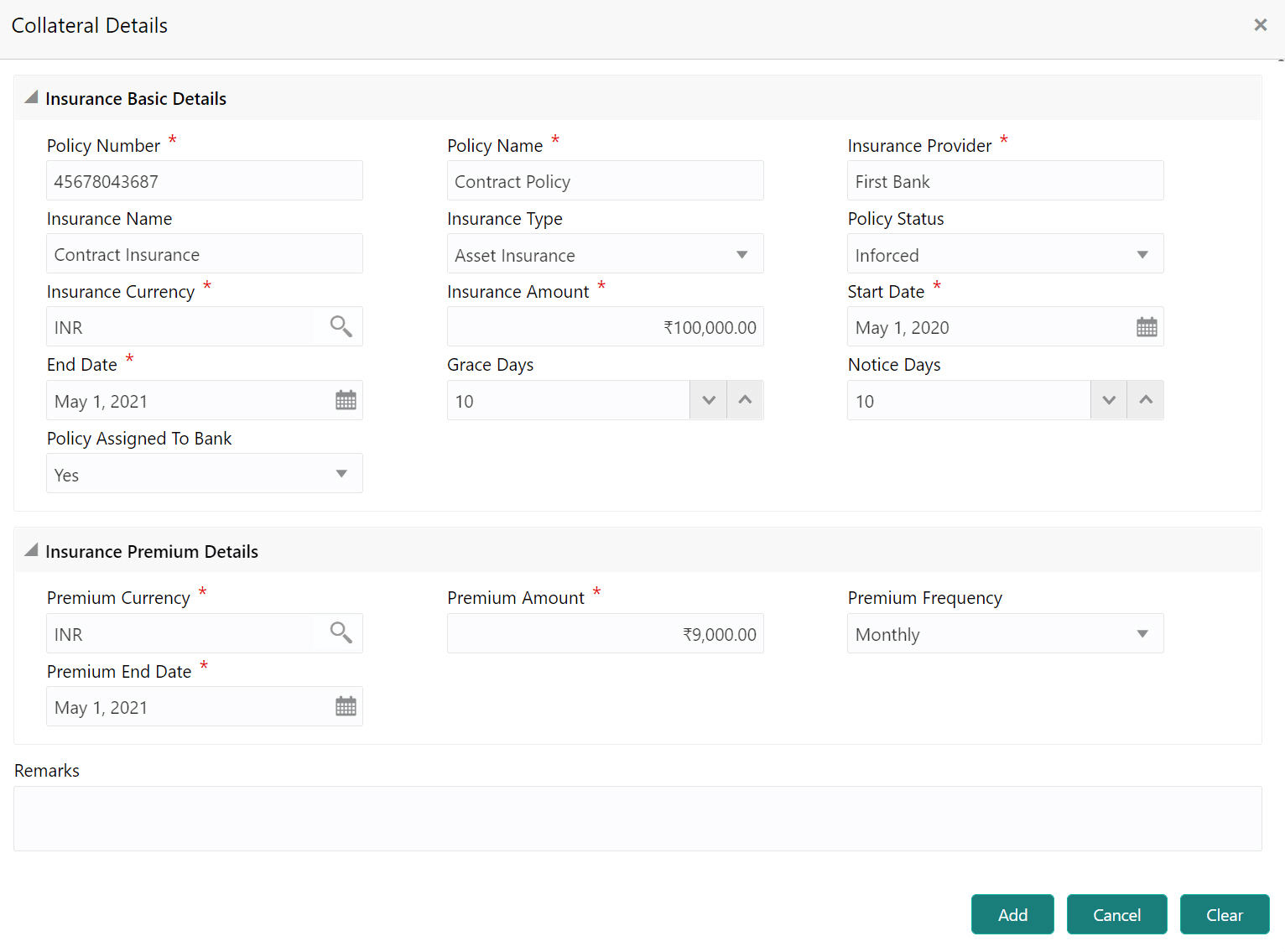
Insurance Basic Details
- Click Add. The insurance details are added and displayed
as shown below:
Figure 3-18 Collateral Insurance
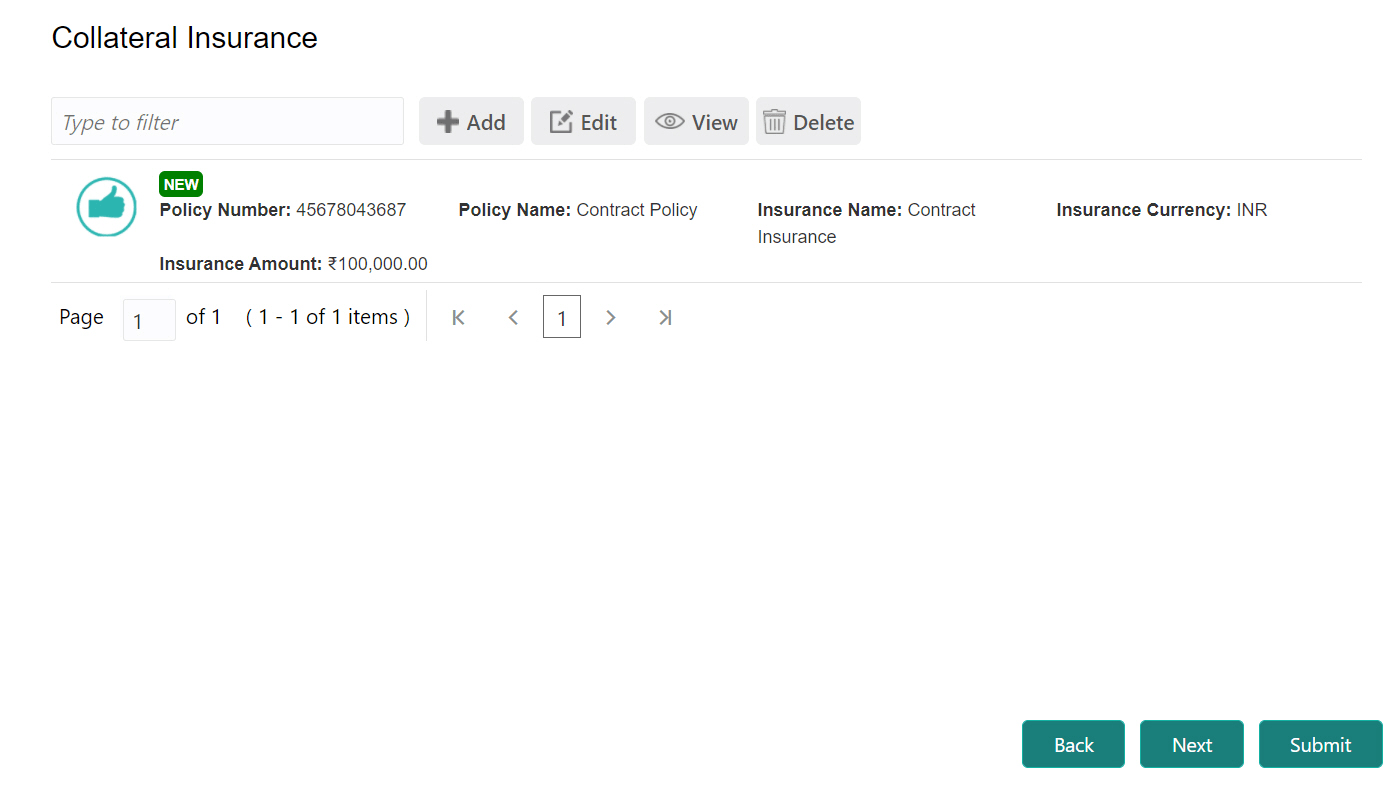
For information on fields in the Collateral Insurance screen, refer the below tables.
Table 3-22 Collateral Insurance
Fields/ Icons Description Edit To modify the insurance details, select the record and click Edit. View To view the added insurance details, select the record and click View. Delete To delete the insurance details, select the record and click Delete.
Field Investigation
You can add field investigation details of the collateral, if field investigation is done for the collateral.
Figure 3-19 Field Investigation
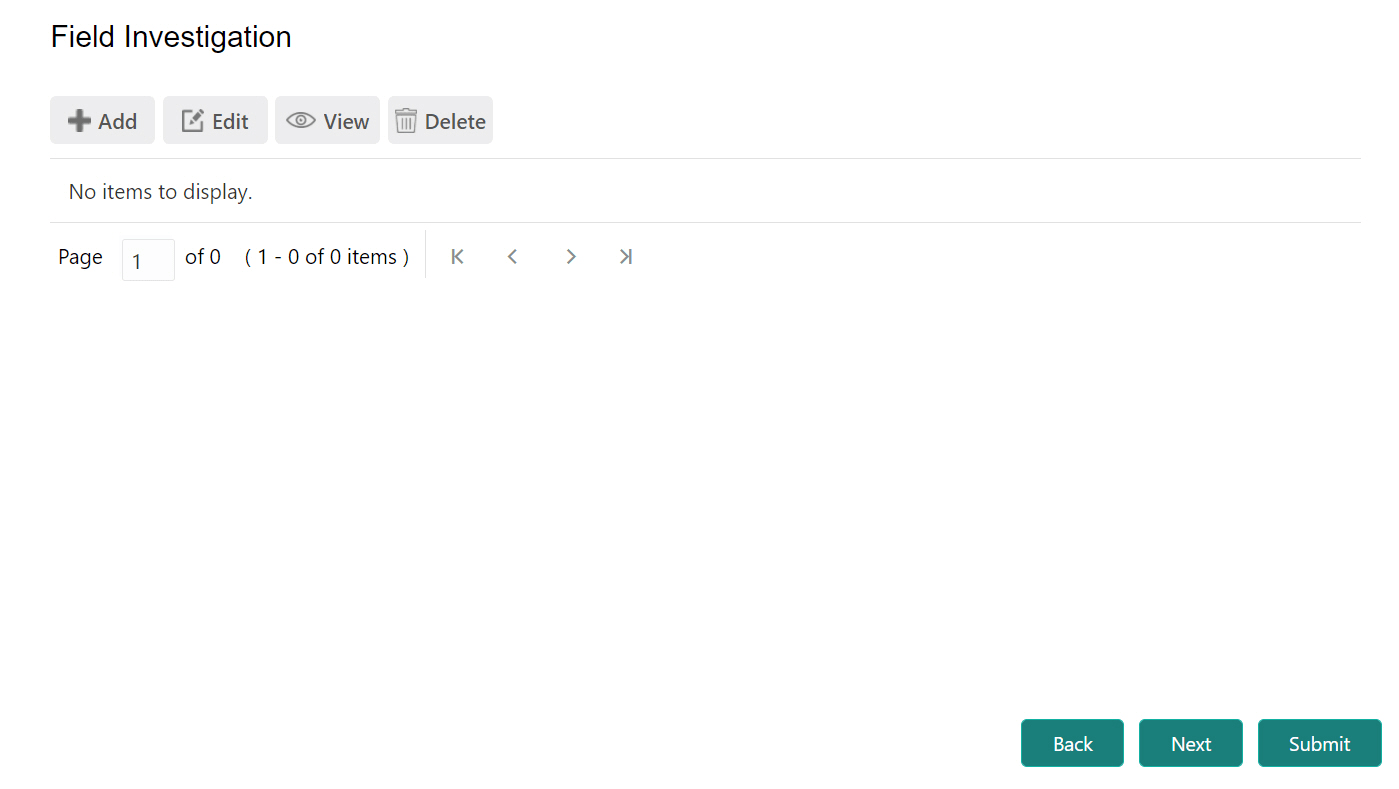
- Click the Add icon. The Collateral Details window is displayed.
Figure 3-20 Collateral Details
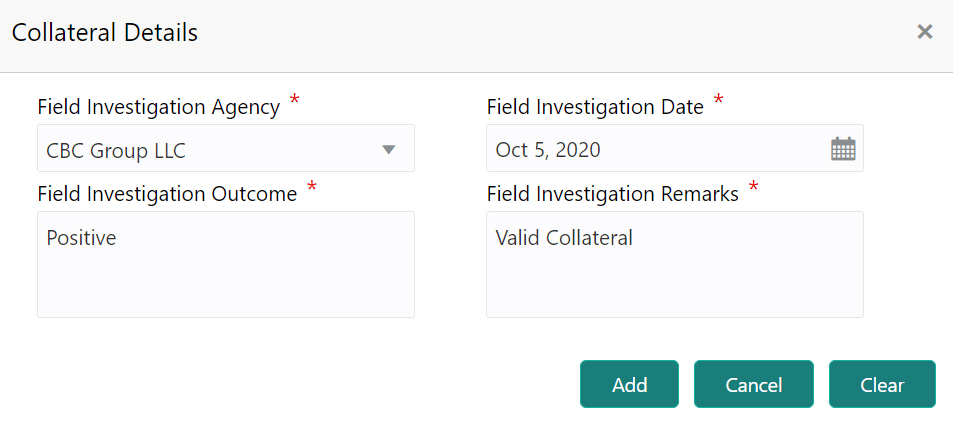
For information on fields in the Collateral Details screen, refer the below tables.
Table 3-23 Collateral Details
Fields/ Icons Description Field Investigation Agency Select the Field Investigation Agency from the drop down list. Field Investigation Date Click the calendar icon and select the Field Investigation Date. Field Investigation Outcome and Field Investigation Remarks Specify the Field Investigation Outcome and Field Investigation Remarks. Add Click Add. The field investigation details are added displayed in the Field Investigation page. Edit To modify the field investigation details, select the record and click Edit. View To view the added field investigation details, select the record and click View. Delete To delete the field investigation details, select the record and click Delete.
External Check
If the collateral is valuated by any external agency, you can add those details in the external check page.
Figure 3-21 Collateral - External Check
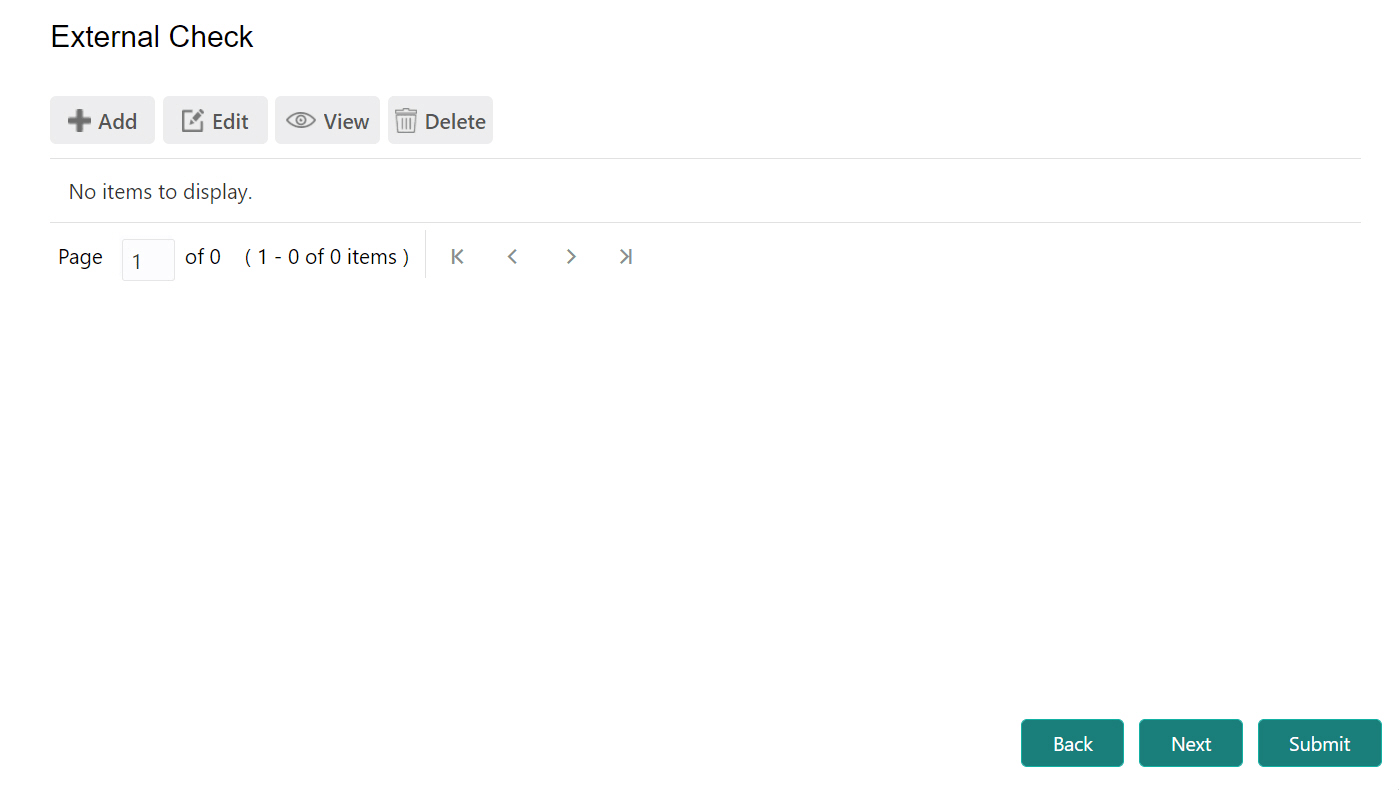
- Click the Add icon. The Collateral Details window is displayed.
Figure 3-22 Collateral Details
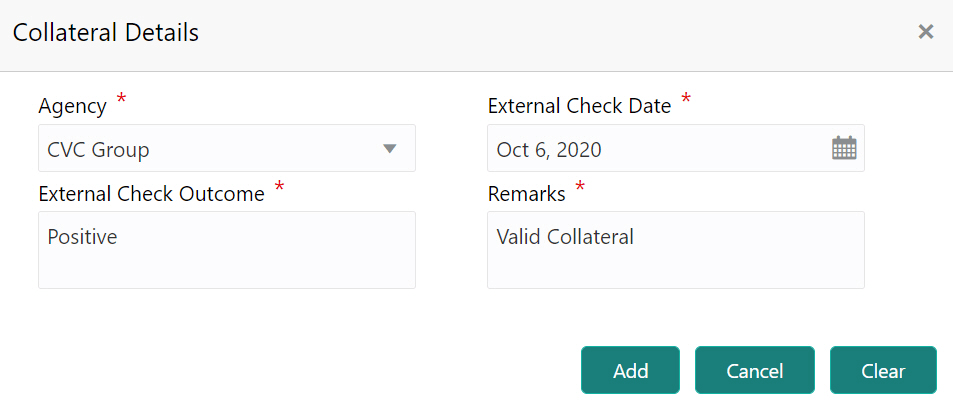
For information on fields in the Collateral Details screen, refer the below table.
The Valuation page is displayed.Table 3-24 Collateral Details
Fields/ Icons Description Agency Select the Agency by which the external validation is done. External Check Date Click the calendar icon and select the External Check Date. External Check Outcome Specify the External Check Outcome and Remarks. Add Click Add. The external check details are added and displayed in the External Check page. Edit To modify the external check details, select the record and click Edit. View To view the added external check details, select the record and click View. Delete To delete the external check details, select the record and click Delete. Next Click Next.
Valuation
If the value of collateral is evaluated by any agency, you can add those details in the Valuation page.
Figure 3-23 Collateral - Valuation
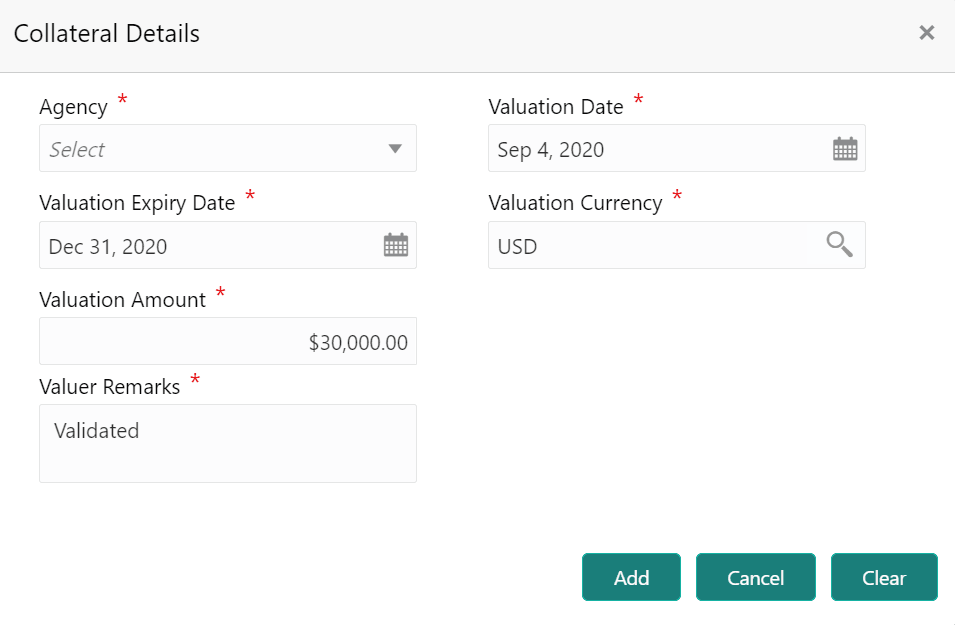
- Click the Add icon. The Valuation - Collateral Details window is displayed.
Figure 3-24 Valuation - Collateral Details
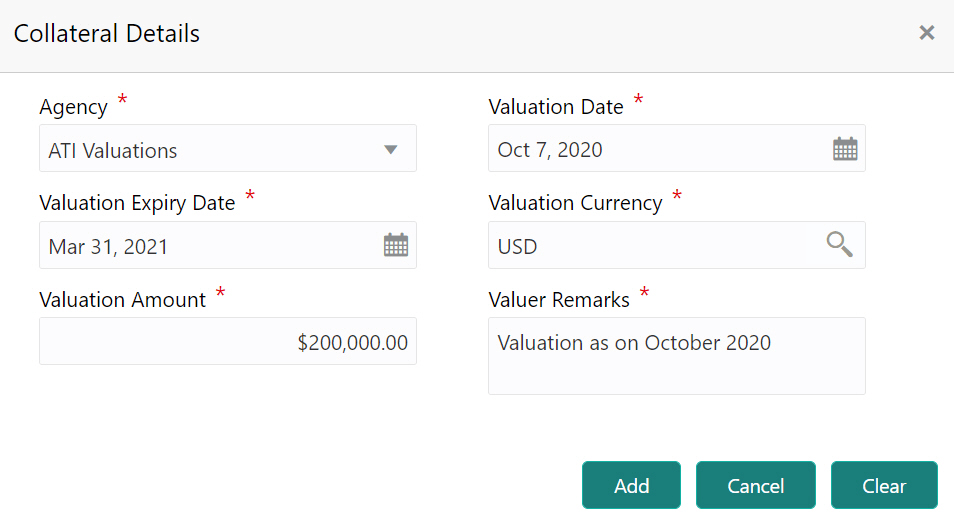
For information on fields in the Valuation - Collateral Details screen, refer the below table.
The Legal Opinion page is displayed.Table 3-25 Valuation - Collateral Details
Fields Description Agency Select the Agency which valuated the collateral. Valuation Date and Valuation Expiry Date. Click the calendar icon and select the Valuation Date and Valuation Expiry Date. Valuation Currency Click the search icon in the Valuation Currency field and select the currency in which collateral is valuated. Valuation Amount Specify the Valuation Amount in selected valuation currency. Valuer Remarks Type Valuer Remarks. Add Click Add. The collateral valuation details are added and displayed in the Valuation page. Edit To modify the valuation details, select the record and click Edit. View To view the added valuation details, select the record and click View. Delete To delete the valuation details, select the record and click Delete. Next Click Next.
Legal Opinion
If the collateral is evaluated by any legal firm, you can capture those evaluation details in the Legal Opinion page.
- Click the Add icon in the Legal Opinion page. The Collateral Details window is displayed.
Figure 3-25 Legal Opinion - Collateral Details
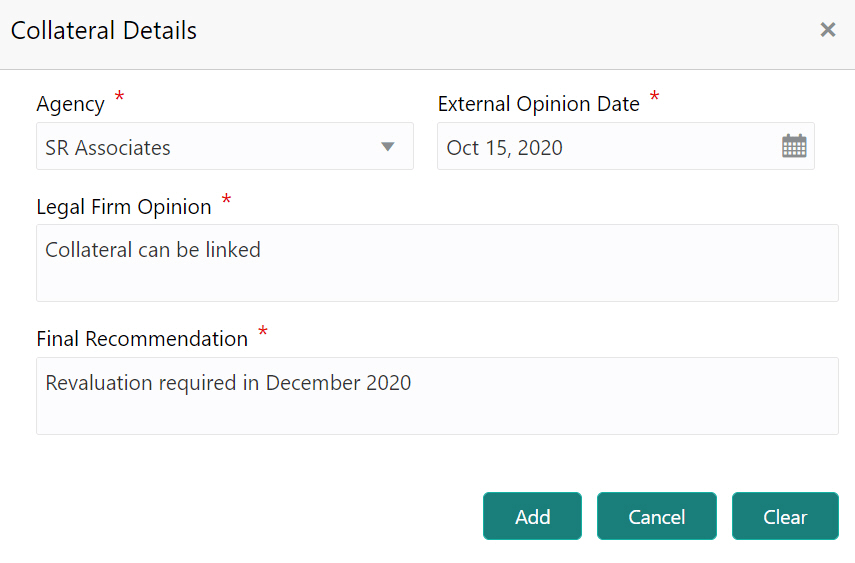
For information on fields in the Legal Opinion - Collateral Details screen, refer the below table.
The Risk Evaluation page is displayed.Table 3-26 Legal Opinion - Collateral Details
Fields Description Agency Select the Agency which legally evaluated the collateral. External Opinion Date Click the calendar icon and select the External Opinion Date. Legal Firm Opinion and Final Recommendation. Specify the Legal Firm Opinion and Final Recommendation. Add Click Add. Legal opinion is added and displayed in the Legal Opinion page. Edit To modify the legal opinion, select the desired record and click Edit. View To view the legal opinion, select the desired record and click View. Delete To delete the legal opinion, select the desired record and click Delete. Next Click Next.
Risk Evaluation
In case you find risk in the collateral, you can add risk information in the Risk Evaluation page.
Figure 3-26 Risk Evaluation
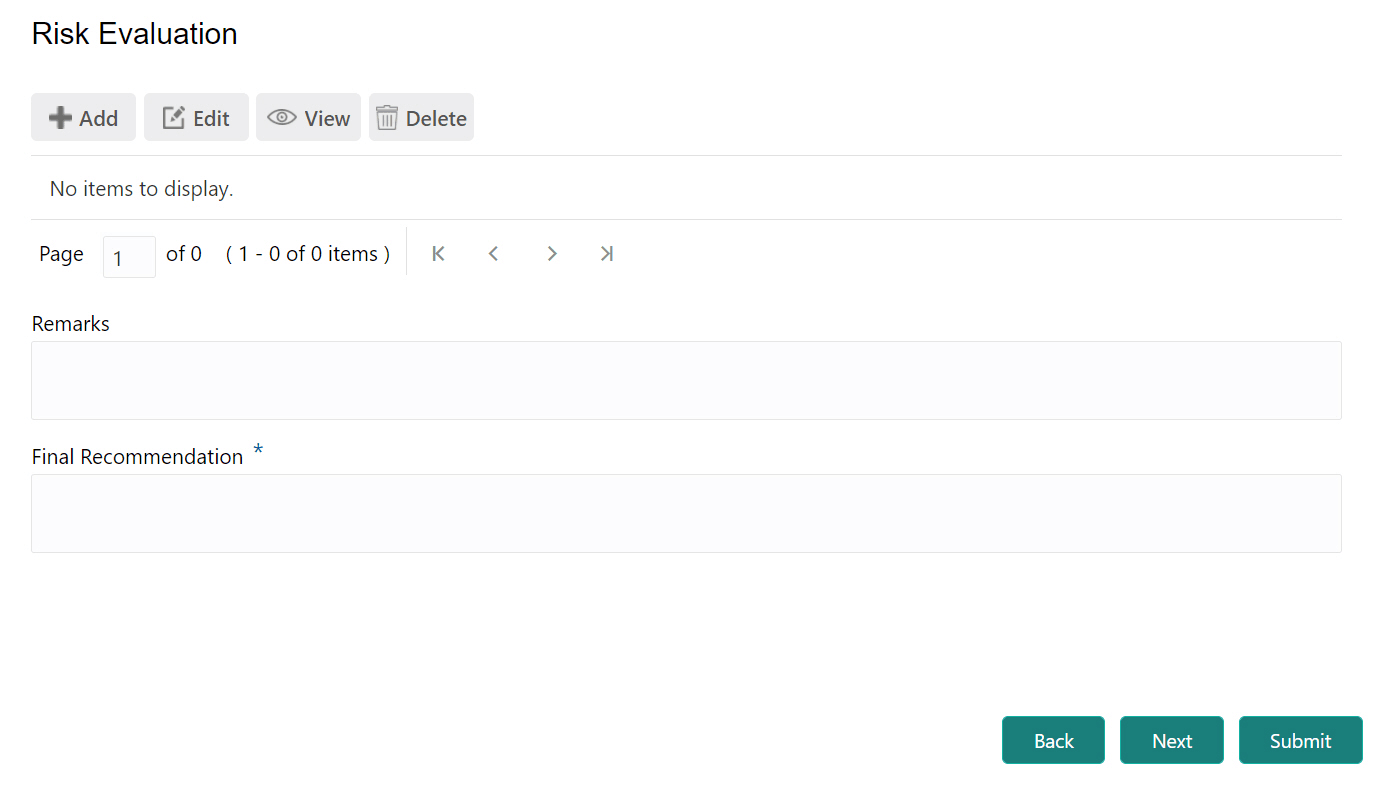
- Click the Add icon. The Risk Evaluation - Collateral Details window is displayed.
Figure 3-27 Risk Evaluation - Collateral Details
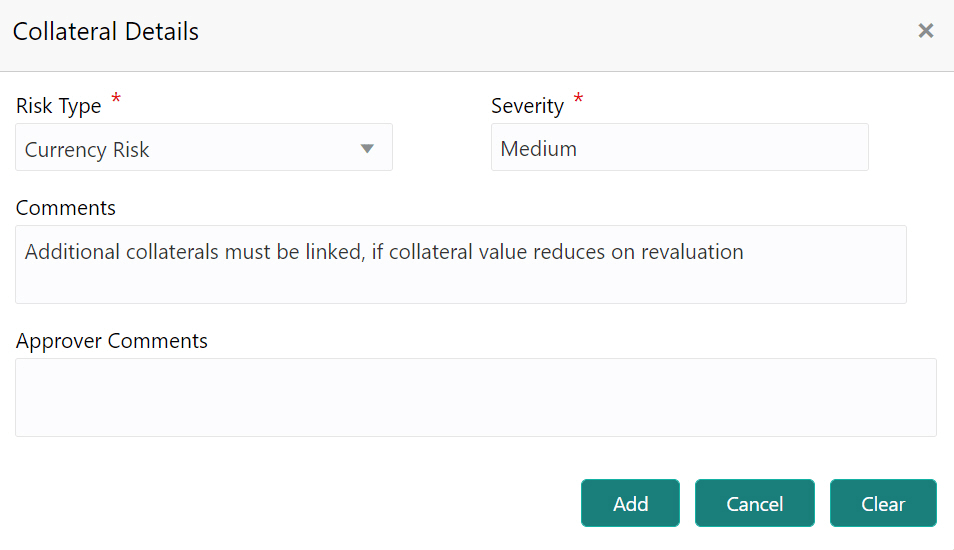
For information on fields in the Risk Evaluation - Collateral Details screen, refer the below table.
The Collateral Summary page is displayedTable 3-27 Risk Evaluation - Collateral Details
Fields Description Risk Type Select the Risk Type from the drop down list. The options available are: Currency Risk, Natural Hazardous Risk, Liquidity Risk, Operational Risk, Geo Political Risk, and Issue Credit Risk. Severity Specify the Severity of risk such as Low, Medium, and High. Comments Type detailed information about the risk in Comments and Approver Comments fields. Add Click Add. Risk information is added and displayed in the Risk Evaluation page. View To view the risk information, select the desired record and click View. Delete To delete the risk information, select the desired record and click Delete. Next Click Next. Collateral Summary
The collateral summary provides an overview of collateral based on the information added in previous pages.
Figure 3-28 Collateral Summary
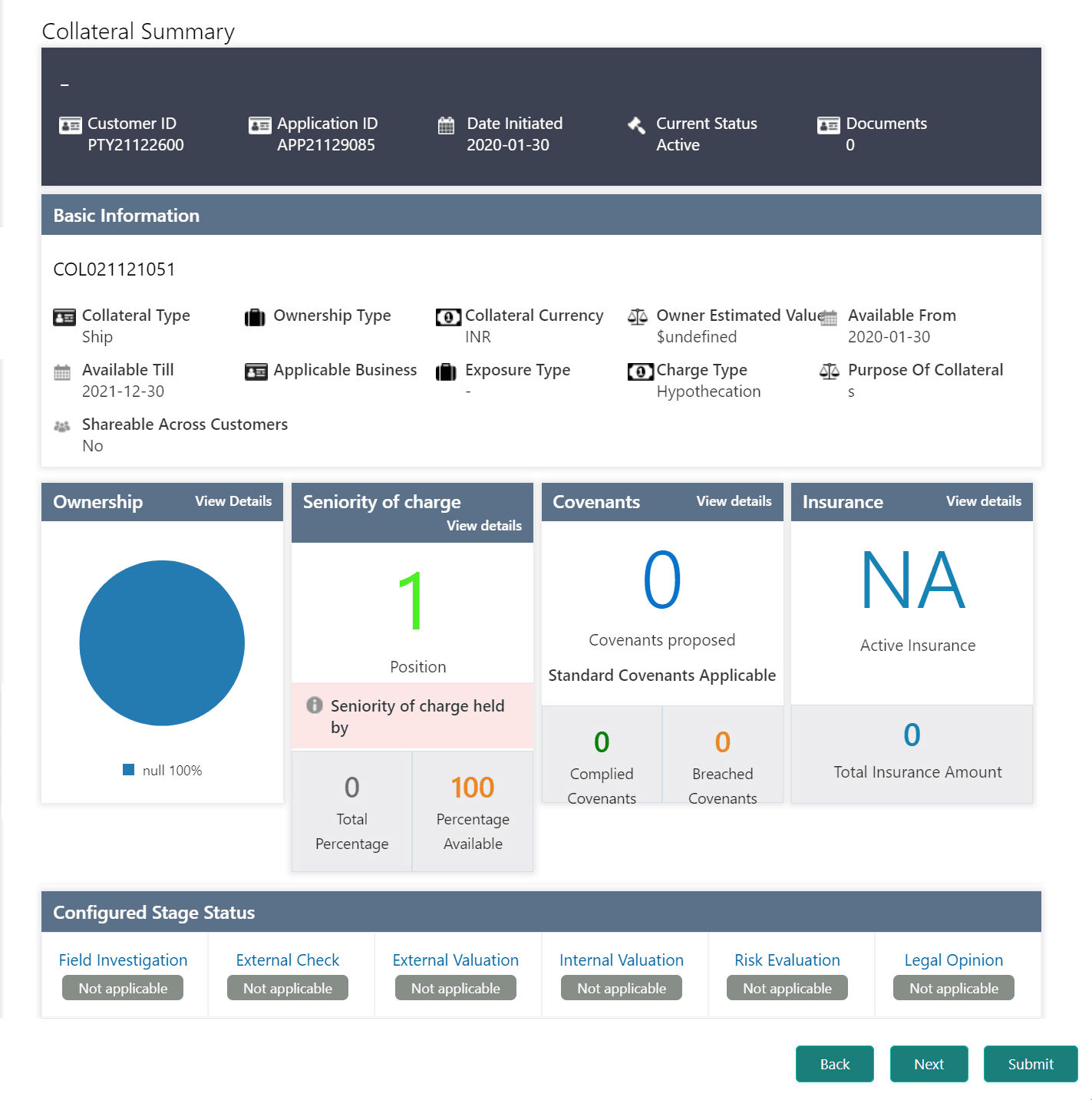
For information on fields in the Collateral Summary screen, refer the below table.
Table 3-28 Collateral Summary
Fields Description Submit View the Collateral Summary and click Submit. Collateral record is added and displayed in the Collateral Details page. View, Edit or Delete To View, Edit or Delete the collateral details, click the down arrow in the corresponding record and select the required option. - Click Next in the Collateral Details page. The Comments page is displayed.Comments
In this page, you can capture comments for the added collaterals, if any.
Figure 3-29 Collateral - commments
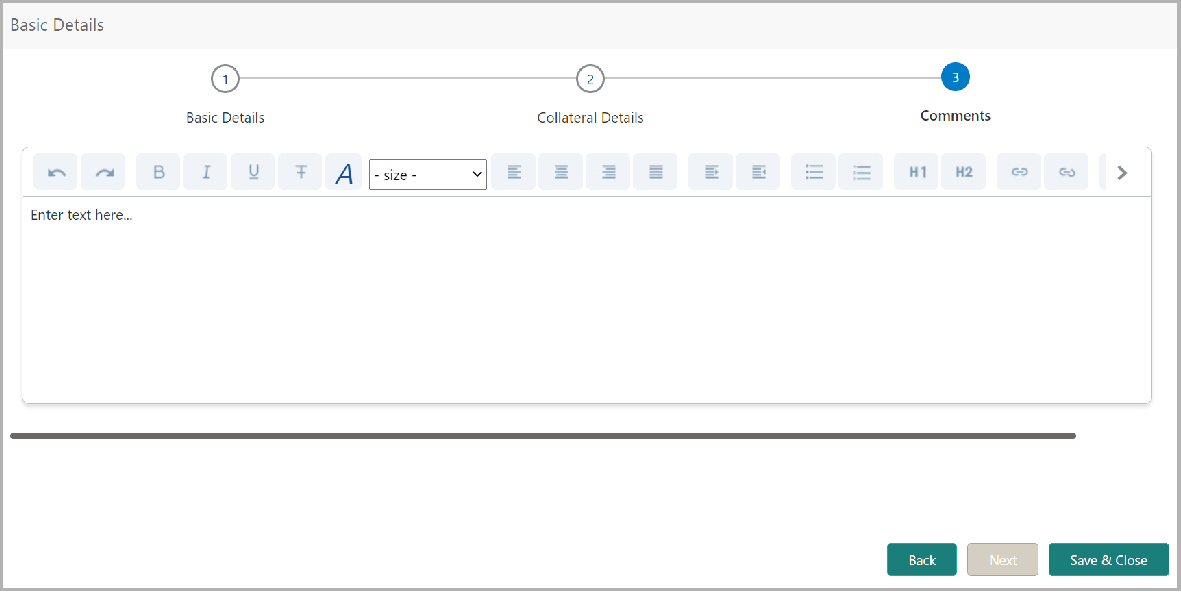
For information on fields in the Collateral - commments screen, refer the below table.
Table 3-29 Collateral - commments
Fields Description Comments Type comments in the Comments box. Post Click Post. Comments are posted below the Comments box. Save & Close Click Save & Close. The collateral records are listed in Collaterals data segment. View, Edit To View, Edit or Delete the collateral details, click the down arrow in the corresponding record and select the required option.