3.3 Initiation - Funding Requirement

This topic provides systematic instructions about the Funding Requirement data segment in Appetite Management Initiation stage.

In this data segment, you can capture details of the facility that can be offered to the customer prospect based on their financial performance over periods.

The facility can be either directly created or created using the Facility Template maintained at the Maintenance module.

Before creating the facility, Liability details must be captured for the facility.

Adding Liability Details

Figure 3-13 Initiation - Funding Requirement
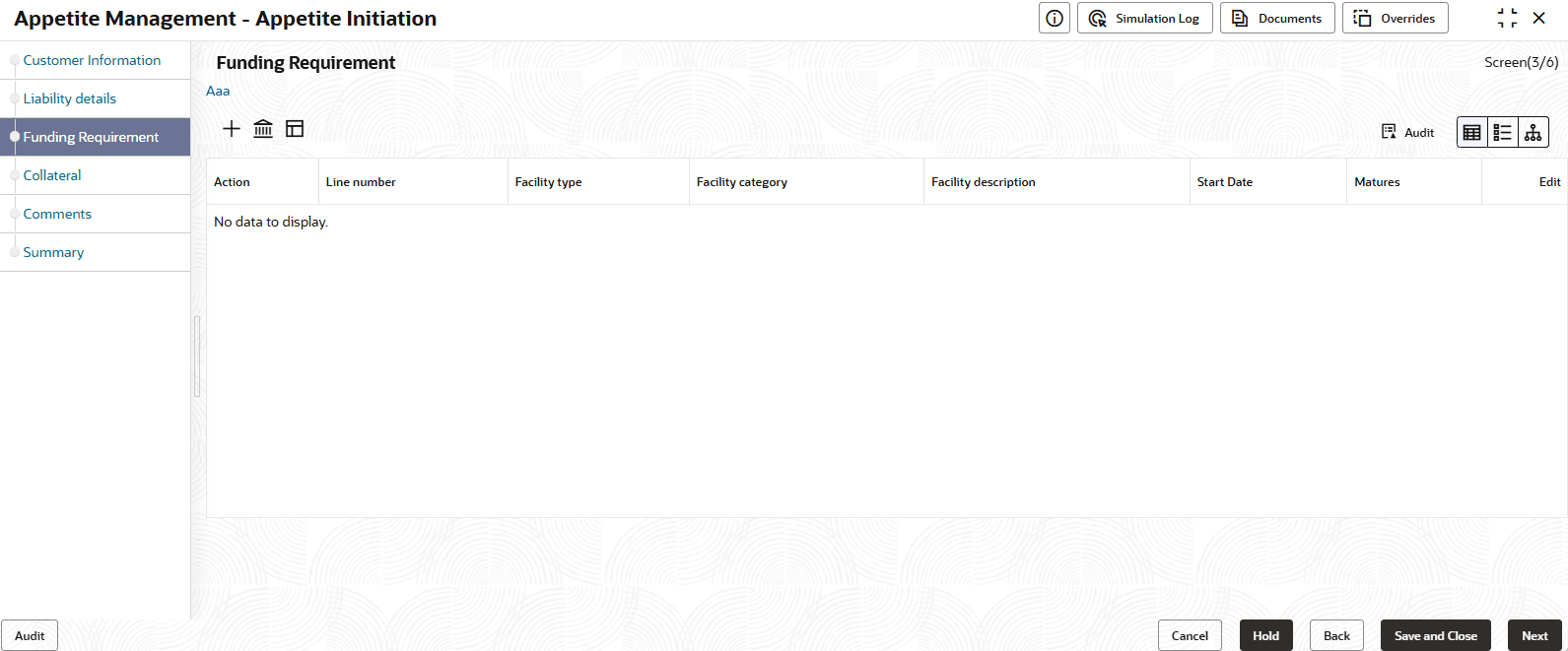


  1. To add the liability details, expand and mouse hover on the Liability details section. The Edit icon is displayed.
  2. Click the Edit icon.
    The Liability Details window is displayed.

    Figure 3-14 Initiation - Funding Requirement - Liability Details
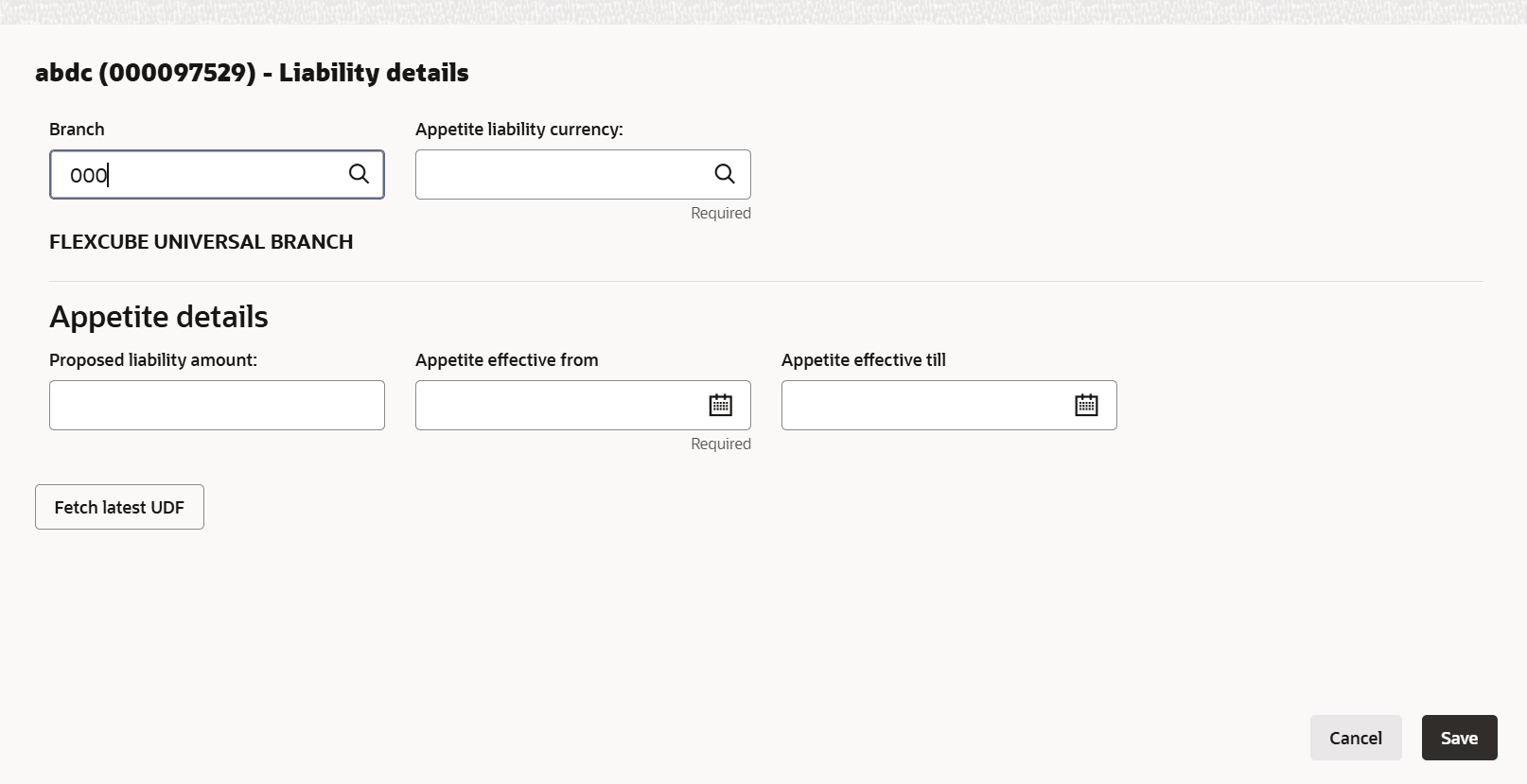


  3. Search and select the Appetite Liability Currency.
    For information on fields in the Initiation - Funding Requirement - Liability Details - Appetite Details screen, refer the below table.

    In the Appetite Details section:

    Table 3-5 Initiation - Funding Requirement - Liability Details - Appetite Details

    Fields/ Icons Description
    Proposed Liability Amount Specify a liability amount for the organization in the Proposed Liability Amount field based on organization’s performance.
    Appetite Effective From Click the calendar icon in the Appetite Effective From field and select the appetite start date.
    Appetite Effective Till Click the calendar icon in the Appetite Effective Till field and select the appetite end date.
    Save Click Save. Liability details are added and displayed in the Liability Details section.
    View To view the added Liability, mouse hover on the Liability details section and click View.

Creating Fcaility Without Template

  1. Click Add icon, to add the facility without using template.
    The New Facility screen displays.

    For more information on fileds, refer to the field description table below.

    Table 3-6 New Facility

    Field Descrption
    Line Code Specify the unique code for facility.
    Line Serial Number Specify a serial number for facility.
    Facility Description Specify a brief description about the facility.
    Parent Facility ID Select the Parent facility ID from the drop-down list.
    Facility Type Sekect the facility type from the drop down ;list. The available options are:
    • Funded
    • Non Funded

    Note: You can restrict creation of sub-facility of type other than the selected type by enabling the Cascade check box. For example, if the Facility Type is selected as Funded and the Cascade check box is enabled, the sub-facility of type Non Funded cannot be created.

    Facility Category Select the facility category from the dropdown list.
    Next Review Date Selcet the required date from the calendar.
    Line Start Date Selcet the required date from the calendar.
    Line Expiry Date Selcet the required date from the calendar.
    Currency Search and select the currencu from the list.
    Requested Amount Specify the amount requested by the organization.
    Tenor Select the tenor facility.
    Availability Period Specify the availability period for the facility.
    Commitment Status Select the status from the list. The available options are:
    • Committed
    • Uncommitted

    Note: You can restrict creation of committed / uncommitted sub-facility for this facility by enabling the Cascade check box. For example, if the Commitment Status is selected as Committed and the Cascade check box is enabled, the uncommitted sub-facility cannot be created, and vice versa.

    Secured Enable the toggle, if collaterals are availiable for the facility.

    Note: You can restrict creation of unsecured sub-facilities for this facility by enabling the Cascade check box along with the Secured? switch.

    Revaluation Required Enable the check box, if the facility has to be re-valuated during EOD batch process using the exchange rate maintained at the facility level.
    Rate Agreement Required Enable the Rate Agreement Required check box, if the exchange rate maintained at the facility level has to be applied in case of cross currency utilization and block transactions and revaluation.
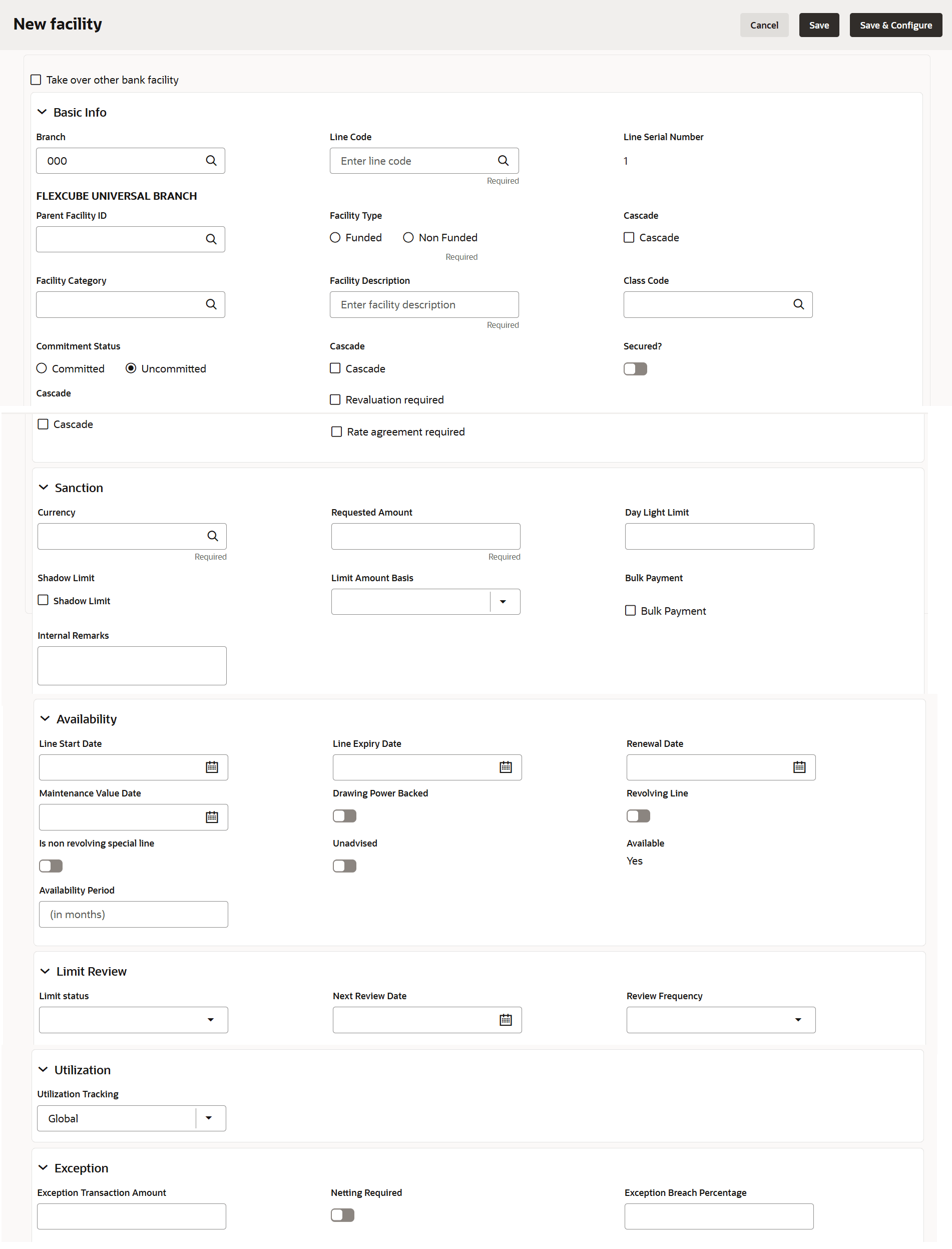
  2. Click Save, to save the details. To add further details about the facility, click Save & Configure. To exit the New Facility window without saving the information, click Cancel.

Modifying Facility Details

  1. Upon clicking Save & Configure or clicking the edit icon in Funding Requirement page.
    The Facility Details screen displays.

Scheduling facility disbursement

  1. To add the details of the payment to be made on schedule basis, click Schedule from the left menu.
  2. Enable the Scheduling Required? switch. The Add button is enabled.
  3. Click the Add button.
    The Scheduling Details screen displays.

    Table 3-7 Scehduling Details

    Field Description
    Date Select the schedule part of the facility payment.
    Amount Specify the amount to bepaid to the organization on the scheduled date.
  4. Click Save.
    Scheduling details are added and listed as shown below.

    Table 3-8 Scheduling Required

    Field Description
    Add Click Add. to add another scheduling detail.
    Edit Clickt Edit, to edit the scheduling detail.
    Delete Click Delete, to delete the scheduling detail.
    Remarks Specify remraks, if any.
    Post Specify comments, if any.

Adding Exposure Details

  1. Click Exposure from the left menu.
    The Exposure Details screen displays.
  2. Click Add icon, to type the Exposure Type and Exposure Code for the facility.

Adding Fee Details

  1. Click Fee from the left menu, to add fee preferences.
    The Fee Details screen displays.
  2. Click Populate. Fee details such as Rule code, Liquidation Preference, Component Type, Fee Start Date, Fee End Date and Waived will be fetched from the target system.

Linking Fcaility to the Pool

  1. Click Pool Linkage from the left menu.
    The Pool Linkage screen displays.
  2. Click Link Facility.
    The Link Facility screen displays.
  3. Select the Pool Code from the drop-down list.
  4. Click Link Facility.

Adding Pricing Detail

  1. Click Pricing, to add pricing detail for the facility.

    If Facility Type is selected as Non Funded, Commission and Charges can be added in the Pricing section.

    If Facility Type is selected as Funded, Interest and Charges can be added in the Pricing section.

  2. Click Add icon, to add commission details.
    The Commission Details screen displays.
    For more information on fields, refer to the field description tbale below.

    Table 3-9 Commission Details

    Field Description
    Rate Type Select the Rate Type from the drop down list.
    Rate Basis Select the commission collection frequency from the Rate Basis drop down list.
    Commission Type Select the Commission Type from the drop down list.
    Collection Period Select the Collection Period from the drop down list
    Currency Search and select the Currency in which the commission has to be collected from the organization.
    Minimum Commission Amount If Fixed Rate is selected as the Rate Type, specify the Minimum Commission Amount and the Commission Rate in the respective fields.
    Commission Rate . If Flat Amount is selected as the Rate Type, specify the Commission Amount.
     
  3. Click Save, to add the commission details.
  4. Click Add icon in Pricing Interest section.

The Interest Details screen displays.For more information on fields, refer to the field description table below.

Table 3-10 Interest Details

Field Description
Component Name Specify the component name.
Component Type Select the Component Type from the drop down field.
Rate Type Select Rate Type from the drop down field. The options available are: Fixed, Floating and Special Amount.
Fixed Interest Rate If Fixed is selected as Rate Type, specify the Fixed Interest Rate.

  1. . If Floating is selected as Rate Type. select the following details: • Rate Code • Spread • Interest Reset Cycle
  2. If Special Amount is selected as Rate Type, search and select the Currency and then specify the Special Interest Amount.
  3. Click Save.
    Interest details are added and listed as shown below:
  4. To add the charge details, click Charges tab in Pricing section and then click the Add icon.
    Charge Details screen displays.
    For more information on fields, refer to the field description table below.

    Table 3-11 Charge Details

    Field Description
    Charge Code Specify the charge code.
    Charge Currency Select the charge currency.
    Charge Amount Specify the Charge Amount for the facility.
    Charge Description Specify the charge description.
    Is Charge Waived Enable Is Charge Waived switch, if waiver can be claimed for this charge.
    Waived Amount Select the charge currency.
    Minimum Charge Amount Specify the minimum charge amount.
    Maximum Charge Amount Specify the maximum charge amount.
    Net Charge Amount Specify the net charge amount
    Charge Base Amount Specify the charge base amount.
    Waiver Remarks Specify the remarks, if any.
  5. Click Save.
    Charge details are added and listed as shown below.

    Note:

    To add more charges for the facility, click the add icon again and provide the charge details.
  6. To edit the charge details, click the added charge and then click the edit icon.
  7. . To delete the charge details, click the added charge and then click the delete icon.
  8. To change the list view to table view, click the table icon at the right corner.

Facility Collateral Linkage

  1. Click Facility Collateral Linkage from the left menu.
    The Facility Details screen appears as shown below.

    Note:

    To link facility with the collateral, collateral must be added in the Collateral data segment.

  2. To link facility with a collateral, click the add icon.
    The Facility-Collateral Linkage screen displays.
  3. Select the Collateral Code from the drop down list. The collaterals added in Collateral data segment are displayed in the LOV.
    Upon selecting the Collateral Code, the following details get populated in the corresponding fields:
    • Collateral Description
    • Collateral Currency
    • Collateral Value
    You can link a collateral with the facility either by specifying the actual amount to be linked or by specifying the percentage of collateral value.
  4. Select the Amount Basis from the drop down list. The options available are: Amount and Percentage.
  5. If Amount is selected as Amount Basis, specify the Linked Amount. The system calculates and displays the Linked Percentage based on value provided in the Linked Amount field
  6. If Percentage is selected as Amount Basis, specify the Linked Percentage. The system calculates and displays the Linked Amount based on value provided in the Linked Percentage field.
  7. In the Order Number field, specify the collateral utilization order for e.g. 1, or 2.

    If the collateral is contributing to the line, and the order number is mentioned as 2, collateral utilization will happen only after the other amount (e.g. Line amount) with order number 1 is utilized.

  8. Click Save.
    The Facility Collateral Linkage details are added and displayed as shown below
  9. To filter a linkage record, click the Filter icon and specify values for the filter parameters or directly type the first three characters of filter parameter in Type to filter text box.
  10. To modify the linkage details, select the record from the list and click the edit icon next to add icon.
  11. To delete the linkage details, select the record from the list and click the delete icon.
  12. To change the layout of Facility-Collateral Linkage screen to table view, click the Table View icon at top right corner.

Adding Credit Rating

If the facility is rated by the rating organizations, you can add the ratings of facility under Credit Ratings menu.

  1. Click the Add icon.
    The Credit Rating screen displays.
    For more information on fields, refer to the field descriptio table below.

    Table 3-12 Credit Rating

    Field Description
    Agency Name Select the name of agency by which the facility is rated from the Agency Name drop down list.
    Outlook Select the Outlook of the rating from the drop down list.
    Grade Select the Grade of the rating from the drop down list.
    Score Specify the Score provided for the facility
    Effective Date Click the calendar icon in the Effective Date field and select the date on which the rating is provided.
    Year of Rating The Year of Rating is automatically populated based on the selected Effective Date.
    Recommend Enable the Recommend switch, if the facility is recommended by the rating agency.
  2. Click Create. The rating is added and displayed in the Credit Rating page.
  3. To view the history of credit ratings added during different processes, click the History icon.
  4. To filter the credit ratings in the History window, click the Filter icon and select the Agency Name or directly type the agency name in Type to filter text box.

Adding FX Rate Revaluation Details

You can add FX rate and revaluation details for the facility under the FX Rate Revaluation menu. The facility will be periodically re-valuated considering the FX rate, based on the configured frequency.

  1. Click the add icon.
    The FX Rate Revaluation screen displays.
    For more information on fields, refer to the field description table below.

    Table 3-13 FX Rate Revaluation Details

    Field Description
    Module In the Module field, type the name of module from which the FX rate detail has to be fetched. For example, LC (Letters of Credit module in FCUBS).
    Product In the Product field, type the name of product from which the FX rate detail has to be fetched. For example, Import LC Issuance (product under LC module).
    Currency Select the Currency for which the FX rate has to be applied.
    FX Rate Type Select the FX Rate Type from the drop down list. The options available are: Mid, Sell, and Buy.
    Rate Input Method Select the Rate Input Method from the drop down list. The options available are Derived and Fixed.

    If Rate Input Method is selected as Derived, the Exchange Rate Code field appears. You must select the required exchange rate code from the list of codes maintained in the mentioned Product.

    If Rate Input Method is selected as Fixed, the Fixed Rate field appears. You must specify the fixed rate for the revaluation.

    Rate Fixing Days Specify the Rate Fixing Days. The value must be between 1 to 5.

    If the Rate Fixing Days is set as 1, the system will pick up the rate from previous day i.e. current day - 1.

    Revaluation Frequency Select the Revaluation Frequency from the drop down list. The options available are: Daily, Weekly, Monthly, Quarterly, Half Yearly, Yearly, and None.
    Revaluation Effective Date Select the Revaluation Effective Date from which the revaluation should happen. The options available are: Value Date and Calendar Date.
    Exchange Rate Code  
    Ignore Holidays . Enable the Ignore Holidays check box, if required. The revaluations that are due on holidays will not be performed on the holiday
    Holiday Check Select the Holiday Check option from the drop down list. The options available are Currency, Both, and Local.

    The system will determine the holidays based on the selected Holiday Check option. For example, if Holiday Check is selected as Currency, then the system will refer the Currency Holiday Maintenance to determine holidays.

    Holiday Currency Select the Holiday Currency for which the holiday table must be checked.
    Schedule Movement Select the Schedule Movement option from the drop down list. The options available are: Move Backward and Move Forward.

    If Move Backward option is selected, the system will schedule the revaluations that are due on holiday before the holiday.

    If Move Forward option is selected, the system will schedule the revaluations that are due on holiday after the holiday.

    Move Across onth Enable the Move Across Month check box, if required.

    If you have chosen to move a schedule falling due on a holiday to the next working day, or the previous working day, and it crosses over into another month, the schedule date will be moved only if you indicate so. If not, the schedule date will be kept in the same month.

    Cascade Scheduled Enable the Cascade Schedule check box, if required. Next schedule will be fixed based on how the schedule date was moved for a holiday.

    For example, if the Revaluation Frequency is Monthly and the schedule that is due on holiday (1st January) is moved forward to the next day (2nd January) based on selected Schedule Movement option, then from the next month (February), the schedule is shifted to 2nd of every month if the Cascade Schedule check box is enabled

  2. Click Create. The FX rate revaluation details are saved.
  3. To modify the added FX rate revaluation details, select the record and click the edit icon.
  4. To delete the added FX rate revaluation details, select the record and click the delete icon
  5. To exit the Facility Details window, click Close.

Create Fcaility with Template

  1. Click the Facility Template (T) icon.
    The Facility Template screen displays.
  2. Search and select the Template Code maintained at the Maintenance module. Facility Template associated with the Template Code is displayed.
  3. To add additional facility to the Facility Template, click the right arrow at the left side.
    The Availabile Facility screen displays.
  4. Drag and drop the required facility from the Available Facility section to the Facility Template section.
  5. To capture the facility details, click the facility in the Facility Template section
    The Facility Template screen displays.
    For more information on fields, refer to the field description table below.

    Table 3-14 Facility Template

    Field Description
    Template Code Displays the template code.
    Template Name Displays the template name.
    Facility Description Specify the description.
    Next Review date Select or specify the next review dat for the facility.
    Currency Select and search the currency for the requested amount.
    Requested Amount Specify the requested amount.
  6. Click Save.
  7. After providing details for all the facilities in the Facility Template section, click Submit.
    Facility is created and listed as shown below.

Creating Sub Limit

You can create any number of sub-limits for the facility. The sum of Requested Amount specified in each sub-limit should not exceed the Requested Amount in the parent facility. While creating sub-limit, the Tenor and Line Expiry Date for the facility cannot be more than that of the parent facility.

  1. Click the hamburger icon at the corresponding facility record and select Create Sub Limit.
    The Facility Details screen displays.
  2. Provide the necessary details to create sub-limit and click Save. Sub-limit is created and displayed in the Funding Requirement page as shown below

Removing Facility

  1. To delete the facility, click the hamburger icon at the corresponding facility record and select Remove Facility.

Linking Document

  1. To link documents with the facility, click the hamburger icon at the corresponding facility record and select Link Document. The Document window listing the mandatory and optional documents maintained for the facility appears.
  2. To upload the listed documents, click the hamburger icon in the required item and select Upload Document. The Document window with pre-populated document details appears.
  3. In the Drop files here or click to select section, drag and drop or click and upload the necessary document and Click Upload.

    If the party is your existing customer and the documents are already uploaded, you can use the Link Existing Document option available under the hamburger icon to link the existing documents. If you want to upload any document that is not listed in the Documents window, click Add New Documents and upload the document.

Filtering Facility

  1. To filter the required facility from the list, click Filter button. The Filter window appears.
  2. Type and / or select the filter parameters. Click Apply. Facility that matches the filter parameters are displayed.

    Note:

    Minimum 3 characters need to be entered in the Type to filter text box to filter the facilities.

  3. To delete the facility, Select the facility and click delete icon
  4. To change the layout of facility details to table view, click the Table View icon
  5. To view the facility details in table view, click the Line Number.
  6. To capture writeup for the facility, click the Writeup icon.
  7. To change the layout of facility details to tree view, click the Facility Structure icon. The page appears as shown below.
  8. To add facility details for the organization’s customer, click the arrow next to the organization name in the top left corner. Customer list appears.
  9. Select the required customer. Funding Requirement - [organization name] > [customer name] page appears.
  10. Add the facility details for the customer and click Next. The Collateral page appears