3.2 Initiation - Customer Info

This topic provides systematic information about the Customer Info data segment in Appetite Management Initiation stage.

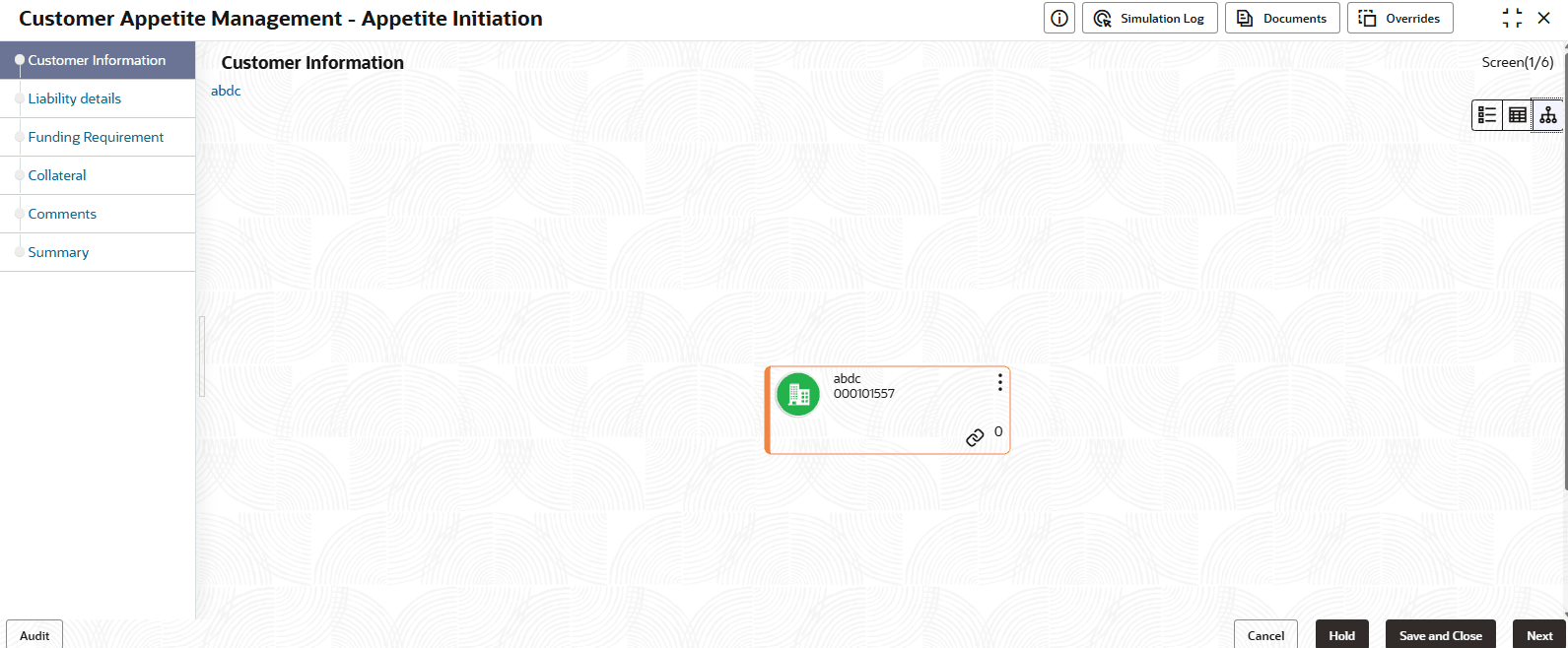
This data segment allows to view and modify the basic information captured during Appetite Management process initiation and add child parties to the party (organization).

Figure 3-7 Appetite Initiation - Customer Info
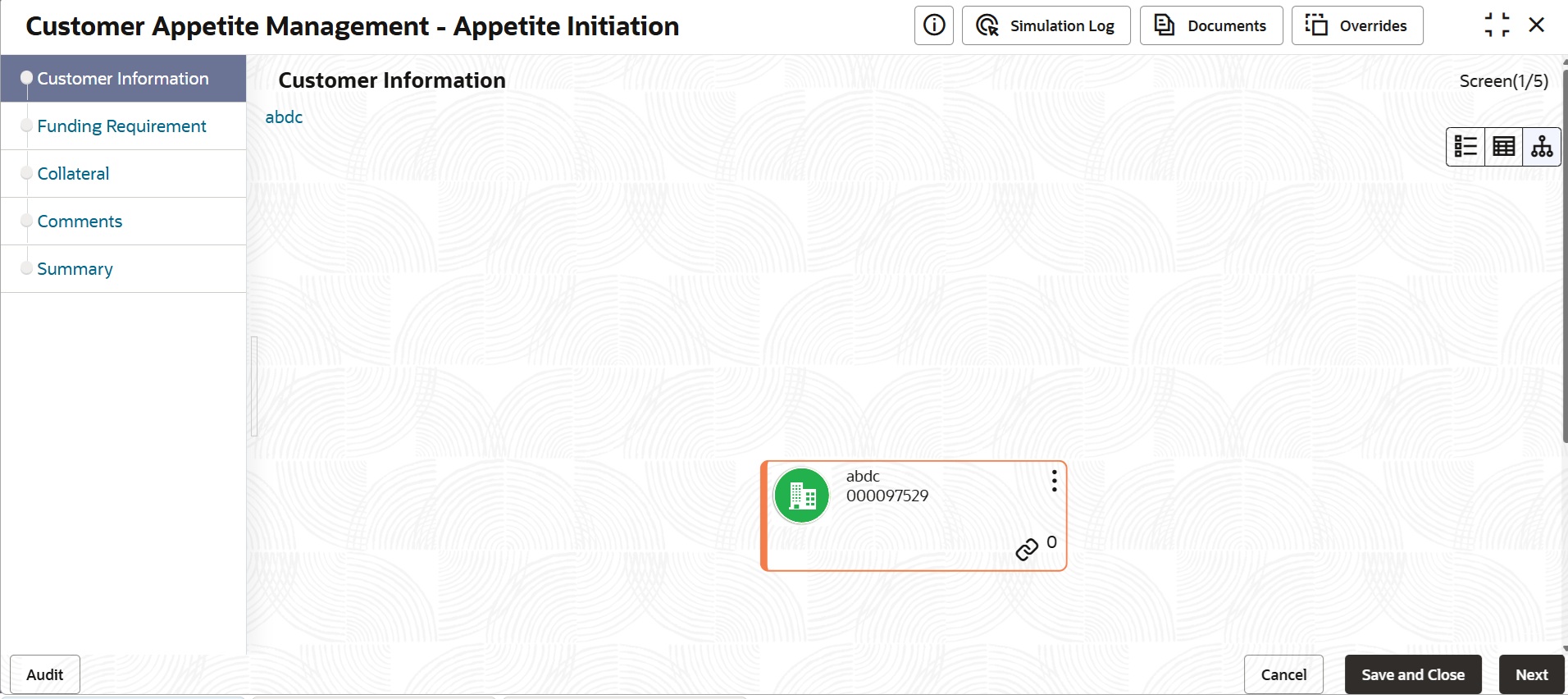
Description of Figure 3-7 follows
Description of "Figure 3-7 Appetite Initiation - Customer Info"

Mouse hovering on the organization icon displays the basic information about the organization.

  1. Right click on the organization icon to perform the following actions:
    • Add Customer
    • View
    • Quick View
    • Configure

    The following table describes the functionality of each actions listed above:

    Table 3-3 Appetite Initiation - Customer Info

    Fields Description
    Add Customer Displays the Customer Details window for adding customer of the organization
    View Displays the Customer Details window for viewing organization details
    Quick View Displays the View Entity Details window
    Configure Displays the Customer Details window for modifying organization details
  2. To add a customer (child party) of the organization (party), click Add Customer.
    The Customer Details window is displayed.
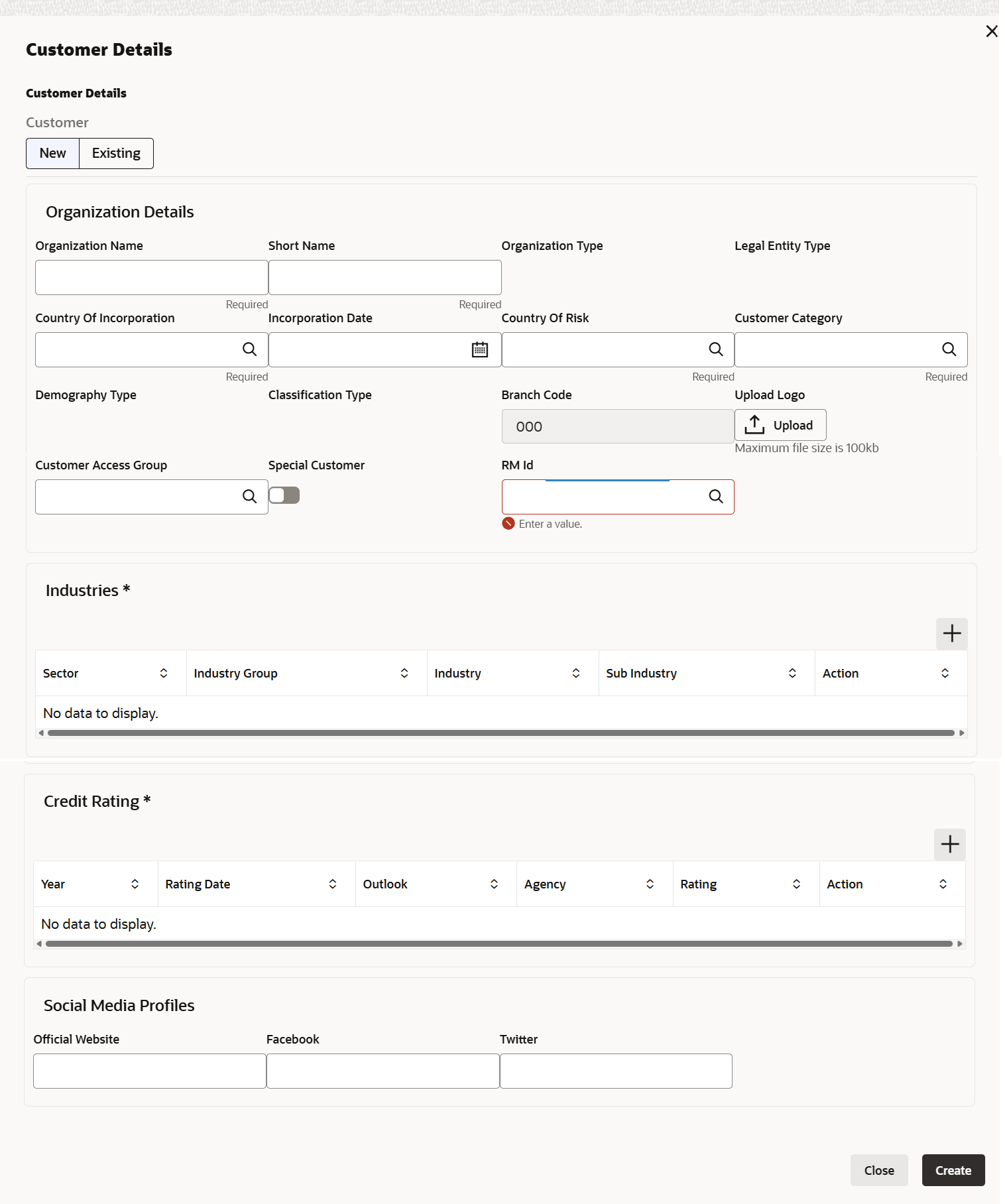
  3. Refer Initiation - Creating Application for information on adding customer.
    In the Customer Details window, the following additional fields / flags are available:
    • Country of incorporation
    • Incorporation date
    • Country of risk
    • Special customer
    • Join customer

    For field level information on Customer Details screen refer the below table.

    Table 3-4 Customer Details

    Fields Description
    Country of incorporation Specify the country in which the organization is incorporated in the Country of incorporation field.
    Incorporation date Click the calendar icon and select the Incorporation date of the organization.
    Country of risk In the Country of risk field, click and select the countries in which the organization is operating with risk.

In Other Details:

  1. Enable the Special customer flag, if the bank considers the organization as special customer
  2. Enable the Join customer flag, if the child party is party’s joint customer.

    By default, the system displays user ID of the logged in user in the RM Id field. You can change the RM Id by clicking the search icon and selecting the required Id.

    Note:

    After creating the customer, right click the customer icon to Add Customer for the customer, View the customer details, Quick View the customer details, Configure the customer information and Delete the customer if required.

    For join customers, Add Customer option does not appear on right clicking the customer icon.

    After clicking Create in the Customer Details window, the customer is added and displayed as shown below.

    Figure 3-9 Appetite Initiation - Customer Info


  3. To View, Quick view, and Configure the organization information, right click the organization icon and click the respective option.
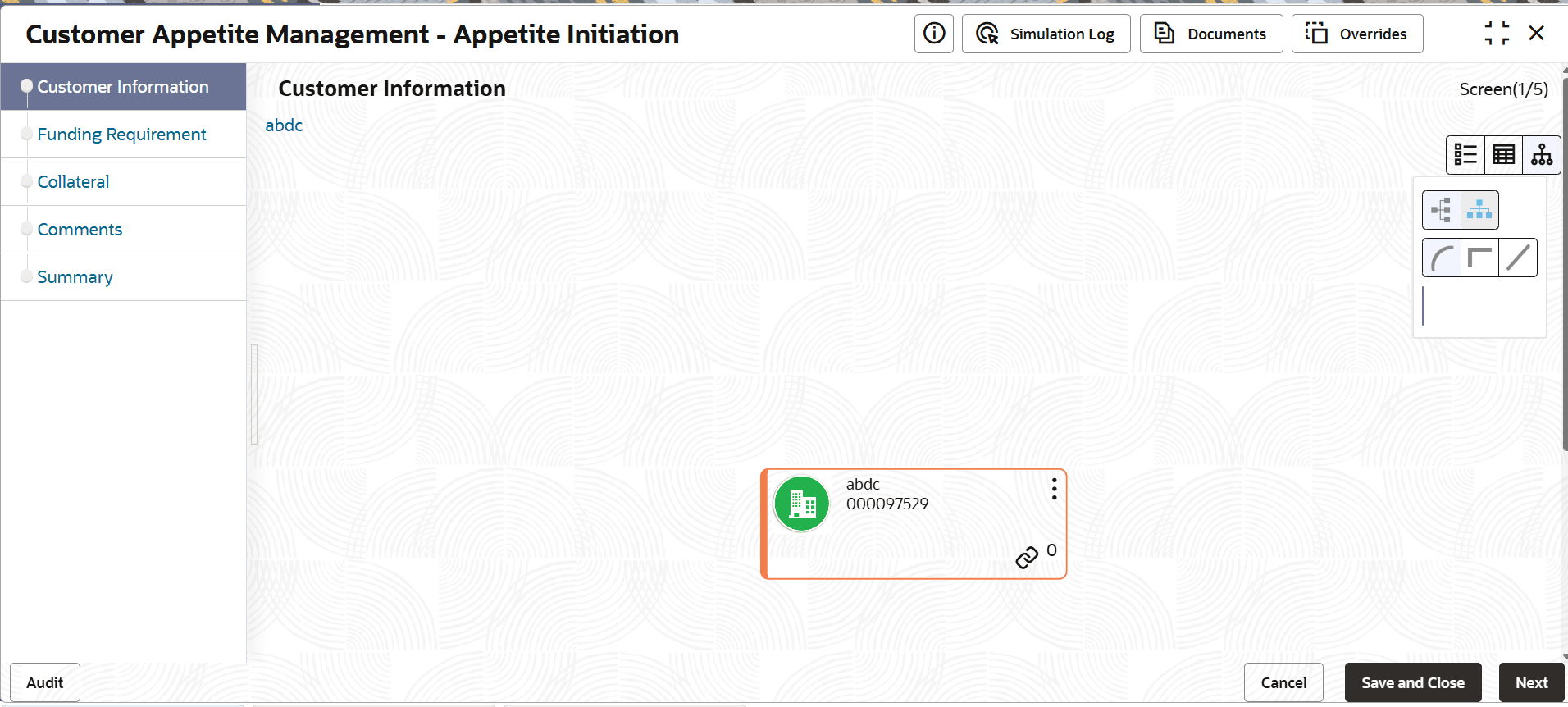
  4. To change the layout of tree view, click the settings icon at the right corner. Layout options appear as shown below:

    Figure 3-10 Appetite Initiation - Customer Info


  5. Click the required Layout and Links option. Layout changes based on the selected option.
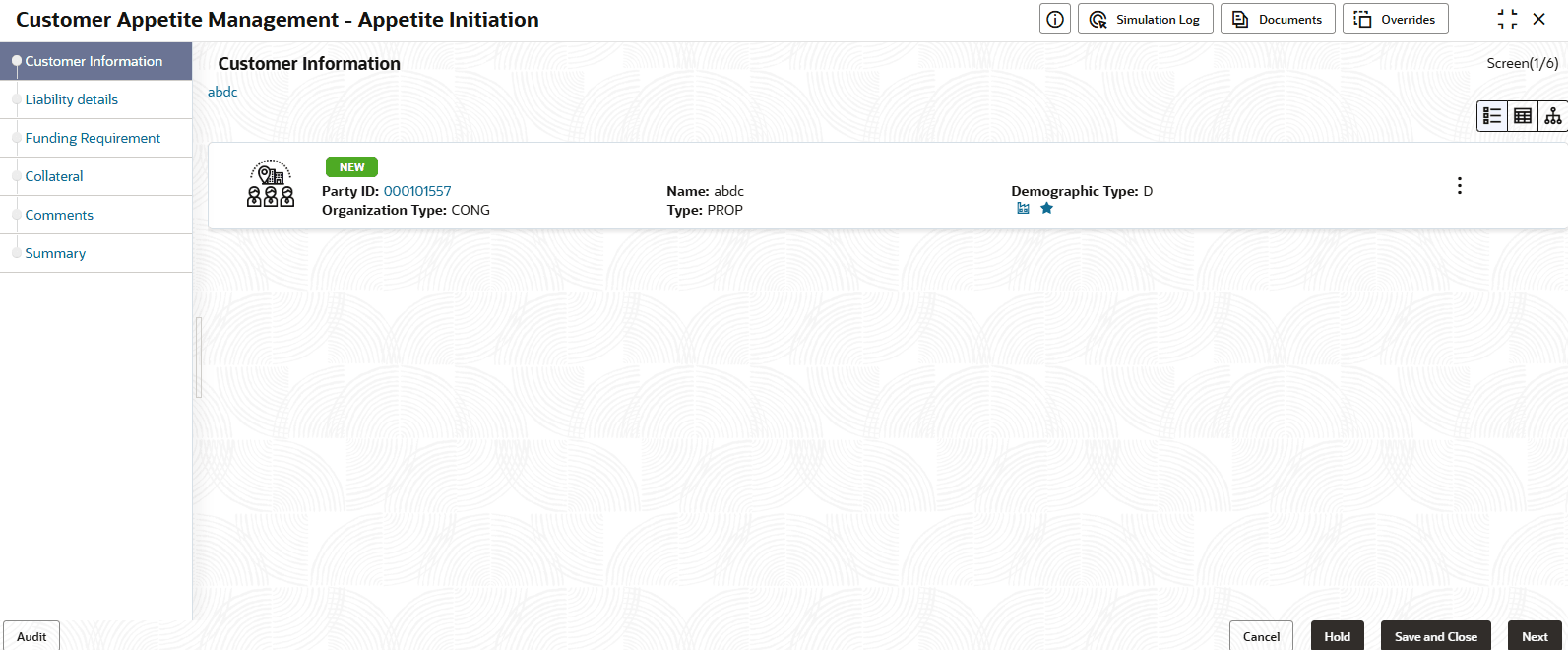
  6. To change the view of the Customer Info page to list view, click the List View icon at the top right corner. The view is changed as shown below:

    Figure 3-11 Appetite Intiation - Customer Info


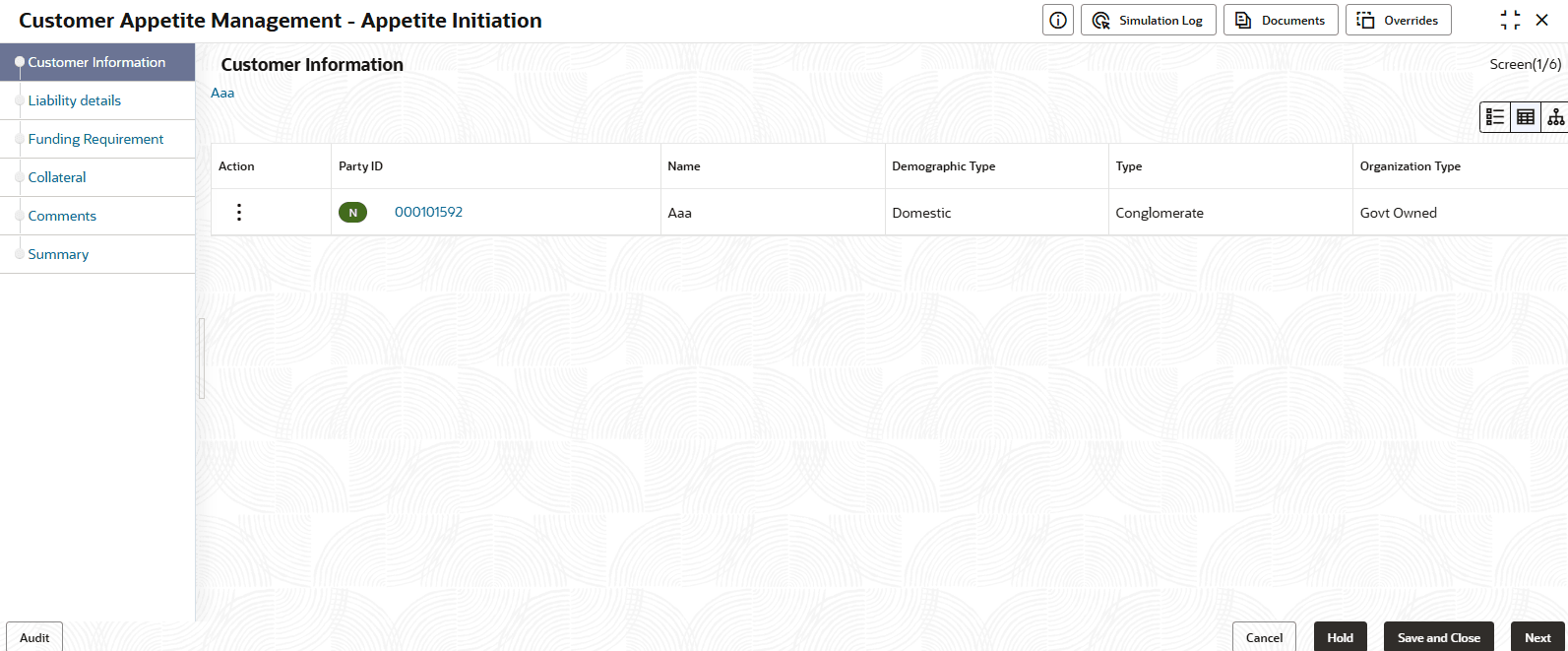
  7. To change the view of the Customer Info page to table view, click the Table View icon at the top right corner. The view is changed as shown below:

    Figure 3-12 Appetite Intiation - Customer Info


  8. To go to the next page, click Next.
    The Funding Requirement page is displayed.