3.1 Initiation - Creating Application
This topic provides systematic information about the Creating Application data segment in Appetite Management Initiation stage.
- To view the next questions in List View, use the right arrow next to the
progress bar.
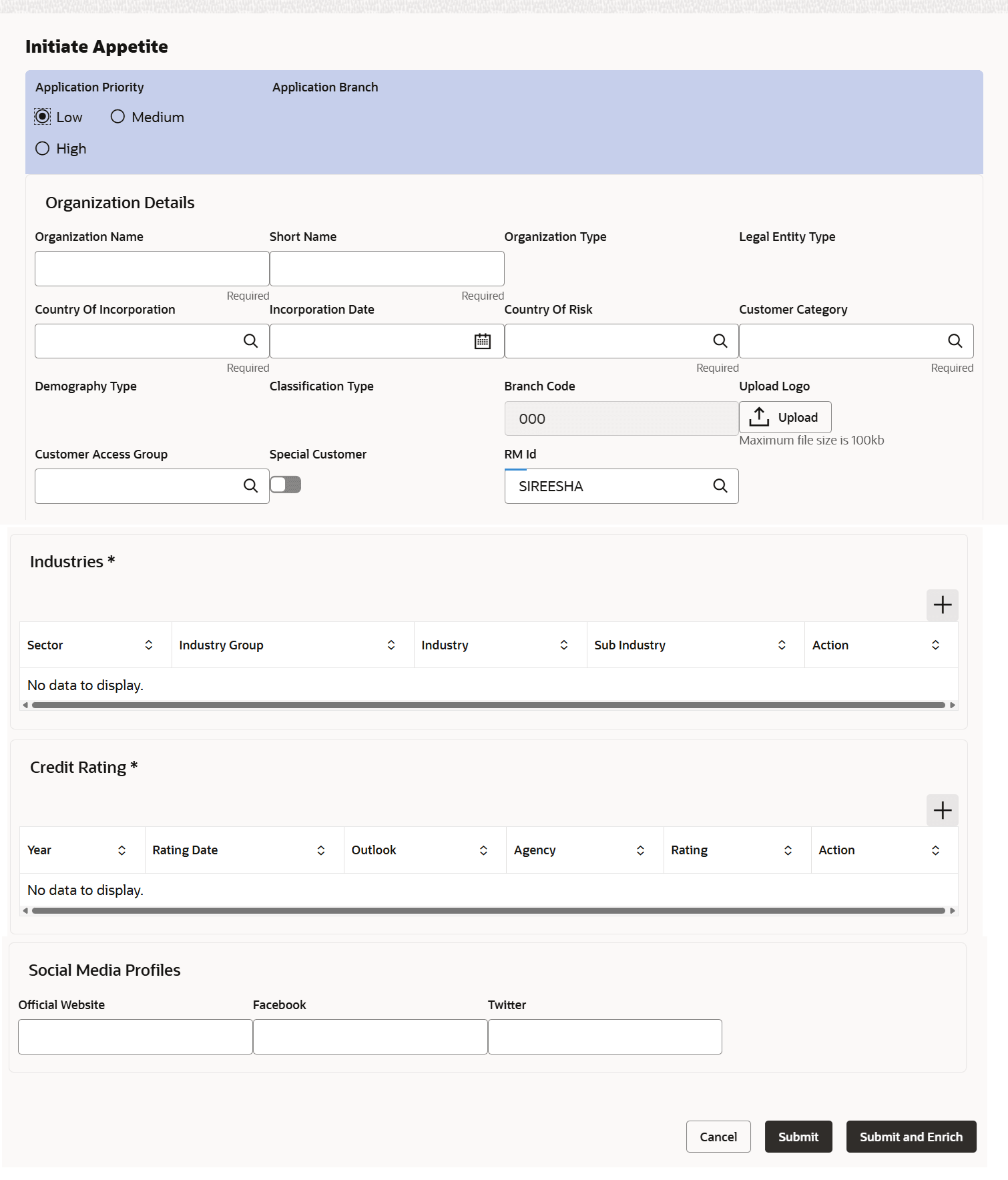
Upon clicking the Table View icon, the Initiate Appetite window is displayed as shown below:
For information on fields in the Initiation - Initiate Appetite screen, refer the below table.
Table 3-1 Initiation - Initiate Appetite
Fields Description Application Priority Select the Application Priority based on requirement. The options available are: Low, Medium, and High. Application Branch Click the search icon and select the Application Branch. Branches maintained in Common Core Maintenance module are displayed in LOV. Prospect Details Select the Prospect Details as Existing and then select the Customer ID, if appetite management is already performed for the party. Otherwise select New and provide the party details. Organization Name In the Organization Name field, type the name of party (organization) for which ‘Appetite Management’ process has to be initiated. Organization Type Select the Organization Type from the drop down list. The options available are: Single and Conglomerate. Entity Type Select the Entity Type from the drop down list. The options available are Proprietorship, Pvt Ltd, Public Ltd, Govt Owned, Trusts, Clubs, Society, Associations, Limited Liability Partnership, Foreign Bodies, NGO and Others. Demography Type Select the Demography Type from the drop down list. The options available are Domestic and Global. Geographical Spread Upon selecting Global option, Geographical Spread field appears. Search and select all the countries in which the organization is operating as Geographical Spread.
Customer Sector
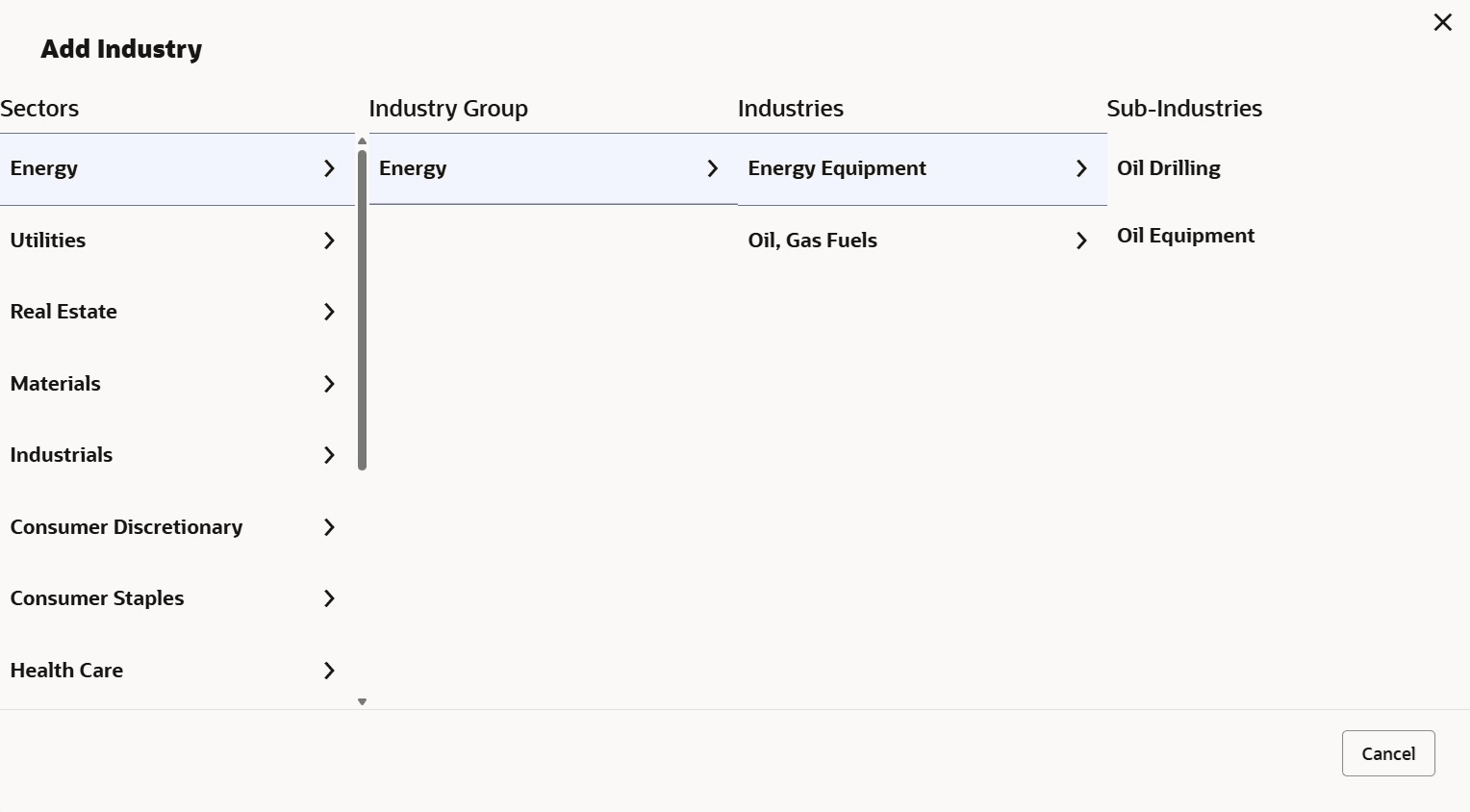
- To capture industry details of the organization, click +Add
sector.The Add Industry window is displayed.
For information on fields in the Initiation - Add Industry screen, refer the below table.
Table 3-2 Add Industry
Fields/Icons Description Industry Groups Select a sector of the organization. Available Industry Groups appear. Industries Select the Industry Group of the organization. Available Industries appear. Sub-Industries Select the Industry of the organization. Available Sub-Industries appear. - Select the sub-industry of the organization. The Industry details are
added and displayed as shown below:

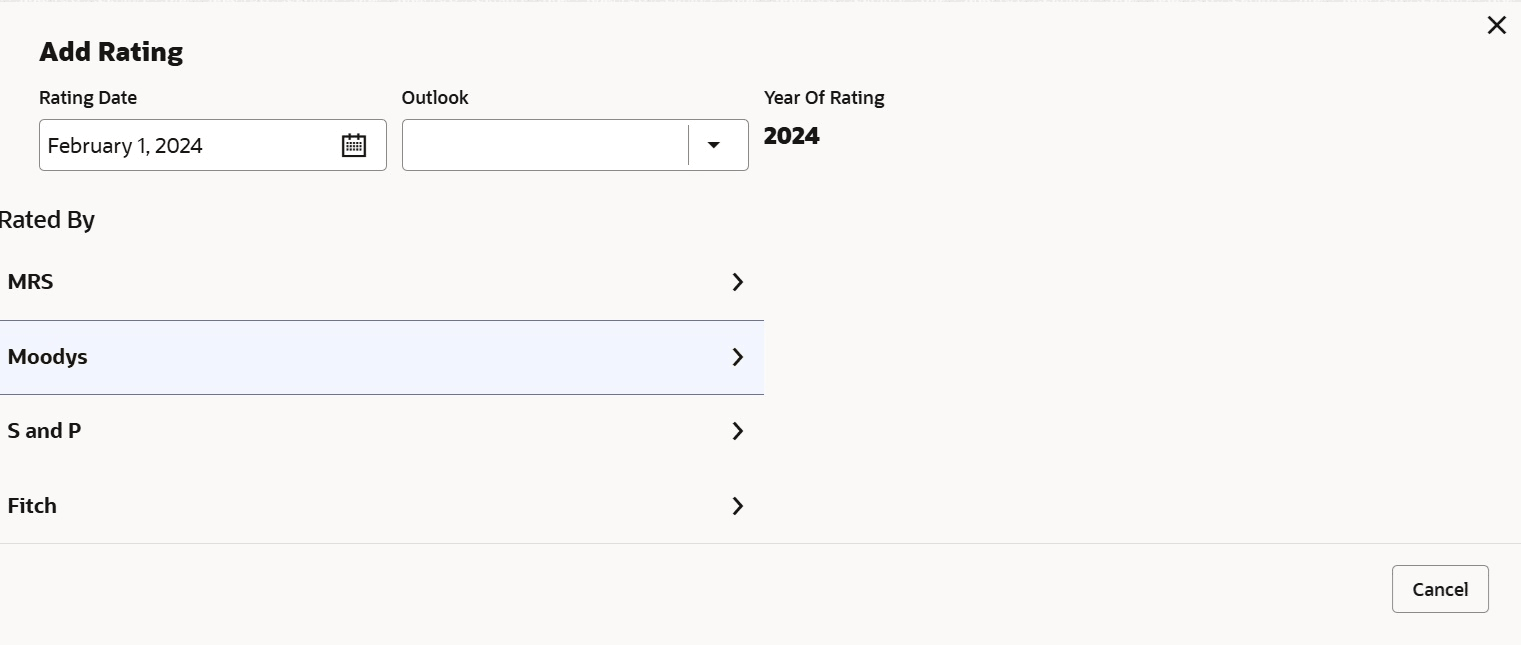
Customer Rating
- To capture rating information of the organization, click +Add
ratings.The Add Rating window is displayed.
- Select the following details:
- Rating Date
- Outlook
- Risk Ratings
- Rated By
The Year Of Rating is automatically populated based on the selected Rating Date.
Upon selection of the above details, the rating is added and displayed as shown below: