6.5 Deal Structure - Covenants

Detailed information about the Covenants data segment in Appetite Management Deal Structure stage.
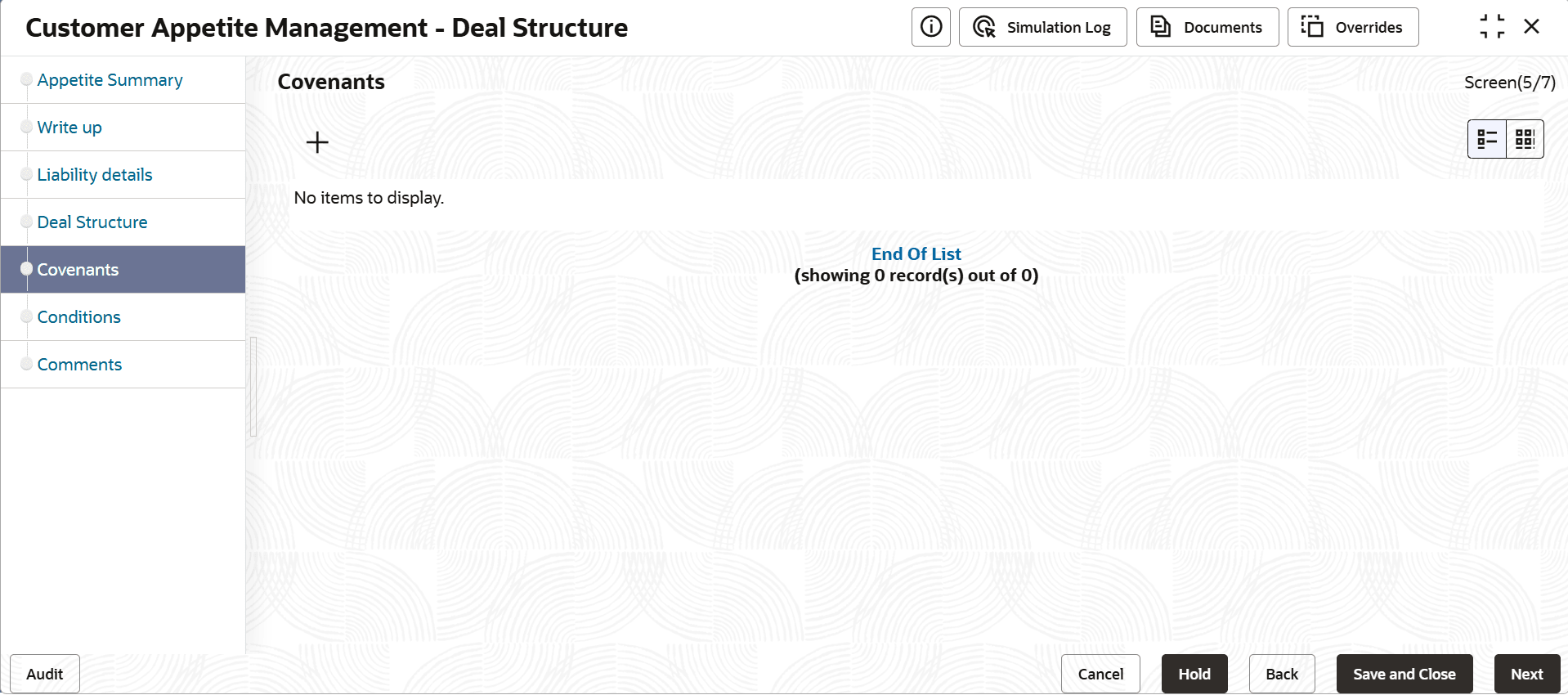
Figure 6-6 Deal Structure - Covenants


  1. Click the add icon.
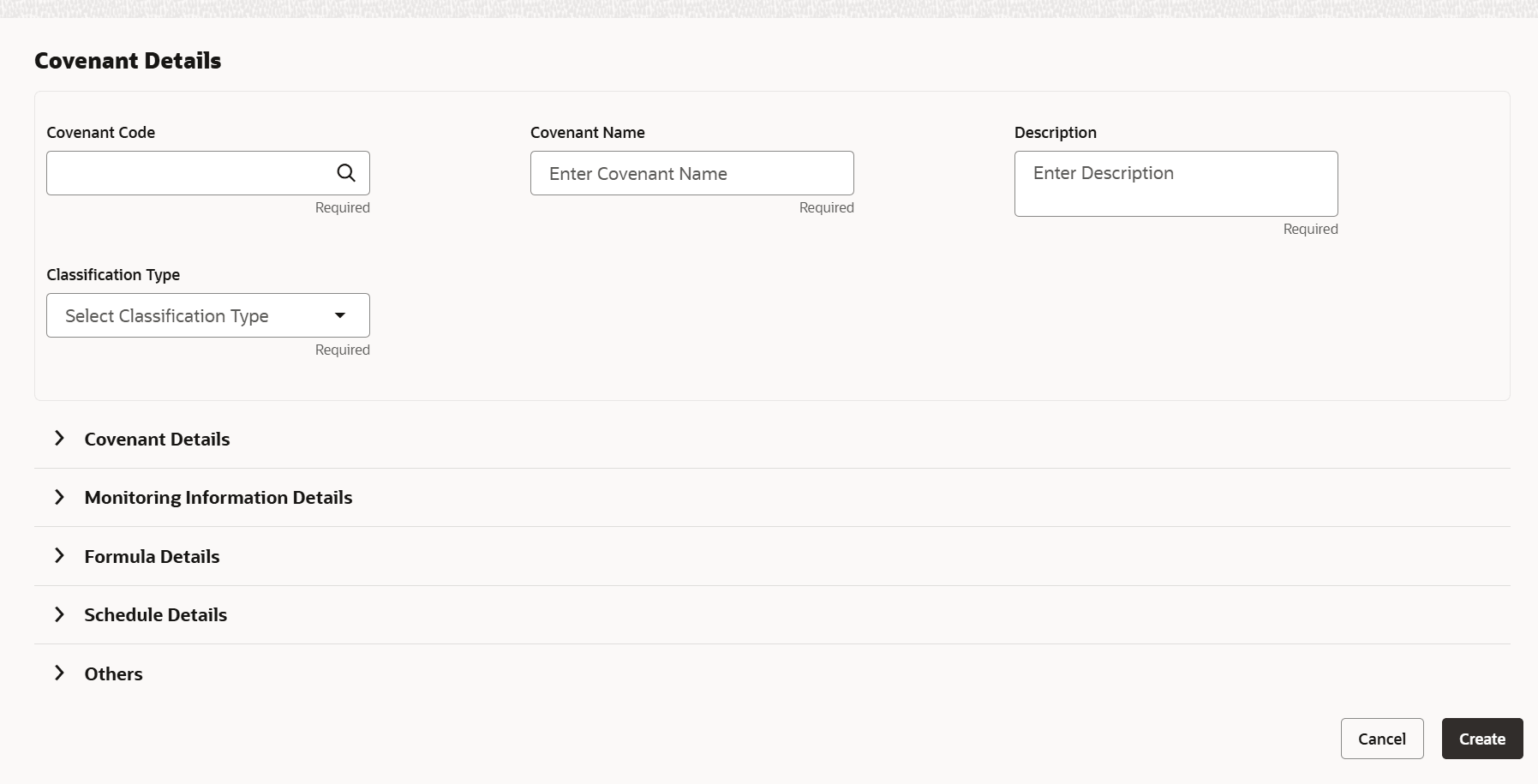
    The Covenant Details window is displayed.
  2. To link existing covenant, click the search icon and select the Covenant code. Covenant name, Covenant description and Classification type are automatically populated.
  3. To link existing covenant, click the search icon and select the Covenant code. Covenant name, Covenant description and Classification type are automatically populated.
  4. Click and expand the Covenant details section.

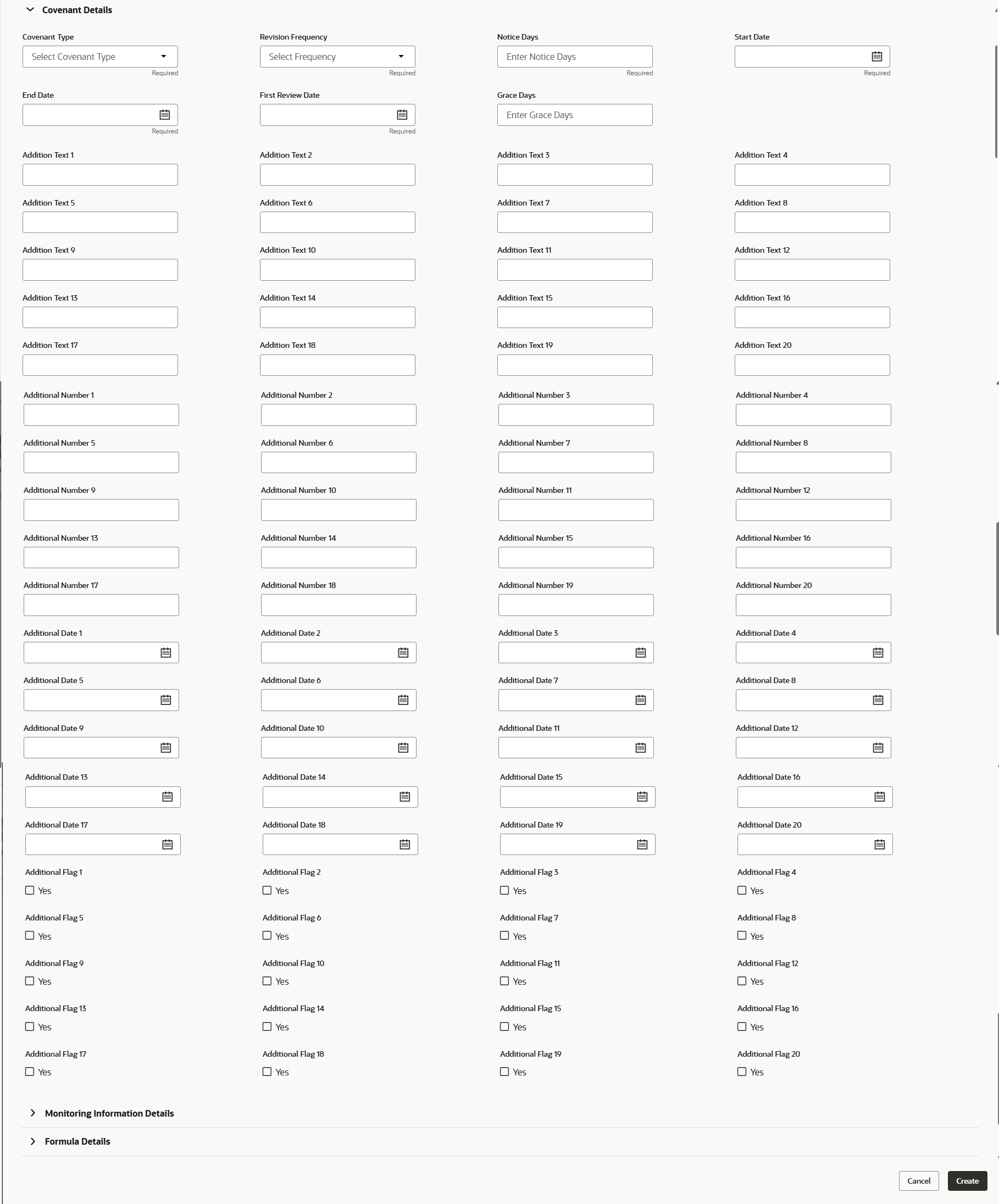
    For process Covenant Details, user can set up extra placeholder fields in the Maintenance screen. For more information on managing these placeholders, refer to the Maintenance User Manual.

    The system supports configuration of up to 20 fields each for the following data types:
    • Text
    • Numeric
    • Boolean
    • Date

    Each field type allows a minimum of 0 and a maximum of 20 fields per Covenant details, based on the requirements. These fields displays in the Covenant Details screen only if they are configured. If no additional fields are defined, the screen will display only the standard covenant details fields.

    For example, we maintained 20 additional fields each for text, numeric, boolean, and date.

    The Covenant Details screen displays.
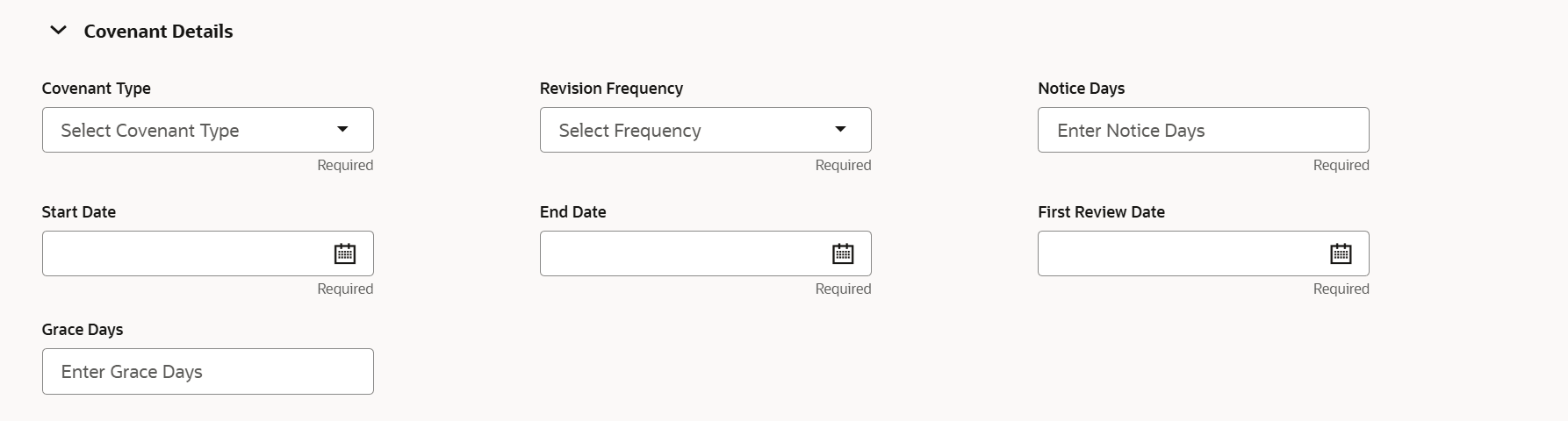
  5. Select / type the following in respective fields:
    • Covenant type
    • Covenant Sub Type
    • Notice Days
    • Revision Frequency
    • Revision Days
    • Start Date
    • End Date
    • Formula
    • Target Type
    • Covenant Check Condition
    • Target Value

    Note:

    Covenant details such as Covenant type, Covenant Sub Type, Revision Frequency, Revision days, Formula, Target Type, and Target Value are automatically populated based on the selected covenant.
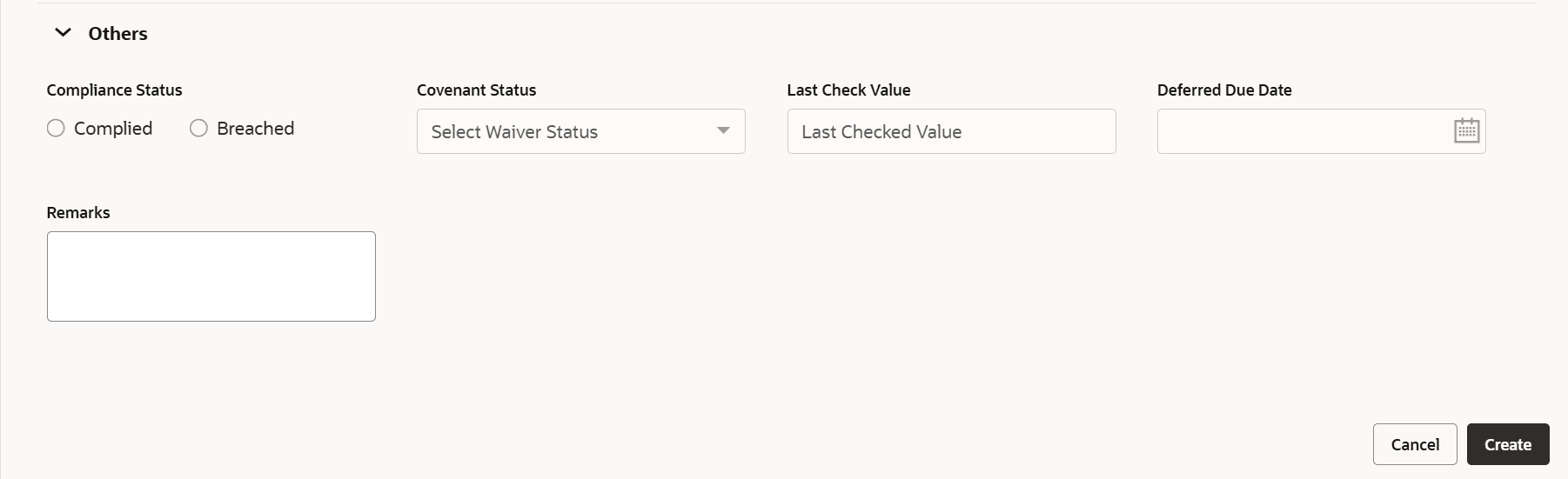
  6. Click and expand the Others section.
  7. Select the Compliance Status and Waiver Status.
  8. Enter the Last Check Value.
  9. Click the calendar icon and select the Deferred due date.
  10. To capture the monitoring information for the covenant, click and expand the Monitoring Information Details section.

    Figure 6-11 Monitoring Information Details


  11. Select the monitoring information.
  12. Click Save. Covenant details are added.

    Note:

    To filter the required information, click the filter icon and provide the filter parameters or directly type first three characters of the parameter in Type to filter text box.

    To view, edit, or delete a list item, click the hamburger icon in the required list item and select the required option.

    To change the list view to chart view, click the Chart view icon.