6.6 Deal Structure - Terms and Conditions
Detailed information about the Terms and Conditions data segment in Appetite Management Deal Structure stage.
In the Conditions tab, you can add the terms and conditions to be associated with the facilities
Figure 6-12 Deal Structure - Terms and Conditions
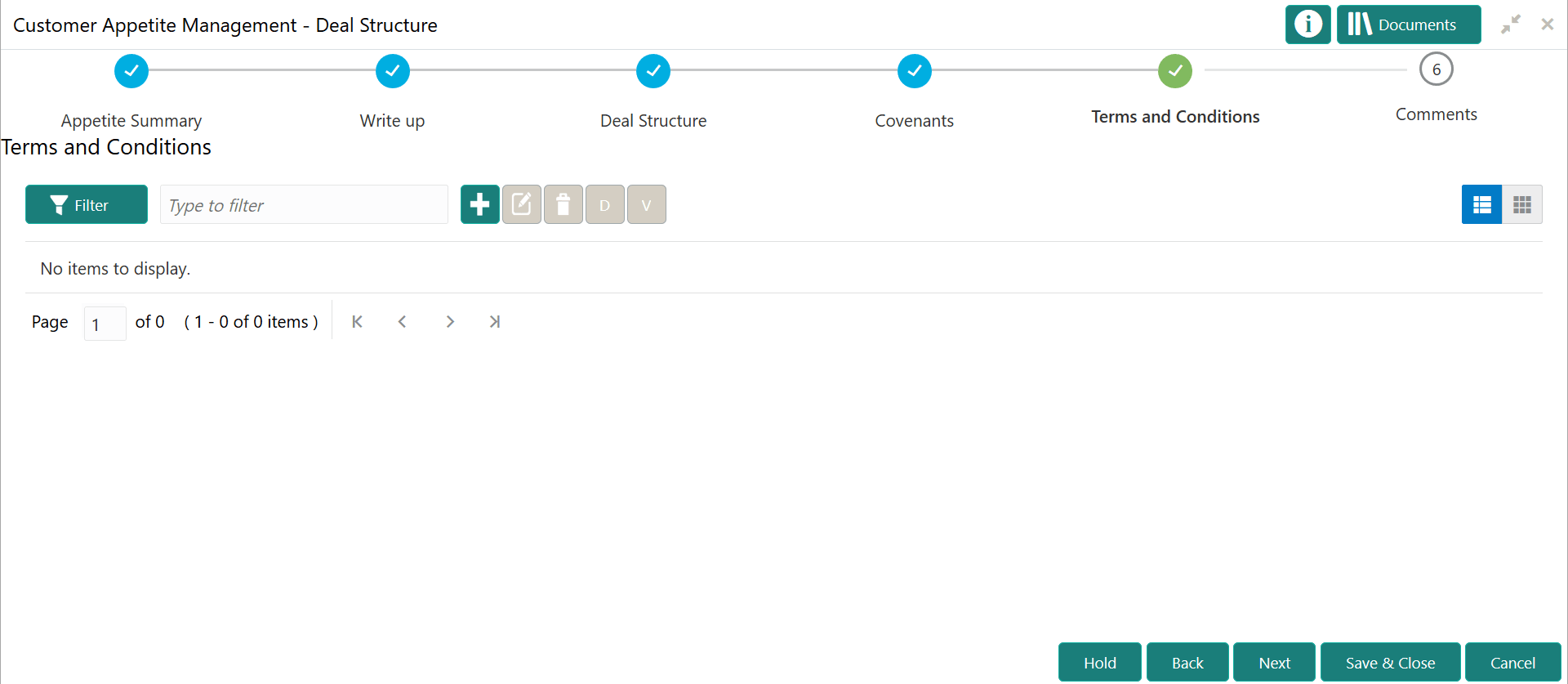
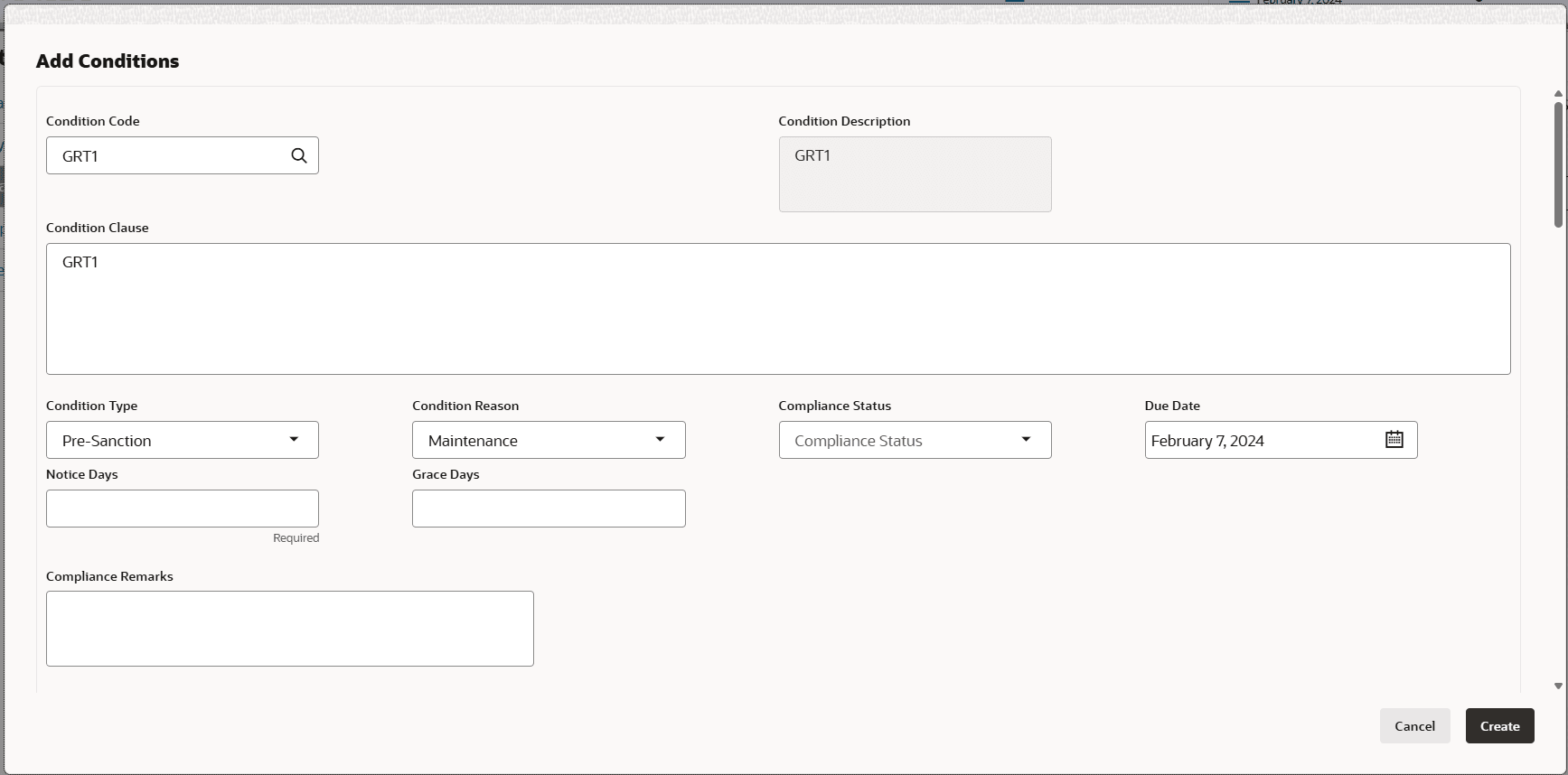
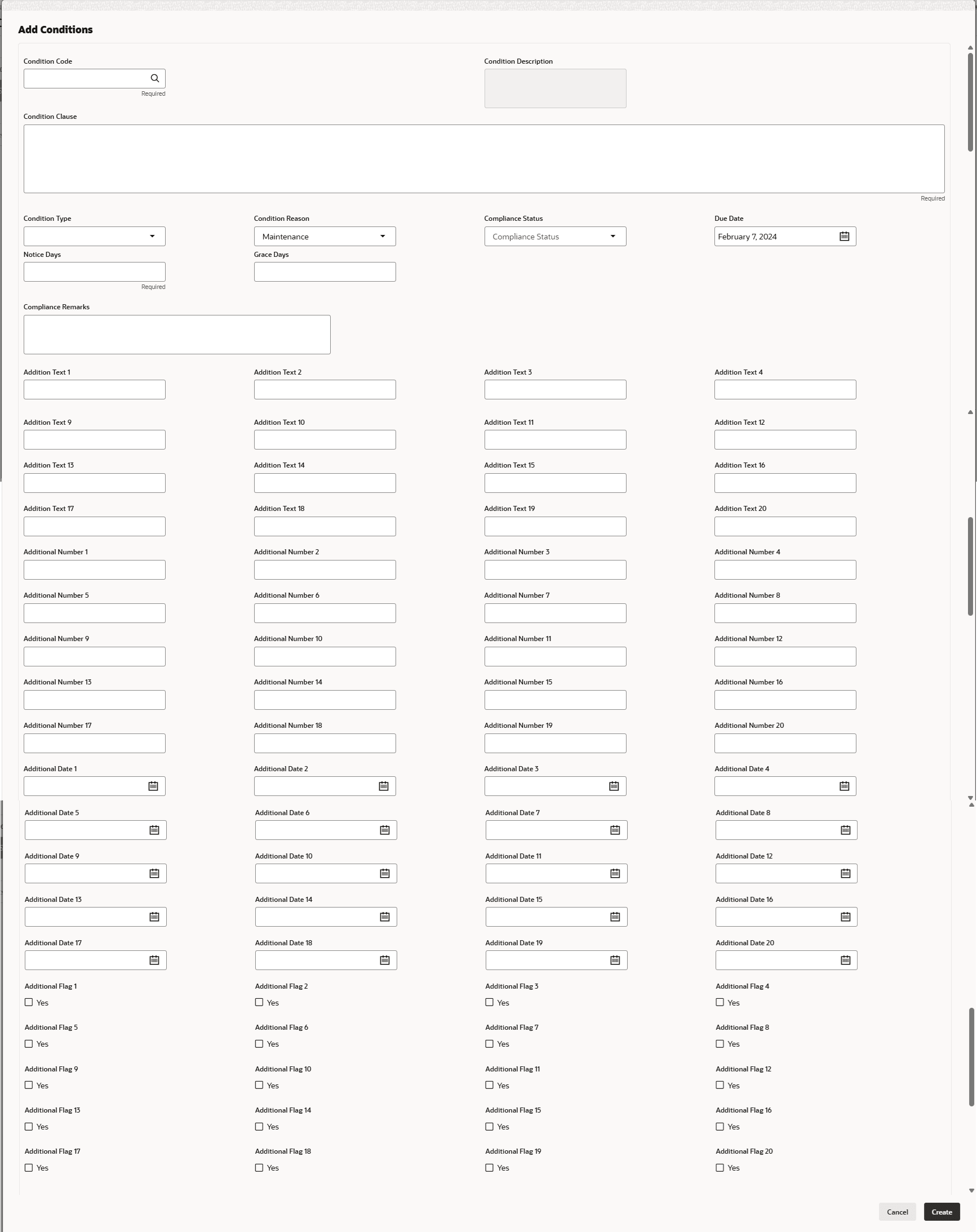
- Click Add icon.The Add Conditions window is displayed.For process Conditions Details, user can set up extra placeholder fields in the Maintenance screen. For more information on managing these placeholders, refer to the Maintenance User Manual. The system supports configuration of up to 20 fields each for the following data types:
- Text
- Numeric
- Boolean
- Date
Each field type allows a minimum of 0 and a maximum of 20 fields per Conditions details, based on the requirements. These fields displays in the Conditions Details screen only if they are configured. If no additional fields are defined, the screen will display only the standard Conditions details fields. For example, we maintained 20 additional fields each for text, numeric, boolean, and date.
The Add Conditions screen displays.For more information onf fields, refer to the field description table below.Table 6-1 Add Conditions
Fields/ Icons Description Conditions Code Search and Select Conditions Code. Conditions Description and Conditions are defaulted based on the selected Conditions code. Conditions Description Display the Conditions description. The Conditions description will be defaulted from Conditions maintenance based on the selected Conditions Code and cannot be modified. Conditions Clause Specify the Conditions clause. This field defaulted based on the selected Conditions code. The user can input up to 250 characters. Notice Days Specify the number of notice days are the number of days before the Due date of a Conditions for the Conditions tracking. Grace Days Specify the grace days. The user must update the compliance status within grace days after the due date. If not complied, the status will be marked as breached and the compliance date will be updated to the current date during the end-of-day process using the batch “tncTrackingOverdueBreachJob”. Conditions Type Click Create. Conditions are linked to the party and displayed in the Conditions tab. Cancel Conditions Type is defaulted based on selected Conditions code. The options available are: • Pre-disbursement
• Post-disbursement
• Pre-SanctionCompliance Status Select Compliance Status from drop-down list. The options available are:
• Met
• BreachedDue Date Select the due date. Compliance Remarks Enter Compliance Remarks, if required. Customer Linkage Customer Linkage details are displayed by default based on selected Conditions code. Create Click Create. Conditions are linked to the party and displayed in the Conditions tab. Cancel Click the Cancel to cancel and exist the screen. Note:
In case of linking the conditions with customer prospect, click the add icon in the Conditions data segment and perform the above steps. Instead of selecting facility from facility table, enable the Customer Linkage flag