9 Amendment Approval
This topic provides systematic instructons about the Amendment Approval of the Credit Amendment.
In this stage, members of the approving authority team review the application in its entirety, evaluate the recommendations given by the business and credit teams, and then finally make a judgment on the amendment proposed. The approving authority may refer the proposal back to the previous stages for any modification or reject the amendment proposal. If all the conditions are satisfied, the proposal is approved.
The following table provides a high level overview about the Amendment Approval stage.
| Information Available for User | Activities that can be performed by user |
|---|---|
|
|
To approve the amendment proposal, perform the following steps:
- On Home screen, select Tasks,
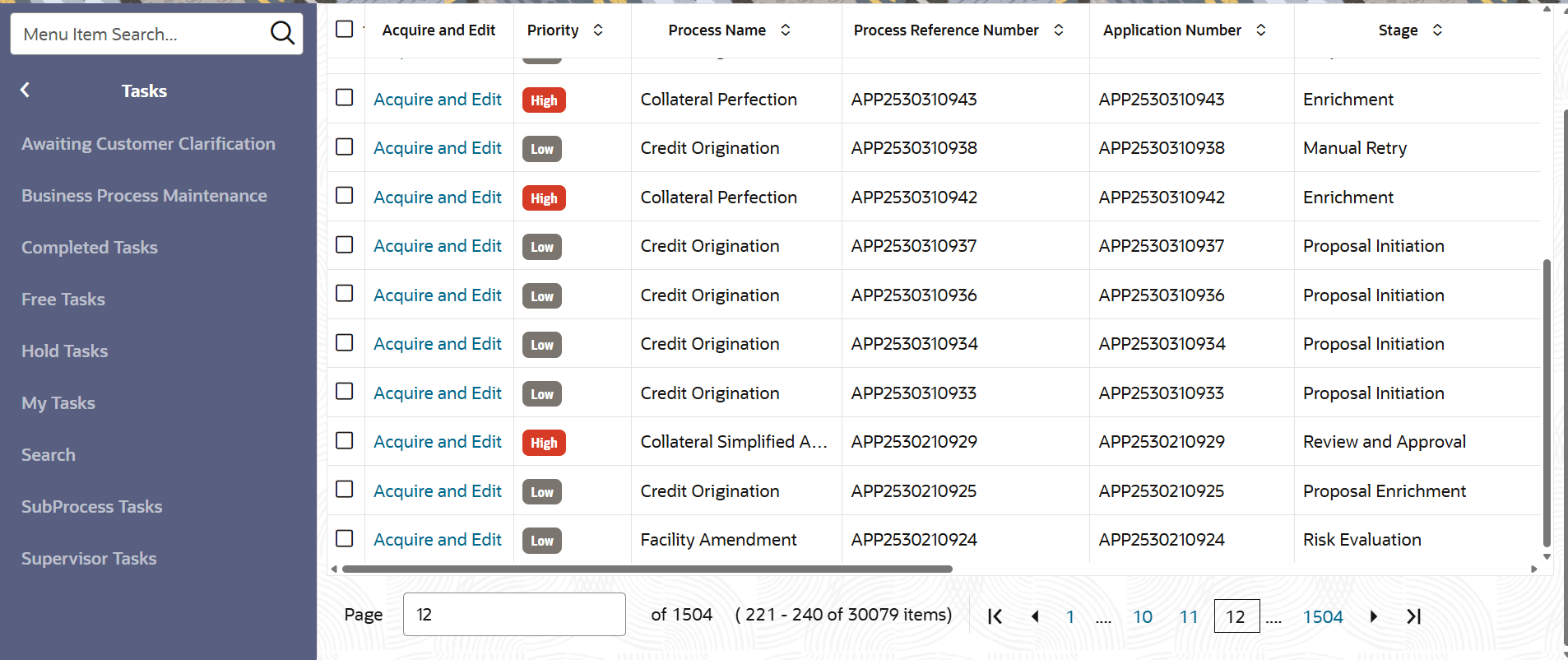
under Tasks, select Free Task.The Free Tasks page is displayed.
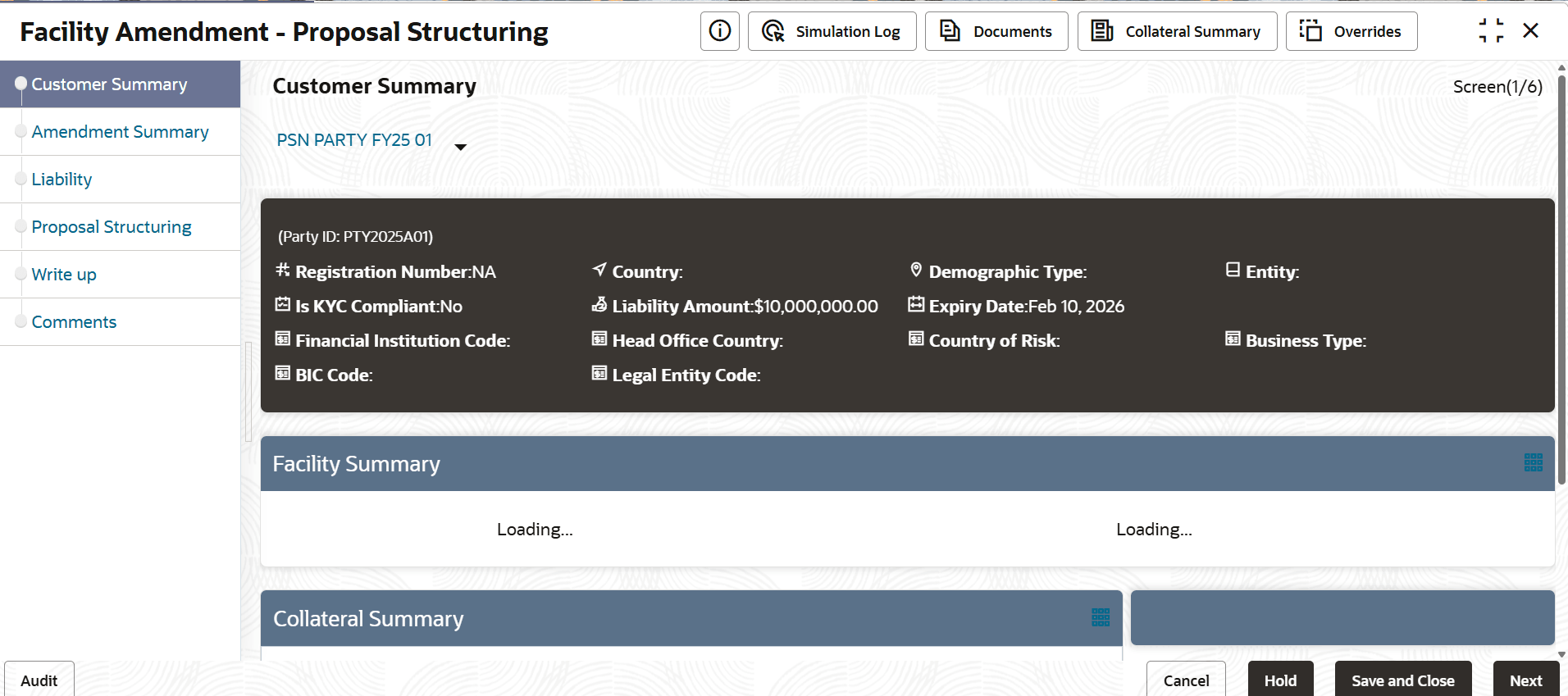
- Click Acquire & Edit the required Amendment Approval task.The Proposal Approval - Customer Summary page appears.
Note:
For information on actions that can be performed in Proposal Approval - Customer Summary page, refer Customer Summary section in Amendment Structuring chapter. - Upon clicking Next in the Customer Summary page. The Amendment Summary
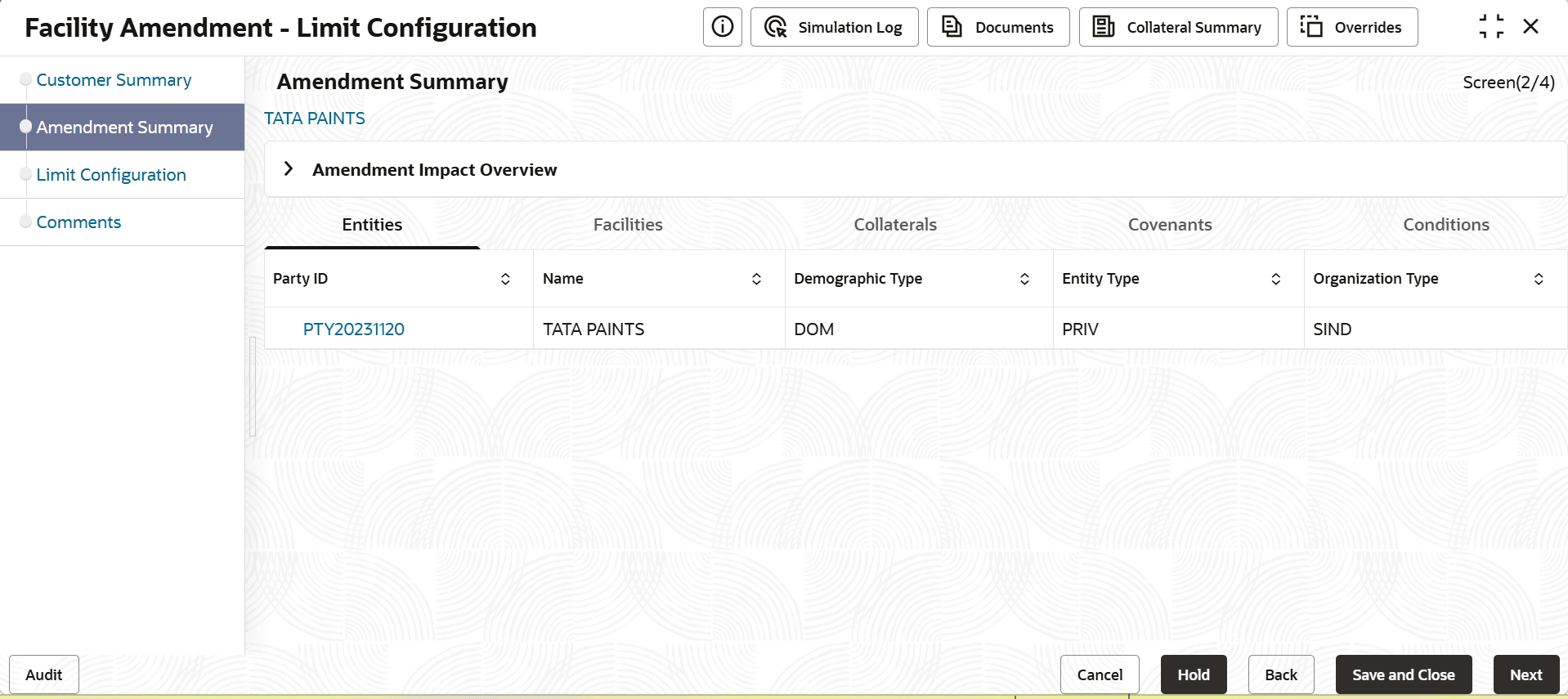
page is displayed.
Note:
For information on actions that can be performed in the Amendment Summary page, refer unresolvable-reference.html#T_AMENDMENT_SUMMARY123. - Upon clicking Next in the Amendment Summary page. The
Approval page is displayed.
Figure 9-4 Approval
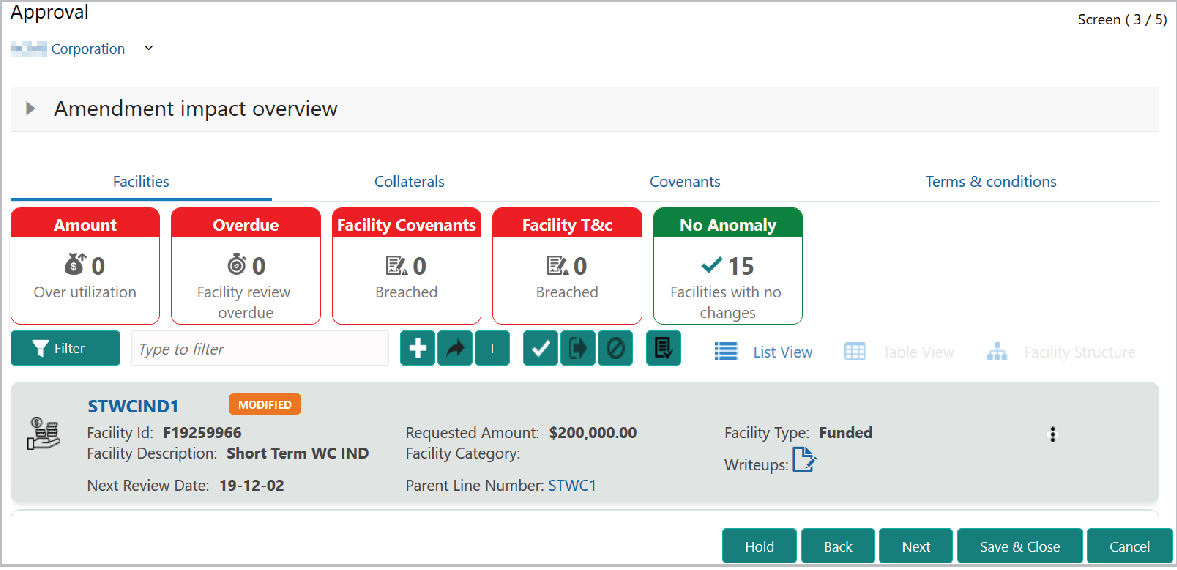
For information on fields in the Approval page, refer the below table.
Table 9-1 Approval
Fields Description Amendment impact overview To view the Amendment impact overview, click and expand the corresponding section. Filter To filter the facility, click the Filter button and provide the filter parameters. (Or) directly type first 3 letters of the filter parameter in Type to filter text box. Note:
For information on modifying existing facility or creating new facility, refer unresolvable-reference.html#T_FACILITIES - To approve the facility, click on the facility and select the Approve
Facility icon (tick icon).The Approve Facility window is displayed.
Figure 9-5 Approve Facility
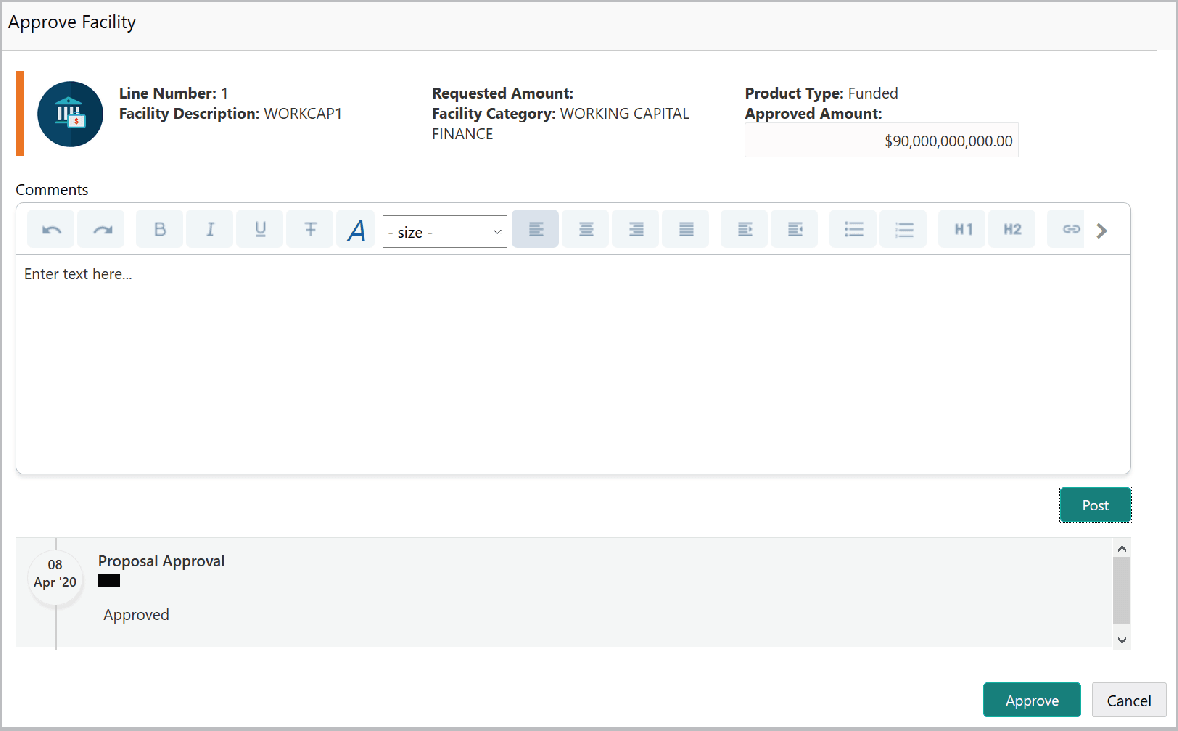
For information on fields in the Approve Facility page, refer the below table.
Table 9-2 Approve Facility
Fields Description Approve Post the Comments for the facility and click Approve. Cancel To cancel the operation, click Cancel. Send Facility Back For More Info To request additional information for the facility, select the facility and click the Send Facility Back For More Info icon (icon next to the tick icon). Reject Facility To reject the facility, select the facility and click the Reject Facility icon. Note:
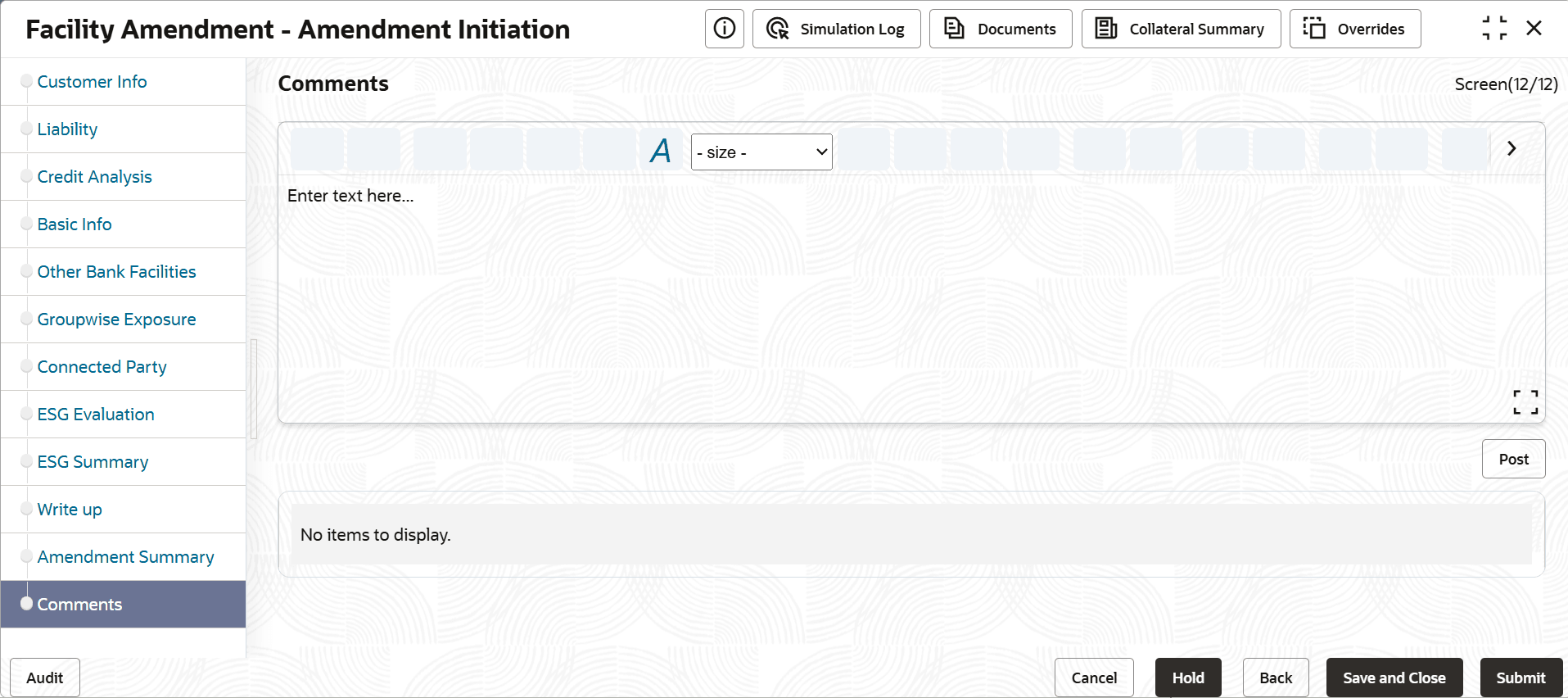
For information on actions that can be performed in the Covenants, Collaterals, and Terms & Conditions tab, refer unresolvable-reference.html#T_PROPOSAL_STRUCTURING. - To go to the Comments page, click Next in the Approval page.
For information on fields in the Comments page, refer the below table.
Table 9-3 Comments
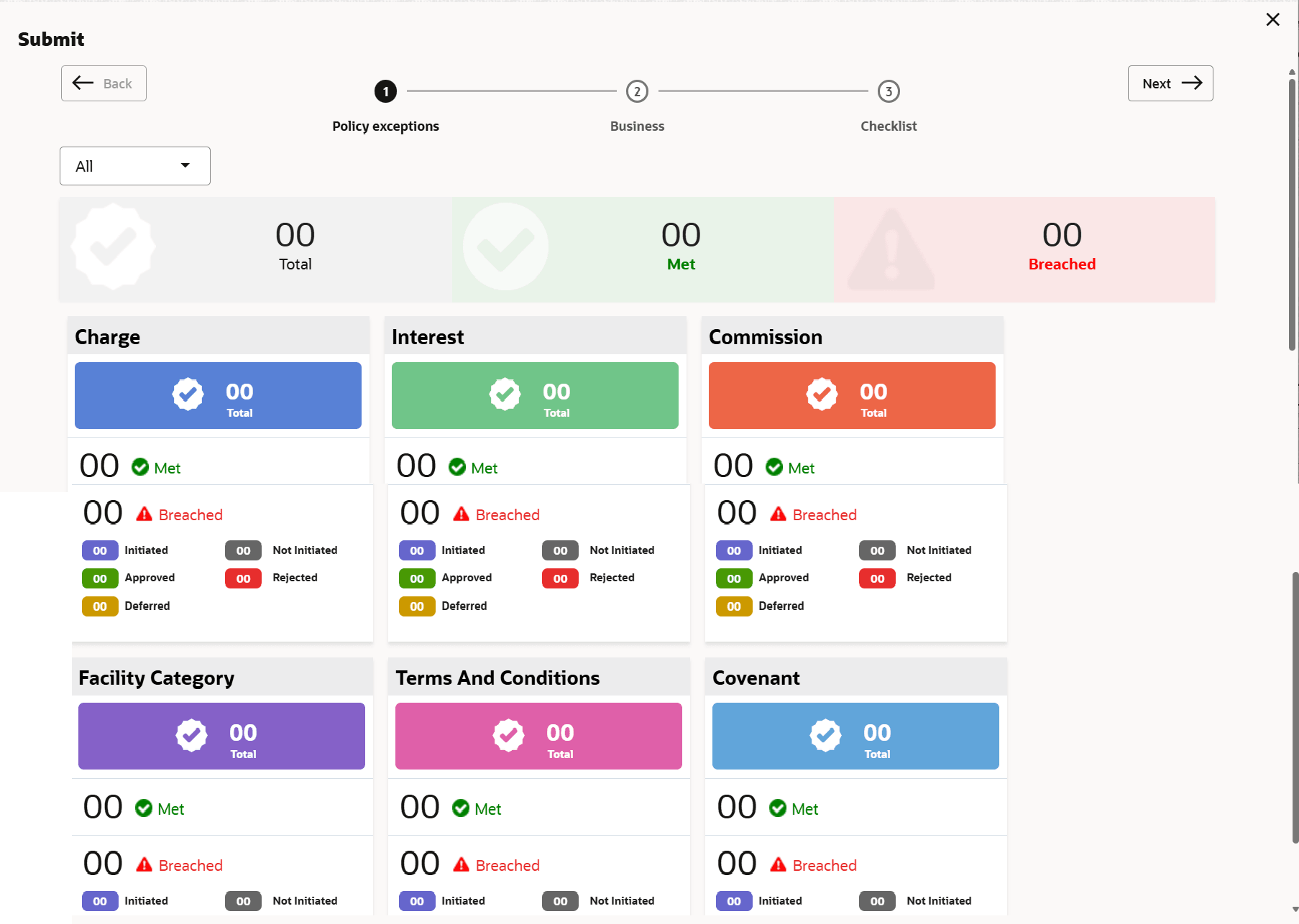
Fields Description Post Post the Comments for the overall approval process. Hold To exit the page without saving the information, click Hold. Back To go back to the previous page, click Back. Save & Close To save and exit the page, click Save & Close. Submit To go to the Next stage, click Submit. Cancel To cancel the operation, click Cancel. - Upon clicking Submit.The Policy exceptions window is displayed.
By default, policy exceptions are displayed for both the party and the child parties.
- Click the Checklist data segment.
For information on fields in the Checklist page, refer the below table.
Table 9-4 Checklist
Fields Description Outcome Select the Outcome as PROCEED, if additional information is not required. Otherwise select the Outcome as Additional Info. Submit Click Submit. If the Outcome is selected as Proceed, the amendment proposal is moved to the Draft Generation stage.
If the Outcome is selected as Additional Info, the amendment proposal is moved to the Amendment Enrichment stage.
Note:
Write Up data segment appears, if the data segment is enabled in the Maintenance module. For information on Write up data segment, refer Amendment Initiation chapter.