10 Draft Generation
This topic provides systematic instructions about the Draft Generation of the Credit Amendment.
In this stage, the user generates the required documentation finalizing the amendment proposal and sends to the customer for his review/acceptance.
The following table provides a high level overview about the Draft Generation stage.
| Information Available for User | Activities that can be performed by user |
|---|---|
|
|
To generate draft for the amendment proposal, perform the following steps:
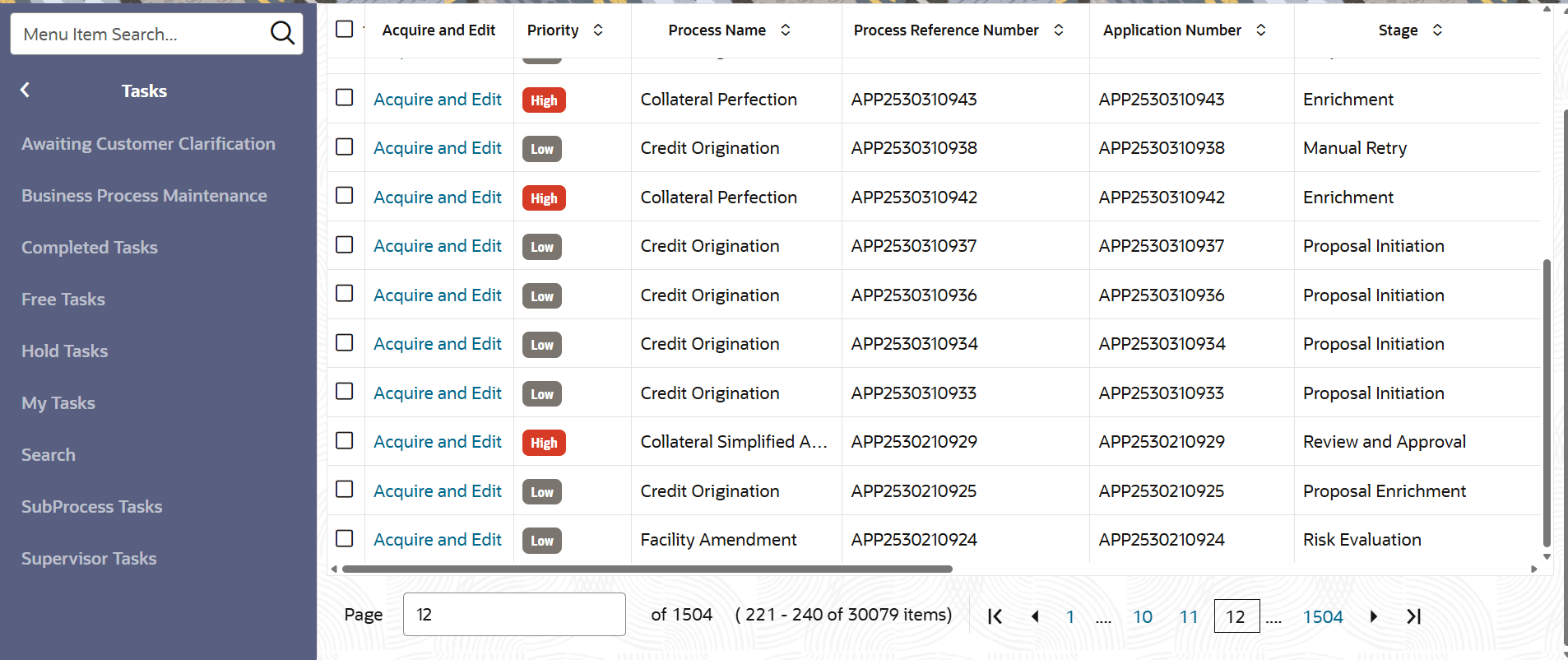
- On Home screen, select Tasks. Under
Tasks, select Free
Tasks.The Free Task page is displayed.
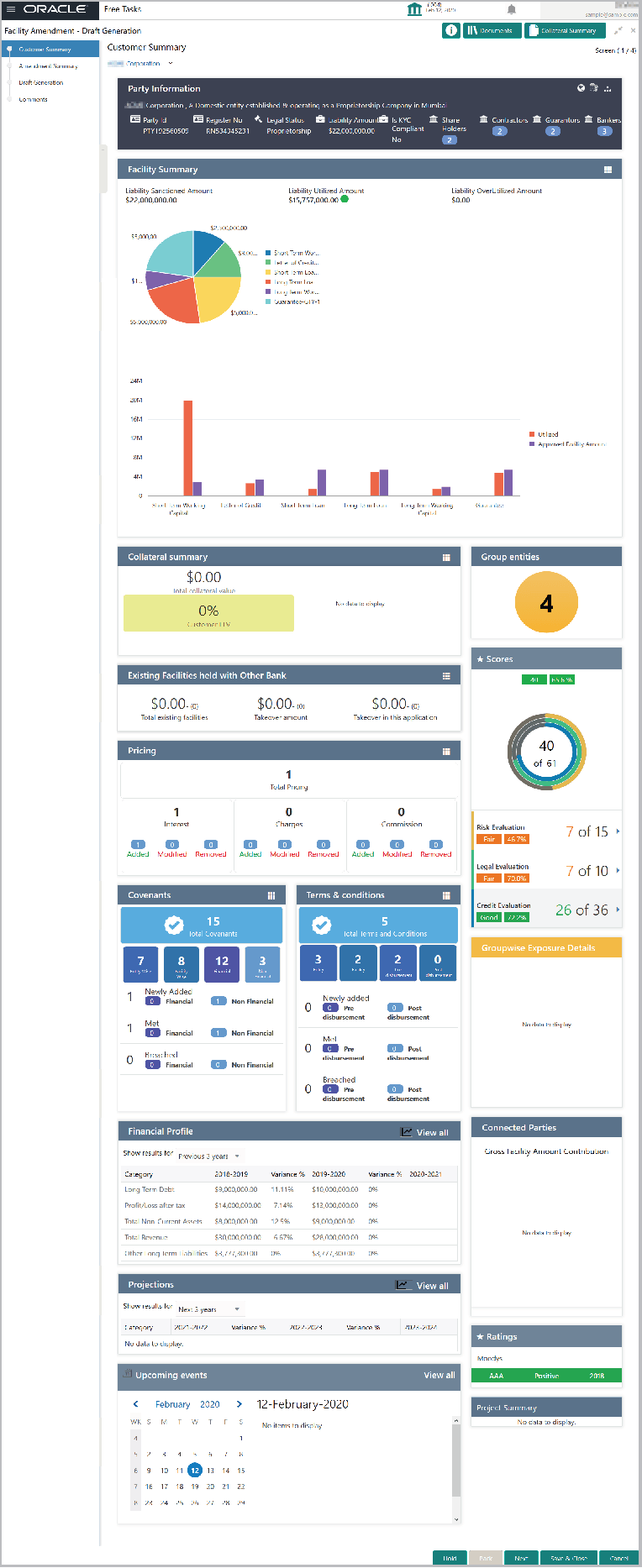
- Click Acquire & Edit the required draft generation task.The Draft Generation - Customer Summary page is displayed.
Figure 10-2 Draft Generation - Customer Summary
Note:
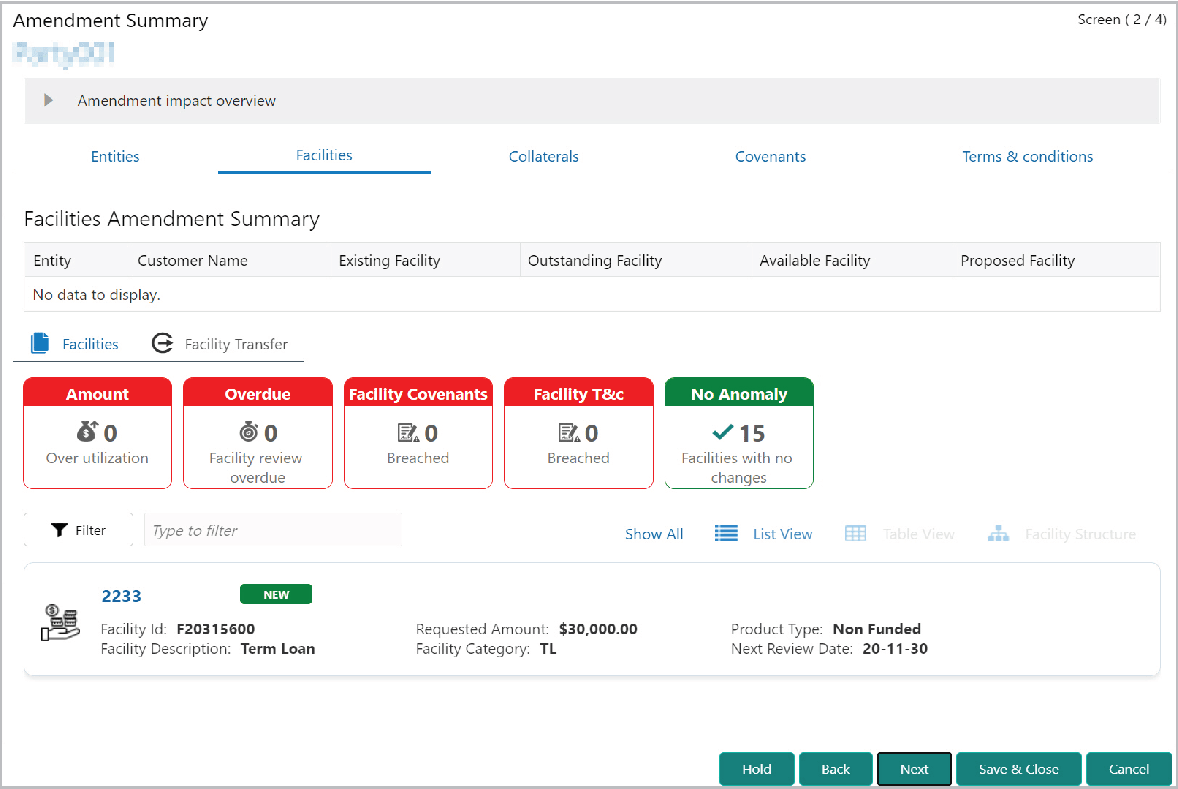
Refer Credit 360 User Manual for information on actions that can be performed in the Customer Summary page. - Click Next in the Customer Summary page.The Amendment Summary page is displayed.
Figure 10-3 Amendment Summary
Note:
Refer Amendment Enrichment - Amendment Summary for information on actions that can be performed in the Amendment Summary page.In Draft Generation stage, the amendment proposal can be only viewed and cannot be modified.
- Click Next in the Amendment Summary page.The Draft Generation page displayed.
Figure 10-4 Draft Generation
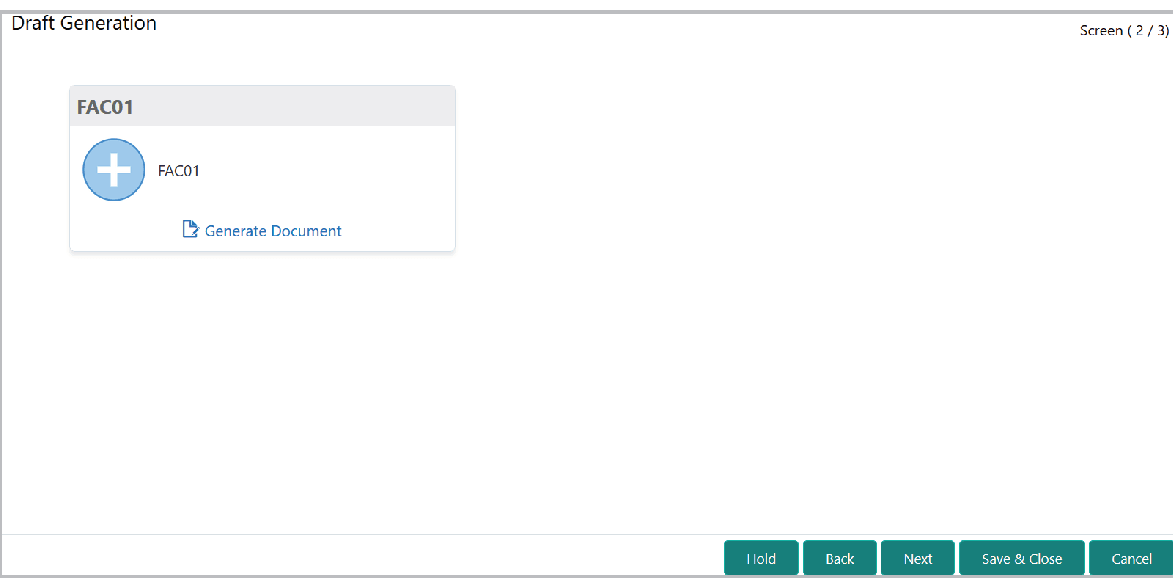
- Click Generate Document. The Draft Generation Details window is
displayed.
Figure 10-5 Draft Generation Details
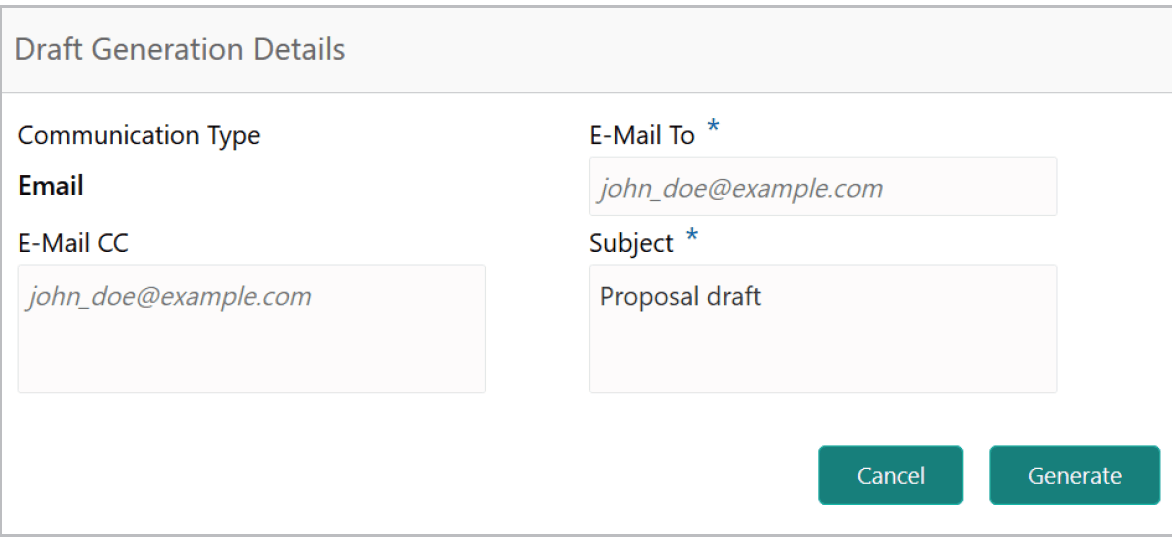
For information on fields in the Draft Generation Details page, refer the below table.
Table 10-1 Draft Generation Details
Fields Description E-mail To In E-mail To field, type the E-mail address to which the proposal draft has to be sent. E-mail CC In E-mail CC field, type the E-mail address which has to be in CC of draft proposal mail. Subject In Subject field, type the mail subject. Generate Click Generate. Proposal draft configured in the system is sent to the mail ID mentioned in E-Mail To field. Figure 10-6 Draft Generation
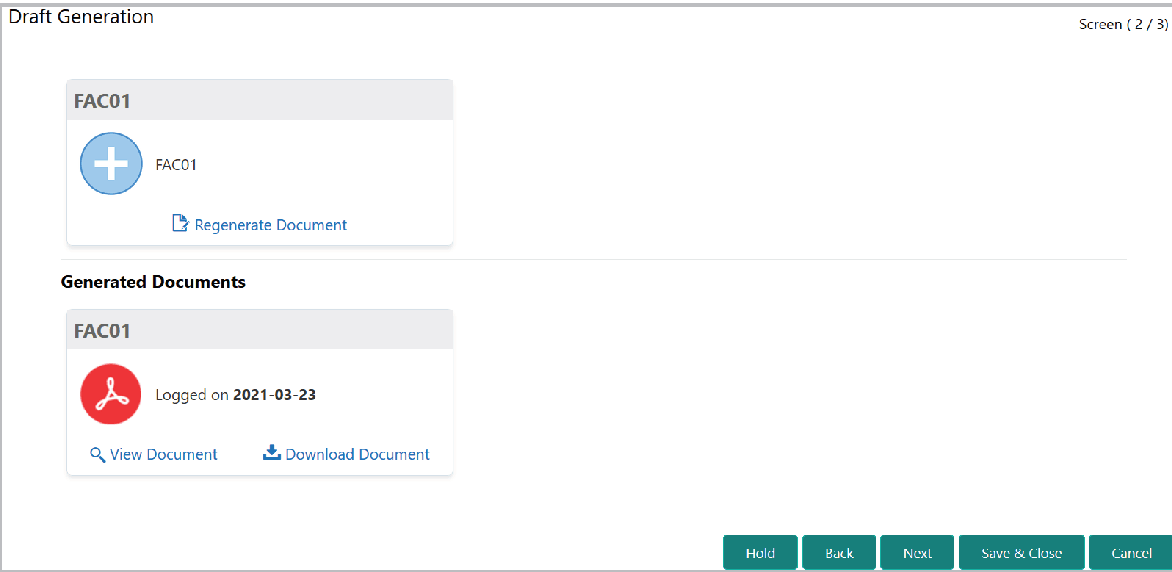
For information on fields in the Draft Generation page, refer the below table.
Table 10-2 Draft Generation Details
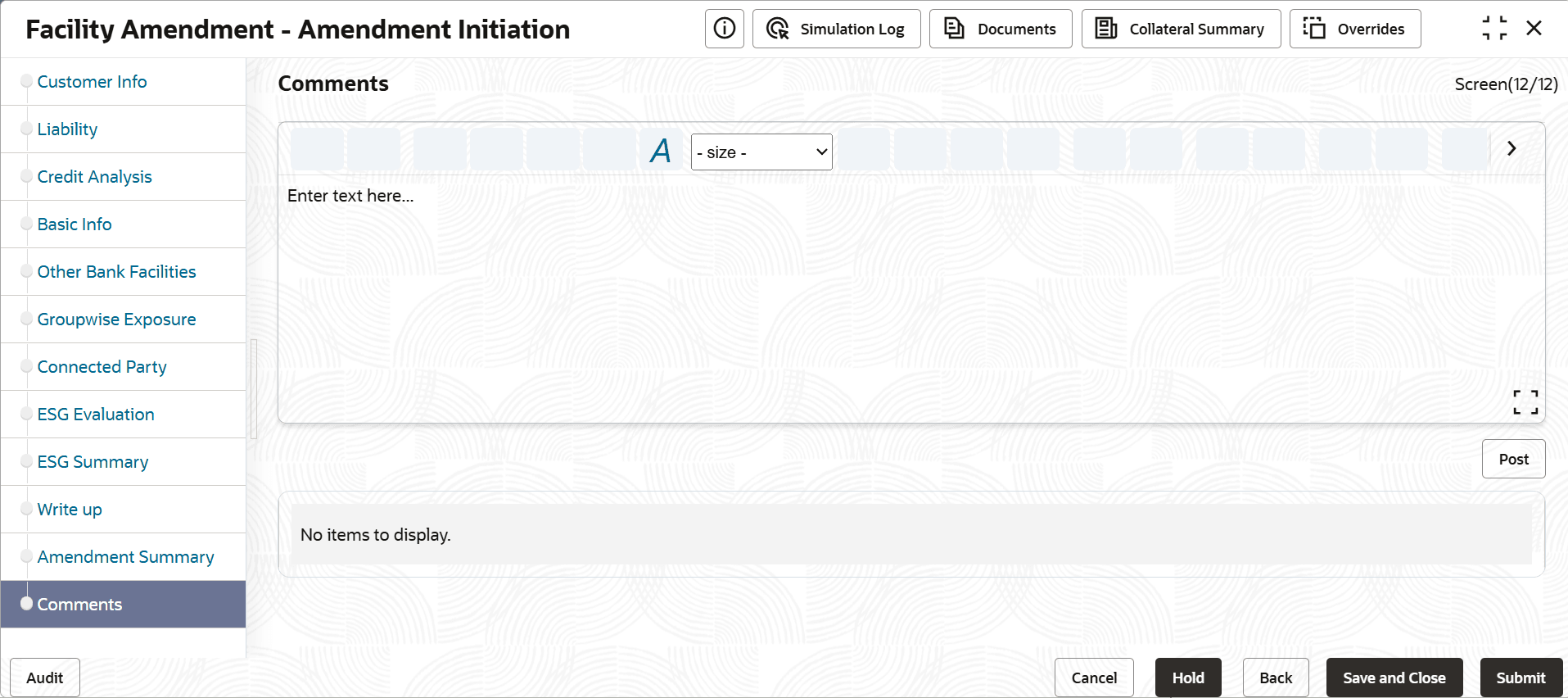
Fields Description View Document To view the generated draft document, click View Document. Download Document To download the generated draft document, click Download Document. - After generating proposal draft, click
Next.The Comments page is displayed.
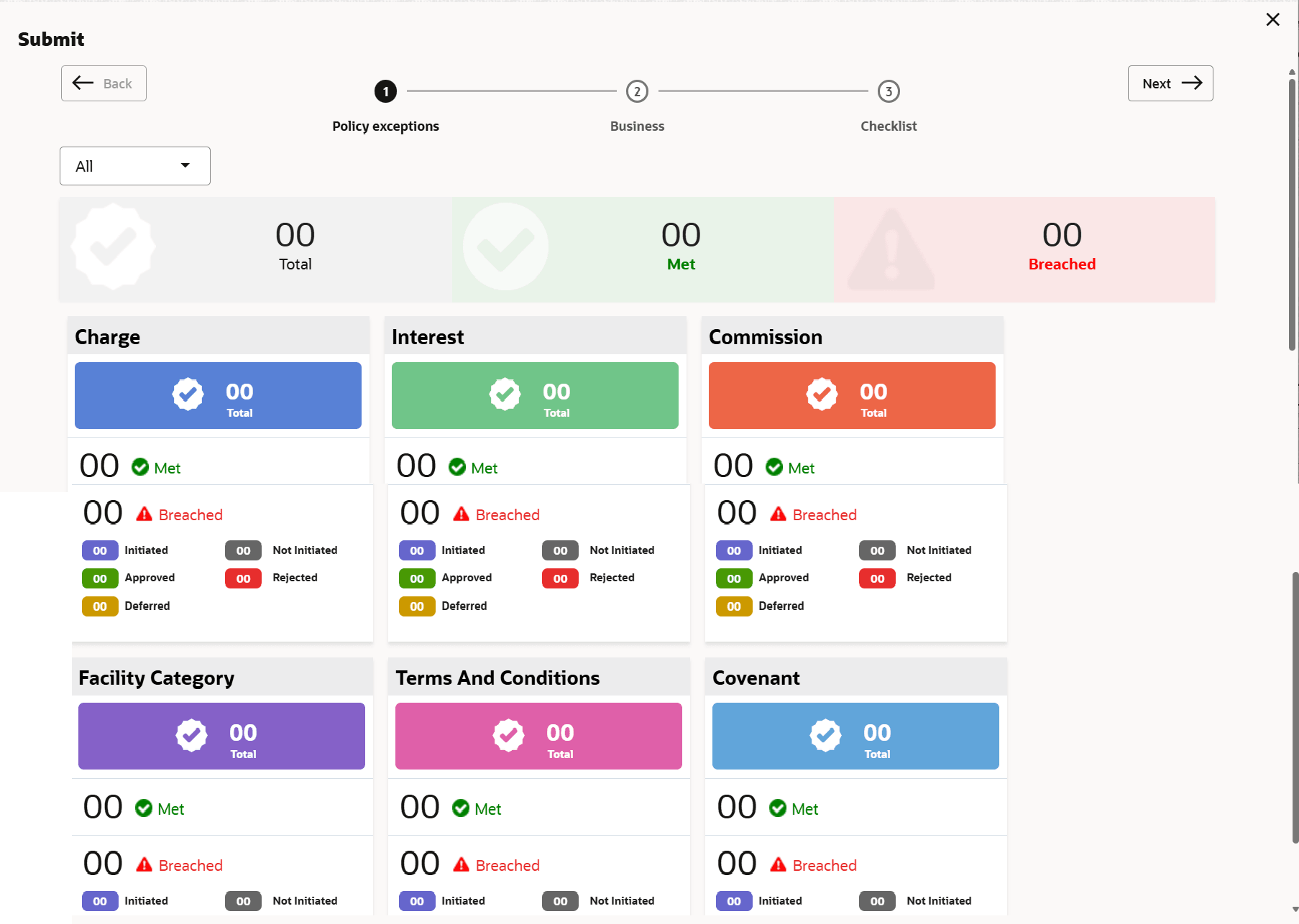
- Click Submit. The Policy exceptions window is displayed.
By default, policy exceptions are displayed for both the party and the child parties.
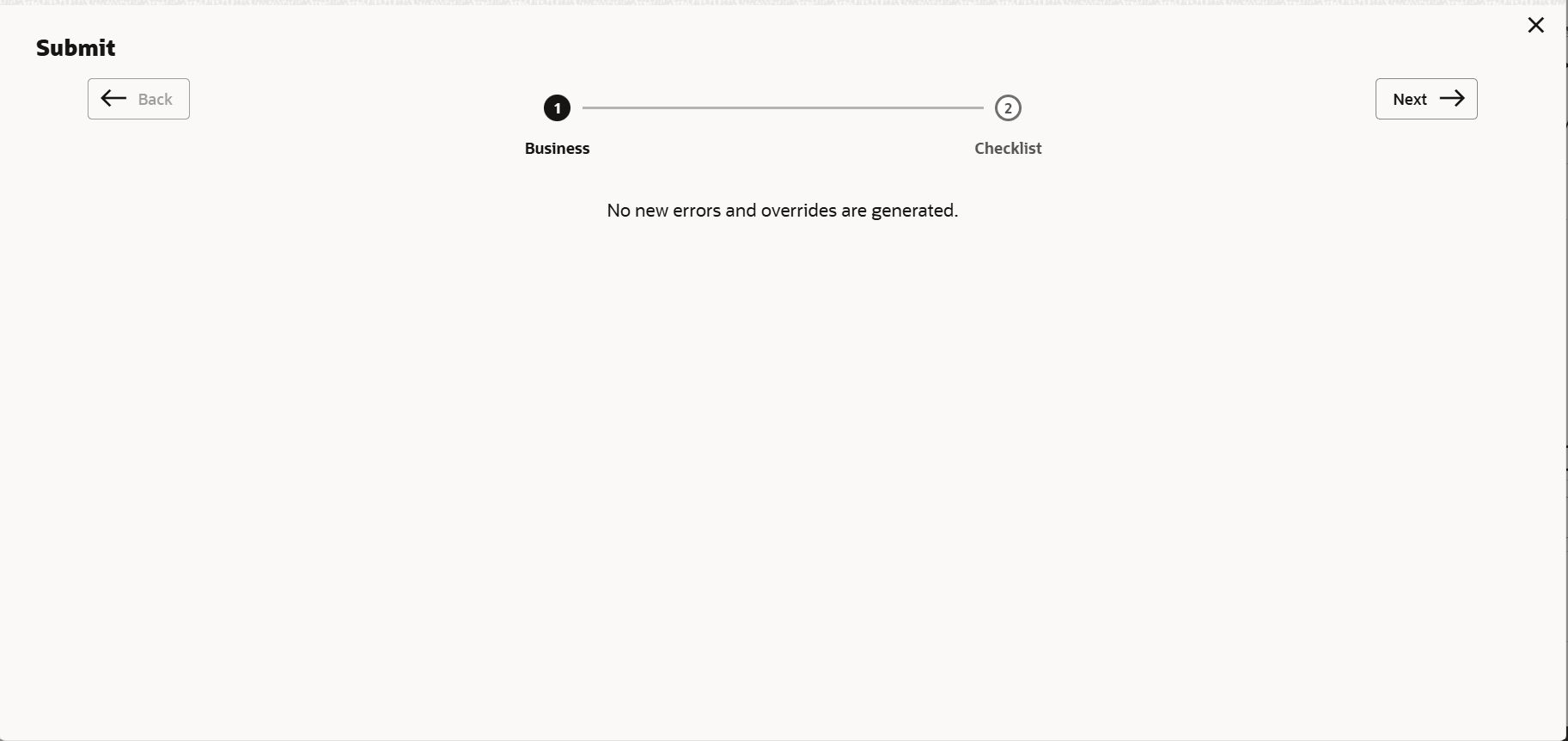
- Click the Checklist data segment.
For information on fields in the Checklist page, refer the below table.
Table 10-3 Checklist
Fields Description Outcome Select the Outcome as PROCEED, if additional information is not required. Otherwise select the Outcome as Additional Info. Submit Click Submit. The draft proposal is sent to the mentioned Email ID and proposal is sent to the Customer Acceptance stage. Note:
Write Up data segment appears, if the data segment is enabled in the Maintenance module. For information on Write up data segment, refer Amendment Initiation chapter.