3.1.3 Amendment Initiation - Configure Customer
Detailed information on the Configure Customer in the Amendment Initiation stage.
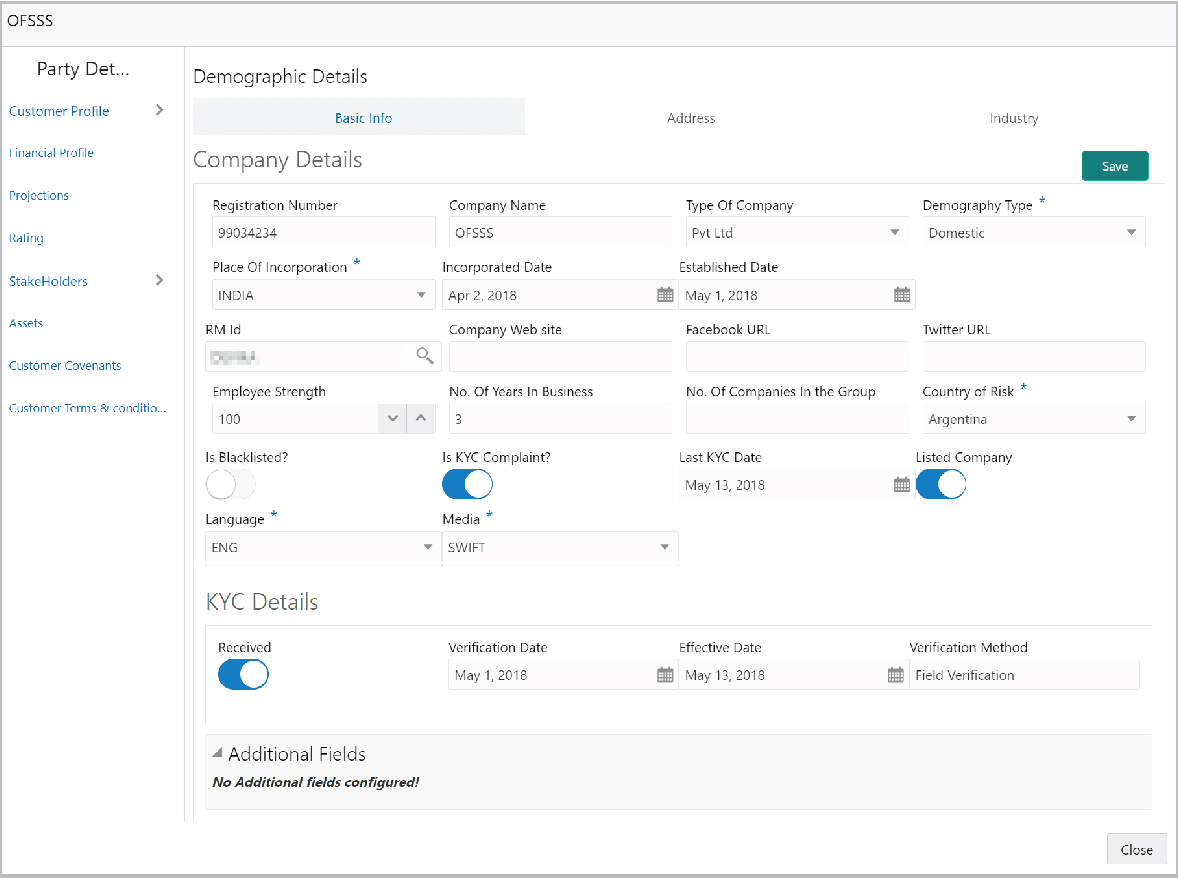
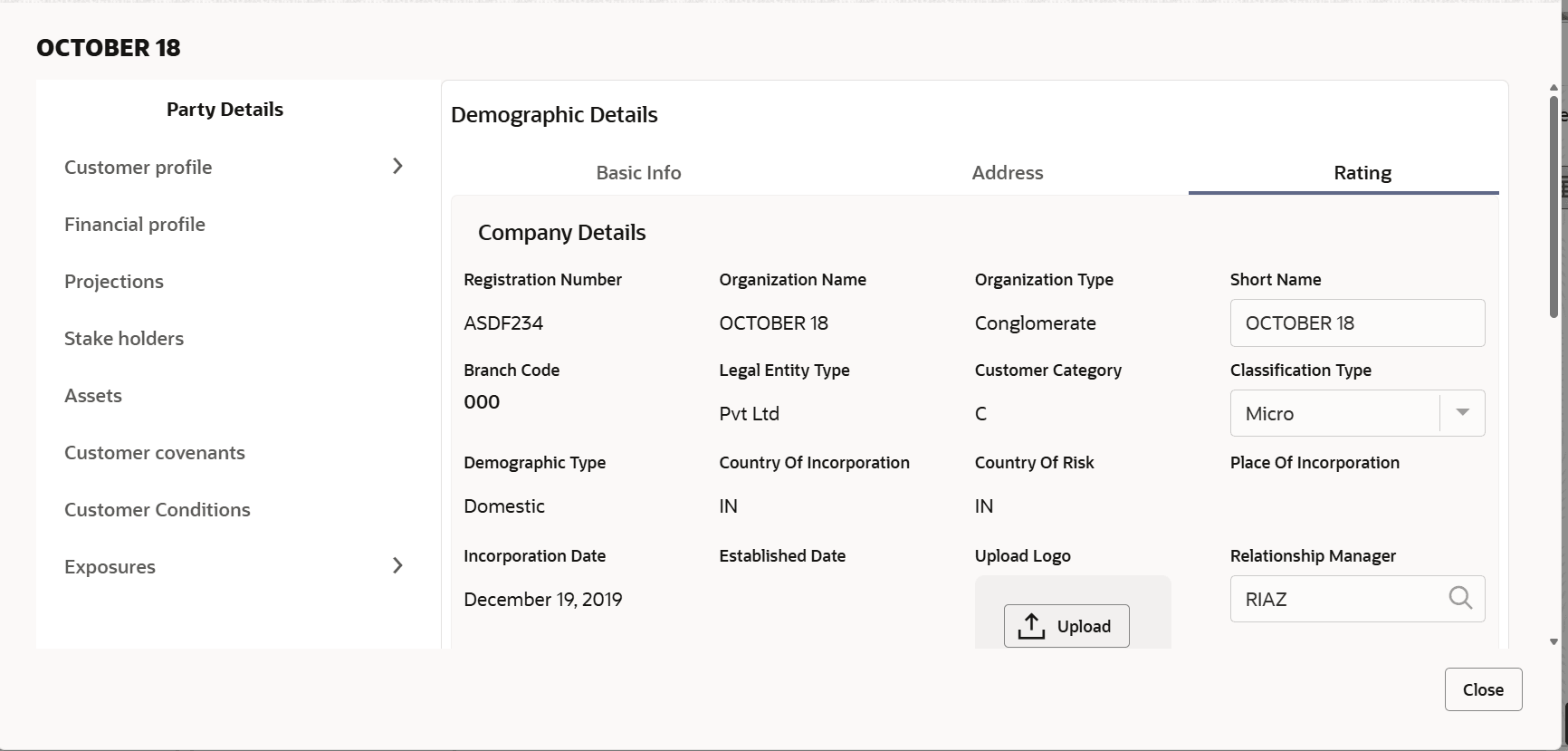
- To configure the party / child party, right click on the party / child party
icon and click Configure. The following window is displayed.
Figure 3-10 OFSS
Note:
For existing party, Customer Profile menu is a read only module and modification to the field values is not allowed. You can configure the menus for Credit Amendment process in Business Process Maintenance.
For information on fields in the Customer Profile page, refer the below table.
Table 3-6 Customer Profile
Fields/ Icons Description Company Details Enter / select the following details in the corresponding fields: - Registration Number
- Company Name
- Type Of Company
- Geographical Spread
- Place Of Incorporation
- Incorporated Date
- Established Date
- RM Id
- Company Website
- Facebook URL
- Twitter URL
- Employee Strength
- No. Of Years In Business
- No. Of Companies in the Group
- Country of Risk
Is Blacklisted? Enable the Is Blacklisted? switch, if the company is blacklisted. Is KYC Compliant? Enable the Is KYC Compliant? switch, if the company is KYC Compliant. Last KYC Date. Click the calendar icon and select the Last KYC Date. Listed Company Enable the Listed Company switch, if the company is listed. Language Select the Language from the drop down list. Media Select the Media for transactions from the drop down list. Table 3-7 KYC Details
Fields/ Icons Description Received Enable the Received switch, if KYC verification details are received for the customer. Verification Date Click the calendar icon and select the KYC Verification Date Effective Date Click the calendar icon and select the KYC Effective Date. Verification Method Type the KYC Verification Method. For example: Field verification. Save Click Save. Add To add the company address details, click the Address tab and then click the Add icon. The Address Details window is displayed.Figure 3-11 Address Details
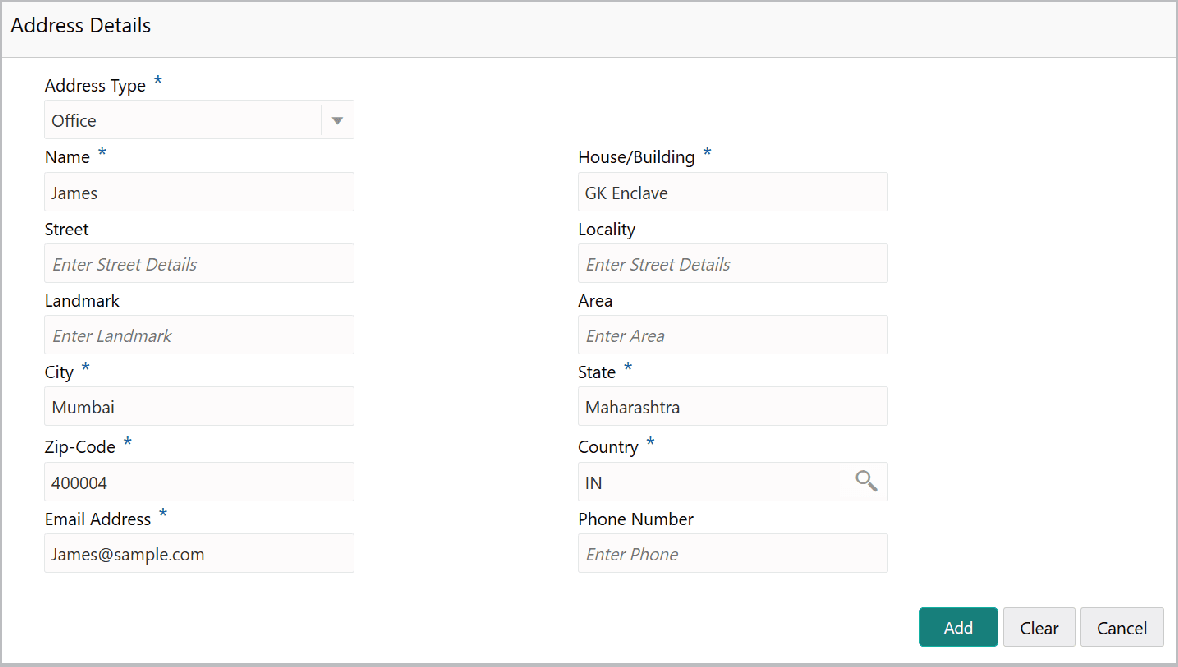
Table 3-8 Address Details
Fields/ Icons Description Received Type or select the following details in the corresponding fields: - Address Type
- Name of the contact person
- House/Building name
- Street
- Locality
- Landmark
- Area
- City
- State
- Zip-Code
- Country
- Email Address
- Phone Number
Add Click Add Address details are added. Industry To add the industry details, click the Industry tab and select the required details. Note:
To Edit, Delete or View the added Basic Info, Address, and Industry. click the hamburger icon in the required list item and select the required option.Customer Profile To view the organization’s business details, click the Customer Profile in menu and select Business sub-menu.
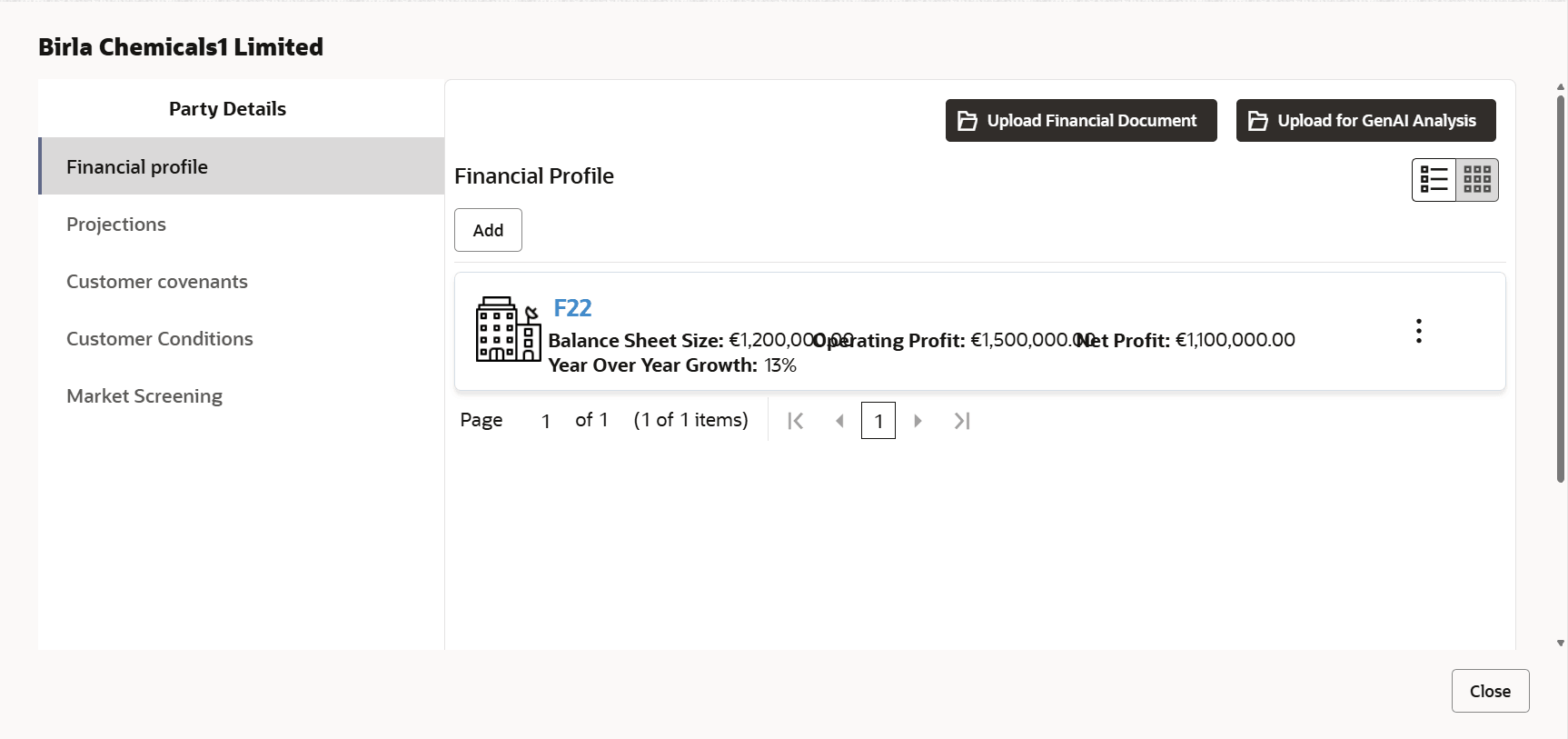
Financial Profile
- To configure organization’s financial details, Click Financial Profile
in left menu. The Financial profile screen is displayed.
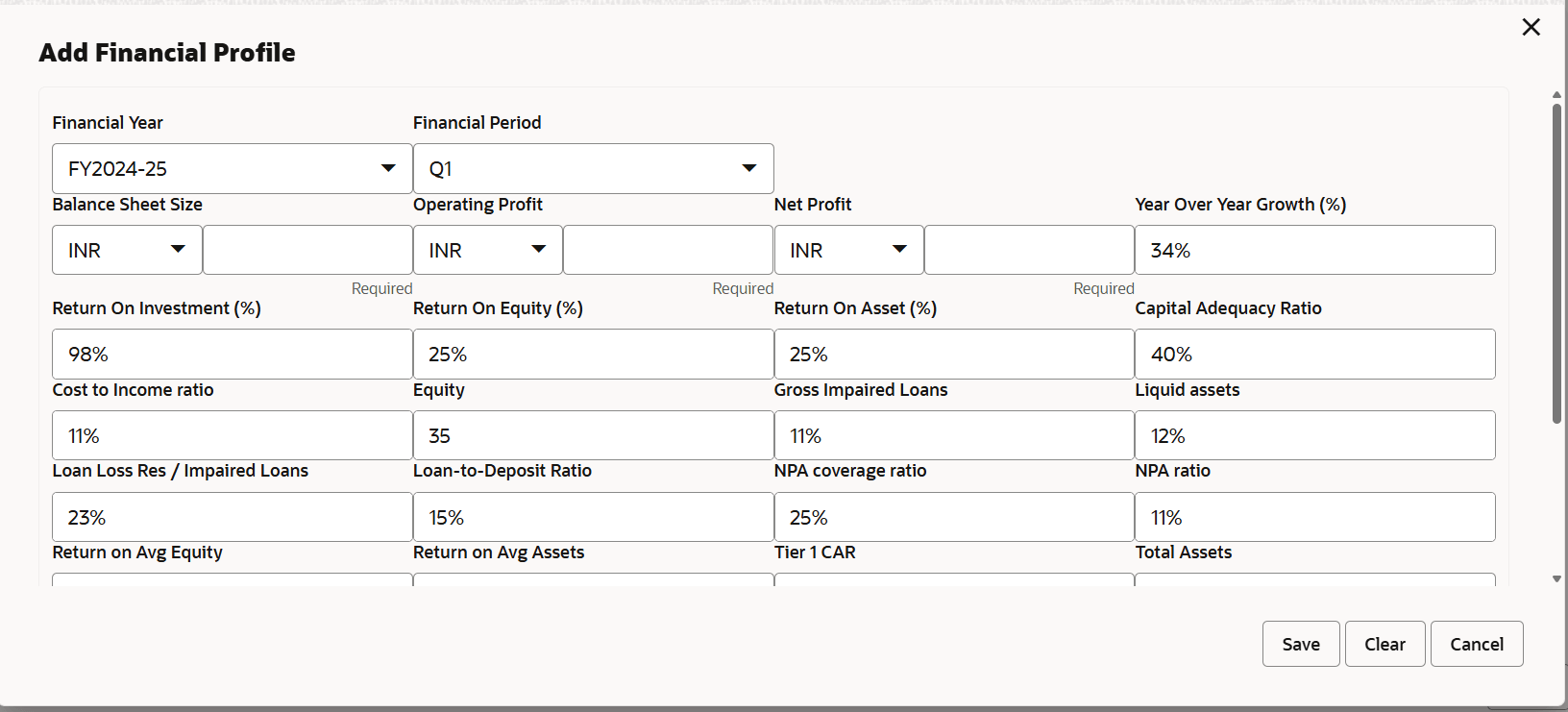
- Click the Add icon. The following window is displayed.
For information on fields in the Financial Profile page, refer the below table.
Table 3-9 Financial profile
Fields/ Icons Description Year Specify the Year for which the organization’s financial details are to be added. Currency Search and select the Currency for the financial information. Add Click Add. Organization’s financial details are added. fields Specify the following details in the corresponding fields: - Balance Sheet Size
- Operating Profit
- Net Profit
- Year Over Year Growth
- Return On Investment
- Return On Equity
- Return On Asset
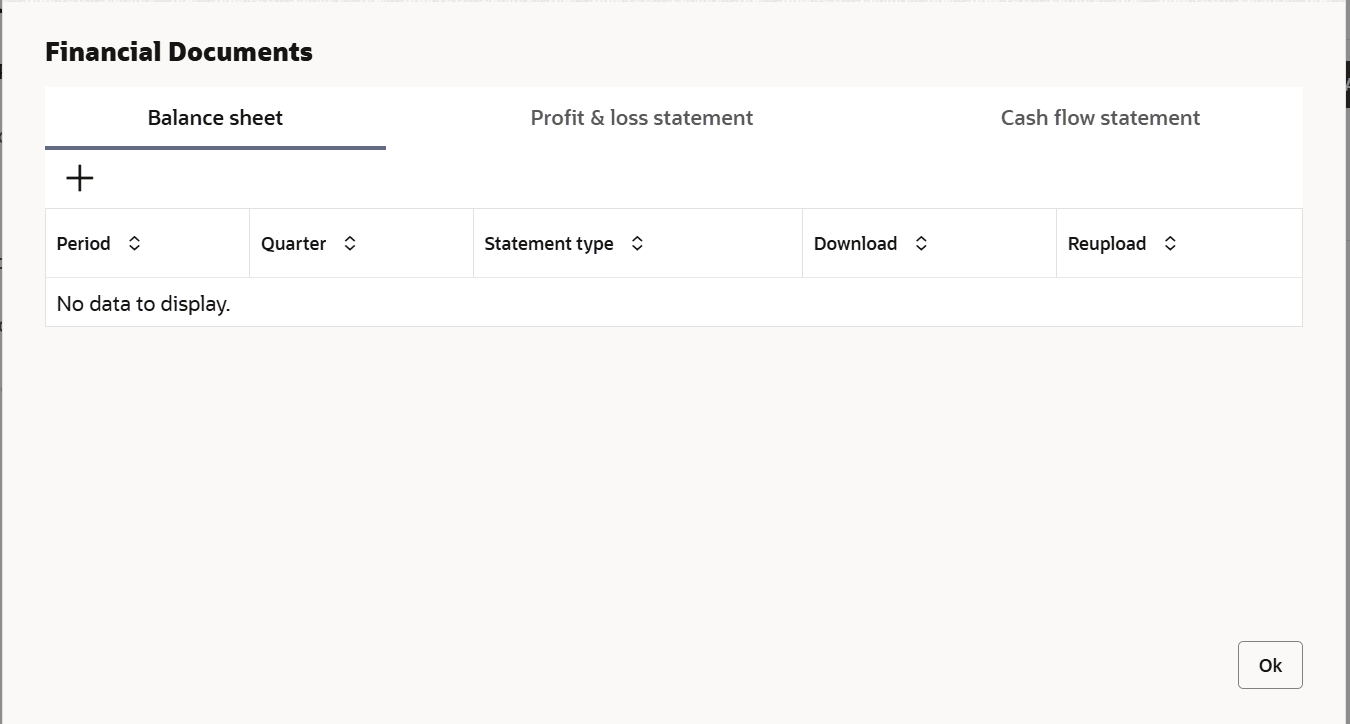
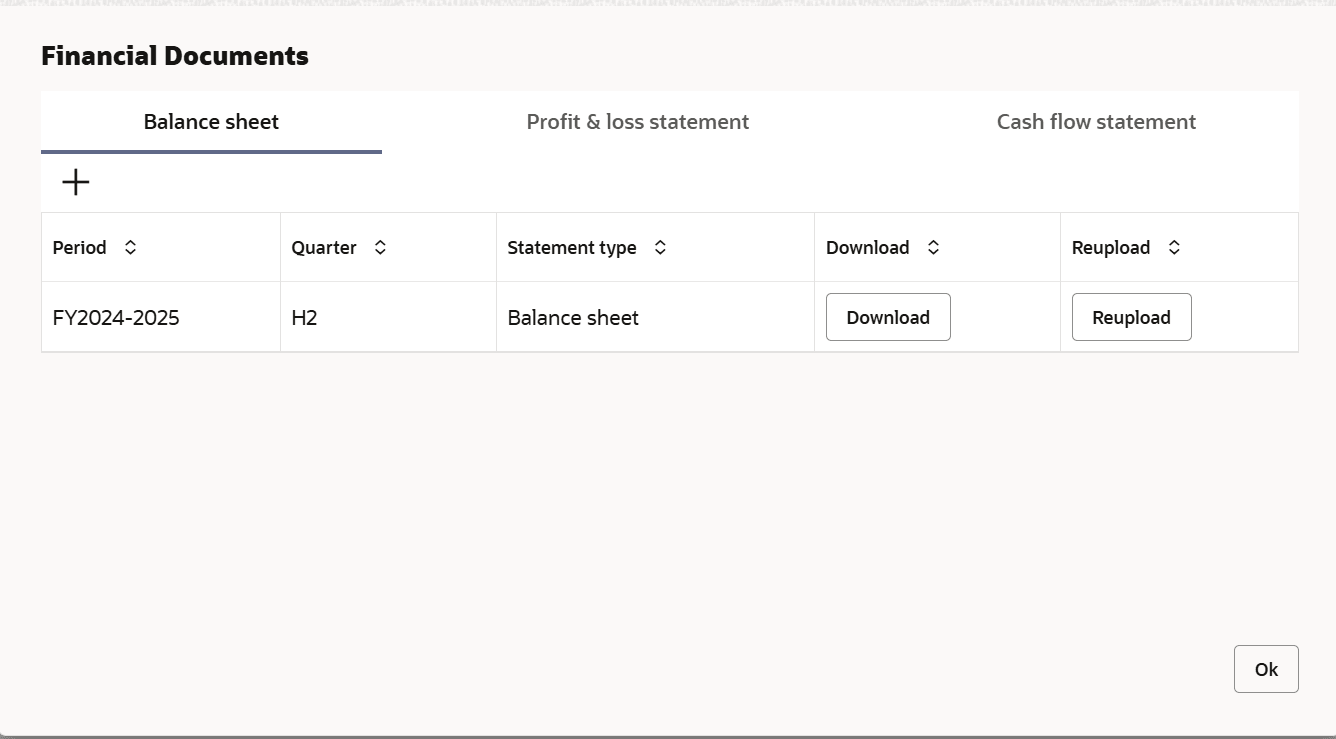
- To add financial documents, click Upload Financial Document.
The Financial Documents window is displayed.
- Click respective tabs in the Financial Documents window, the user can
Add the following documents by:
- Balance Sheet
- Profit & Loss Statement
- Cash Flow Statement
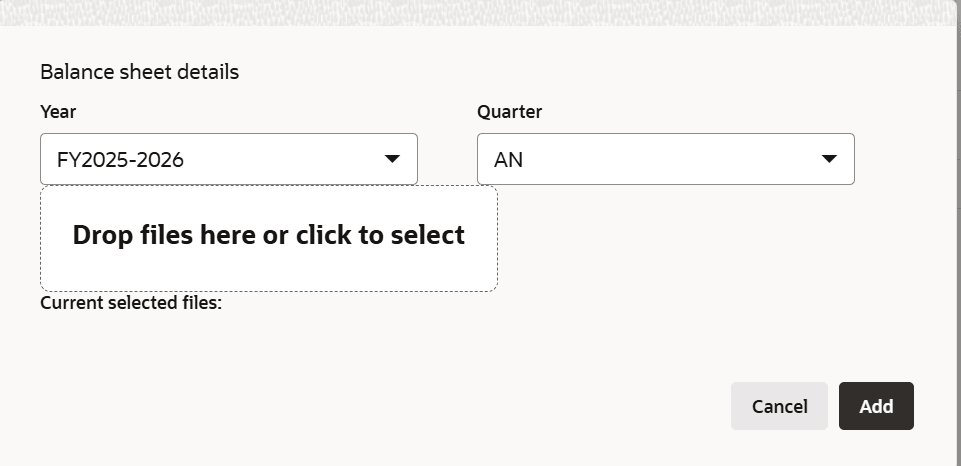
For information on fields in the Balance Sheet Details page, refer the below table.
Table 3-10 Balance Sheet Details
Fields/ Icons Description Period Select the Period for which the financial document is to be added. Quarter Select the Quarter for which the financial document is to be added. Drop files here or click to select In Drop files here or click to select section, drag and drop or click and upload the financial document. Add Click Add. Document is added. Chart view In the Financial Profile screen, click the Chart view icon to change the List view to Chart view. Note:
To Edit, Delete or View the added Financial Profile. click the hamburger icon in the required list item and select the required option.
Projections
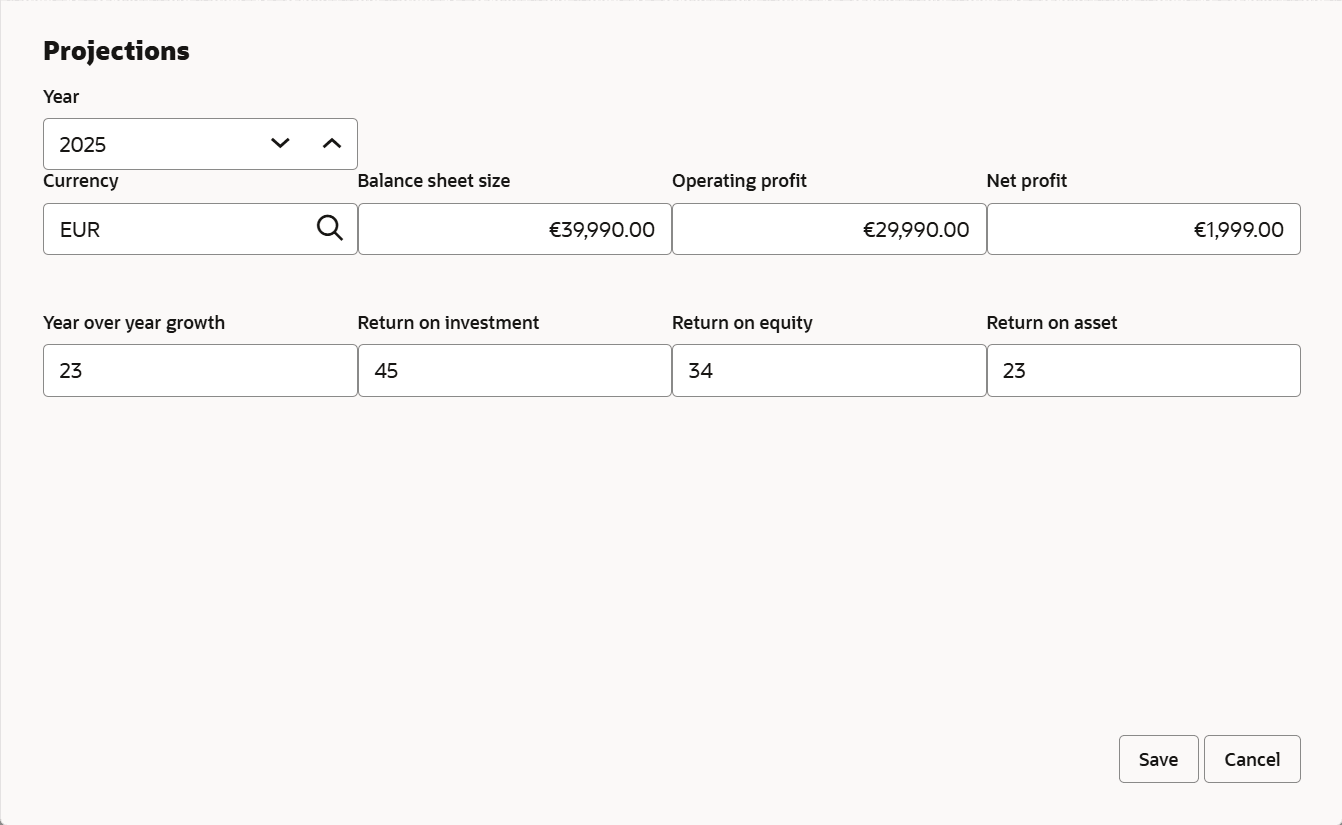
- Click Projections from the left menu and then click the Add icon, to
configure projection details. The Projections window is displayed.
For information on fields in the Projections page, refer the below table.
Table 3-11 Projections
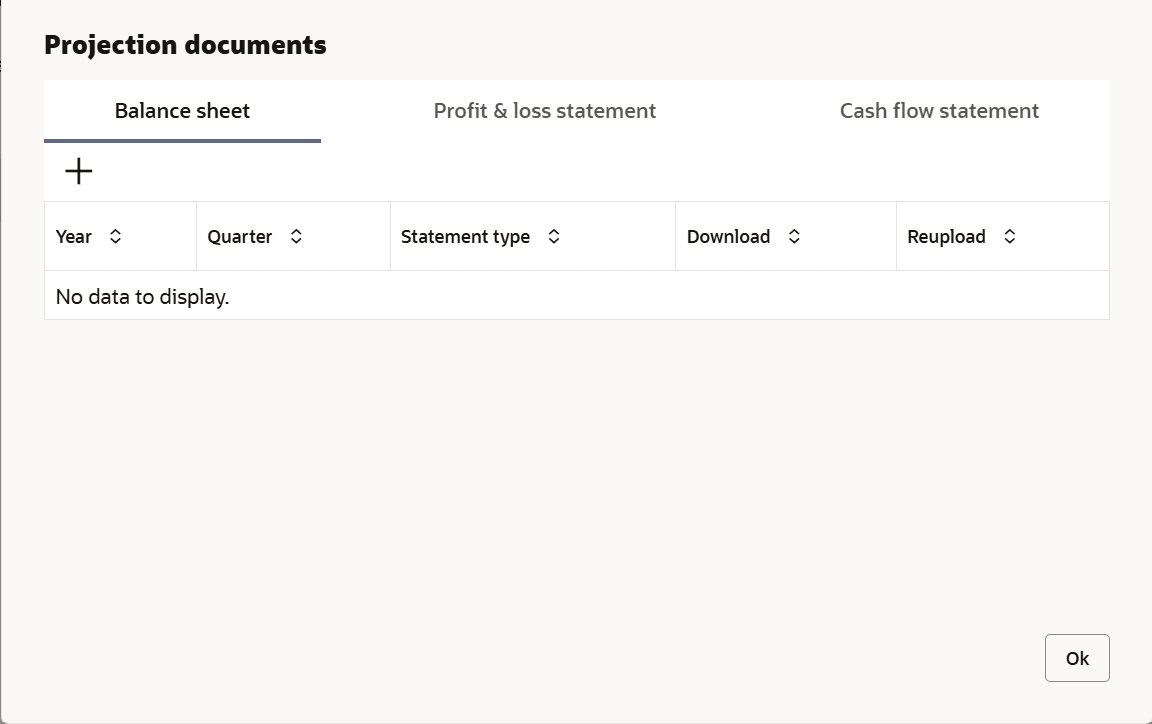
Fields/ Icons Description Year Specify the Year for which the organization’s projection details are to be added. Currency Search and select the Currency for the projection details. Add Click Add. Organization’s projection details are added. - Click Upload Projection Document to add projection documents. The Projection Documents window is displayed.
- In the Projection Documents window, the user can Add the following
documents by clicking respective tabs.
- Balance Sheet
- Profit & Loss Statement
- Cash Flow Statement
For information on fields in the Balance Sheet Details page, refer the below table.
Table 3-12 Balance Sheet Details
Fields/ Icons Description Period Select the Period for which the projection document is to be added. Quarter Select the Quarter for which the projection document is to be added. Drop files here or click to select In Drop files here or click to select section, drag and drop or click and upload the projection document. Add Click Add. Document is added. Chart view In the Business Projection screen, click the Chart view icon to change the List view to Chart view. Note:
To Edit, Delete or View the added Projections. click the hamburger icon in the required list item and select the required option.
Rating
- To configure stakeholders information, click Stakeholders in the left
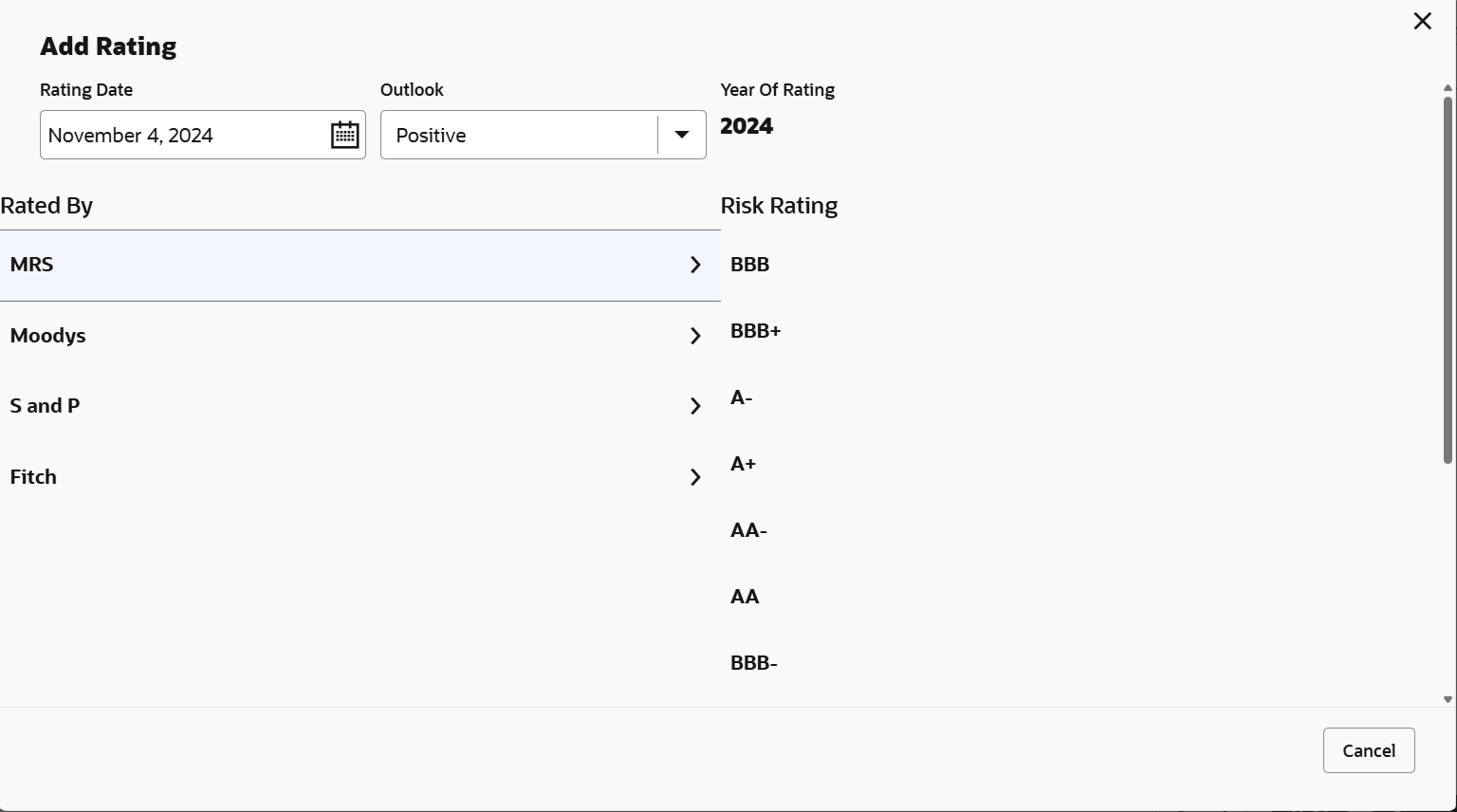
menu and click +Add Ratings.The Add Ratings window is displayed.
For information on fields in the Add Ratings page, refer the below table.
Upon selecting the Rated By organization, the rating is added and displayed as shown below.Table 3-13 Add Ratings
Fields/ Icons Description Year Of Rating The Year Of Rating is automatically populated based on the selected Rating Date. Rating Date The Year Of Rating is automatically populated based on the selected Rating Date. Rated By Upon selecting the Rated By organization, the rating is added and displayed as shown below. rating: Select the following details of the rating: - Rating Date
- Outlook
- Risk Ratings
- Rated By
For information on fields in the Add Ratings page, refer the below table.
Table 3-14 Add Ratings
Fields/ Icons Description edit To modify the added rating, click the edit icon. delete To delete the added rating, click the delete icon.
Stakeholders
The user can add information about the following stakeholders by clicking the Stakeholders menu:
- Auditors
- Sponsors
- Share holders
- Directors
- Management Team
- Bankers
- Guarantors
- Customers
- Suppliers
Figure 3-21 Sponsors
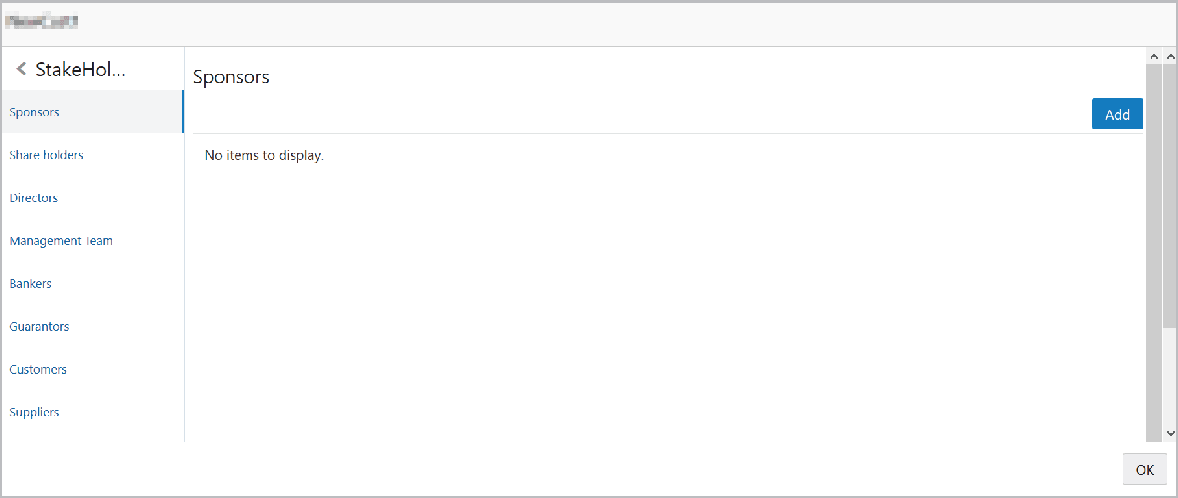
- To add sponsor details, click Sponsors from the left menu and then click
Add.The Sponsors window is displayed.
Figure 3-22 Sponsors
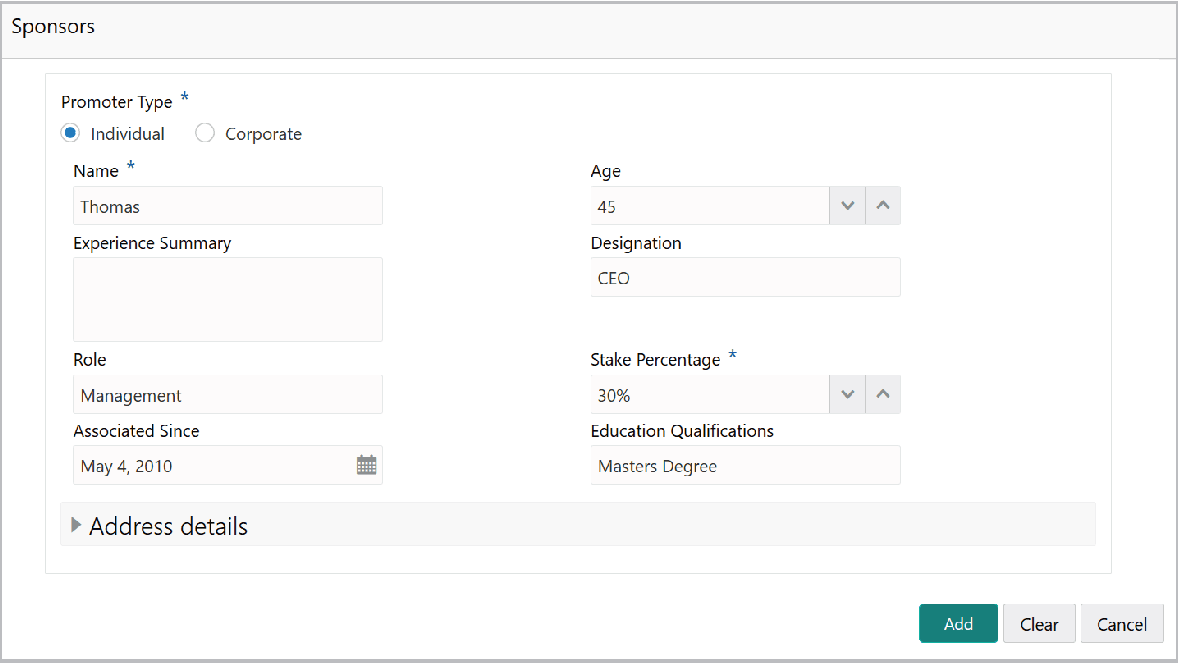
For information on fields in the Sponsors page, refer the below table.
Table 3-15 Sponsors
Fields/ Icons Description individual If the sponsor is an individual, select or type the following sponsor details in the corresponding fields: - Promoter Type (select Individual option)
- Name
- Age
- Experience Summary
- Designation
- Role
- Stake Percentage
- Associated Since
- Education Qualifications
entity If the sponsor is an entity, select or type the following sponsor details in the corresponding fields: - Promoter Type (select Corporate option)
- Name
- Stake Percentage
Address Click and expand the Address details section. Figure 3-23 Sponsors
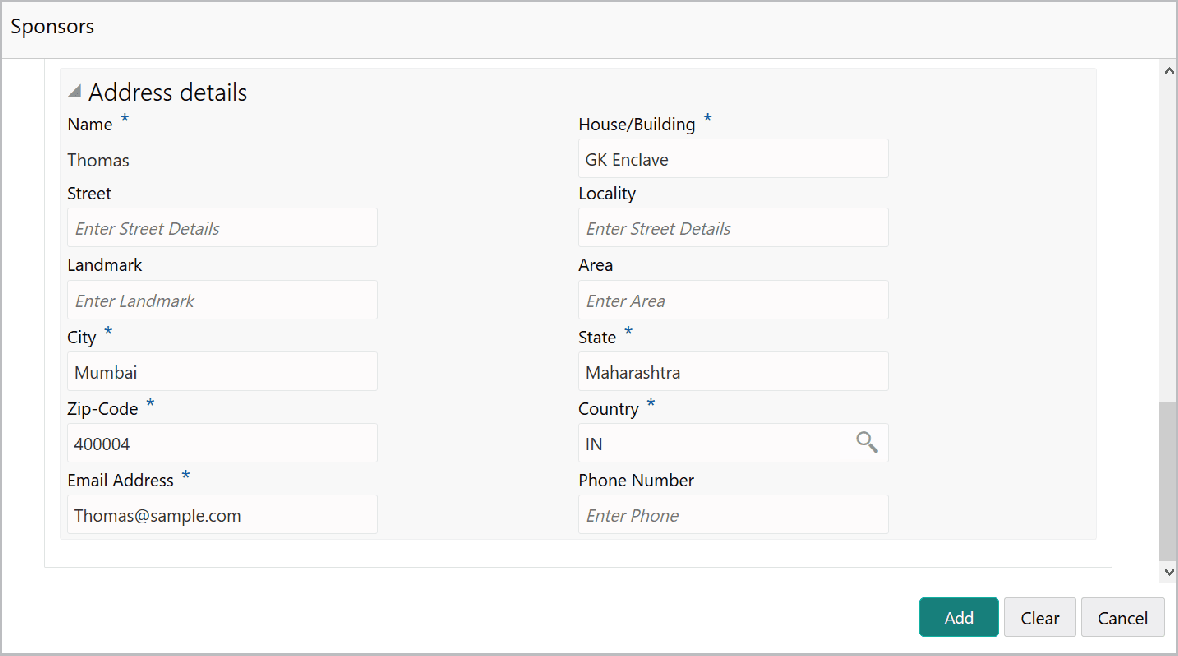
For information on fields in the Sponsors page, refer the below table.
Table 3-16 Sponsors
Fields/ Icons Description fields Type or select the following details in the corresponding fields: - House/Building name
- Street
- Locality
- Landmark
- Area
- City
- State
- Zip-Code
- Country
- Email Address
- Phone Number
Add Click Add. Sponsor details are added. Note:
To Edit, Delete or View the added Sponsors. click the hamburger icon in the required list item and select the required option.Note:
For information on adding Share holders, Directors, Management Team, Bankers, Guarantors, Customers, and Suppliers detail, refer Economic Dependency Analysis User Manual.
Assets
- To add asset details, click Assets from the left menu and then click
Add.The Assets window is displayed.
Figure 3-24 Assets
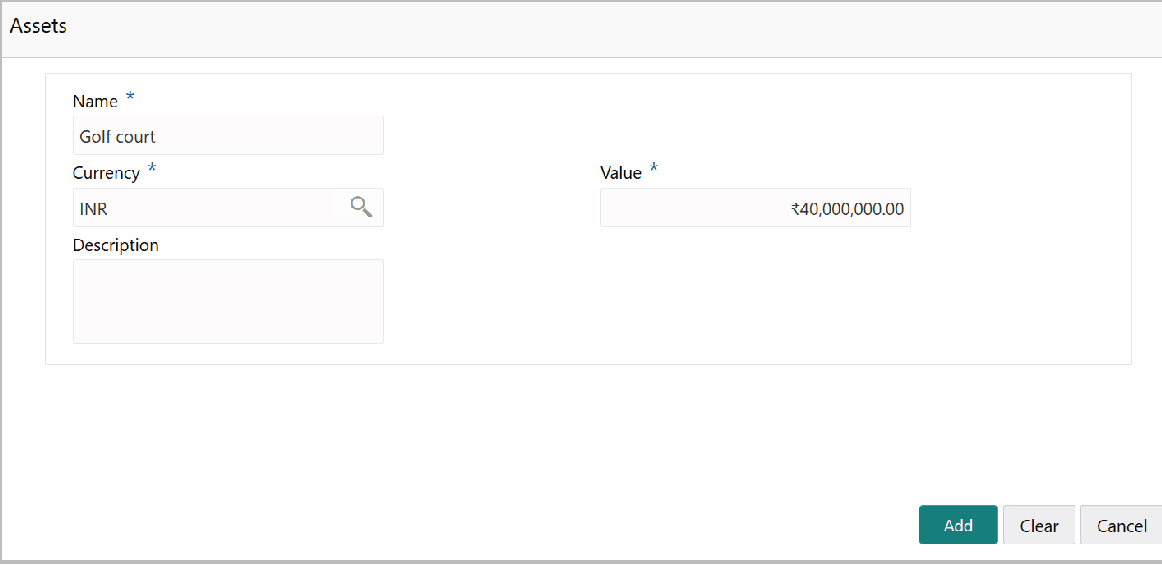
For information on fields in the Assets page, refer the below table.
Table 3-17 Assets
Fields/ Icons Description Name Type the Name of the Asset. Currency Search and select the Currency for the asset value. Value Specify the asset Value. Description Type the asset Description. Add Click Add. Asset details are added. Note:
To Edit, Delete or View the added Assets. click the hamburger icon in the required list item and select the required option.
Customer Covenants
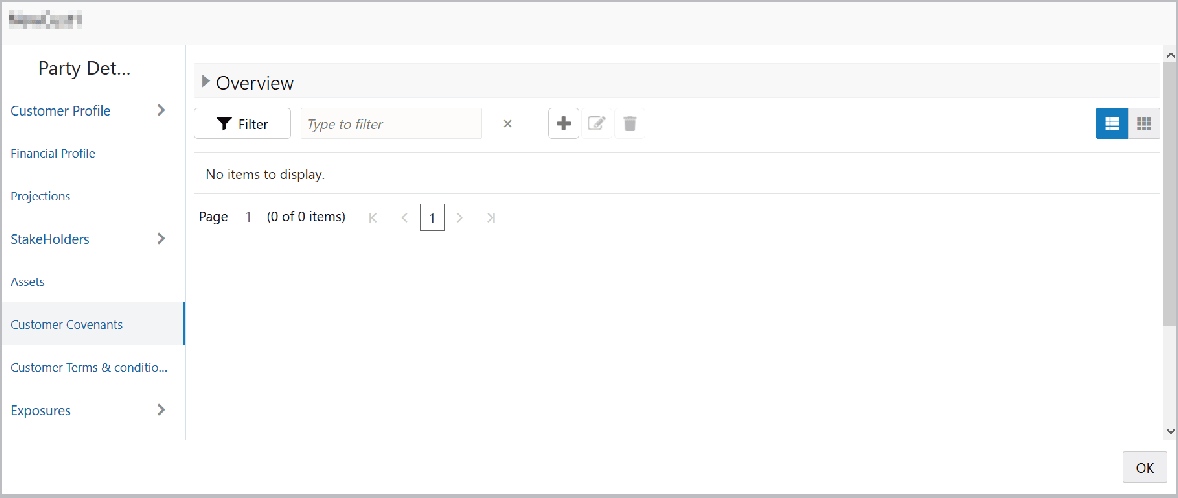
- To add covenant details, click Customer Covenants from the left menu.
The following screen is displayed.
Figure 3-25 Overview
Parent topic: Amendment Initiation - Customer Info