14.2 Document Retrieval
This topic provides systematic instructions about the Document Retrieval data segment in Document Retrieval stage.
This data segment allows to add the collateral document retrieval
status. Upon clicking Next in the Document Retrieval -
Collateral Summary screen.
The Document Retrieval screen is displayed.
Figure 14-3 Document Retrieval_Document Retrieval
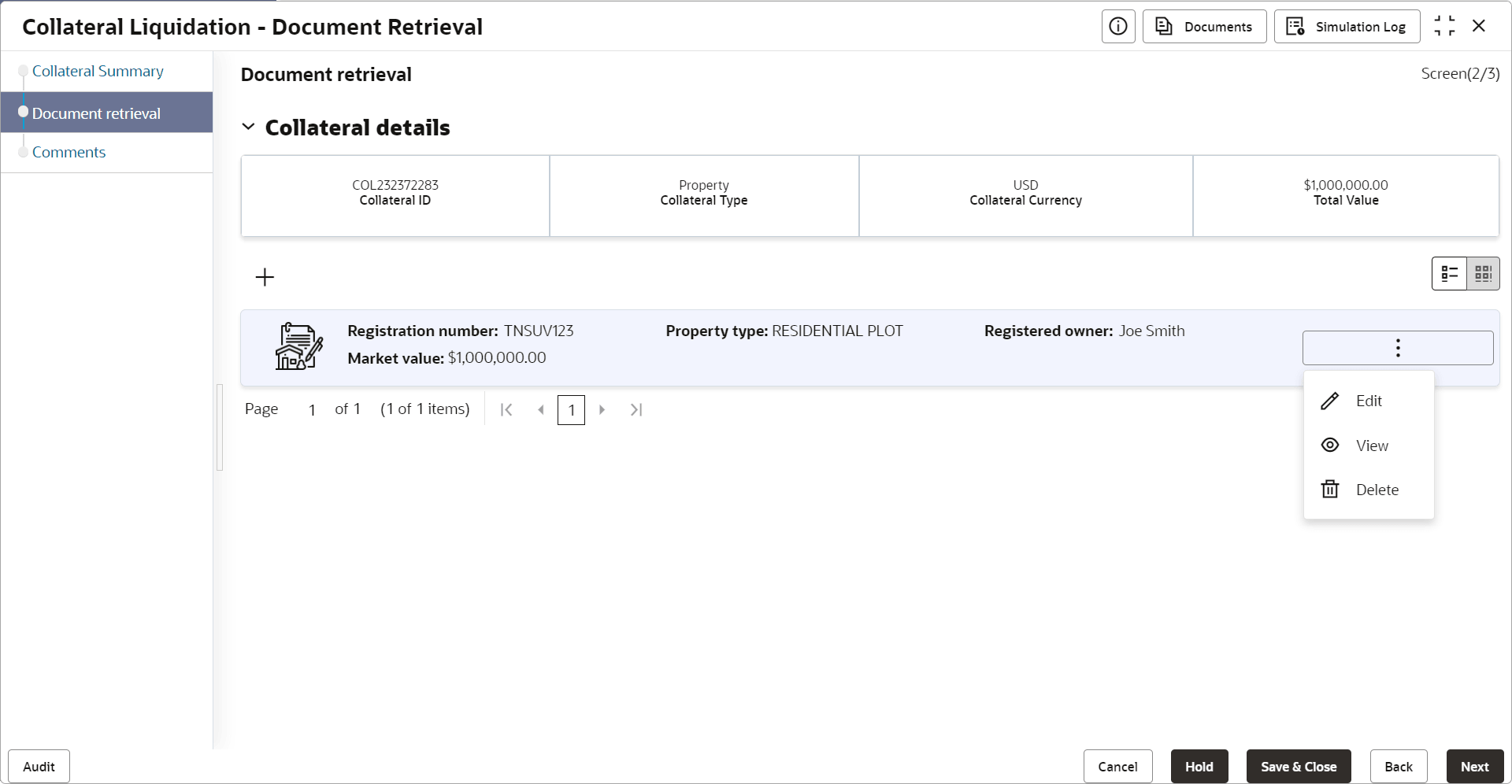
- Click the action icon in the required document record and select
Edit.The Document Retrieval Details screen is displayed.
Figure 14-4 Document Retrieval_Document Retrieval
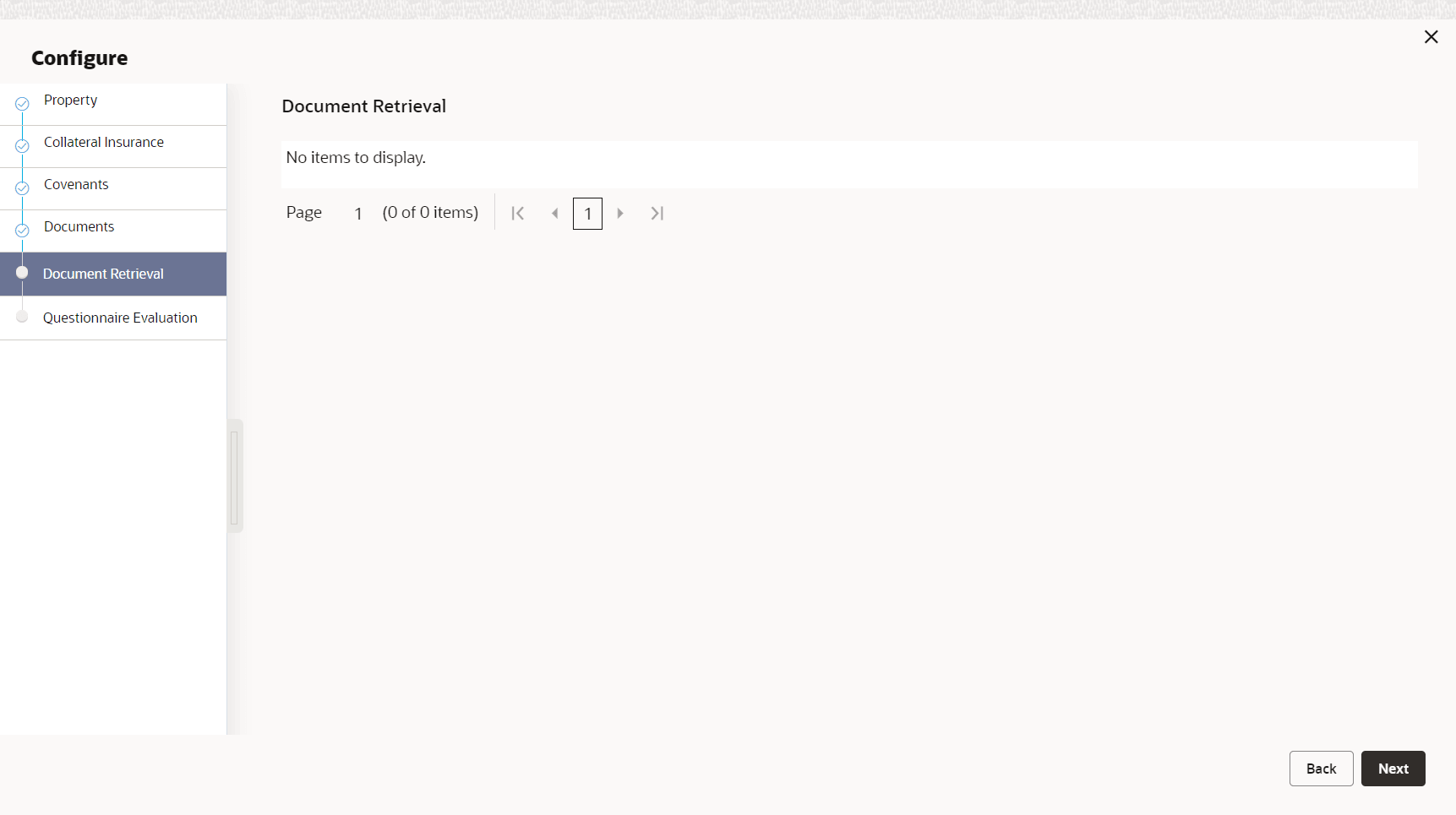
In the above screen, the following document safekeeping details captured in the Collateral Perfection Process are displayed.
- Agency
- Document ID
- Document Description
- Safekeeping Date
- Safekeeping Location
- Shelf Number
- Drawer Number
- Key Number
- Click Save.The retrieval details are added and displayed as shown below.
Figure 14-5 Document Retrieval_Document Retrieval