3.2 Property

This topic provides information about the property data segment in Collateral Liquidation Initiation stage.

The system allows user to liquidate the collateral amount in partial or full. In this data segment, user can view the collateral specific details captured in Collateral Perfection or Collateral Review process and capture the collateral details for liquidation.

Click Next in the Initiation - Collateral Details screen, the collateral type data segment is displayed based on the collateral selected for liquidation. In this User Guide, Commodity type collateral is shown as example.
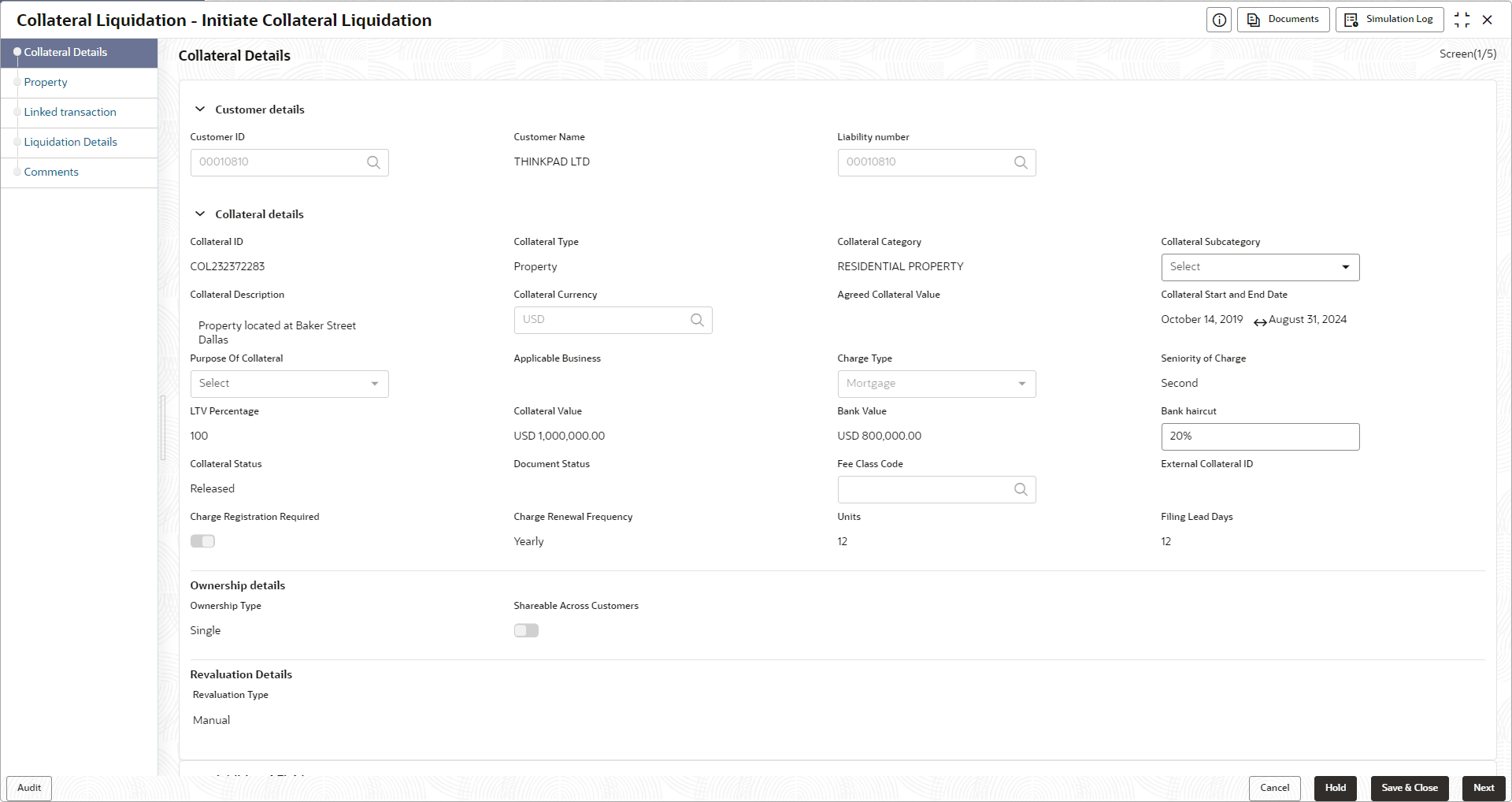
  1. To update the collateral details, click the action icon in the collateral record and select the required option.
    The Initiation - Commodity screen is displayed.

    Figure 3-5 Initiation - Commodity
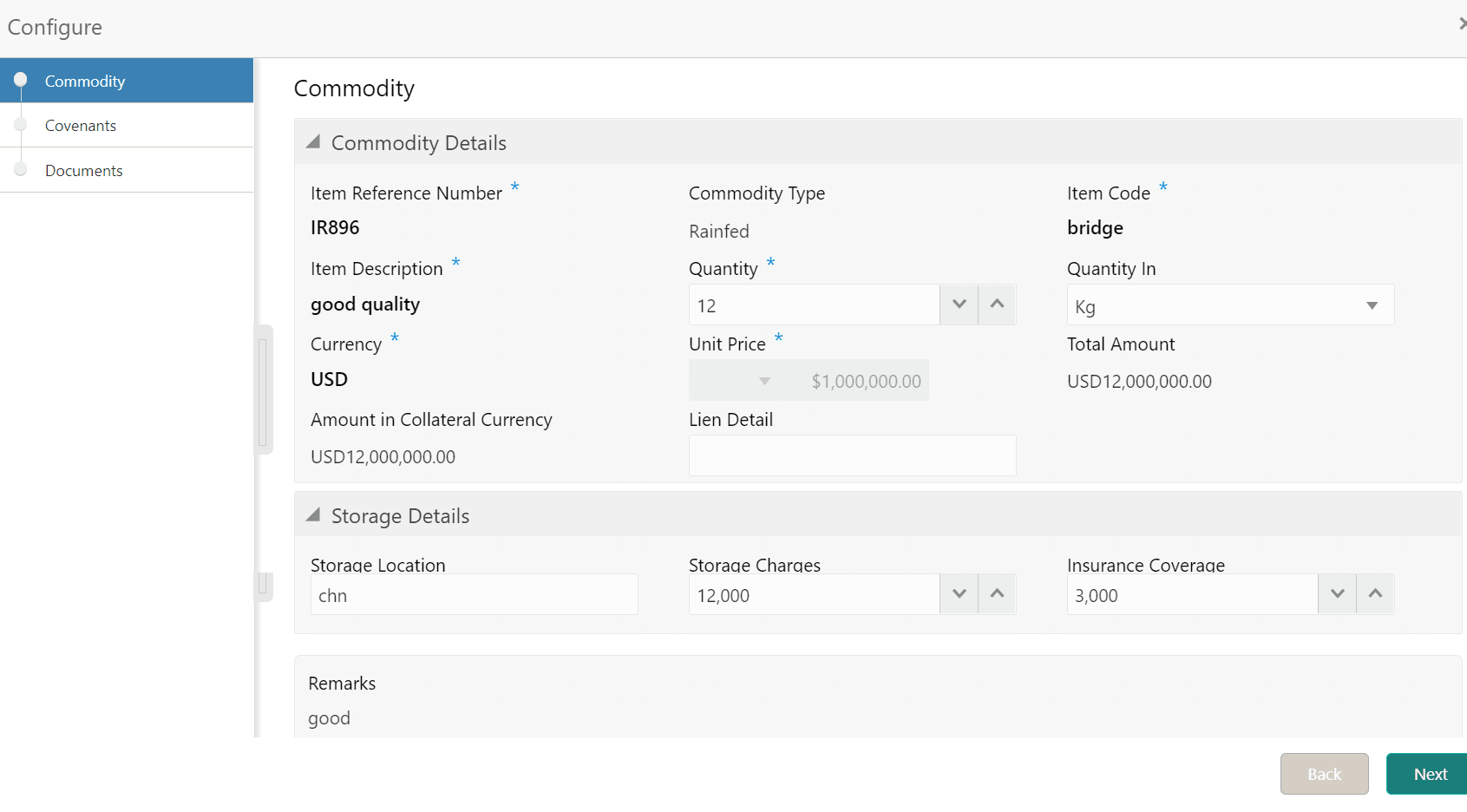
    Commodity details

    Note:

    You can capture only the liquidation specific details in the above screen.
  2. Capture the collateral details for liquidation.

    For more information on fields, refer to the field description table.

    Table 3-2 Commodity - Commodity Details - Field Description

    Field Description
    Item Refernce Number Displays the Collateral reference number provided at the time of collateral creation.
    Commodity Type Displays the Commodity Type selected at the time of collateral creation in the Collateral Evaluation or Perfection process.
    Item code Displays the Item code of the commodity.
    Quantity Specify the Quantity of commodity for liquidation.
    Quantity In Select the unit in which the commodity is measured from the drop down list.
    Currency The Currency in which the commodity price is captured.
    Unit price Displays the Unit Price of the commodity specified at the time of collateral creation.
    Total Amount Total Amount is calculated by multiplying the Unit Price with the Quantity.
    Amount in Collateral Currency If the commodity currency is different from the collateral currency, the total amount is converted to collateral currency and displayed.
    Lien Detail Capture the Lien Detail.

    Table 3-3 Commodity - Storage Details - Field Description

    Field Description
    Storage Location Storage Location captured at the time of collateral creation is displayed. User can modify this, if required.
    Storage Charges Specify the Storage Charges at the time of collateral creation is displayed. User can modify this, if required.
    Insurance Coverage Specify the Insurance Coverage value at the time of collateral creation is displayed. User can modify this, if required.
  3. Capture Remarks for the collateral liquidation and click Next.
    The Initiation - Configure - Covenants screen is displayed.

    Note:

    In this User Guide, only collateral liquidation details are provided. For information on adding Covenants and Documents, refer Collateral Evaluation or Collateral Perfection User guide.
  4. Click Next and navigate to Documents menu.
  5. Upload or manage documents, if required.
  6. Click Submit
    The Configuration screen is closed.
  7. After capturing collateral details for liquidation, click Next in the Initiation - Commodity screen.
    The Initiation - Seniority screen is displayed.