2.1.2 Overall Collateral

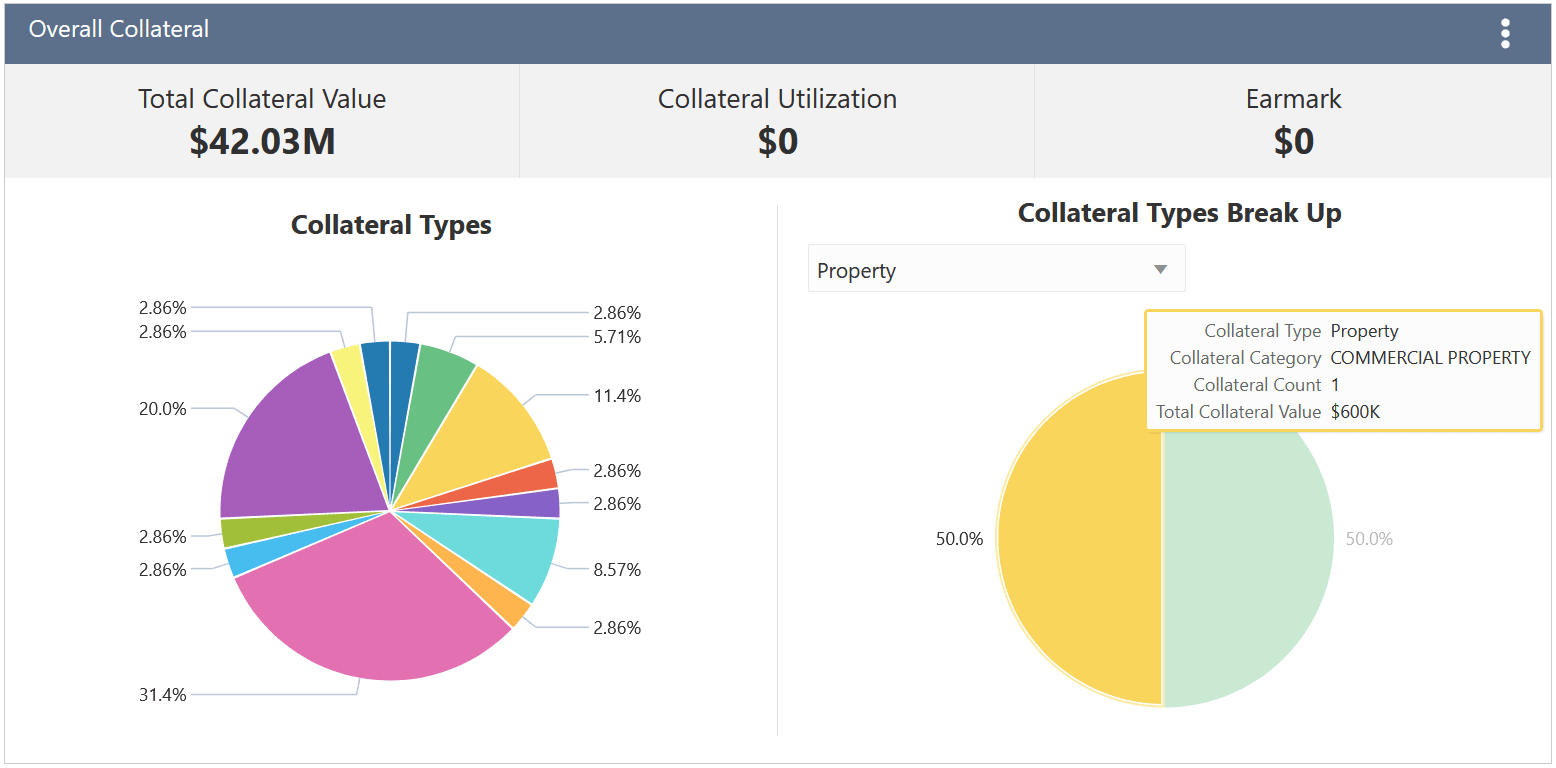
This topic provides systematic instructions about the Overall Collateral widget in Collateral 360 screen.

Figure 2-4 Overall Collateral

Collateral breakup

This widget displays the customer's overall collateral value, collateral utilization, and earmark amount along with the details of contribution from different collateral types.
  1. To view the collaterals list by its type, click on the required section in the pie chart.
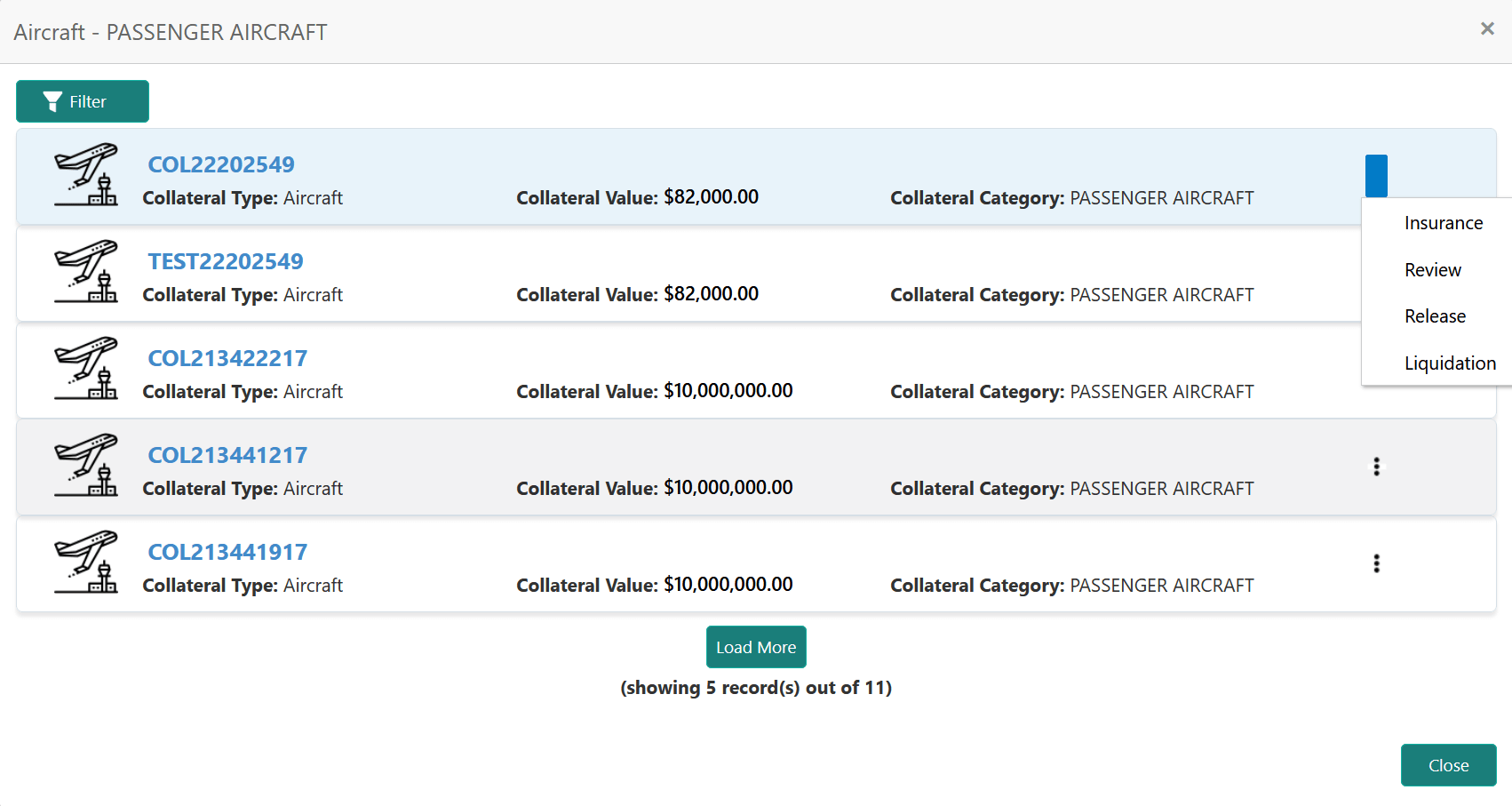
    The Collateral List is displayed based on selected collateral type.

    Figure 2-5 Collateral List

    Collateral list

  2. To view the Collateral Summary, click the Collateral ID in the Collateral List screen.
  3. To initiate Insurance, Review, Release, and / or Liquidation process for the collateral, click the action icon and select the required option.
  4. To exit the Collateral List screen, click Close.
  5. To view the break up of collateral types, select the required collateral type from the Collateral Types Break Up drop down list.
    Contribution from each collateral category is displayed.

    Note:

    You can click the required section in the break up pie chart to view the list of collaterals in selected category and initiate necessary process.