8.2 External Valuation
This topic provides systematic instructions about the procedure to add external valuation details.
Figure 8-3 External Valuation
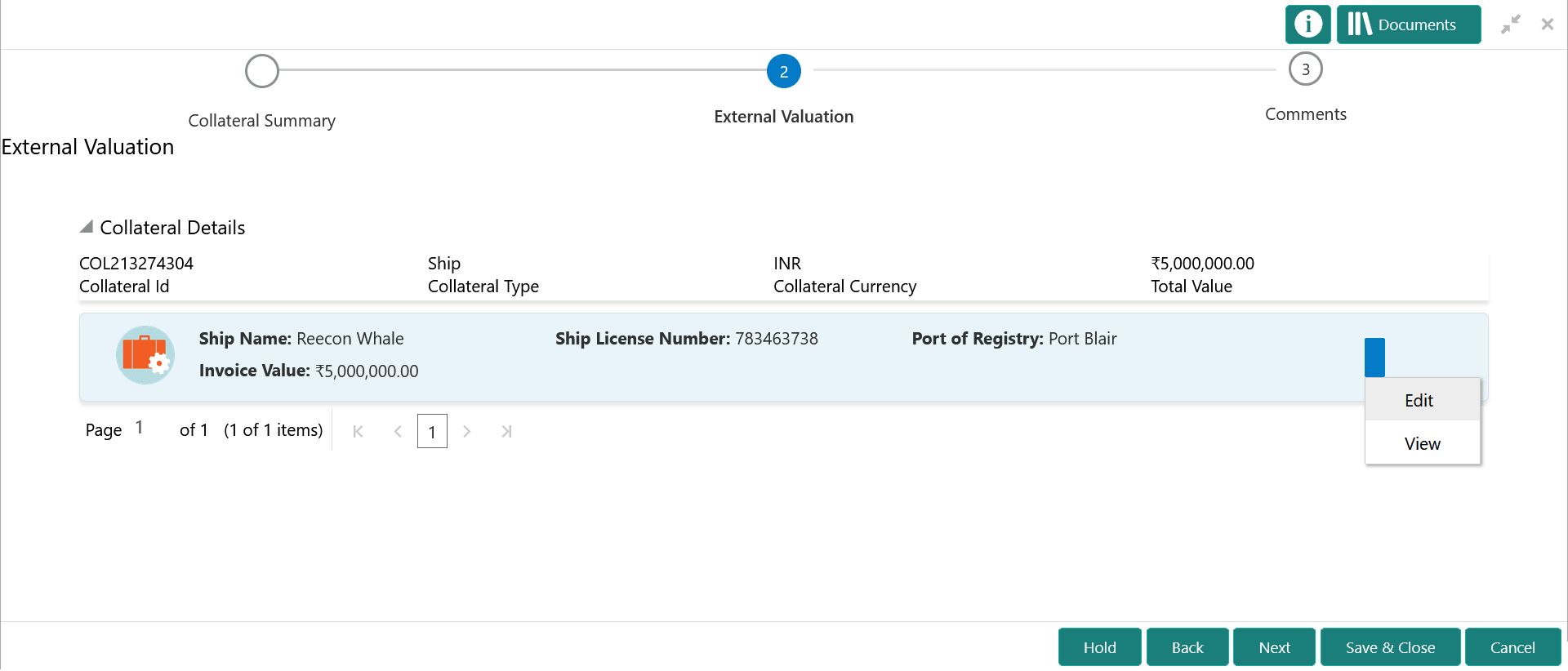
To capture the external valuation details for the collateral:
- Click the action icon in the collateral record and select
Edit.The External Valuation - Configure - Collateral Type screen is displayed.
Figure 8-4 External Valuation - Configure - Collateral Type
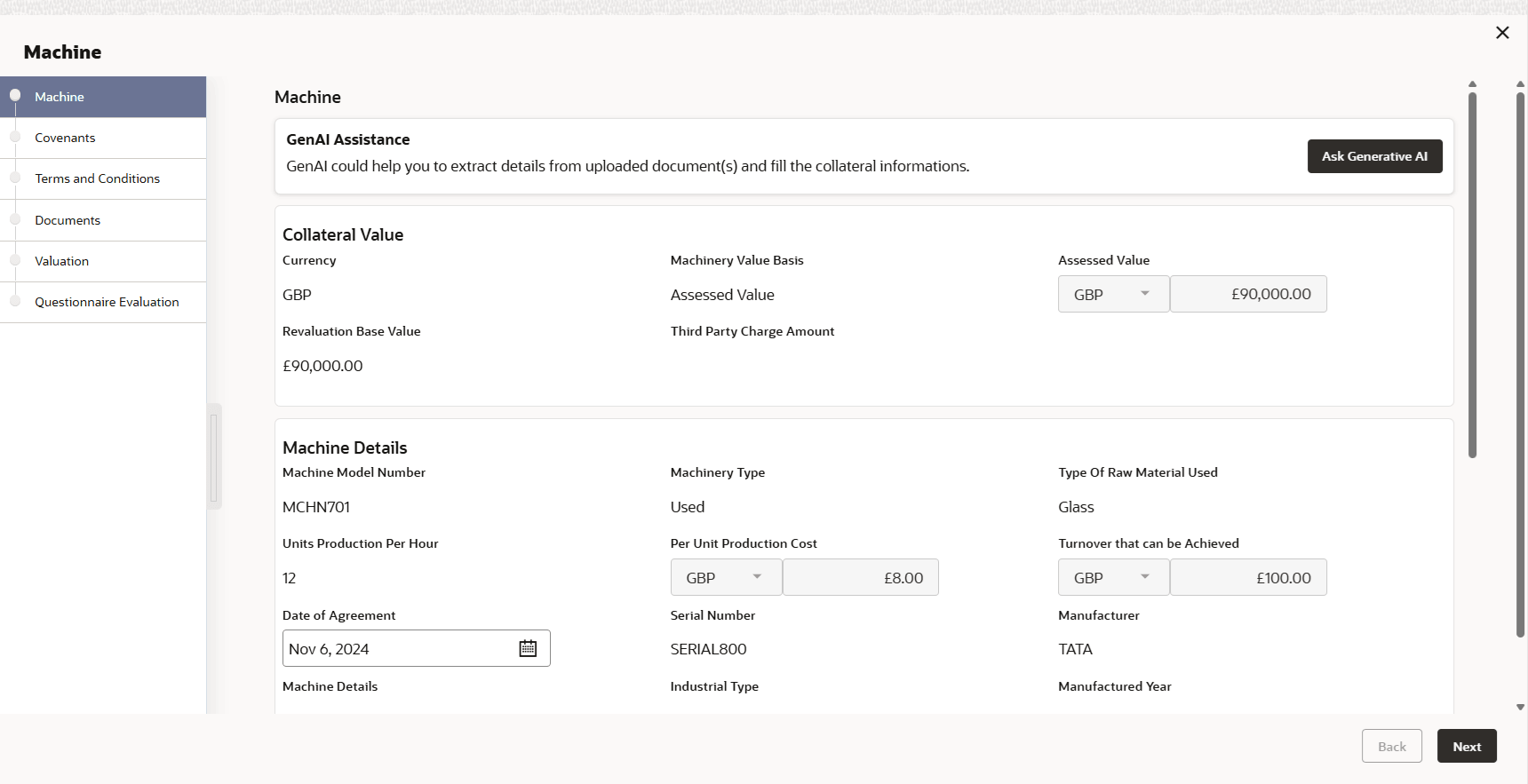
- Click Next and navigate to the Valuation
menu.
Figure 8-5 External Valuation - Configure - Valuation
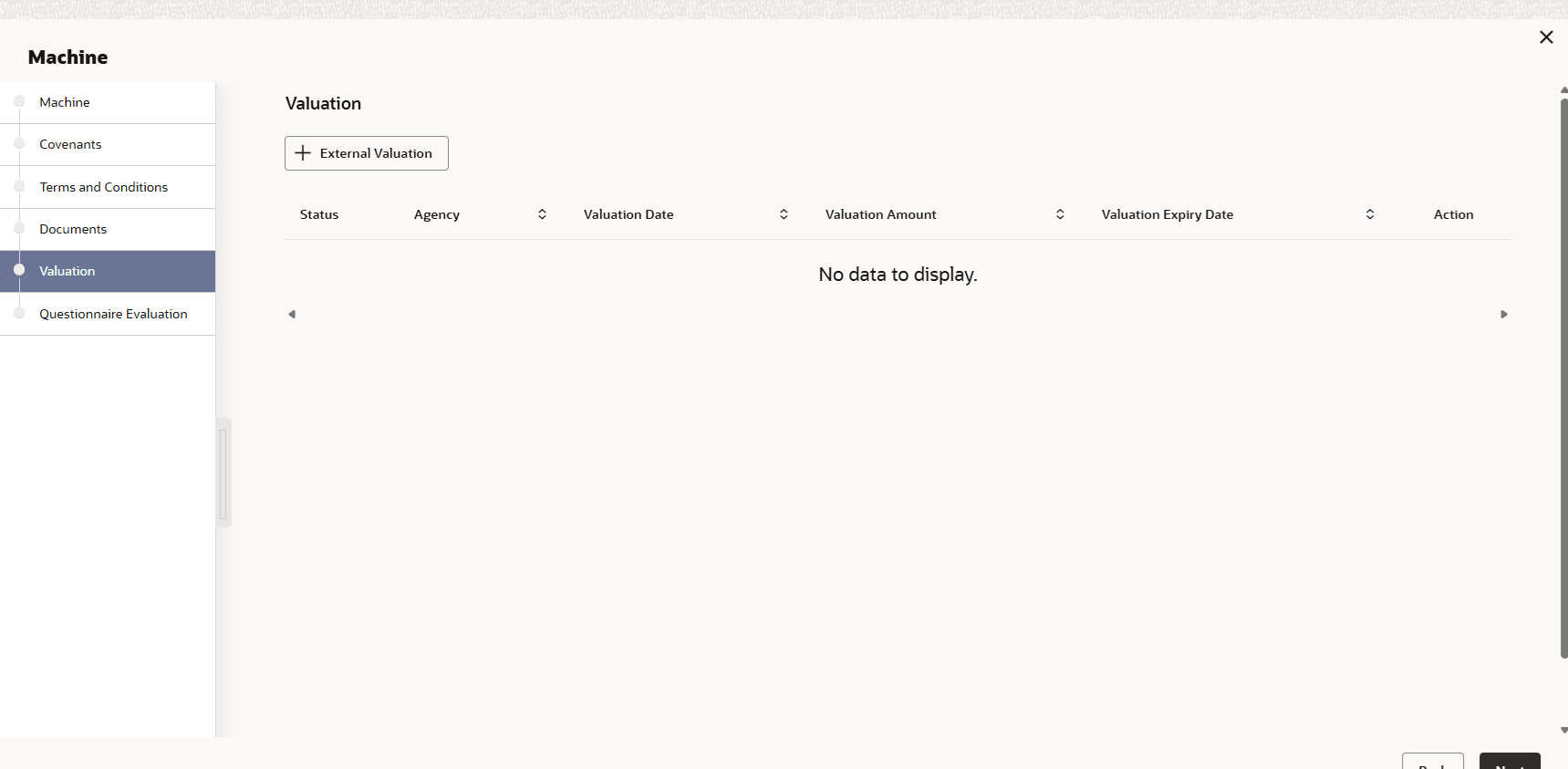
- Click the add icon in the External Valuation - Configure - Valuation
screen.The External Valuation Details window is displayed.
Figure 8-6 External Valuation Details
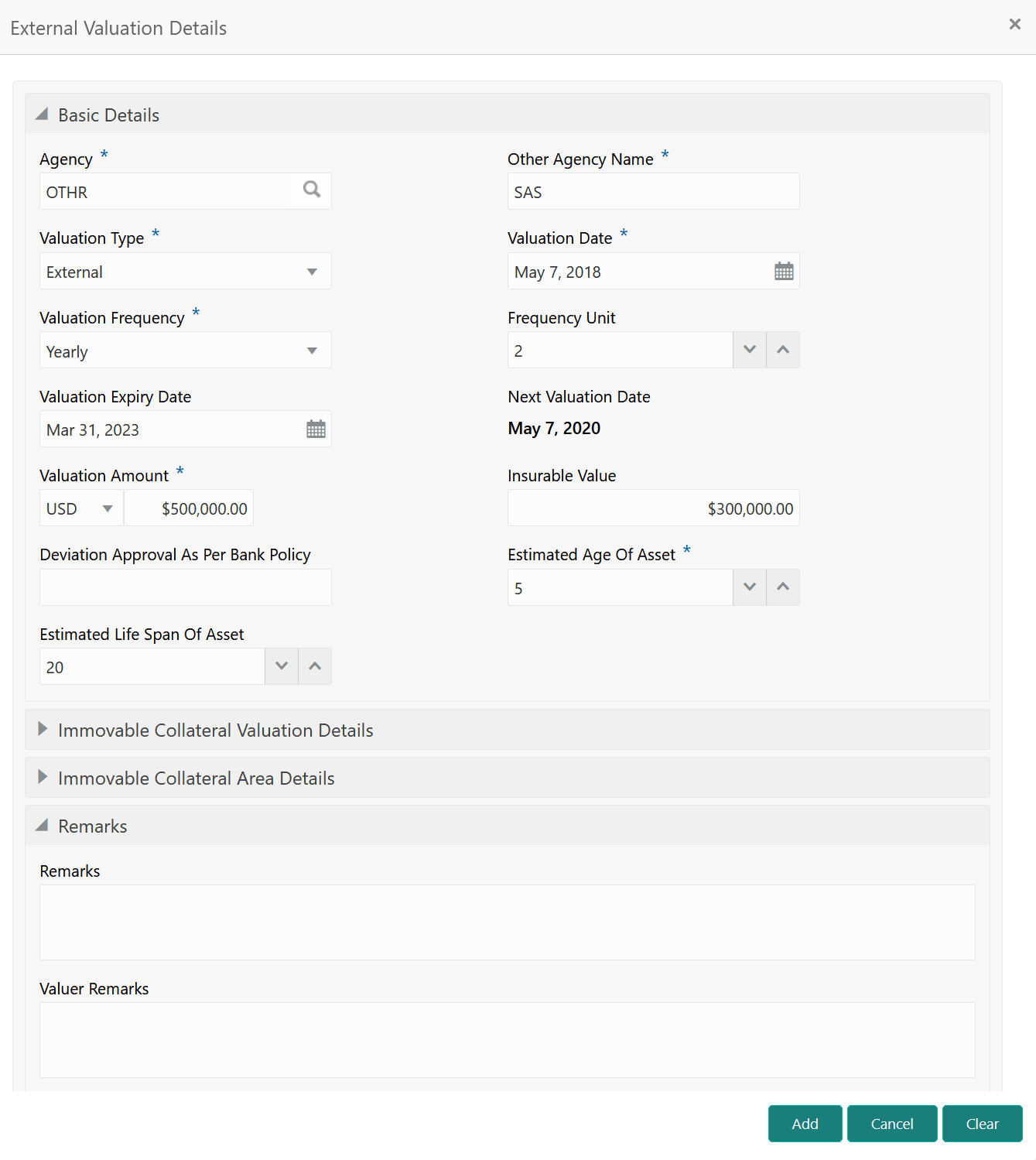
- Capture the external valuation details in the above screen.
For more information on the fields, refer to the field description table below:
Table 8-1 Basic Details - Field Description
Field Description Agency Select the Agency which performed external valuation. Valuation Type Select the Valuation Type as External. Valuation Date Specify the date on which the external valuation is carried out. Valuation Frequency Select the Valuation Frequency from the drop down list. Frequency Unit Specify the number of times the valuation must be done in the selected Valuation Frequency. Valuation Expiry Date Specify the date till which the valuation is valid. Next Valuation Date Next Valuation Date is displayed based on the specified Valuation Date, Valuation Frequency and Frequency Unit. Valuation Amount Select a currency and specify the collateral Valuation Amount. Insurable Value Specify the Insurable Value of the asset. Deviation Approval As Per Bank Policy Provide the approval details in case there is any deviation in the construction from the approved plan and the bank has approved the deviation. Estimated Age of Asset Specify the Estimated Age of Asset. Estimated Life Span of Asset Specify the Estimated Life Span of Asset. Remarks Specify the bank user Remarks. Valuer Remarks Capture the Valuer Remarks for the collateral. Figure 8-7
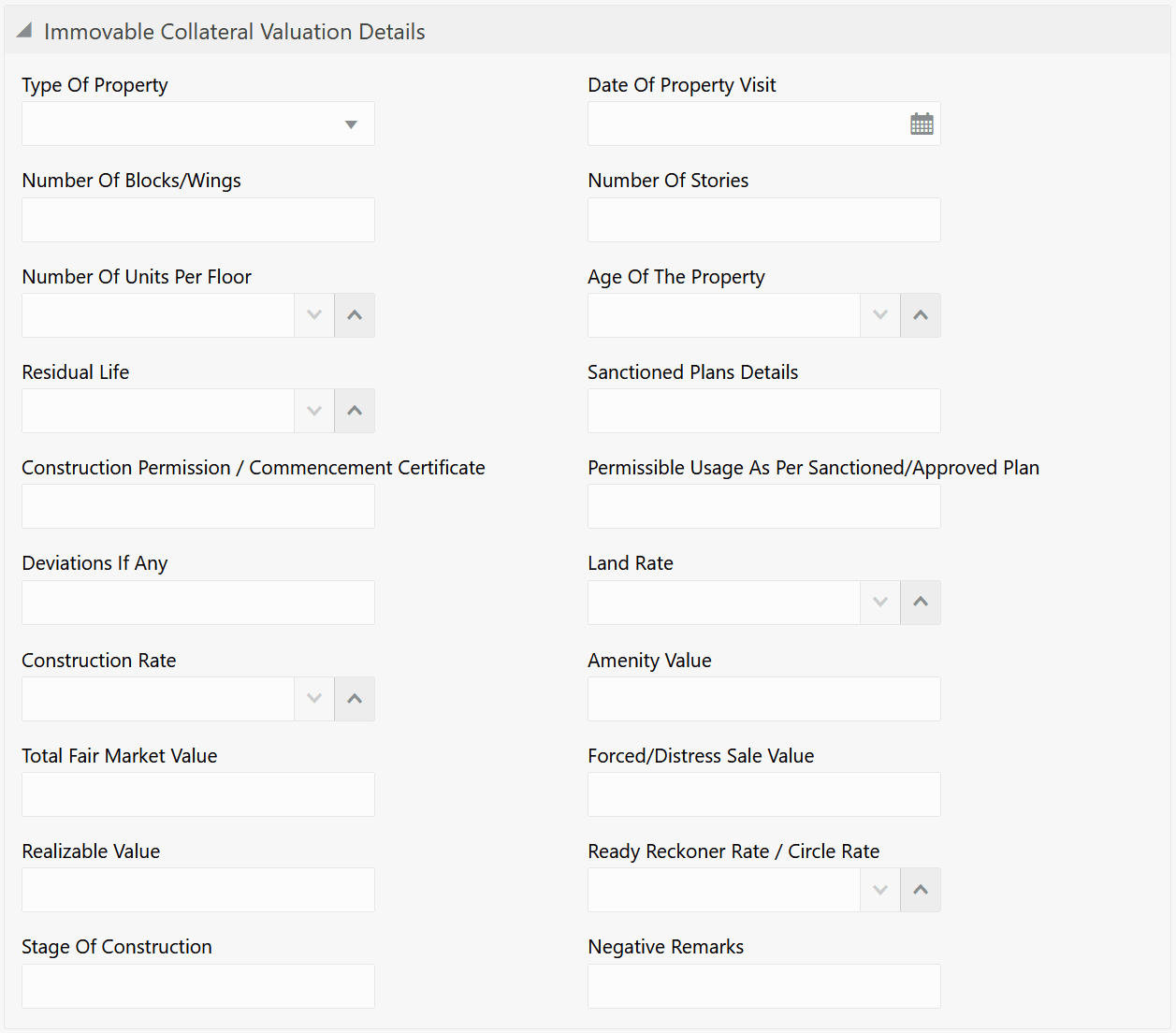
Table 8-2 Immovable Collateral Valuation Details - Field Description
Field Description Type of Property Select the Type of Property from the drop down list. The options available are: - Urban
- Rural
- Semi-Urban
Date of Property Visit Specify the date on which the valuation agency has visited the property. Number of Blocks/Wings Specify the number of blocks or wings in the property. Number of Stories Specify the Number of Stories available in the building. Number of Units Per Floor Specify the number of flats available per floor. Age of the Property Specify the present date of the property in years. Residual Life Specify the remaining life of the building in years. Sanctioned Plan Details Provide details about the plan sanctioned for building construction. Construction Permission / Commencement Certificate Provide details of construction permission from the local authority. Permissible Usage As Per Sanctioned/Approved Plan Specify the purpose of building as per the permission obtained from the local authority. Deviations If Any If there is any deviation in the construction from the approved plan, specify the deviation details. Land Rate Specify the Land Rate in the locality. Construction Rate Specify the cost of construction per unit. Amenity Value Specify the value of other amenities provided to the customers. Total Fair Market Value Specify the fair market value of the building or apartment or unit. Forced/Distress Sale Value Specify the possible sale value in case of default by customer. Realizable Value Specify the value of realization in case of sale. Ready Reckoner Rate/Circle Rate Specify the indexed rate or prevailing rate in the locality. Stage of Construction Specify the current Stage of Construction. Negative Remarks Capture Negative Remarks from the External Valuator, if any Figure 8-8
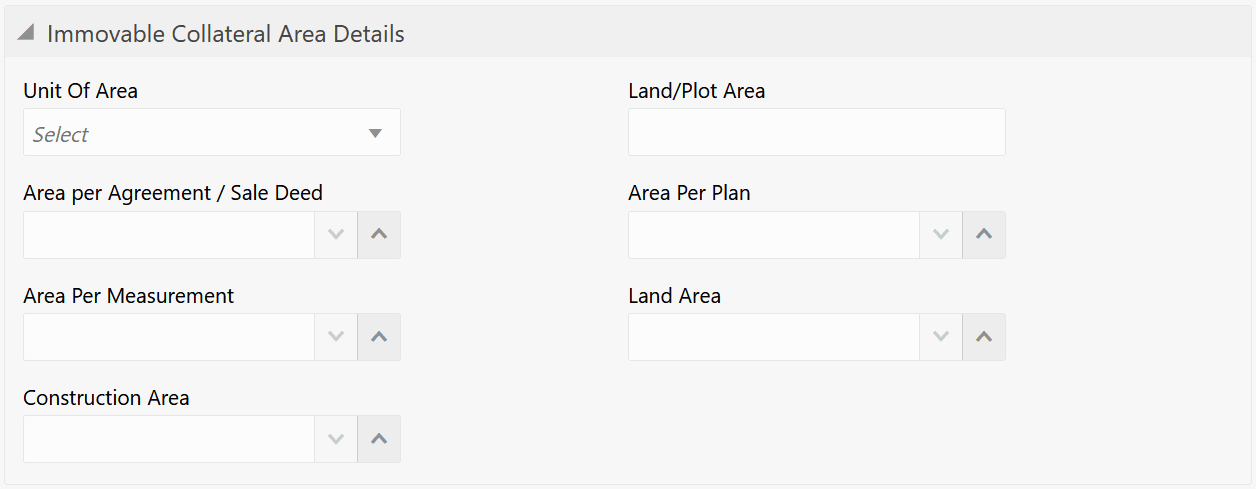
Table 8-3 Immovable Collateral Area Details - Field Description
Field Description Unit of Area Select the Unit of Area from the drop down list. The options available are: - Acre
- Hectare
- Square Meter
- Square Yard
Land/Plot Area Specify the Land/Plot Area in the selected unit. Area per Agreement / Sale Deed Specify the area as mentioned in the sale deed or agreement. Area Per Plan Specify the area covered per flat as per the building plan. Area Per Measurement Specify the proprty area as per measurement. Land Area Specify the Land Area in the selected unit. Construction Area Specify the total Construction Area on the land. - Click Add in the External Valuation Details
window.The external valuation details are added and displayed as shown below.
Figure 8-9 External Valuation - Configure - Valuation Details
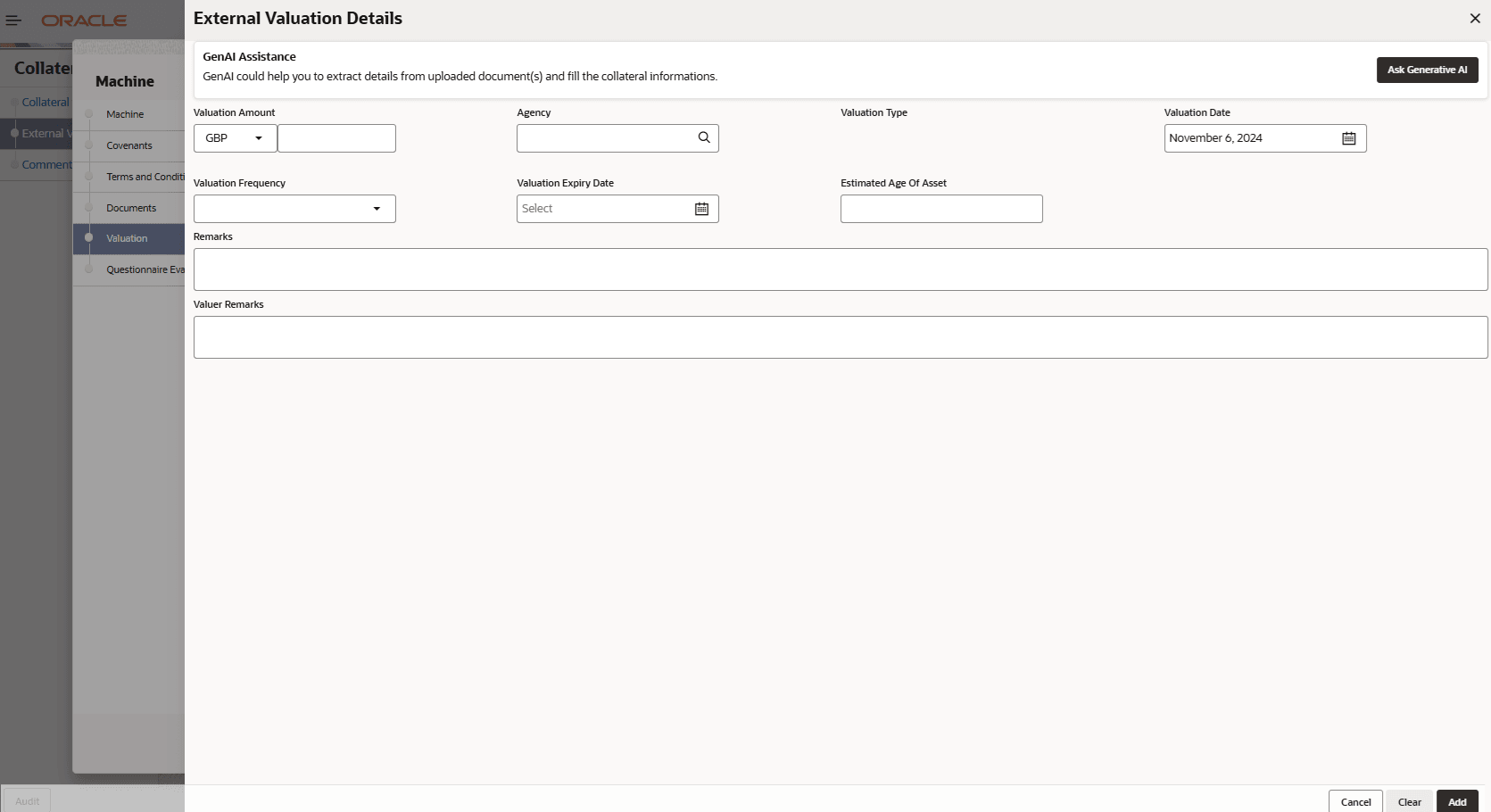
You can Edit, View, or Delete the added external valuation detail by clicking the action icon and selecting the required option.
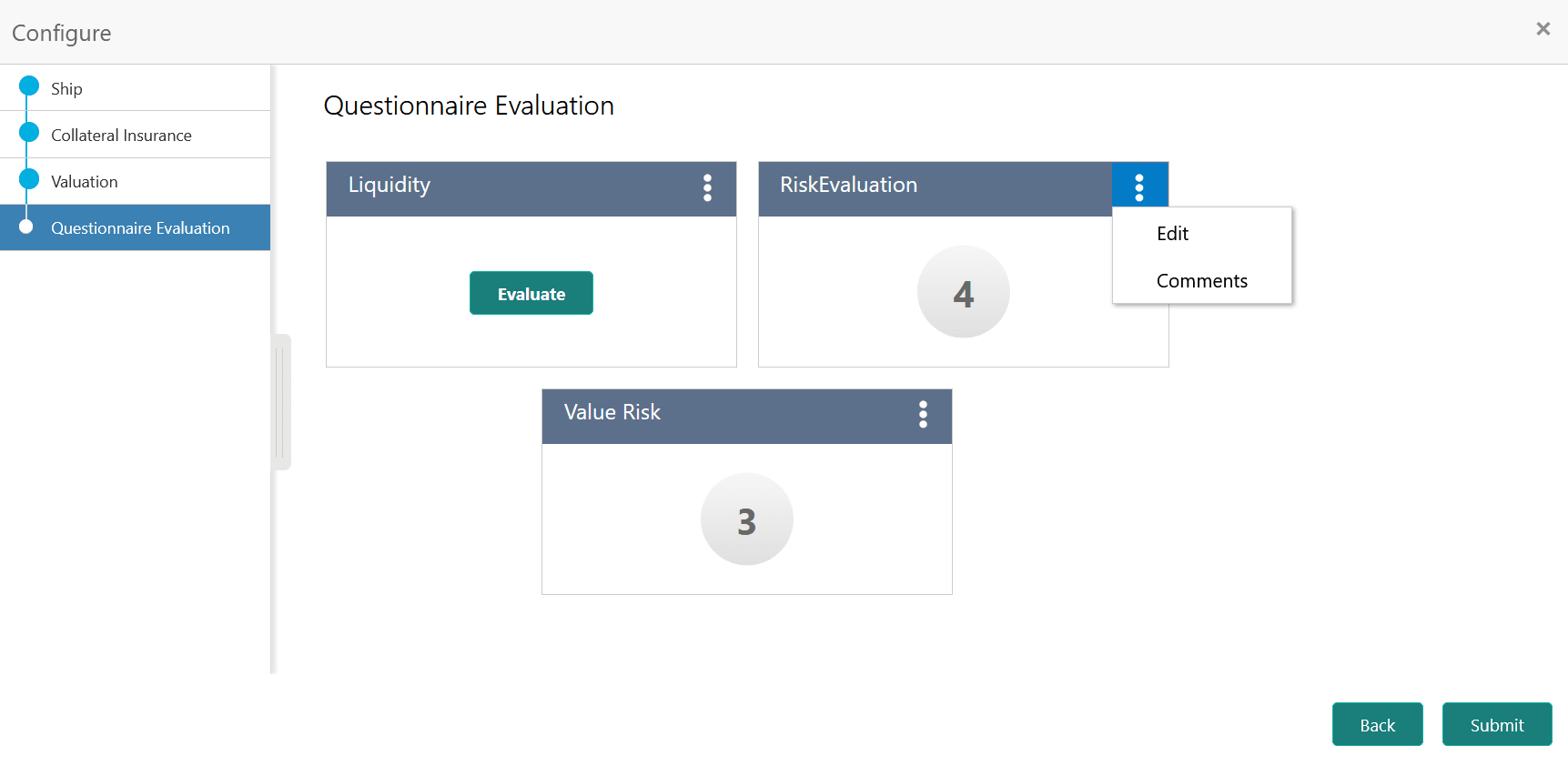
- After capturing external valuation details, click Next.The External Valuation - Configure - Questionnaire Evaluation screen is displayed.
Figure 8-10 External Valuation - Configure - Questionnaire Evaluation
Note:
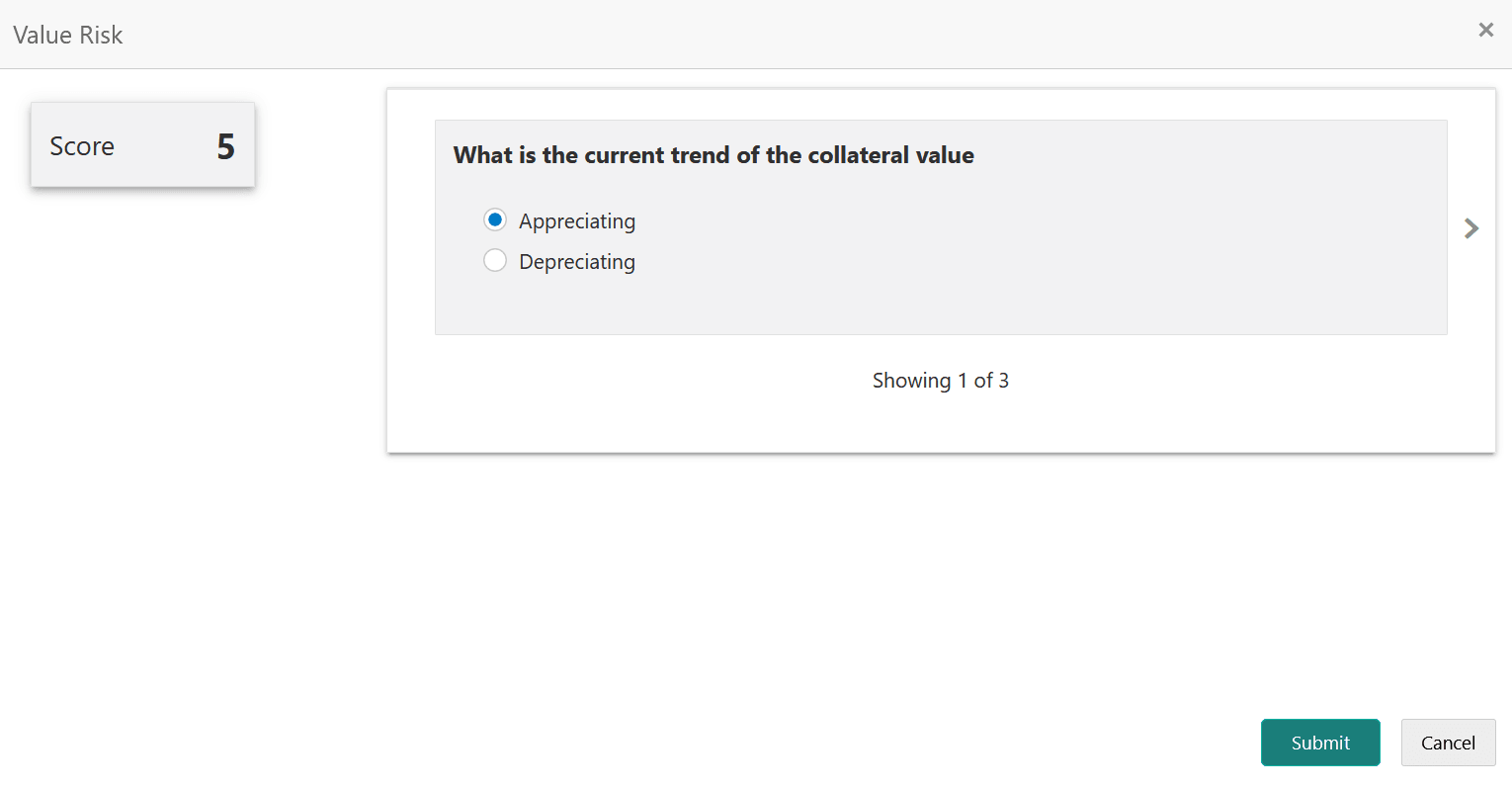
In the above screen, the questionnaires linked to the External Valuation stage in Business Process configuration are displayed. You can manage the questionnaire process linkage in Maintenance module. - Click Evaluate in any of the tile.The Questionnaire window is displayed.
Figure 8-11 Questionnaire