3.3.1 Adding Property Details
Procedure to add/modify property details.
- Provide/modify the property details about property in the Enrichment -
Configure - Property screen.For field level information, refer the following tables.
Table 3-4 Configure - Property - Field Description
Field Description Property ID
Specify the Property ID.
Property Type
Select the Property Type from the drop down list. The options available include but are not limited to:- Residential Building
- Residential Plot
Property Category
Select the Property Category from the drop down list. The options available include but are not limited to:- Individual
- Corporate
Description
Provide a brief description about the property.
Property Purpose
Select the purpose of the property from the drop down list. The options available include but are not limited to:- Personal
- Commercial
Registered Owner
Specify the name of Registered Owner of the property.
Land Registry
Specify the property Land Registry details.
Purchase Date
Specify the date on which the property was purchased.
Zone Classification
Select the Zone Classification from the drop down list. The options available include but are not limited to:- EARTH QUAKE ZONE
- FLOOD ZONE
- NORMAL
Flood Zone
Enable this flag, if the property is in flood zone.
Flood Zone Type
Select the Flood Zone Type from the drop down list, if the Flood Zone flag is enabled. The options available include but are not limited to:- Zone1
- Zone2
- Zone3a
- Zone3b
Seismic Zone
Enable this flag, if the property is in seismic zone.
Seismic Zone Type
Select the Seismic Zone Type from the drop down list, if the Seismic Zone flag is enabled. The options available include but are not limited to:- Low Damage Risk
- Moderate Damage Risk
- High Damage Risk
- Highest Damage Risk
Income Producing
Enable this flag, if the property is producing income through rent or lease.
Environment Assessment Required
Enable this flag, if environment assessment is required for the property.
Restricted Property
Enable this flag, if the property is restricted by government authorities.
Under Construction
Enable this flag, if the property is under construction.
Nature of Property
Select the Nature of Property from the drop down list. The options available include but are not limited to:- Fee Simple
- Leasehold
Property Status Select the Property Status from the drop down list. The options available include but are not limited to:- Rented
- Leased
- Self Owned
Wall Material Select the property Wall Material from the drop down list. The options available include but are not limited to:- Asbestos
- Bamboo
- Brick Veneer
- Clay
- Concrete
- Double Brick
- Mud Brick
- Polystyrene
- Steel
- Stone
- Timber
- Others
Roof Type Select the property Roof Type from the drop down list. The options available include but are not limited to:- Ashpalt Shingles
- Bamboo
- Metal
- Bricks
- Built-Up Roof
- Clay
- Concrete Tiles
- Mud
- Rubber Slate
- Slate
- Solar Tiles
- Solid Wood
- Stone Coated Steel
- Thatched
- Copper
- Others
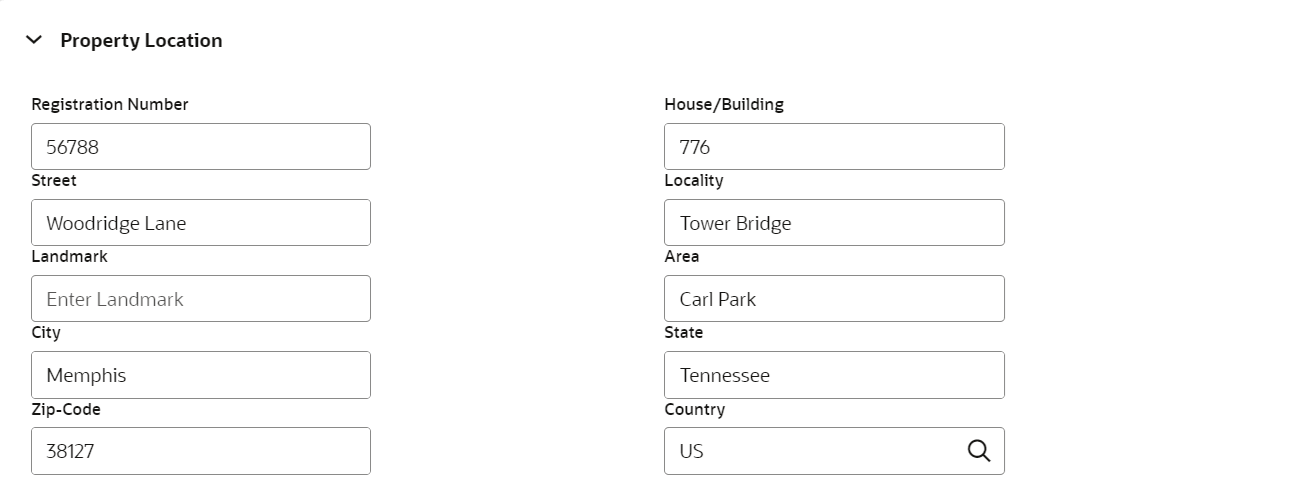
Registration Date Specify the date on which the property is registered. Property Value Select a currency and specify the value of property. Adverse Comments Catpture Adverse Comments about the property, if any. Table 3-5 Configure - Property Location - Field Description
Field Description Registration Number
Specify the property Registration Number. House/Building
Specify the House/Building name. Street
Specify the Street in which the property is located. Locality
Specify the Locality of the property. Landmark
Specify the Landmark for the property. Area
Specify the Area in which the property is located. City
Specify the City in which the property is located. State Specify the State in which the property is located. Zip-Code Specify the Zip-Code of the property area. Country Specify the Country in which the property is located. Figure 3-7 Configure - Property - Currency Details
Table 3-6 Configure - Property - Currency Details - Field Description
Field Description Currency
The system displays the collateral Currency in this field. Amount in Collateral Currency
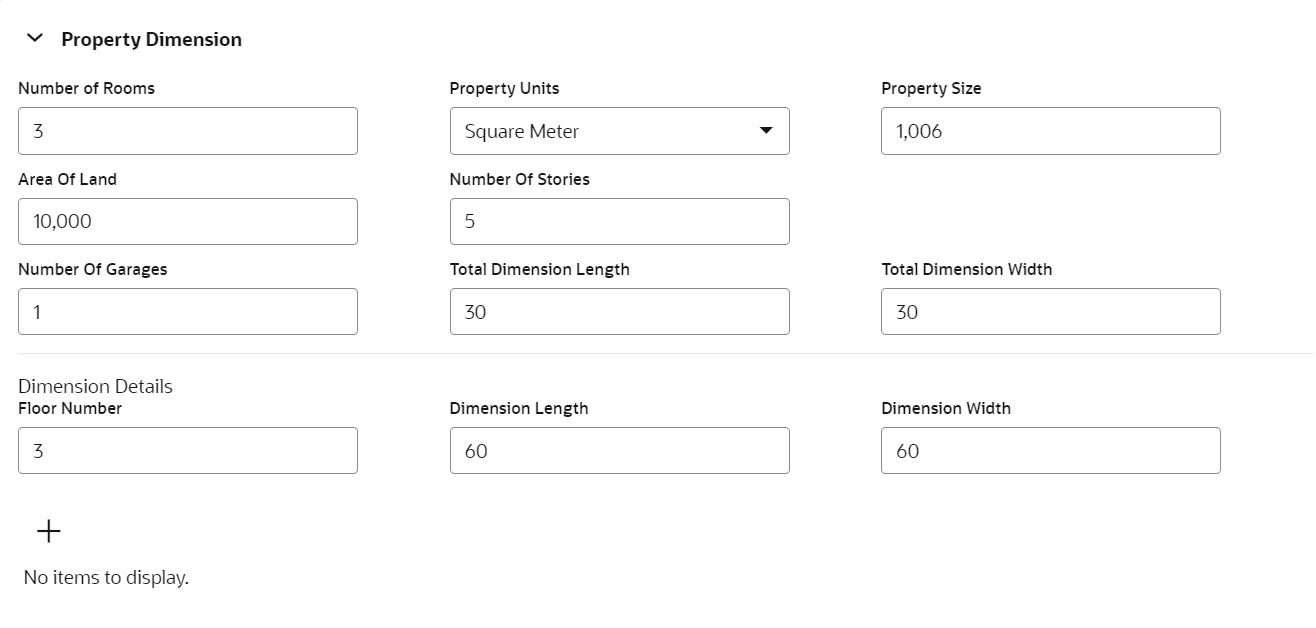
Property Value is displayed in collateral currency in case the property value is not specified in collateral currency. Figure 3-8 Configure - Property - Property Dimension
Table 3-7 Configure - Property Dimension - Field Description
Field Description Number of Rooms
Specify the Number of Rooms available in the property. Property Units
Select the unit in which property is measured. The options available include but are not limited to - Square Meter
- Square Yard
- Hectare
- Acre
Property Size
Specify the Property Size in selected unit. Area of Land
Specify the total Area of Land in which the property is constructed. Number of Stories
Specify the Number of Stories available in the property. Number of Garages
Specify the Number of Garages available in the property. Total Dimension Length
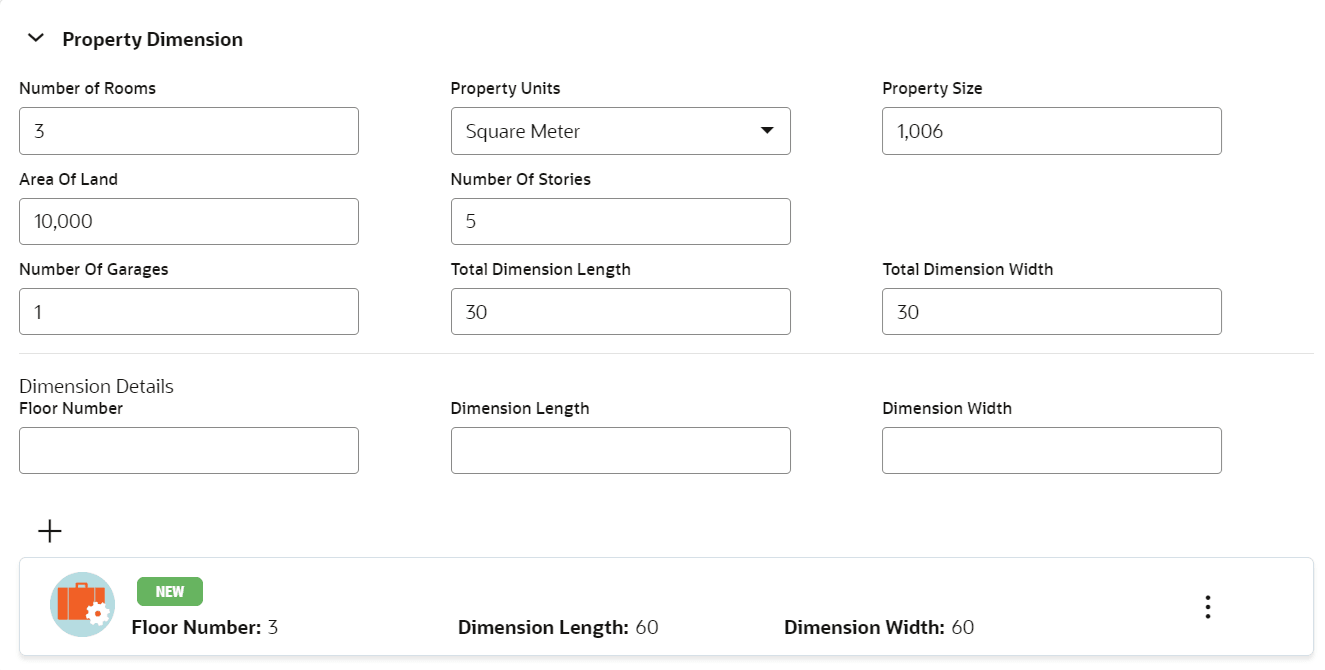
Specify the total length of the property. Total Dimension Width Specify the total width of the property. Floor Number Specify the Floor Number of the property, in case the property is in shared building. Dimension Length Specify the length of the carpet area of property. Dimension Width Specify the width of the carpet area of property. After adding the property dimension details, click + the add icon. The dimension details are added and displayed as shown below.Figure 3-9 Configure - Property Dimension - Added
You can Edit, View, or Delete the property dimension details by clicking the action icon in the record and selecting the required option.
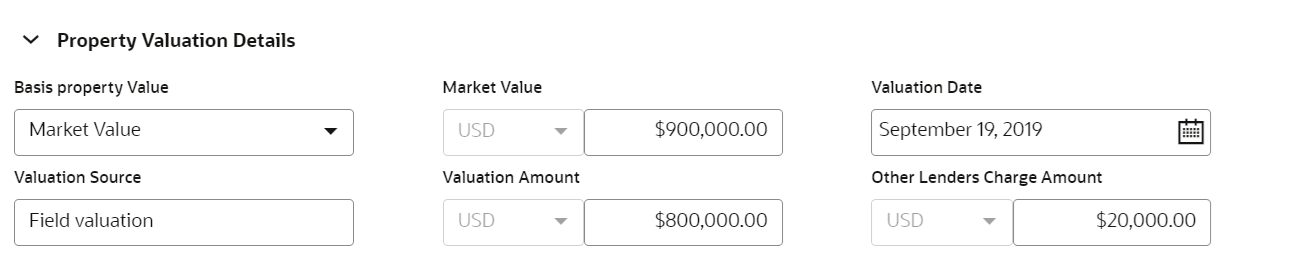
Figure 3-10 Configure - Property Valuation Details
Table 3-8 Configure - Property Valuation Details - Field Description
Field Description Valuation Date
Specify the date on which the property is valuated. Valuation Source
Specify the property valuation source. For example, Public Institutions and Real Estate Agents Valuation Amount
Specify the property Valuation Amount. Other Lenders Charge Amount
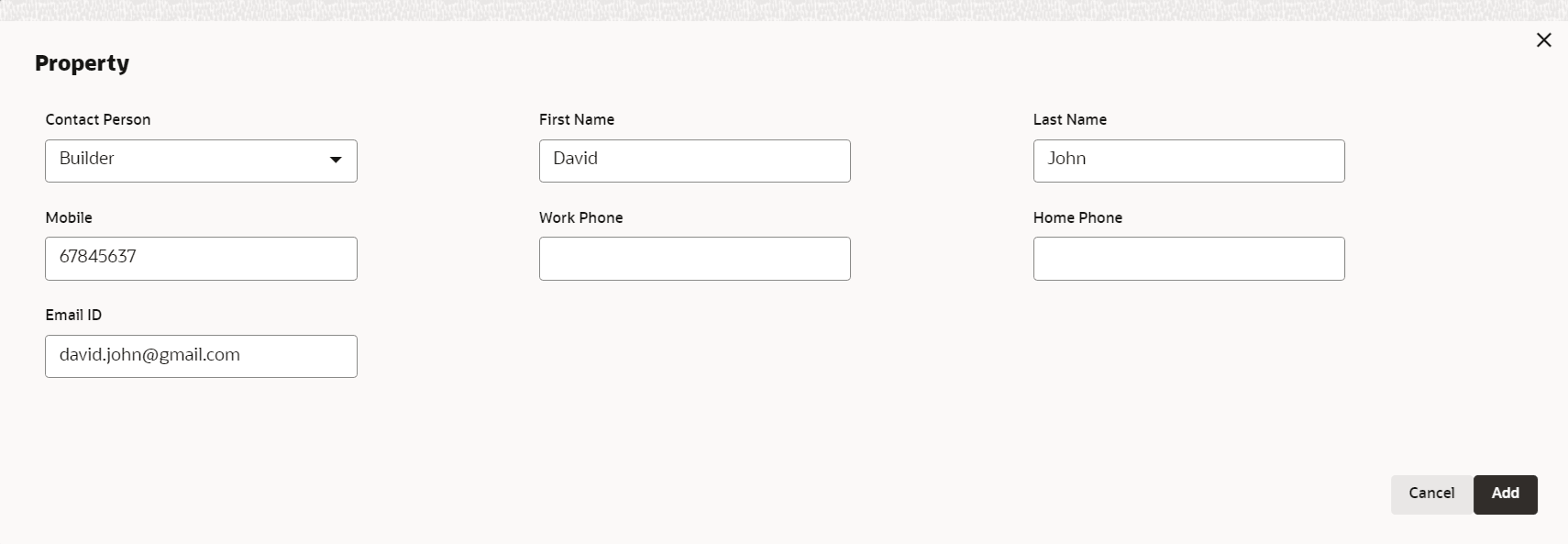
Specify the Other Lenders Charge Amount in case the property is backing up the facility borrowed from other lenders. Figure 3-11 Configure - Property Contact Details
Table 3-9 Configure - Property Contact Details - Field Description
Field Description Contact Person
Select the Contact Person from the drop down list. The options available include but are not limited to: - Tenant
- Builder
- Real Estate Vendor
- Owner
- Others
First Name
Specify the First Name of the contact person in the property. Last Name
Specify the Last Name of the contact person in the property. Mobile
Specify the mobile number of the contact person in the property. Work Phone Specify the work phone number of the contact person in the property. Home Phone Specify the home phone number of the contact person in the property. Email ID Specify the Email ID of the contact person in the property. Figure 3-12 Configure - Property - Residential Status
Table 3-10 Configure - Property - Residential Status - Field Description
Field Description Primary Residence
Enable this flag if the property is the customer's primary residence. Occupancy
Select the Occupancy from the drop down list.