4.3 External Check

Procedure to add external check details.

Upon clicking Next in the External Check - Collateral Summary screen, the External Check data segment is displayed.
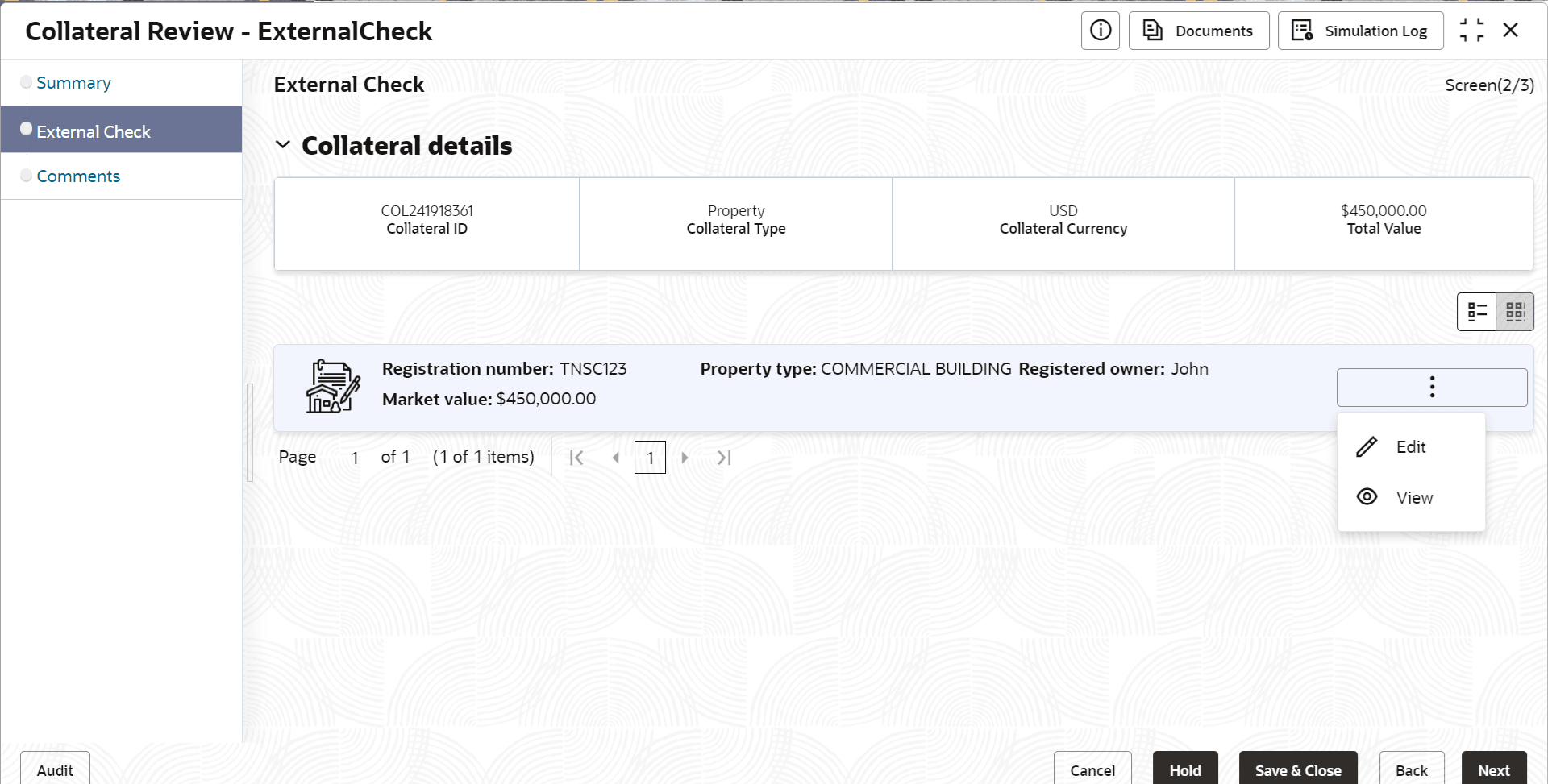
To capture the external check details for the collateral:

  1. Click the action icon in the collateral record and select Edit.
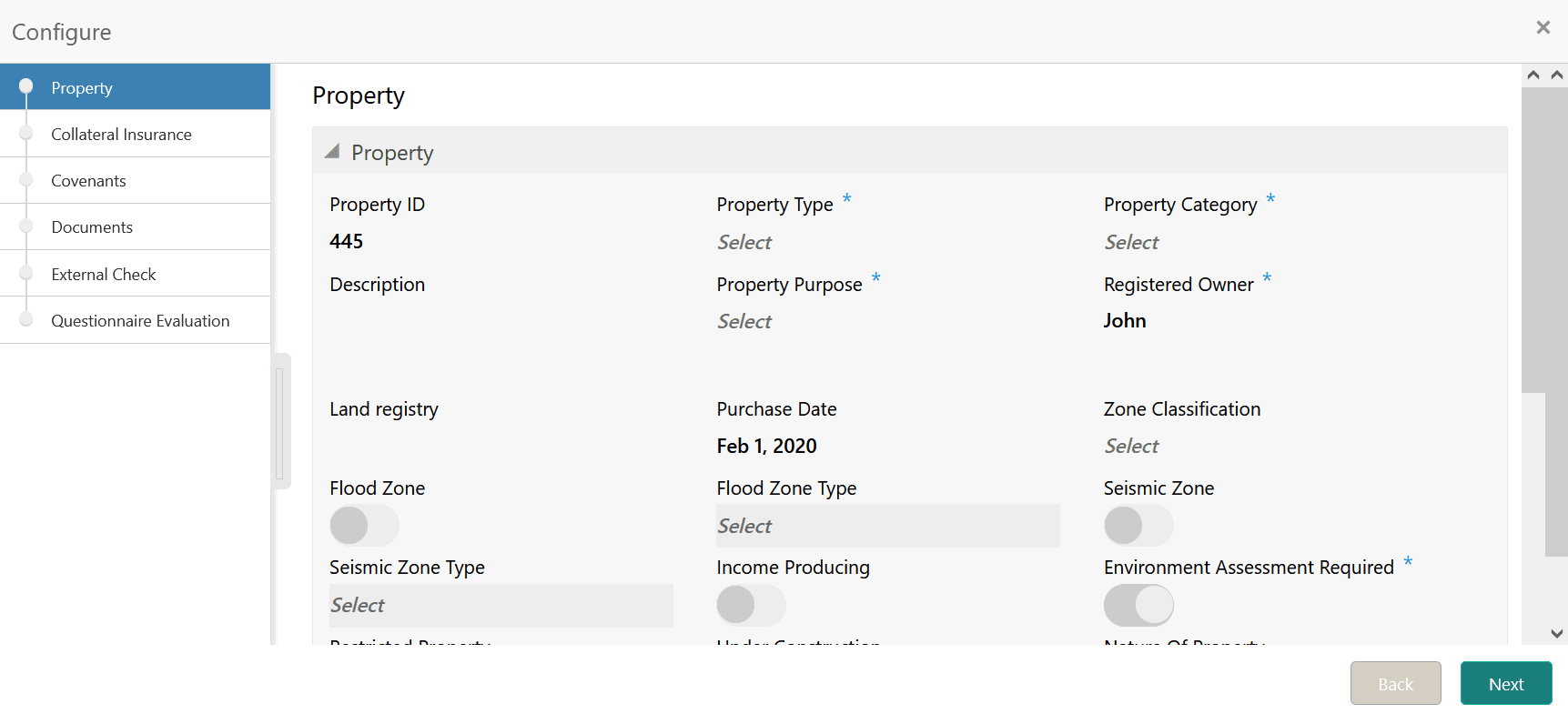
    The External Check - Configure - Collateral Type screen is displayed.

    Figure 4-4 External Check - Configure - Collateral Type


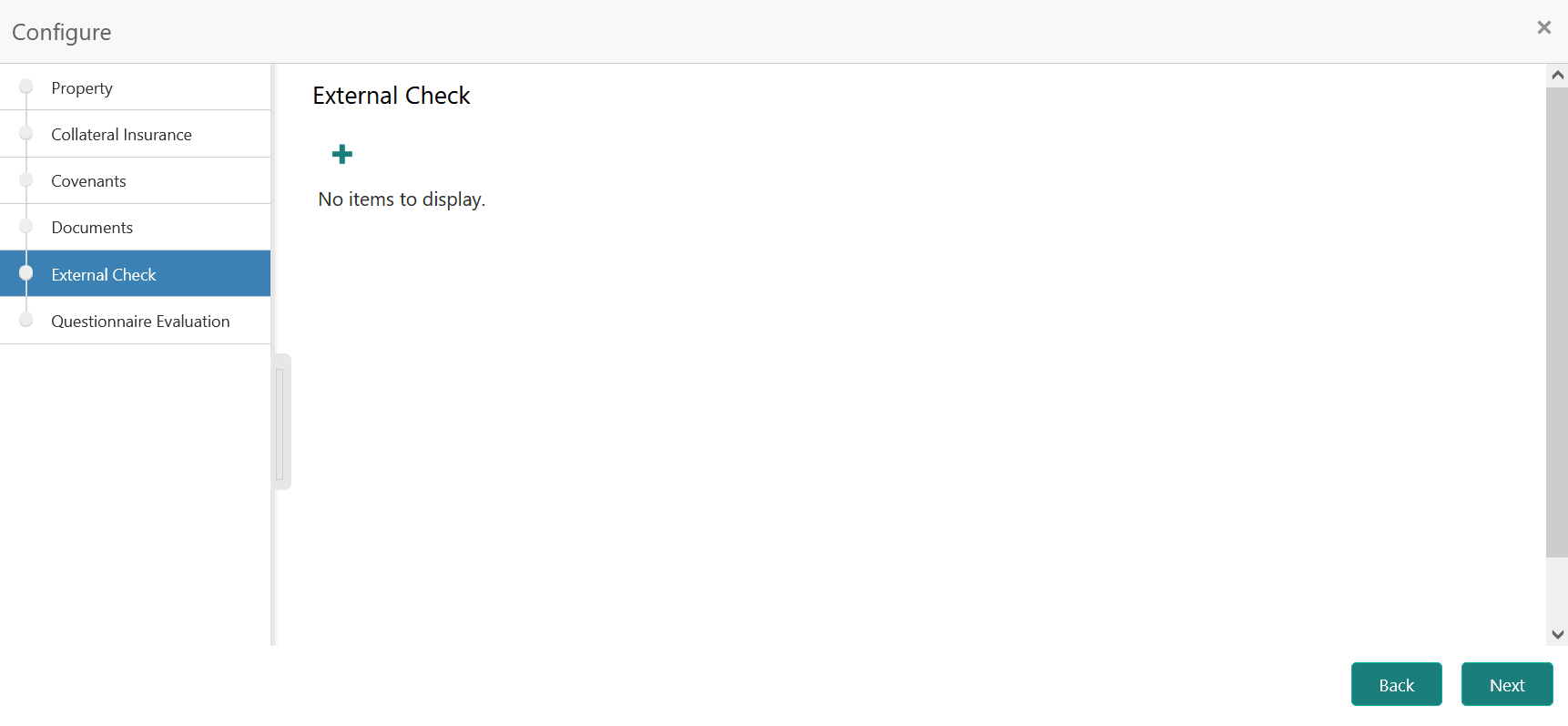
  2. Click Next and navigate to the External Check menu.

    Figure 4-5 External Check - Configure - External Check


  3. Click the add icon in the External Check - Configure - External Check screen.
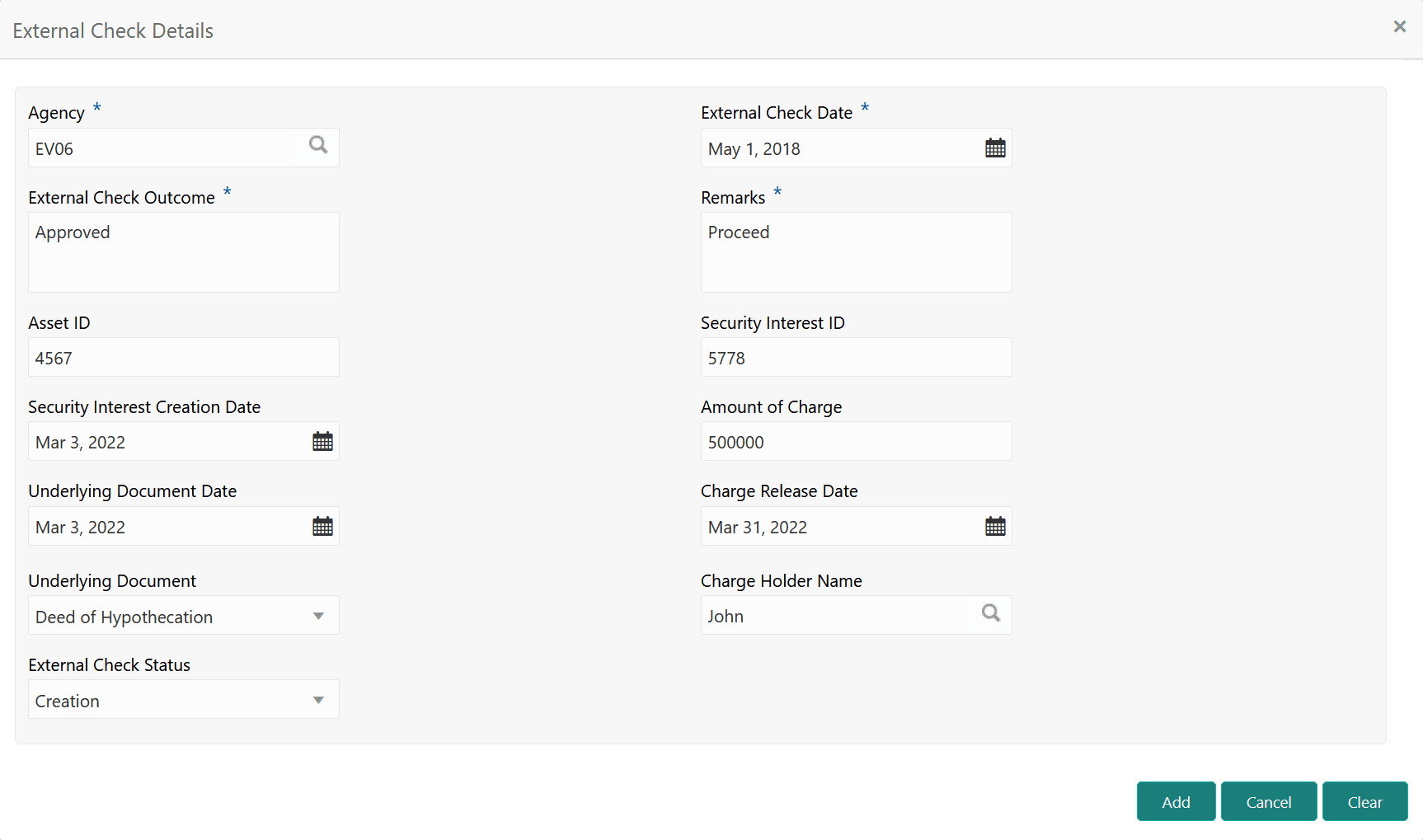
    The External Check Details window is displayed.

    Figure 4-6 External Check Details


  4. Capture the external check details in the above screen.
    For field level explanation, refer the below table.

    Table 4-1 External Check Details - Field Description

    Field Description
    Agency Select the Agency from which the collateral registration details are obtained.
    External Check Date Specify the date on which the External Check is carried out.
    External Check Outcome Specify the External Check Outcome.
    Remarks Capture the Remarks for the collateral.
    Asset ID Specify the Asset ID. For example, Registration ID.
    Security Interest ID Specify the reference number of security interest registration at CERSAI.
    Security Interest Creation Date Specify the date on which security interest is created.
    Amount of Charge Specify the Amount of Charge created on the collateral.
    Underlying Document Date Specify the execution date of underlying document.
    Charge Release Date If the bank has released the charge on collateral by executing release deed or release letter, specify the date of execution of such document.
    Underlying Document Select the name of document executed to create charge on the collateral. The following options are available in the drop down list.
    • Deed of Hypothecation
    • Mortgage Deed
    Charge Holder Name Specify the name of bank which has created charge on the collateral.
    External Check Status Select the External Check Status of the collateral. The following options are available in the drop down list.
    • Satisfied
    • Creation
    • Modification
  5. Click Add in the External Check Details window.
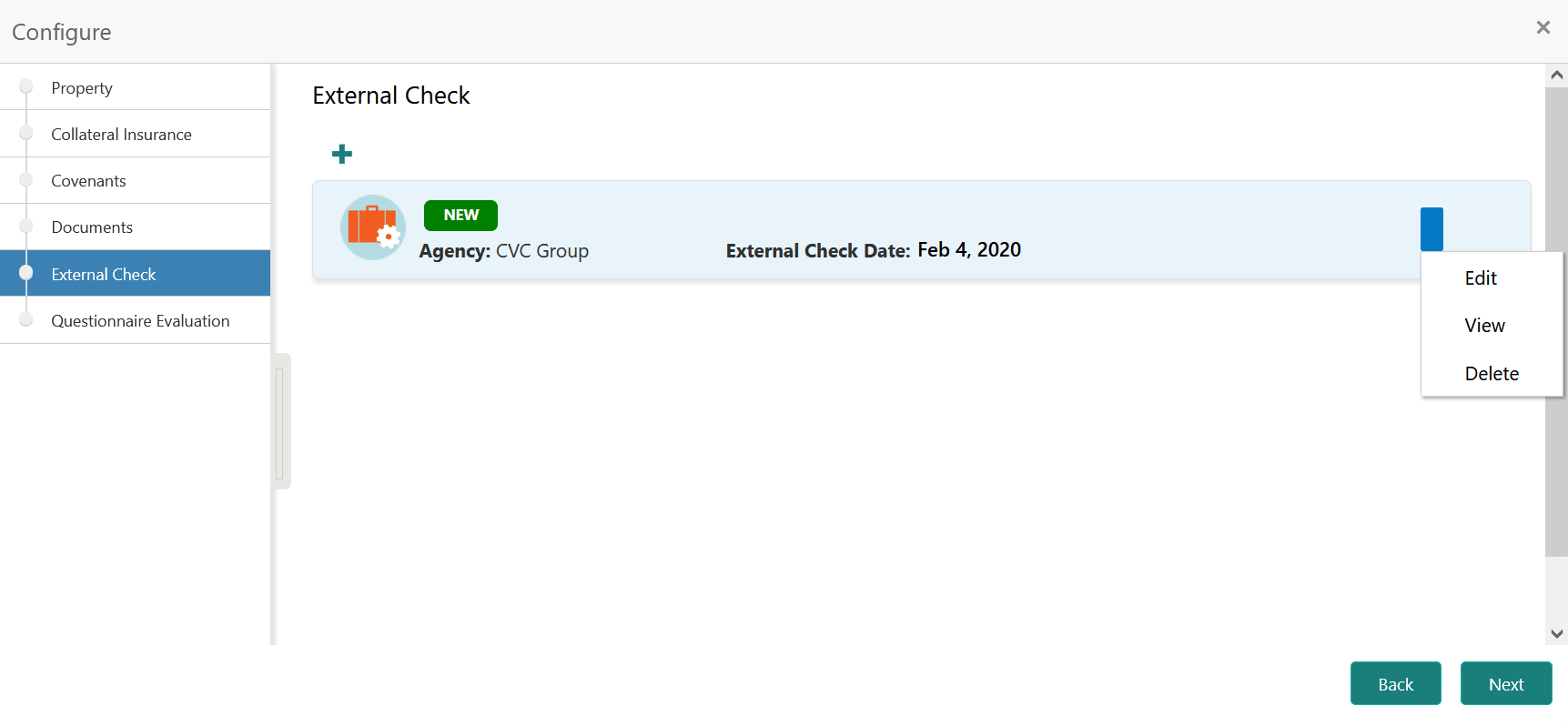
    The external check details are added and displayed as shown below.

    Figure 4-7 External Check - Configure - External Check Details


    You can Edit, View, or Delete the added external check details by clicking the action icon and selecting the required option.

  6. After capturing the external check details, click Next.
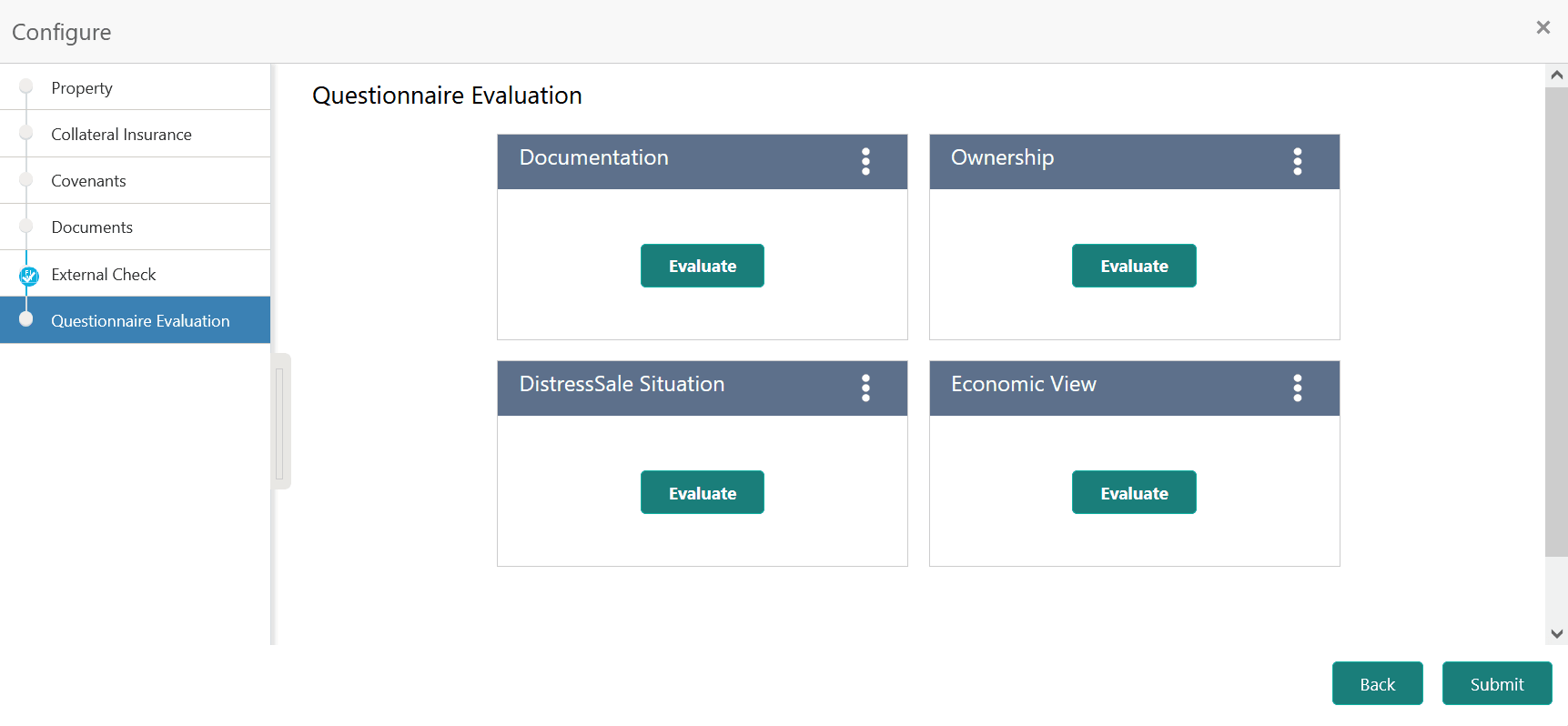
    The External Check - Configure - Questionnaire Evaluation screen is displayed.

    Figure 4-8 External Check - Configure - Questionnaire Evaluation


    Note:

    In the above screen, the questionnaire linked to the External Check stage in Business Process configuration are displayed. You can manage the questionnaire process linkage in Maintenance module.
  7. Click Evaluate in any of the tile.
    The Questionnaire window is displayed.
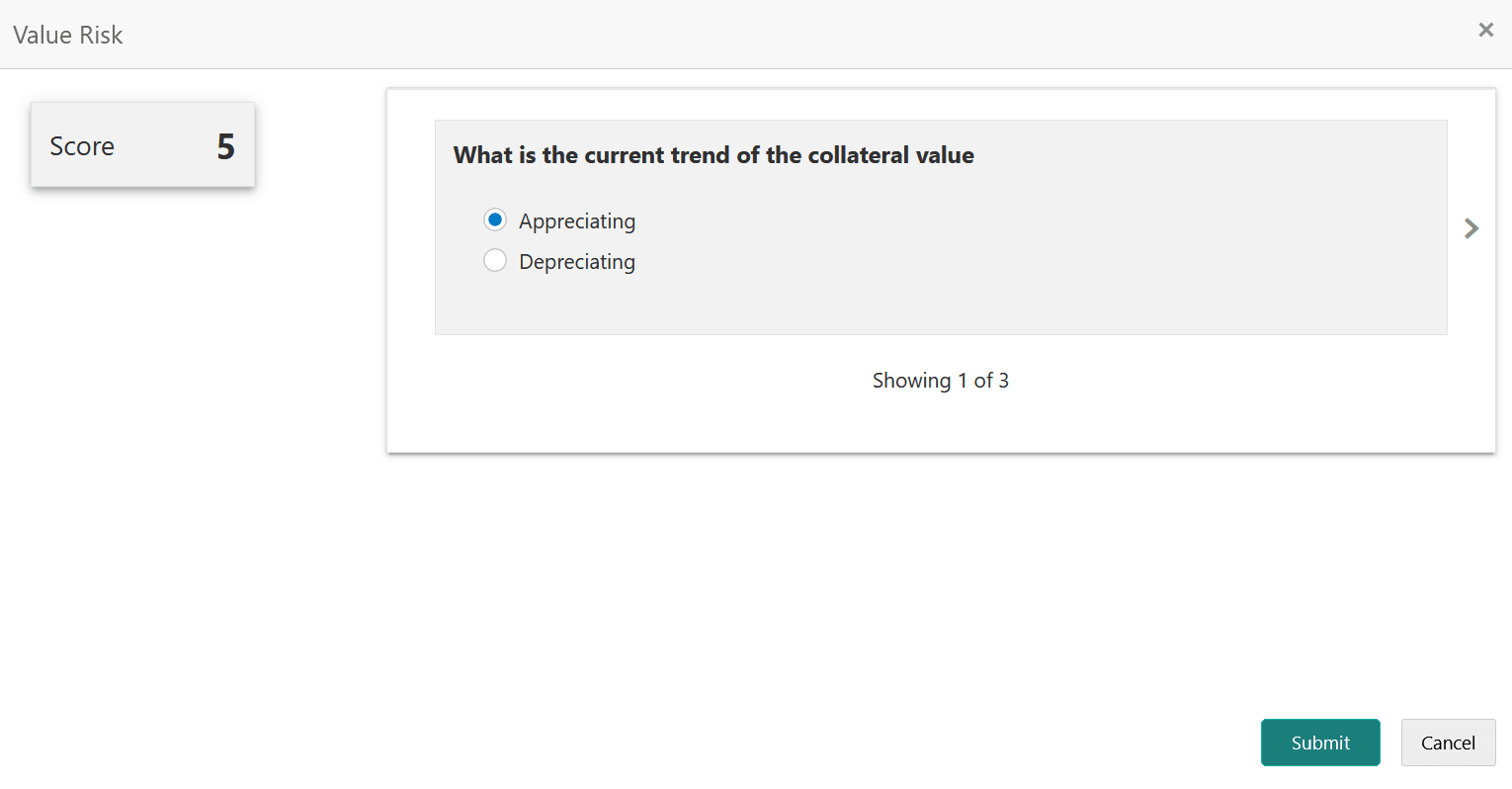
  8. Select answer for all the questions and click Submit.

    In case of multiple questions, the right arrow appears in the Questionnaire screen. Click the right arrow to view next question.

    Once the evaluation is completed, the system displays the overall score for evaluation in External Check - Configure - Questionnaire Evaluation screen based on the score generated for each answer provided in the Questionnaire screen.

    You can click the Action icon in the tile and select Edit or Comment to modify the answers or capture comment for the evaluation, respectively.

  9. After performing all the evaluation, click Submit.