3.5 Debtors
This topic provides systematic instructions about the parties that purchased products or services from your customer can be captured from this tile.
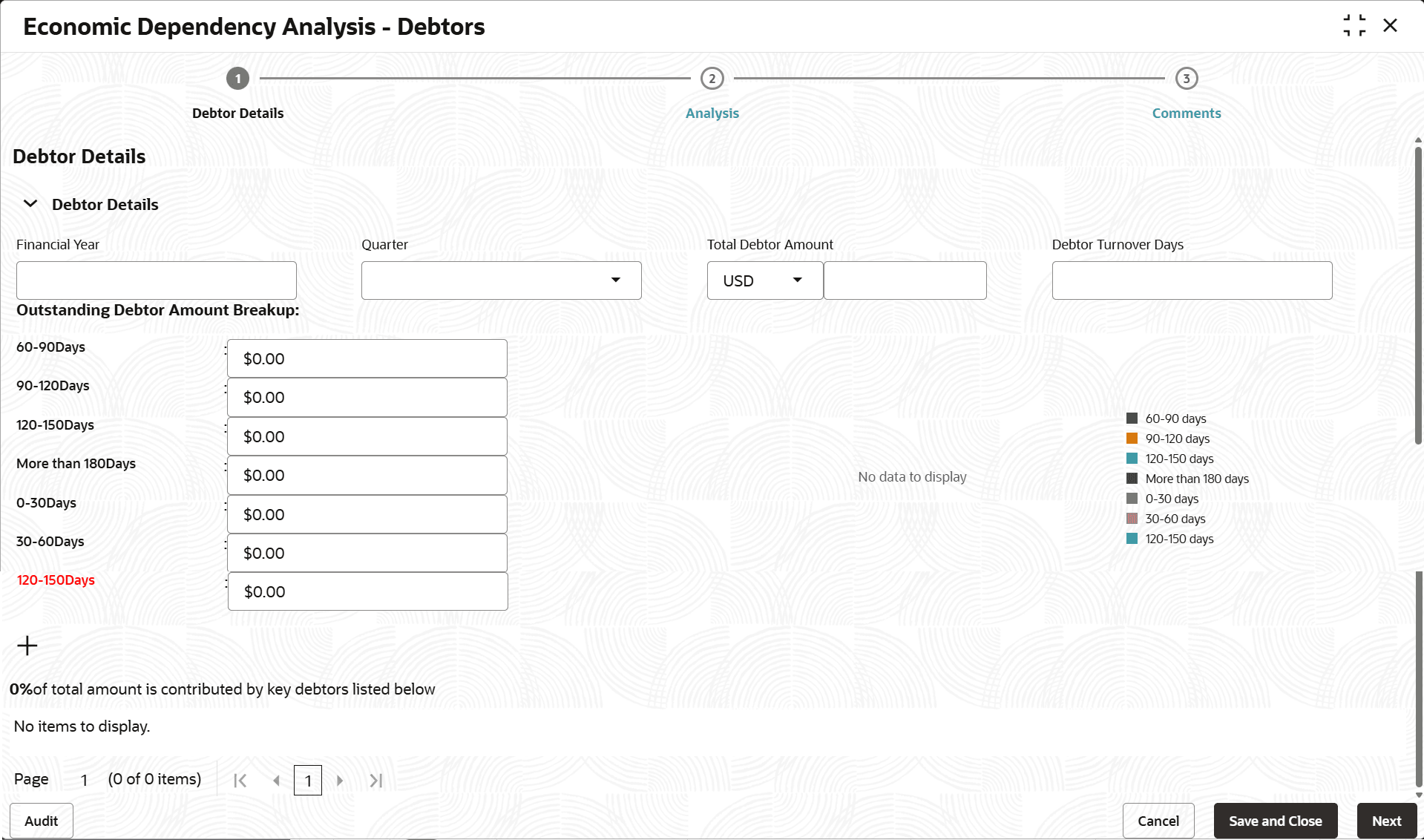
- Click the capture icon in the Debtors tile.The Debtor Details screen is displayed.
- To add the Debtor details, click and expand the Key debtors
section.
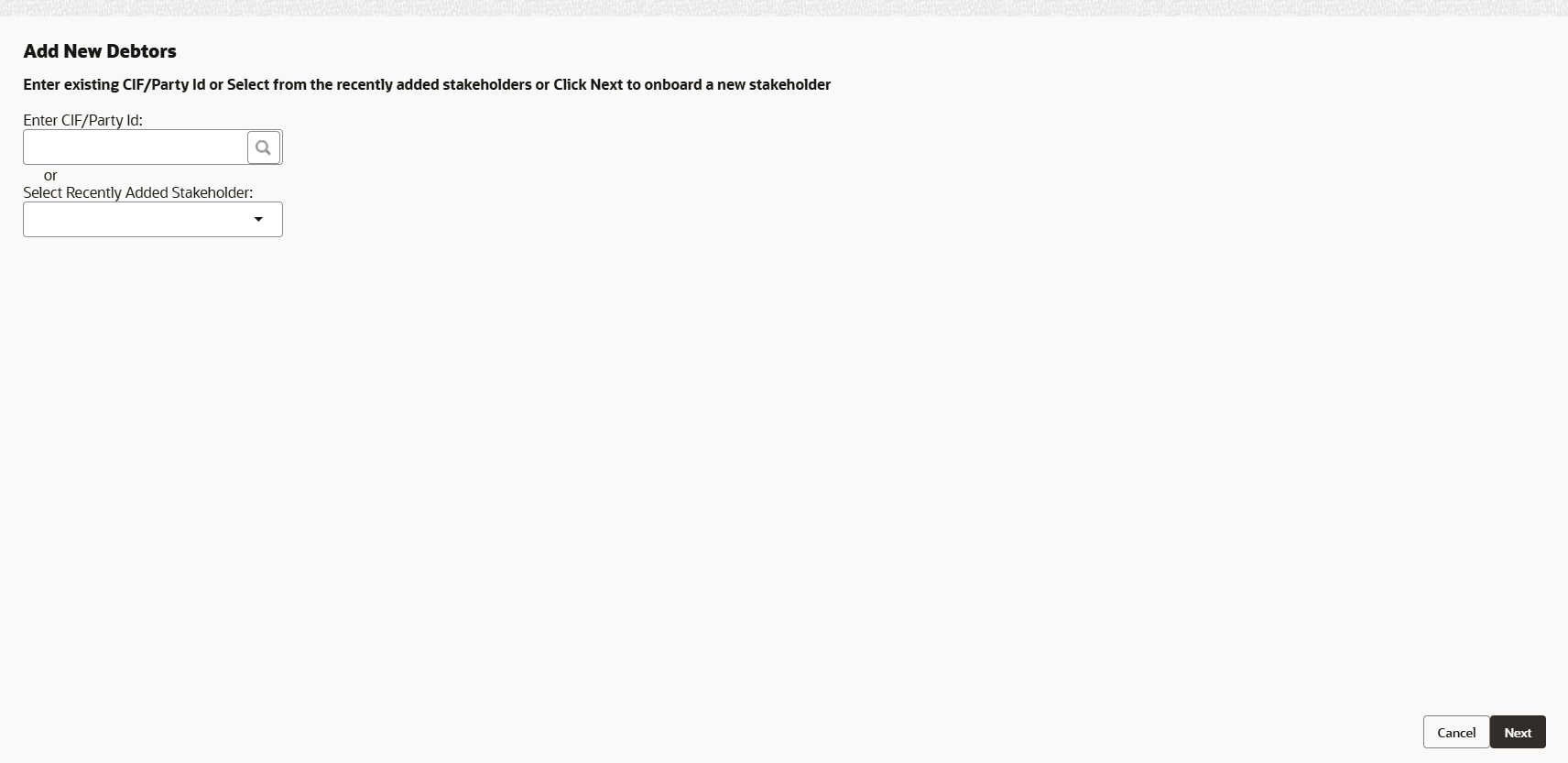
- Click the add icon.The New Debtor screen is displayed.
For information on fields in the New Debtor screen, refer the below tables.
In the Debtor basic info section:Table 3-3 New Debtor
Fields/ Icons Description Customer name Type the Customer name. Years of association Specify the Debtor's Years of association. Signed contract If the Debtor has signed a contract with your customer, enable the Signed contract switch. Contract expiry date If the Signed contract switch is enabled, search and select the Contract expiry date. Turnover range Select the Debtor's Turnover range from the drop down list. Table 3-4 Debtor basic info
Fields/ Icons Description Company Type Select the Debtor’s Company Type from the drop down list. The options available are: Proprietorship, Public, Private, Trusts, Clubs, Society, Associations, Limited Liability Partnership, Foreign bodies, and NGO. Major Product Sold In Major Product Sold field, type the name of maximum product sold by the Debtor. Sales percentage Specify the Sales percentage of the maximum sold product. Debtor Currency In the Debtor Currency field, search and select the currency in which the Debtor amount is to be paid. Debtor Amount In the Debtor Amount field, specify the amount to be paid by the Debtor. Debtor Importance Select the Debtor Importance from the drop down list. The options available are: Critical and Average.
In the Current year sales section:
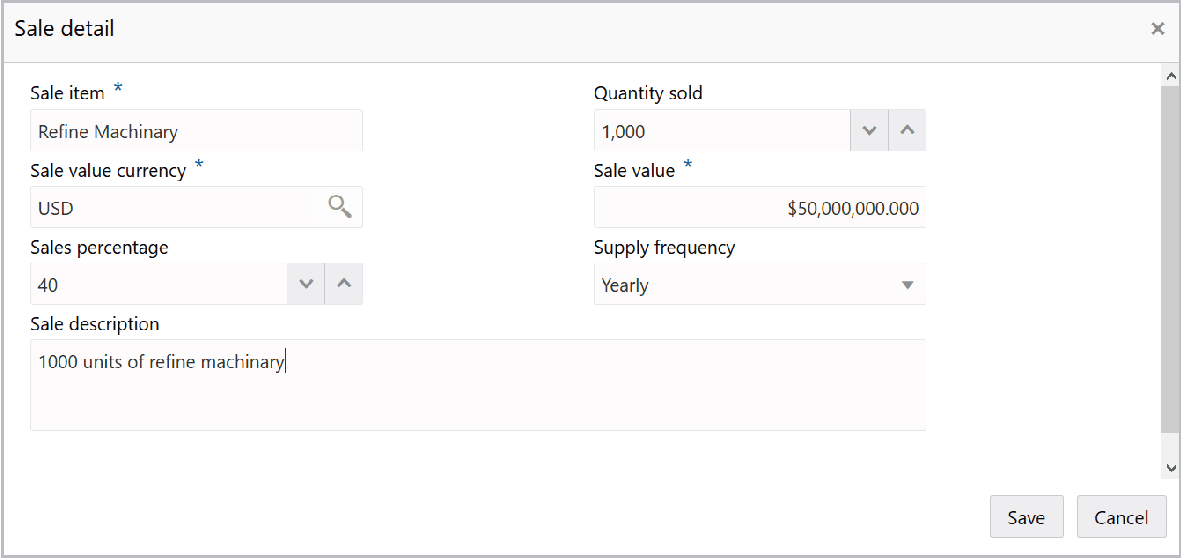
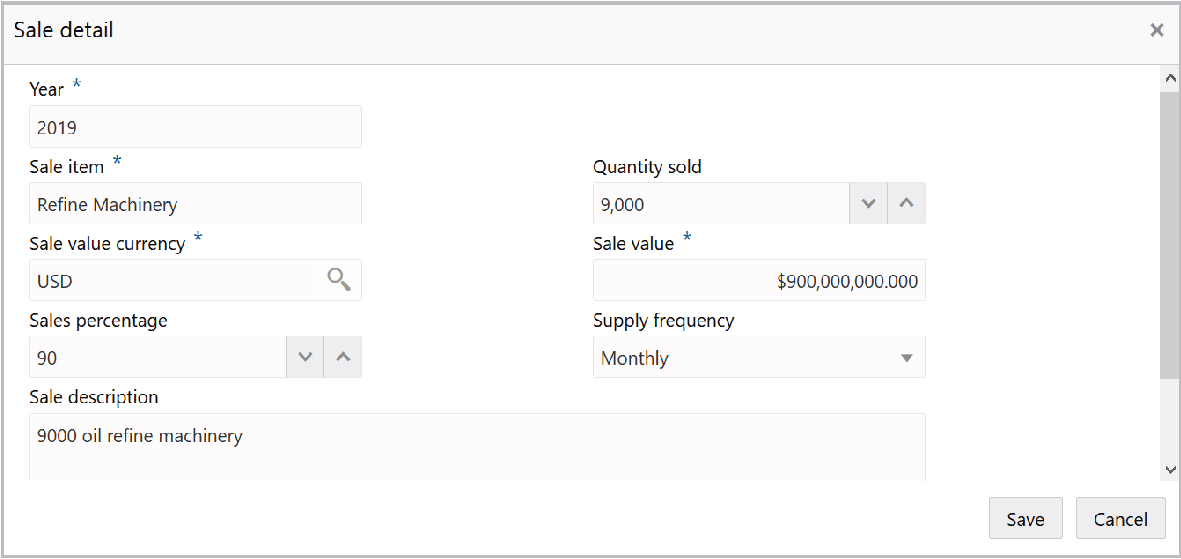
- Click the add icon.The Sale Detail screen is displayed.
For information on fields in the Sale detail screen, refer the below table.
Table 3-5 Sale Detail
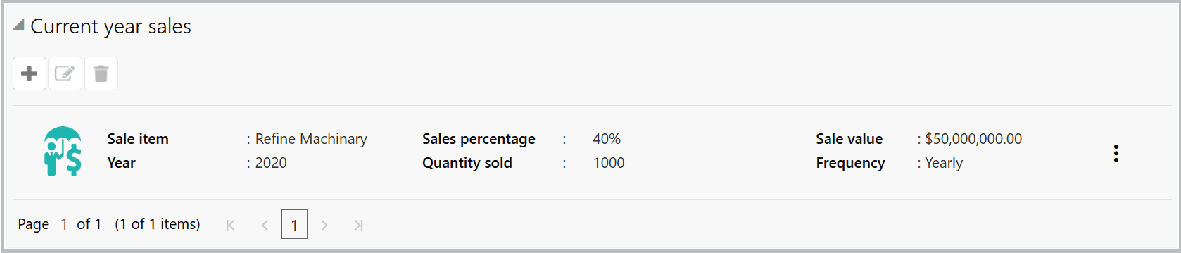
Fields/ Icons Description Sale item Type the name of item sold by the Debtor in Sale item field. Quantity sold Specify Quantity sold by the Debtor. Sale value currency Search and select the Sale value currency. Sale value and Sales percentage Specify the Sale value and Sales percentage in corresponding fields. Supply frequency Select the Supply frequency from the drop down list. Sale description Type the Sale description. - Click Save. Current year sales detail are added and listed in the
Current year sales section as shown below:
- Click the add icon.The Sale Detail window is displayed.
For information on fields in the Sale detail screen, refer the below table.
Table 3-6 Sale Detail
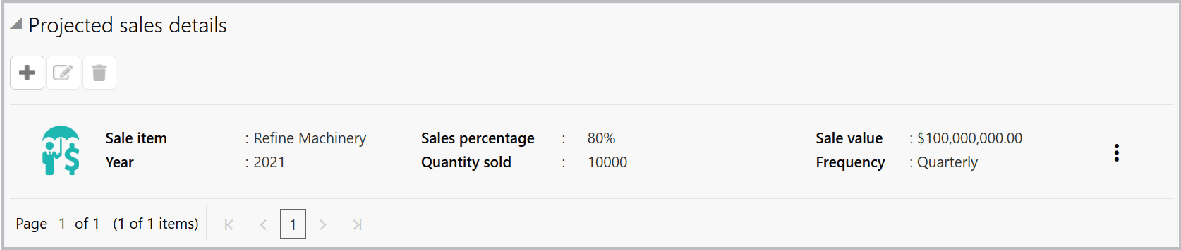
Fields/Icon Description Year In the Year field, specify the upcoming year for which the sales detail is to be added. Sale item In the Sale item field, type the name of item to be sold by the Debtor in upcoming year. Quantity sold In the Quantity sold field, specify the amount of items to be sold in the upcoming year. Sale value currency Search and select the Sale value currency. Sale value and Sales percentage Specify the upcoming year Sale value and Sales percentage in corresponding fields. Supply frequency Select the upcoming year Supply frequency from the drop down list. Sale description Type the Sale description. - Click Save. Upcoming year sales detail are added and listed in the
Projected sales details section as shown below:
- To delete the added item from the list, select the item and click the
delete icon.
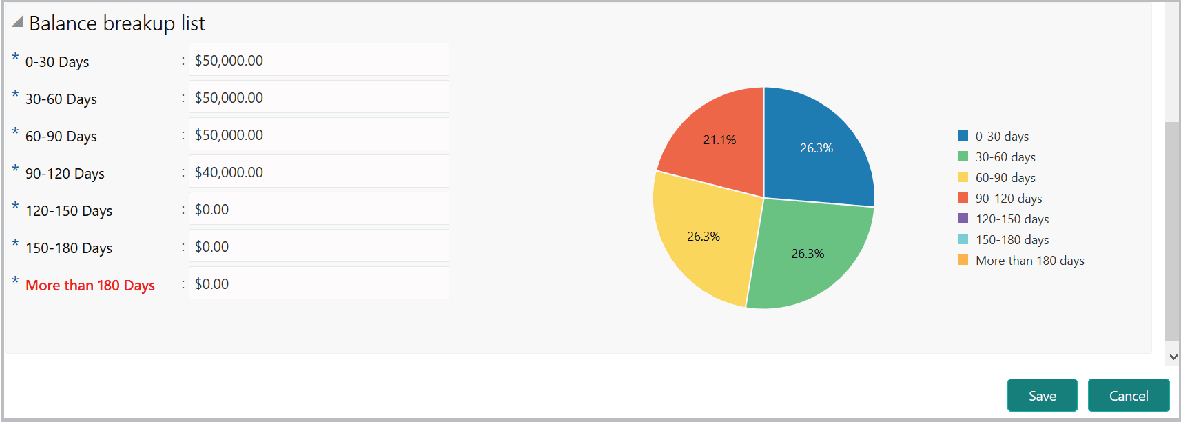
In the Balance breakup list section:
For information on fields in the Balance breakup screen, refer the below table.
Table 3-7 Balance breakup list
Fields/Icon Description 0-30 Days Specify the balance payment pending for 0-30 Days. 30-60 Days Specify the balance payment pending for 30-60 Days. 60-90 Days Specify the balance payment pending for 60-90 Days. 90-120 Days Specify the balance payment pending for 90-120 Days. 120-150 Days Specify the balance payment pending for 120-150 Days. 150-180 Days Specify the balance payment pending for 150-180 Days. More than 180 Days Specify the balance payment pending for More than 180 Days. Note:
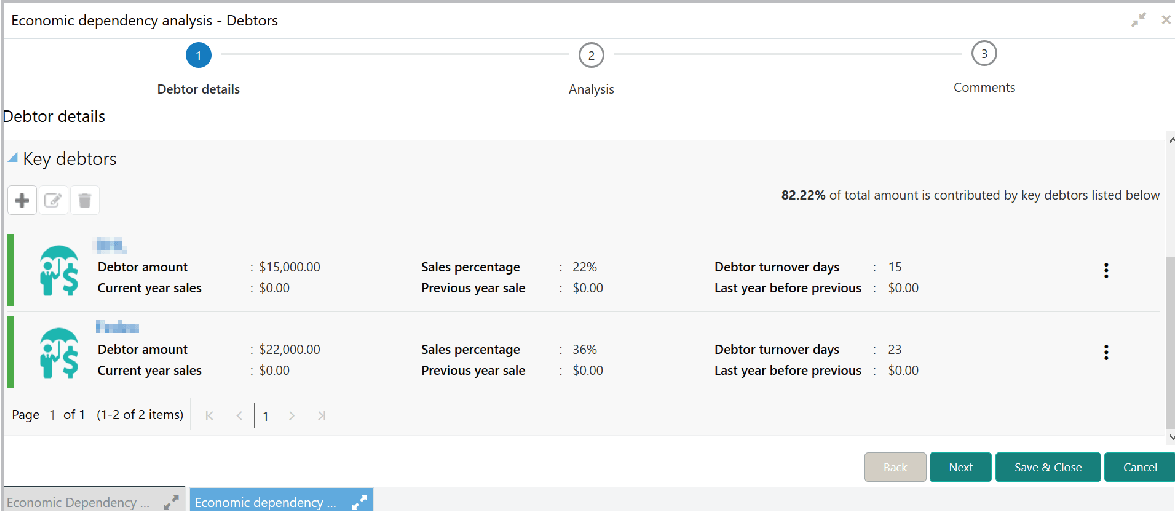
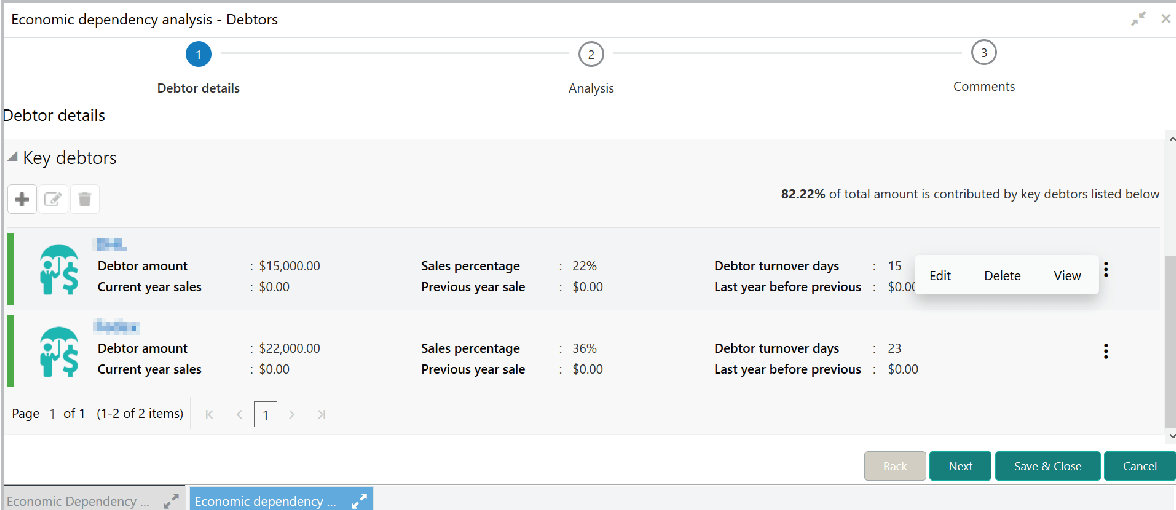
The balance payment is the pending amount to be paid by the Debtor to your customer for availing products or services. - Click Save. Debtor details are added and listed in the Key
debtors section as shown below:
- To analyze the Debtor information, click Next in the Debtor Details
page. The Analysis page is displayed.
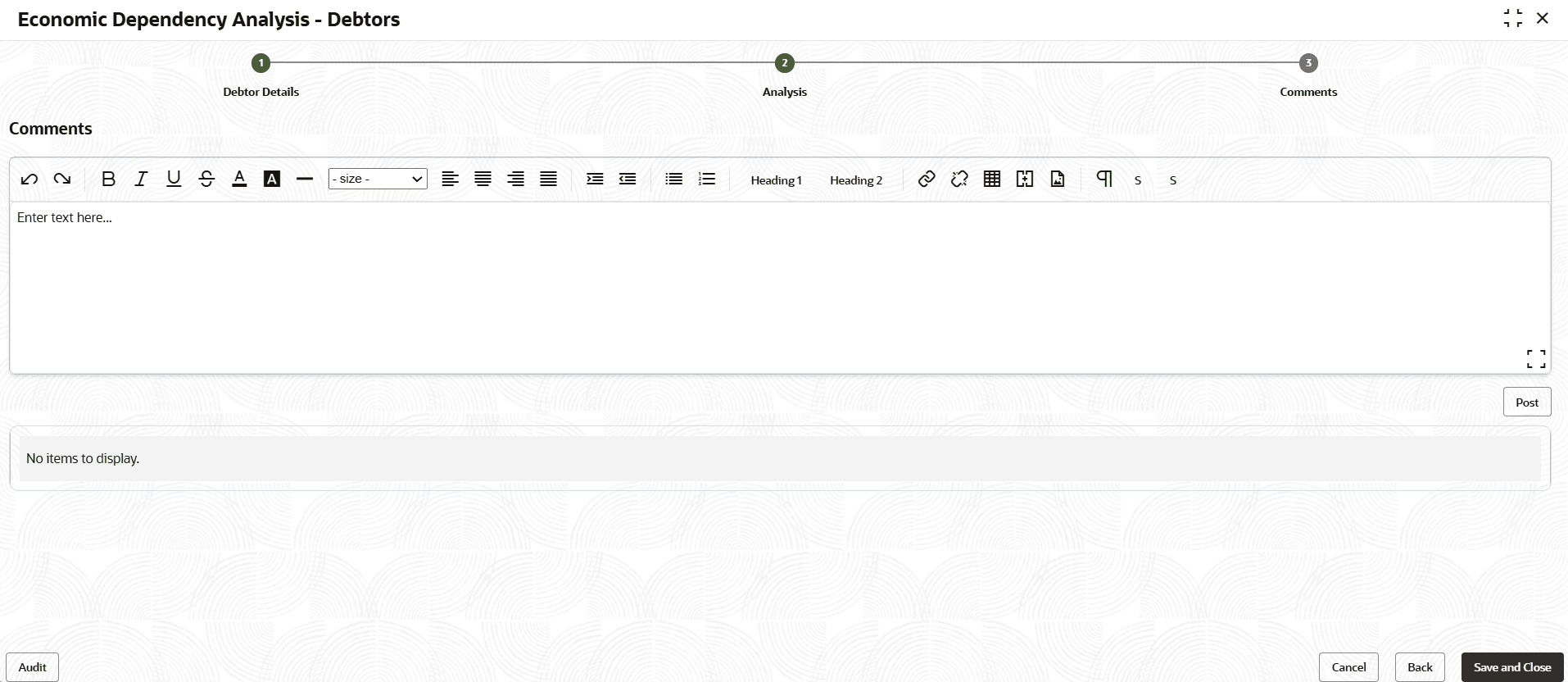
- Click Next.The Comments screen is displayed.
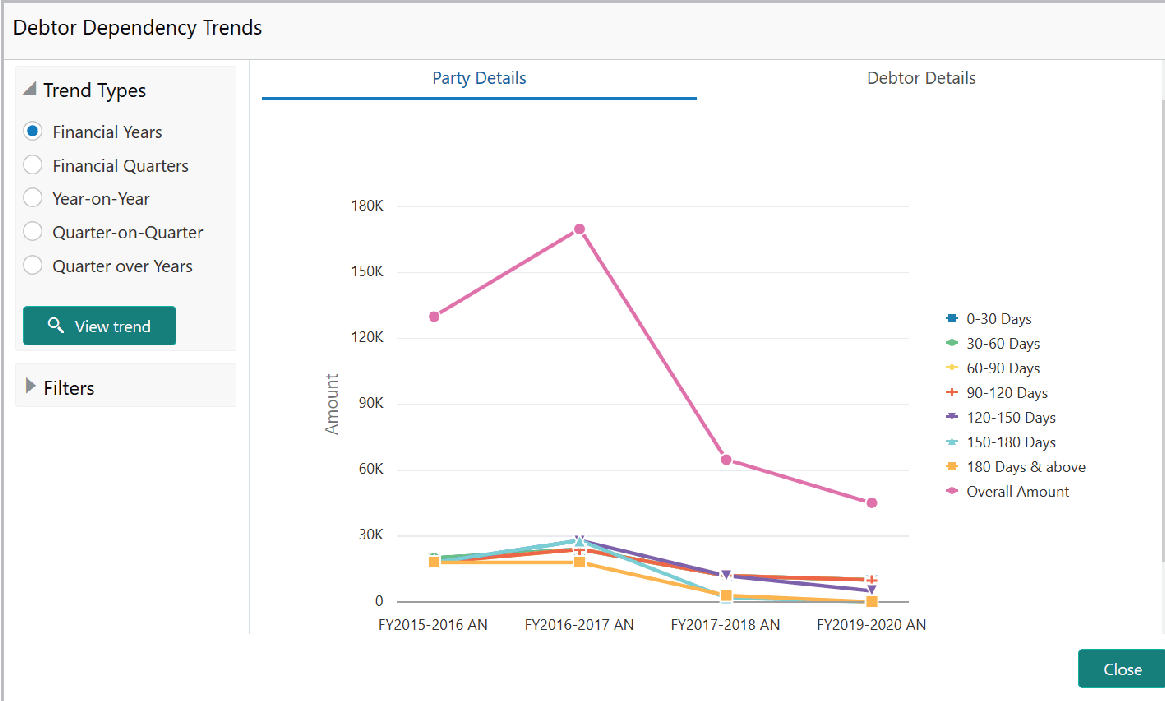
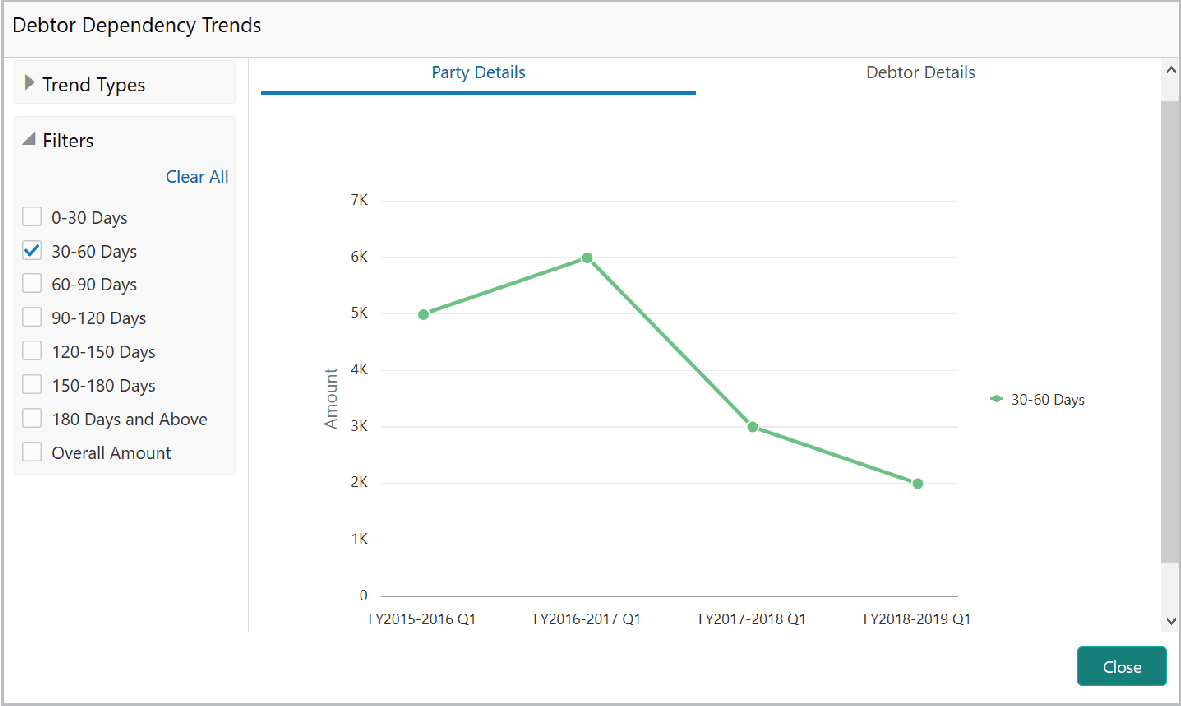
- To view the Debtor dependency trends, click the trend analysis icon
beside the capture icon in Debtors tile.The Debtor Dependency Trends window is displayed.
By default, dependency trend is displayed for all the Financial Years.
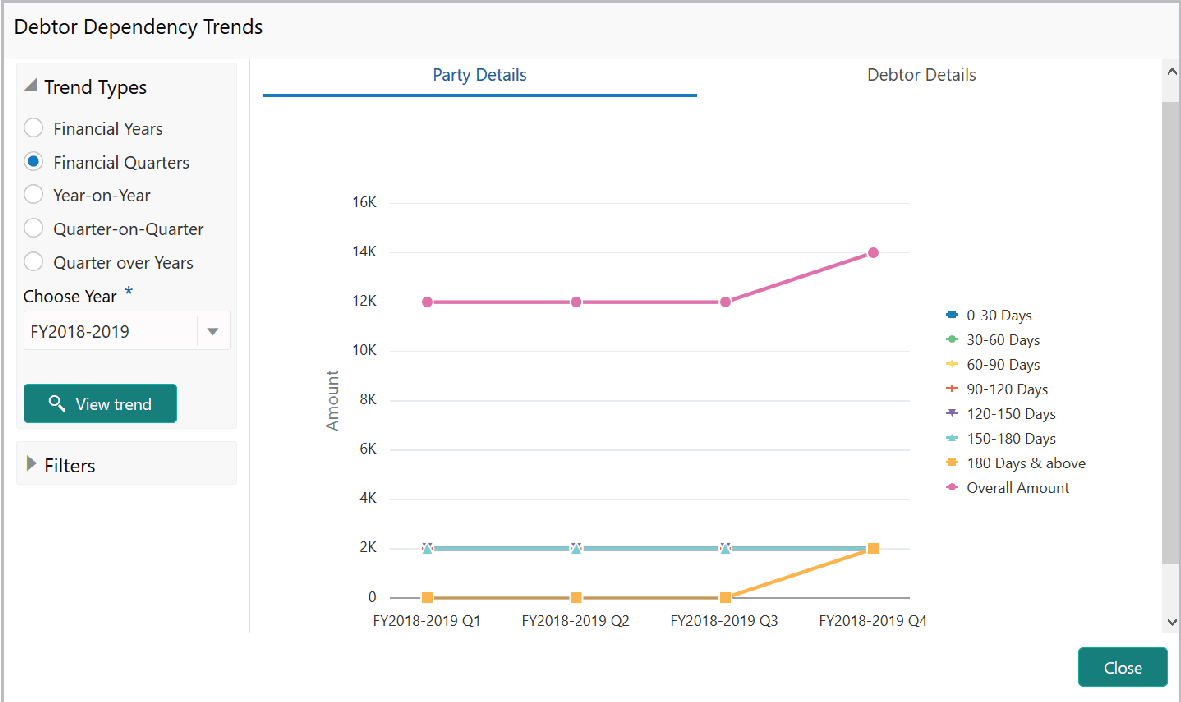
- To view the dependency trends for financial quarters, click the Financial
Quarters option in Trend Types field. Choose Year field is
displayed as shown below:
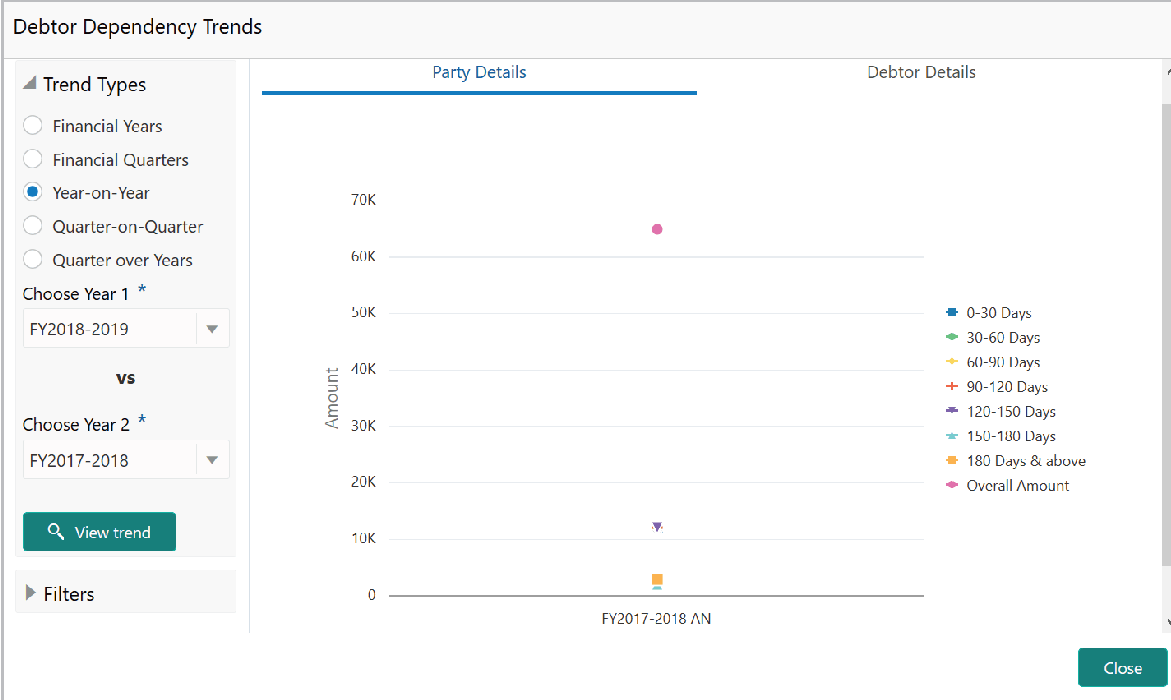
- To compare and view the dependency trends for two different years, select the
Year-on-Year option. The Choose Year 1 and Choose Year
2 fields is displayed.
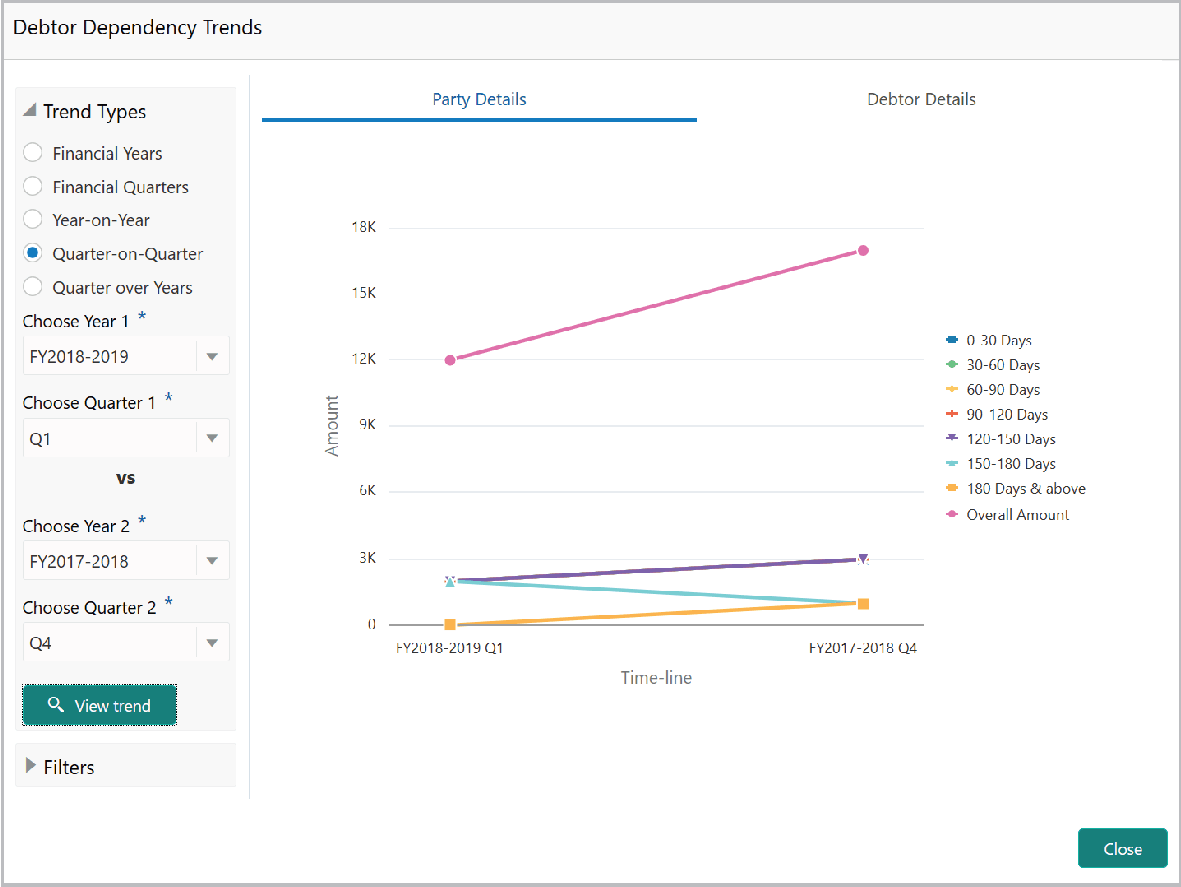
- To compare and view the dependency trends for two different quarters, select
the Quarter-on-Quarter option. Options to choose Years and Quarters is
displayed.
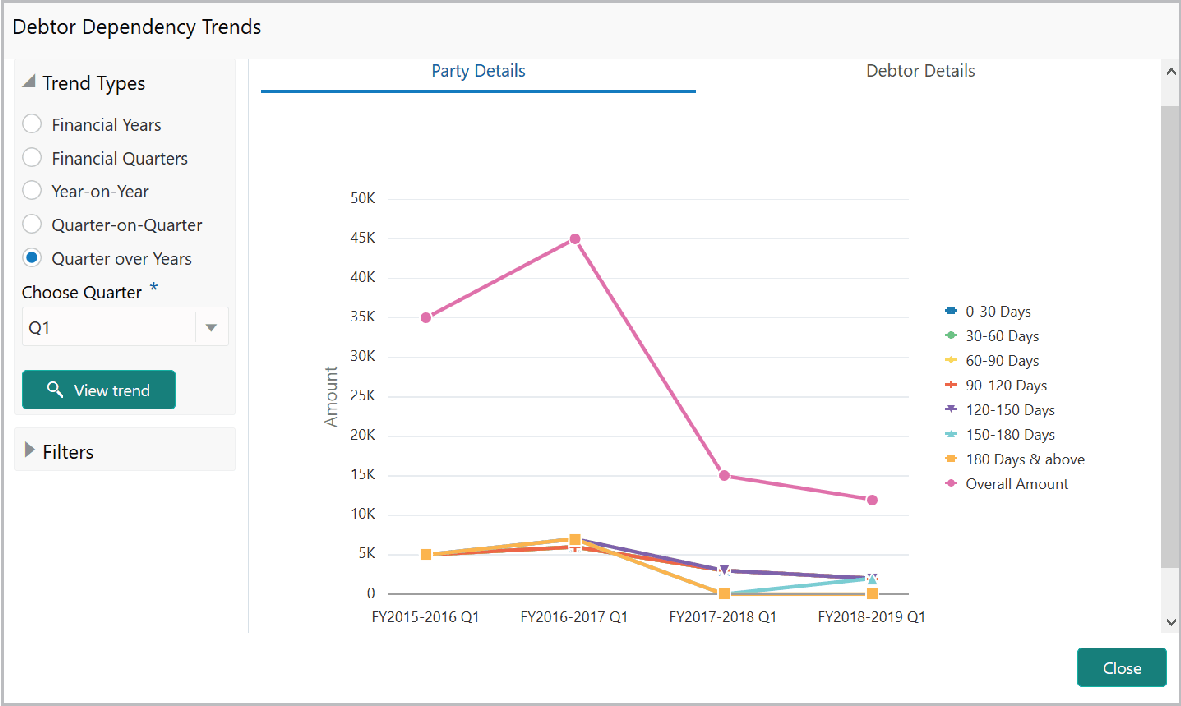
- To view the dependency trends for same quarter over all the years, select the
Quarter over Years option. The Choose Quarter field is
displayed as shown below:
- To view the dependency trend only for specific days, click and expand the
filter section.
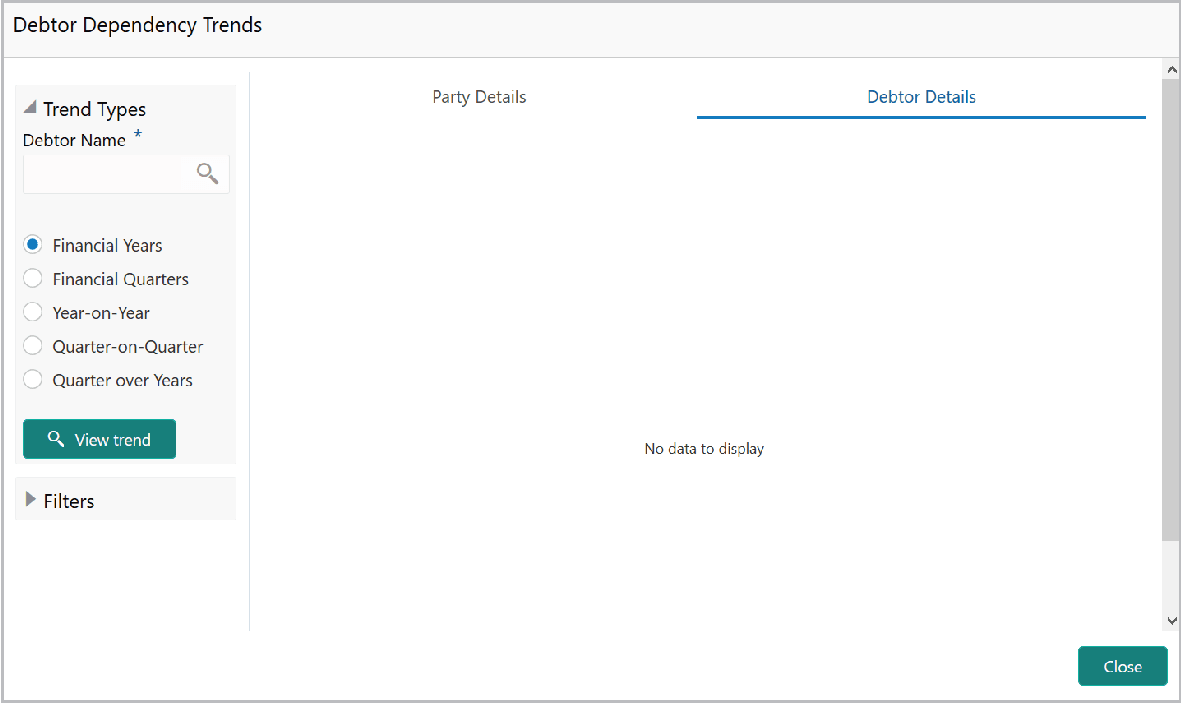
- To view the Debtor Details in dependency trends, click the Debtor
Details tab.
Parent topic: Enrich and Analyze