3.4 Working Capital Account Conduct
Thi topic provides systematic instructions about the customer’s working capital accounts in your bank can be added and analyzed from this tile.
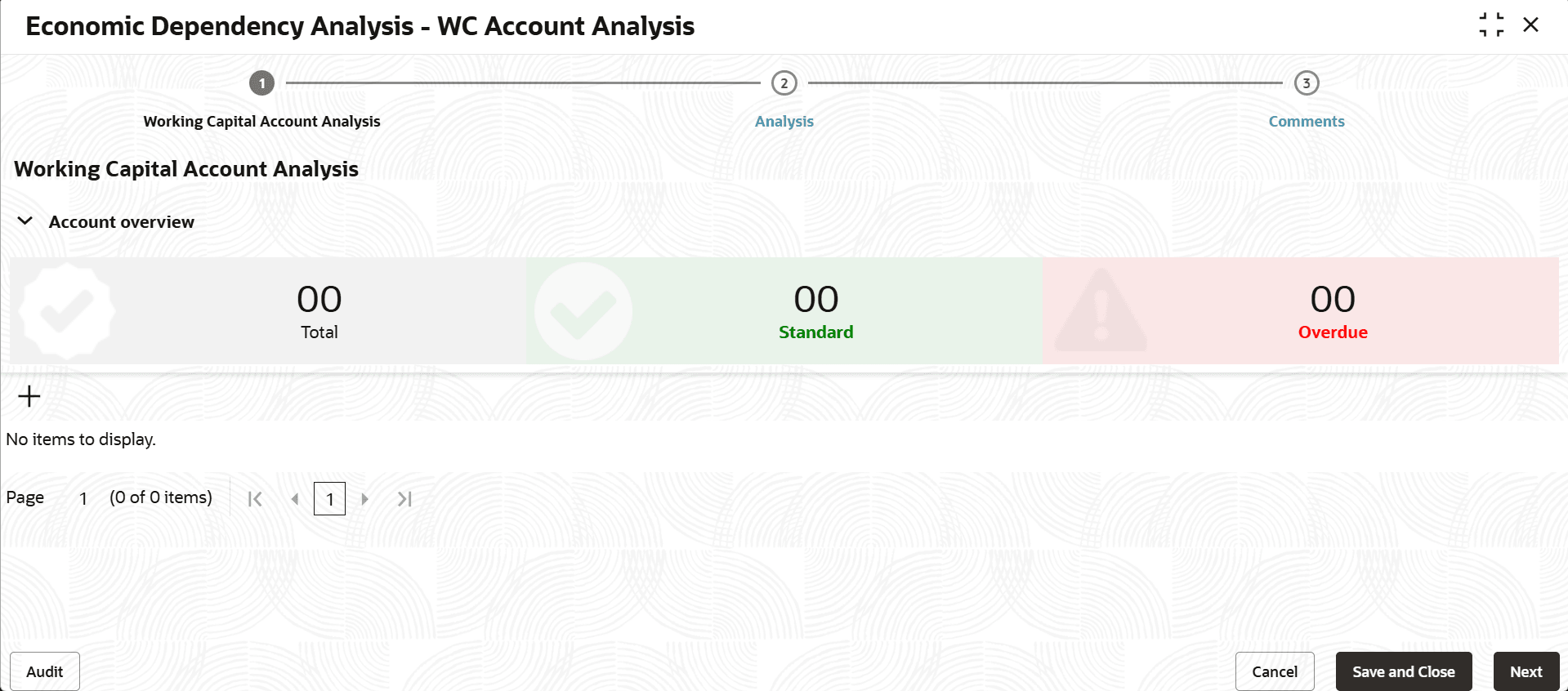
- Click Enrich in the Working Capital Account Conduct tile.The Working Capital Account Analysis screen is displayed.
Figure 3-10 Working Capital Account Analysis
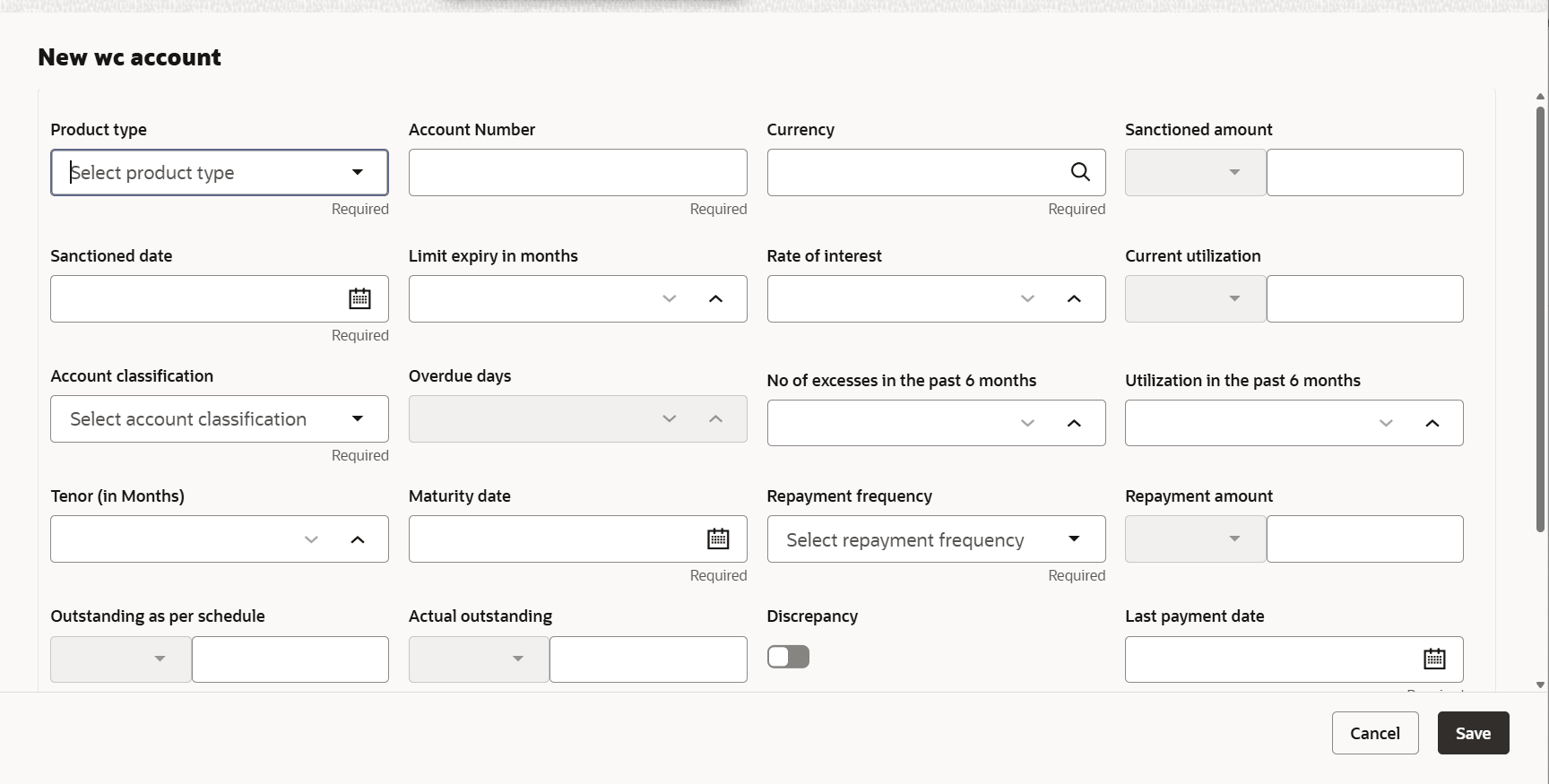
- Click the Add icon. The following window is displayed.
For information on fields in the New WC account screen, refer the below table.
Table 3-2 New WC document
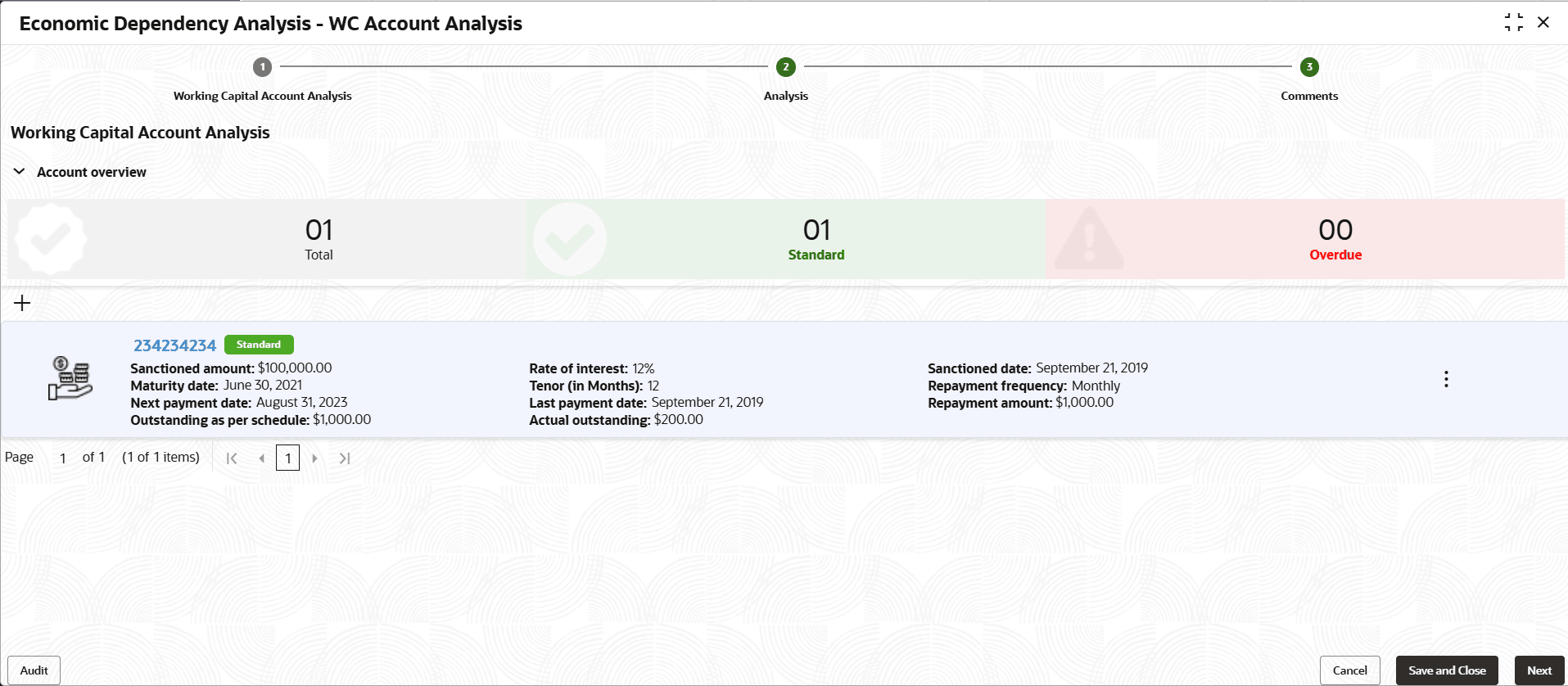
Fields/ Icon Description Product type Select the Product type from the drop down list. The options available are Overdraft, Bill Discounting, Post-Ship PC, and Pre-Ship PC. Account no Specify the working capital Account no. Currency Search and select the Currency for sanctioned amount. Sanctioned amount Specify the Sanctioned amount as per working capital account. Sanctioned date Click the calendar icon and select the working capital Sanctioned date. Limit expiry in months Specify the working capital Limit expiry in months. Rate of interest Specify the Rate of interest at which the working capital is offered. Current utilization In the Current utilization field, specify the amount currently utilized from the working capital limit. Account classification Select the Account classification from the drop down list. The options available are Overdue and Standard. Overdue and Overdue days If Account classification is selected as Overdue, the Overdue days field is enabled. Specify the working capital Overdue days. No of excesses in the past 6 months In case of over-utilization, specify the No of excesses in the past 6 months. Utilization in the past 6 months Specify the overall Utilization in the past 6 months. Tenor (in Months) Specify the working capital Tenor (in Months). Maturity date Click the calendar icon and select the Maturity date of working capital. Repayment frequency Select the working capital Repayment frequency from the drop down list. The options available are Monthly, Yearly, Half Yearly and Quarterly. Repayment amount Specify the working capital Repayment amount paid by the customer. Outstanding as per schedule Specify the working capital Outstanding as per schedule amount. Actual outstanding In Actual outstanding field, specify the total working capital outstanding amount. Discrepancy If there is a discrepancy in interest rate, enable the Discrepancy flag. Last payment date and Next payment date Specify the last and next payment dates for working capital in the Last payment date and Next payment date fields, respectively. - Click Save. The details are added and displayed in the Working Capital
Account Analysis screen as shown below:
You can get the overview of customer’s working capital account, indicating the number of standard, overdue and total working capital accounts by expanding the Account Overview section.
Analyzing Loan Account
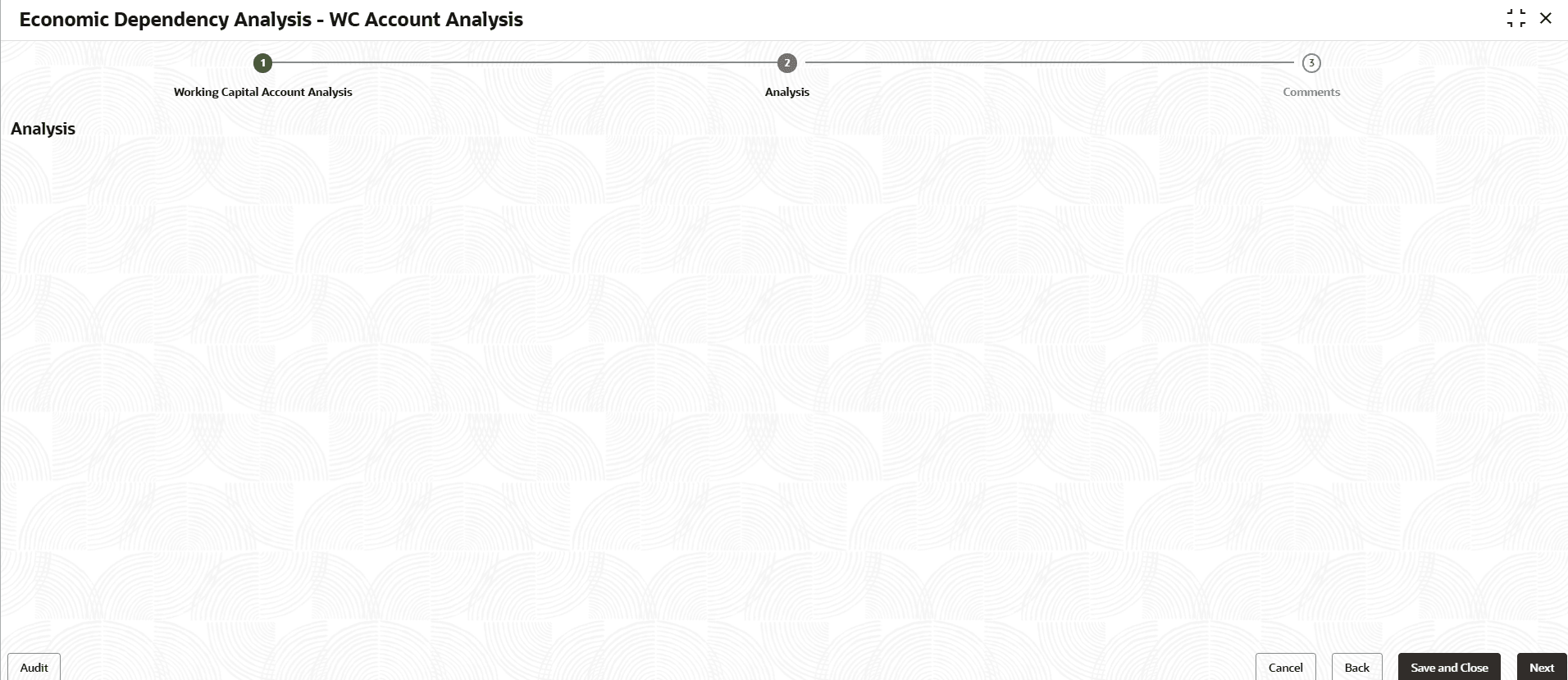
User can perform questionnaire-based analysis for determining the working capital account conduct in the Analysis data segment.
Questionnaire maintained and linked to this process in Business Process maintenance appears here for analysis.
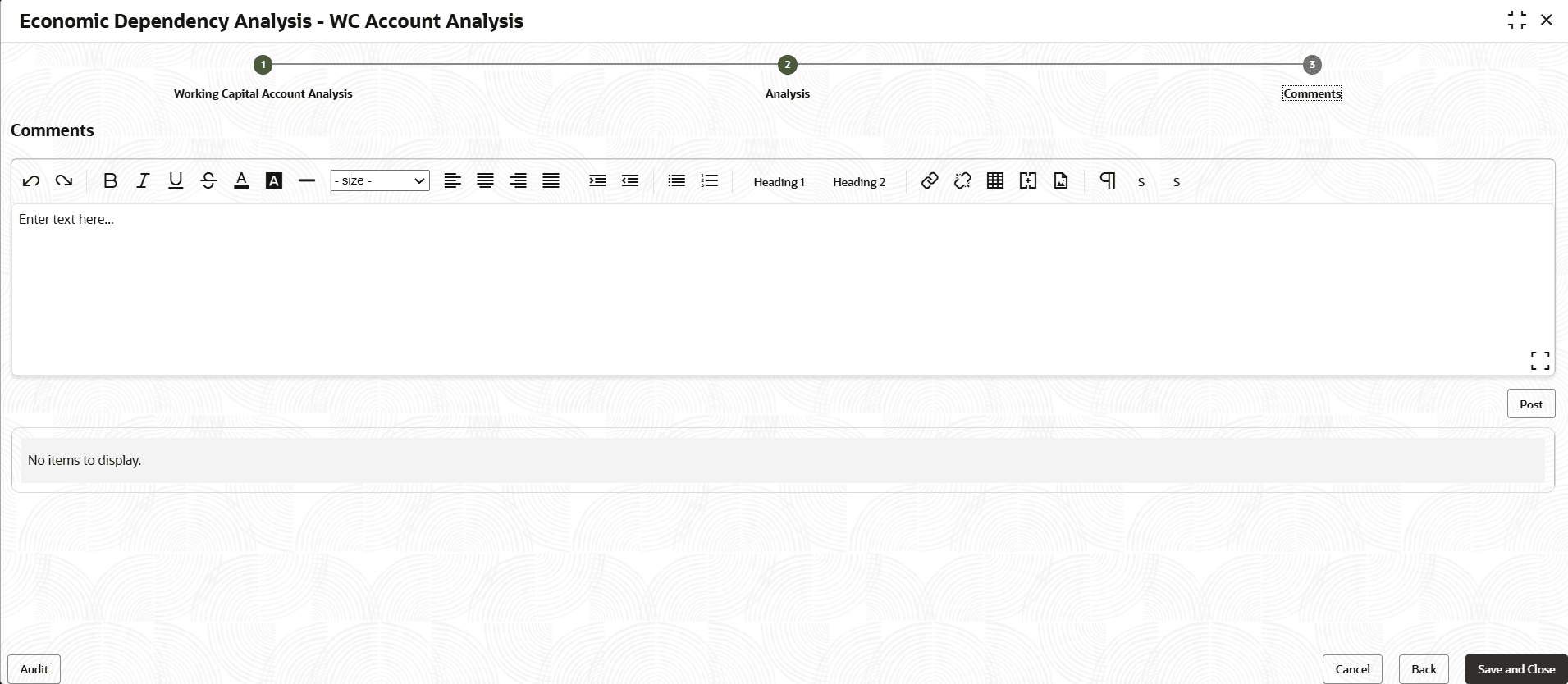
Figure 3-13 WC Account Analysis
- Click Next. The Comments page is displayed.
- Click Save & Close to exit the analysis screen.
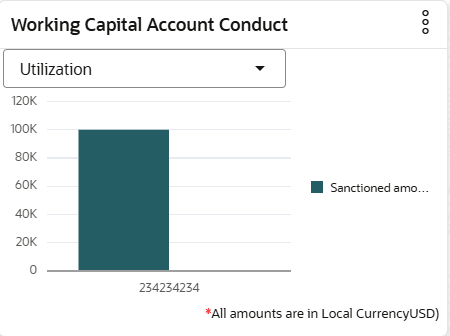
Figure 3-15 Working Capital Account Conduct
Once the working capital account conduct is analyzed, the working capital account details are graphically displayed in the Working Capital Account Conduct tile. You can filter the necessary information by selecting required option from the drop down list in the tile. The following values are available in the drop down list: Utilization, Excesses in past 6 months, Utilization in past 6 months, and Aging.
Parent topic: Enrich and Analyze