3.16 Directors
This topic provides systematic instructions about the directors in data segment in Enrichment Stage.
Information about the directors in your customer organization can be captured and analyzed from this tile.
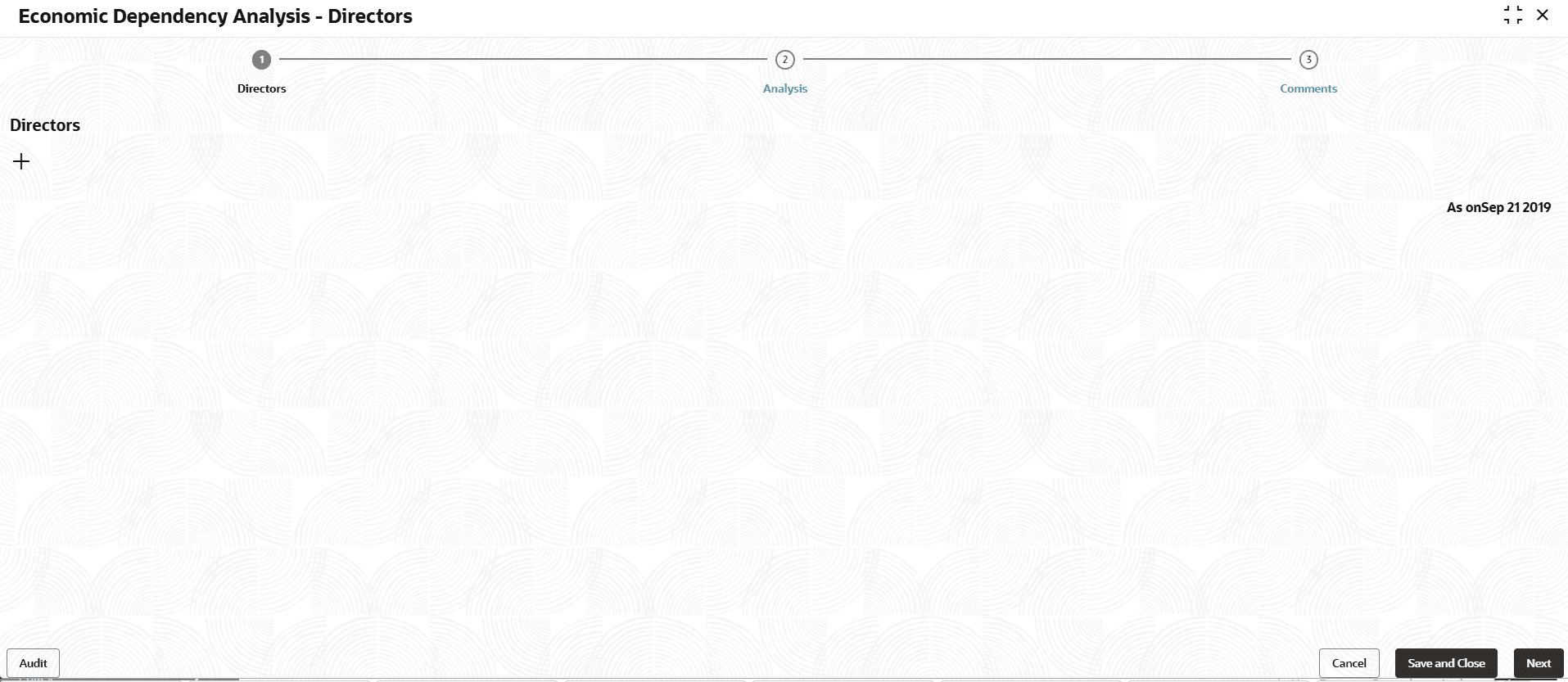
- Click the capture icon in the Directors tile.The Directors screen is displayed.
- To add the Director detail, click the add icon. The New Director window is
displayed.
For information on fields in the New Director screen, refer the below table.
Table 3-79 New Director
Fields Description Name Type the Name of the Director Shareholding percentage Specify the Director's Shareholding percentage in your customer organization. Majority shareholder If the director is a majority shareholder in your customer organization, enable the Majority shareholder switch. Director since In Director since field, search and select the date from which the Director is in your customer organization. Highest educational qualification Select the Director's Highest educational qualification from the drop down list. Years in industry In the Years in industry field, specify the Director's years of experience in this industry. Years of association Specify the Director's Years of association with your customer organization. Department associated with Select the Director's department from the Department associated with drop down list. Part of Board If the Director is a board member, enable the Part of Board switch. Part of Board If the Part of Board switch is enabled, select Board member since and Board member till dates in the respective fields. Is employee If the Director is an employee, enable the Is employee switch. Employee ID If the Is employee switch is enabled, specify the Director's Employee ID. Part of promoter group If the Director is a part of the promoter group, enable the Part of promoter group switch. Is family member of promoter If the Director is a family member of the promoter group, enable the Is family member of promoter switch. Roles Describe the Roles of the Director. Board member in other companies If the Director is a board member in other companies, enable the Board member in other companies switch. Director in other companies If the Director is a director in other companies, enable the Director in other companies switch.
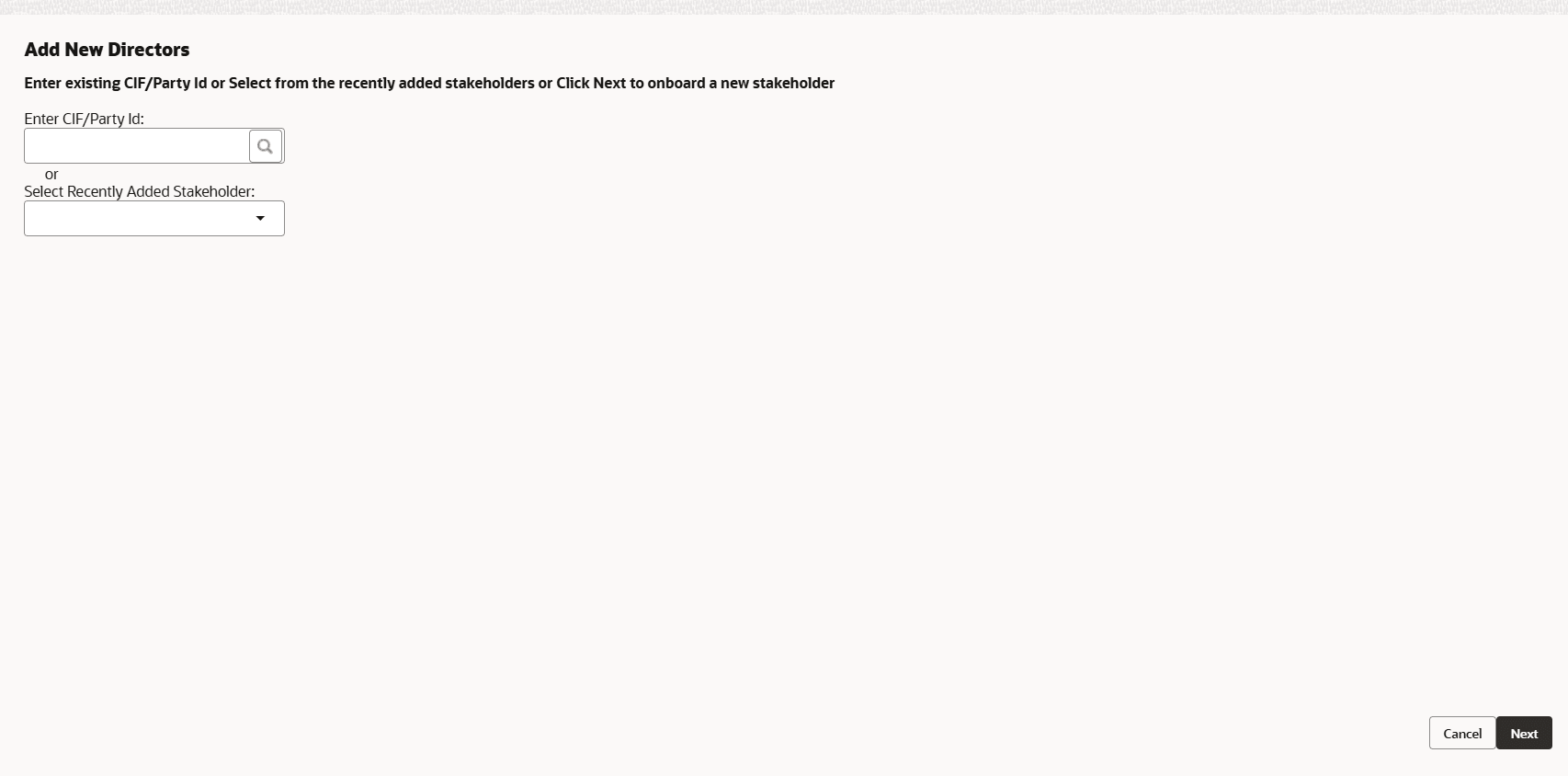
For information on fields in the Address detail screen, refer the below table.
Table 3-80 Address detail
| Fields | Description |
|---|---|
| DIN number | Specify the Director identification number in the DIN number field. |
| Executive position | If the Director is in executive position, enable the Executive position switch. |
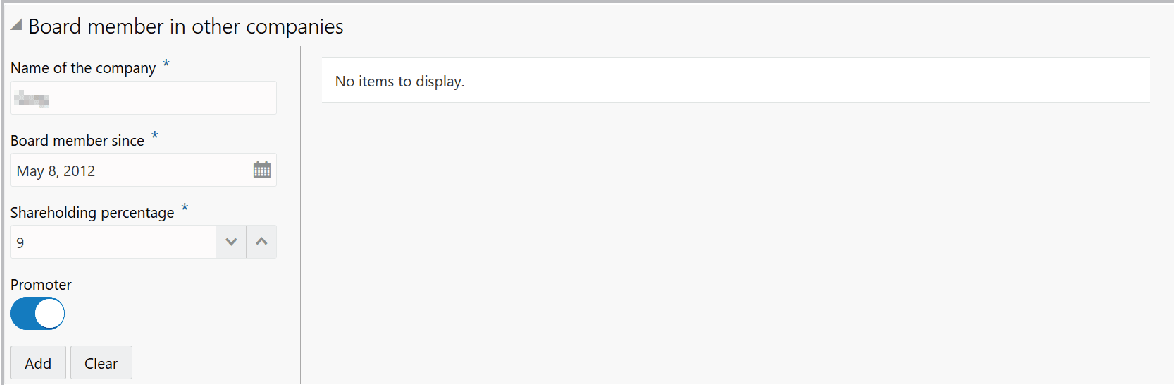
In the Board member in other companies section:
Figure 3-157 Board member in other companies
Description of "Figure 3-157 Board member in other companies"
For information on fields in the Board member in other companies screen, refer the below table.
Table 3-81 Board member in other companies
| Fields | Description |
|---|---|
| Name of the other company | Type the Name of the other company. |
| Board member since | In the Board member since field, search and select the date from which the Director is board member in the mentioned company. |
| Shareholding percentage | Specify the Director's Shareholding percentage in the other company. |
| Promoter | If the Director is a Promoter in other company, enable the Promoter switch. |
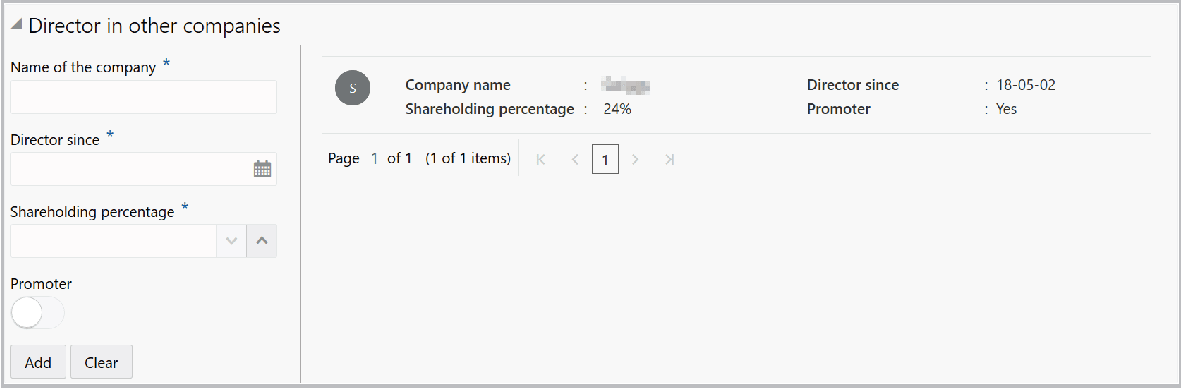
- Click Add. Details are added as shown below:
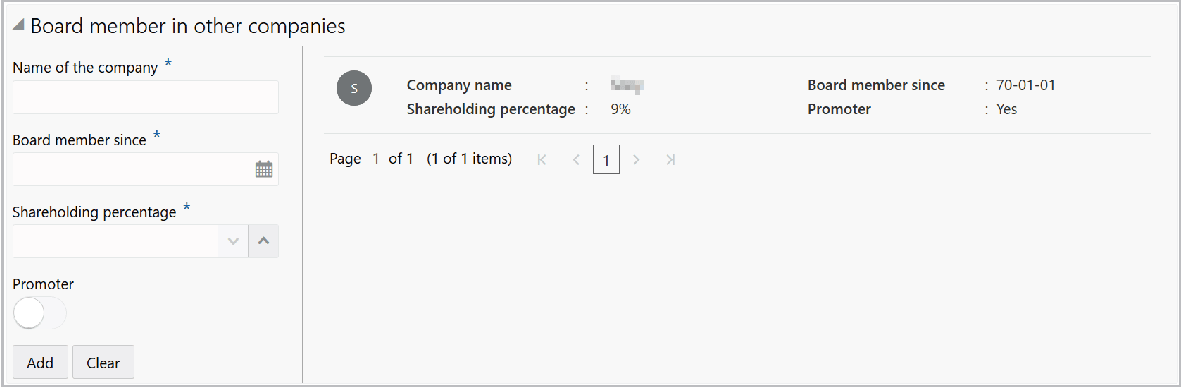
Figure 3-159 Director in other
companies Table 3-82 Director in other
companies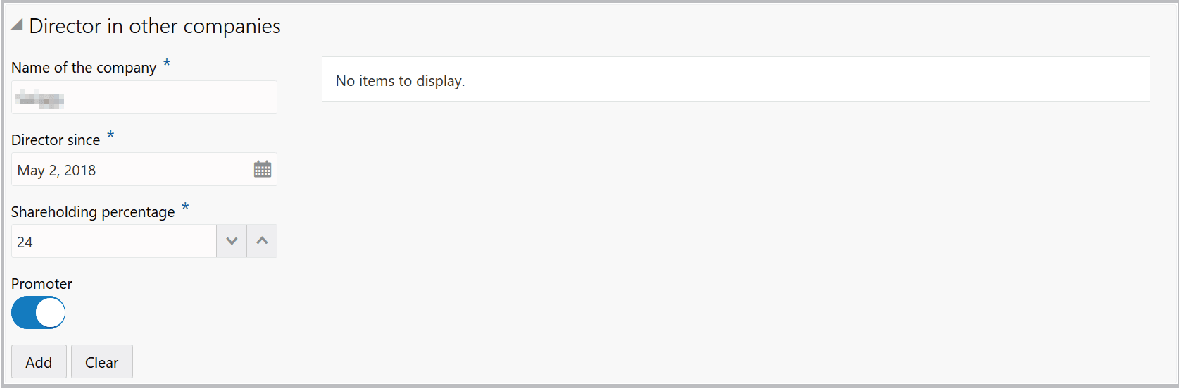
Description of "Figure 3-159 Director in other
companies"
Fields
Description
Name of the company
Type the Name of the
company.
Director since
In the Director since field,
search and select the date from which the Director is
Director in the other company.
Shareholding percentage
Specify the Director's Shareholding
percentage in the other company.
Promoter
If the Director is a Promoter in other
company, enable the Promoter switch.
- Click Add. Details are added as shown below:
For information on fields in the Our Customer screen, refer the below table.
Table 3-83 Our Customer
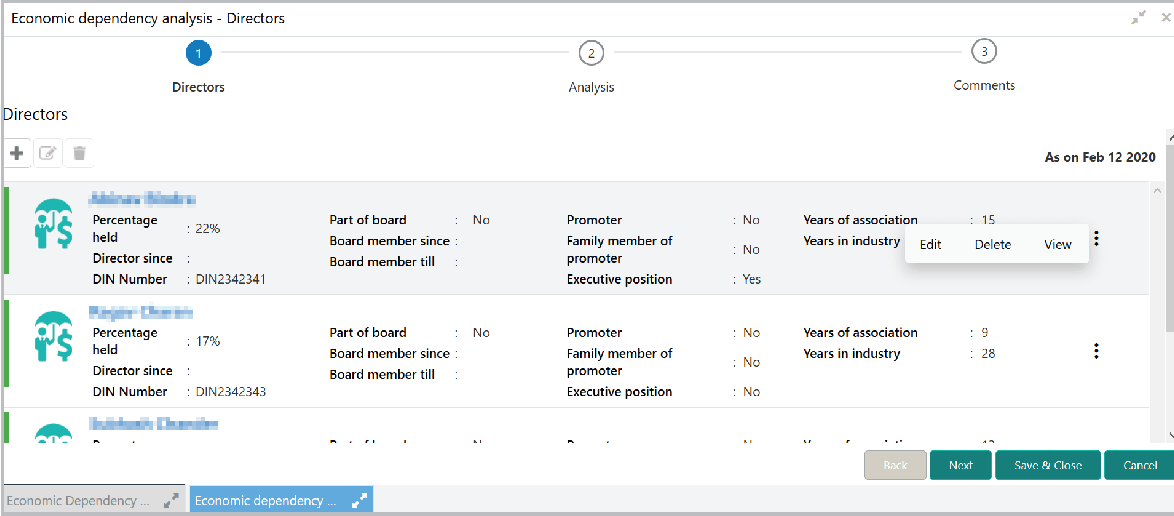
Fields Description Internal rating Select your bank's Internal rating for the Director. Is borrower If the Director is a borrower in your bank, enable the Is borrower switch. Currency Search and select the Currency for total exposure. Total exposure Specify the Director's Total exposure amount in your bank. Deposit account held If the Director holds a deposit account in your bank, enable the Deposit account held switch. No of deposit accounts If the Deposit account held switch is enabled, specify the No of deposit accounts maintained by the Director. Currency Search and select the Currency for the total deposit amount. Total deposit amount Specify the Total deposit amount in the Director's deposit account. - Click Save in the New Director window. Director details are added and
displayed in the Directors page as shown below:
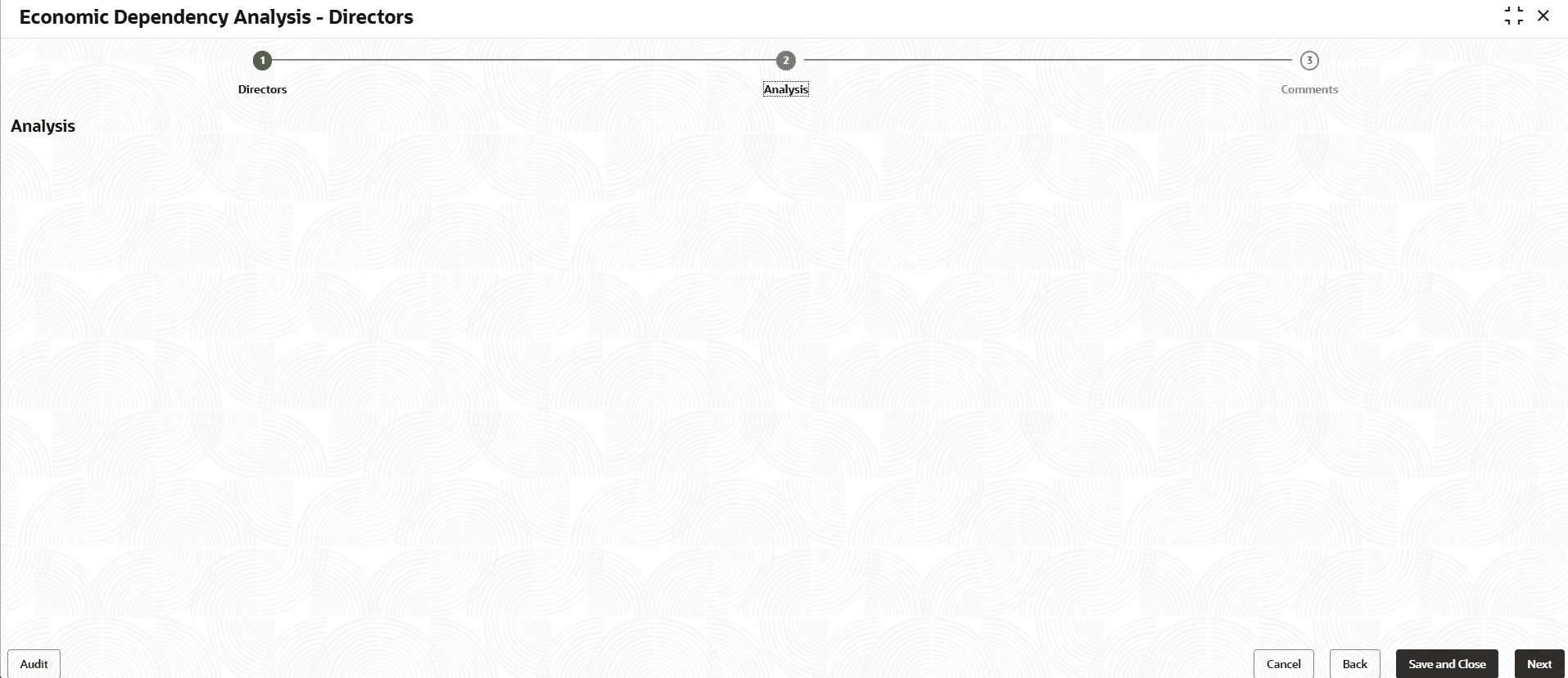
- To analyze the Director details, click Next in the Directors page.The Analysis screen is displayed.
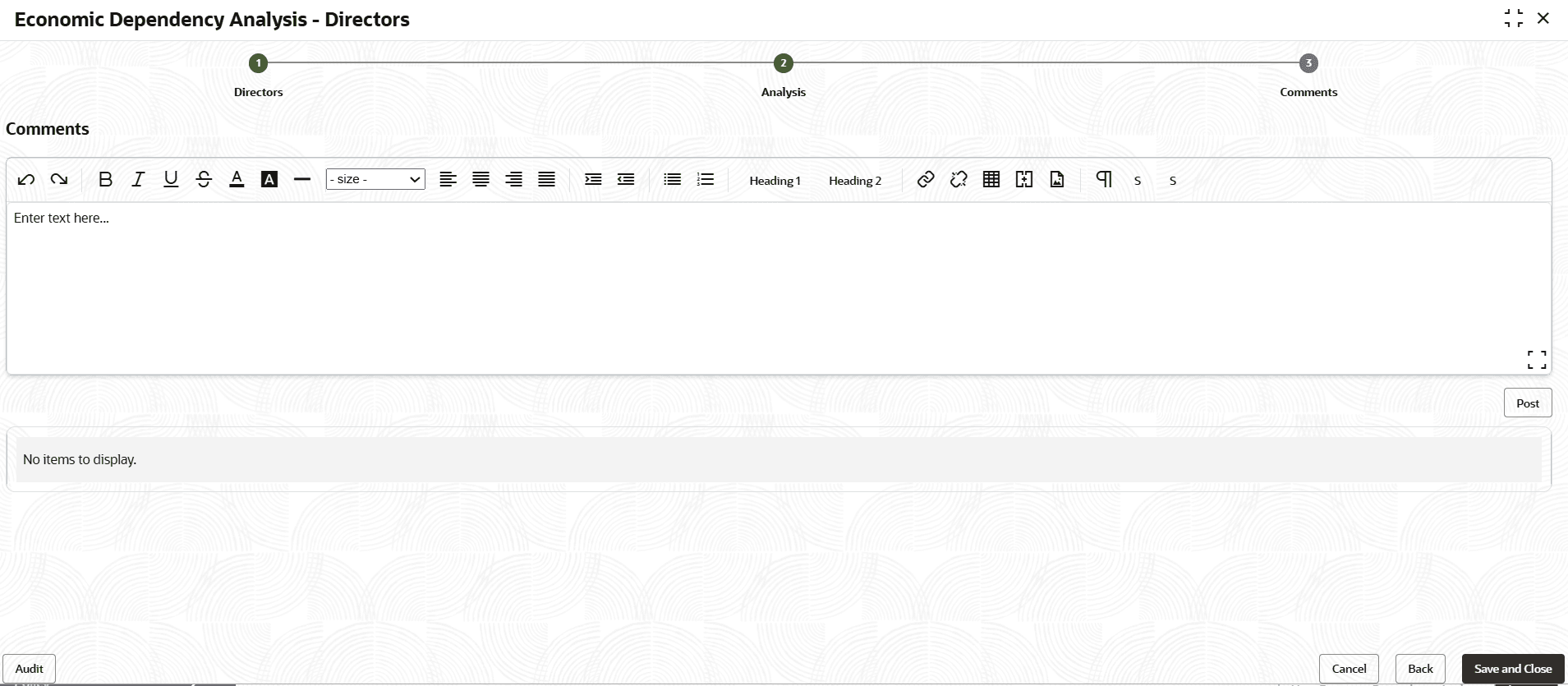
- Click Next. The Comments screen is displayed.

Parent topic: Enrich and Analyze