3.17 Contractors
This topic provides systematic instructions about the Contractors in data segment in Enrichment Stage.
Details about the contractors working for your customer organization can be captured through this tile.
- Click the capture icon in the Contractors tile.The Contractors screen is displayed.
- To add the contractor details, click the add icon.
For information on fields in the New Contractor screen, refer the below table.
Table 3-84 New Contractor
Fields Description Contractor name Type the name of Contractor’s company in Contractor name field. Contractor type Select the Contractor’s company type from Contractor type drop down list. Point of contract Type the Point of contract person name. Contractor role Type the role of point of contract person in the Contractor role field. Status Type the Status of the Contractor. Contract summary Type the Contract summary and the Financial Contract Summary. Signed contract Enable the Signed contract switch, if your customer has signed contract with the Contractor. Start date and End date If the Signed contract switch is enabled, select the Start date and End date of the Contract by clicking the calendar icon. Contract nature Select the Contract nature from the drop down list. Advisory related to department Click and select the Advisory related to department. Work orders in last 12 months In the Work orders in last 12 months field, specify the number of work orders placed with the contractor in last 12 months. Currency Search and select the Currency for the Average value of work orders. Average value of work orders Specify the Average value of work orders placed in the last 12 months. No of current work orders Specify the No of current work orders placed with the contractors. Total value of current work orders Specify the Total value of current work orders. - Click the add icon.The Work Order Details window is displayed.
For information on fields in the Work Order Details screen, refer the below table.
Table 3-85 Work Order Details
Fields Description Contract execution date Select the Contract execution date by clicking the calendar icon. Contract related to In the Contract related to field, select the department to which the contract is related from the drop down list. Start date and End date Select the Start date and End date of the contract by clicking the calendar icon. Value of contract Specify the Value of contract. Status Select the Status of the contract from the drop down list. - Click Save. Current work order details are added and listed in the
Current work orders section as shown below:
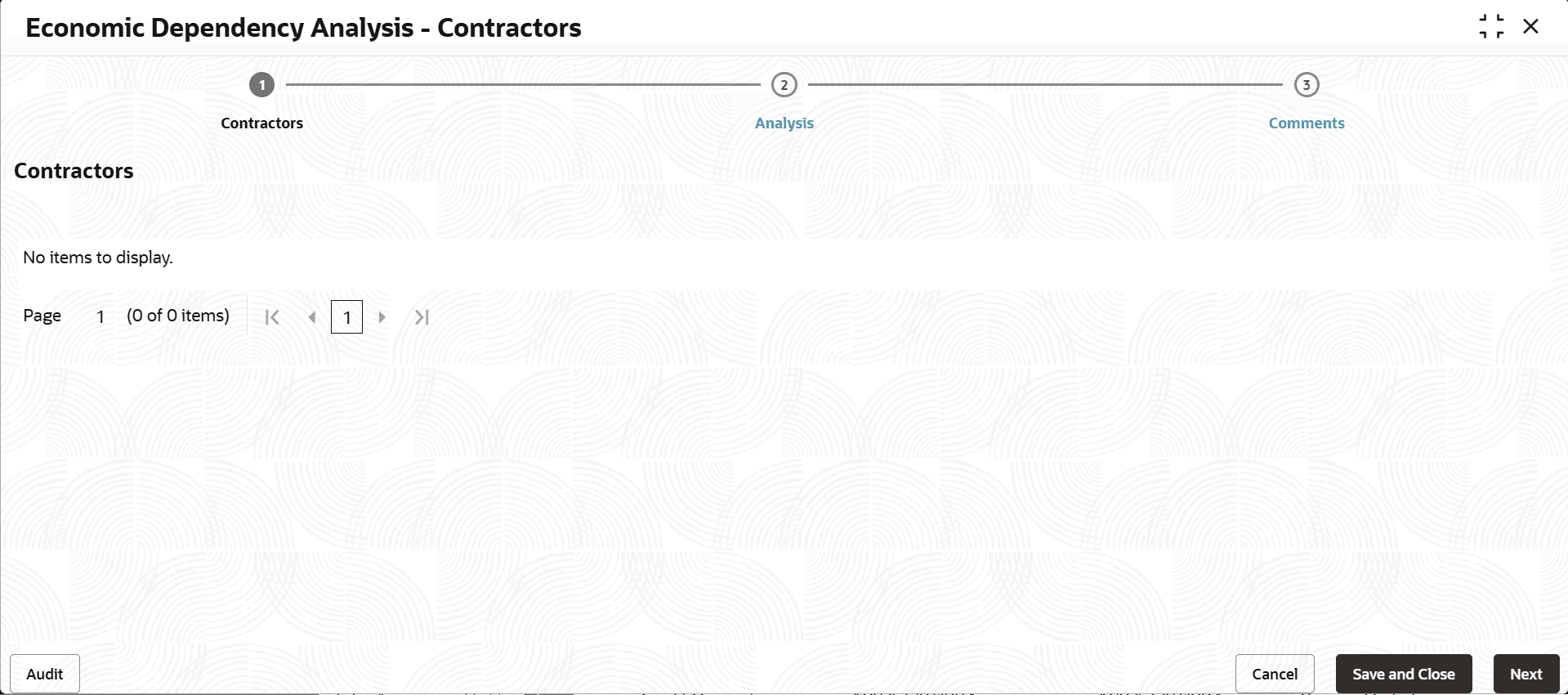
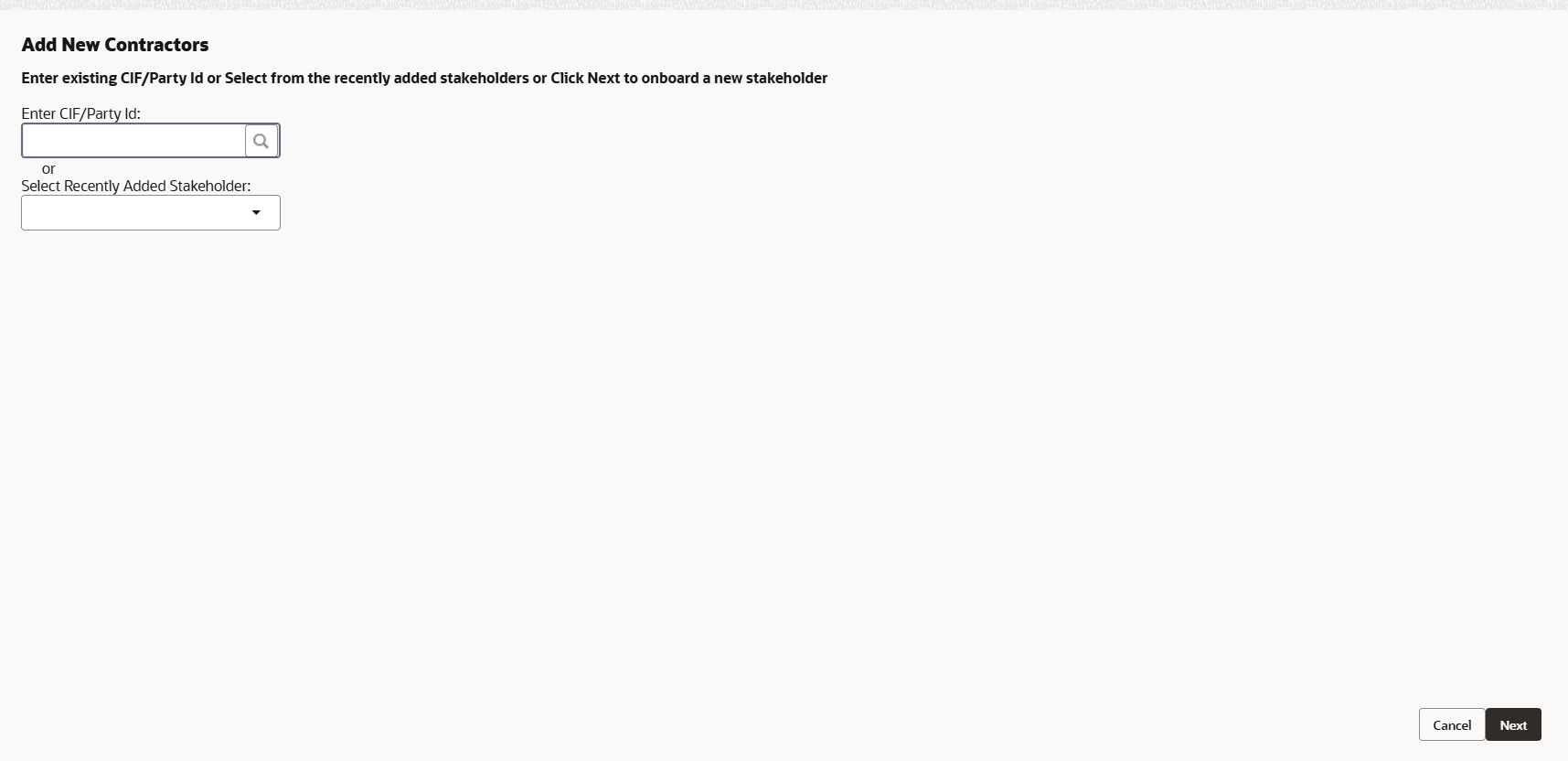
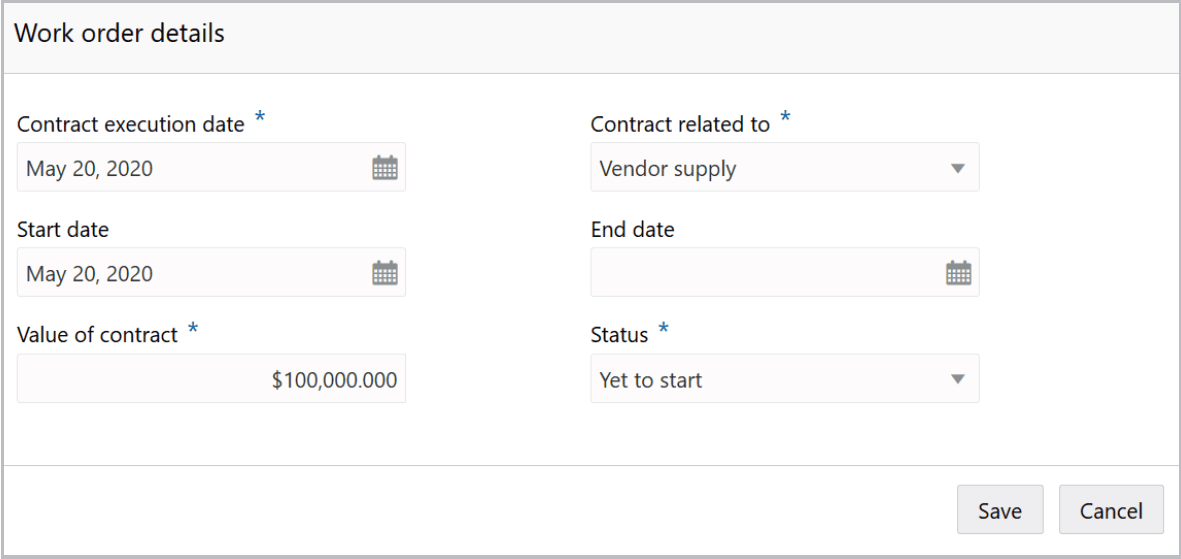
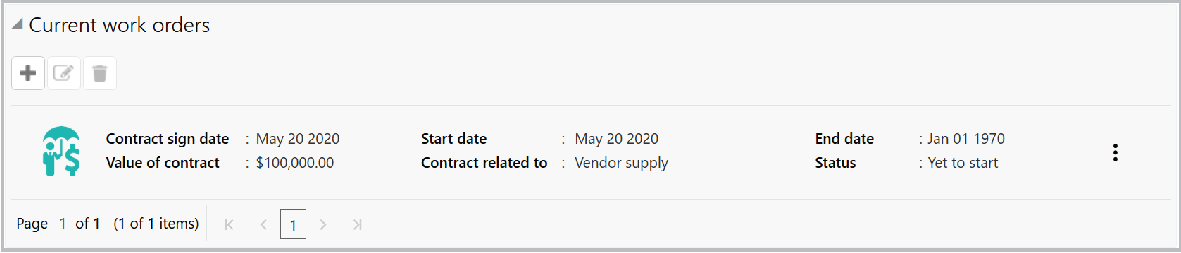
Figure 3-169 Our customer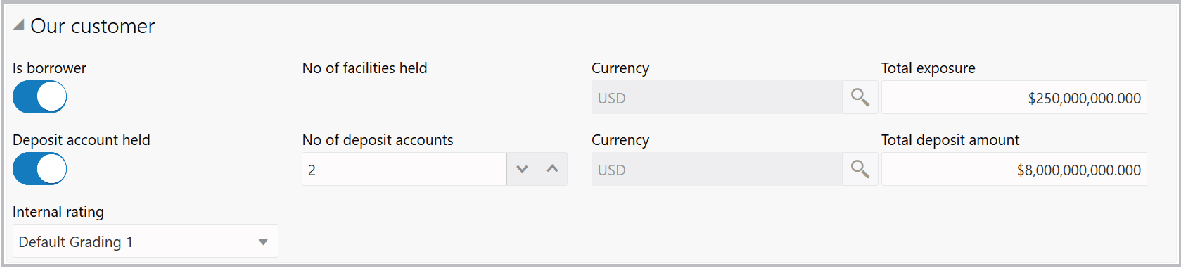
Description of "Figure 3-169 Our customer"
For information on fields in the Our customer screen, refer the below table.
Table 3-86 Our customer
| Fields | Description |
|---|---|
| Is borrower | If the Contractor is a borrower in your bank, enable the Is borrower switch. |
| Currency | Search and select the Currency for the total exposure. |
| Total exposure | Specify the Contractor's Total exposure amount in your bank. |
| Deposit account held | If the Contractor holds a deposit account in your bank, enable the Deposit account held switch. |
| No of deposit accounts | If the Deposit account held switch is enabled, specify the No of deposit accounts. |
| Currency | Search and select the Currency for the Total deposit amount. |
| Total deposit amount | In the Total deposit amount field, specify the total amount deposited in all the deposit accounts. |
| Internal rating | Select the Internal rating for Contractor from the drop down list. |
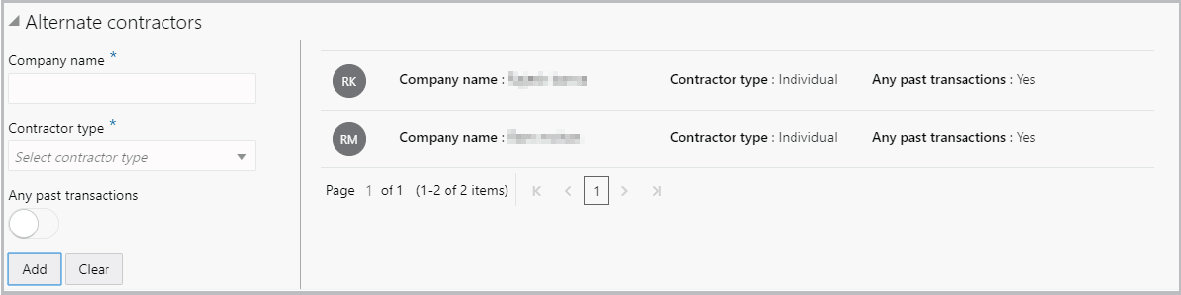
Figure 3-170 Alternate contractors
Description of "Figure 3-170 Alternate contractors"
For information on fields in the Alternate contractors screen, refer the below table.
Table 3-87 Alternate contractors
| Fields | Description |
|---|---|
| Company name | Type the alternate Contractor's Company name. |
| Contractor type | Select the alternate Contractor type from the drop down list. |
| Any past transactions | If the alternate contractor has records of past transactions, enable the Any past transactions switch. |
| Add | Click Add. Alternate Contractor details are added. |
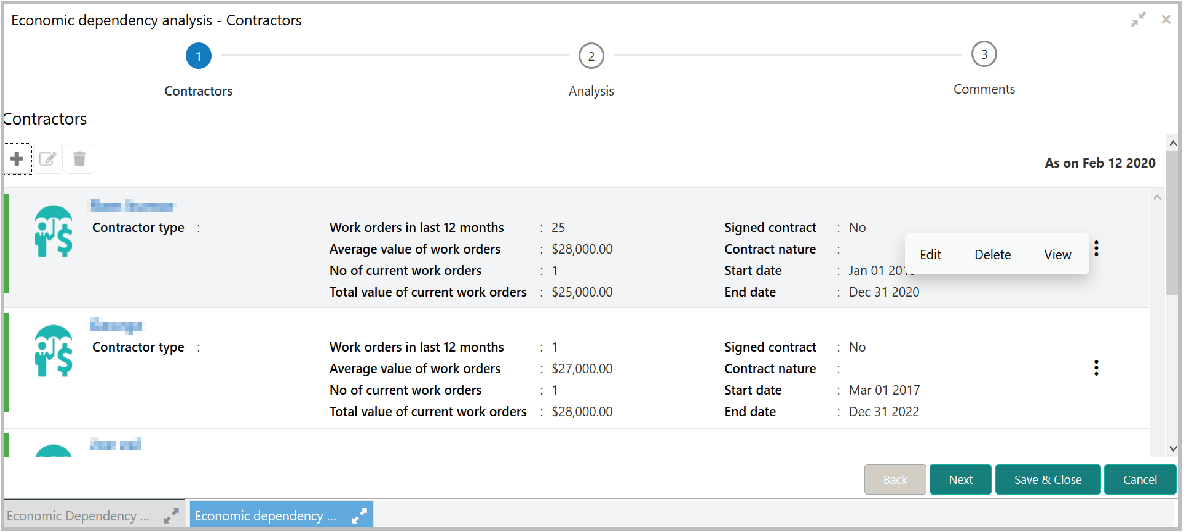
- In the New Contractor window, click Save. Contractor details are added
and displayed in the Contractors page as shown below:
- To analyze the Contractor details, click Next in the Contractors
page.The Analyze screen is displayed.
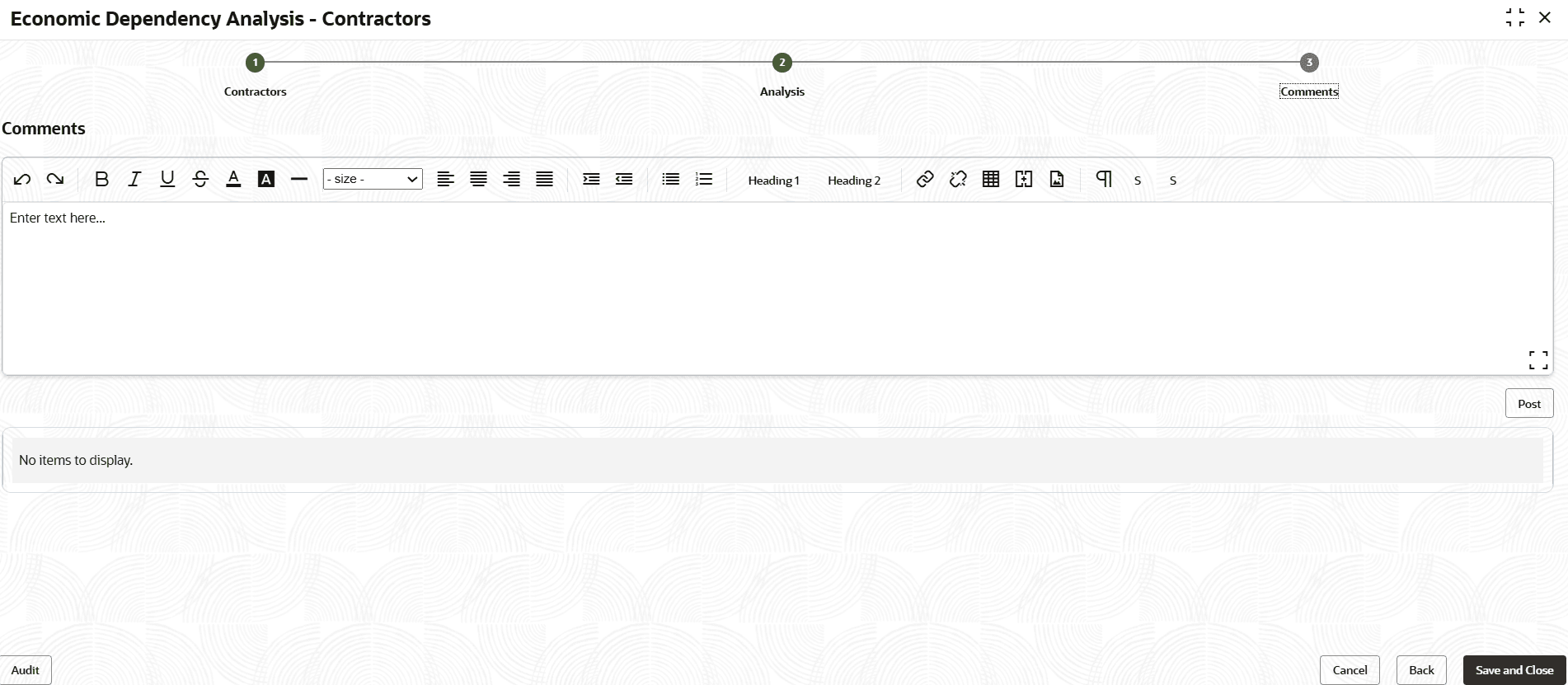
- Click Next. The Comments screen is displayed.
For information on fields in the Comments screen, refer the below table.
Table 3-88 Comments
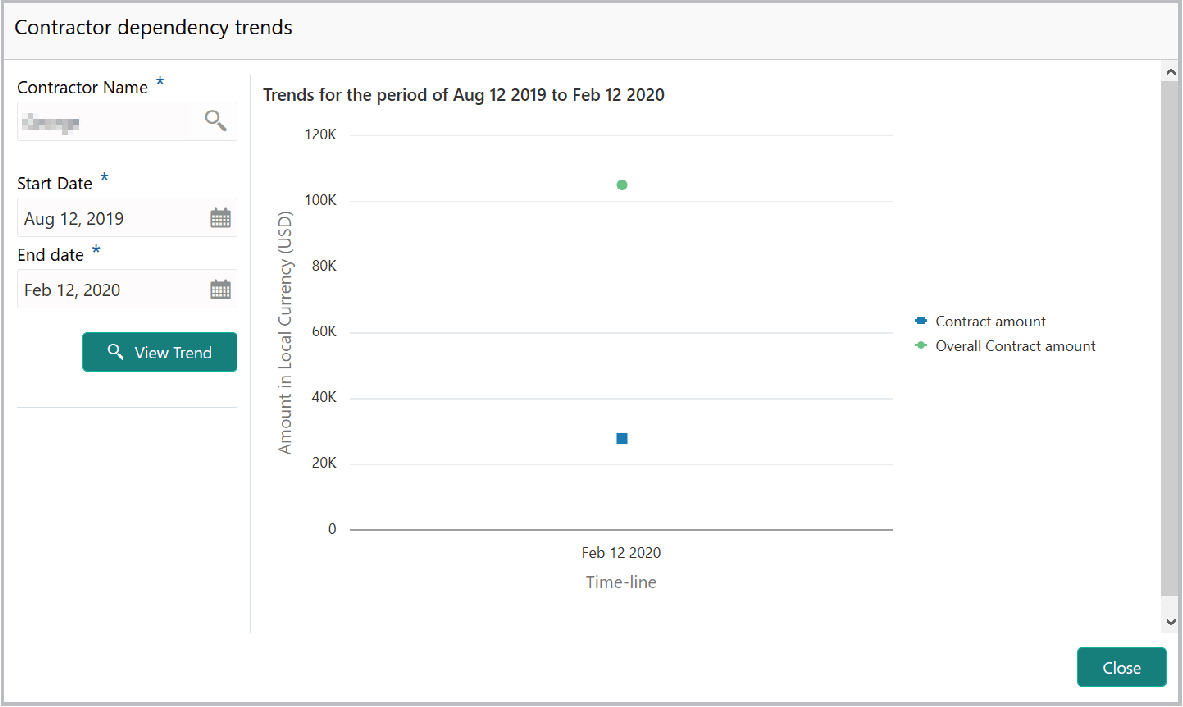
Fields Description Comments Type the overall Comments for the Contractor Analysis. Post Click Post. Comments are posted below the Comments box. Submit Click Submit. - To view the Contractor dependency trends, click the trend analysis icon beside
the capture icon in Contractors tile.The Contractor Dependency Trends screen is displayed.
For information on fields in the Contractor Dependency Trends screen, refer the below table.
Table 3-89 Contractor Dependency Trends
Fields Description Contractor name Search and select the Contractor name. Start date and the End date Specify the Start date and the End date by clicking the calendar icon. View Trend Click View Trend. Contractor dependency trend appears for the selected period. Close To exit the Contractor dependency trends window, click Close.
Parent topic: Enrich and Analyze