3.14 Insurers
This topic provides systematic instructions about the Issuers in data segment in Enrichment Stage.
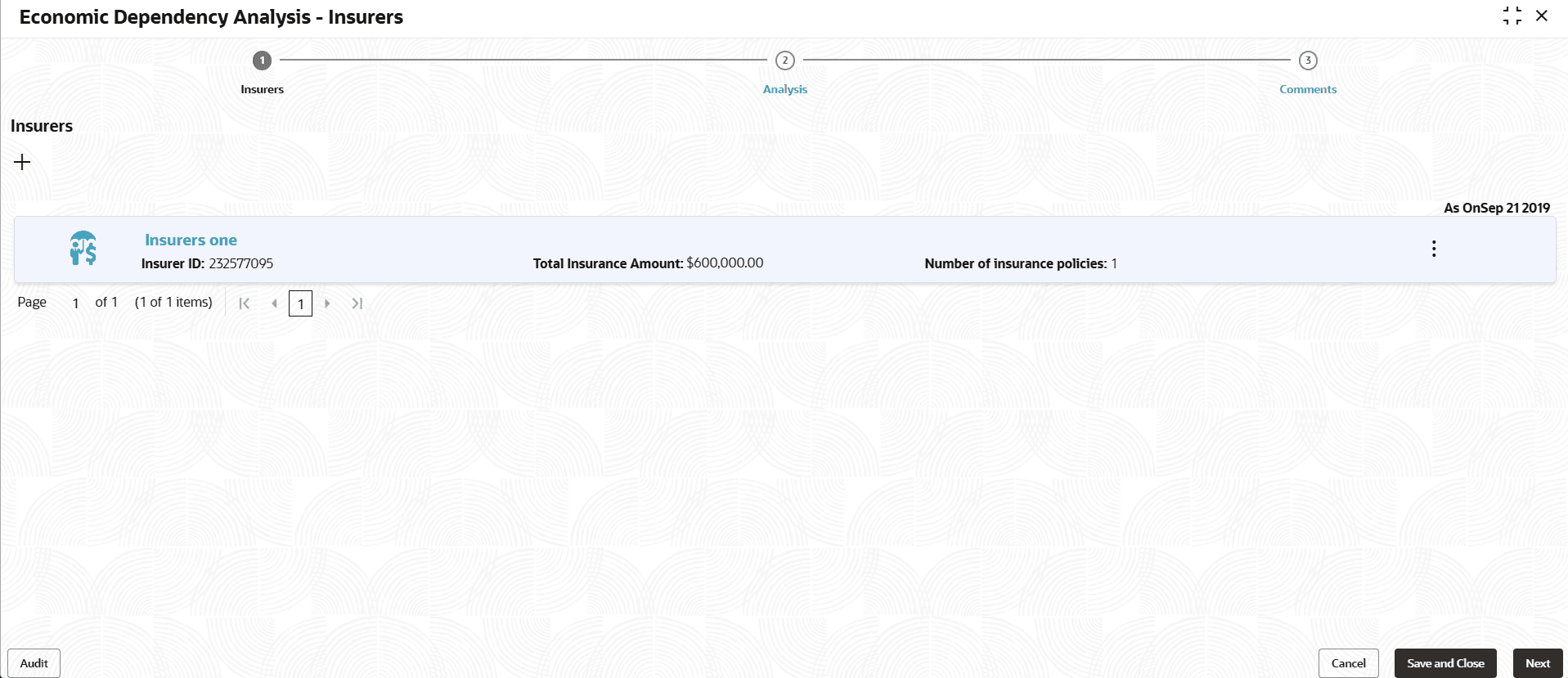
This tile allows to capture and analyze information about the insurers of your customer.
- Click the capture icon in the Insurers tile.The Insurers screen is displayed.
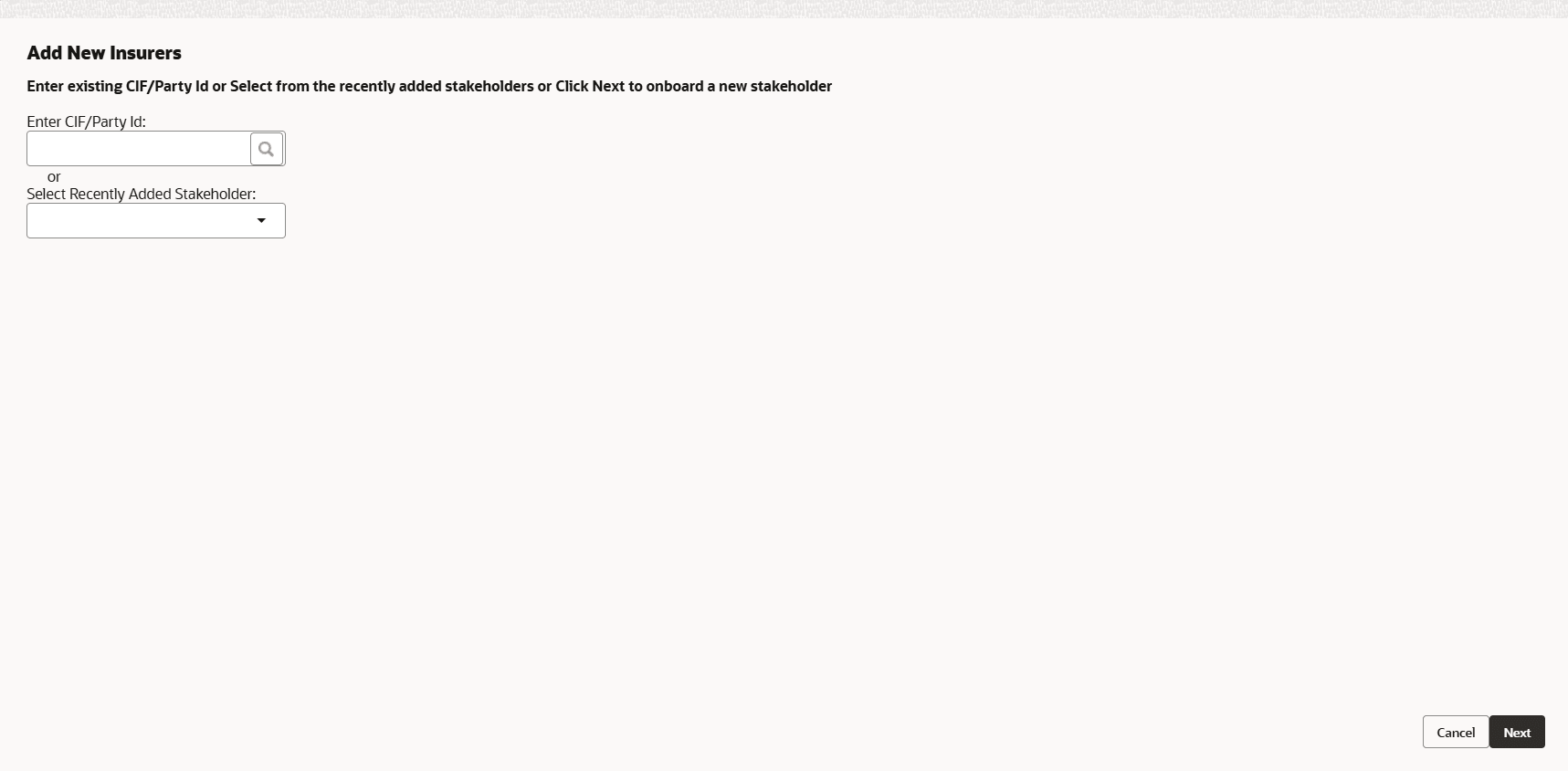
- To add the insurer details, click the add icon. The New Insurer screen
is displayed.
For information on fields in the Adding Insurer Details screen, refer the below table.
Table 3-74 Adding Insurer Details
Fields Description Insurer name Type the Insurer name. Currency Search and select the Currency in which the total insurance amount is paid. Total insurance amount Specify the Total insurance amount. - Click the add icon.
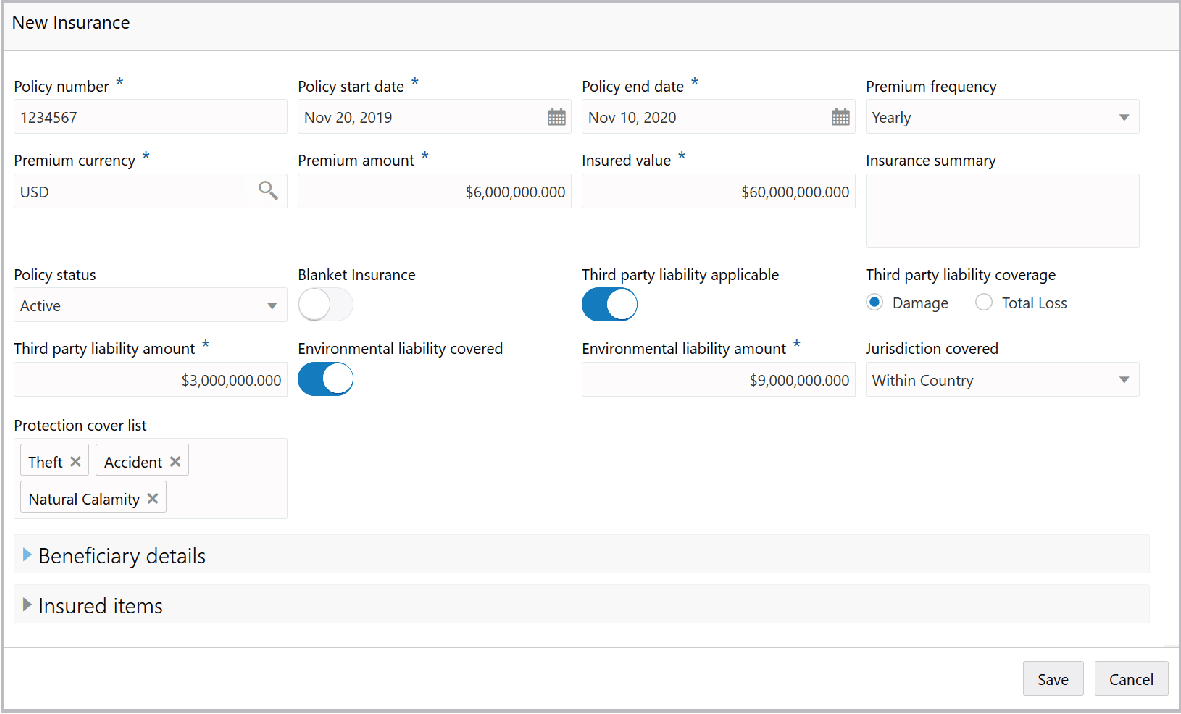
For information on fields in the New Insurance screen, refer the below table.
Table 3-75 New Insurance
Fields Description Policy number Specify the insurance Policy number. Policy start date Specify the insurance Policy start date. Policy end date Specify the insurance Policy end date. Premium frequency Select the insurance Premium frequency. Premium currency Search and select the currency for premium amount in Premium currency field. Premium amount Specify the insurance Premium amount. Insured value In the Insured value field, specify the insurance value. Insurance summary Type the Insurance summary. Policy status Select the Policy status from the drop down list. Blanket Insurance If the insurance is a blanket insurance, enable the Blanket Insurance switch. Third party liability applicable Enable the Third party liability applicable switch, if applicable. Third party liability coverage and Third party liability amount field appears. Third party liability coverage Select the Third party liability coverage and specify the Third party liability amount. Environmental liability covered If the insurance is the environmental liability insurance, enable the Environmental liability covered switch. Environment liability amount field appears. Environment liability amount Specify the Environment liability amount. Jurisdiction covered Select the Jurisdiction covered in the insurance from the drop down list. Protection cover list Type or select the Protection cover list.
In the Beneficiary details section:
Figure 3-146 Beneficiary details
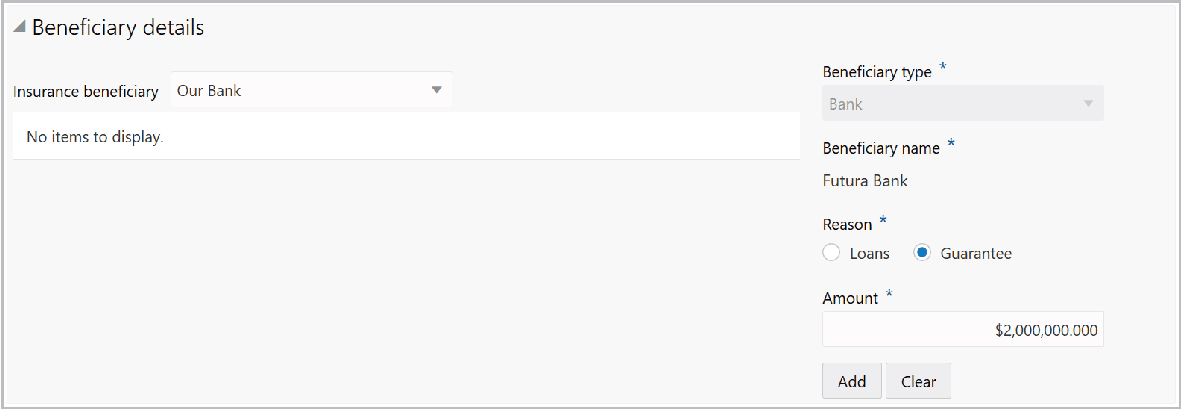
Description of "Figure 3-146 Beneficiary details"
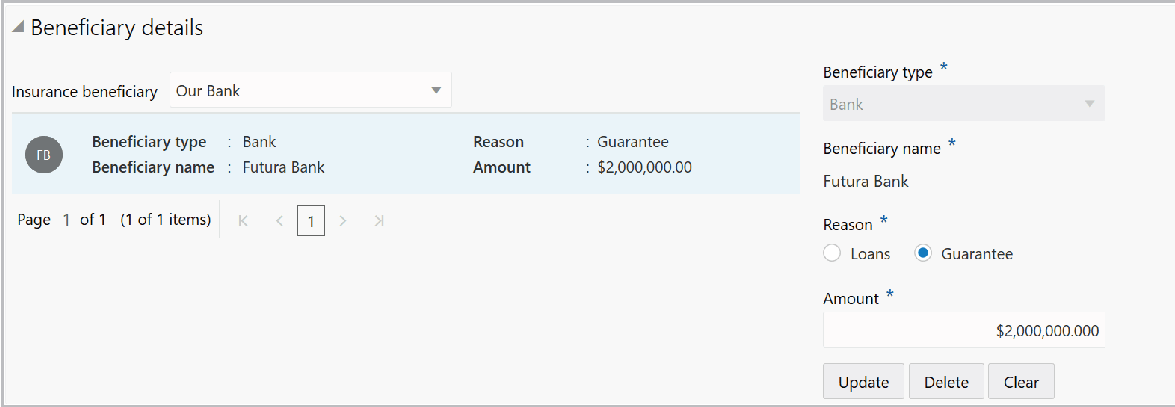
For information on fields in the Beneficiary details screen, refer the below table.
Table 3-76 Beneficiary details
| Fields | Description |
|---|---|
| Insurance beneficiary | Select the Insurance beneficiary from the drop down list. |
| Beneficiary type | Select the Beneficiary type from the drop down list, if Other is selected as Insurance beneficiary. |
| Beneficiary name | Type the Beneficiary name, if Other is selected as Insurance beneficiary. |
| Reason | Type the Reason for naming the beneficiary. |
| Amount | Specify the beneficiary Amount. |
- Click Add. Beneficiary details are added as shown below:
In the Insured Items section:
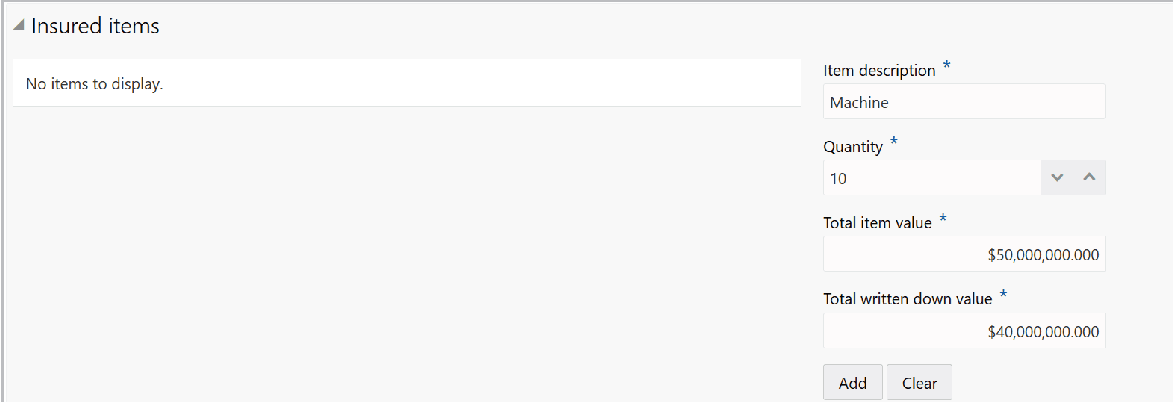
Figure 3-148 Insured Items
Description of "Figure 3-148 Insured Items"
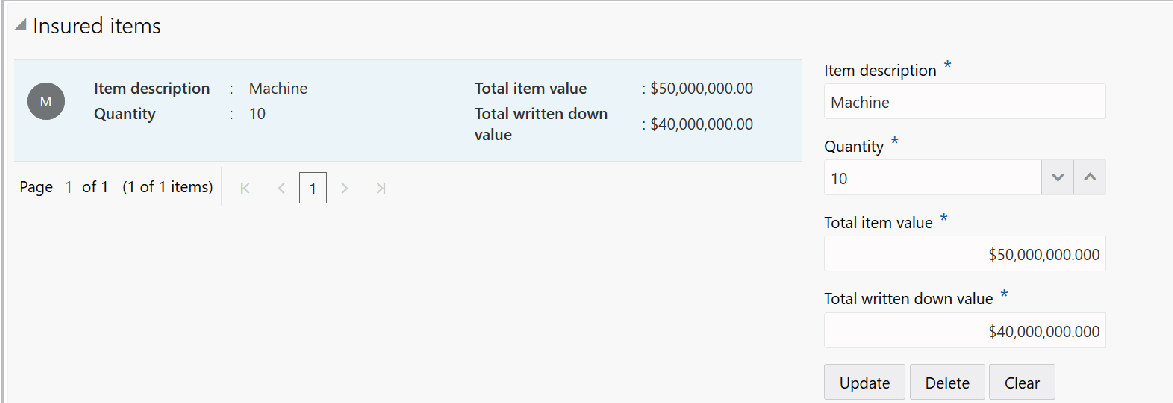
For information on fields in the Insured Items screen, refer the below table.
Table 3-77 Insured Items
| Fields | Description |
|---|---|
| Description field | Specify the Insured item name in the Item Description field. |
| Quantity | Specify the Quantity of the insured item. |
| Total item value | In the Total item value field, specify the total value of the insured item. |
| Total written down value | In the Total written down value field, specify the face value of the insured items. |
- Click Add. Insured item details are added as shown below:
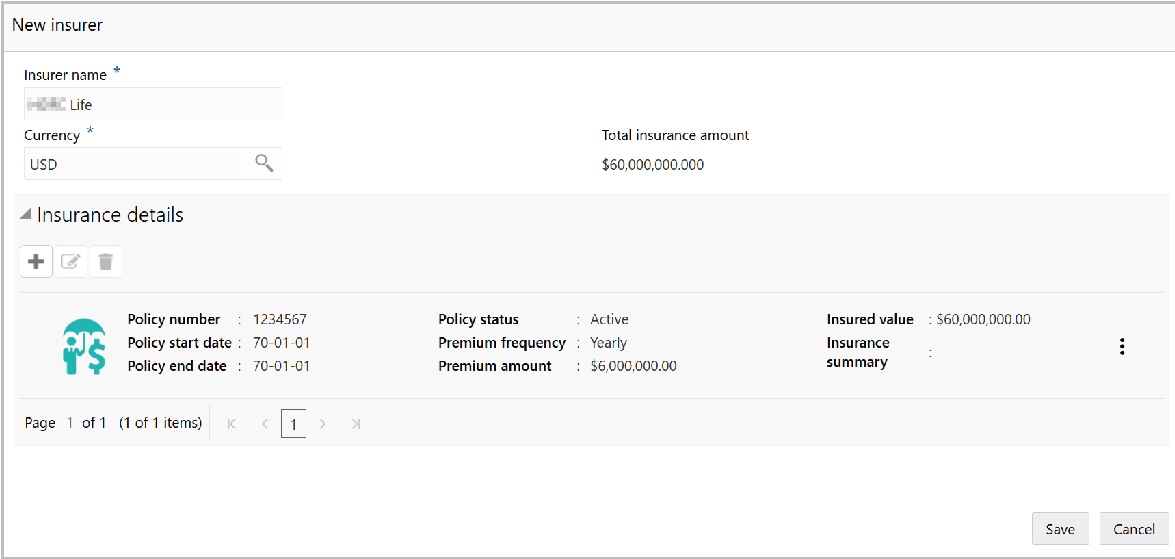
- Click Save in the New Insurance window. Insurance details are added and
listed in the New Insurer window as shown below:
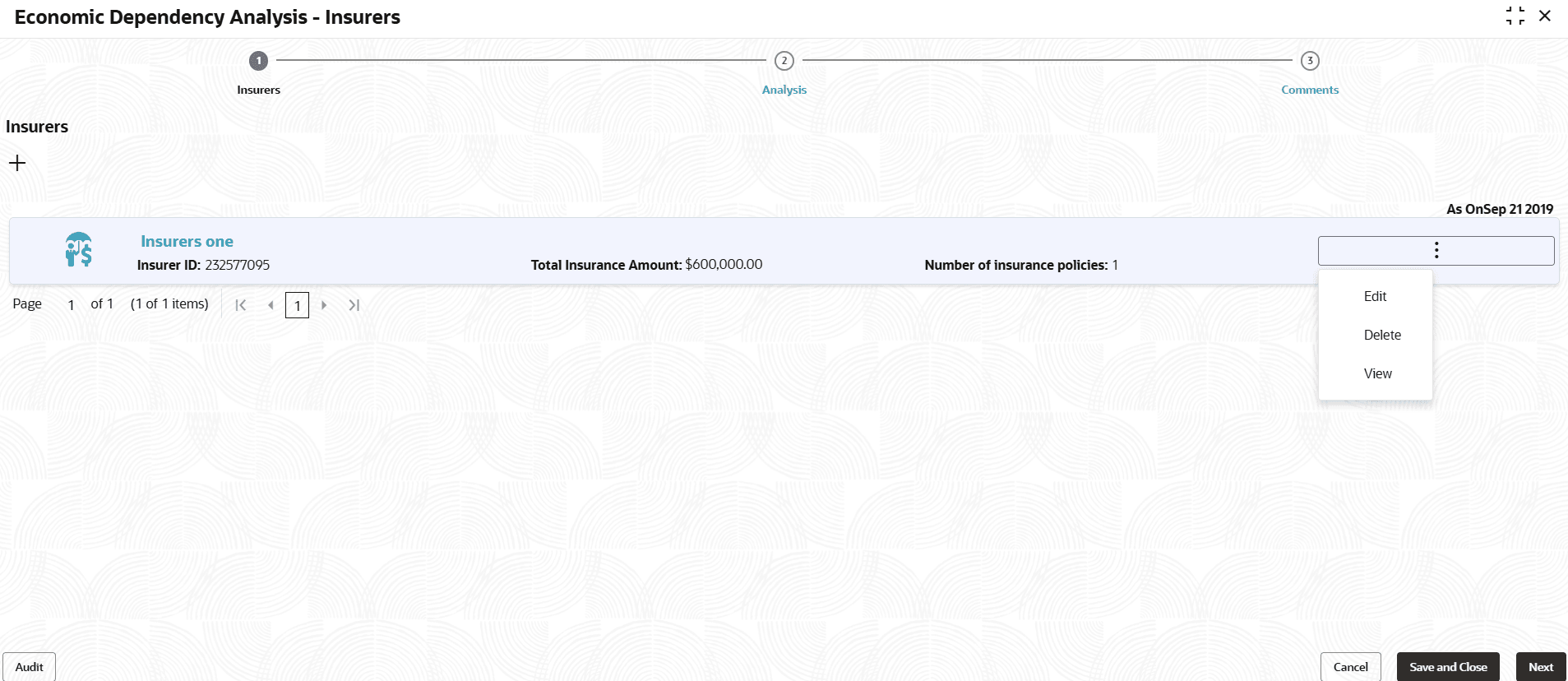
- Click Save. Insurer details are added and listed in the Insurer page as
shown below:
Analyzing Insurer Details
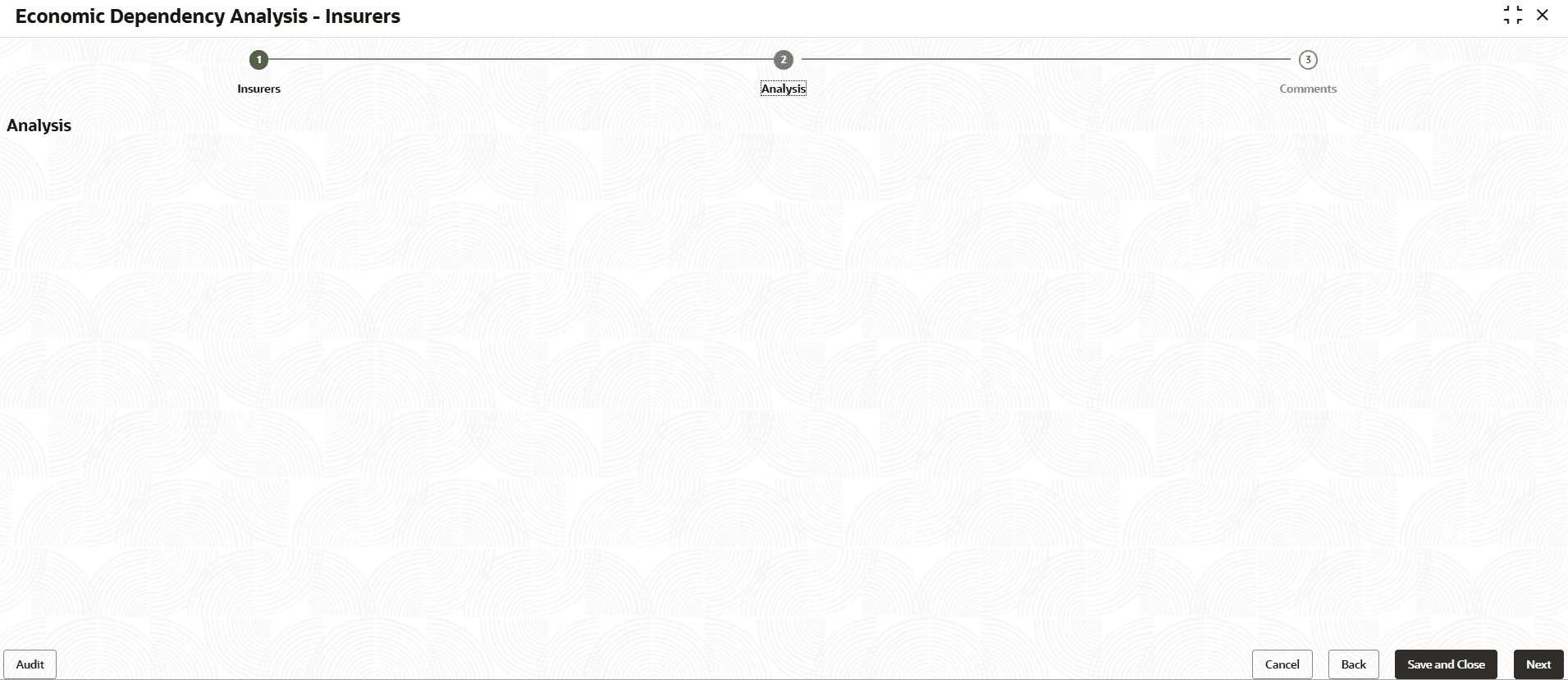
- To analyze the Insurer details, click Next in the Insurers page. The
Analysis screen is displayed.
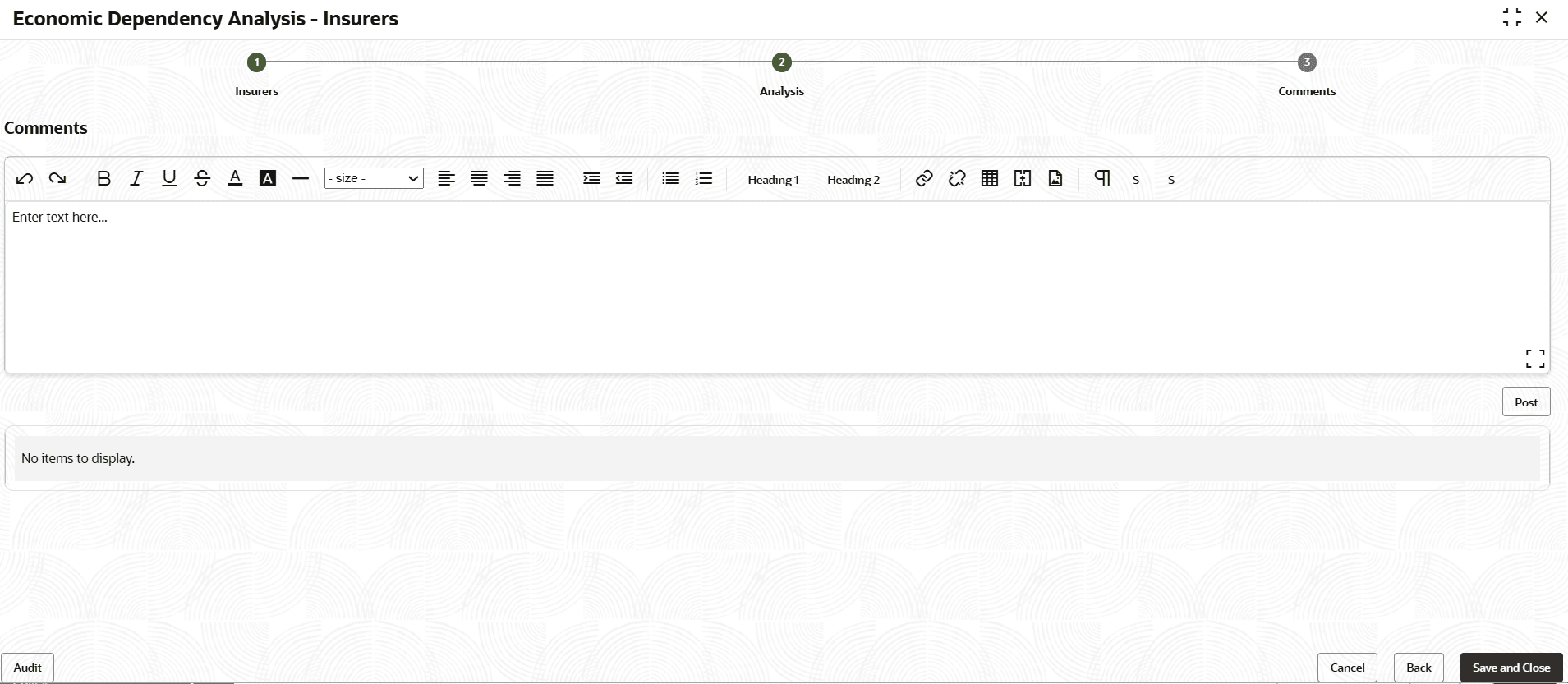
- Click Next. The Comments screen is displayed.
Viewing Dependency Trends
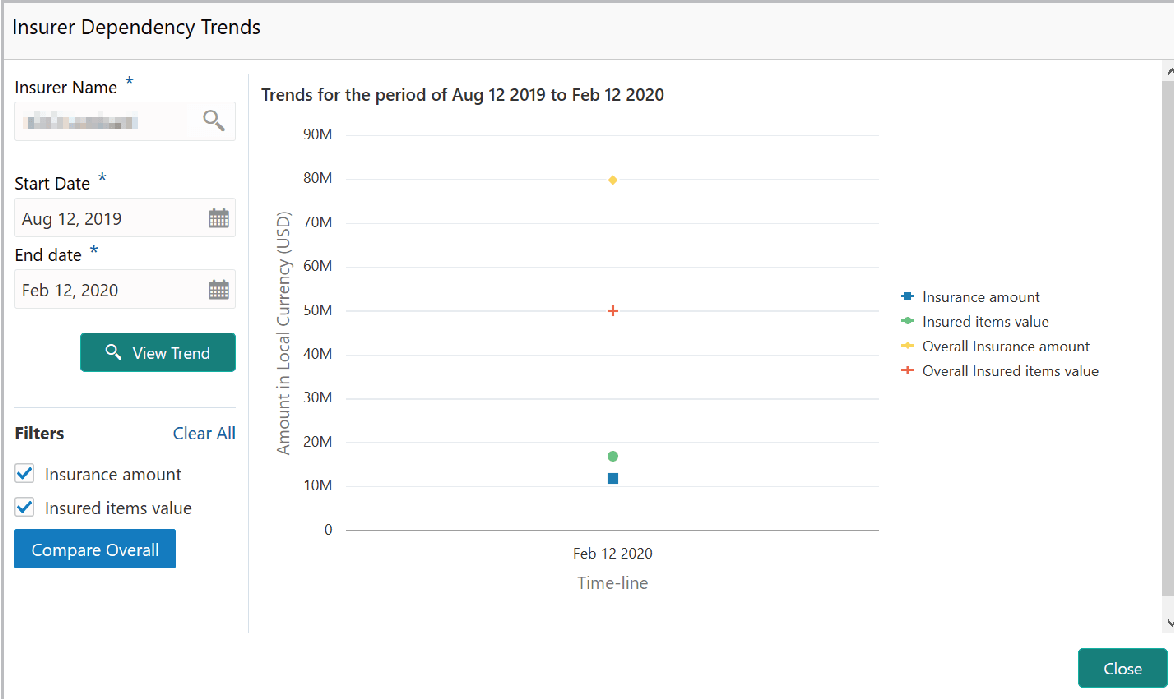
- To view the Insurer dependency trends, click the trend analysis icon beside the
capture icon in Insurers tile.The Insurer Dependency Trends screen is displayed.
For information on fields in the Insurer Dependency Trends screen, refer the below table.
Table 3-78 Insurer Dependency Trends
Fields/ Icons Description Insurer Name Search and select the Insurer Name. Start Date and the End Date Select the Start Date and the End Date by clicking the calendar icon. Filter To filter the data, select the required option in the Filter field and click Compare Overall. Close. To exit the Insurer Dependency Trends window, click Close.
Parent topic: Enrich and Analyze