3.13 Guarantors
This tile allows to capture and analyze information about the Guarantors of your customer.
- Click the capture icon in the Guarantors tile.The Guarantor Details screen is displayed.
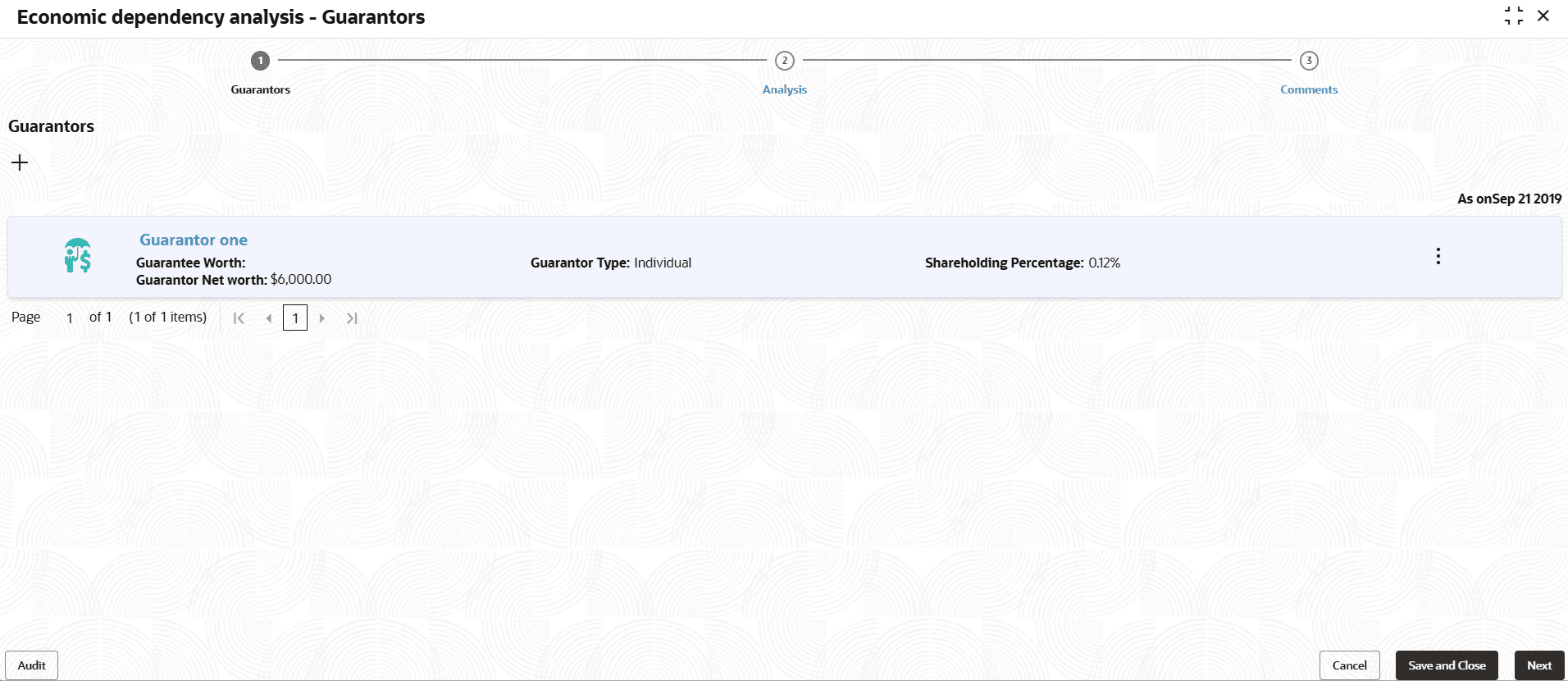
Adding Guarantor Details
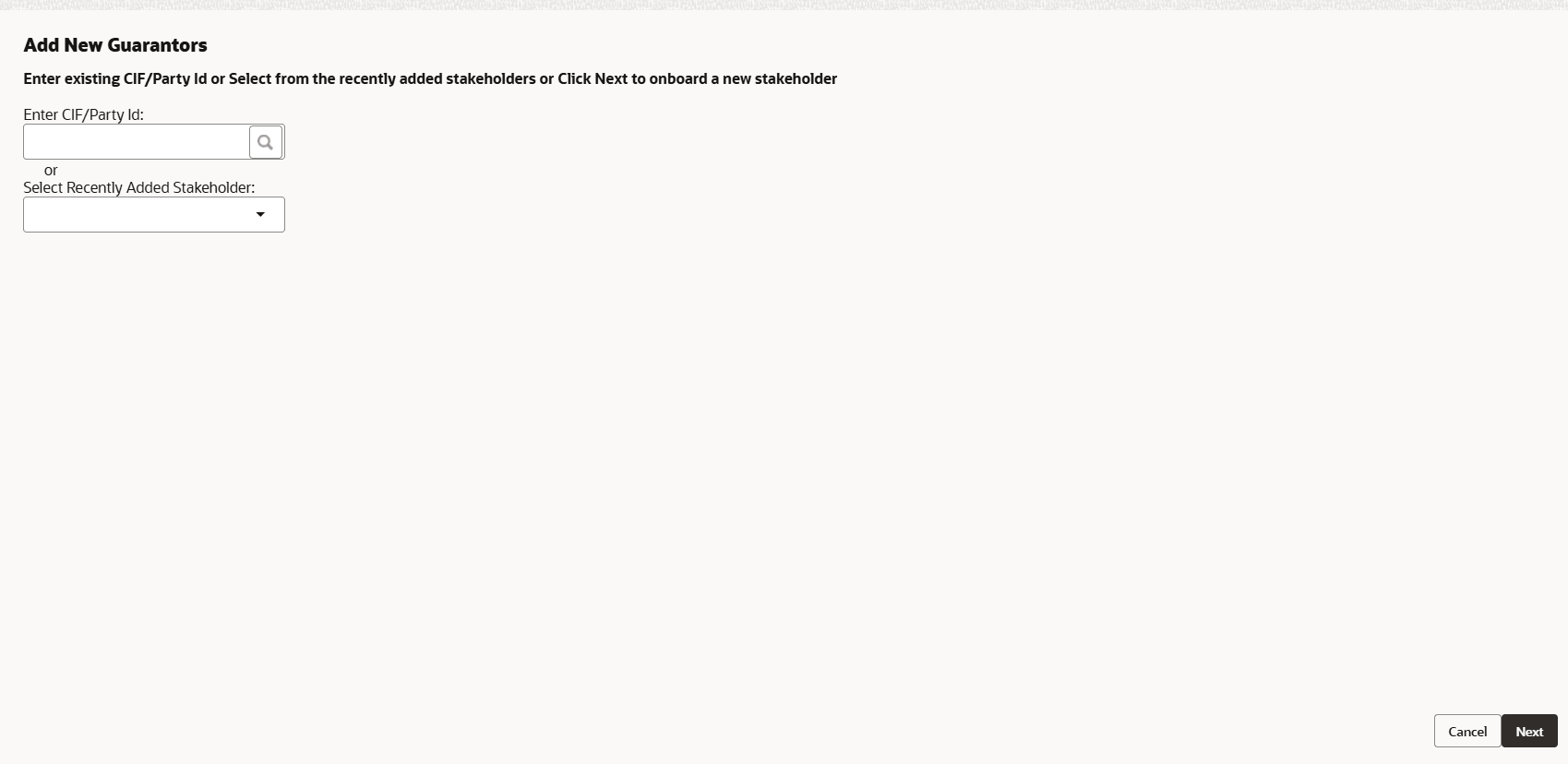
- To add the Guarantor information, click the add icon in the Guarantor Details
page.The New Guarantor screen is displayed.
For information on fields in the Guarantor Details screen, refer the below table.
Table 3-67 Guarantor Basic Details
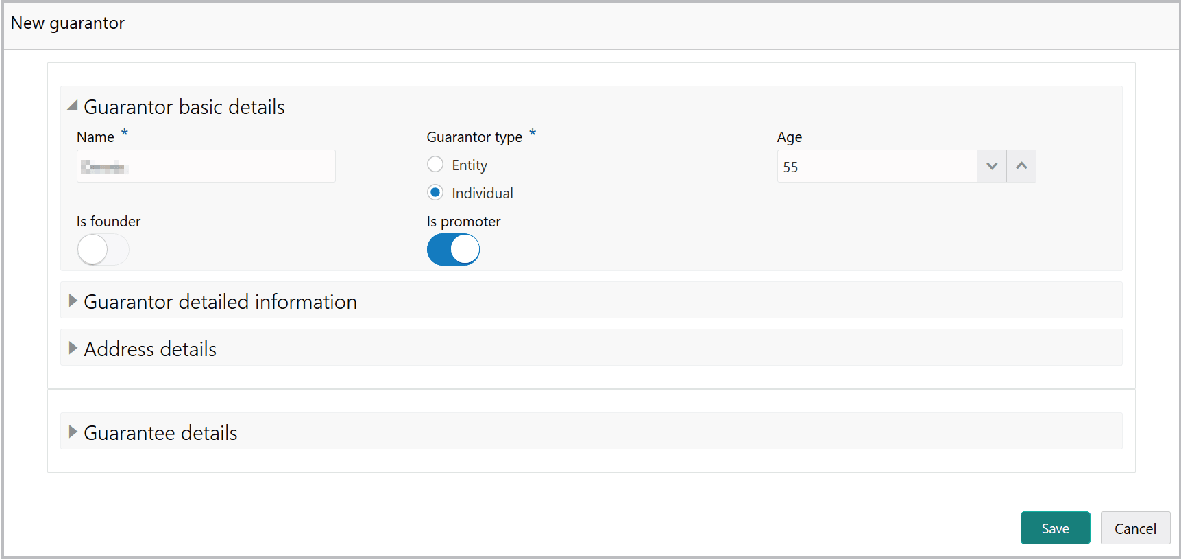
Fields/ Icons Description Name Type the Name of the Guarantor Guarantor type Select the Guarantor type from the drop down list. The options available are: Entity and Individual. Entity If Entity is selected as Guarantor type, specify the Year of incorporation and Point of contact. If Individual is selected as Guarantor type, the Guarantor basic details section is displayed as shown below:
For information on fields in the New Guarantor screen, refer the below table.
Table 3-68 New Guarantor
Fields/ Icons Description Age Specify the Age of the Guarantor. Is founder If the Guarantor is the founder of your customer organization, enable the Is founder switch. Is promoter If the Guarantor is the promoter of your customer organization, enable the Is promoter switch.
In the Guarantor detailed information section:
Figure 3-133 Guarantor detailed
information
Description of "Figure 3-133 Guarantor detailed
information"
For information on fields in the Guarantor detailed information screen, refer the below table.
Table 3-69 Guarantor detailed information
| Fields/ Icons | Description |
|---|---|
| Is shareholder? | If the Guarantor is also a shareholder, enable the Is shareholder? switch. |
| Percentage of shareholding | In the Percentage of shareholding field, specify the Guarantor’s share percentage. |
| Board position held? | If the Guarantor was in the board position, enable the Board position held? switch. |
| Is decision maker? | If the Guarantor is a decision maker in your customer organization, enable the Is decision maker? switch. |
| Beneficial ownership in other companies | If the Guarantor is a owner of any other company, enable the Beneficial ownership in other companies switch. |
| Is common shareholding | The Is common shareholding switch
appears, if Entity is selected as Guarantor type
in Guarantor basic details section.
Enable the Is common shareholding switch, if the Guarantor holds a common share in their organization. |
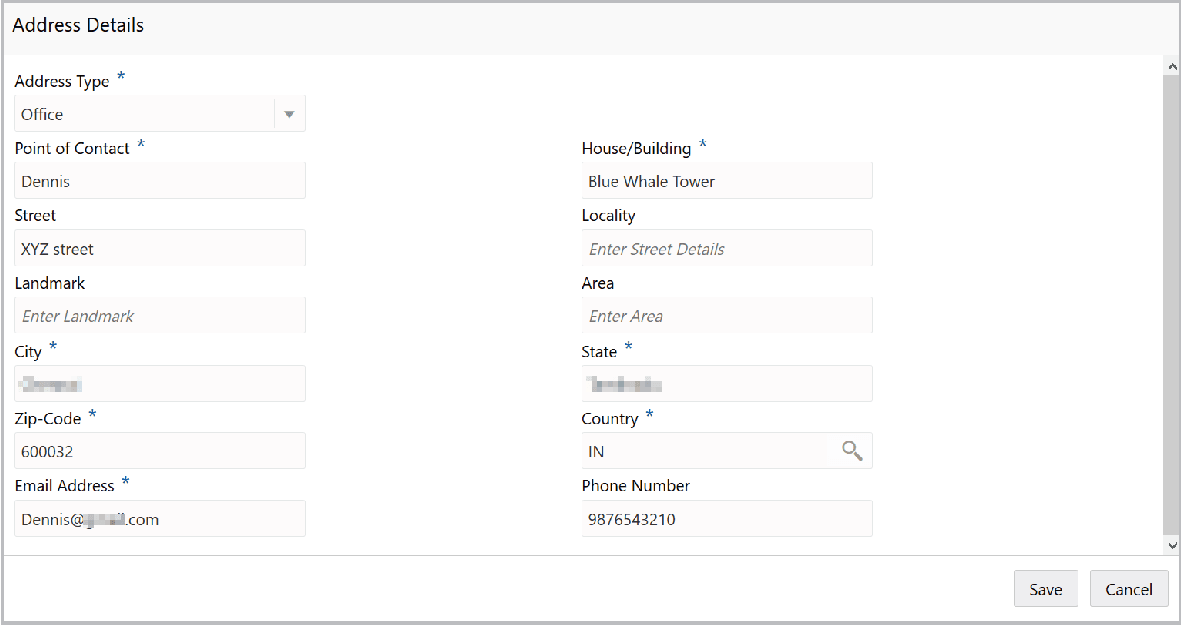
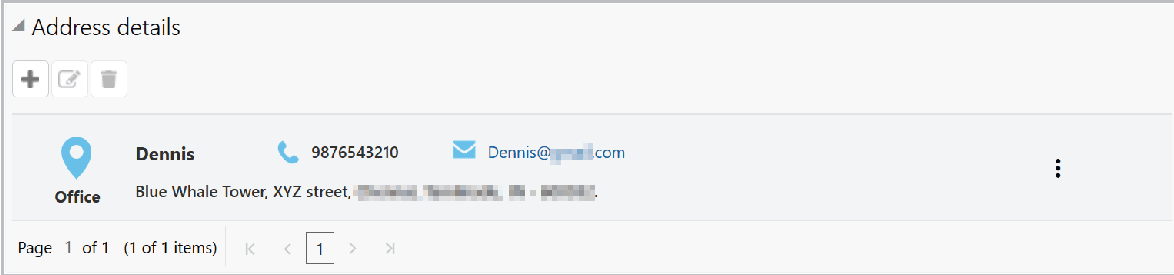
In the Address details section:
- Click the add icon to add the Guarantor’s address details.The Address Details window is displayed.
- Click Save. Address details are added as shown below:
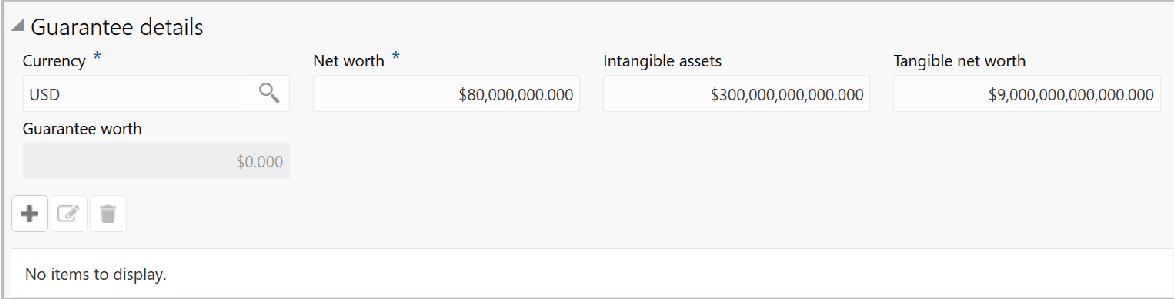
In the Guarantee details section:
Figure 3-136 Guarantee details
Description of "Figure 3-136 Guarantee details"
For information on fields in the Guarantee details screen, refer the below table.
Table 3-71 Guarantee Details
| Fields/ Icons | Description |
|---|---|
| Currency | Search and select the Currency in which the guarantee is provided. |
| Net worth | Specify the Net worth of the guarantee. |
| Intangible assets | Specify the value of Intangible assets. |
| Tangible net worth | Specify the Tangible net worth of the assets. |
| Guarantee worth | Specify the Guarantee worth. |
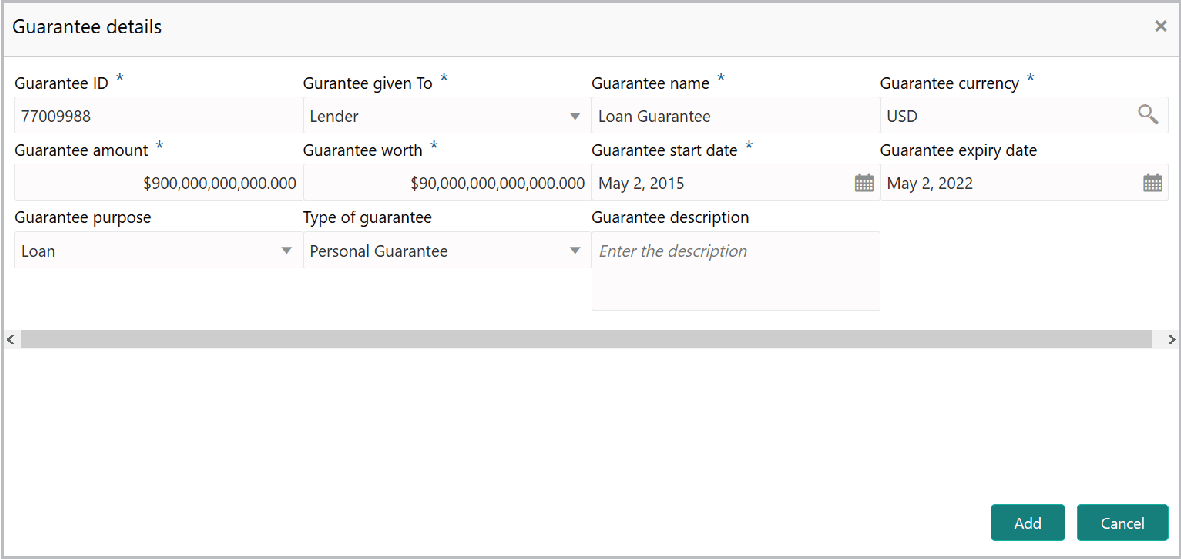
- Click the add icon.The Guarantee Details window is displayed.
For information on fields in the Guarantee details screen, refer the below table.
Table 3-72 Guarantee Details
Fields/ Icons Description Guarantee ID Specify the Guarantee ID. Guarantee given To Select the Guarantee given To option from the drop down list. Guarantee name Type the Guarantee name. Guarantee currency Search and select the Guarantee currency. Guarantee amount and Guarantee worth Specify the Guarantee amount and Guarantee worth. Guarantee start date and Guarantee expiry date. Click the calendar icon and select the Guarantee start date and Guarantee expiry date. Guarantee purpose Select the Guarantee purpose from the drop down list. The options available are: Loan and Contract. Type of guarantee Search and select the Type of guarantee from the drop down list. The options available are: Corporate Guarantee and Personal Guarantee. - Type the Guarantee description and click Add. Details are added
and displayed in the Guarantee details section.
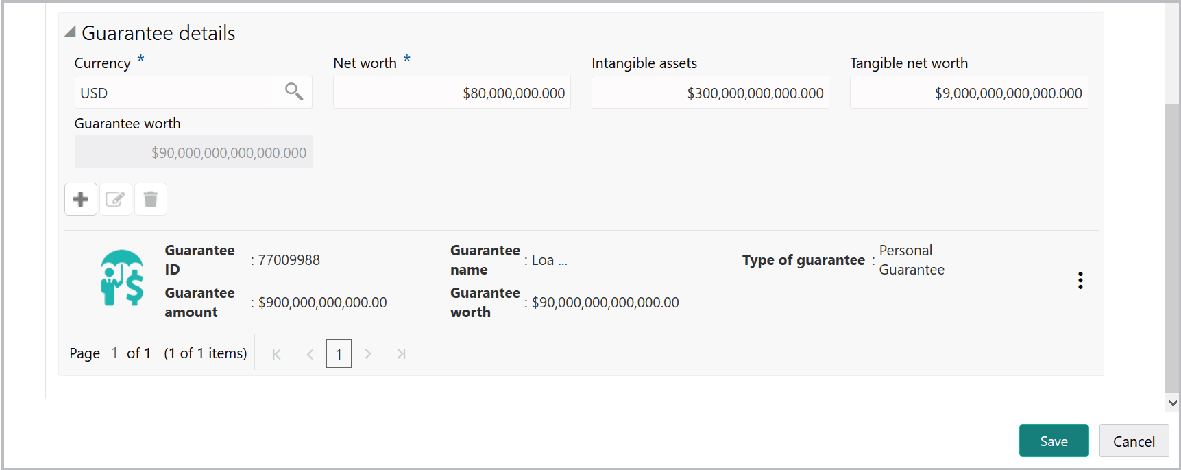
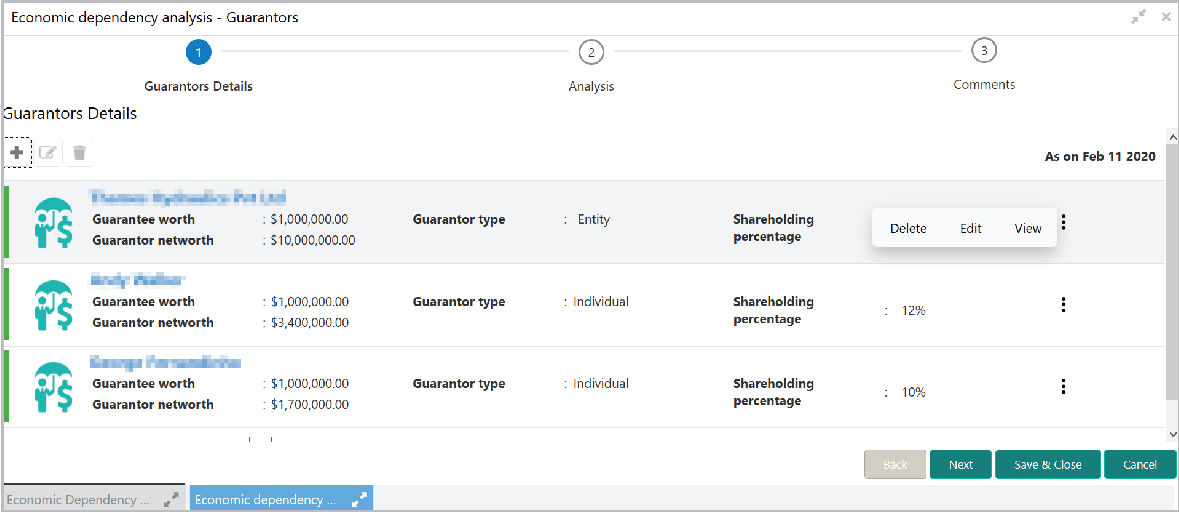
- Click Save in the New Guarantor window. Guarantor details are
added and displayed as shown below:
Analyzing Guarantor Details
- To analyze the guarantor information, click Next in the Guarantors
Details page.The Analysis screen is displayed.
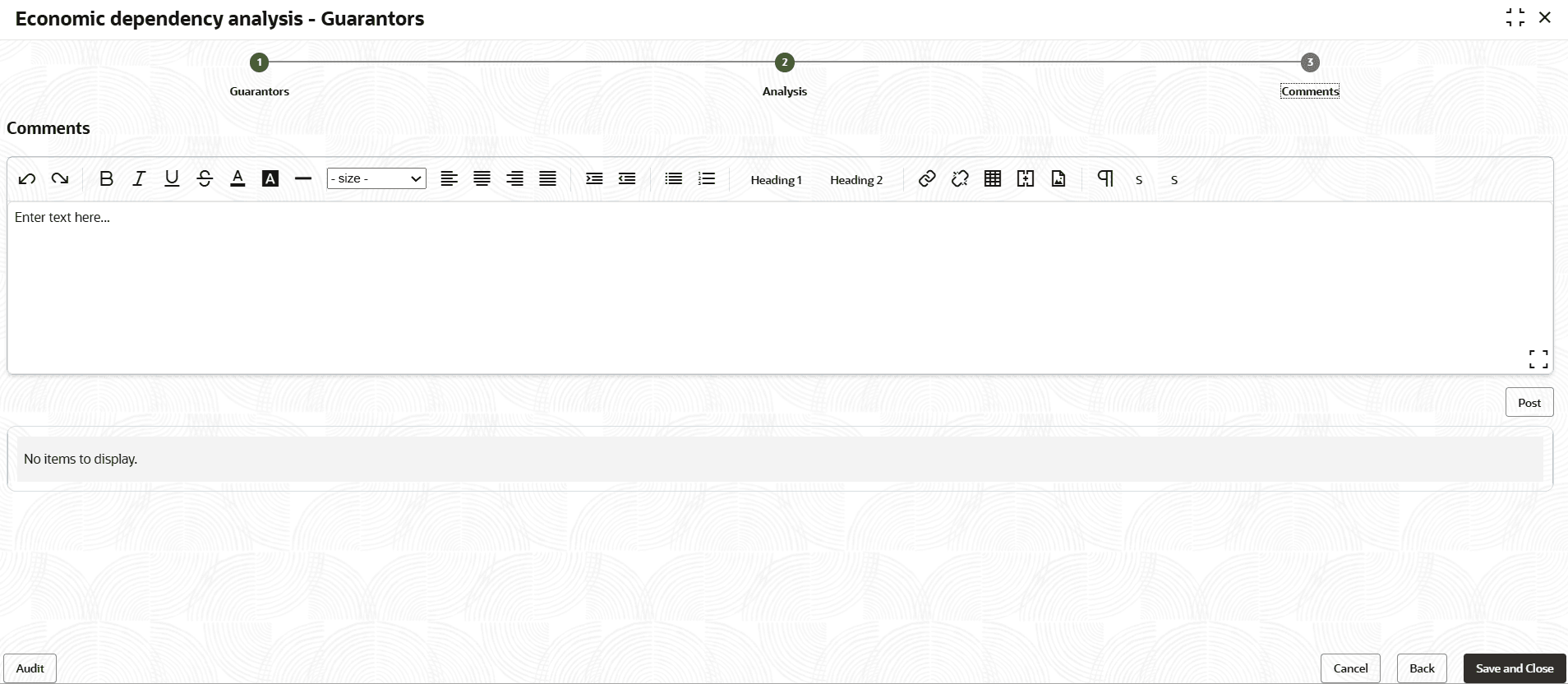
- Click Next. The Comments screen is displayed.
Viewing Dependency Trends
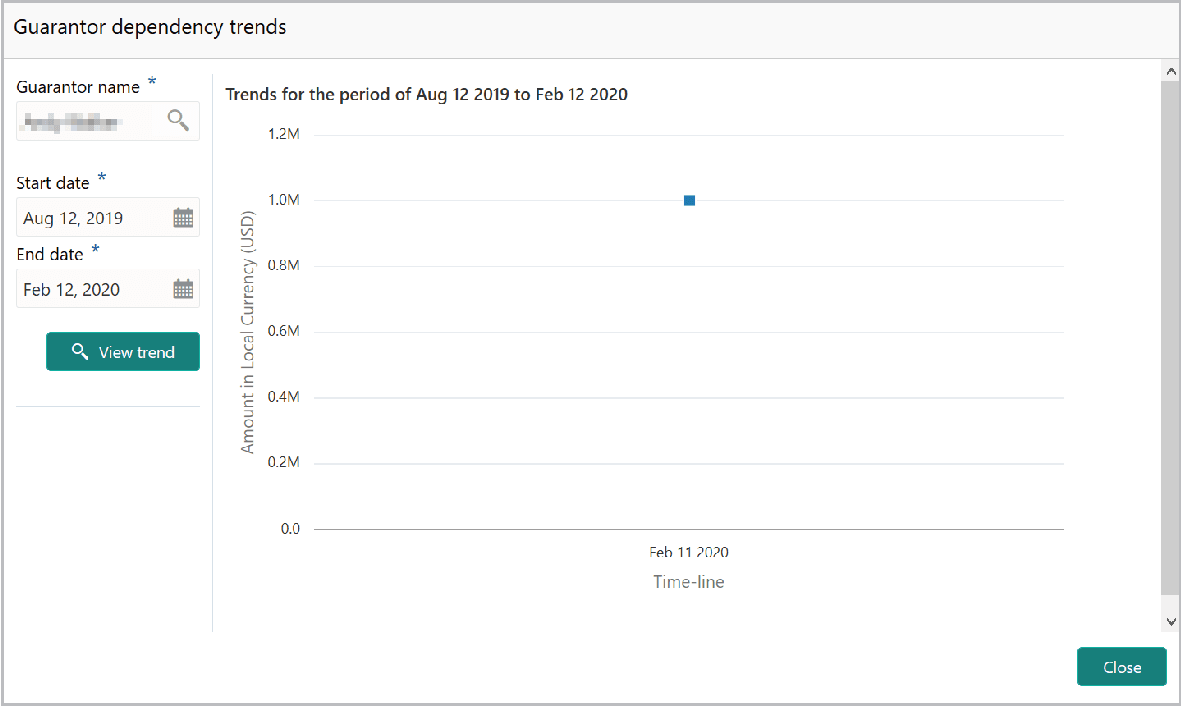
- To view the guarantor dependency trends, click the trend analysis icon beside
the capture icon in Guarantors tile.The Guarantor Dependency Trends screen is displayed.
For information on fields in the Guarantor Dependency Trends screen, refer the below table.
Table 3-73 Guarantor Dependency Trends
Fields/ Icons Description Guarantor Name Search and select the Guarantor Name. Start date and End date Specify the Start date and End date. View Trend Click the View Trend button. Guarantor dependency trend for the selected period appears. Close To exit the Guarantor dependency trends window, click Close.
Parent topic: Enrich and Analyze