3.12 Bankers
This topic provides systematic instructions about the Bankers in data segment in Enrichment Stage.
The relationship between your customer and the other banks can be captured from this tile.
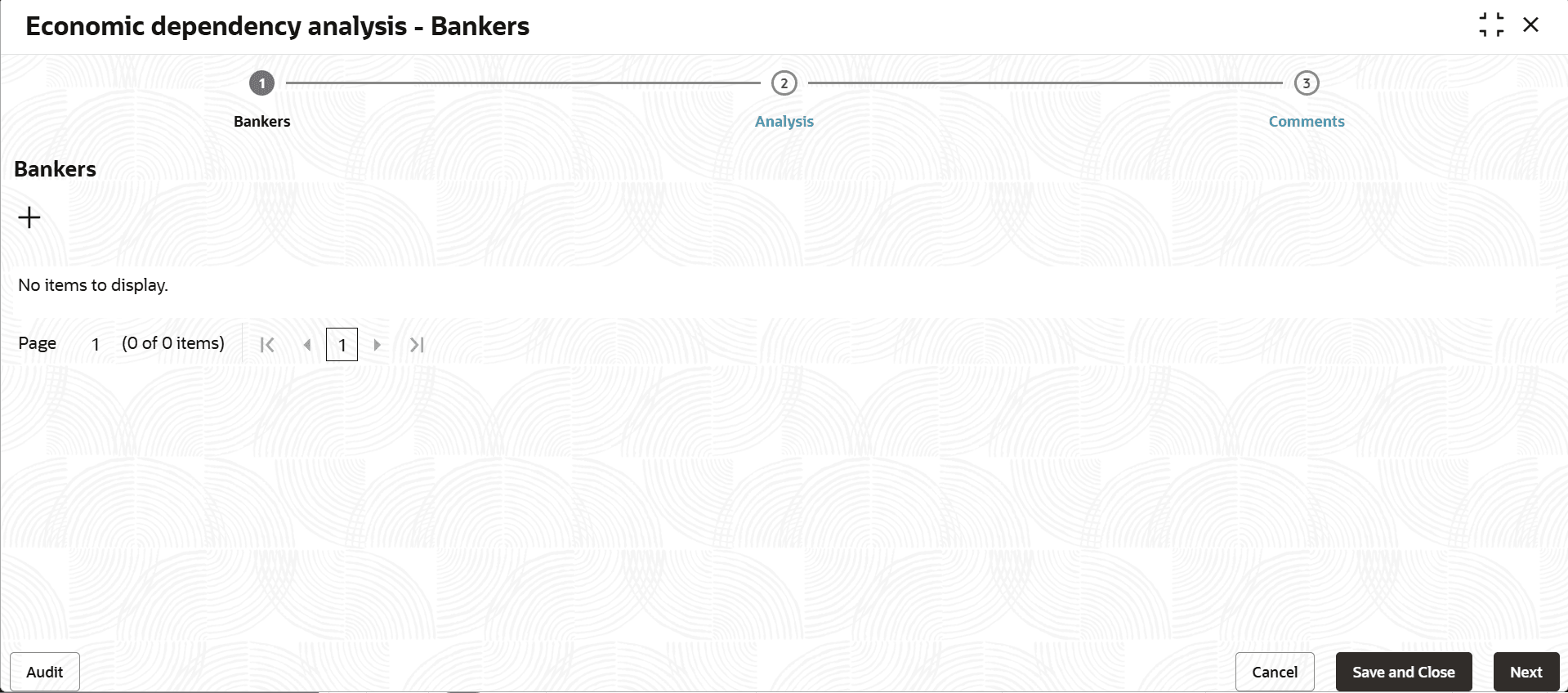
- Click the capture icon in the Bankers tile.The Bankers screen is displayed.
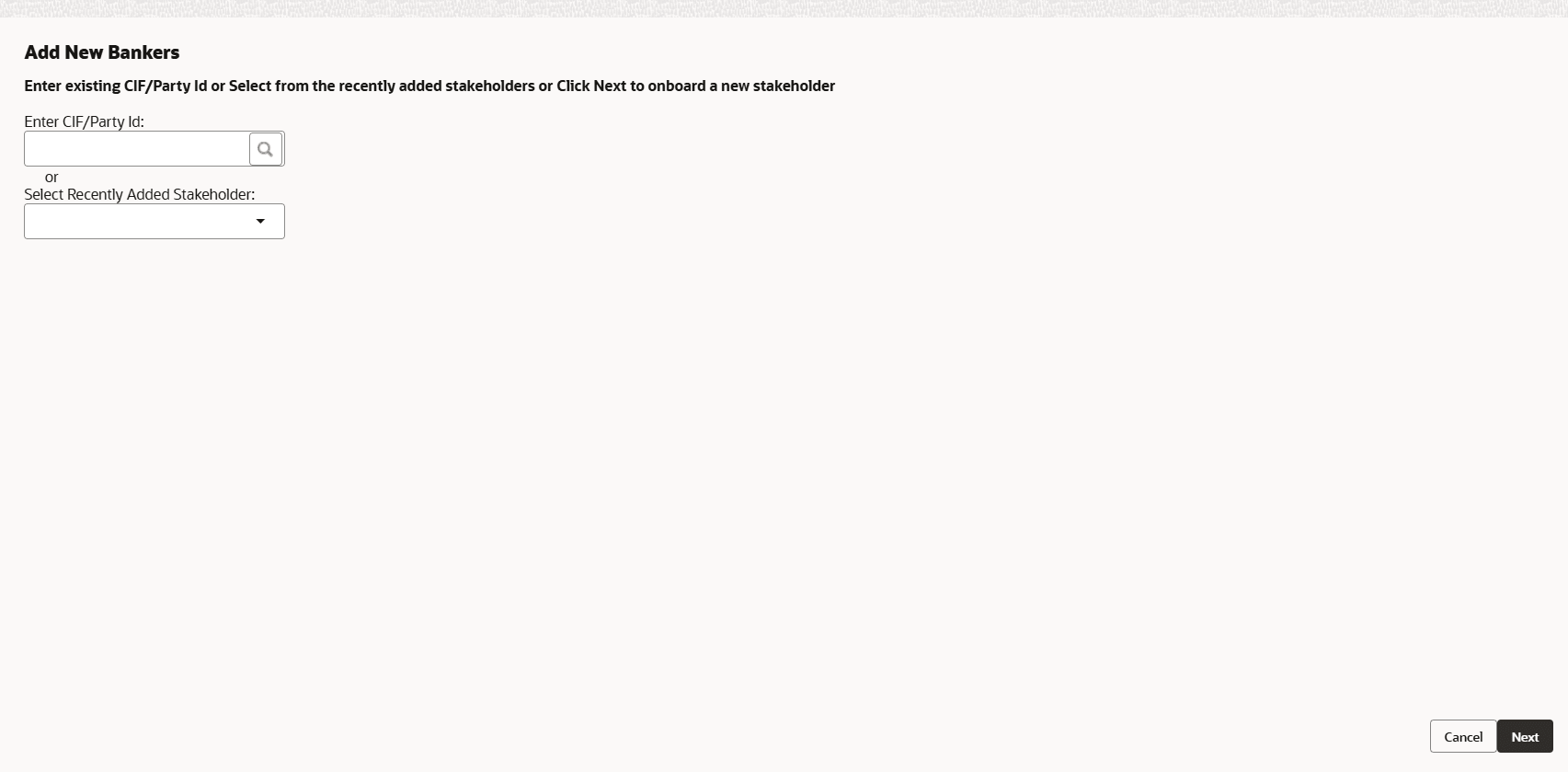
- To add the banker details, click the add icon.The Bankers dependency details window is displayed.
For information on fields in the Basic details screen, refer the below table.
In Basic details section:
Table 3-51 Basic Details
Fields Description Bank name Type the Bank name. Bank type Select the Bank type from the drop down list. Branch name Type the Branch name.
In the Address details section:
Figure 3-113 Address details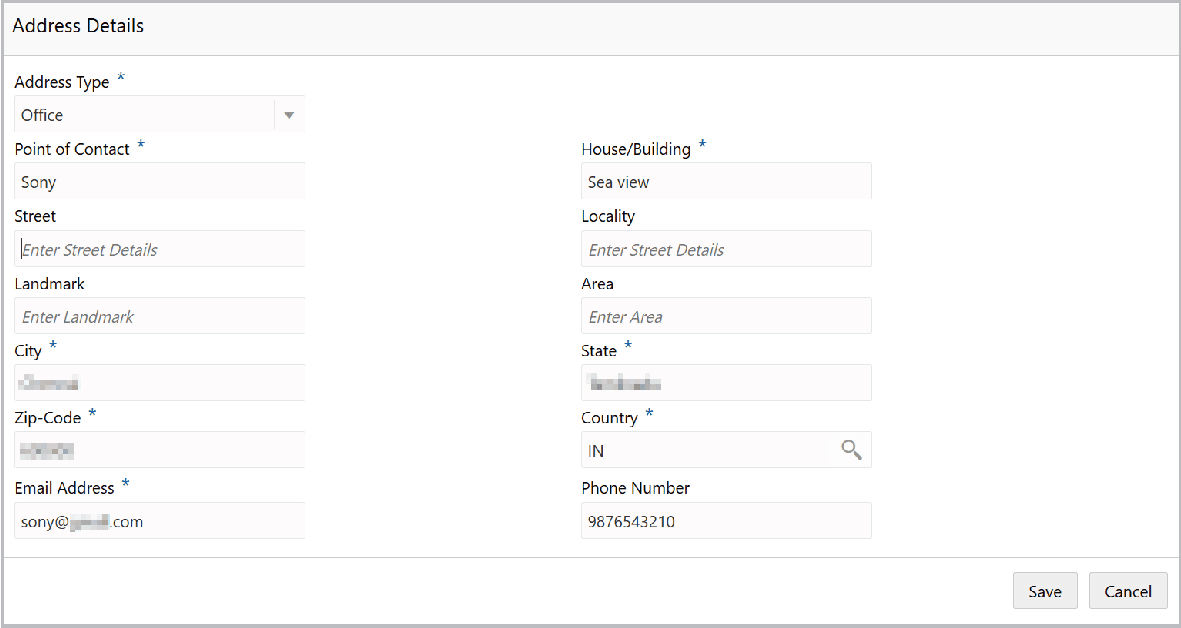
Description of "Figure 3-113 Address details"
For information on fields in the Address Details screen, refer the below table.
Table 3-52 Address Details
| Fields | Description |
|---|---|
| address details | Type the following address details:
|
| Address Type | Select the Address Type from the drop down list. The options available are Office, Residence, and Correspondence. |
| Point of Contact | Type the name of Point of Contact person. |
| Zip-Code | Specify the Zip-Code of the address. |
| Country | Search and select the Country of the address. |
| Email Address and Phone Number | Specify the Email Address and Phone Number of the banker. |
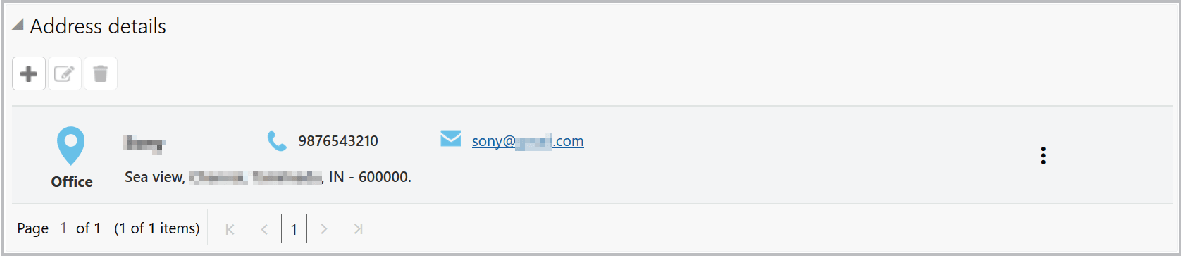
- Click Save. The address details are added and listed as shown
below: For information on fields in the Address Detail screen, refer the below table.
Table 3-53 Address Detail
Fields Description edit To modify the address detail, select the address from the list and click the edit icon. delete To delete the address detail, select the address from the list and click the delete icon.
In the Relationship details section:
Figure 3-115 Relationship details
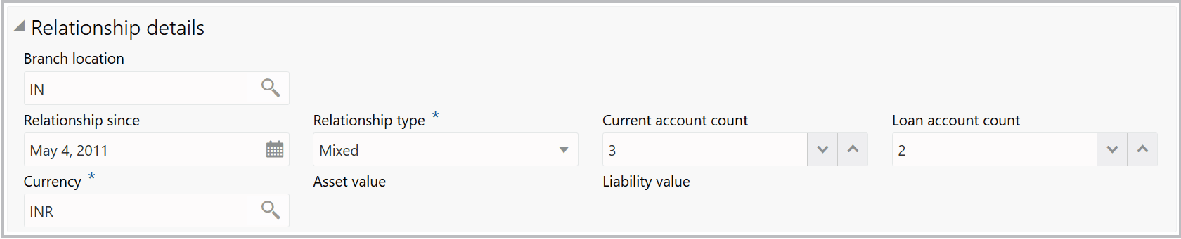
Description of "Figure 3-115 Relationship details"
For information on fields in the Relationship Details screen, refer the below table.
Table 3-54 Relationship Details
| Fields | Description |
|---|---|
| Branch location | Search and select the Branch location. |
| Relationship since | Click the calendar icon in Relationship since field and select the relationship commencement date. |
| Relationship type | Search and select the Relationship type from the drop down field. |
| Current account count | In Current account count field, type the number of current accounts maintained by the customer in the mentioned bank. |
| Loan account count | In Loan account count field, type the number of loan accounts maintained by the customer in the mentioned bank. |
| Currency | Search and select the Currency for the Asset value and Liability value. |
| Asset value and the Liability value. | Specify the Asset value and the Liability value. |
Figure 3-116 Deposit account details

Description of "Figure 3-116 Deposit account details"
For information on fields in the Deposit Account Details screen, refer the below table.
Table 3-55 Deposit account details
| Fields | Description |
|---|---|
| Number of deposit accounts | Specify the Number of deposit accounts maintained by the customer in mentioned bank. |
| As on date balance in deposit accounts | Specify the As on date balance in deposit accounts. |
| Average balance in deposit accounts | Specify the Average balance in deposit accounts. |
| Number of current accounts | Specify the Number of current accounts. |
| As on date balance in non-OD current accounts | Specify the As on date balance in non-OD current accounts. |
Figure 3-117 WC borrowing pattern
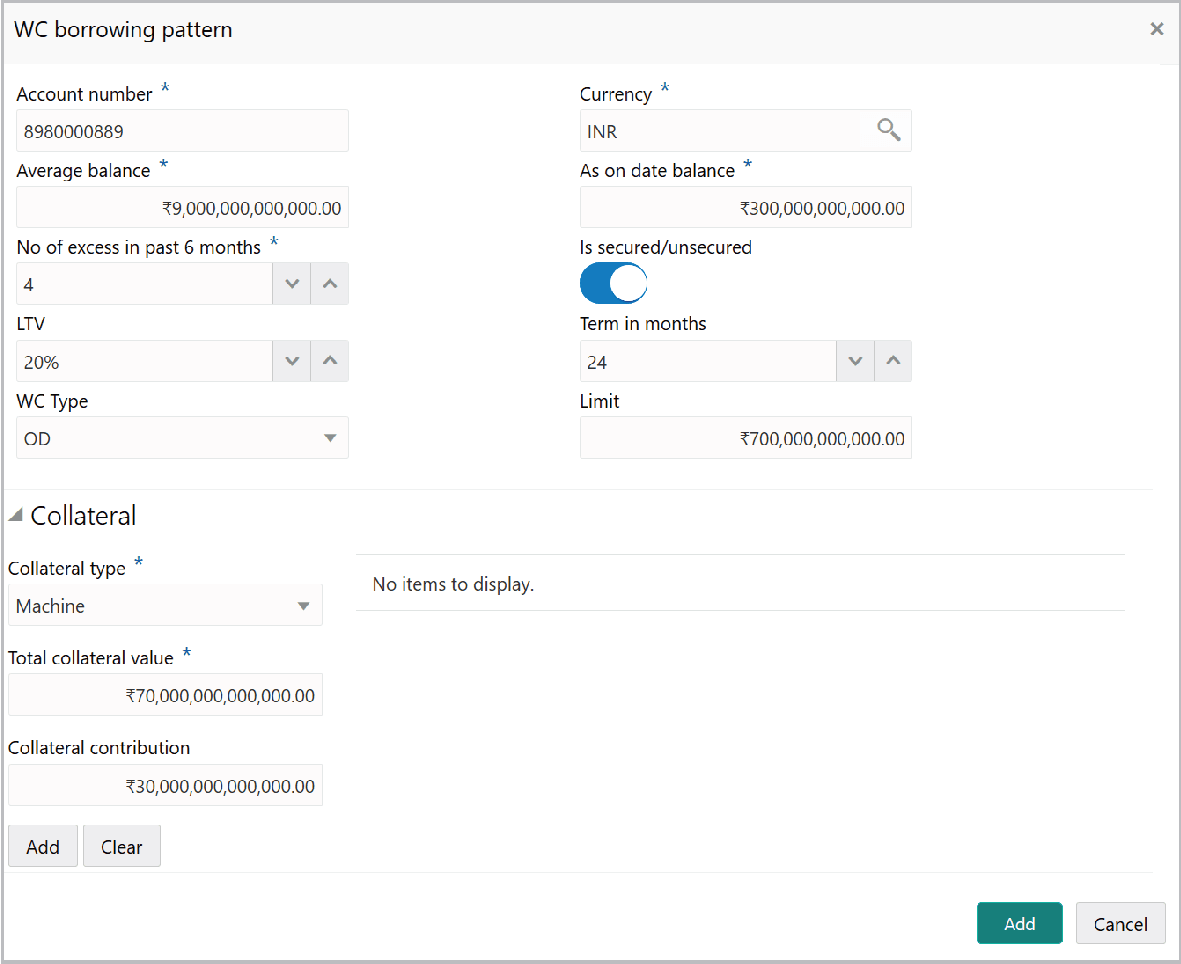
Description of "Figure 3-117 WC borrowing pattern"
For information on fields in the WC borrowing pattern screen, refer the below tables.
Table 3-56 WC borrowing pattern
| Fields/ Icons | Description |
|---|---|
| Account number | Specify the working capital Account number. |
| Currency | Search and select the Currency of the working capital. |
| Average balance | Specify the Average balance in working capital. |
| As on date balance | Specify the As on date balance in working capital. |
| No of excess in past 6 months | Specify the No of excess in past 6 months. |
| Is secured/unsecured | If the working capital is secured, select the Is secured/unsecured switch. |
| LTV | Specify the LTV (Loan To Value) in percentage. |
| Term in months | Specify the working capital Term in months. |
| WC Type | Select the WC Type from the drop down list. |
| Limit | Specify the working capital Limit. |
For information on fields in the Collateral screen, refer the below tables.
Table 3-57 Collateral
| Fields | Description |
|---|---|
| Collateral type | Search the Collateral type from the drop down list. |
| Total collateral value | Specify the Total collateral value. |
| Collateral contribution | Specify the Collateral contribution. |
| Add | Click Add. Collateral details are added and listed as shown below: |
Figure 3-118 WC borrowing pattern
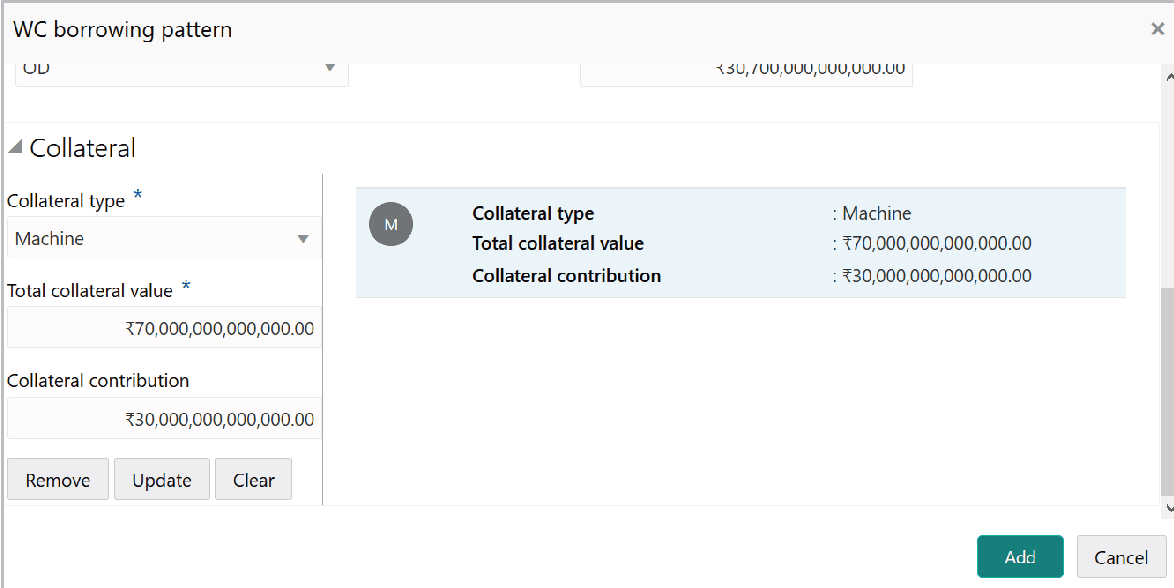
Description of "Figure 3-118 WC borrowing pattern"
For information on fields in the WC borrowing pattern screen, refer the below tables.
Table 3-58 WC borrowing pattern
| Fields | Description |
|---|---|
| Remove, Update | To Remove, Update, or Clear the collateral detail, select the item from the list and click the corresponding icon. |
| Add | Click Add in the WC borrowing pattern window. The working capital borrowing details are added and listed as shown below: |
Figure 3-119 WC Borrowing Pattern
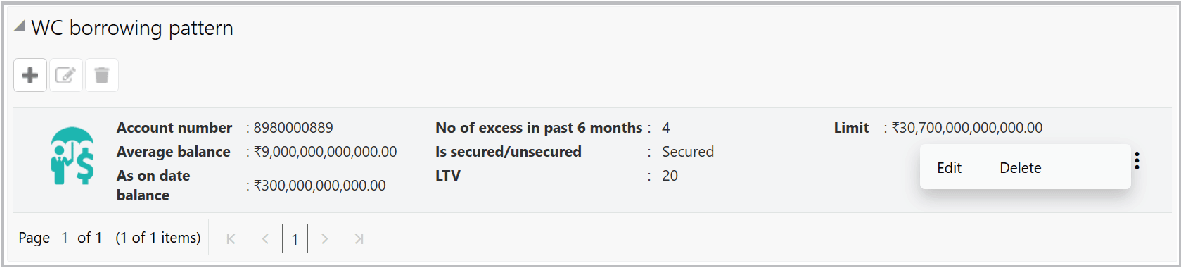
Description of "Figure 3-119 WC Borrowing Pattern"
For information on fields in the WC borrowing pattern screen, refer the below tables.
Table 3-59 WC borrowing pattern
| Fields | Description |
|---|---|
| edit | To modify the WC borrowing pattern, select the pattern and click the edit icon. |
| delete | To delete the WC borrowing pattern, select the pattern and click the delete icon. |
Figure 3-120 TL borrowing pattern
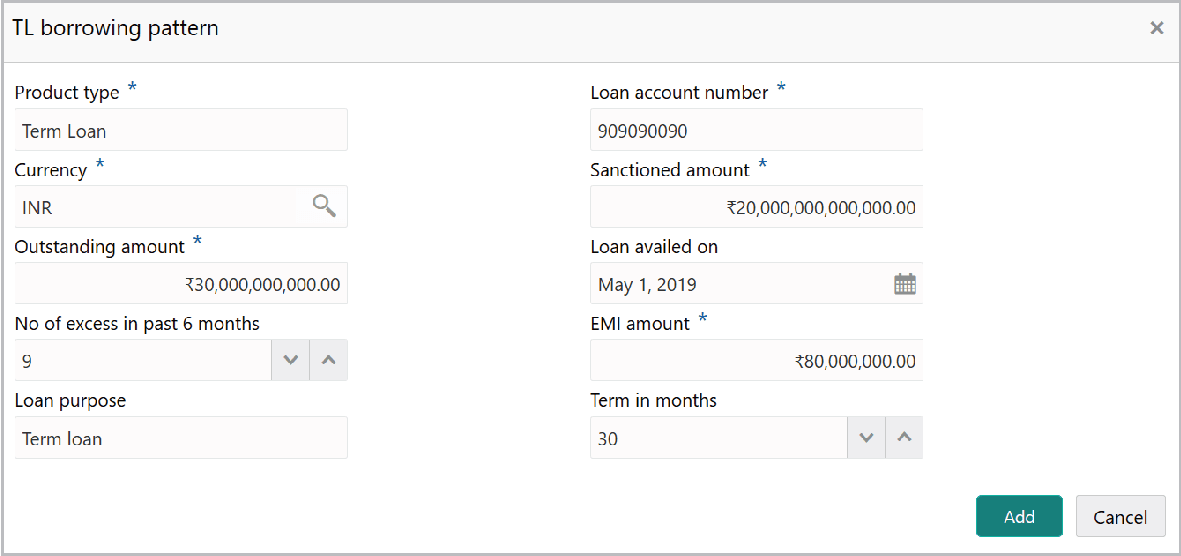
Description of "Figure 3-120 TL borrowing pattern"
Table 3-60 TL borrowing pattern
| Fields | Description |
|---|---|
| Product type | Enter the Product type. |
| Loan account number | Specify the term Loan account number. |
| Currency | Search and select the Currency of the term loan. |
| Sanctioned amount and Outstanding amount | Specify the Sanctioned amount and Outstanding amount. |
| Loan availed | Click the calendar icon in the Loan availed on field and select the date on which term loan is availed. |
| No of excess in past 6 months | Specify the No of excess in past 6 months. |
| EMI amount | Specify the EMI amount to be paid per selected frequency. |
| Loan purpose | Type the Loan purpose. |
| Term in months | In the Term in months field, specify the tenor of the term loan in months. |
- Click Add. Term loan borrowing details are added and listed as shown
below:
For information on fields in the TL borrowing pattern screen, refer the below tables.
Table 3-61 TL borrowing pattern
Fields Description edit To modify the TL borrowing pattern, select the pattern and click the edit icon. delete To delete the TL borrowing pattern, select the pattern and click the delete icon.
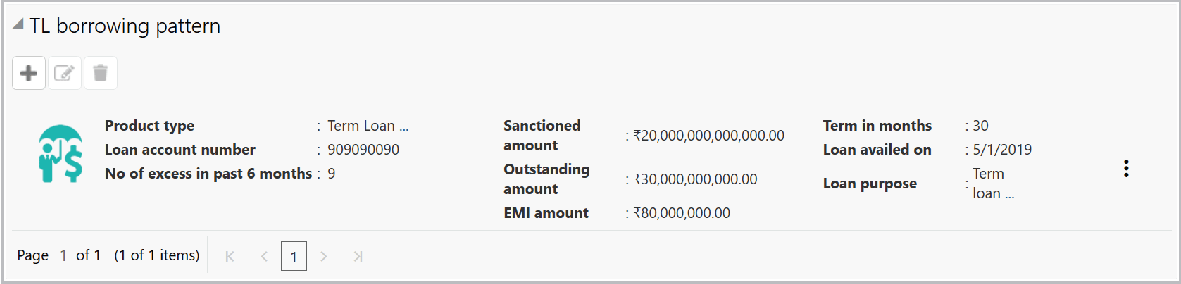
Figure 3-122 NFB borrowing pattern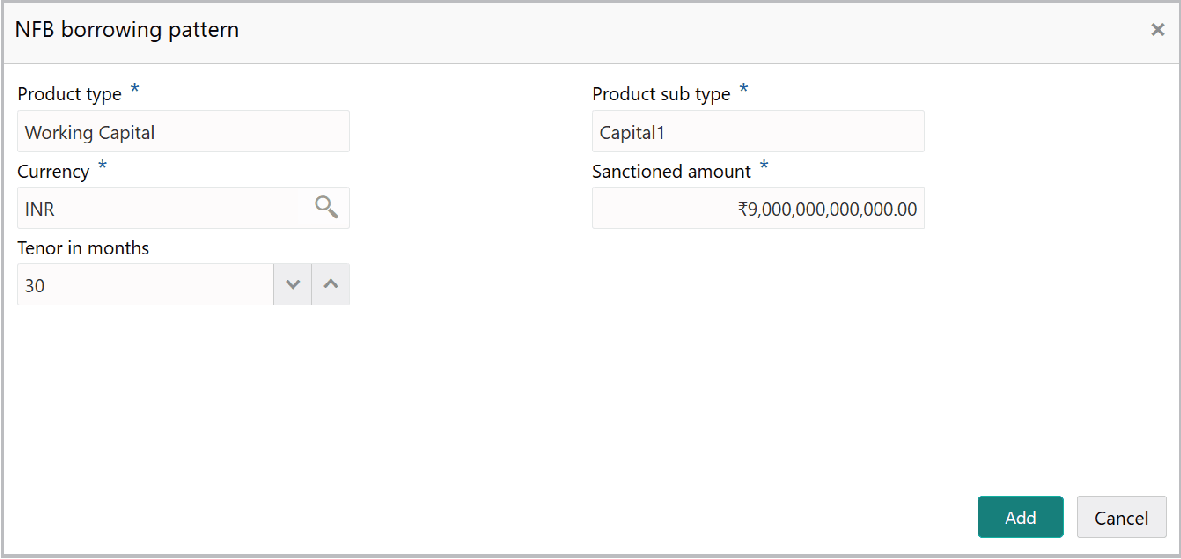
Description of "Figure 3-122 NFB borrowing pattern"
For information on fields in the NFB borrowing pattern screen, refer the below table.
Table 3-62 NFB borrowing pattern
| Fields | Description |
|---|---|
| Product type | Enter the type of non-fund based (NFB) product in the Product type field. |
| Product sub type | Enter the sub type of NFB product in the Product sub type field. |
| Currency | Search and select the Currency of NFB product. |
| Sanctioned amount | Specify the Sanctioned amount. |
| Tenor in months | Specify the NFB product Tenor in months. |
- Click Add. NFB product details are added and listed as shown
below:
For information on fields in the NFB borrowing pattern screen, refer the below table.
Table 3-63 NFB borrowing pattern
Fields Description edit To modify the NFB borrowing pattern, select the pattern and click the edit icon. delete To delete the NFB borrowing pattern, select the pattern and click the delete icon.
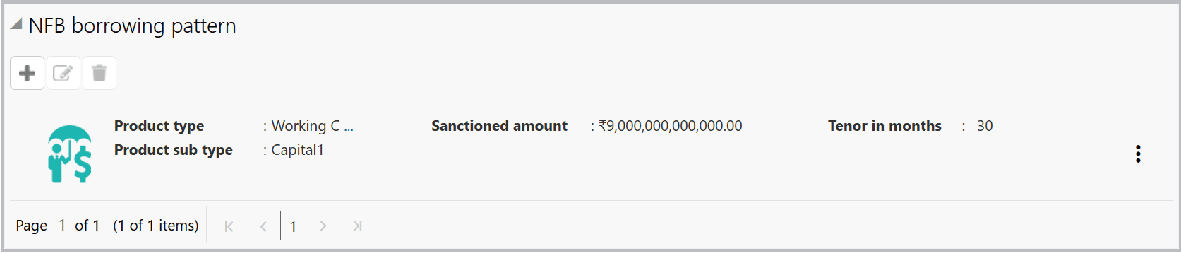
Figure 3-124 Other products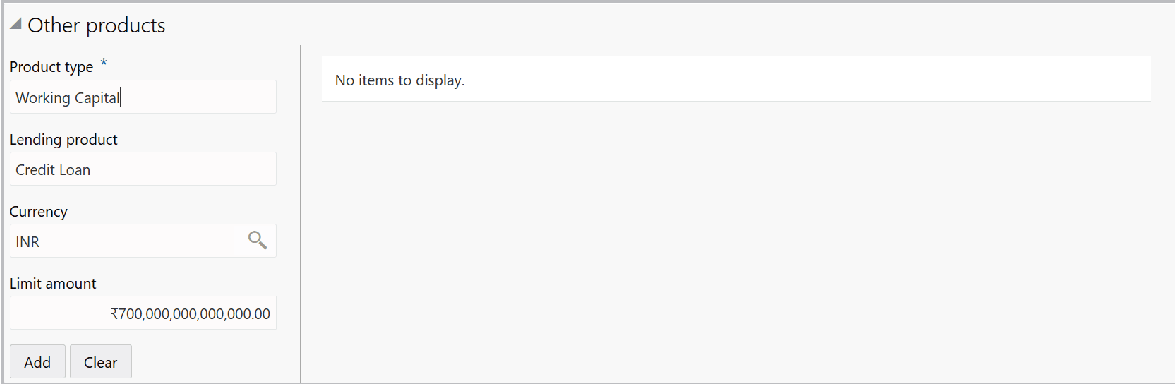
Description of "Figure 3-124 Other products"
For information on fields in the Other Products screen, refer the below table.
Table 3-64 Other products
| Fields | Description |
|---|---|
| Product type | Enter the type of other product in the Product type field. |
| Lending product | Enter the name of the Lending product. |
| Currency | Search and select the Currency for the specified other product. |
| Limit amount | Specify the Limit amount for the other product. |
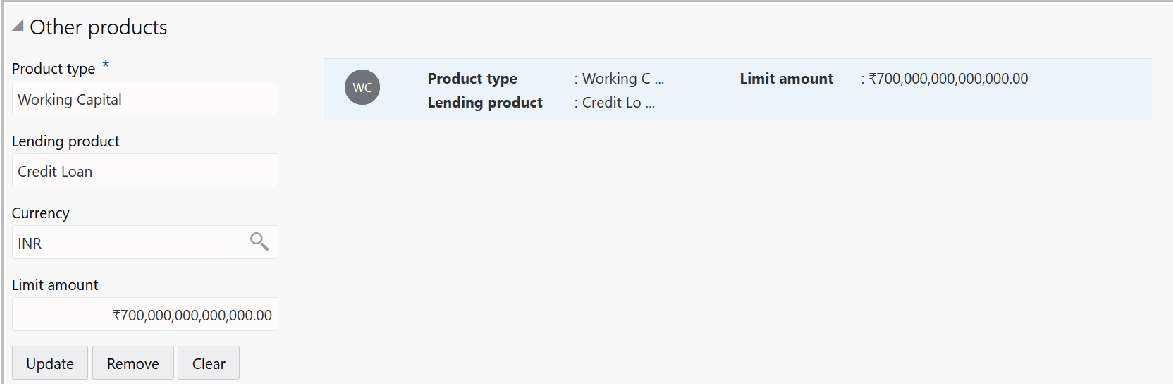
- Click Add. The other product details are added and listed as shown
below:
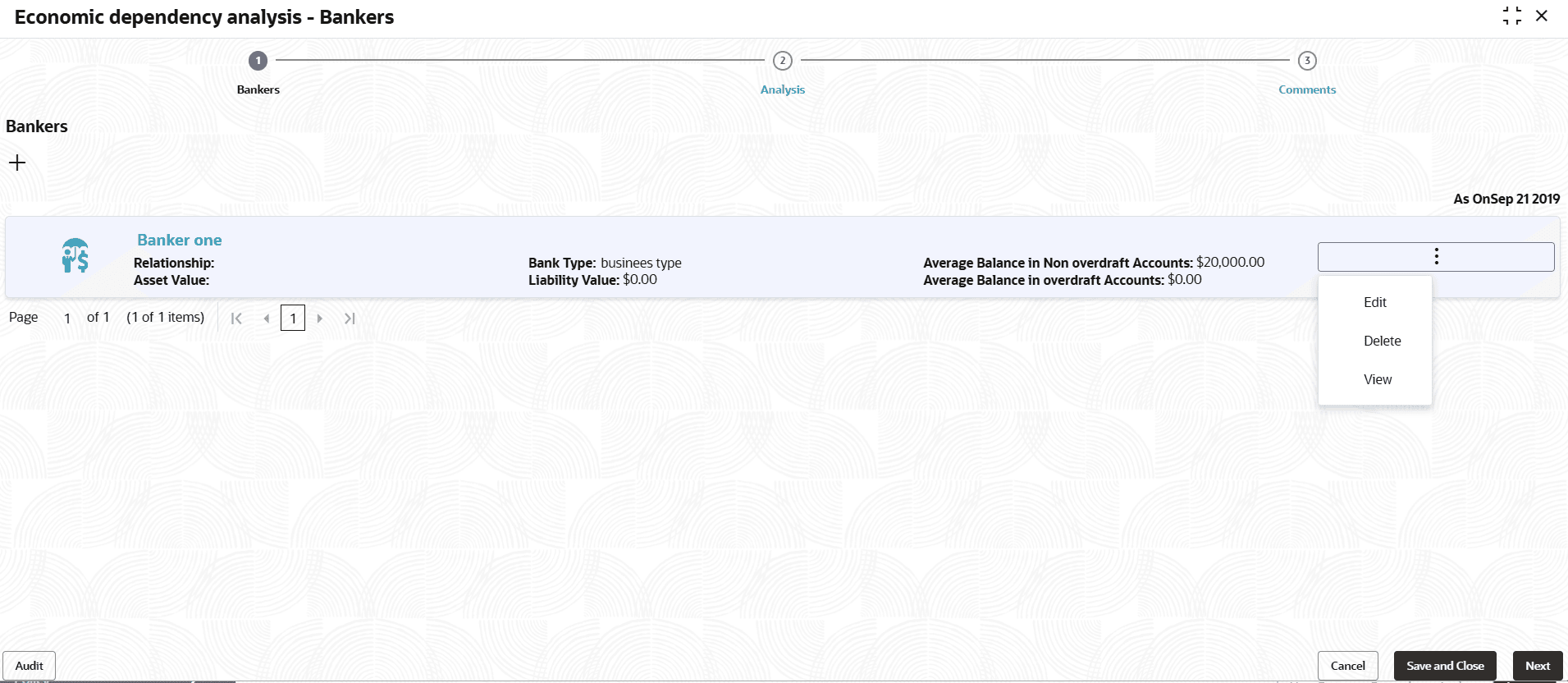
- Click Save in the Bankers Dependency Details window. Banker detail are
added and displayed in the Baker page.
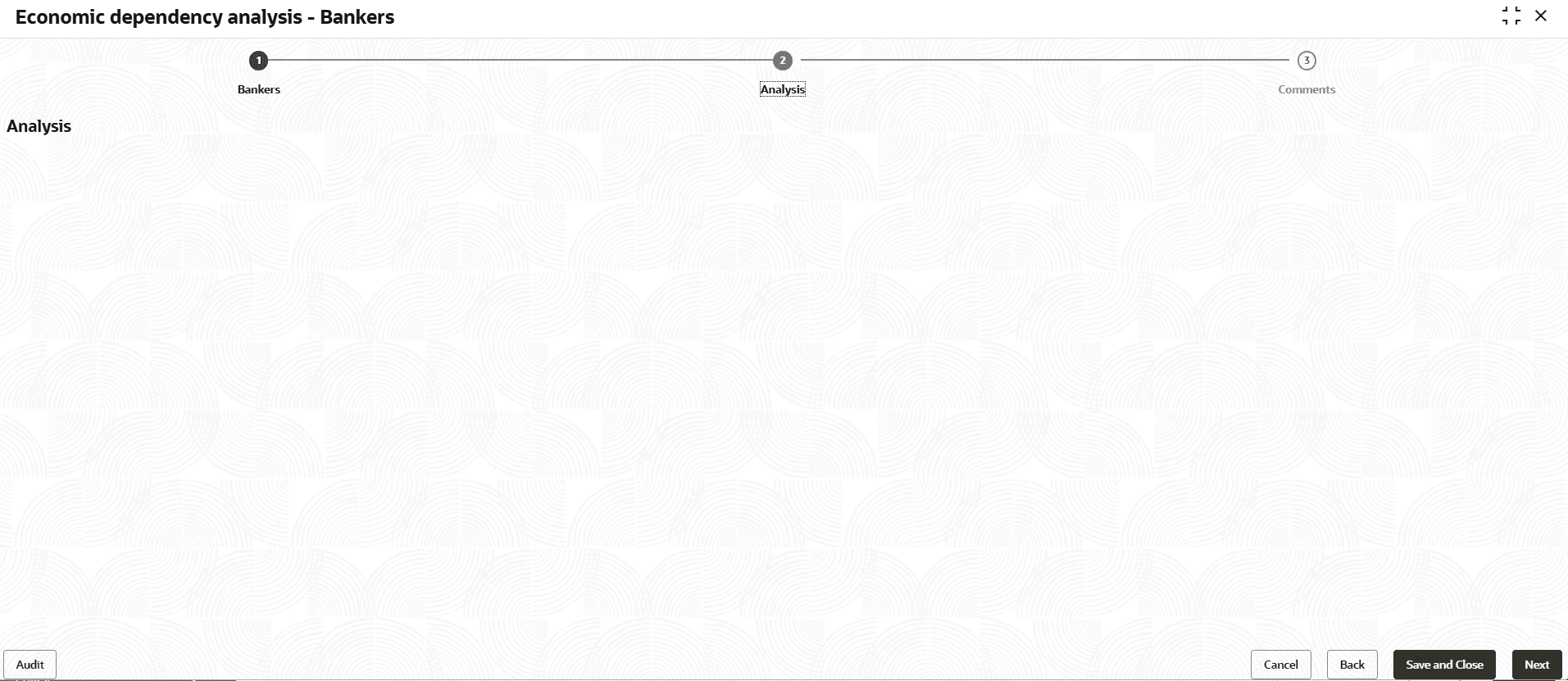
- To analyze the banker detail, click Next in the Bankers page. The Analysis screen is displayed.
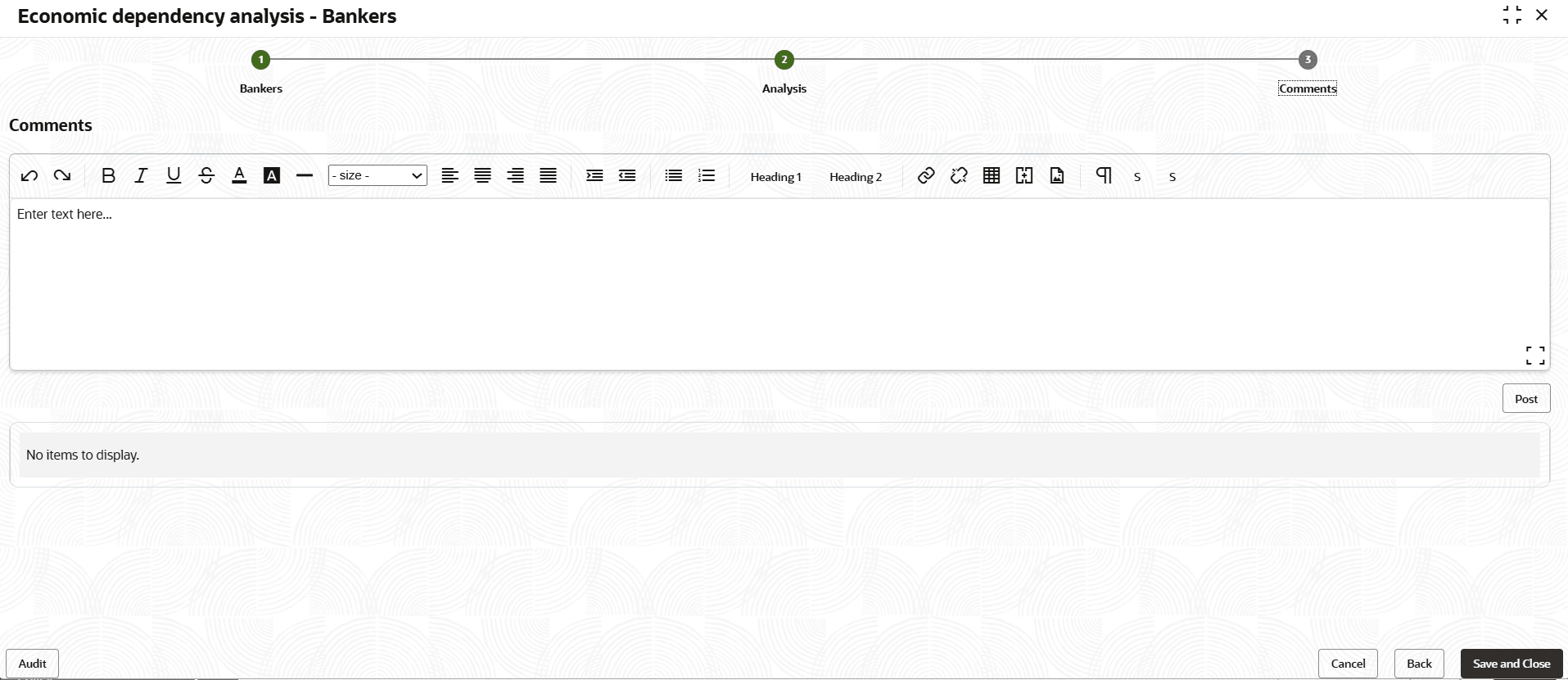
- Click Next.The Comments screen is displayed.
For information on fields in the Comments screen, refer the below table.
Table 3-65 Comments
Fields Description Comments Type the overall Comments for the Banker Analysis. Post Click Post. Comments are posted below the Comments box. Submit Click Submit. - To view the banker dependency trends, click the trend analysis icon beside the
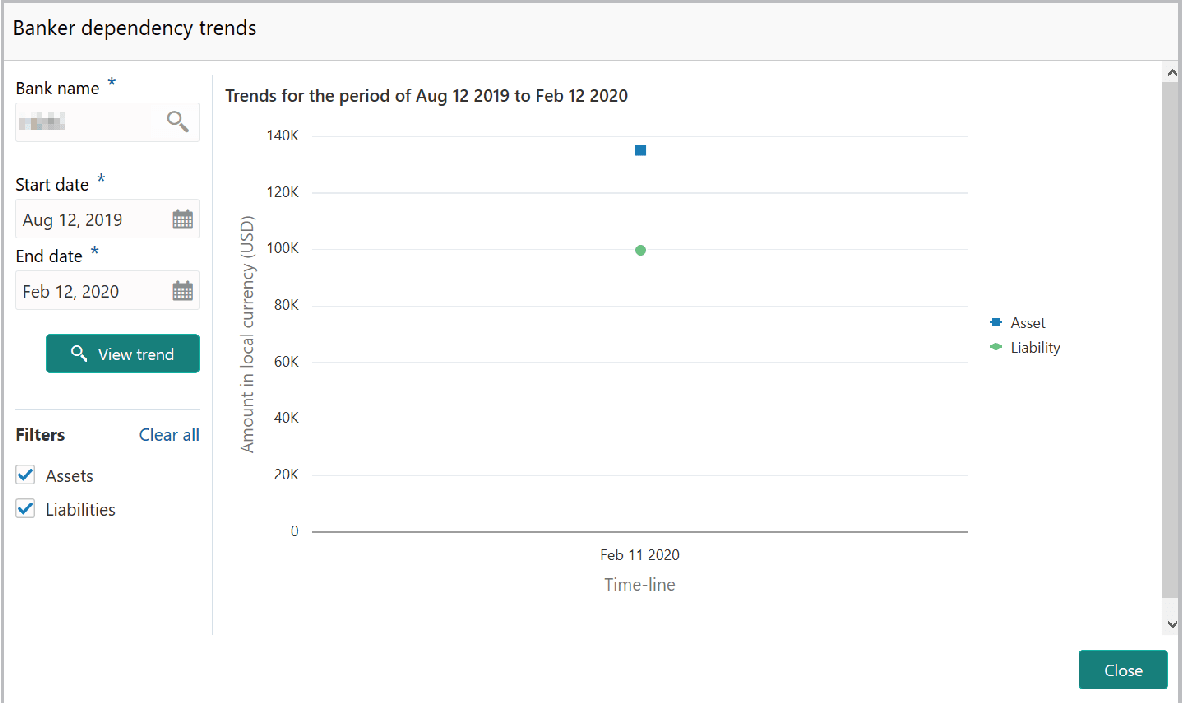
capture icon in Bankers tile. The Banker Dependency Trends window is displayed.
For information on fields in the Banker Dependency Trends screen, refer the below table.
Table 3-66 Banker Dependency Trends
Fields Description Bank Name Search and select the Bank Name. Start date and End date Specify the Start date and End date. View Trend Click the View Trend button. Banker dependency trends for the selected period appears. Close To exit the Banker Dependency Trends window, click Close.
Parent topic: Enrich and Analyze