3.8 Top Suppliers
This topic provides systematic insructions about your customer’s top suppliers can be captured and analyzed from this tile.
This tile allows to capture and analyze information about the top suppliers of your customer.
- Click the capture icon in the Top Suppliers tile.The Top Suppliers screen is displayed.
- To add the top supplier details, click the add icon. The Top
Supplier window is displayed.
- Click the add icon.The Sale Detail window is displayed.
For information on fields in the Sale Detail screen, refer the below table.
Table 3-25 Sale Detail
Fields Description Sale item Type the name of item sold by the top supplier in Sale item field. Quantity sold Specify the Quantity sold by the top supplier. Sale value currency Search and select the Sale value currency. Sale value and Purchase percentage Specify the Sale value and Purchase percentage in corresponding fields. Supply frequency Select the Supply frequency from the drop down list. Sale description Type the Sale description. - Click Save. Current year sales detail are added and listed in the
Current year sales section as shown below:
- Click the add icon.The Sale Detail window is displayed.
For information on fields in the Sale Detail screen, refer the below table.
Table 3-26 Sale Detail
Fields Description Year In the Year field, specify the previous year for which the sales detail is to be added. Sale item In the Sale item field, type the name of item sold by the top supplier in previous year. Quantity sold Specify the Quantity sold in the previous year. Sale value currency Search and select the Sale value currency. Sale value and Purchase percentage Specify the previous year Sale value and Purchase percentage in corresponding fields. Supply frequency Select the previous year Supply frequency from the drop down list. Sale description Type the Sale description. - Click Save. Previous year sales detail are added and listed in the
Previous year sales section as shown below:
- Click the add icon. The Sale Detail window is displayed.For information on fields in the Sale Detail screen, refer the below table.
Table 3-27 Sale Detail
Fields Description Year In the Year field, specify the upcoming year for which the sales detail is to be added. Sale item In the Sale item field, type the name of item to be sold by the top supplier in upcoming year. Quantity sold In the Quantity sold field, specify the amount of items to be sold in the upcoming year. Sale value currency Search and select the Sale value currency. Sale value and Purchase percentage Specify the upcoming year Sale value and Purchase percentage in corresponding fields. Supply frequency Select the upcoming year Supply frequency from the drop down list. Sale description Type the Sale description. - Click Save. Upcoming year sales detail are added and listed in the
Projected sales details section as shown below:
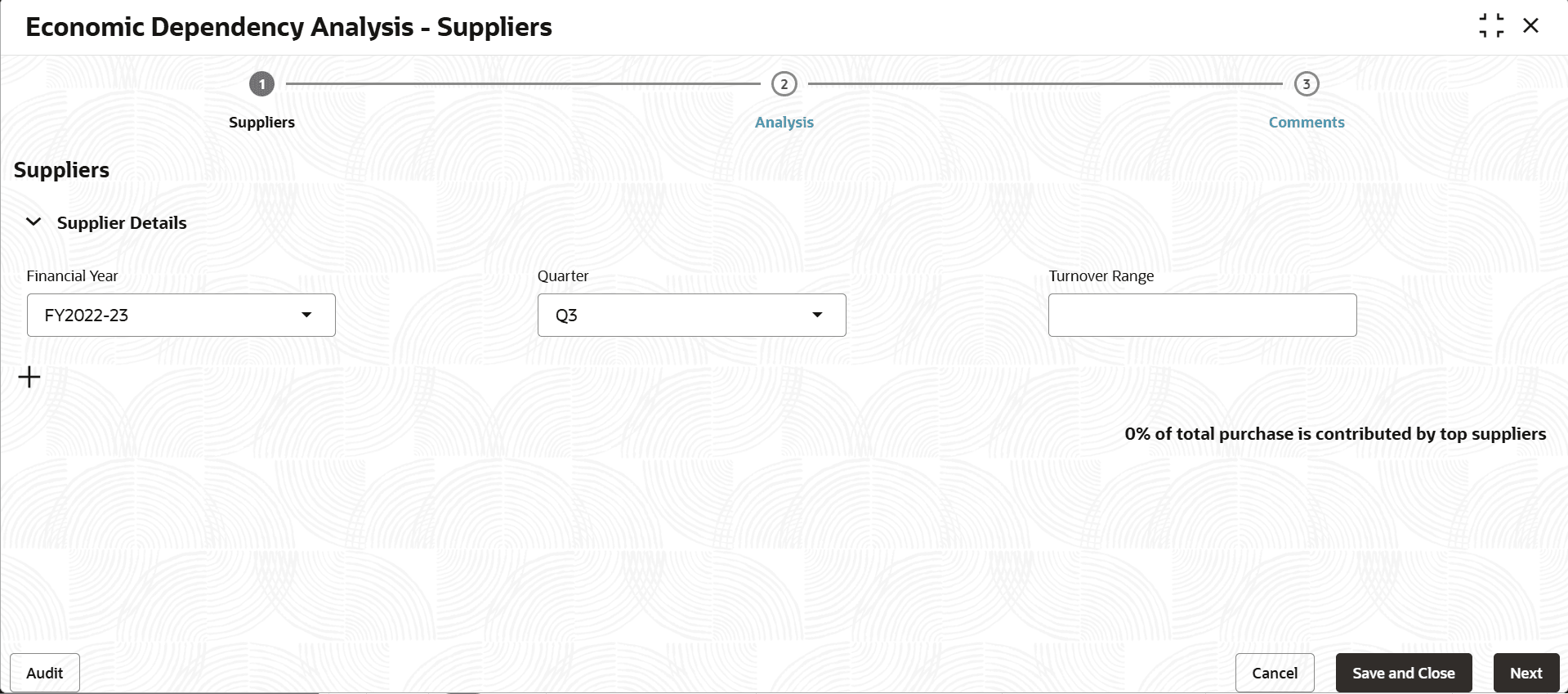
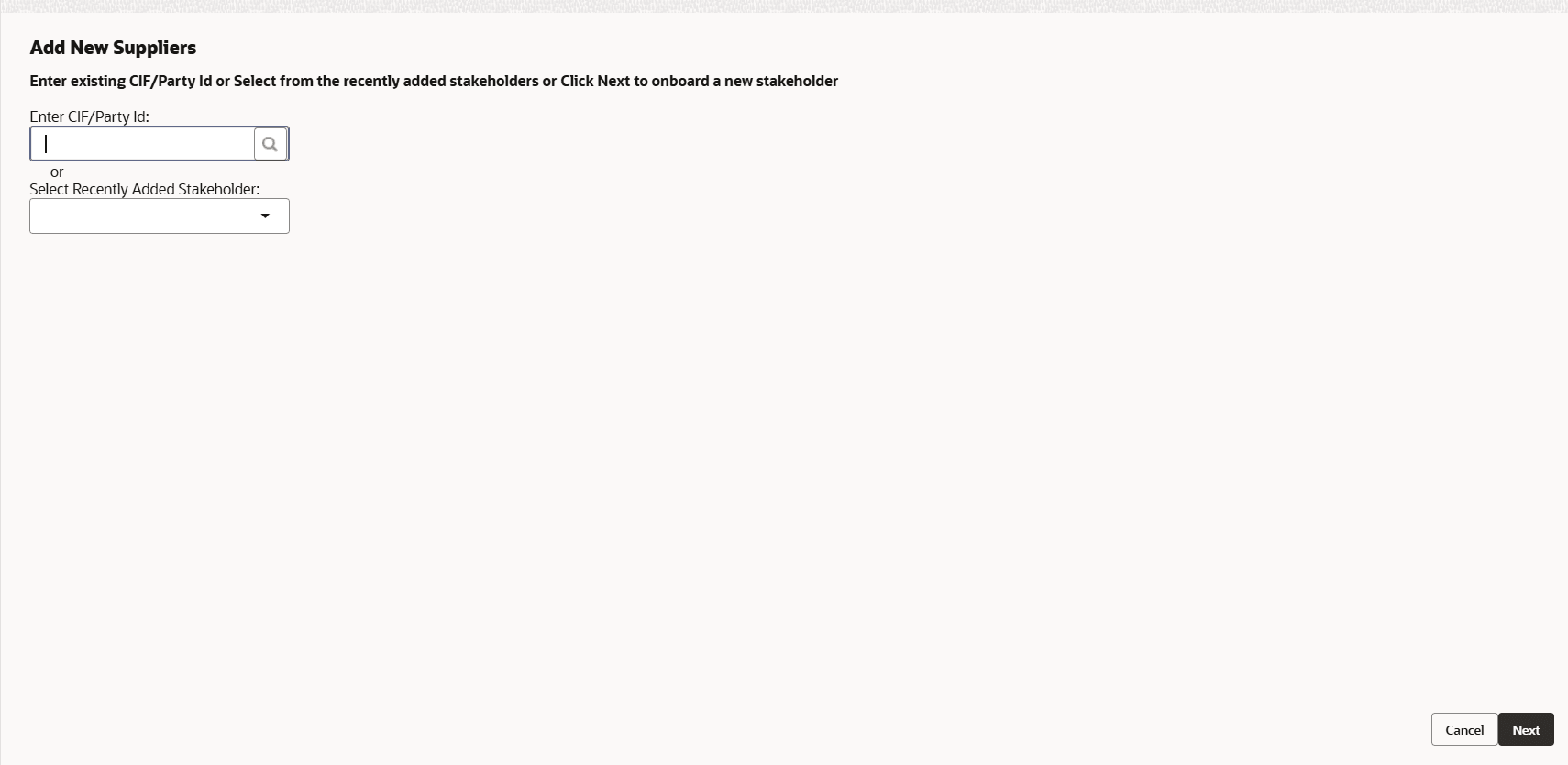
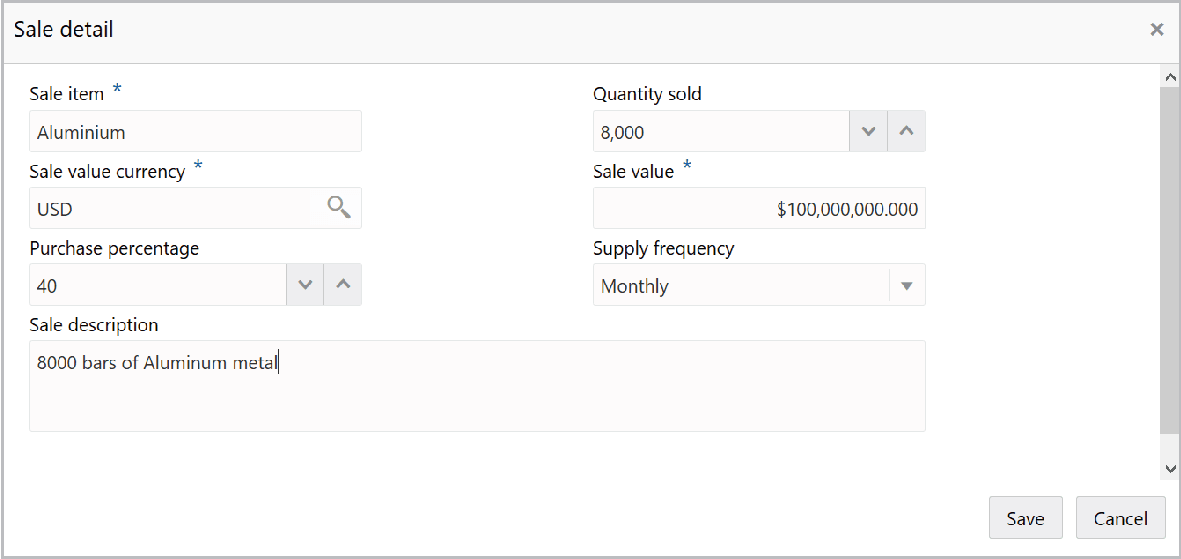
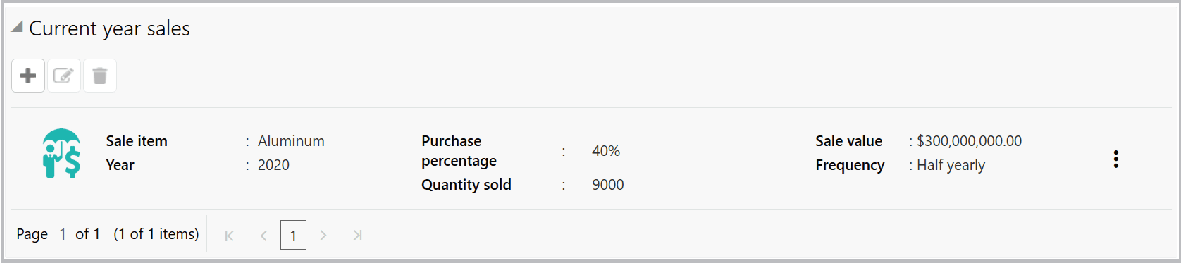
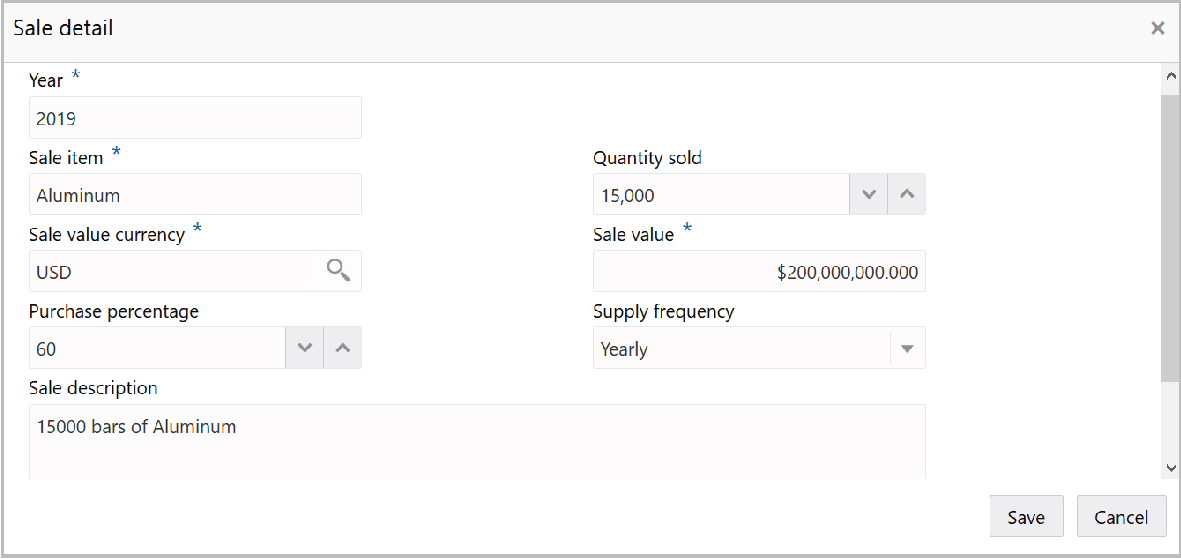
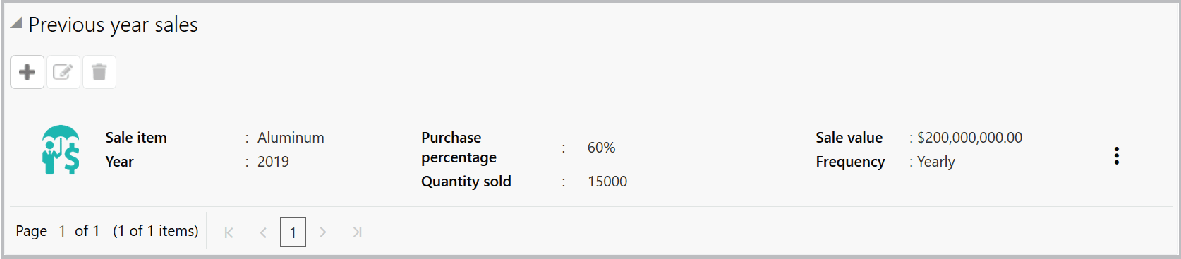
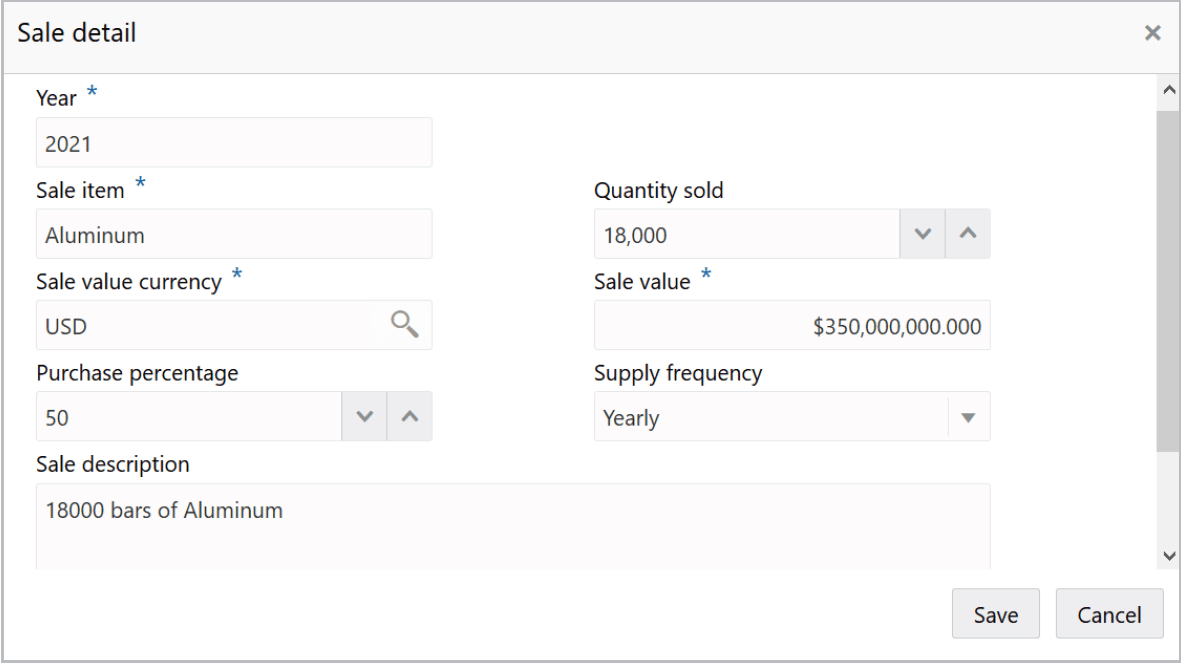
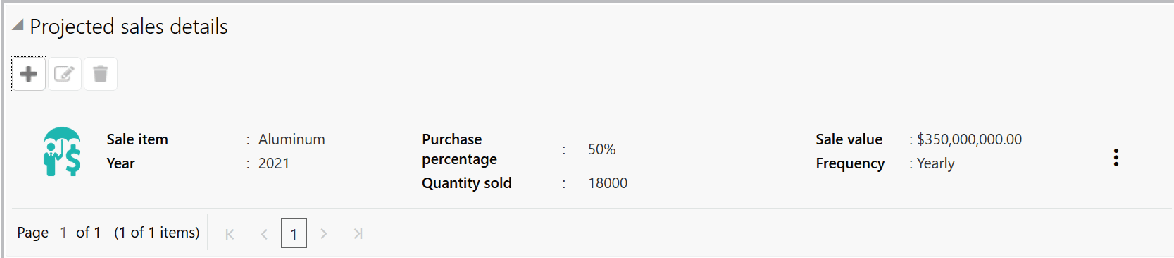
Figure 3-70 Our Customers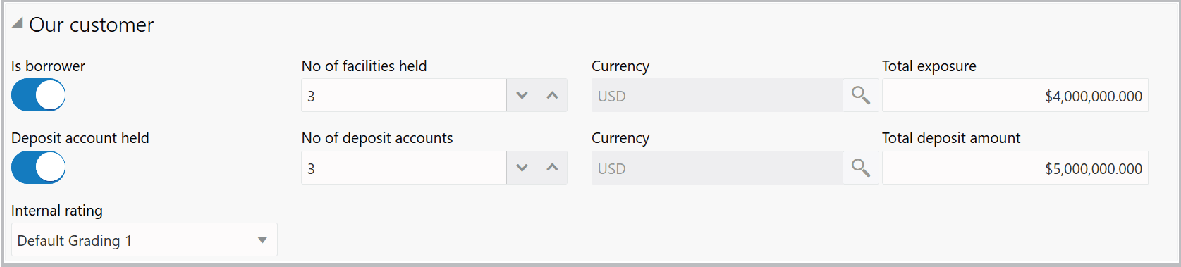
Description of "Figure 3-70 Our Customers"
For information on fields in the Our Customer screen, refer the below table.
Table 3-28 Our Customer
| Fields | Description |
|---|---|
| Is borrower | If the top supplier is a borrower in your bank, enable the Is borrower switch. |
| No of facilities held | In the No of facilities held field, specify the number of facilities availed by the top supplier. |
| Currency | Search and select the Currency for total exposure. |
| Total exposure | Specify the top supplier's Total exposure amount in your bank. |
| Deposit account held | If the top supplier has a deposit account in your bank, enable the Deposit account held switch. |
| No of deposit accounts | Specify the No of deposit accounts held by the top supplier. |
| Currency | Search and select the Currency for the total deposit amount. |
| Total deposit amount | Specify the Total deposit amount in the top supplier's deposit accounts. |
| Internal rating | Select your bank's Internal rating for the top supplier from the drop down list. |
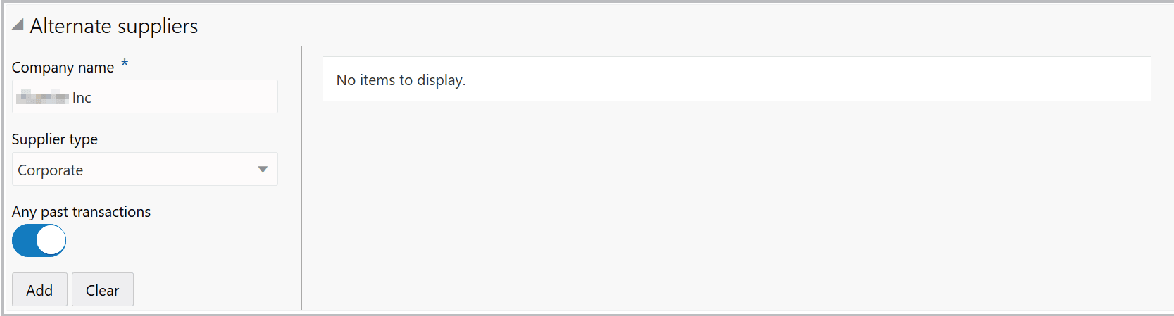
Figure 3-71 Alternate Suppliers
Description of "Figure 3-71 Alternate Suppliers"
For information on fields in the Alternate Suppliers screen, refer the below table.
Table 3-29 Alternate Suppliers
| Fields | Description |
|---|---|
| Company name | Type the alternate top supplier's Company name. |
| Company type | Select the alternate top supplier's Company type from the drop down list. |
| Any past transactions | If the alternate top supplier has past transactions record, enable the Any past transactions switch. |
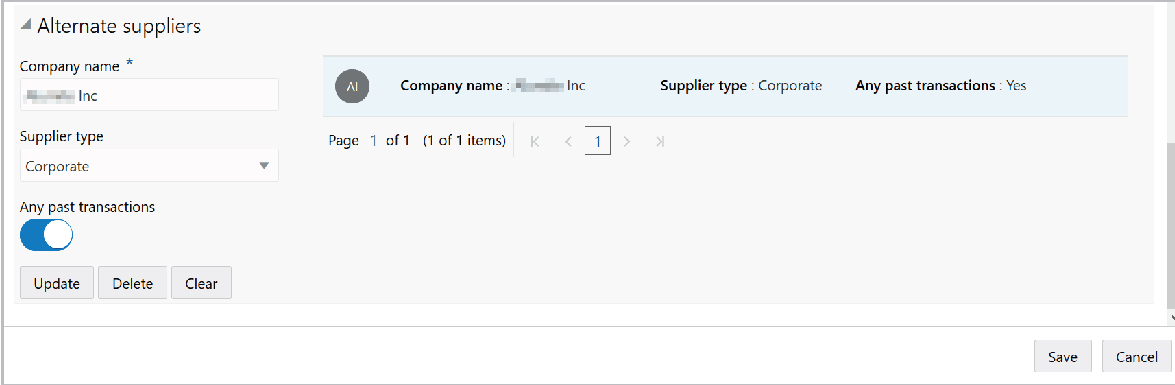
- Click Add. Alternate top supplier details are added and listed as shown
below:
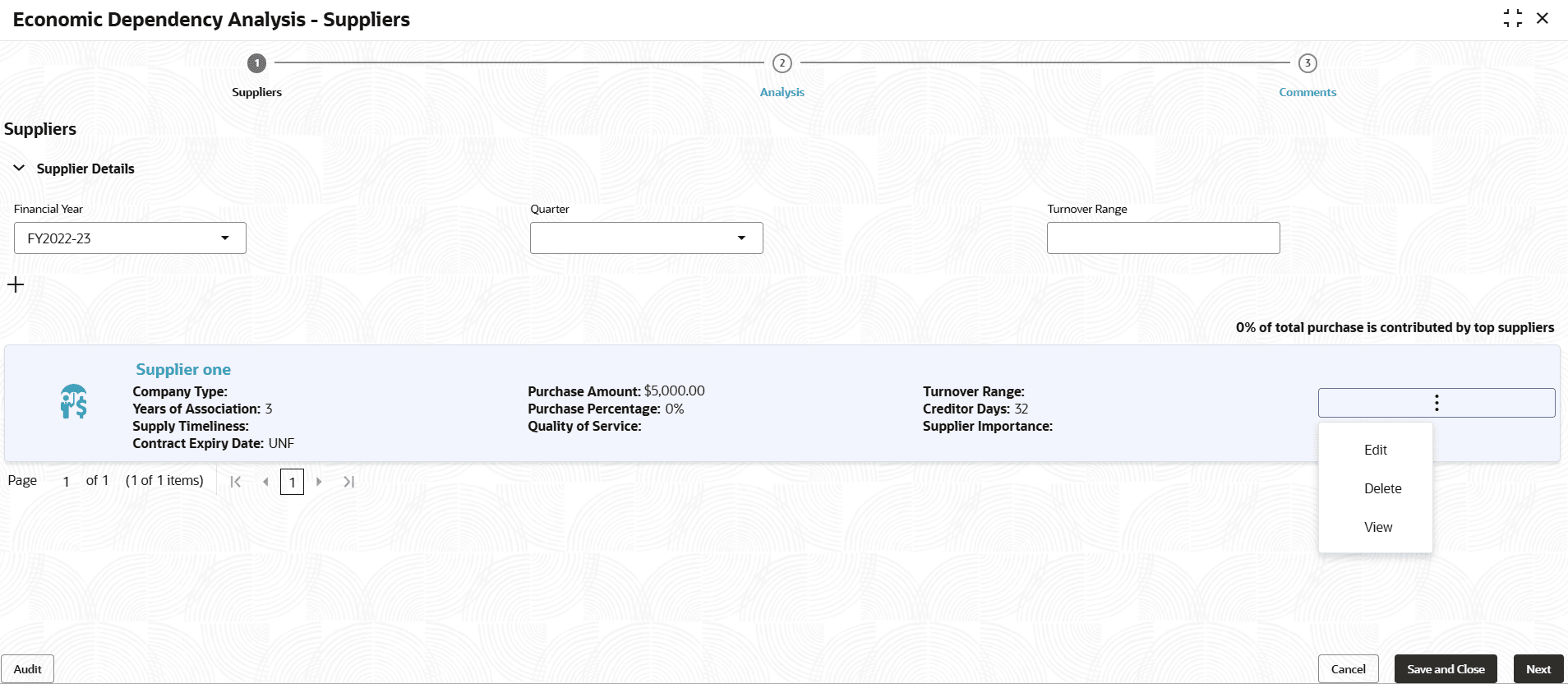
- In the Top Supplier window, click Save. Top supplier details are added
and displayed in the Top Suppliers screen.
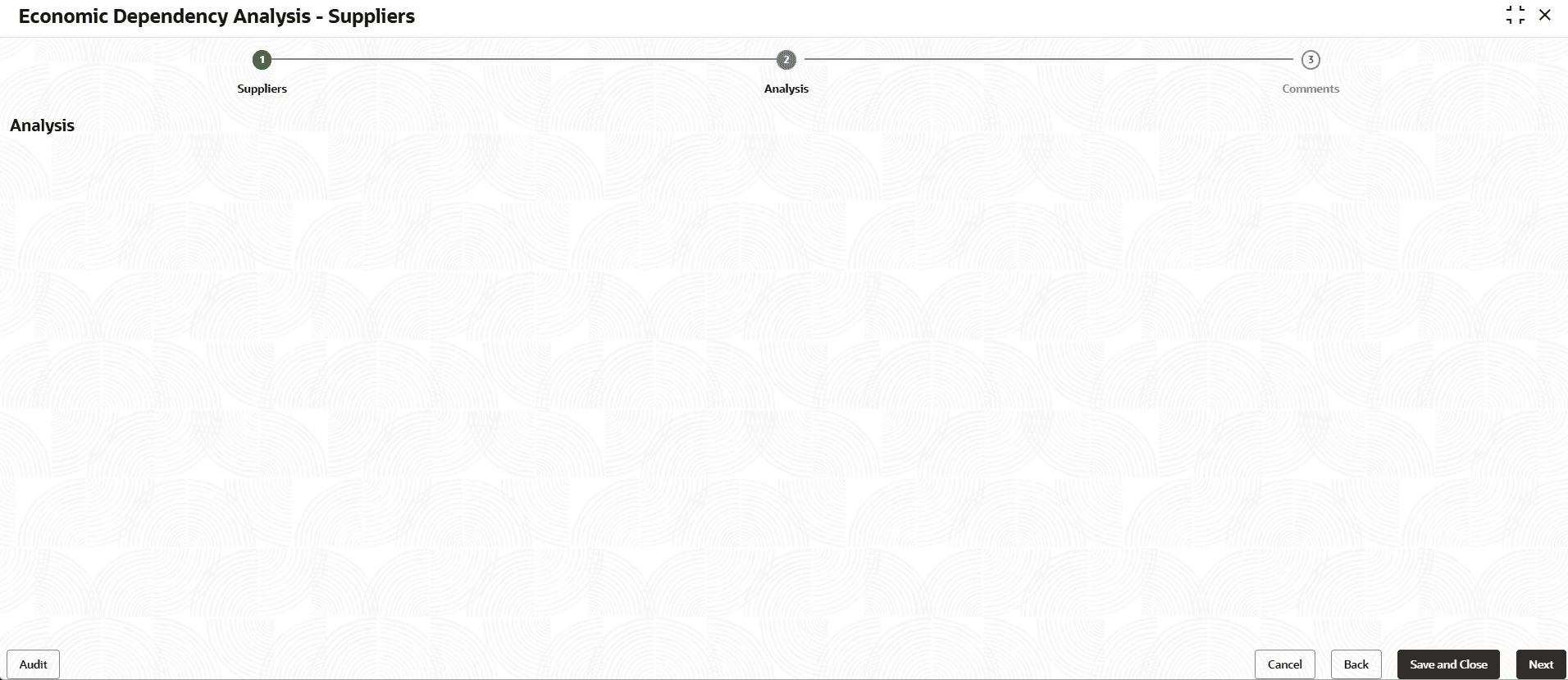
- To analyze the top suppliers details, click Next in the Top Suppliers
page.The Analysis screen is displayed.
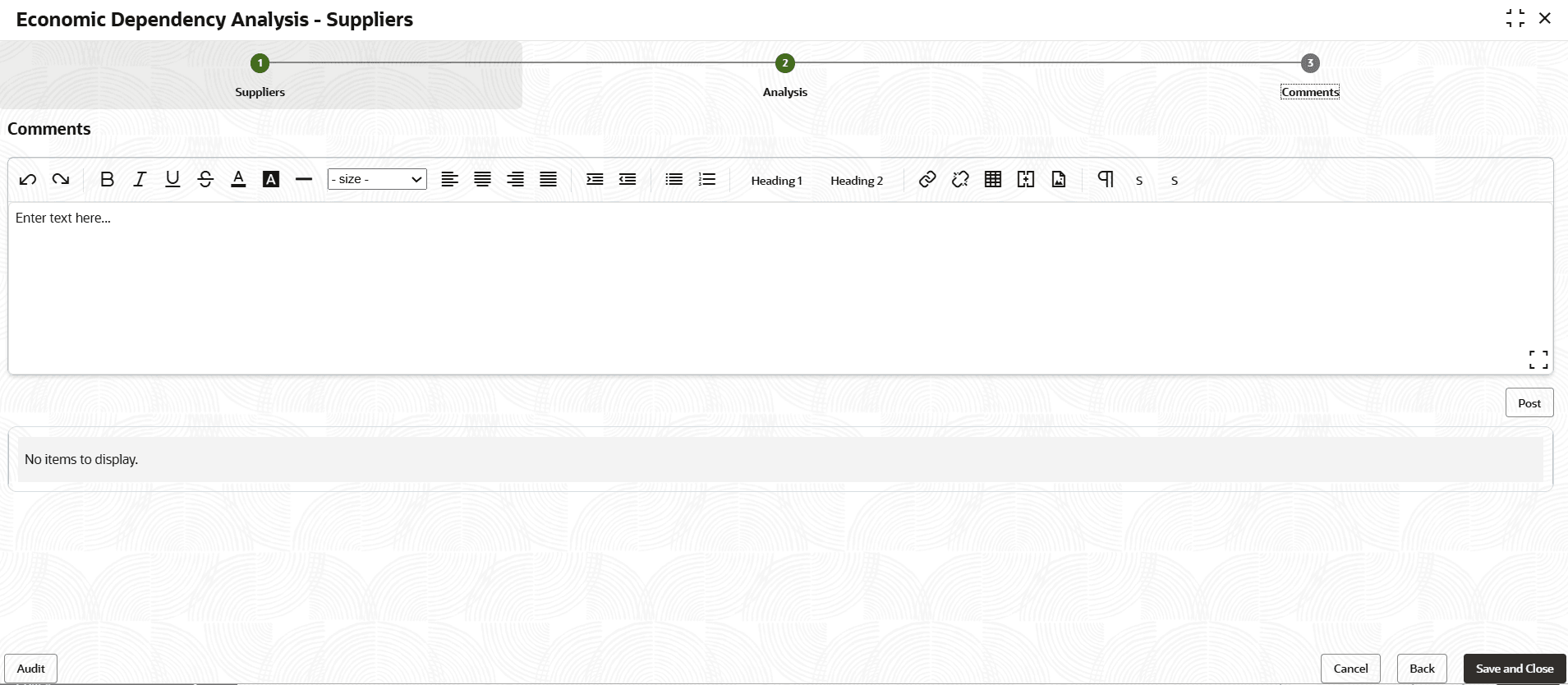
- Click Next. The Comments screen is displayed.
Parent topic: Enrich and Analyze