3.9 Country Exposure
This topic provides systematic instructions about the country exposure.
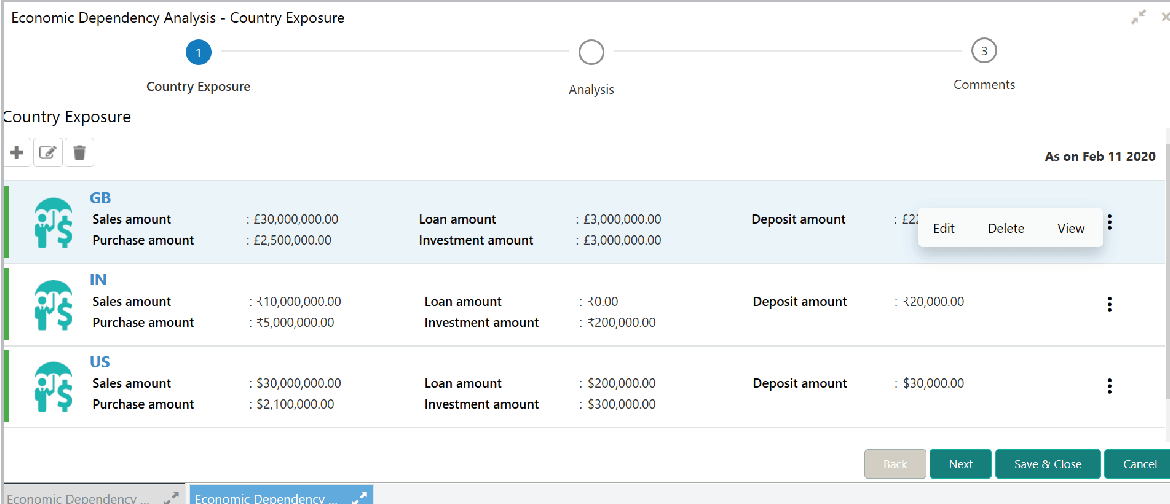
This tile allows to capture and analyze your customer’s country-wise exposure in terms of loans and investment.
- Click the capture icon in the Country Exposure tile.The Country Exposure screen is displayed.
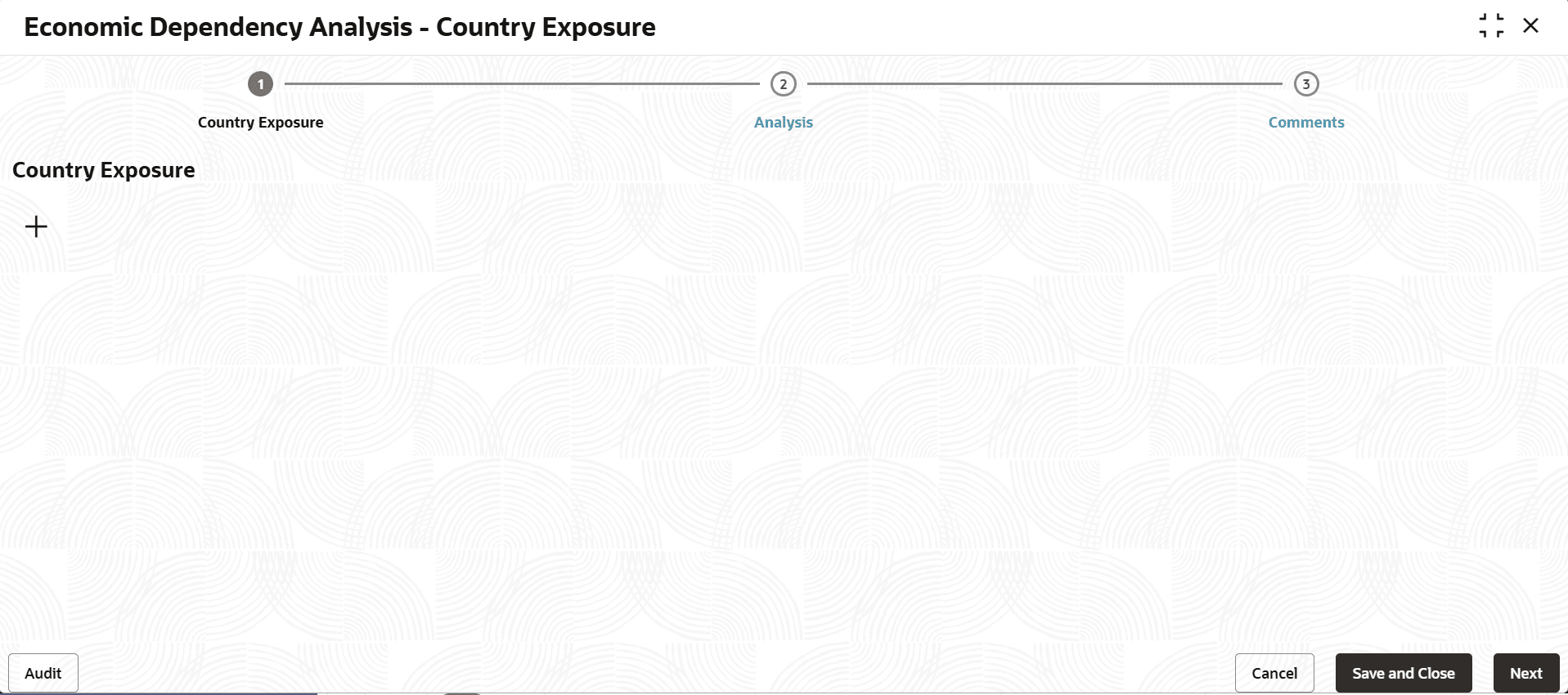
Adding Country Exposure Details
- To capture the country exposure details, click the add icon.The Country Dependency Details screen is displayed.
For information on fields in the Country Dependency Details screen, refer the below tables.
Table 3-30 Country Dependency Details
Fields Description Country Search and select the Country code. Currency Search and select the Currency of the country.
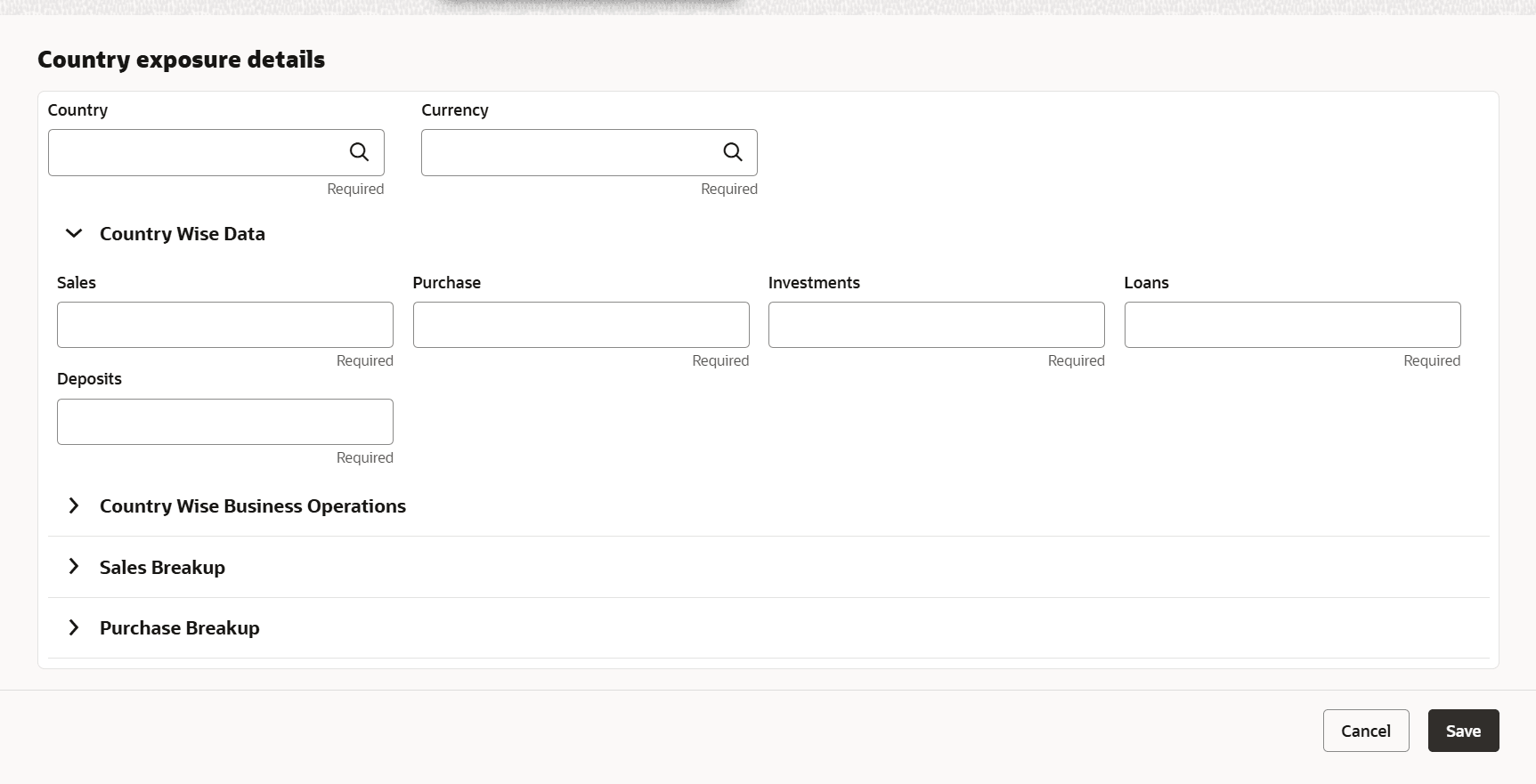
In the Country Wise Data section:
Table 3-31 Country Wise Data
| Fields | Description |
|---|---|
| Sales | Specify the total number of Sales recorded in the selected country |
| Purchase | In the Purchase field, specify the total purchases made in the selected country. |
| Investments | In the Investments field, specify the total amount of investment made in the selected country. |
| Loans | In the Loans field, specify the total amount of loan availed from the selected country. |
| Deposits | In the Deposits field, specify the total amount of cash deposited in the selected country. |
In the Country Wise Business Operations section:
Figure 3-78 Country Wise Business Operations

Description of "Figure 3-78 Country Wise Business Operations"
For information on fields in the Country Wise Business Operations screen, refer the below tables.
Table 3-32 Country Wise Business Operations
| Fields | Description |
|---|---|
| Market share percentage | In the Market share percentage field, specify the percent of market share held by your customer in the selected country. |
| Presence for years | In the Presence for years field, specify your customer's years of presence in the selected country market. |
| Major products Sold | Type the name of Major products Sold by your customer in the selected country. |
| Association since | In the Association since field, select the commencement date of association between your customer and the selected country. |
In the Sales Breakup section:
Figure 3-79 Sales Breakup
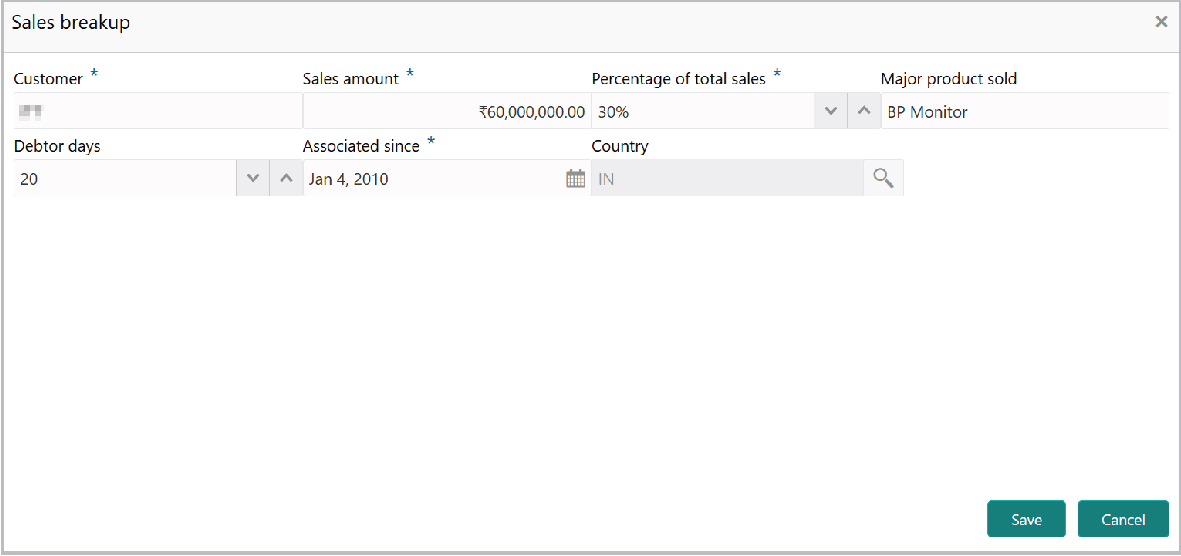
Description of "Figure 3-79 Sales Breakup"
For information on fields in the Sales Breakup screen, refer the below tables.
Table 3-33 Sales Breakup
| Fields | Description |
|---|---|
| Customer | Type the name of the Customer in mentioned Country. |
| Sales amount | In the Sales amount field, specify the amount of items sold to the mentioned customer. |
| Percentage of total sales | In the Percentage of total sales field, specify the percent of total sales recorded for the mentioned customer. |
| Major product sold | Specify the name of Major product sold to the mentioned customer. |
| Debtor days | Specify the Debtor days. |
| Association since | In the Association since field, select the commencement date of association between your customer and the mentioned customer. |
| Country Code | Search and select the Country Code. |
- Click Save. Sales details are added and listed as shown below:
- To delete the sales breakup detail, select the required item from the list and
click the delete icon.
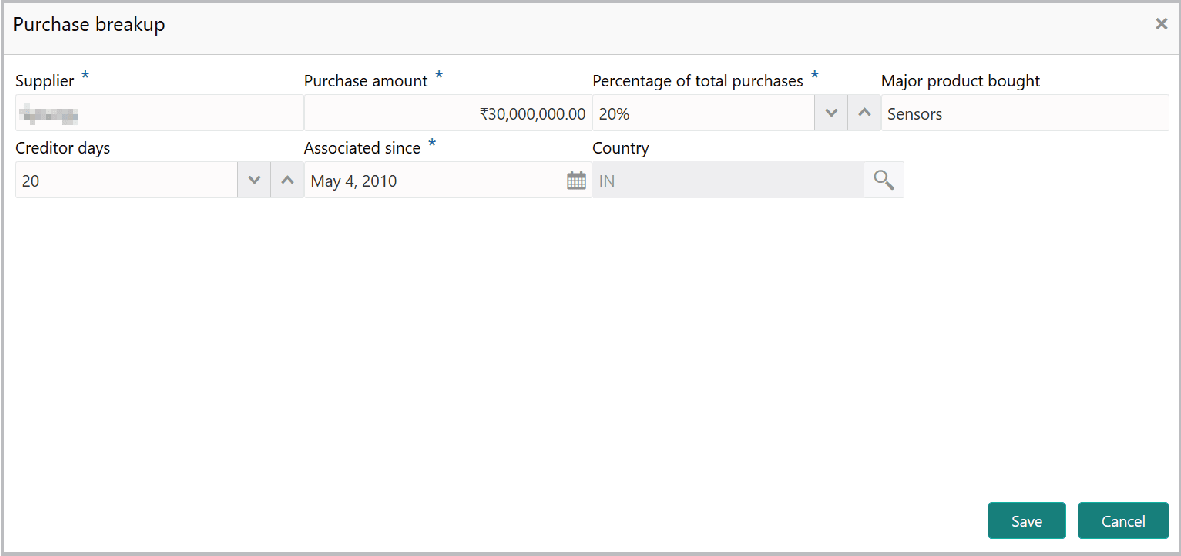
For information on fields in the Purchase Breakup screen, refer the below tables.
Table 3-34 Purchase Breakup
Fields Description Supplier Type the name of your customer’s Supplier in the selected Country. Purchase amount Specify the Purchase amount from the mentioned supplier. Percentage of total purchases In the Percentage of total purchases field, specify the percentage of total purchase made from the mentioned suppliers. Major product bought Type the name of Major product bought from the supplier. Creditor days Specify the Creditor days. Association since In the Association since field, select the commencement date of association between your customer and the mentioned supplier. Country code Search and select the Country code. - Click Save. Purchase breakup details are added and listed as shown
below:
For information on fields in the Purchase Breakup screen, refer the below tables.
Table 3-35 Purchase Breakup
Fields Description edit To modify the purchase breakup detail, select the required item and click the edit icon. delete To delete the purchase breakup detail, select the required item and click the delete icon. - In the Country Dependency Details window, click Save. Country exposure
details are added and displayed in the Country Exposure screen.
- To analyze the country exposure, click Next in the Country Exposure
page. The Analysis page appears:
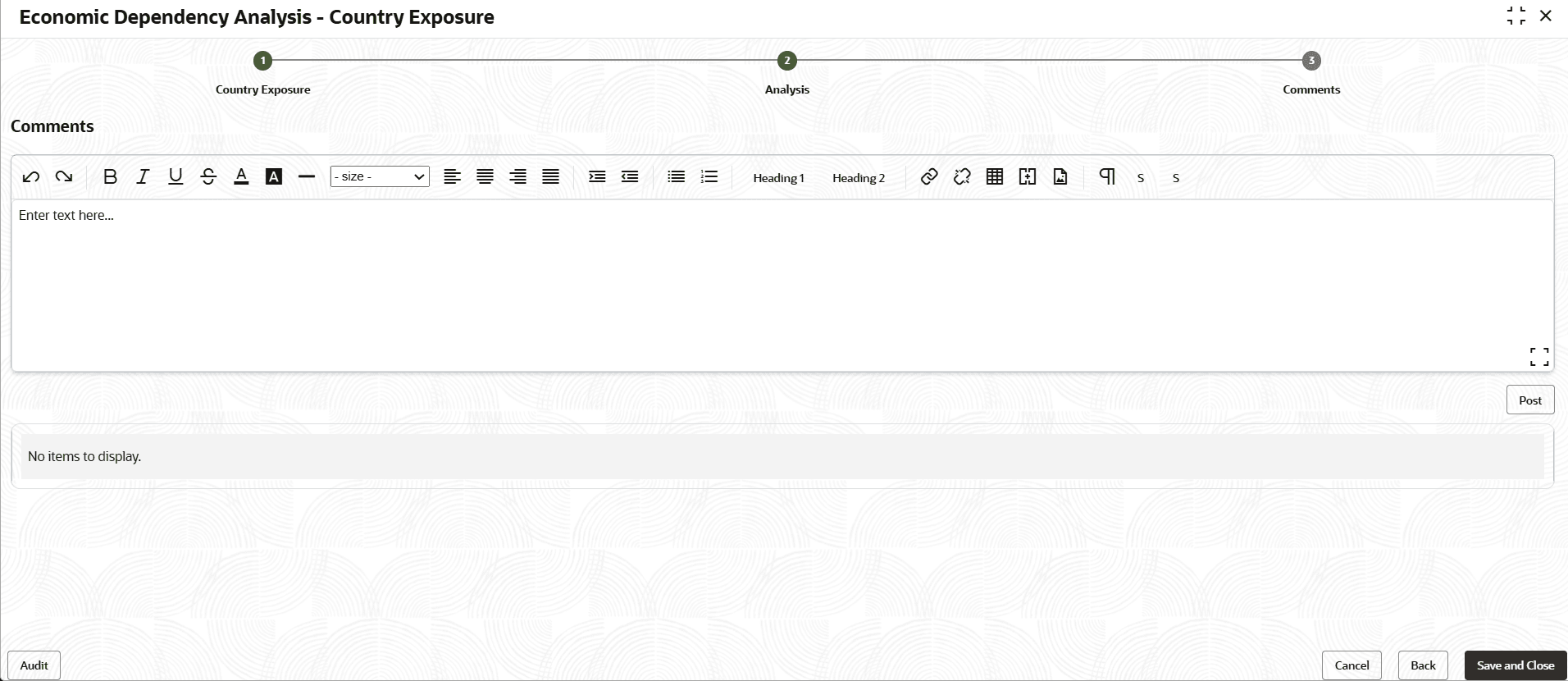
- Click Next. The Comments screen is displayed.
For information on fields in the Comments screen, refer the below tables.
Table 3-36 Comments
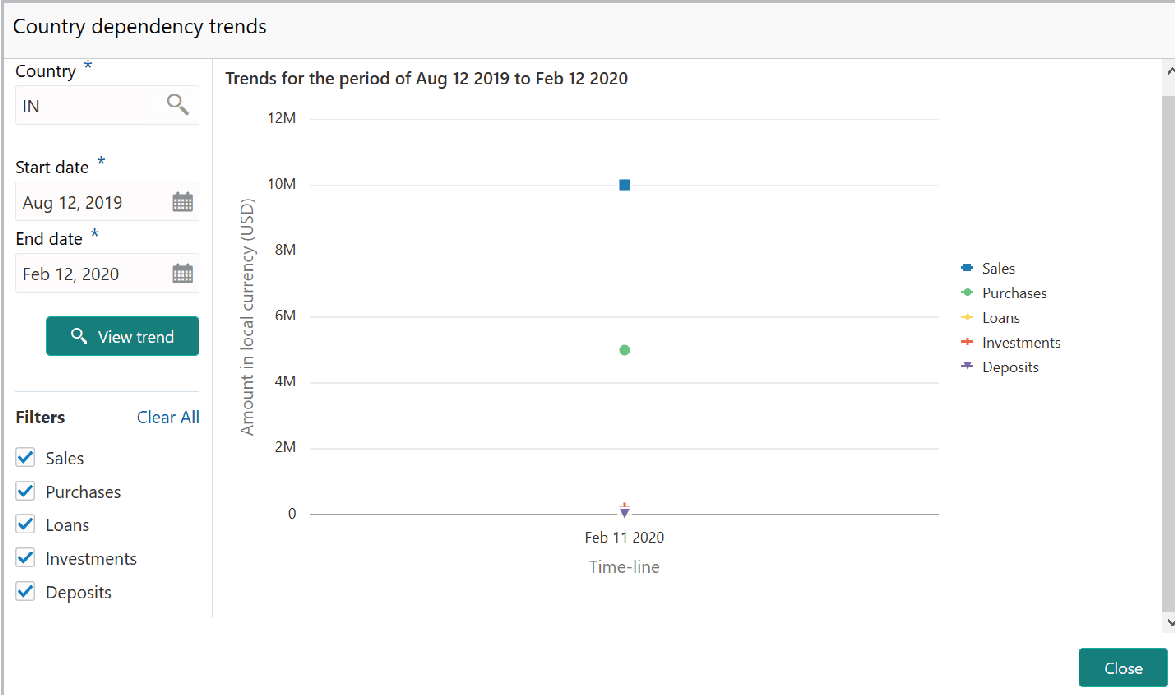
Fields Description Comments Type the overall Comments for the Country Exposure Analysis. Post Click Post. Comments are posted below the Comments box. Submit Click Submit. - To view the country dependency trends, click the trend analysis icon beside the
capture icon in Country Exposure tile. The Country Dependency Trends
window is displayed.
For information on fields in the Country Dependency Trends screen, refer the below tables.
Table 3-37 Country Dependency Trends
Fields Description Country Search and select the Country. Start date and the End date Specify the Start date and the End date by clicking the calendar icon. View Trend Click View Trend. Country dependency trend for the selected period appears. Filters To filter the data to be displayed in the trends graph, select the required options in the Filters section. Close To exit the Country dependency trends window, click Close.

Parent topic: Enrich and Analyze