2 Banking Arrangement
This topic describes the systematic instructions to Create Banking Arrangement.
The Banking Arrangement functionality enables banks to define and manage how the Drawing Power is calculated for a facility or a group of facilities extended to a customer. For each customer, multiple banking arrangements can be created to accommodate different lending structures, such as sole or multiple banking relationships. Within each banking arrangement, users can configure specific parameters, including the inclusion or exclusion of variables in the drawing power calculation, applicable margins on individual variables, and the validity period for each arrangement. These configurable options allow banks to monitor and calculate drawing power effectively, ensuring that lending practices align with agreed-upon terms and regulatory requirements.
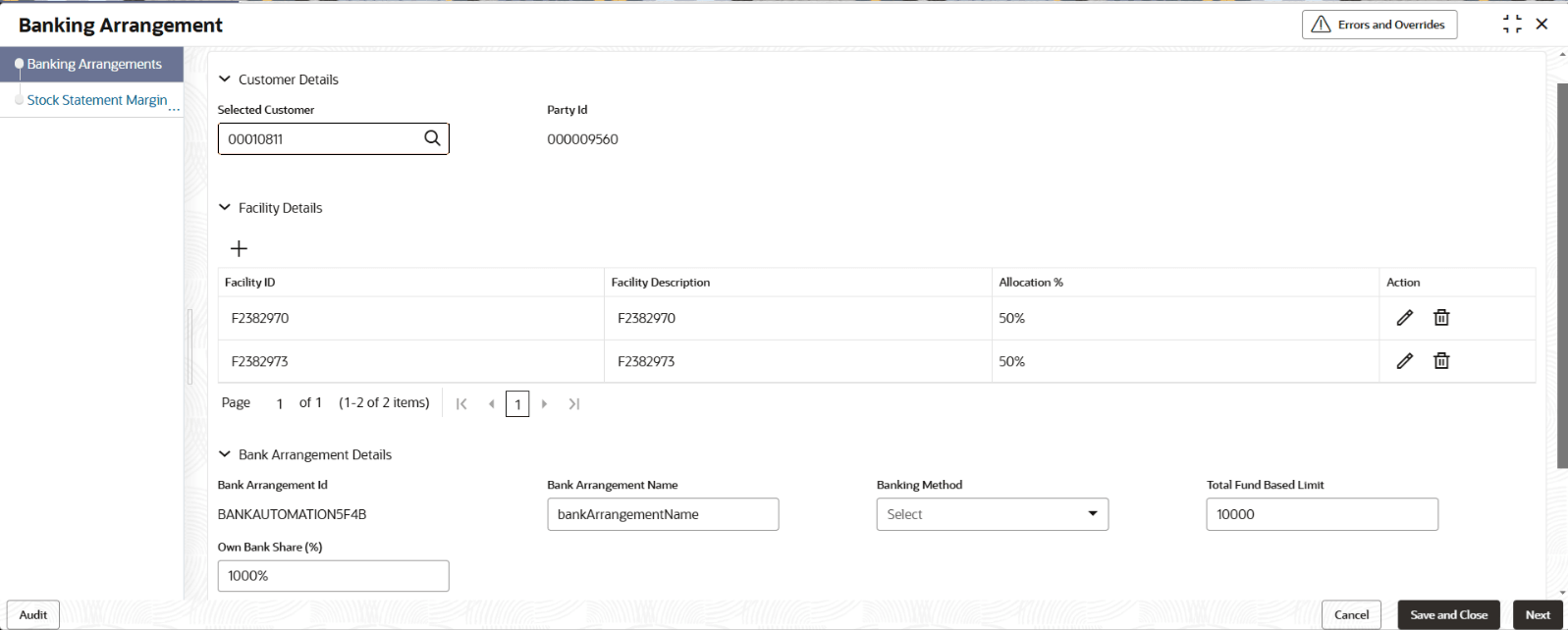
- Under Banking Arrangements, click Create Banking
Arrangements. The Banking Arrangement screen displays. On Banking Arrangements screen, specify the fields. For more information on fields, refer to the field description table.
Table 2-1 Banking Arrangement
Field Description Selected Customer Click Search icon and select the customer. Bank Arrangement ID Specify the Bank Arrangement ID. Bank Arrangement Name Specify the Bank Arrangement Name. Liability ID Specify the Liability ID. Facility ID Specify the Facility ID. Facility Name Specify the Facility Name. Banking Method Specify the Banking Method. The available options are:- Consortium
- Multiple
- Sole
Total Fund Based Limit Specify the Total Fund Based Limit. Own Bank Share (%) Specify the Own Bank Share percentage - On Banking Arrangements screen, click
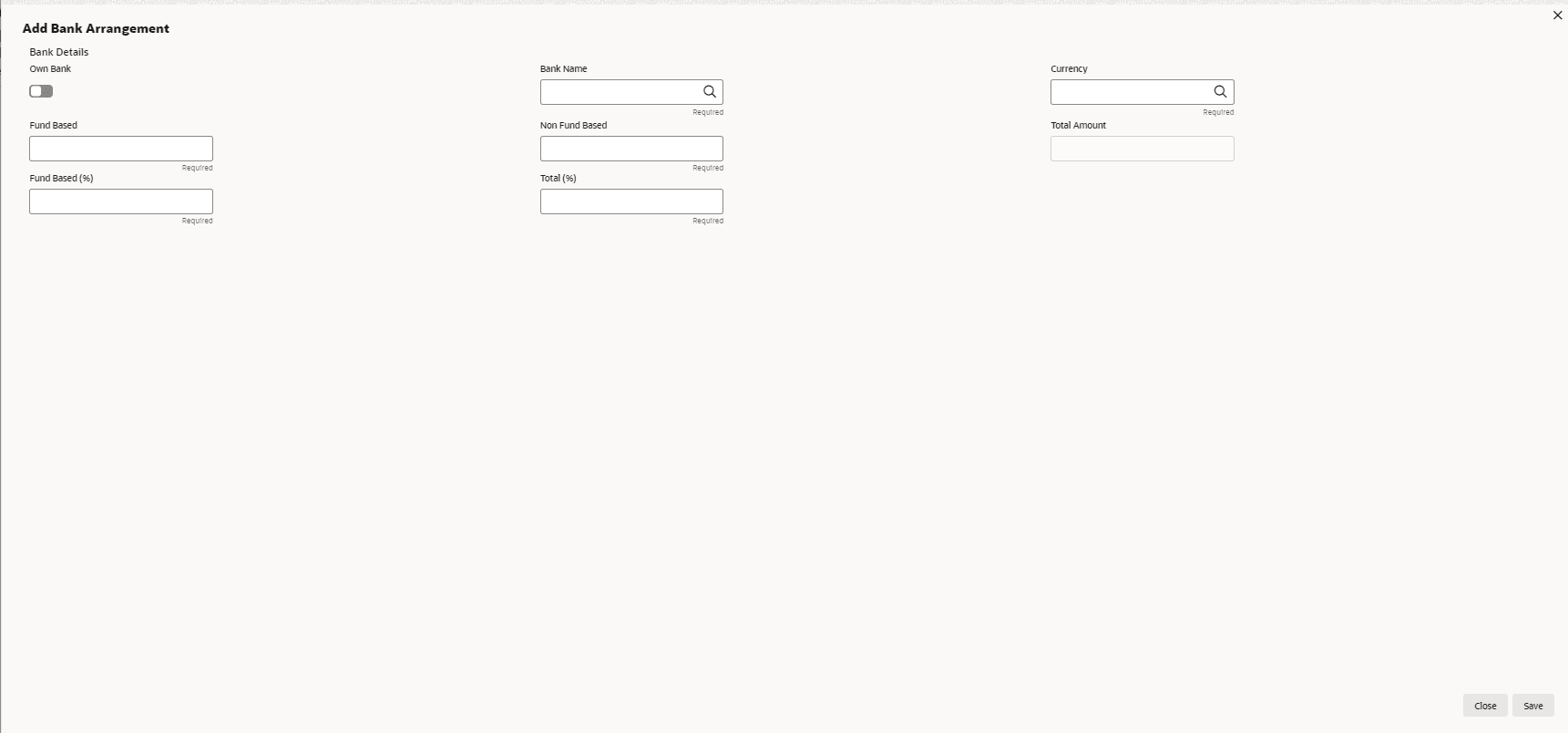
+ and Add Bank
Arrangement.The Add Bank Arrangement screen displays. On Add Bank Arrangements screen, specify the fields.For more information on fields, refer to the field description table.
Table 2-2 Add Bank Arrangement
Field Description Own Bank Switch to
 if the bank is Own Bank.
Switch to
 if the bank is not Own Bank.
Bank Name Click Search icon and specify the Bank Name . Currency Click Search icon and specify the Currency. Fund Based Specify the Fund Based. Non Fund Based Specify the Non Fund Based. Total Amount Specify the Total Amount. Fund Based (%) Specify the fund based percentage. Total (%) Specify the total percentage. Close Click Close to close the details without saving. Save Click Save to save the details. - On Banking Arrangements screen, click
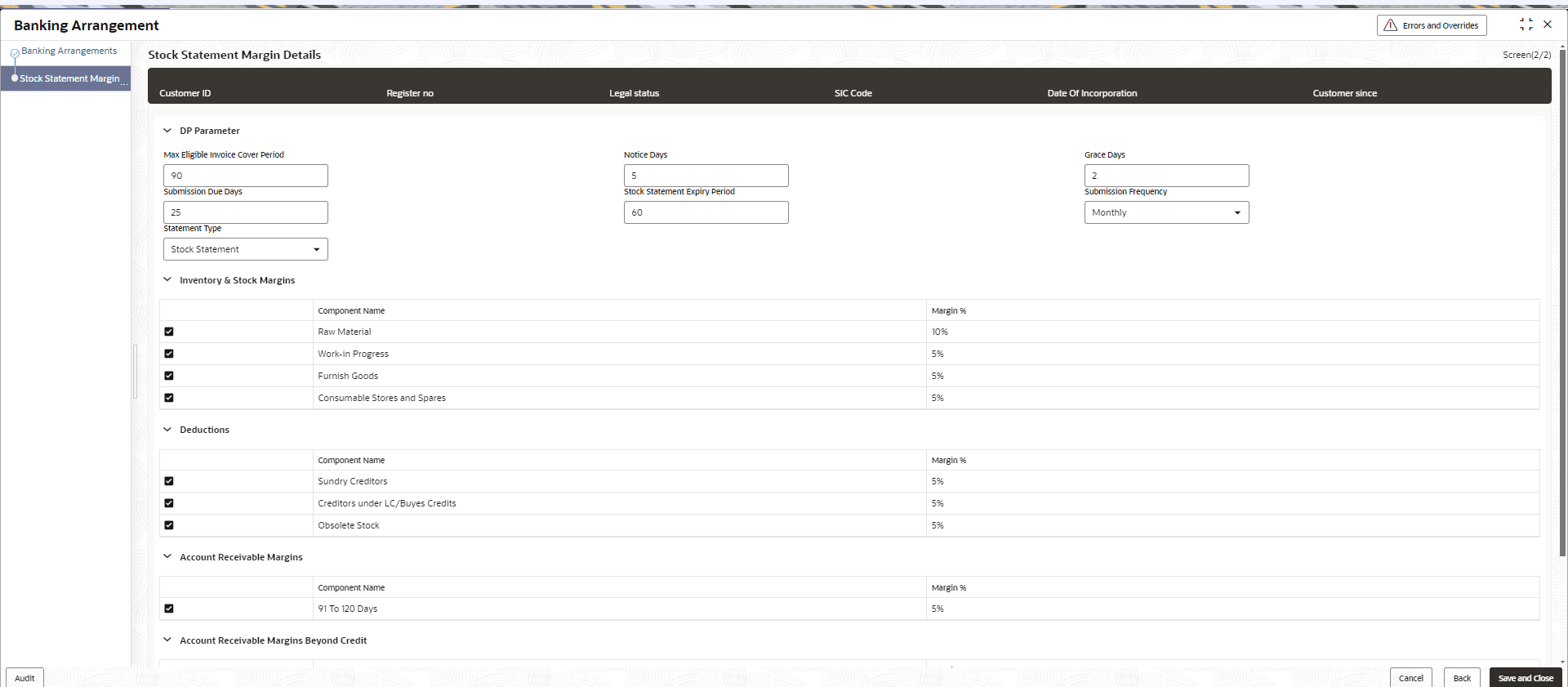
Next.The Stock Statement Margin Details screen displays. For more information on fields, refer to the field description table.
Table 2-3 Stock Statement Margin Details
Field Description Max Eligible Cover Period Specify the Max Eligible Cover Period. Notice Days Specify the Notice Days. Grace Days Specify the Grace Gays. Submission Due Days Specify the Submission Due Days. Stock Statement Expiry Period Specify the Stock Statement Expiry Period . Submission Frequency Specify the Submission Frequency The available options are:- Annually
- Monthly
- Quarterly
- Semi-Annually
Statement Type Specify the Statement Type. The available options are:- Cash Budget
- Stock Statement
Note:
Users can choose the Component Name from the Inventory & Stock Margins, Deductions, and Account Receivable Margins tabs on the Stock Statement Margin Details screen.