3 View Banking Arrangements
This topic describes the systematic instructions to view the borrowing capacity.
Users can set up the Banking Arrangement through the Banking Arrangement screen. Initially, the status of the created capacity shows as Unauthorized and Open. After the checker approves it, the status changes to Authorized and Open.
- Under Banking Arrangements, click View Banking
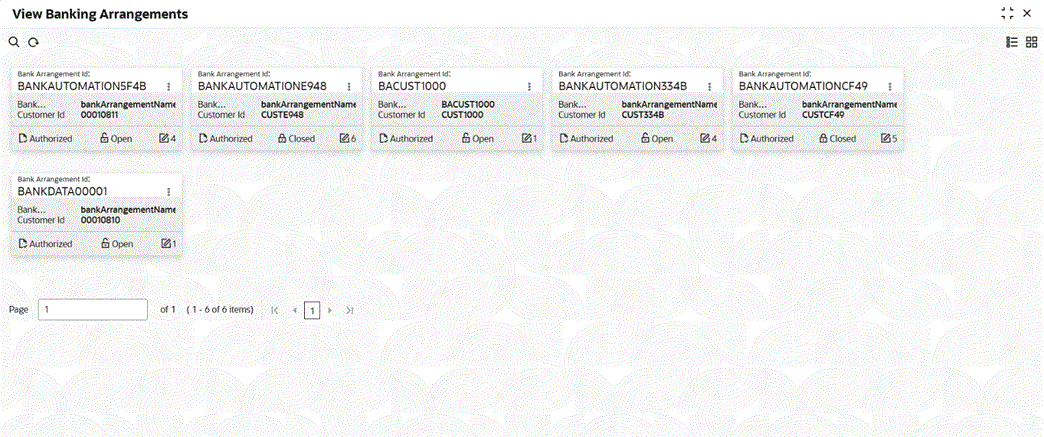
Arrangements. The View Banking Arrangement screen displays. For more information on fields, refer to the field description table.
Table 3-1 View Banking Arrangement
Field Description Bank Arrangement ID Displays the Bank Arrangement ID. Bank Facility Name Displays the Bank Facility Name. Authorization Status Displays the authorization status of the record. The available options are:- Authorized
- Rejected
- Unauthorized
Record Status Displays the status of the record. The available options are:- Open
- Closed
Modification Number Displays the number of modification performed on the record. - On View Banking Arrangement screen, click
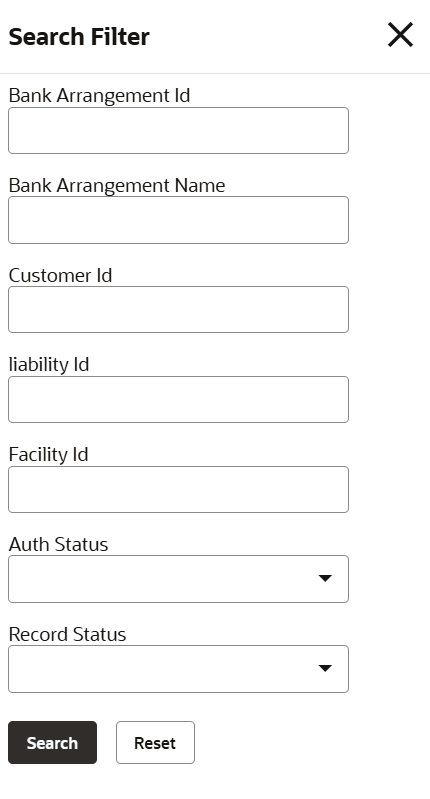
 The View Banking Arrangement - Search screen displays.
Figure 3-2 View Banking Arrangement - Search
- In View Banking Arrangement, click
 icon to Unlock, Delete, Authorize or View banking arrangement you created.
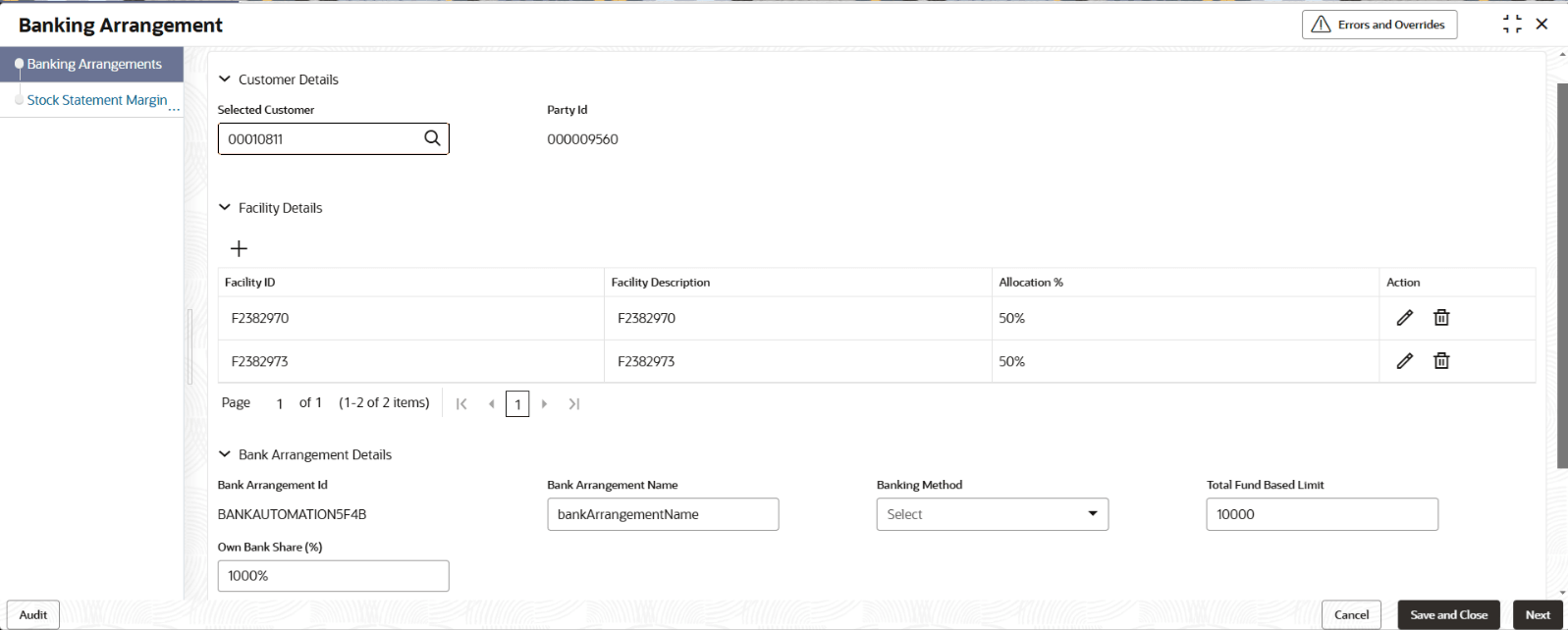
 - Click Unlock to modify the Banking Arrangement.The Banking Arrangement - Modify screen displays.
Note:
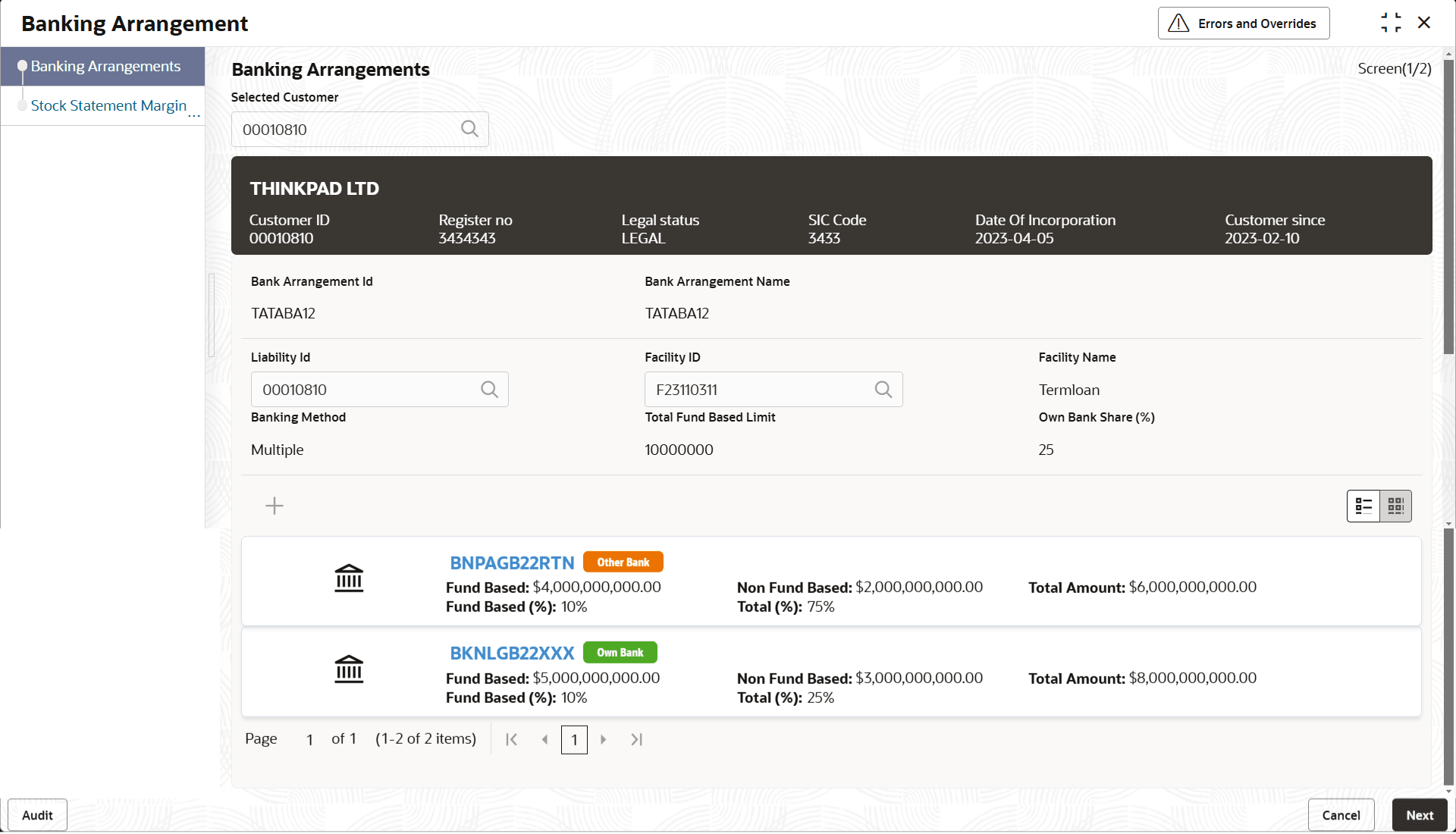
For more information about Banking Arrangement, refer Banking Arrangement. - Click View to view the Banking Arrangement.The Banking Arrangement – View screen displays. On Banking Arrangements screen, specify the fields. For more information on fields, refer to the field description table.
Table 3-3 Banking Arrangement – View
Field Description Selected Customer Displays the Selected Customer. Bank Arrangement ID Displays the Bank Arrangement ID. Bank Arrangement Name Displays the Bank Arrangement Name. Liability ID Displays the Liability ID. Facility ID Displays the Facility ID. Facility Name Displays the Facility Name. Banking Method Displays the Banking Method. Total Fund Based Limit Displays the Total Fund Based Limit. Own Bank Share (%) Displays the Own Bank Share (%). - On Banking Arrangements screen, click
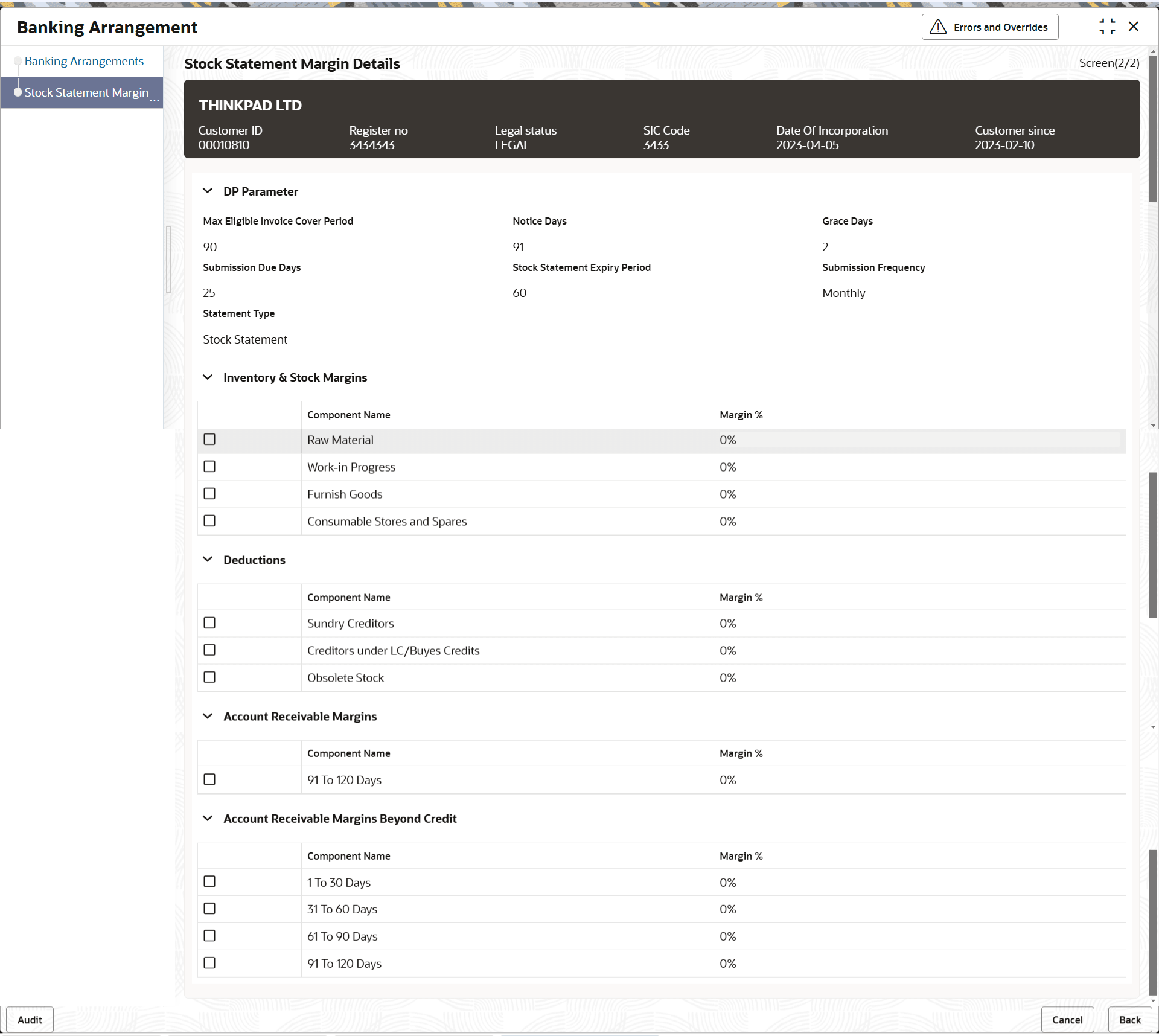
Next.The Stock Statement Margin Details - View screen displays.For more information on fields, refer to the field description table.
Figure 3-5 Stock Statement Margin Details - View
Table 3-4 Stock Statement Margin Details - View
Field Description Max Eligible Cover Period Displays the Max Eligible Cover Period. Notice Days Displays the Notice Days. Grace Days Displays the Grace Gays. Submission Due Days Displays the Submission Due Days. Stock Statement Expiry Period Displays the Stock Statement Expiry Period . Submission Frequency Displays the Submission Frequency Statement Type Displays the Statement Type.