7 Customer Acceptance
This topic provides systematic instructions about the Customer Acceptance of the FI Credit Proposal Initiation.
The user can capture the status of customer acceptance in this stage. Upon acceptance of the draft proposal, the limit details are automatically handed off to the back office system (OBELCM).
To capture the customer acceptance status, perform the following steps:
- From Home screen, click Tasks.
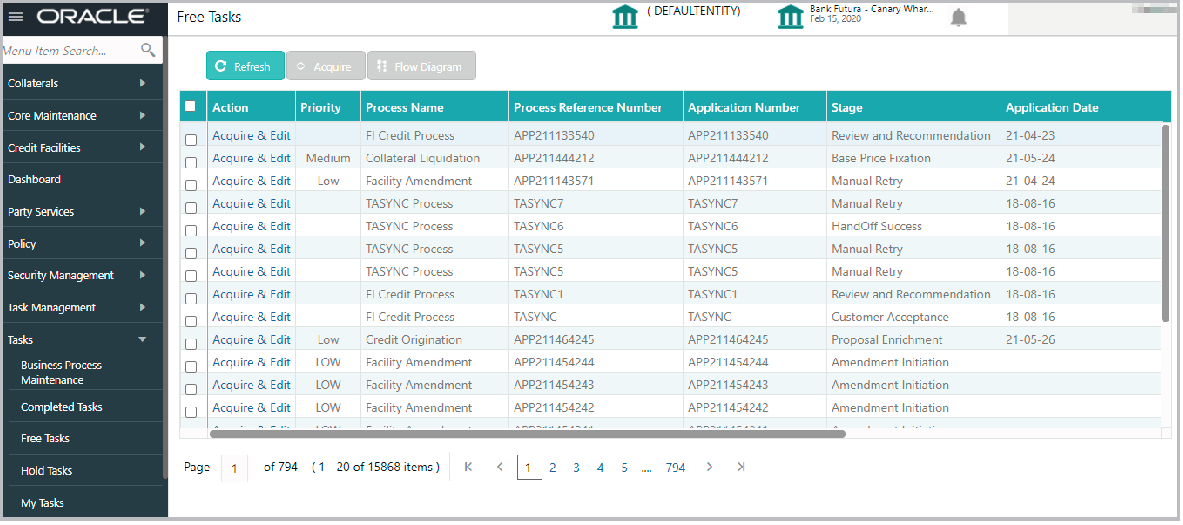
Under Tasks, click Free Tasks.The Free Task screen is displayed.
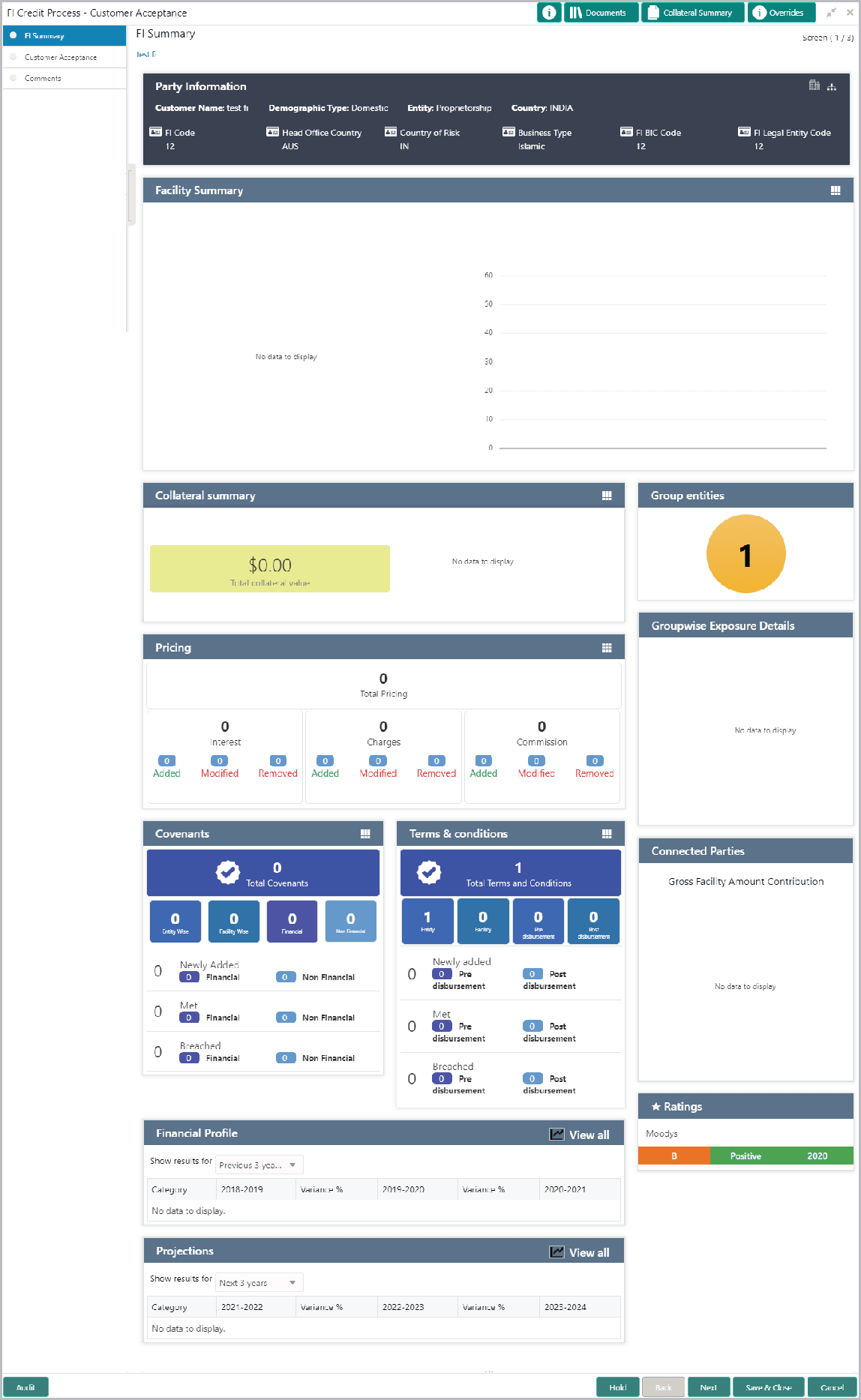
- Click Acquire & Edit the required customer acceptance task. The Customer Acceptance - FI Summary screen is displayed.
Note:
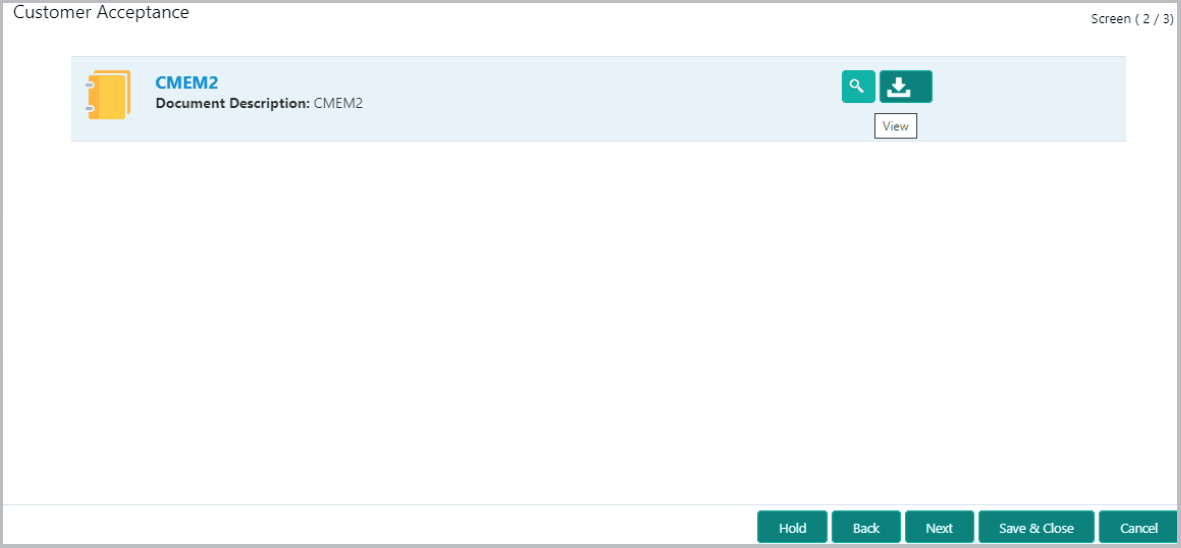
For information on actions that can be performed in the FI Summary page, refer Credit 360 User Manual. - After performing necessary actions in the FI Summary page, click Next. The Customer Acceptance screen is displayed.
In the Customer Acceptance page, the Proposal Draft sent to the customer is displayed.
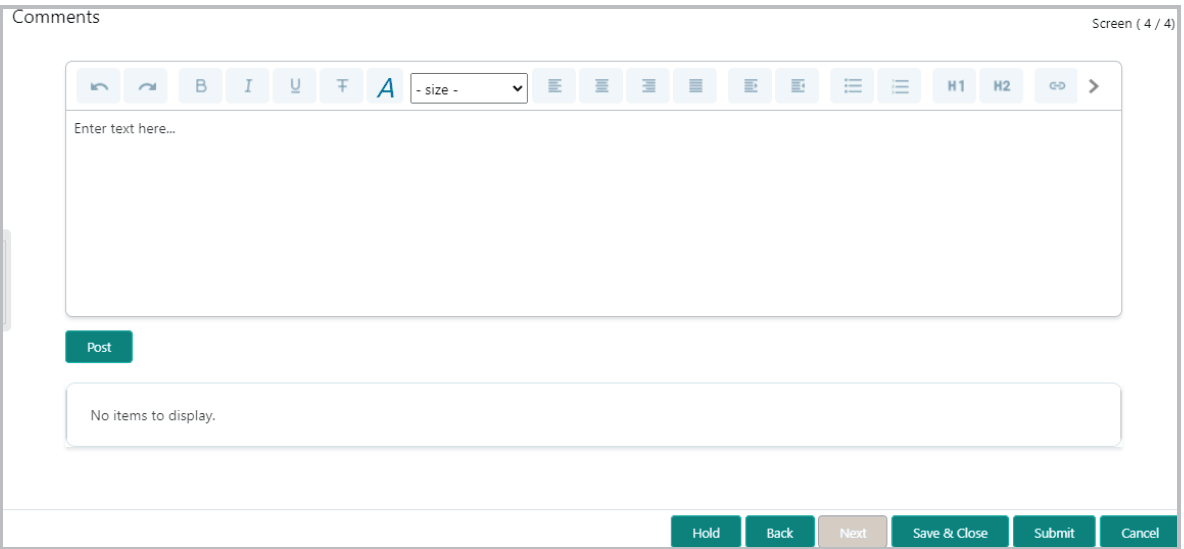
- Click Next. The Comments screen is displayed.
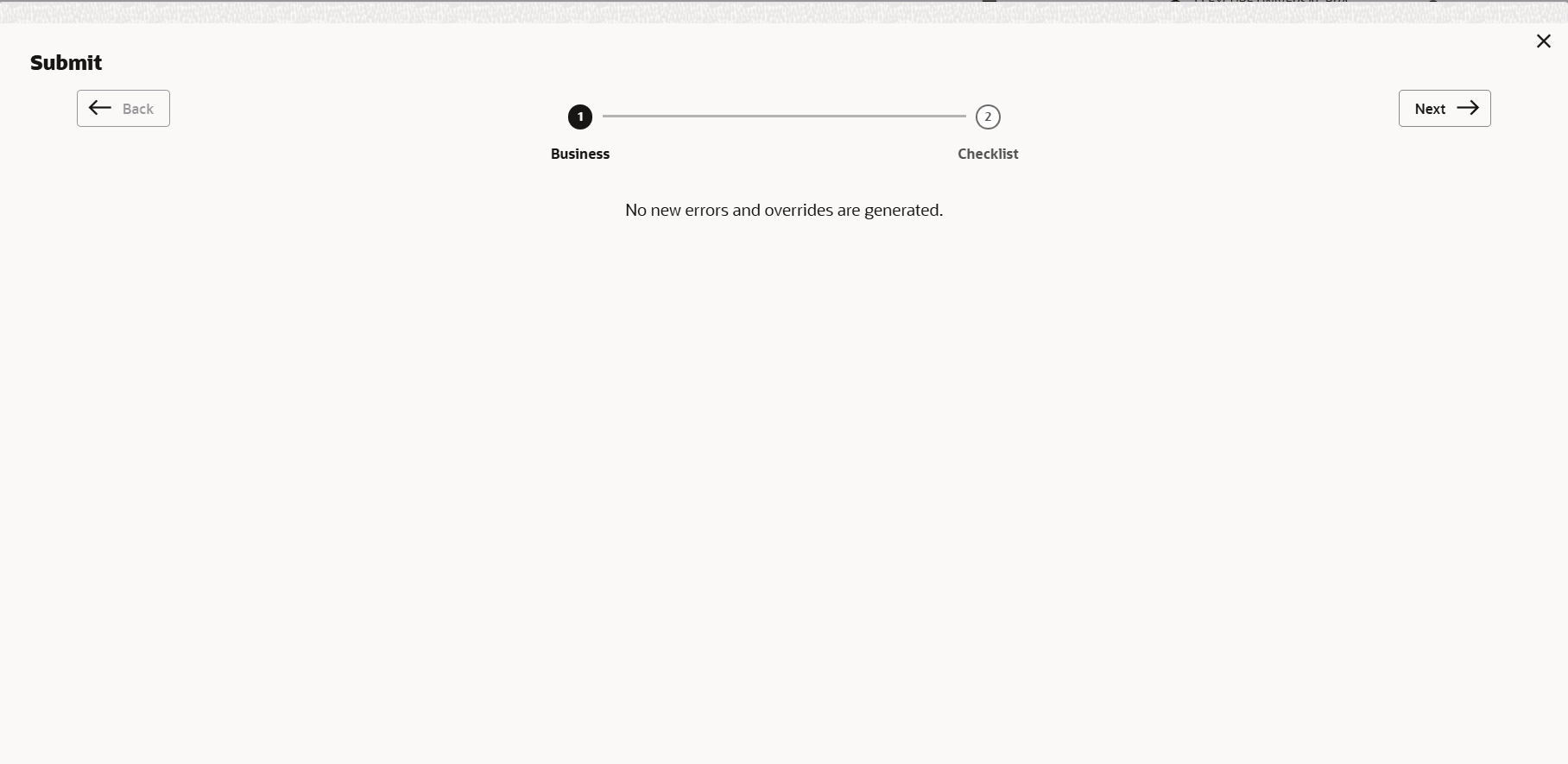
- Click Submit. The Policy exceptions screen is displayed.
By default, policy exceptions are displayed for both the party and its child party.
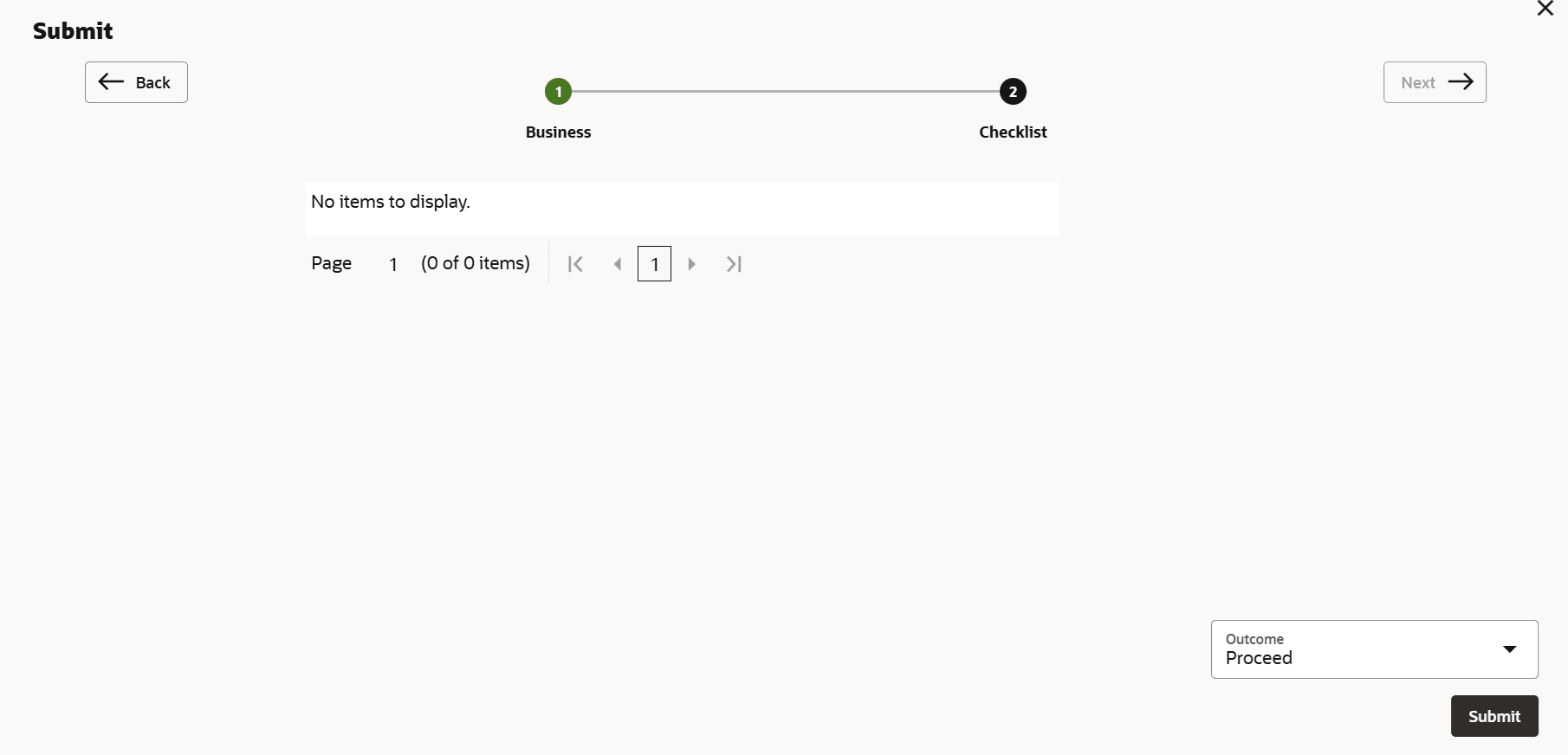
- Click the Checklist data segment.