15.1 Create Additional Placeholder
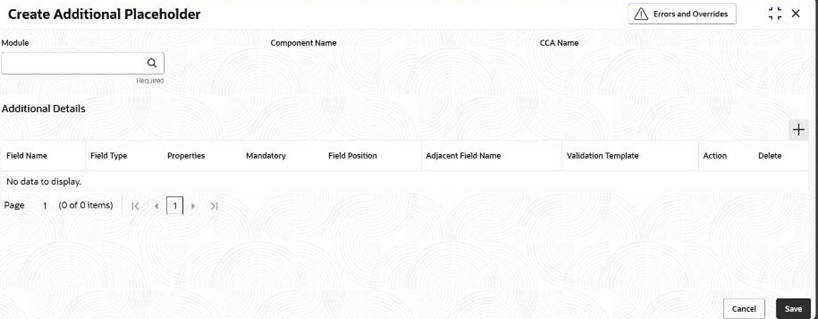
This topic provides systematic instructions to create additional placeholder.
- Under Maintenance, click Additional Placeholder, under
Additional Placeholder, click Create Additional
Placeholder.The Create Additional Placeholder screen displays.
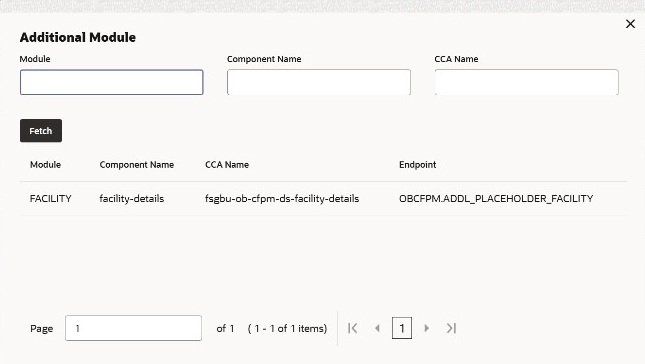
- On Create Additional Placeholder screen, click the
Search icon and select the Module and Component Name
from the list.The Additional Module screen displays.
- Specify the fields on Create Additional Placeholder
screen. For more information on fields, refer to the field and description
table.
Table 15-1 Create additional placeholder
Field Description Module Displays the module name selected from the Additional Module screen. Component Name Displays the component name selected from the Additional Module screen CCA Name Displays the name selected the Additional Module screen Field Name Displays the field name. Field Type Select the field type from the drop-down list. The available options are: - Text
- Number
- Percentage
- LOV
- Dropdown
- Radio
- Checkbox
- Date
- Switch
Properties Specify the properties of each field type selected. - Text - No properties to be maintained.
- Number - No properties to be maintained.
- Percentage - No properties to be maintained.
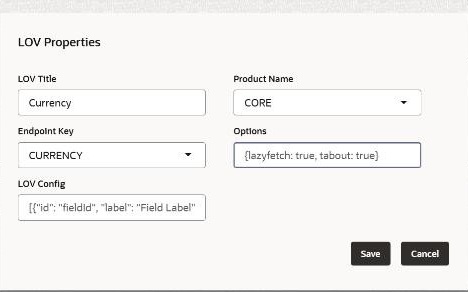
- LOV – For more information refer the below LOV properties.
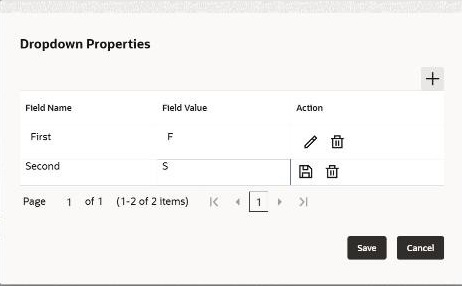
- Dropdown - For more information, refer the below Dropdown table.
- Radio - Properties are to be captured are the same as the dropdown properties.
- Checkbox - Properties are to be captured are the same as the dropdown properties.
- Date - No properties to be maintained.
- Switch - No properties to be maintained
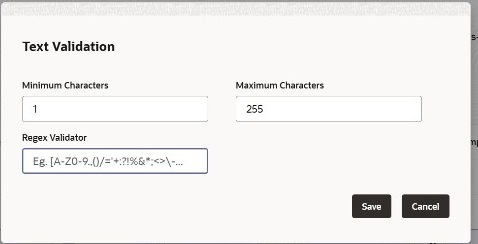
Field Position Select the field position from the drop-down list. Adjacent Field Name Displays the adjacent field name based on the selected Module and Component Name. Validation Template Specify the validation type for each file type selected. - Text – For more information, refer the below Text Validation table.
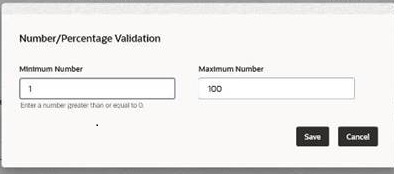
- Number – For more information, refer the below number validation table.
- Percentage - Validations are to be captured the same as the number validations.
- LOV - No validations to be maintained.
- Dropdown - No validations to be maintained.
- Radio - No validations to be maintained.
- Checkbox - No validations to be maintained.
- Date - No validations to be maintained.
- Switch - No validations to be maintained.
LOV Properties:Table 15-2 LOV Properties
Field Description LOV Title Title to be displayed in the transaction for the LOV. Product Name The name of the product from where the endpoint is to be fetched. Endpoint Key The actual endpoint that gives the data for the LOV Options Any options such as lazyfetch if needed can be given LOV Config The required data to be displayed in the LOV. Dropdown Properties:Table 15-3 Dropdown Properties
Field Description Field Name The field name to be appeared in the dropdown of the transaction screen. Field Value The actual value of the field that should get stored in the database. Text Validation:Table 15-4 Text Validation
Field Description Minimum Characters The minimum characters the user must give in the field on the transaction screen. Maximum Characters The maximum characters that the user can give in the field on the transaction screen Regex Validator The characters that are allowed to be captured in the field on the transaction screen Number/Percentage Validation:Table 15-5 Number/Percentage Validation
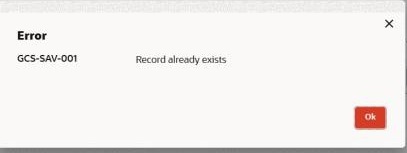
Field Description Minimum Number The minimum range of the field. The user cannot give a number lesser than that. Maximum Number The maximum range of the field. The user cannot give a larger number than that. - The maintenance screen will also check if the module with the same component
name exists. If it does, it will not allow the user to save. Moreover, the
screen will also not allow the user to save the record with two same field
names.
Parent topic: Additional Placeholder