15.2 View Additional Placeholder

This topic provides systematic instructions about view additional placeholder.

  1. On Homescreen, click Credit Facility, under Credit Facility, click Maintenance, under Maintenance, click Additional Placeholder, under Additional Placeholder, click View Additional Placeholder.
    The user needs to create the required fields in the maintenance screen that they want in the transaction screen.The View Additional Placeholder screen is displayed.
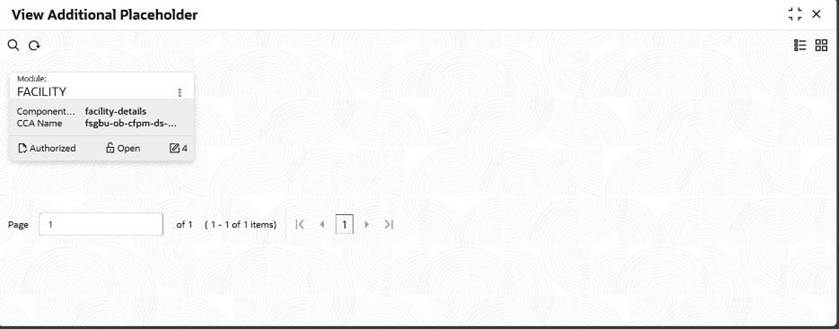
    Figure 15-8 View additional placeholder


  2. Authorize the record after maintaining the required fields to be added in the maintenance screen
  3. After the record is authorized, the additional fields given with the validations given will be displayed in the respective CCA.

    The additional placeholders in the CCA can be saved and modified accordingly. The user must select the module and the component name in which the transaction screen comes under. On choosing the module and component name, the adjacent field names will be listed as per the transaction screen

  4. Specify the fields on Create Additional Placeholder screen. For more information on fields, refer to the field and description table.