14.5 Create E-Mail Configurations

This topic provides systematic instructions about the procedure to create an E-mail configuration record.

The Create E-Mail Configurations screen provides an option to create E-mail Configuration record by providing mail server details.
  1. From Home screen, select Credit Facilities. Under Credit Facilities, select Maintenance.
  2. Under Maintenance, select Notifications. Under Notifications, select Create E-Mail Configurations.
    The Create E-Mail Configurations screen is displayed.
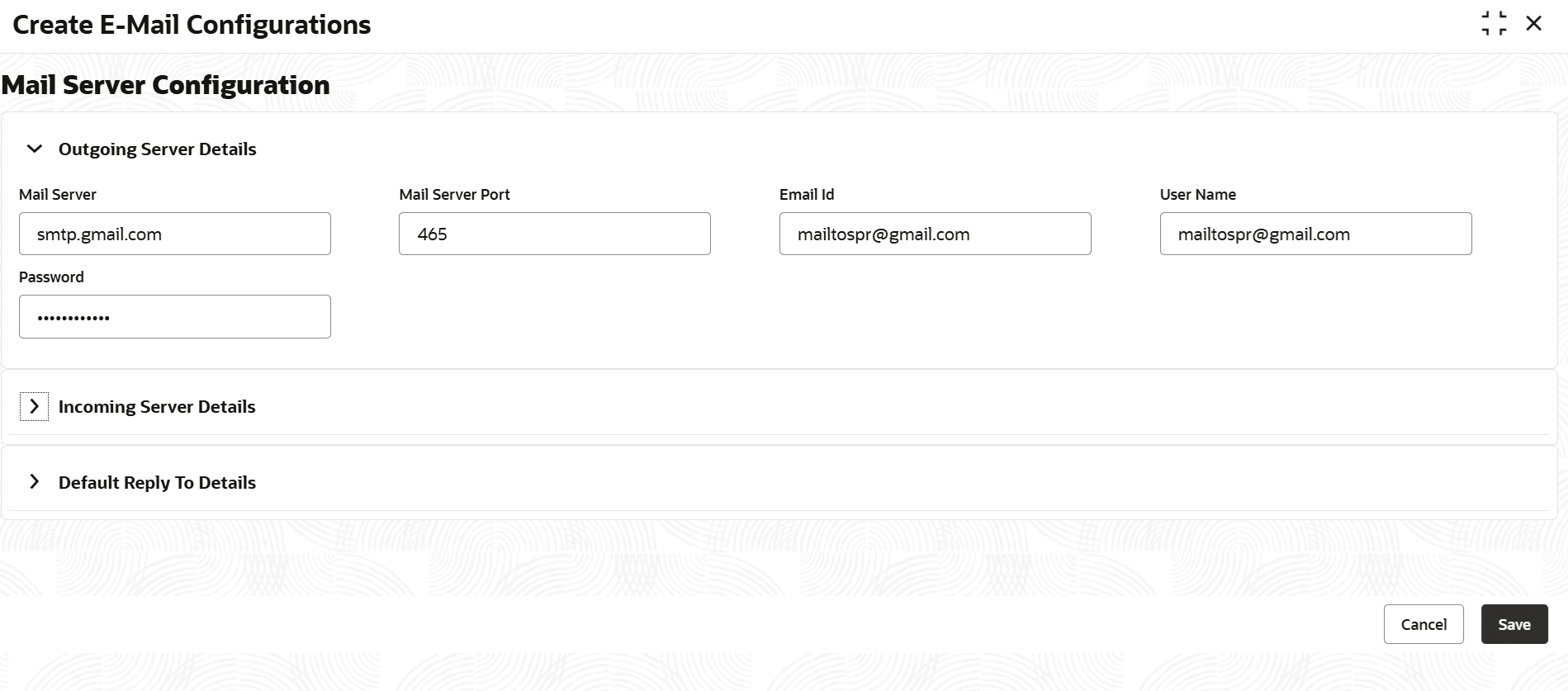
    Figure 14-11 Create Email Configurations


  3. In the Outgoing Server Details section, provide / select the outgoing mail server details based on description in the following table.

    Table 14-6 Create E-Mail Configurations - Outgoing Server Details - Field Description

    Field Description
    Mail Server Specify the outgoing mail server address.
    Mail Server Port Specify the SSL port number of the outgoing mail server.
    Email Id Specify the E-mail Id from which the mail has to be sent from Oracle Banking Credit Facilities Process Management on occurrence of event.
    User Name Specify the User Name of outgoing mail server. E-mail Id and User Name can be the same.
    Password Specify the Password associated with the entered user name.

In the Incoming Server Details section:

Figure 14-12 Create Email Configurations - Incoming Server Details
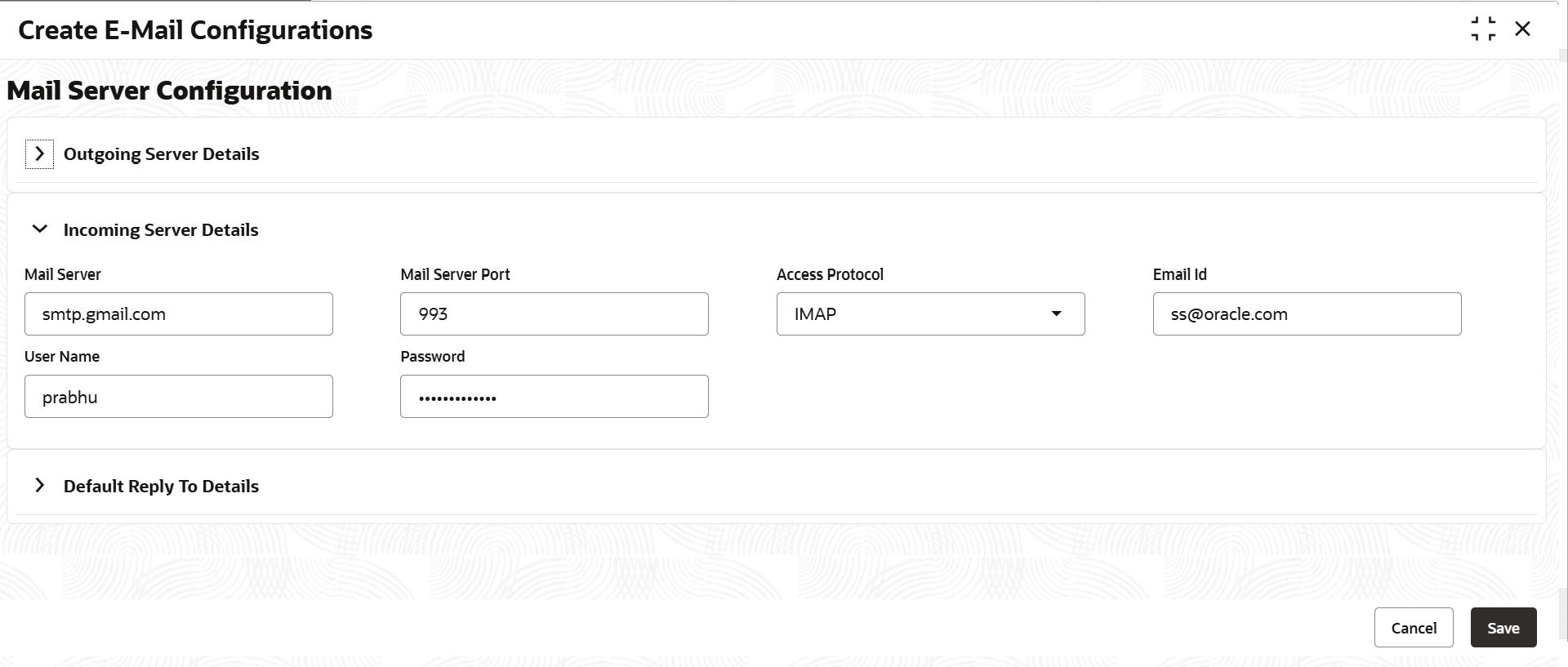


  1. Provide / select the incoming mail server details based on description in the following table.

    Table 14-7 Create E-Mail Configurations - Incoming Server Details - Field Description

    Field Description
    Mail Server Specify the incoming mail server address.
    Mail Server Port Specify the SSL port number of the incoming mail server.
    Access Protocol Select the Access Protocol from the drop down list. The options available are: IMAP and POP3.

    Note: Currently the system supports only IMAP protocol.

    Email Id Specify the E-mail Id to which mails from the customer has to be sent.
    User Name Specify the User Name of incoming mail server. E-mail Id and User Name can be the same.
    Password Specify the Password associated with the entered user name.

In the Default Reply To Details section:

Figure 14-13 Create Email Configuration - Default Reply to Details
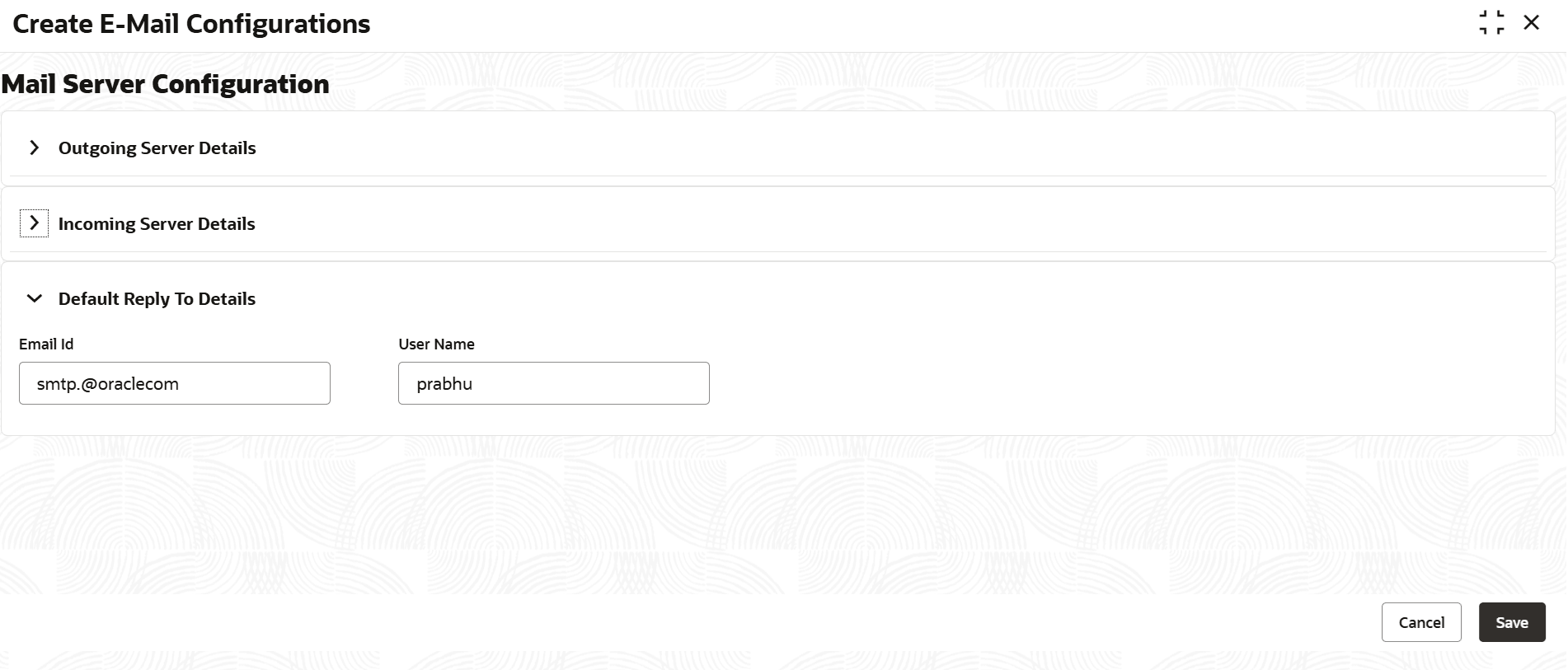


  1. Provide the E-mail details of the account to which default replies from the customer has to be sent.
    Refer the following table for field level descriptions.

    Table 14-8 Create E-Mail Configuration - Default Reply To Details - Field Description

    Field Description
    Email Id Specify the E-mail Id to which default replies from the customer has to be sent.
    User Name Specify the User Name of incoming mail server. E-mail Id and User Name can be the same.
  2. Click Save.
    The E-mail configuration record is created.

    Note:

    The system allows to create only one E-mail Configuration record for all communication. To create different record, delete the current record and create new one.