5.2 Modify Financial Document Template

This topic provides systematic instructions about the procedure to modify a financial document template record.

To modify the financial document template, the template record must be in an authorized state. Unauthorized financial document template record can be modified only by the user who created the record.
  1. From Home screen, select Credit Facilities. Under Credit Facilities, select Maintenance.
  2. Under Maintenance, select Financial Document Template. Under Financial Document Template, select View Financial Document Template.
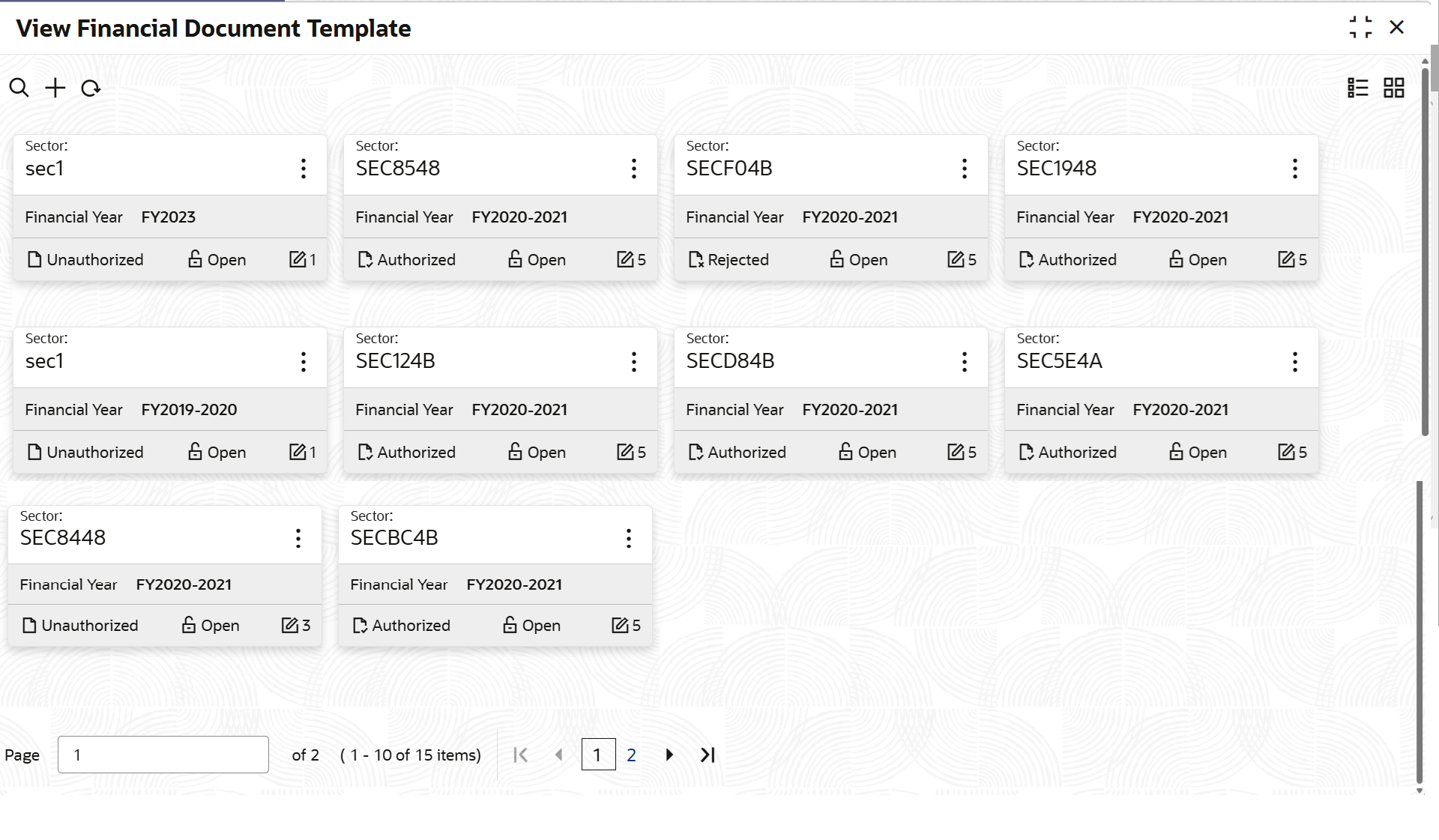
    The View Financial Document Template screen is displayed.

    Figure 5-5 View Financial Document Template


  3. Click the list view icon at the top right corner to change the table view to list view.
  4. Click the search icon to search the required financial document template.
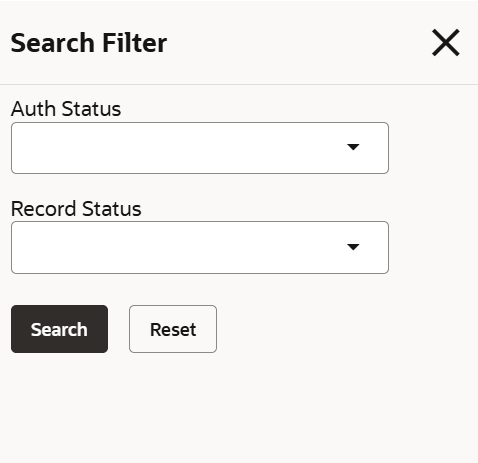
    The search bar is displayed as shown below.

    Figure 5-6 View Financial Document Template - Search


  5. Select the status of financial document template based on description in the following table.

    Table 5-2 View Financial Document Template - Search - Field Description
    Field Description
    Auth Status Select the authorization status of the financial document template. The available options are:
    • Authorized
    • Unauthorized
    Record Status Select the Record Status of the financial document template. The available options are:
    • Open
    • Closed
  6. Click Search.
    The financial document templates that match the search parameters are displayed.
  7. In the View Financial Document Template screen, click the refresh icon to refresh the template record list.
  8. Click the add icon to define new template.
  9. Click on the action icon in the required record and select Unlock.
    The Create Financial Document Template screen is displayed in edit mode.
  10. Modify the required details.
  11. Click Save.
    The financial document template will be modified upon authorization.