3.6 Funding Requirement
This topic provides systematic instructions about the Funding Requirement of the Credit Initiation.
You can capture the new funding requirement of the Financial Institution (party) in this data segment by adding a new facility for the party or updating the limit of existing facilities.
The facility can be either directly created or created using the Facility Template maintained at the Maintenance module.
Before creating the facility, Liability details must be captured for the facility.
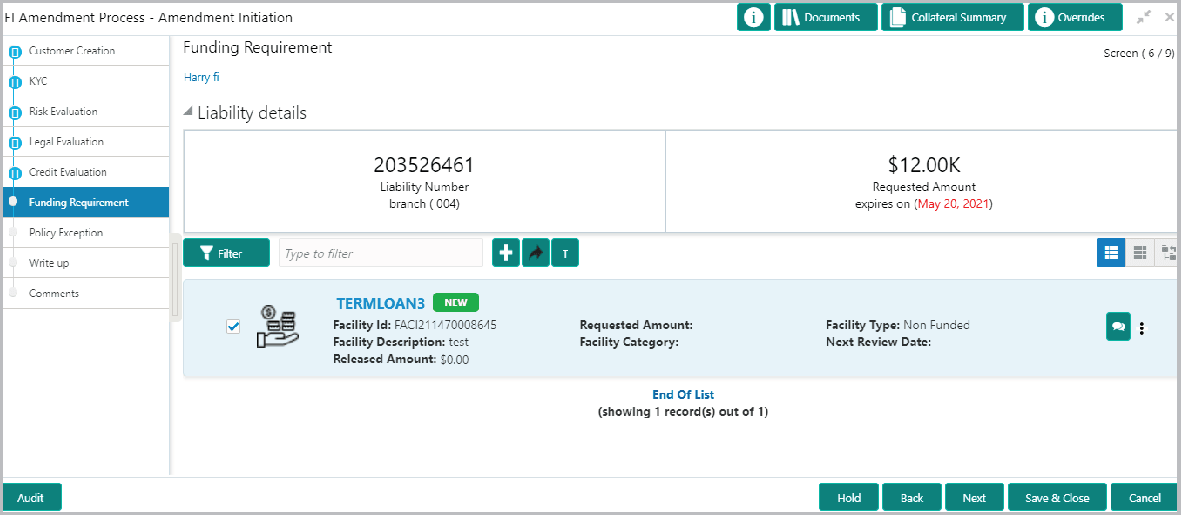
- Click the Edit icon. The Liability Details screen is displayed.
For information on fields in the Liability Details Details screen, refer the below table.
Table 3-41 Liability Details
Fields Description CurrencyRequested Liability Currency In the Requested Liability Currency field, search and select the currency in which the liability is requested by the party. Amount Specify the following details: - Requested Liability Amount - Liability amount requested by the party
- Return On Capital - Ratio calculated by dividing the after tax operating income by the average book-value of the invested capital
- Probability Of Default - Estimate of the likelihood that the entity will be unable to meet its debt obligations
- Loss Given Default - Amount of money a bank or other financial institution loses when a borrower defaults on a loan
- Cash Cover - Amount deposited by the entity in your bank
Proposed and Approved Specify the following details: - Proposed Liability Currency - Currency in which the liability is proposed
- Proposed Liability Amount - Liability amount proposed by your bank
- Proposed Funded Sell Down - Funded sell down proposed for the entity
- Proposed Unfunded Sell Down - Unfunded sell down proposed for the entity
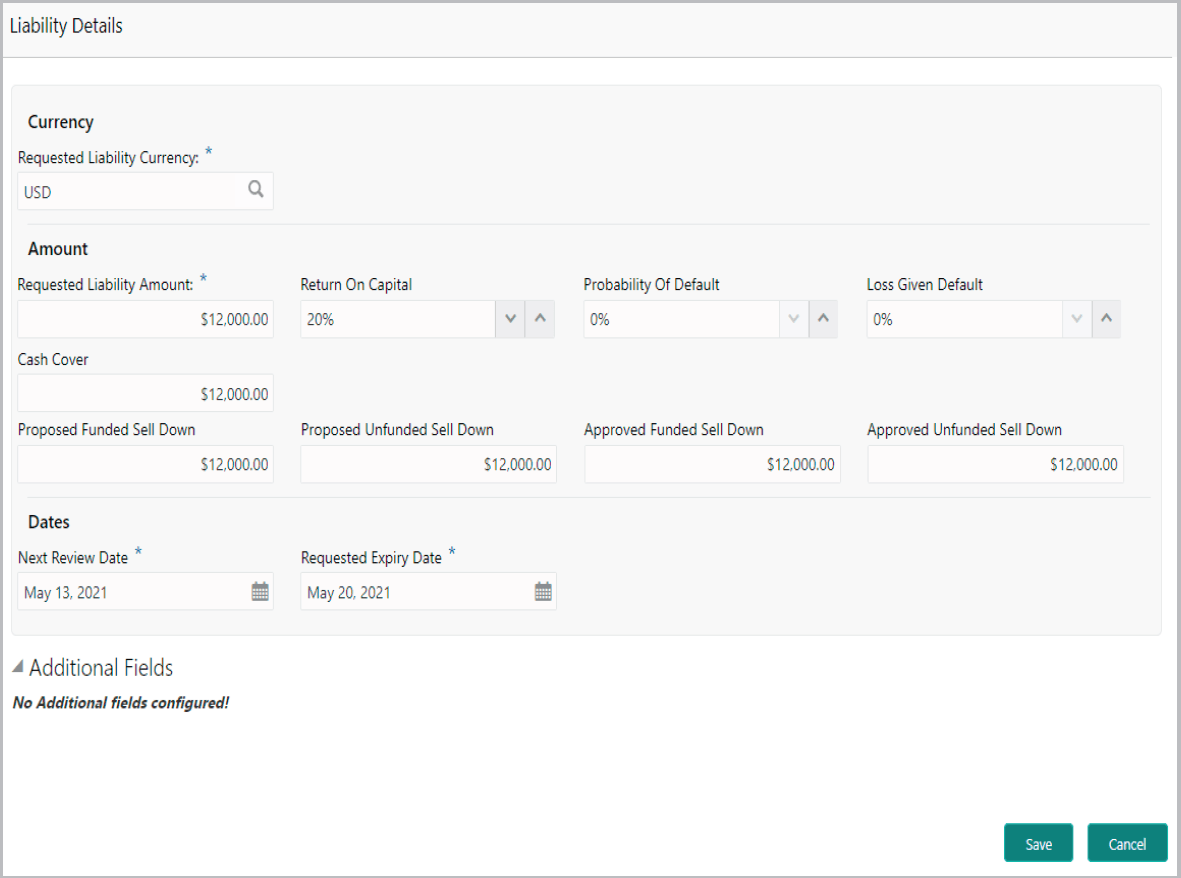
For information on fields in the Dates Details screen, refer the below table.
Table 3-42 Dates
| Fields | Description |
|---|---|
| Next Review Date | Select the Next Review Date for the FI Credit Proposal application. |
| Requested Expiry Date | Select the Requested Expiry Date for the liability based on your customer request. |
| Proposed Expiry Date | Select the Proposed Expiry Date for the liability. Proposed expiry date can be before or after the requested expiry date. |
| Save | Click Save. Details are updated in the Liability details section. |
| View. | To view the added Liability, mouse hover on the Liability details section and click View. |
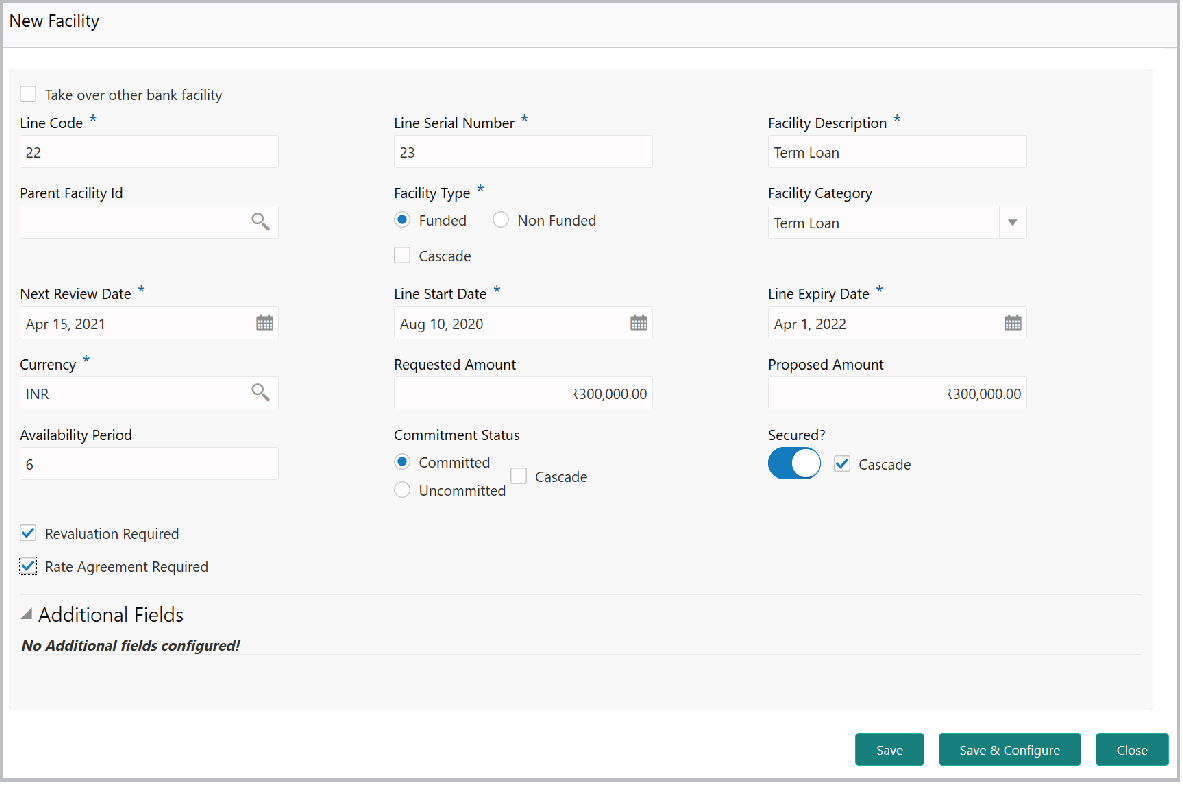
- To directly add the facility without using template, click the add icon.The New Facility screen is displayed.
In the New Facility window, you can link the other bank facility and / or create new facility by adding the necessary information.
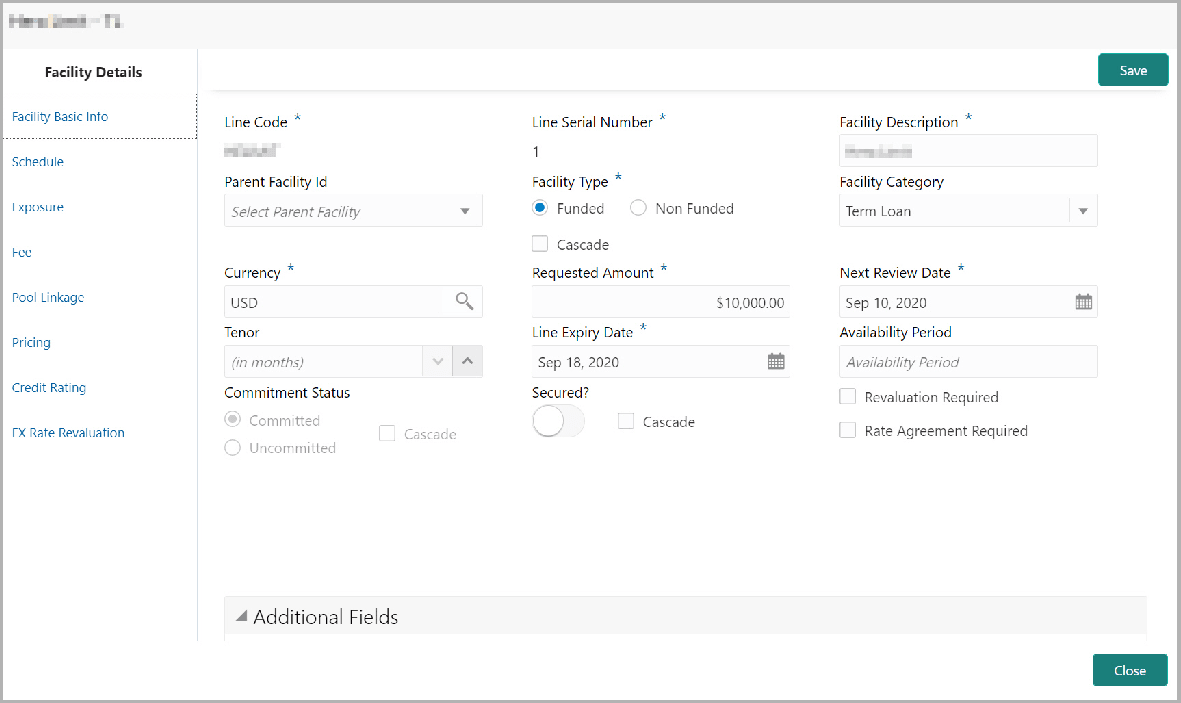
- Click Save & Configure in New Facility window or clicking Edit Facility
under hamburger icon, the Facility Details window appears:
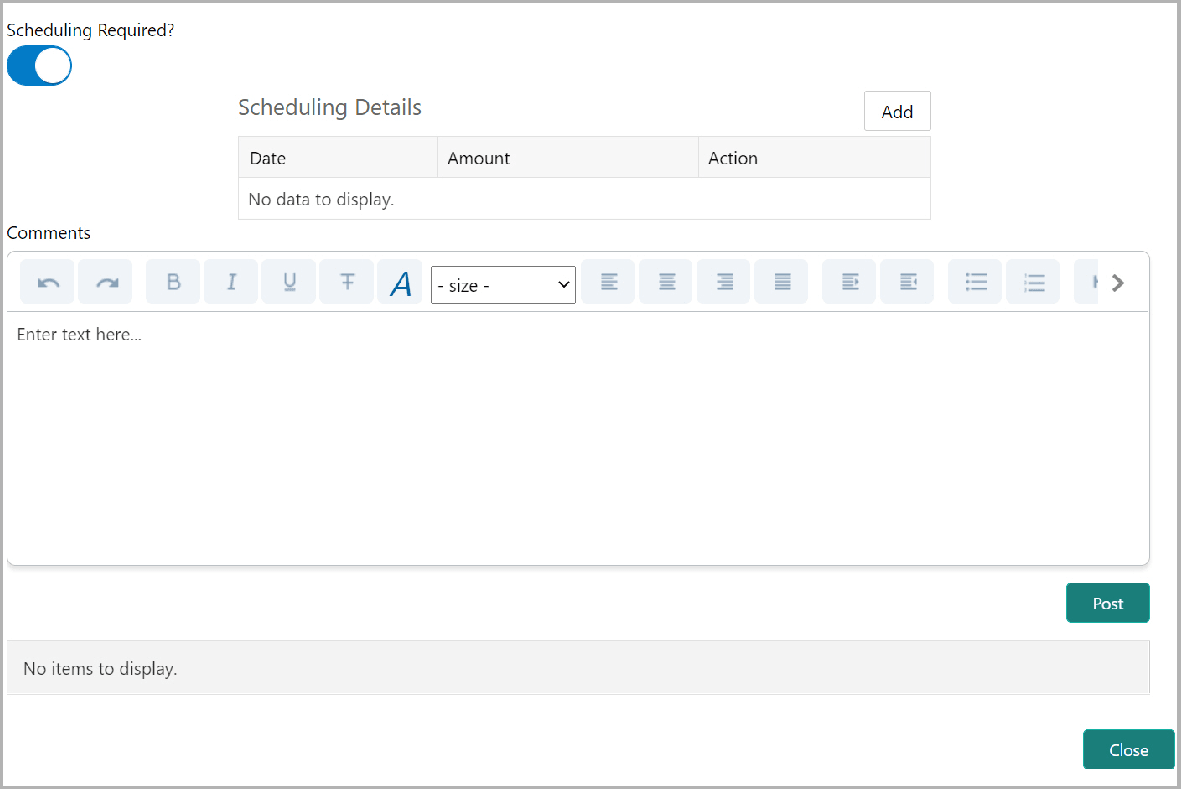
- To add the details of the payment to be made on schedule basis, click
Schedule from the left menu.
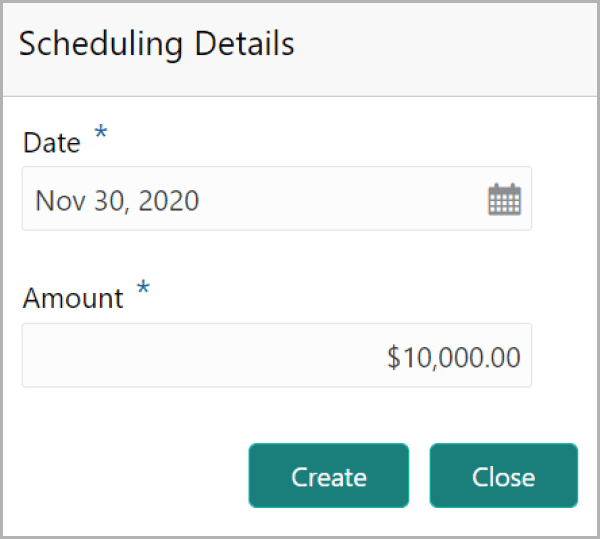
- Click the Add button. The Scheduling Details screen is displayed.
For information on fields in the Scheduling Details Details screen, refer the below table.
Table 3-44 Scheduling Details
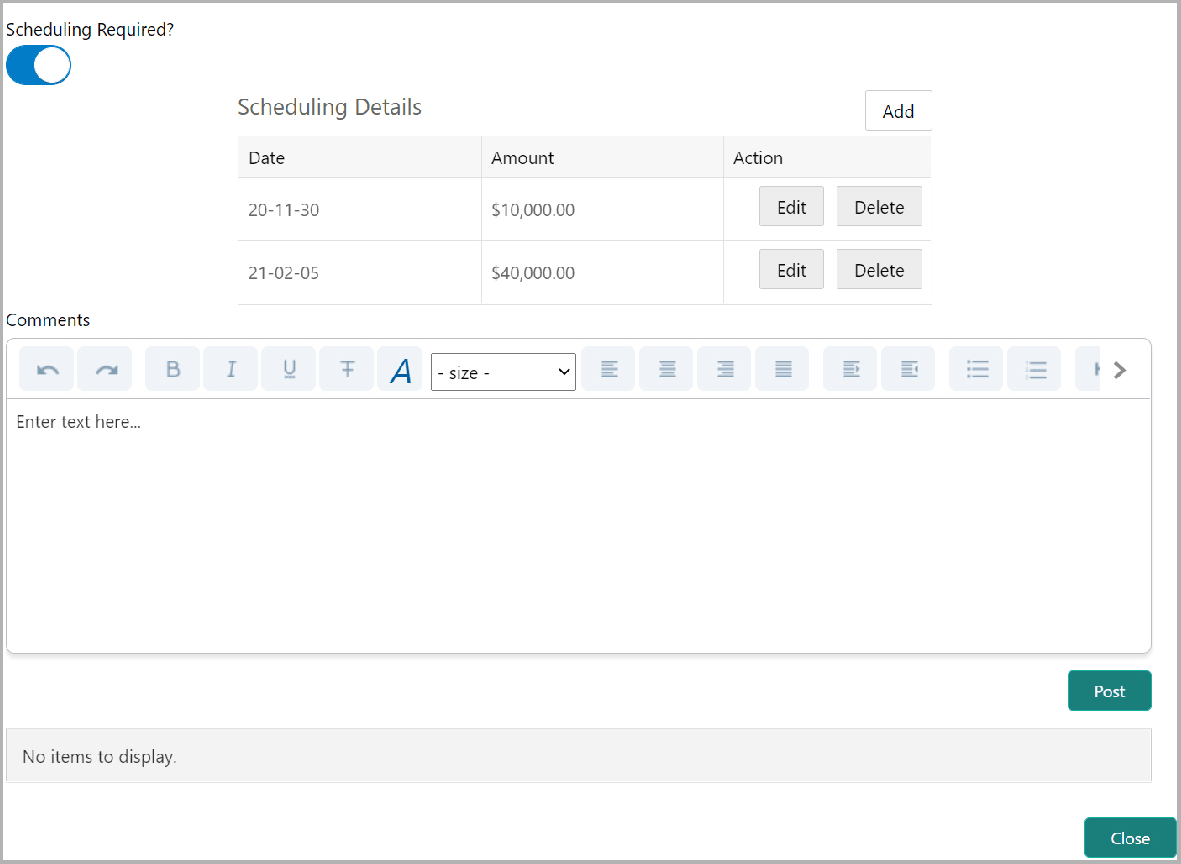
Fields Description Date Click the calendar icon in Date field and schedule the part of facility payment. Amount Specify the Amount to be paid to the Financial Institution on the scheduled date. Save Click Save. Scheduling details are added and listed as shown below: For information on fields in the Scheduling details Details screen, refer the below table.
Table 3-45 Scheduling details
Fields Description Add To add another scheduling detail, click the Add button again. edit To edit the scheduling detail, click the Edit button. delete To delete the scheduling detail, click the Delete button. Post Click Post. Comment is posted below the Comments text box. - To capture exposure information, click Exposure from the left
menu.
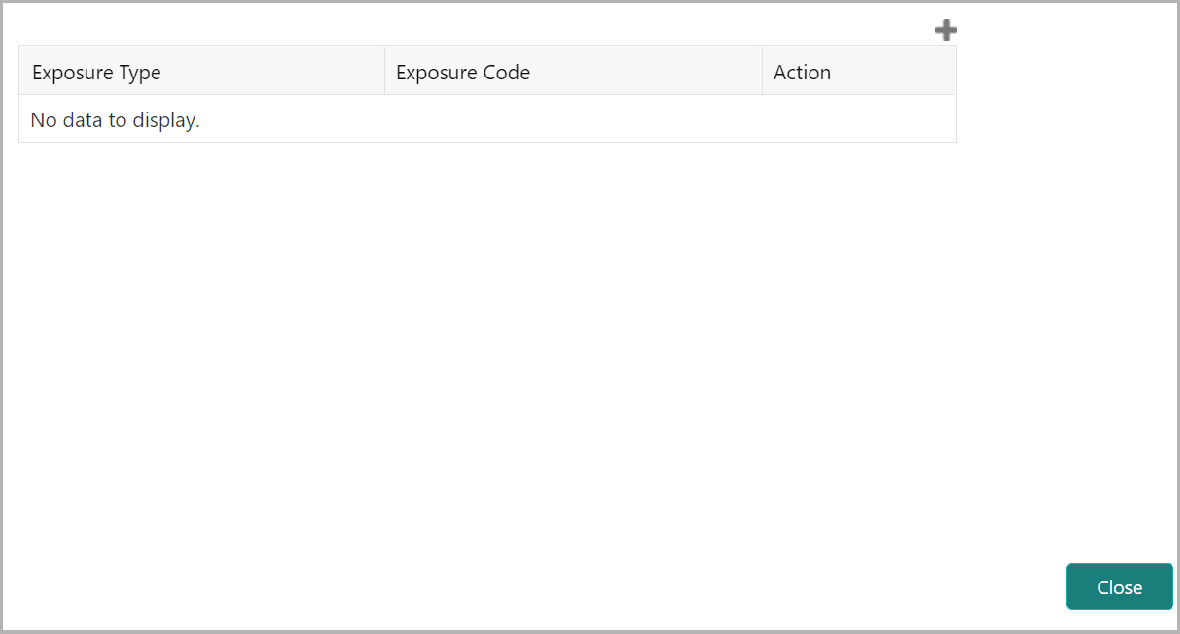
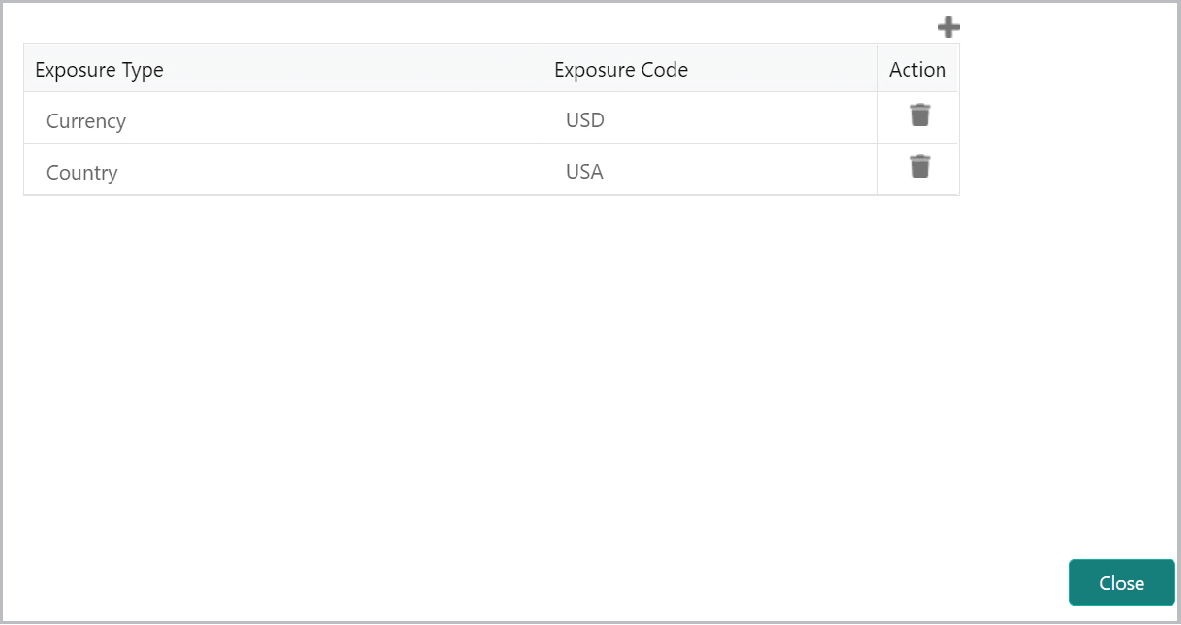
You can associate any exposure maintained in OBELCM to the facility for tracking purpose.
For information on fields in the Adding Exposure Details Details screen, refer the below table.
Table 3-46 Adding Exposure Details
Fields Description Add Click the + (add) icon. A record is created for capturing the exposure details. Exposure Type Type the Exposure Type and Exposure Code for the facility. delete To delete the scheduling detail, click the Delete button. Post Click Post. Comment is posted below the Comments text box. - To add fee preferences, click Fee from the left menu.

Parent topic: Credit Initiation