3.29 Add Pricing Detail
- To add pricing detail for the facility, click Pricing from the left
menu.
If Facility Type is selected as Non Funded, Commission and Charges can be added in the Pricing section.
If Facility Type is selected as Funded, Interest and Charges can be added in the Pricing section.
- To add commission details, click the add icon.The Commission Details window is displayed.
For field level information refer the below table.
Table 3-27 Commission Details
Fields Description Rate Type Select the Rate Type from the drop-down list. Rate Basis Select the commission collection frequency from the Rate Basis drop down list. Commission Type Select the Commission Type from the drop-down list. Collection Period Select the Collection Period from the drop-down list. Currency Search and select the Currency in which the commission has to be collected from the party. Minimum Commission Amount If Fixed Rate is selected as the Rate Type, specify the Minimum Commission Amount and the Commission Rate in the respective fields. If Flat Amount is selected as the Rate Type, specify the Commission Amount.
Save Click Save. Commission details are added and listed in Commission tab. - To cancel the operation, click Cancel.
- To add interest details, click the add icon in Pricing - Interest
section.The Interest Details window is displayed.
For field level information refer the below table.
Table 3-28 Interest Details
Fields Description Component Name Enter a name for the interest in Component Name field. Component Type Select the Component Type from the drop-down field. Rate Type Select Rate Type from the drop-down field. The options available are: Fixed, Floating and Special Amount. - If Fixed is selected as Rate Type, specify the Fixed Interest Rate.
- If Floating is selected as Rate Type, enter or select the following
details:
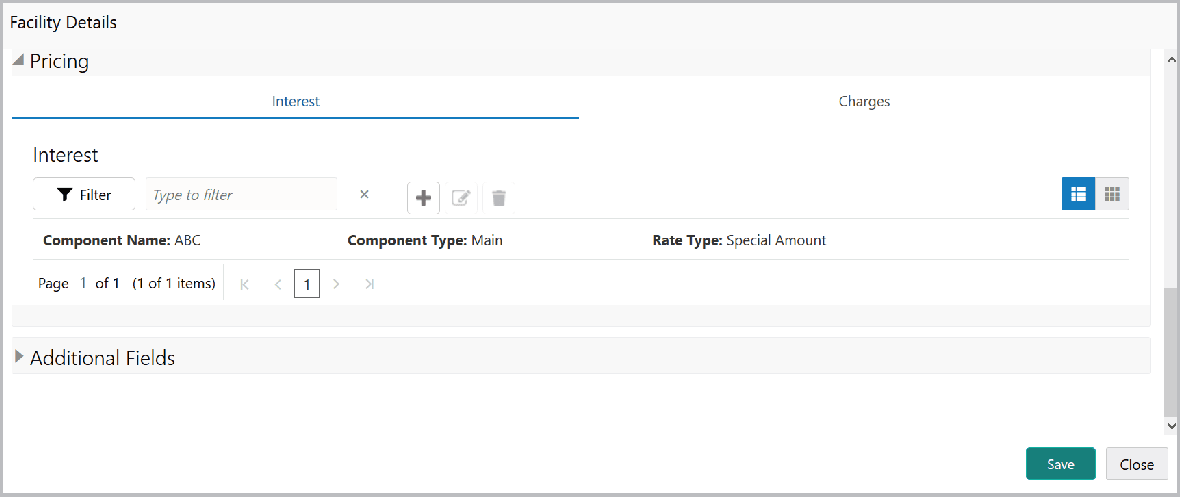
- Click Save. Interest details are added and listed as shown below:
- To add the charge details, click Charges tab in Pricing section
and then click the Add icon.The Charge Details window is displayed.
For field level information refer the below table.
Table 3-29 Charge Details
Fields Description Charge Code Enter the Charge Code to mention the type of charge. Charge Currency Search and select the Charge Currency. Charge Amount Specify the Charge Amount for the facility. Charge Description Enter the Charge Description. Is Charge Waived Enable Is Charge Waived option, if waiver can be claimed for this charge. Details Enter the following details in respective fields: - Waived Amount
- Minimum Charge Amount
- Maximum Charge Amount
- Net Charge Amount
- Charge Base Amount
- Waiver Remarks
- Click Save. Charge details are added and listed as shown below:
Note:
To add more charges for the facility, click the add icon again and provide the charge details.For field level information refer the below table.
Table 3-30 Pricing
Fields Description Edit To edit the charge details, click the added charge and then click the Edit icon. Delete To delete the charge details, click the added charge and then click the Delete icon. Table icon To change the list view to table view, click the Table icon at the right corner.




Parent topic: Proposal Initiation