3.30 Linking Facility with Collateral
In case you want to secure facility with collateral, you can link the facility and the available collateral.
Note:
To link facility with the collateral, collateral must be added in the Collateral data segment.- Click Facility Collateral Linkage from the left menu.The Facility Details screen is displayed.
- To link facility with a collateral, click the add icon.The Facility-Collateral Linkage window appears:
For field level information refer the below table.
Table 3-31 Facility-Collateral Linkage
Fields Description Collateral Code Select the Collateral Code from the drop-down list. The collateral added in Collateral data segment are displayed in the drop-down list. On selecting the Collateral Code, the following details get populated in the corresponding fields:- Collateral Description
- Collateral Currency
- Collateral Value
You can link a collateral with the facility either by specifying the actual amount to be linked or by specifying the percentage of collateral value.
Amount Basis Select the Amount Basis from the drop-down list. The options available are: Amount and Percentage. Linked Amount If Amount is selected as Amount Basis, specify the Linked Amount. The system calculates and displays the Linked Percentage based on value provided in the Linked Amount field. Linked Percentage If Percentage is selected as Amount Basis, specify the Linked Percentage. The system calculates and displays the Linked Amount based on value provided in the Linked Percentage field. Order number In the Order number field, specify the collateral utilization order for example 1, or 2. If the collateral is contributing to the line, and the order number is mentioned as 2, collateral utilization will happen only after the other amount (example: Line amount) with order number 1 is utilized.
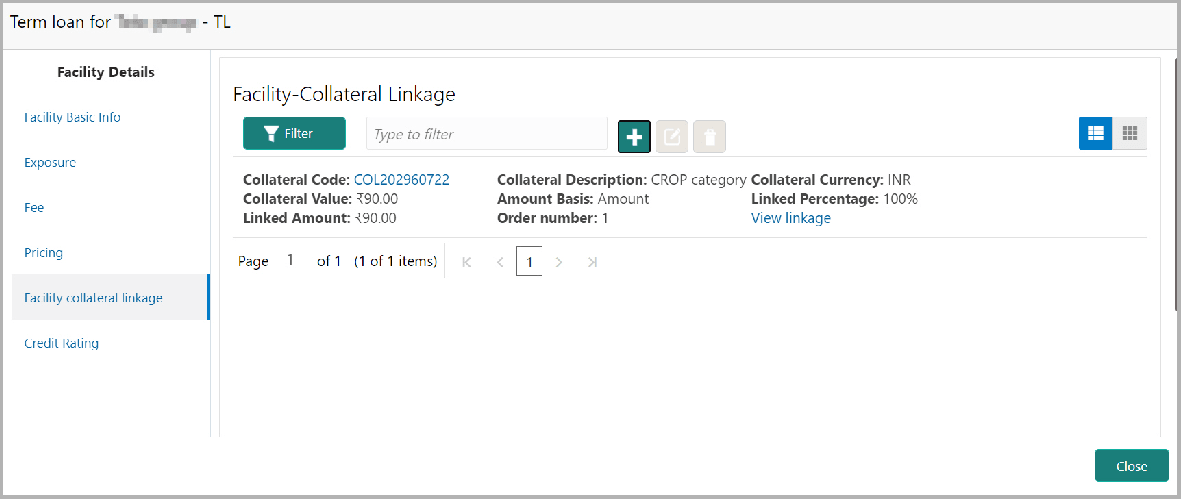
- Click Save. Facility Collateral Linkage details are added and displayed
as shown below:
Figure 3-70 Facility details
Parent topic: Proposal Initiation