5.1 Credit Evaluation
This topic provides systematic instructions about the Credit Evaluation
To perform credit evaluation for the customer, perform the following steps:
- From Home screen, click Tasks.
Under Tasks, click Free Tasks.The Free Tasks page is displayed.
Figure 5-1 Free Tasks
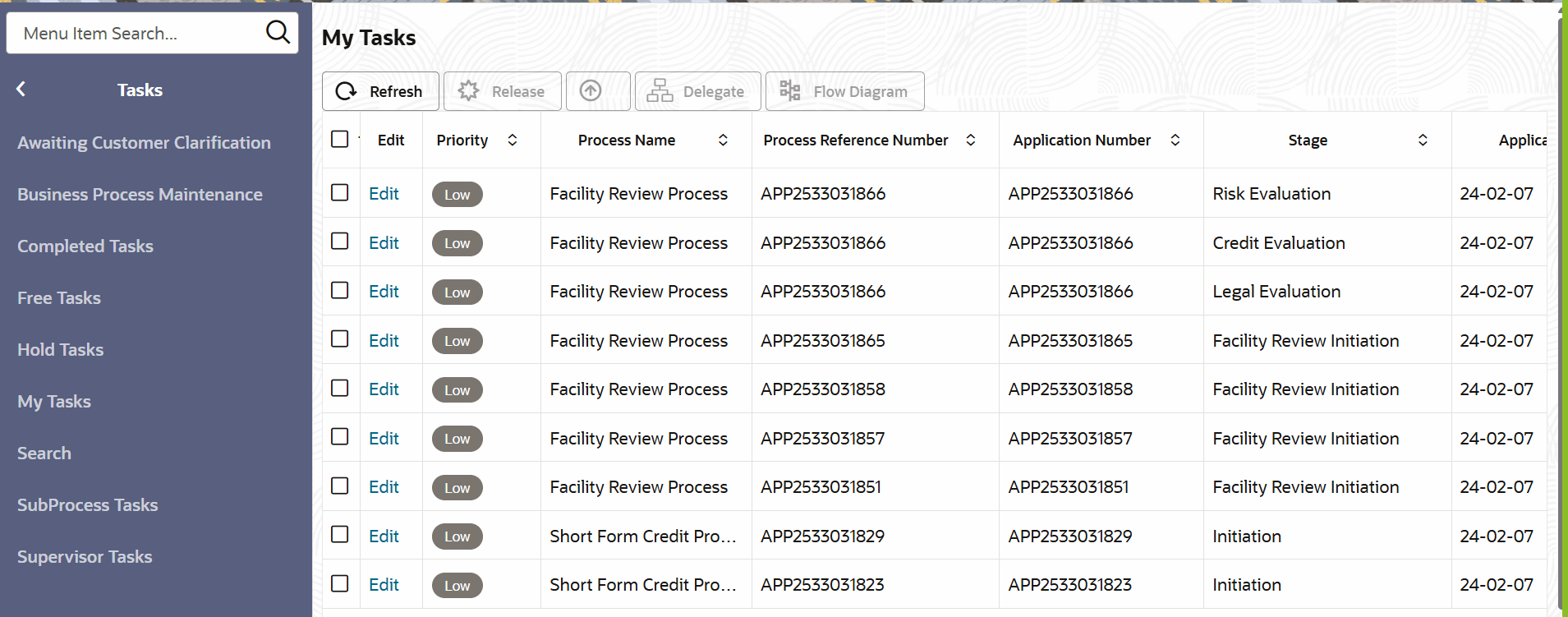
- Acquire & Edit the required Credit Evaluation task. The Credit
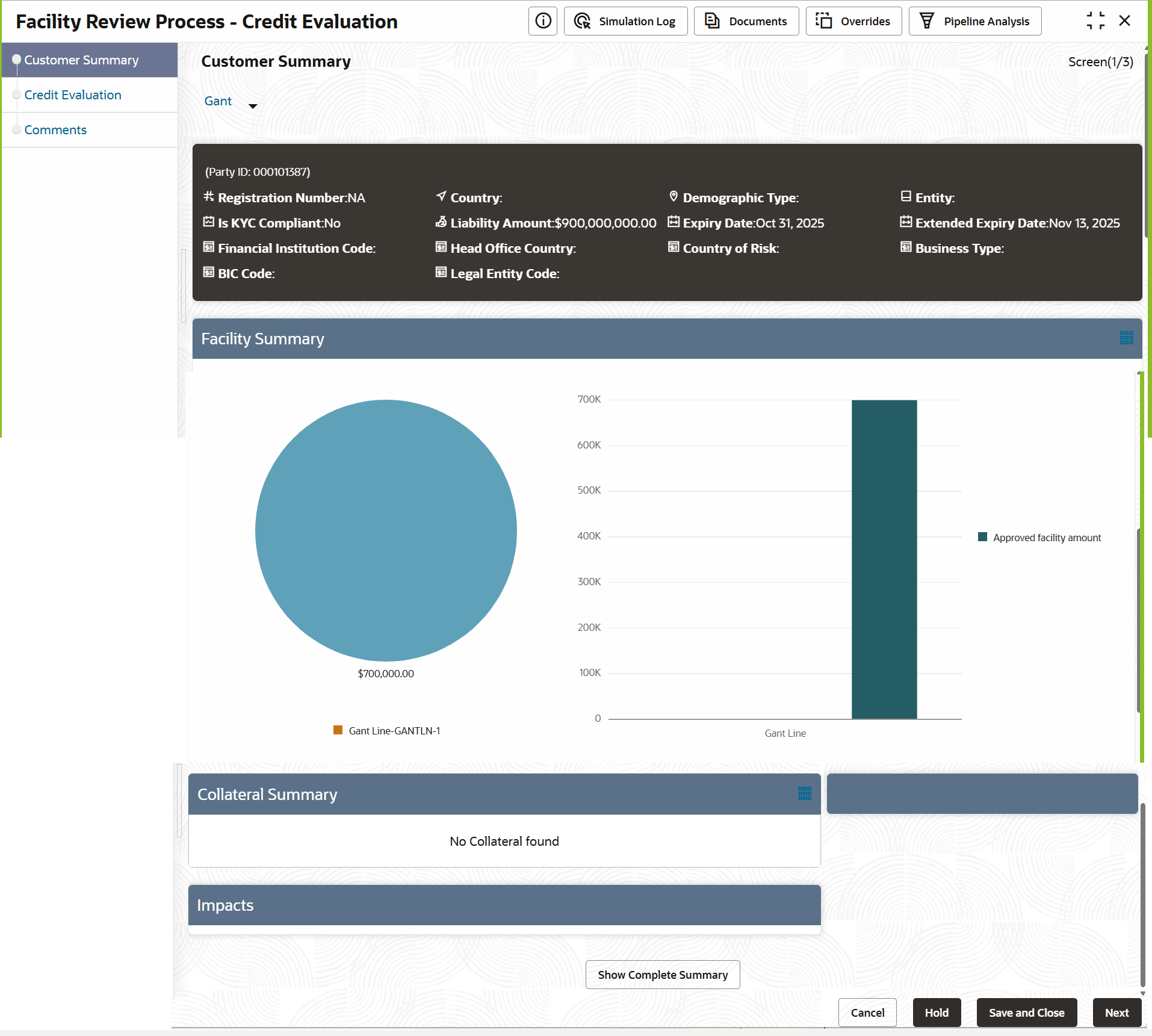
Evaluation - Customer Summary screen is displayed
Figure 5-2 Credit Evaluation - Customer Summary
Note:
For information on actions that can be performed in the Customer Summary page, refer Credit 360 User Guide. - Click Next after reviewing the Customer Summary.The Summary page is displayed.
- Click Facility Transfer to transfer the facility to another entity or
merge with different facility.
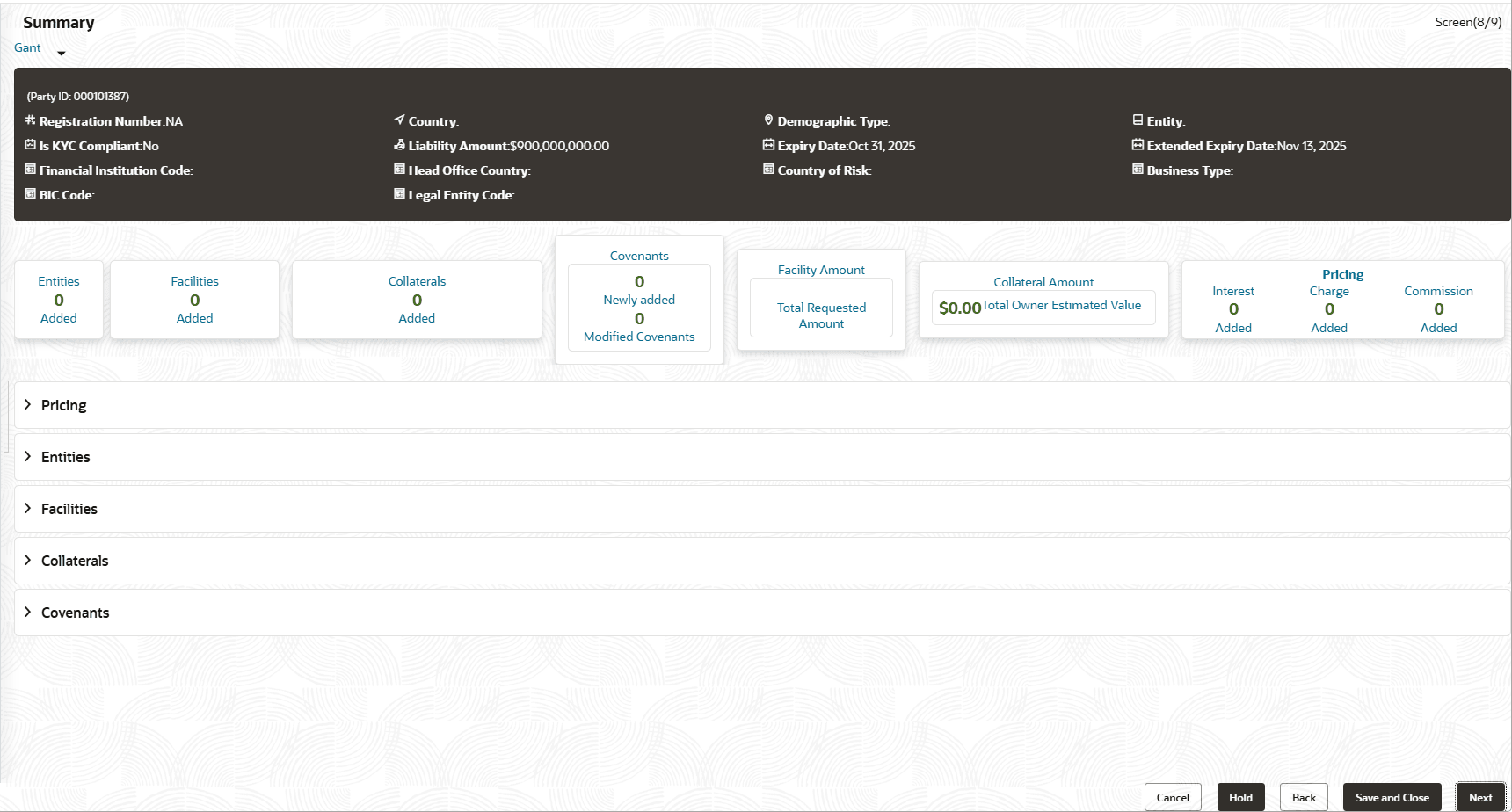
Figure 5-4 Summary
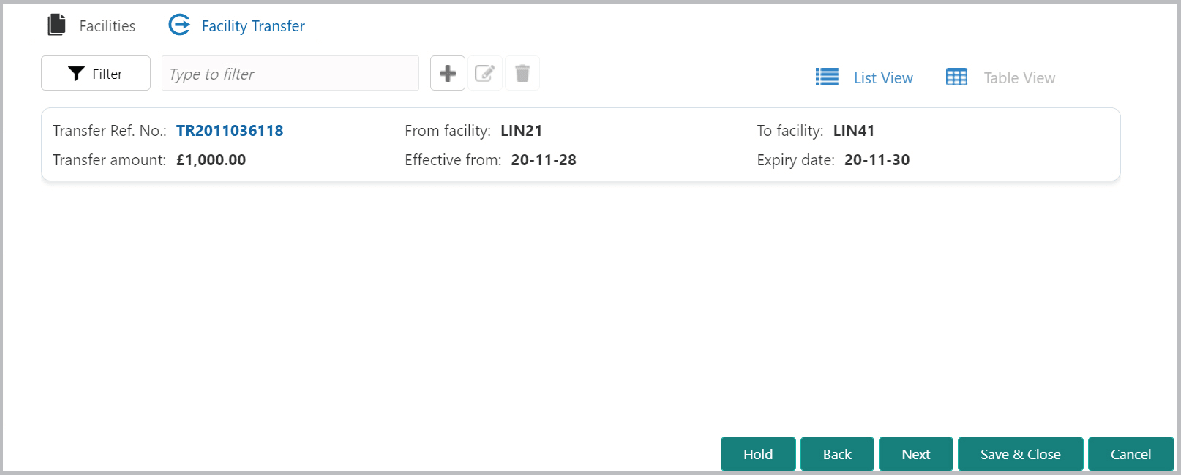
- Click the Add icon.The Transfer Facility window is displayed.
Figure 5-5 Transfer Facility
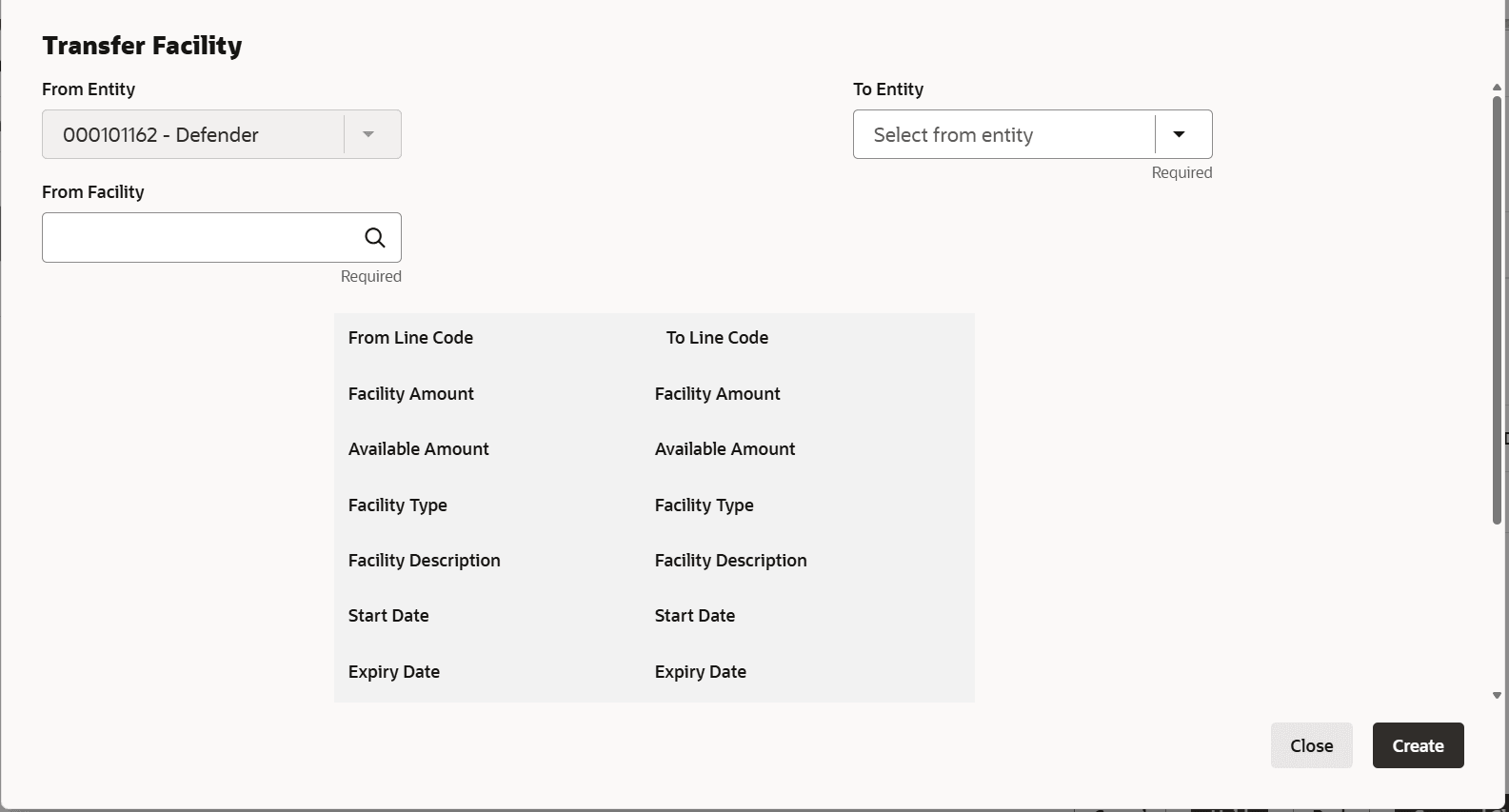
For field level information refer the below table.
Table 5-1 Transfer Facility
Fields Description From Entity In the Transfer Facility window, Party ID is automatically populated in the From Entity field. You cannot modify the From Entity detail. To entity Select the entity to which the facility has to be transferred from the To entity drop-down list. From Facility Select the facility from which amount has to be transferred from the From Facility drop-down list. Facilities available under the From entity are displayed in the list. To Facility Select the facility to which the amount has to be transferred from the To Facility drop-down list. Facilities available under the selected To entity are displayed in the list. Transfer Currency Select the Transfer Currency in which the amount has to be transferred. Transfer Amount Specify the amount to be transferred in the Transfer Amount field. Effective From Click the calendar icon in the Effective From field and select the date on which the transfer should happen. Expiry Date Click the calendar icon in the Expiry Date field and select the date on which the transferred amount should expire Create Click Create. Specified amount will be transferred to the target facility and the transfer details will be displayed in the Facility Transfer page. To update the facility transfer details, select the required item and click the Edit icon. The Transfer Facility window appears.
Update Modify the required details and click Update. Delete To delete the transfer details, select the required item and click the Delete icon. Table View To change the layout of Facility Transfer page to table view, click the Table View icon. Facilities To go back to the Facilities page, click Facilities next to the Facility Transfer. Facilities page appears. Note: For information on more actions that can be performed in the Facilities page and for Information on viewing and managing Collateral, Covenants and Terms and Conditions, refer Basic Info.
Entities To view the party details, click the Entities tab in Summary page. On selecting the entity and facilities, the system displays the following information about the from and to facilities:- Line Code
- Facility Amount
- Available Amount
- Facility Type
- Facility Name
- Start Date
- Expiry Date
You can optionally post comments while updating the transfer details, if required.
- To go to the Credit Evaluation page, click Next.
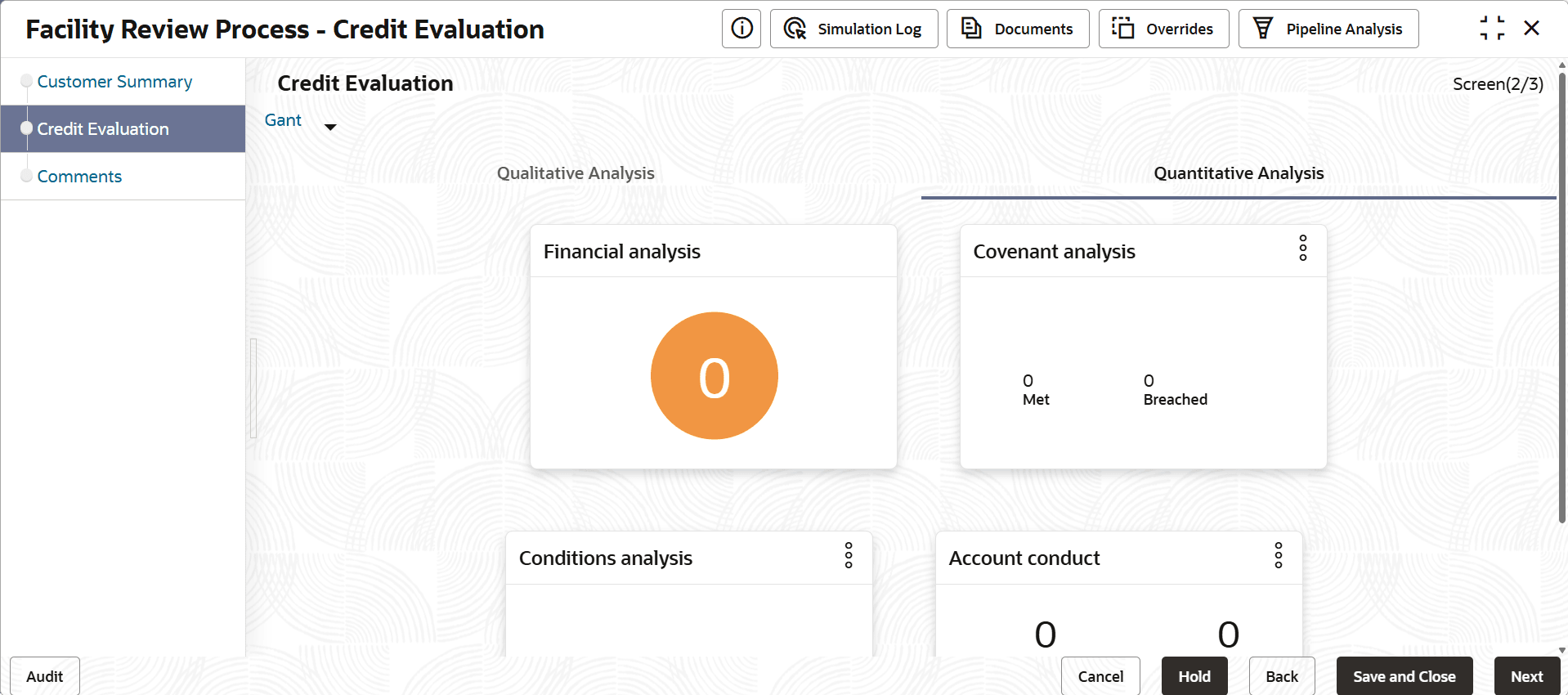
In Credit Evaluation page, you can perform the following analysis for the party and its child parties by answering simple questions related to the analysis:
- Quantitative Analysis
- Qualitative Analysis
The Quantitative Analysis comprises the following analysis for the customer:
- Creditor Analysis
- Debtor Analysis
- Global Economic
- Domestic Economic
- Sector Analysis
- Click Evaluate in any of the tile, the Questionnaire window is
displayed.
Figure 5-7 Questionnaire
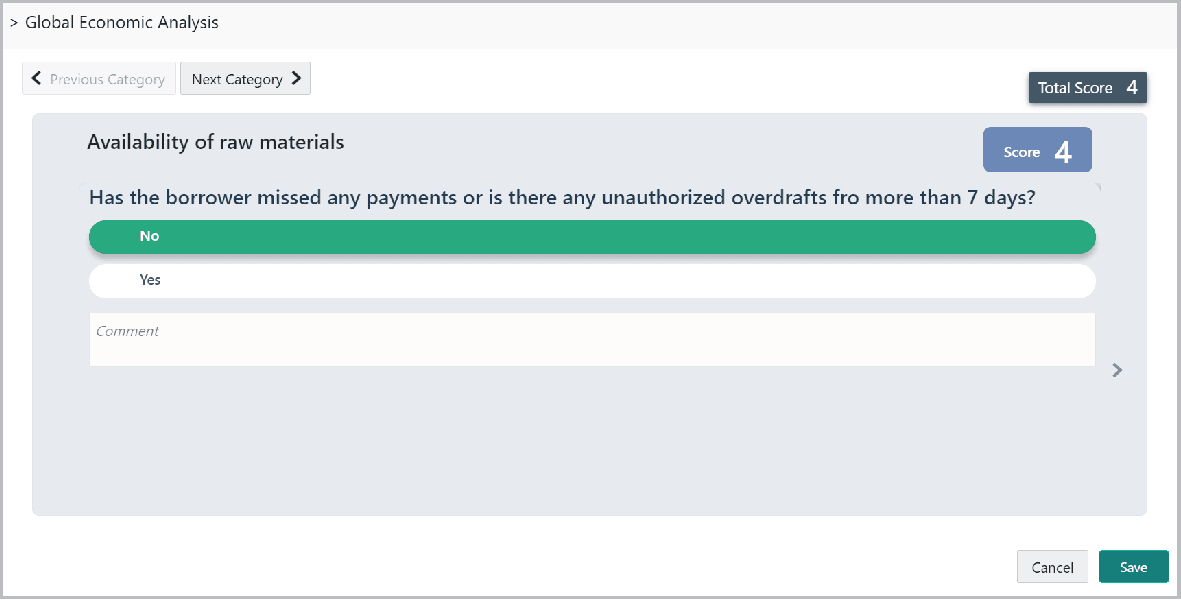
For information on fields Questionnaire screen, refer the below table.
Table 5-2 Questionnaire
Fields Description Next Category Select answers for the available questions and click Next Category. Right arrow Right arrow icon appears in case of multiple questions, click the Right arrow and answer all the questions in all the category. A score is generated and displayed for the sector based on each answer provided.
Save Click Save. Cumulative score is displayed in the Quantitative Analysis page as shown below: Figure 5-8 Credit Evaluation
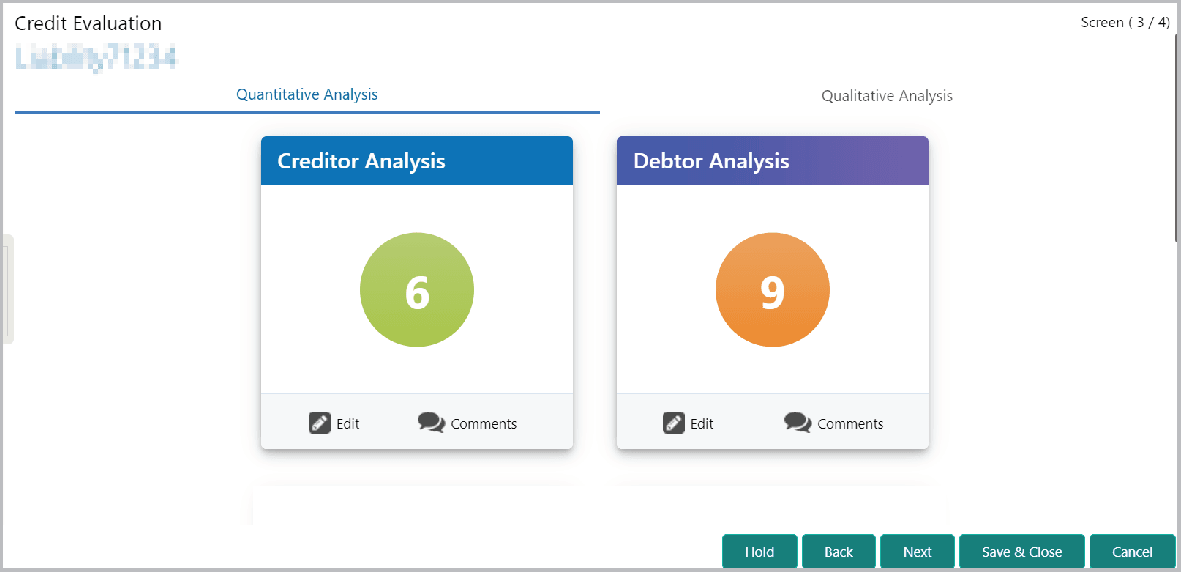
For Creditor and Debtor Analysis, the Creditor and Debtor details can be added directly from the questionnaire window.
Figure 5-9 Creditor Analysis
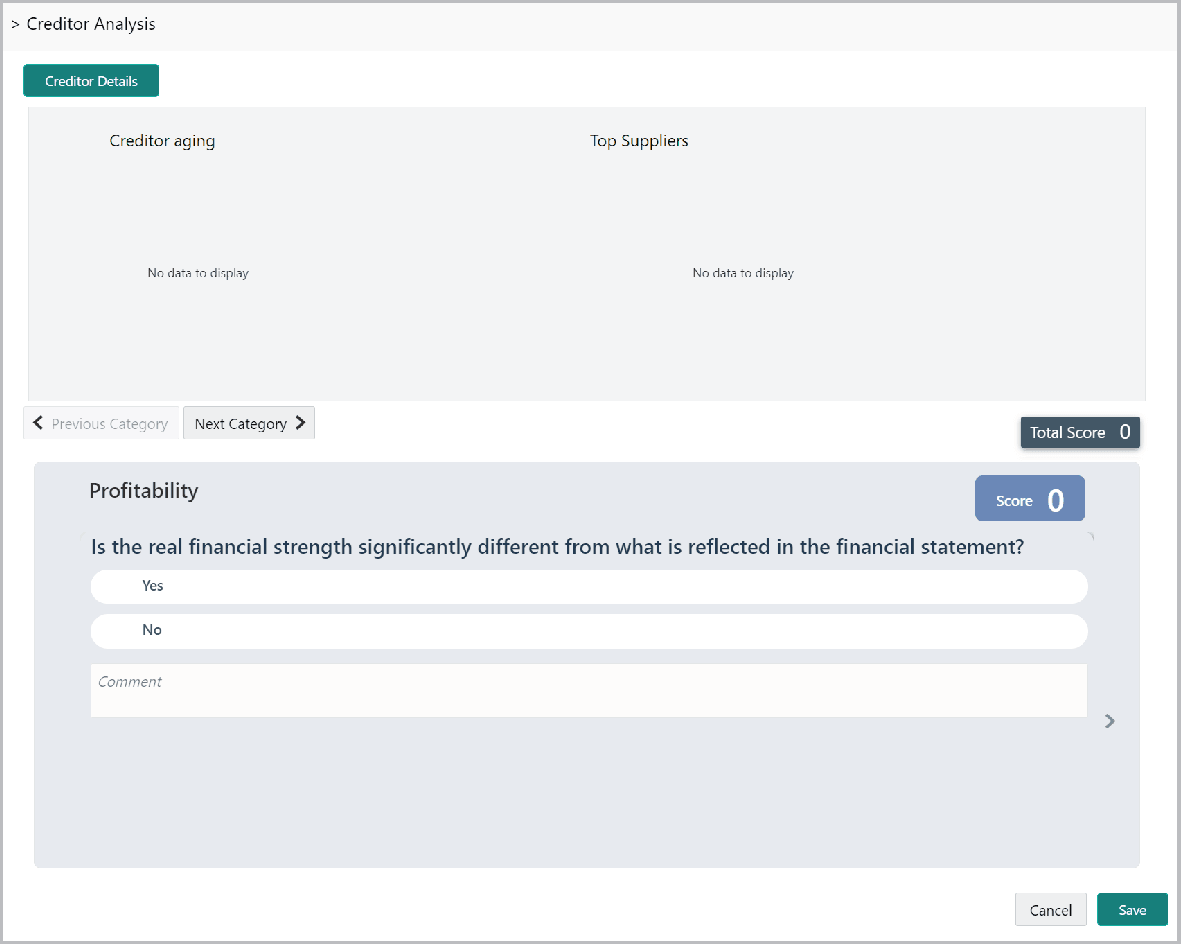
- Click the Creditor Details / Debtor Details in the Questionnaire
window.The Creditor Details / Debtor Details window is displayed.
Figure 5-10 Creditor Details
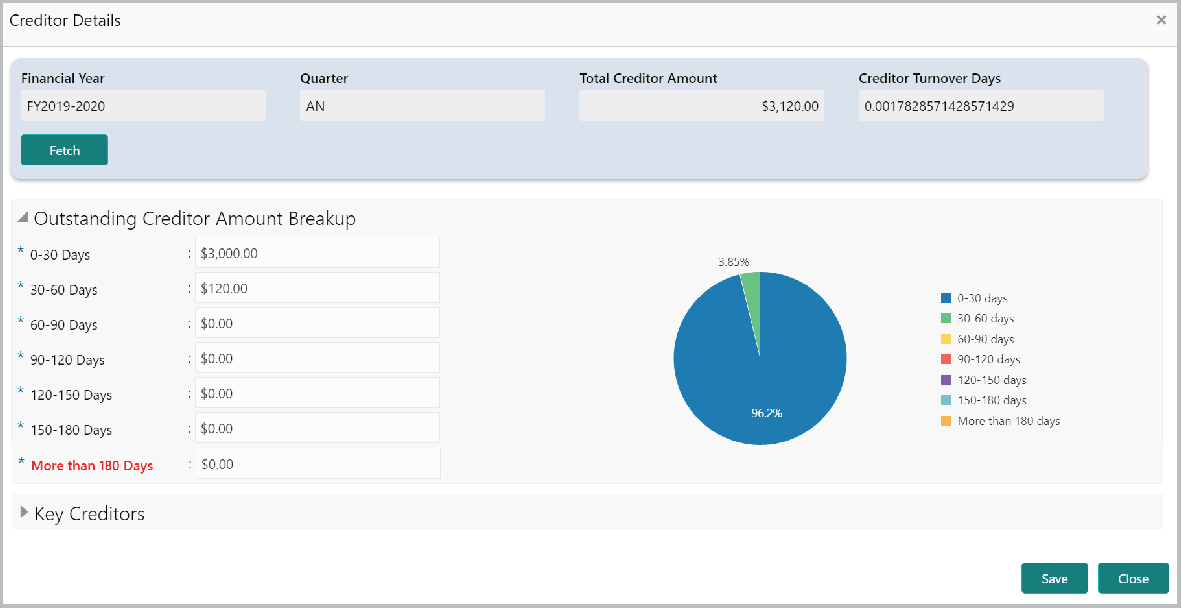
For information on fields in Creditor Details screen, refer the below table.
Table 5-3 Creditor Details
Fields Description Fetch Fetch the Creditor / Debtor Details for the required period. Add To add Key Creditor / Key Debtor, click and expand the respective section and then click the Add icon. Save After adding the information, click Save. - After performing the quantitative analysis, click Qualitative Analysis
tab.The Qualitative Analysis page is displayed.
Figure 5-11 Credit Evaluation
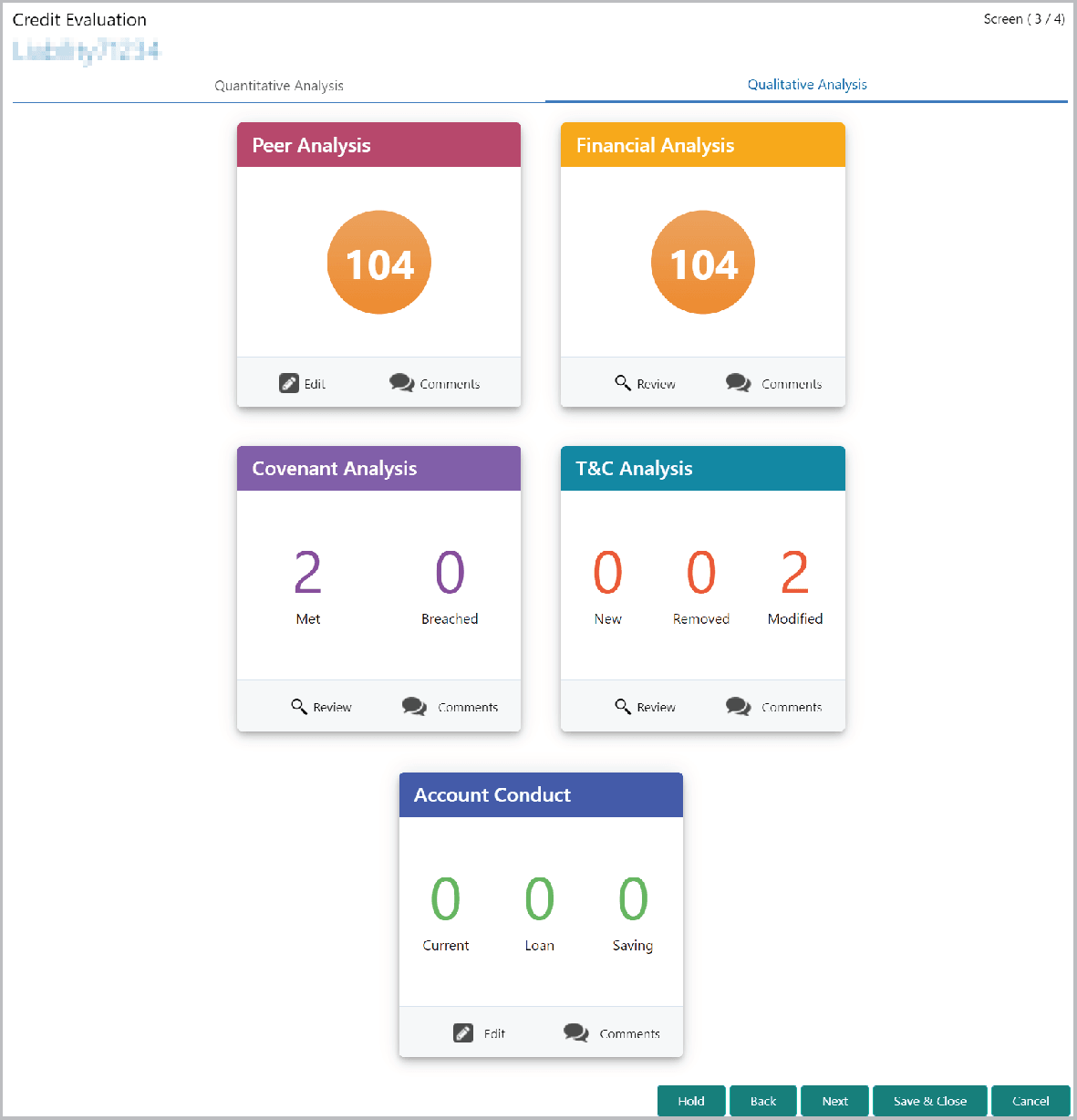
- To analyze the account conduct of customer, click Evaluate in Account
Conduct tile.
Figure 5-12 Corporation - Amount conduct
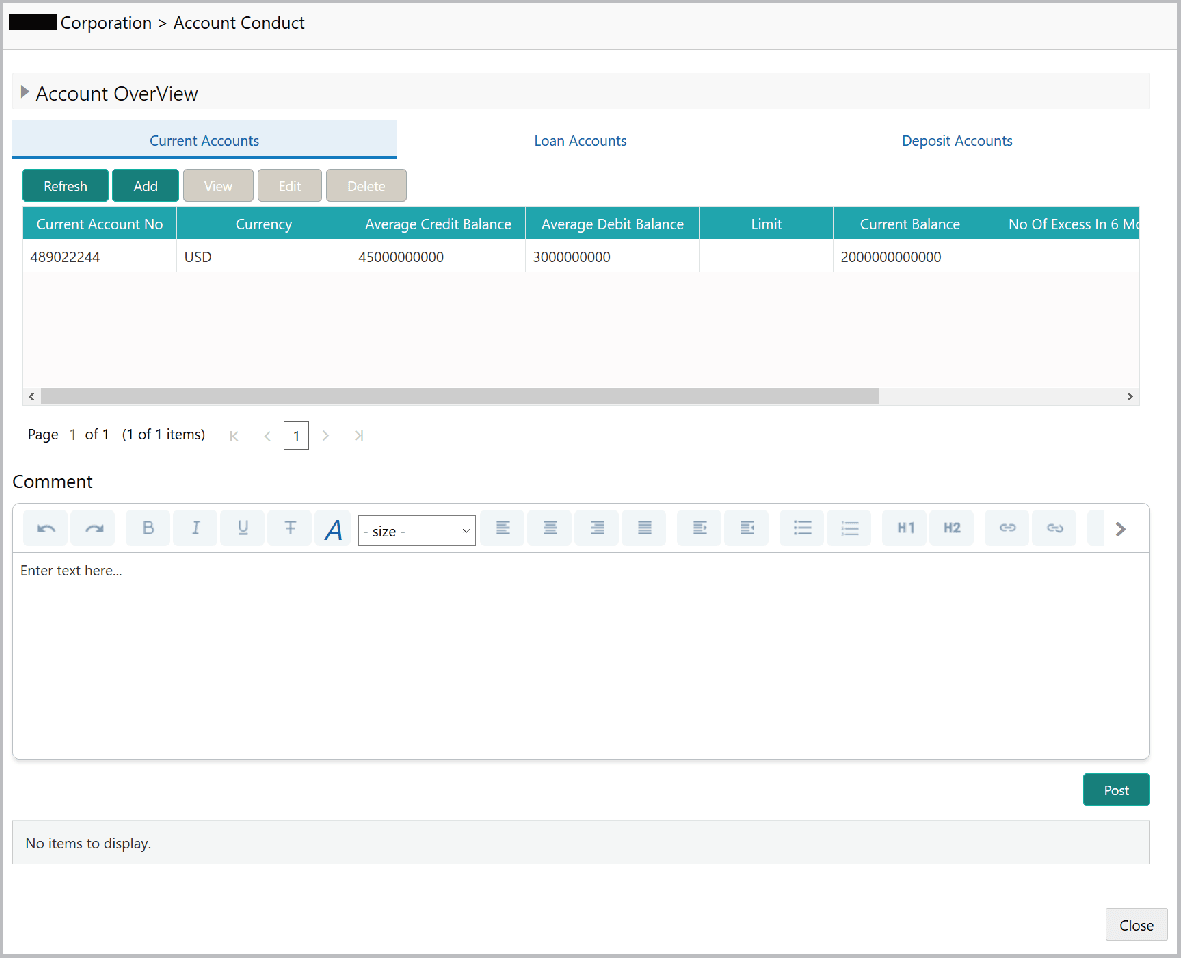
For information about the fields refer the below table.
Table 5-4 Corporation - Amount conduct
Fields Description Account Overview To view the summary of current, loan and deposit accounts, click and expand Account Overview section. Add To add the current account, click Add. The Current Account Performance Details window is displayed.Figure 5-13 Current Account Performance Details
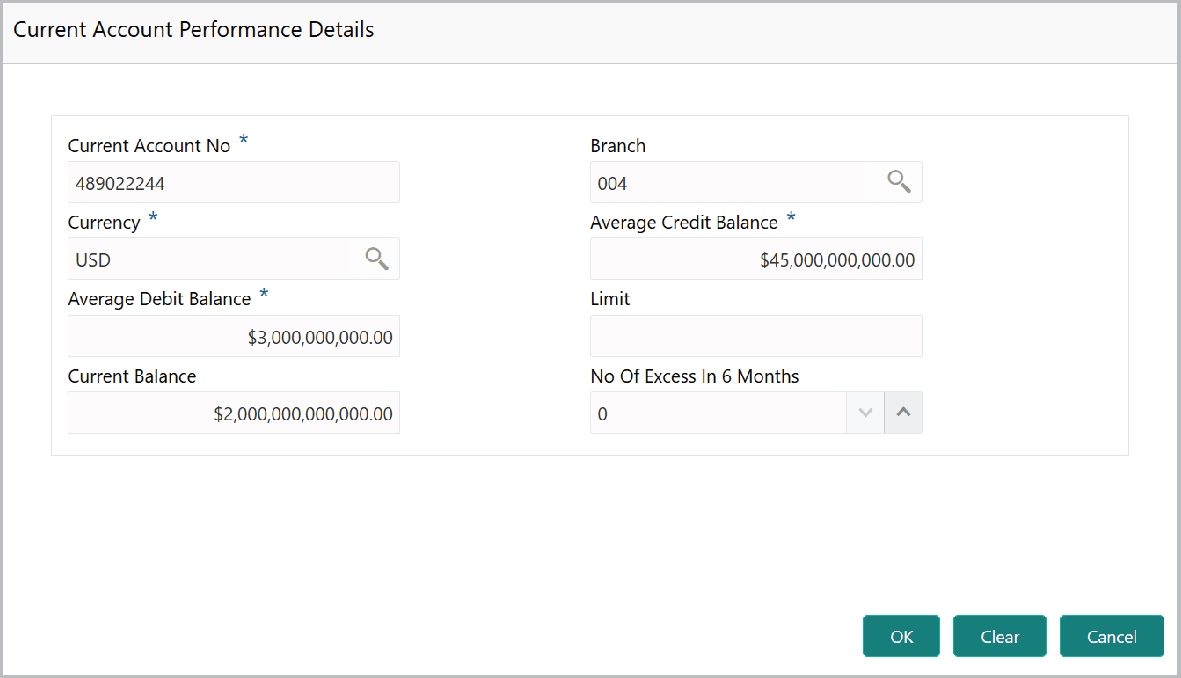
For field level information refer the below table.
Table 5-5 Current Account Performance Details
Fields Description Current Account No Enter the Current Account No. Branch Search and select the Branch. Currency Search and select the Currency. OK Click OK. Details are added and displayed in Current Accounts page. Refresh To refresh the current account list, click Refresh. View To view the current account details, select the current account and click View. Edit To modify the current account details, select the current account and click Edit. Delete To delete the current account details, select the current account and click Delete. Details Specify the following details in corresponding fields: - Average Credit Balance
- Average Debit Balance
- Limit
- Current Balance
- No Of Excess in 6 Months
- To add the loan account, click the Loan Accounts tab and then click
Add.The Loan Account Performance Details window appears:
Figure 5-14 Loan Account Performance Details
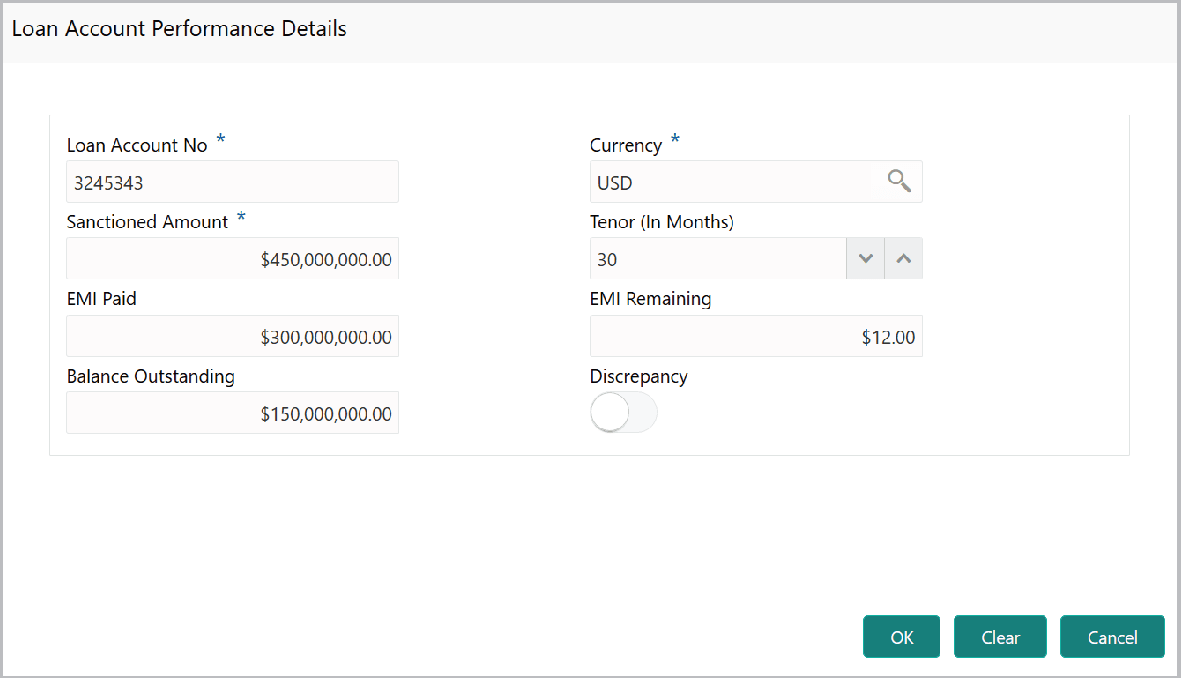
For field level information refer the below table.
The Deposit Account Performance Details window is displayed.Table 5-6 Loan Account Performance Details
Fields Description Loan Account No Enter the Loan Account No. Currency Search and select the Currency. Discrepancy If there is a discrepancy in payment, enable the Discrepancy option. OK Click OK. Details are added and displayed in Loan Accounts page. Refresh To refresh the loan account list, click Refresh. View To view the loan account details, select the loan account and click View. Edit To modify the loan account details, select the loan account and click Edit. Delete To delete the loan account details, select the loan account and click Delete. Add To add the deposit account, click the Deposit Accounts tab and then click Add. Figure 5-15 Deposit Account Performance Details
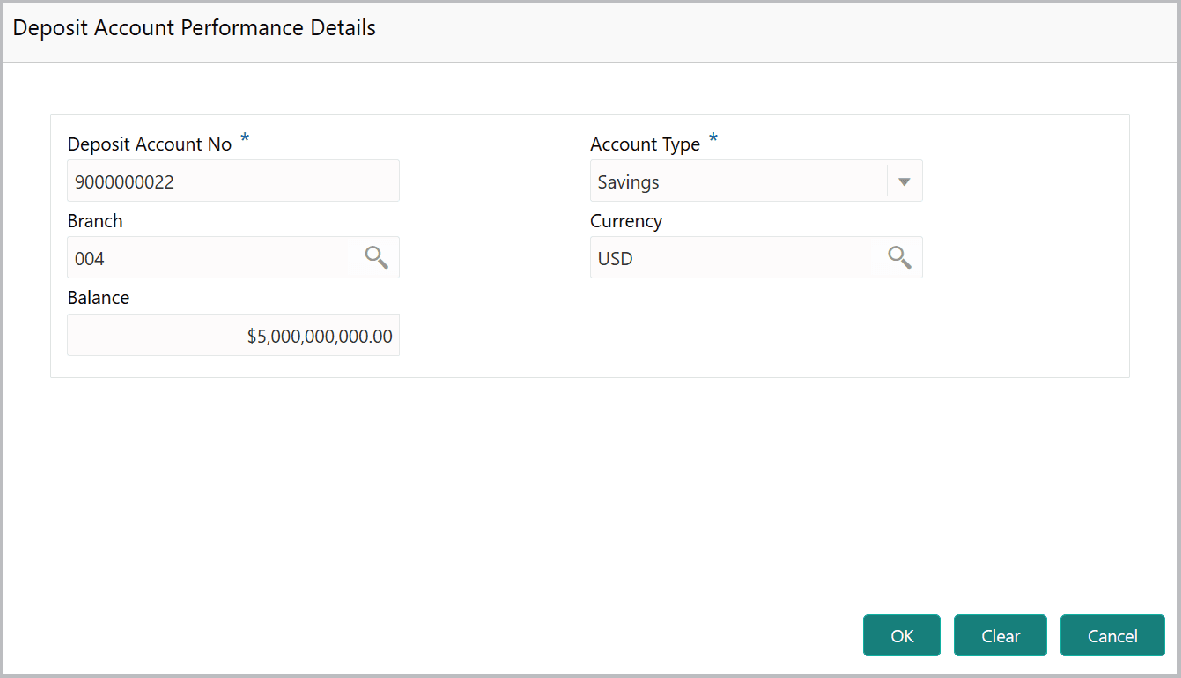
For field level information refer the below table.
The Peer Analysis window is displayed.Table 5-7 Deposit Account Performance Details
Fields Description Deposit Account No Enter the Deposit Account No. Account Type Select the Account Type from the drop-down list. Branch Search and select the Branch and Currency. Currency Search and select the Branch and Currency. Balance Specify the Balance in deposit account. OK Click OK. Details are added and displayed in Deposit Accounts page. Refresh To refresh the deposit account list, click Refresh. View To view the deposit account details, select the deposit account and click View. Edit To modify the deposit account details, select the deposit account and click Edit. Delete To delete the deposit account details, select the deposit account and click Delete. Post Post the Comments for the account conduct. Account Conduct Close the Account Conduct window. A score is generated for the account conduct and displayed in the Qualitative Analysis window. Evaluate To evaluate the customer’s performance against its peer, click Evaluate in Peer Analysis tile. Figure 5-16 Peer Analysis
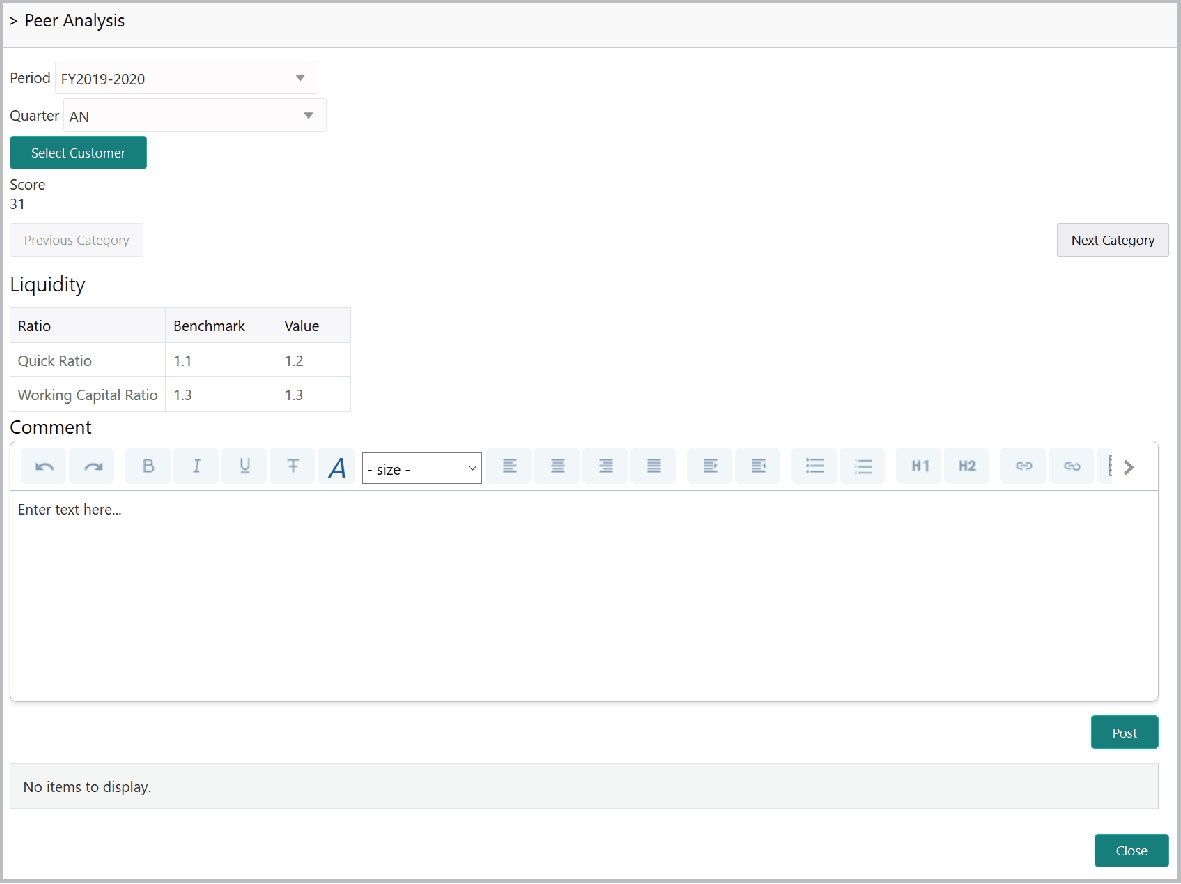
For field level information refer the below table.
The Financial Analysis window is displayed.Table 5-8 Peer Analysis
Fields Description Period Select the Period and the Quarter for which you want to view peer analysis score. Quarter Select the Period and the Quarter for which you want to view peer analysis score. Select Customer Click Select Customer and fetch the required peer customer. The system displays the following details for the selected peer along with a score: - Liquidity
- Efficiency
- Profitability
- Solvency
Next Category To view each of the above details, click Next Category. Post Post the Comment for the Peer Analysis. Close Click Close. The score is displayed in the Qualitative Analysis window. Evaluate To evaluate financial performance of the customer, click Evaluate in Financial Analysis tile. Figure 5-17 Financial Analysis
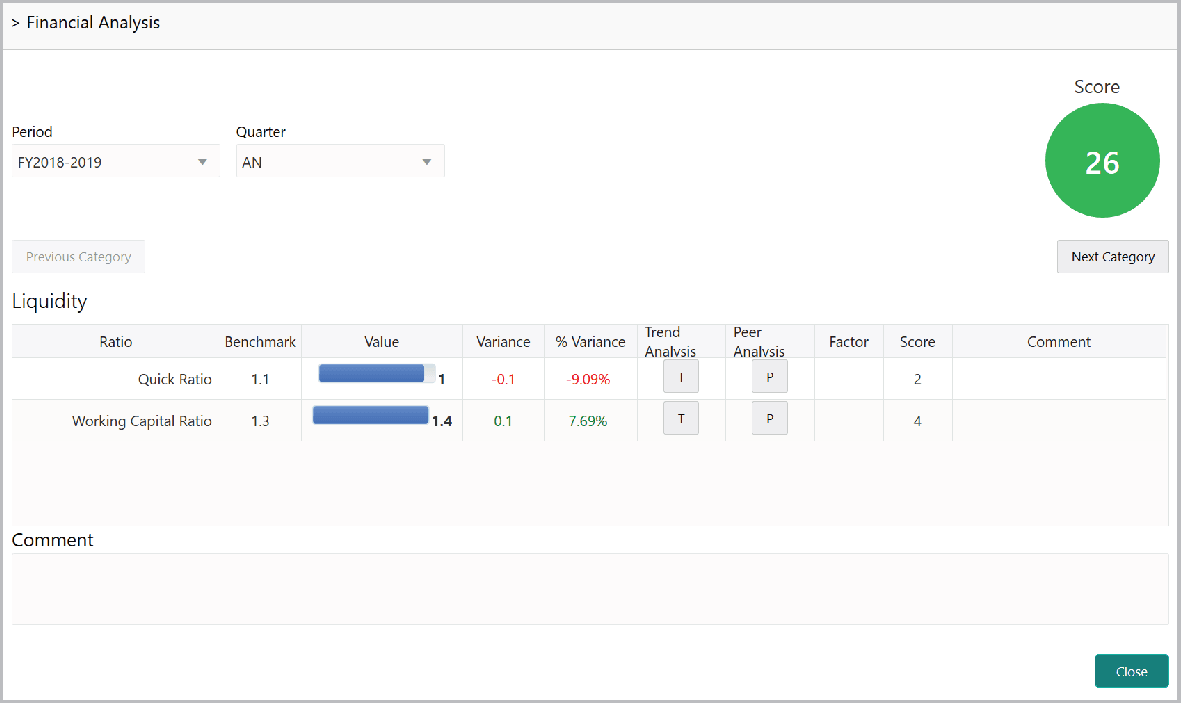
For field level information refer the below table.
The Covenant Analysis window is displayed.Table 5-9 Financial Analysis
Fields Description Period & Quarter Select the Period and the Quarter for which you want to view the financial analysis score. The system displays the following details of the customer for the selected period along with a score: - Liquidity
- Efficiency
- Profitability
- Solvency
Next Category To view each of the above details, click Next Category. Comment Post the Comment for the Financial Analysis. Close Click Close. The score is displayed in the Qualitative Analysis window. Evaluate To view the covenant compliance status of the customer, click Evaluate in the Covenant Analysis tile. Figure 5-18 Covenant Analysis
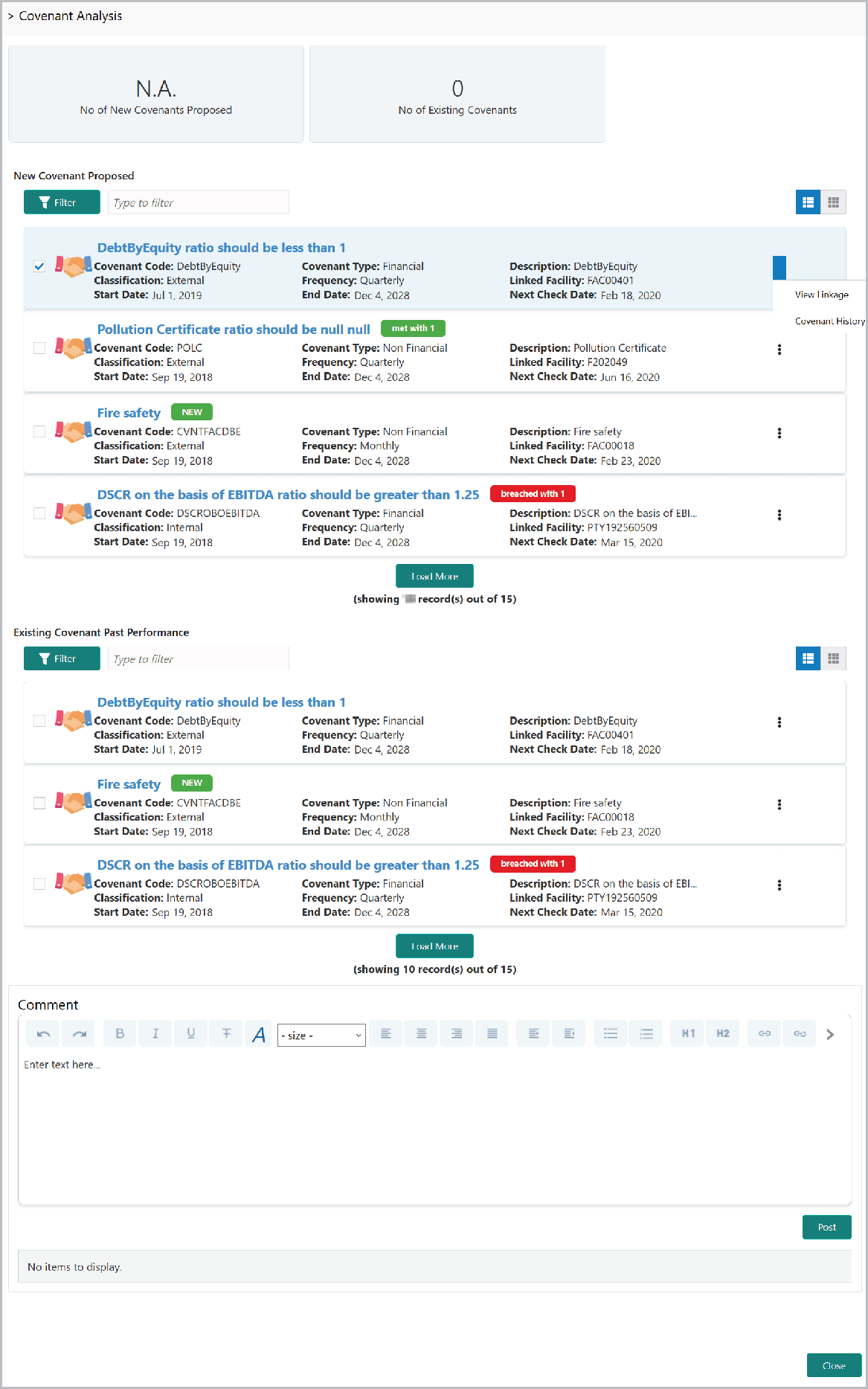 In Covenant Analysis window, the following details are displayed:
- New Covenant Proposed
- Existing Covenant Past Performance
For field level information refer the below table.
The T&C Analysis window is displayed.Table 5-10 Covenant Analysis
Fields Description Filter To filter the required new and existing covenants, click the Filter icon and specify the filter parameters or directly type the parameter in Type to filter text box. Table view To change the layout to table view, click the Table view icon. View Linkage To know with which entity a particular covenant is linked, click the hamburger icon in the covenant record and select View Linkage. Covenant History To view the covenant history, click the hamburger icon in the covenant record and select Covenant History. Close After viewing the covenant details, Post the Comments and click Close. Met and Breached covenants are displayed in Covenants tile. Review To view the terms & conditions compliance status of the customer, click Review in T&C Analysis tile. Figure 5-19 T&C Analysis
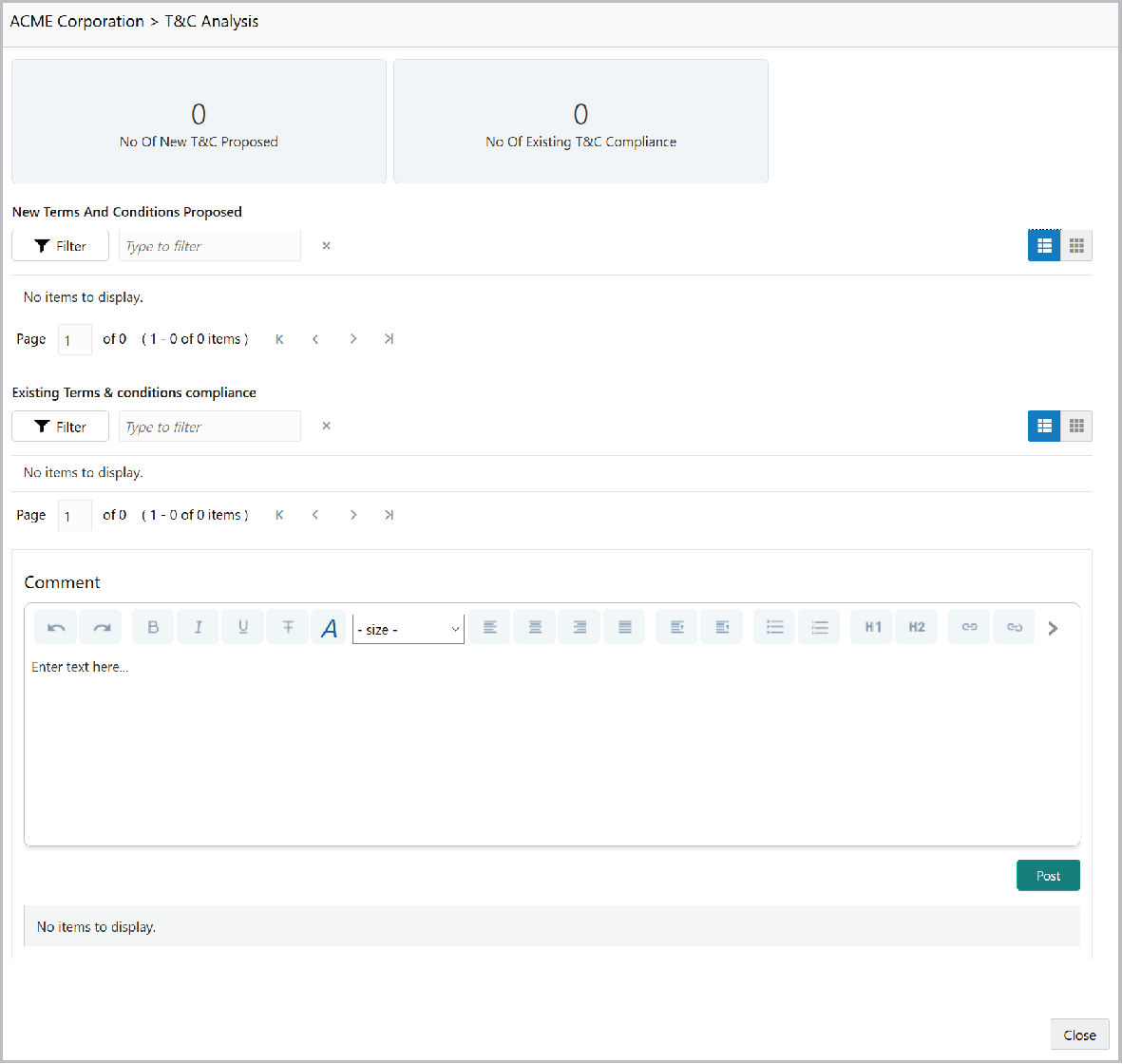
In the T&C Analysis window, the following information are displayed:
- New Terms And Conditions Proposed
- Existing Terms & conditions compliance
For field level information refer the below table.
The Comments page is displayed.Table 5-11 T&C Analysis
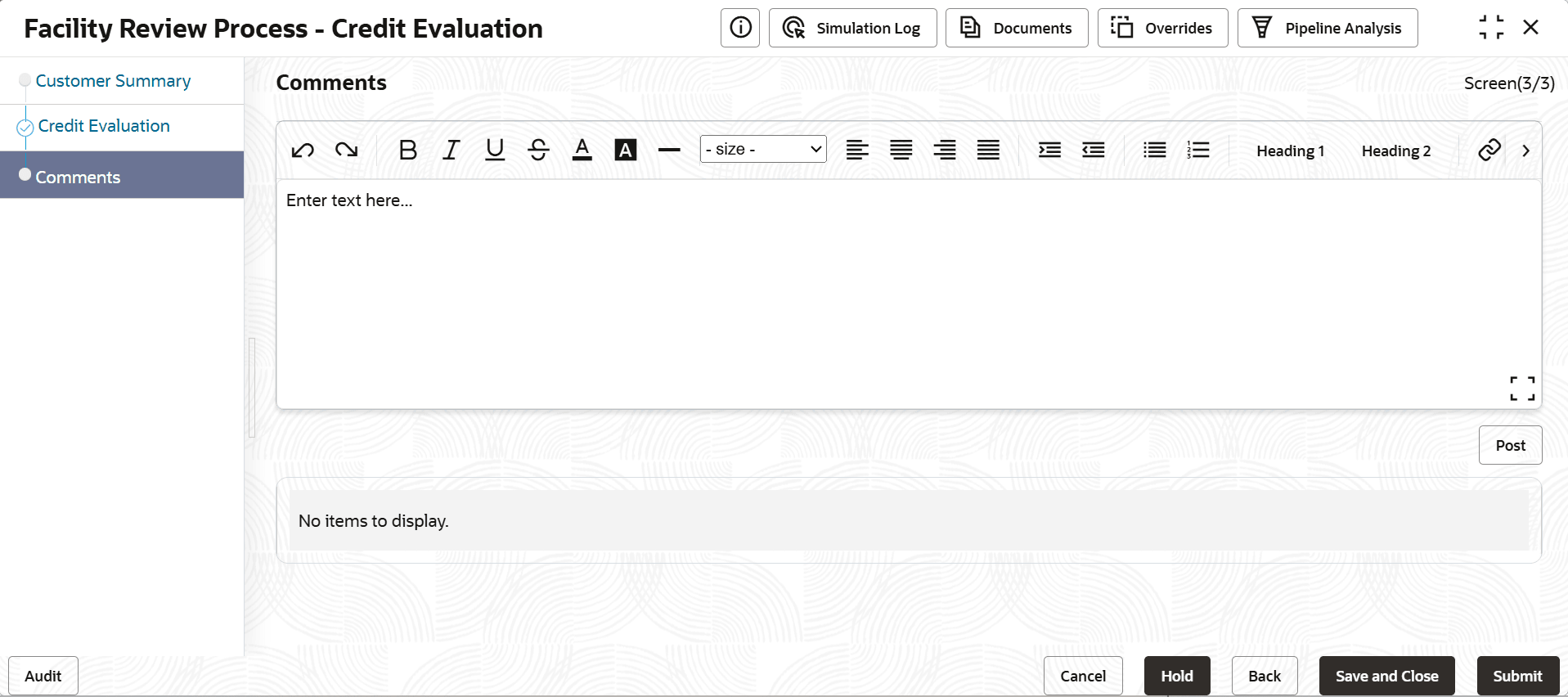
Fields Description Filter To filter the required terms and conditions, click the Filter icon and specify the filter parameters or directly type the parameter in Type to filter text box. Table view To change the layout to table view, click the Table view icon. D To delete a terms and conditions record, select the record and click the D icon. V To view more information about the terms and conditions, select the record and click the V icon. Post After reviewing the terms and conditions, Post the Comments and click Close. Count of New, Removed and Modified terms and conditions is displayed in the T&C Analysis tile. Edit To modify the terms and conditions record, click Edit in the corresponding tile. Comment To capture comments for the terms and conditions analysis, click Comment in the corresponding tile. Next After performing qualitative analysis for both the party and its child parties, click Next in the Credit Evaluation page. For field level information on Comments screen refer the below table.
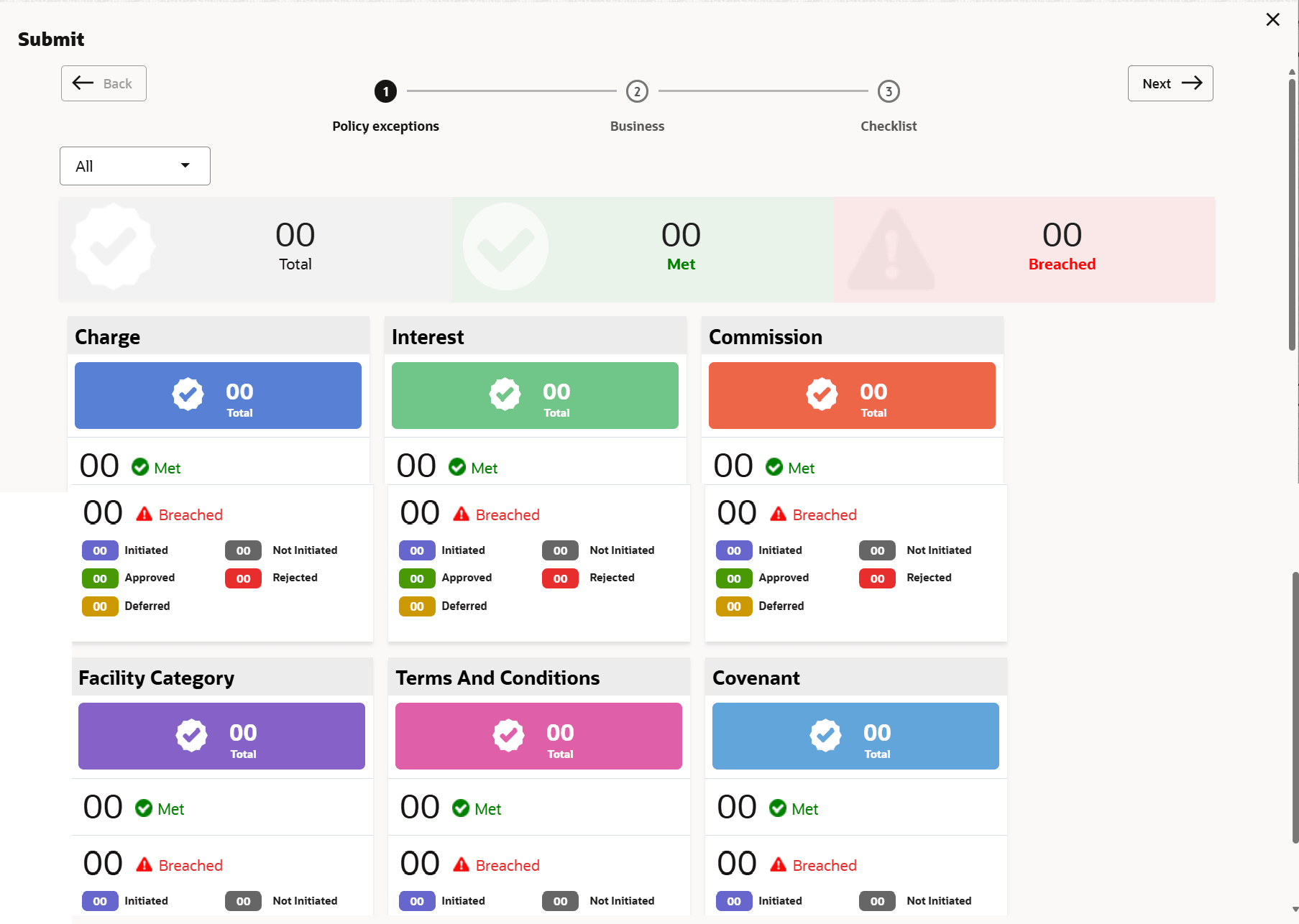
The Policy Exception window is displayed.Table 5-12 Comments
Fields Description Comments Type the overall Comments for the credit evaluation and click Post. Comment is posted below the Comments box. Submit Click Submit. By default, policy exceptions are displayed for both the party and its child party.
For field level information on Policy Exception screen refer the below table.
Table 5-13 Policy Exception
Fields/ Icons Description Child party To view the policy exception detail specific to party or child party, select the party from the drop down list at top left corner. Checklist Click the Checklist data segment. For field level information on Checklist screen refer the below table.
Table 5-14 Checklist
Fields Description Outcome Select the Outcome as Proceed, if additional information is not required. Otherwise select the Outcome as Additional Info. Submit Click Submit. Note:
For information on Write up data segment, refer Proposal Initiation Chapter.
Parent topic: Proposal Evaluation