3.15 Customer Covenants
- To add covenant details, click Customer Covenants from the left menu.
The following screen is displayed.
Figure 3-24 Party Details
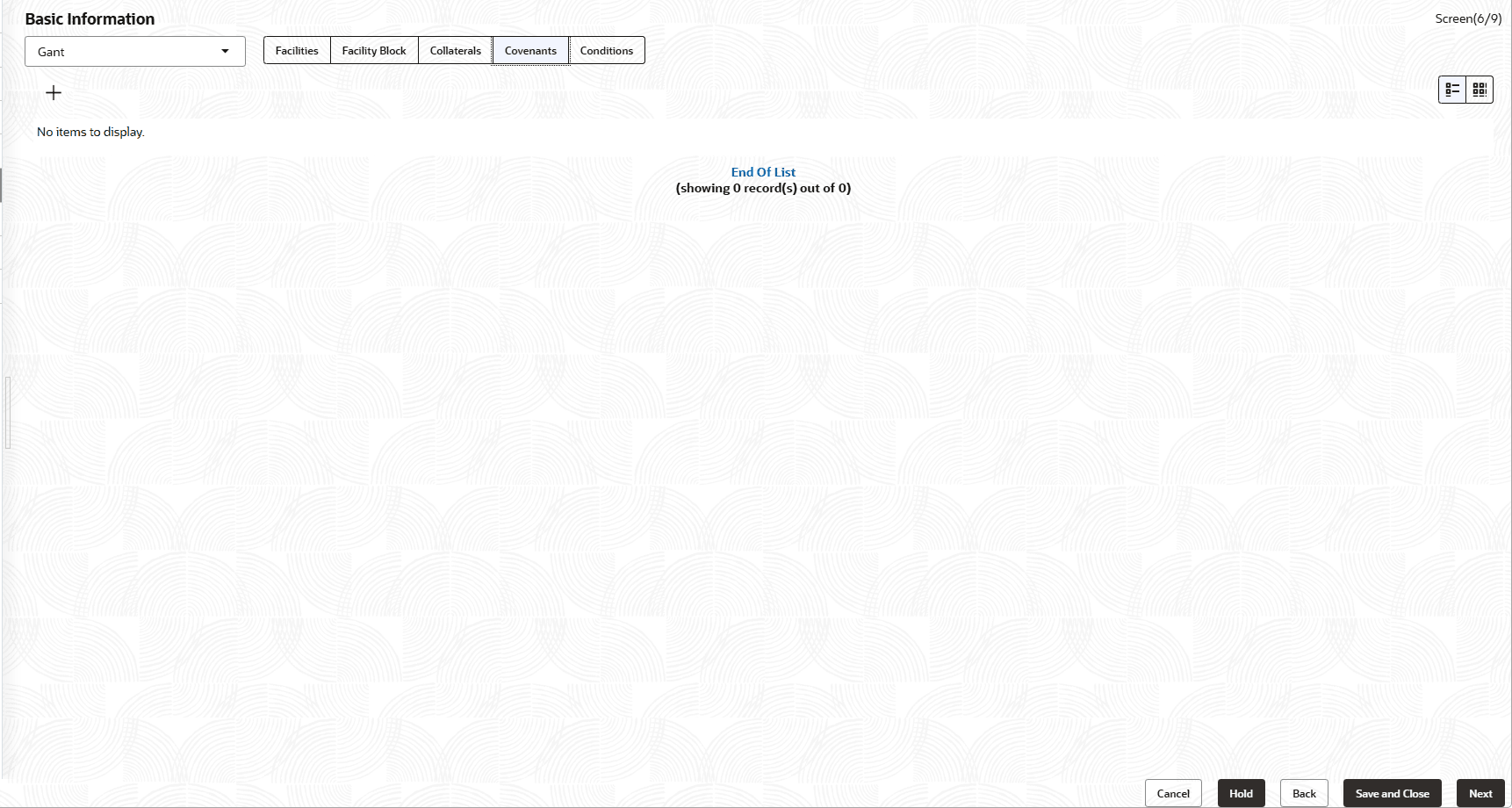
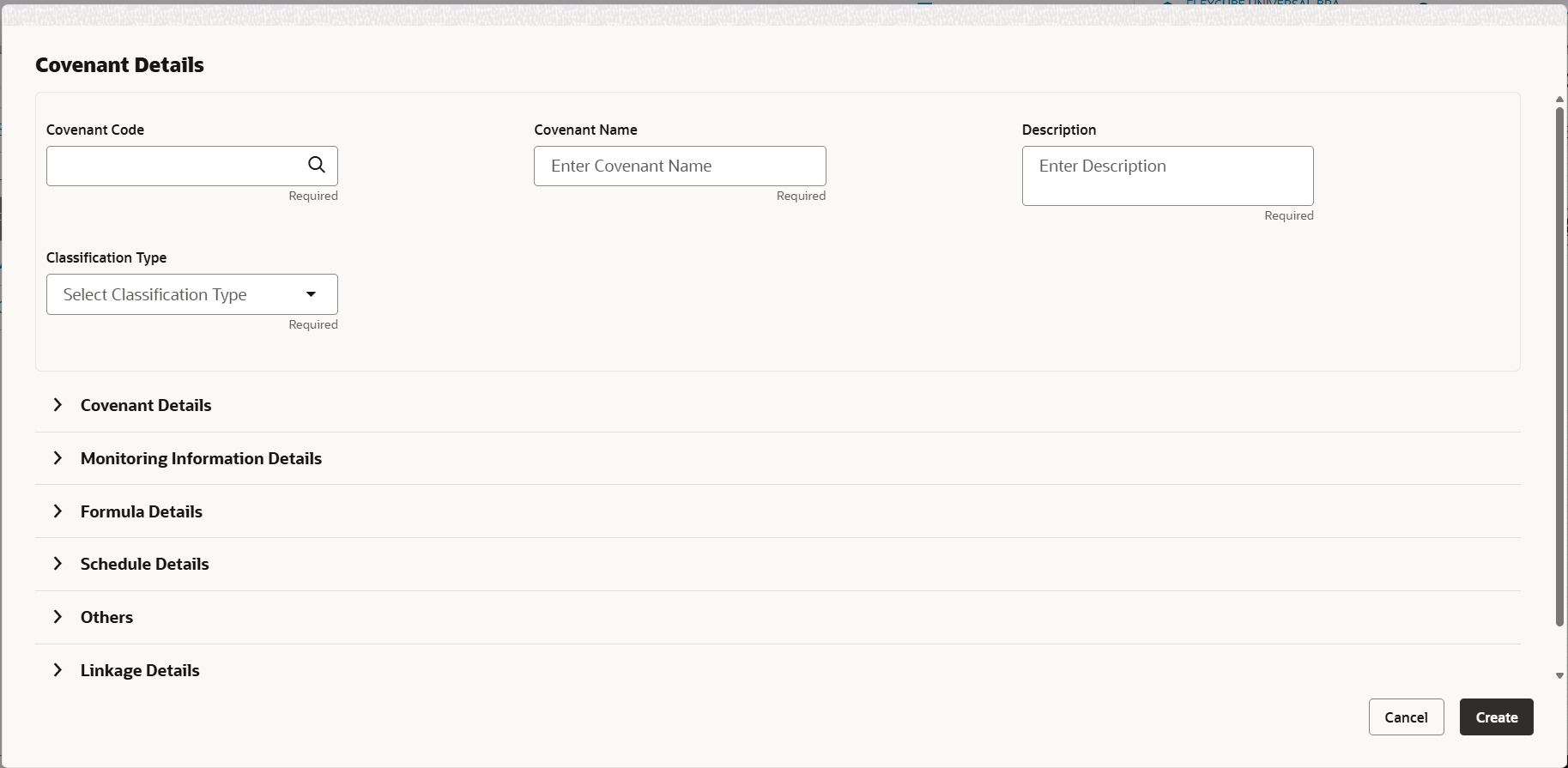
- Click the Add icon.The Covenant Details window is displayed.
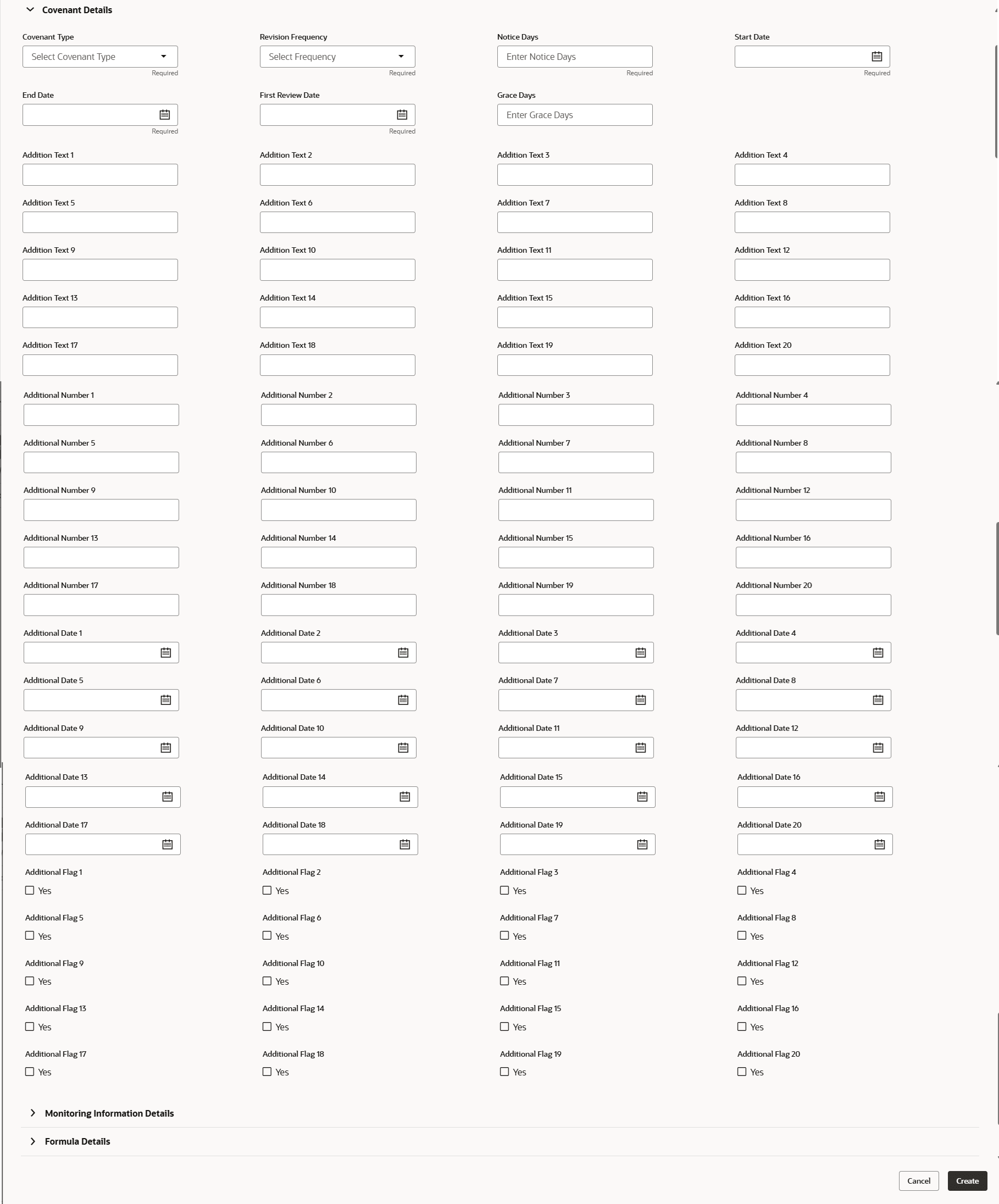
For process Covenant Details, user can set up extra placeholder fields in the Maintenance screen. For more information on managing these placeholders, refer to the Maintenance User Manual.
The system supports configuration of up to 20 fields each for the following data types:- Text
- Numeric
- Boolean
- Date
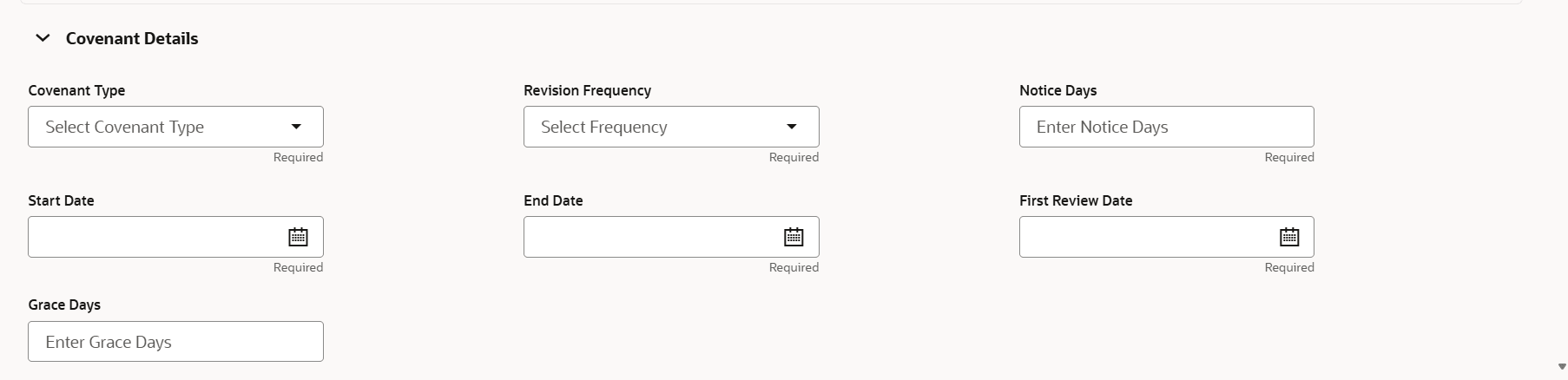
Each field type allows a minimum of 0 and a maximum of 20 fields per Covenant details, based on the requirements. These fields displays in the Covenant Details screen only if they are configured. If no additional fields are defined, the screen will display only the standard covenant details fields.
For example, we maintained 20 additional fields each for text, numeric, boolean, and date.
The Covenant Details screen displays. - Click and expand the Covenant details section.
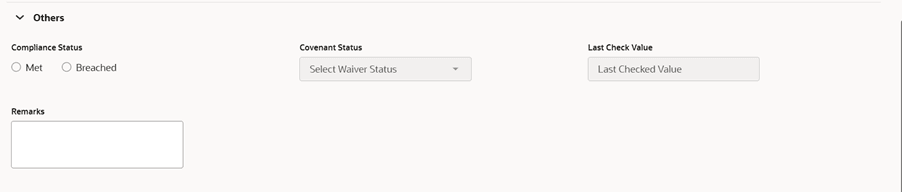
- Click and expand the Others section.
For field level information refer the below table.
Table 3-11 Others
Fields Description Compliance Status Select the Compliance Status. Waiver Status Select the Waiver Status. Last Check Value Enter the Last Check Value. Deferred due date Click the calendar icon and select the Deferred due date. - To capture the monitoring information for the covenant, click and expand the
Monitoring Information Details section.

Parent topic: Proposal Initiation