14 Handoff - Manual Retry
This topic provides systematic instructions about the Handoff - Manual Retry.
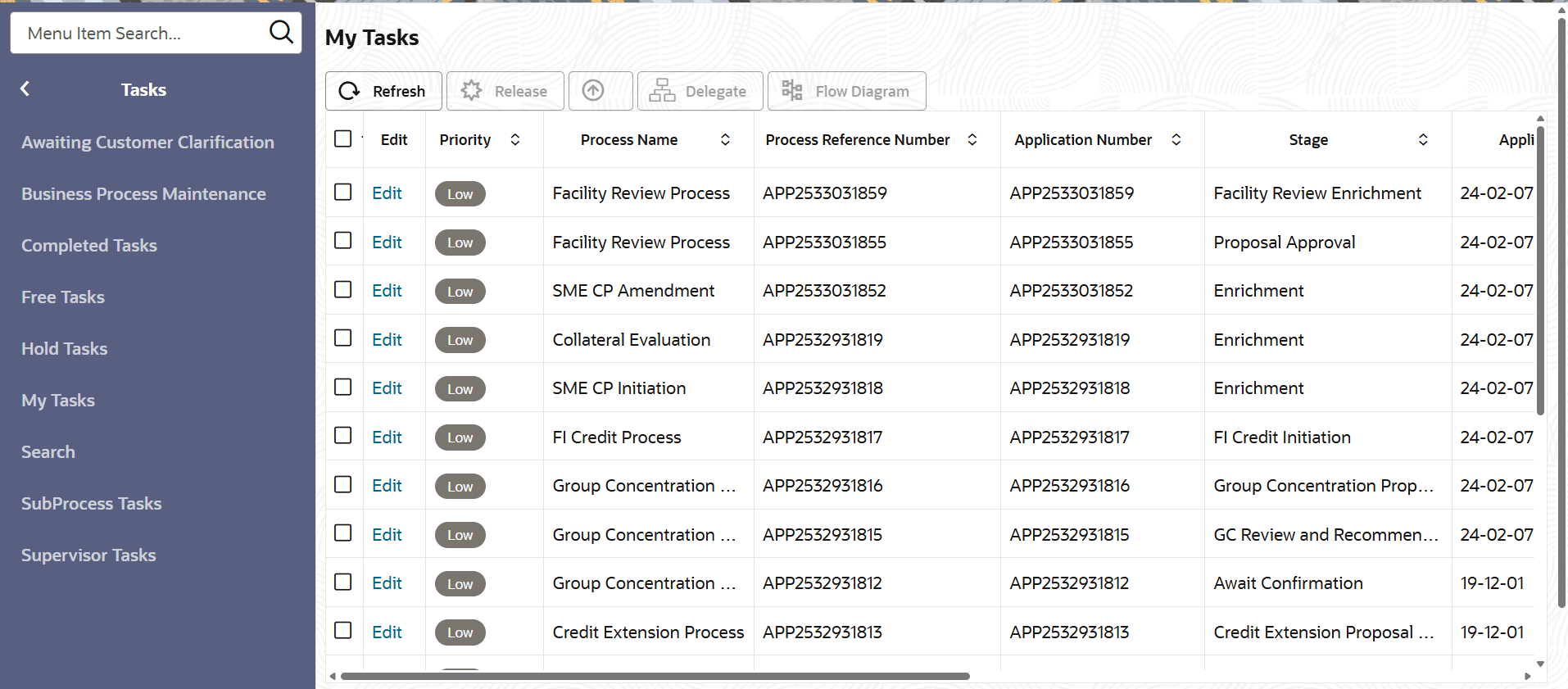
- From Home screen, click Tasks.
Under Tasks, click Free Tasks.The Free Tasks page is displayed.
- Acquire & Edit the required Manual Retry Task.The Manual Retry - Customer Summary page is displayed.
Figure 14-2 Manual Retry - Customer Summary
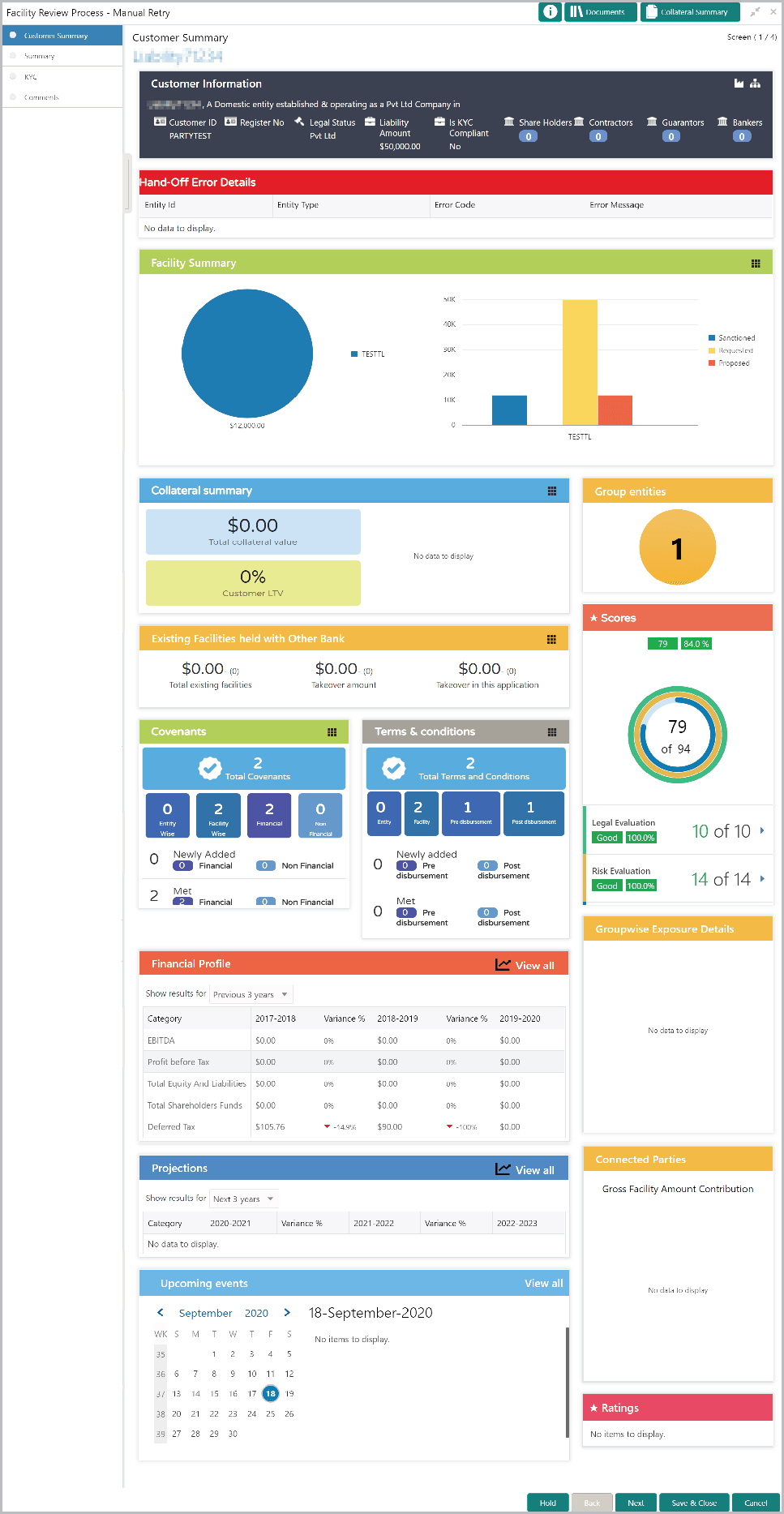
In Customer Summary page the hand-off error details are displayed.
- Click Next. The Summary page is displayed.For information on actions that can be performed in the Summary page, refer Proposal Structuring - Summary.
On clicking Next in the Summary page. The Limit Configuration page is displayed.
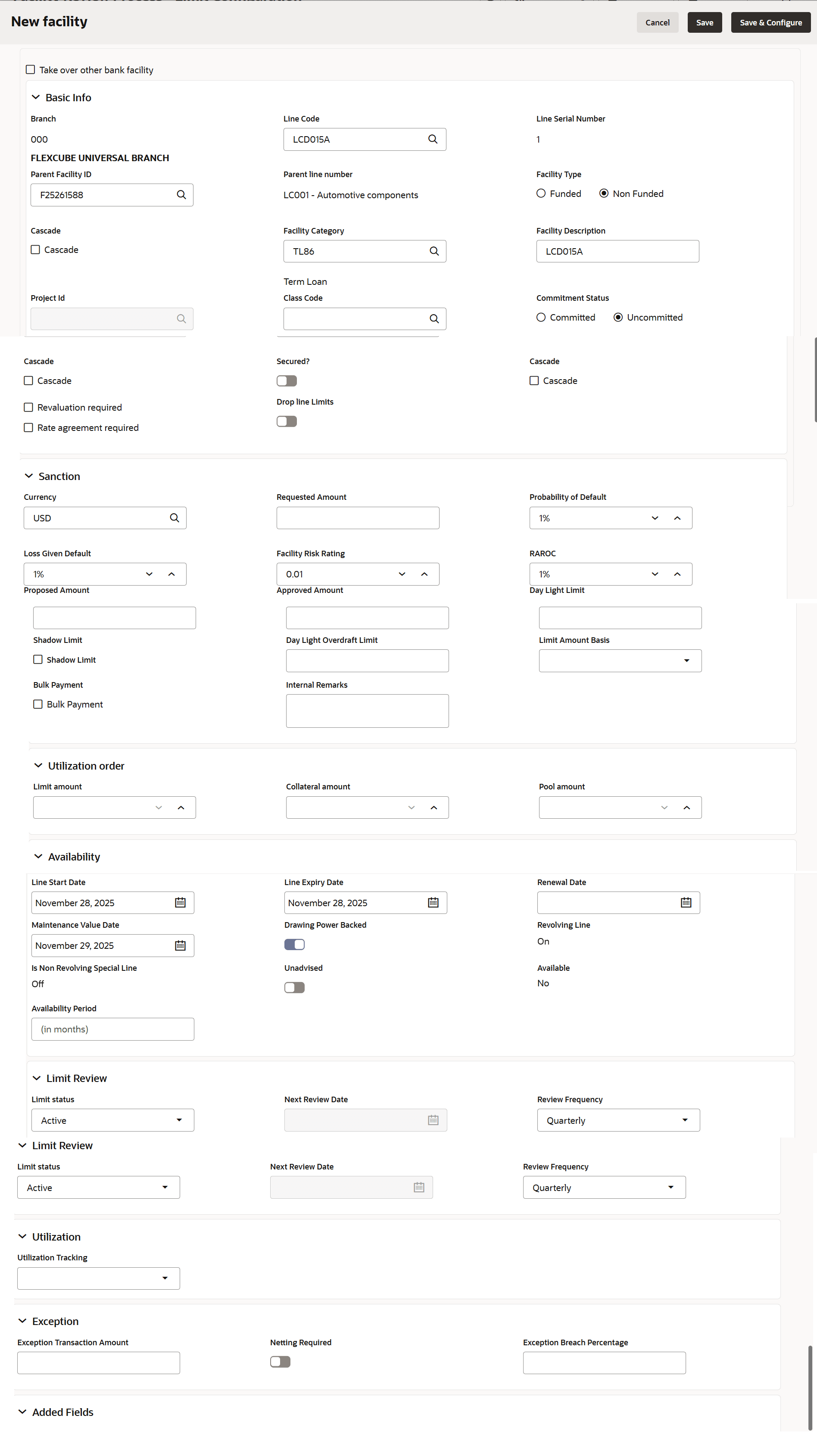
In Limit Configuration page, Facilities, Collaterals, Covenants and Terms & Conditions added during the proposal initiation / added in previous stages of Facility Review process are displayed.
- Click and expand the Limit Details section.
For field level information refer the below table.
Table 14-1 Limit Details
Fields Description Is Revolving Line? To set the facility as revolving facility, enable Is Revolving Line? option. Is UnAdvised Currency? If the currency of the facility is unadvised, enable Is UnAdvised Currency? option. Available To make the facility available, enable the Available option. Netting Required Specify is Netting Required for the facility. Shadow Limit Enable Shadow Limit option, if required. Line Start Date To specify the facility validity, click the calendar icon and select the Line Start Date. Line Expiry Date To specify the facility validity, click the calendar icon and select the Line Expiry Date. Review Frequency Select the Review Frequency for the facility. Renewal Date Click the calendar icon and select the Renewal Date for the facility. Exception Transaction Amount Specify the limit allowed for the facility in Exception Transaction Amount field. Exception Breach Specify the breach limit for the facility in Exception Breach field. Day Light Limit Specify the Day Light Limit and Day Light OD Limit for the facility. Day Light OD Limit Specify the Day Light Limit and Day Light OD Limit for the facility. - Click and expand the Restrictions section.
Figure 14-5 Restrictions
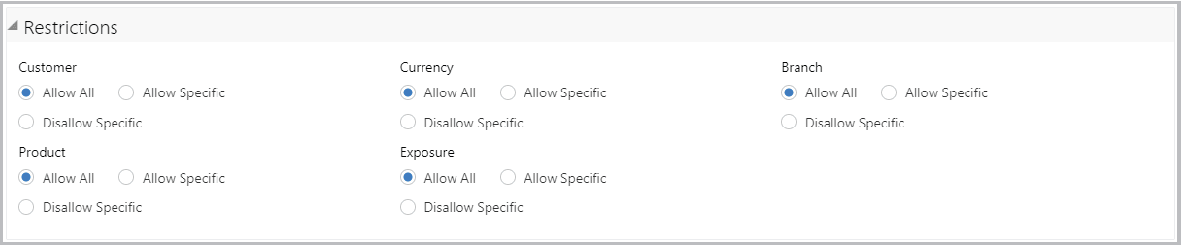
For field level information on Restrictions screen refer the below table.
Table 14-2 Restrictions
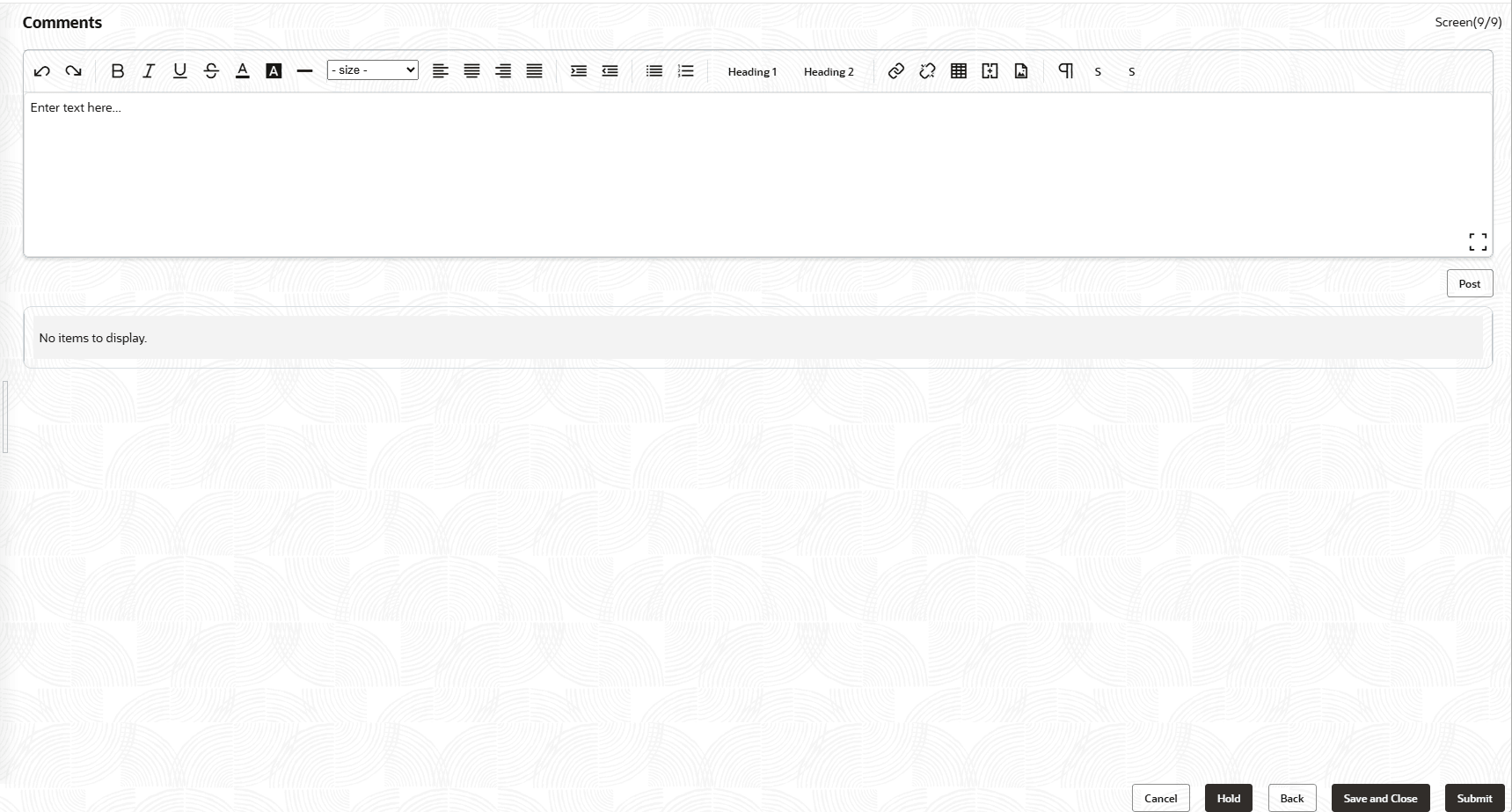
Fields Description Allow All, Allow Specific Allow All, Allow Specific or Disallow Specific Customer, Currency, Branch, Product, and Exposure, based on the need. Save Click Save. Limit is configured for the facility. On clicking Next in the Restrictions screen, The Comments screen is displayed.
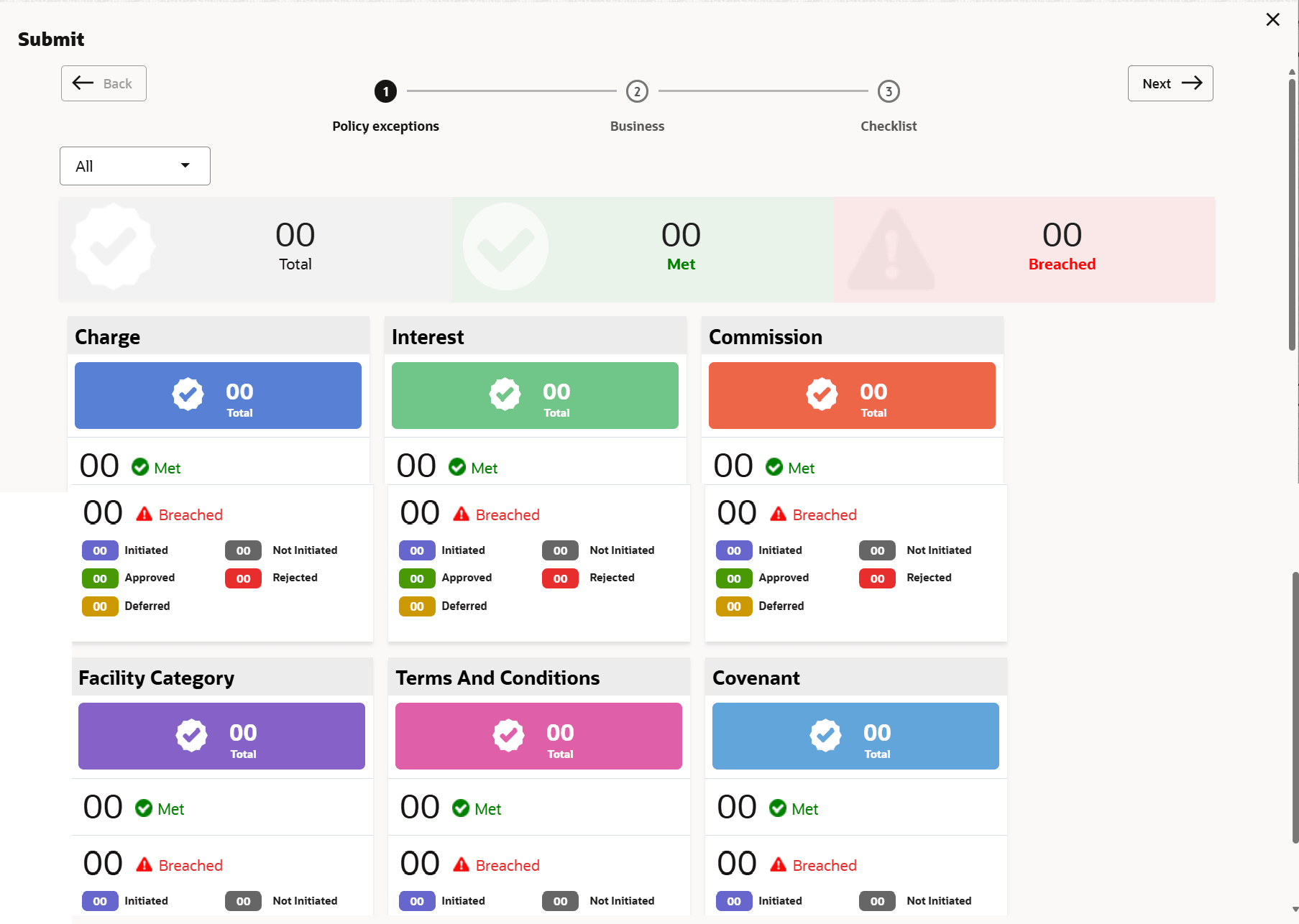
- Click Submit.The Policy exceptions window is displayed.
By default, policy exceptions are displayed for both the party and the child parties.
To view the policy exception detail specific to party or child party, select the party from the drop-down list at top left corner.
- Click the Checklist data segment.
For field level information on Checklist screen refer the below table.
Table 14-3 Checklist
Fields Description Outcome Select the Outcome as Proceed. Submit Click Submit. The proposal is moved to the Back Office System (OBELCM). Note:
For information on Write up data segment, refer Proposal Initiation Chapter.