7.4 Proposal Structuring - Summary
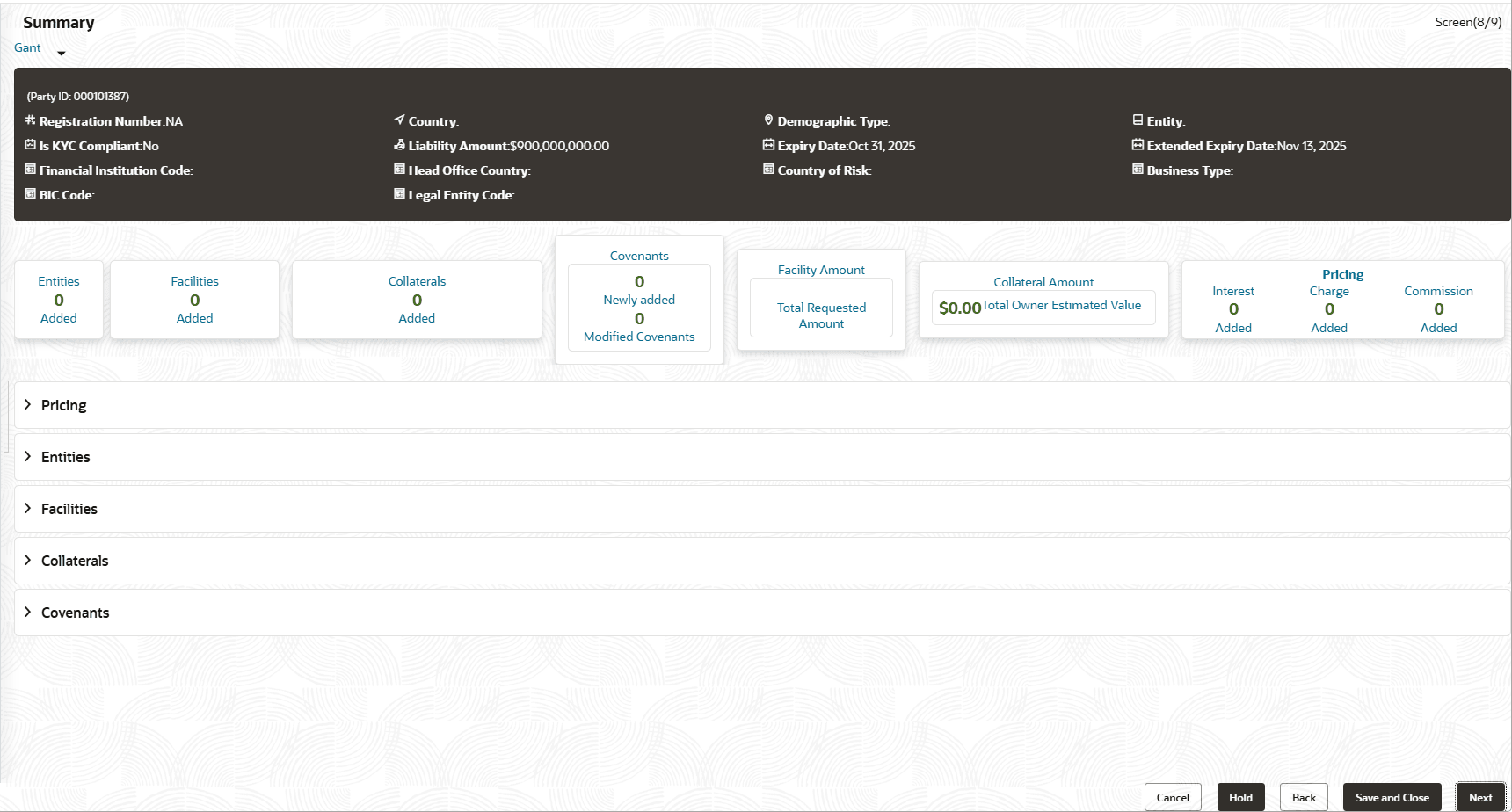
The Summary page displays all the information added in the previous stages for verification.
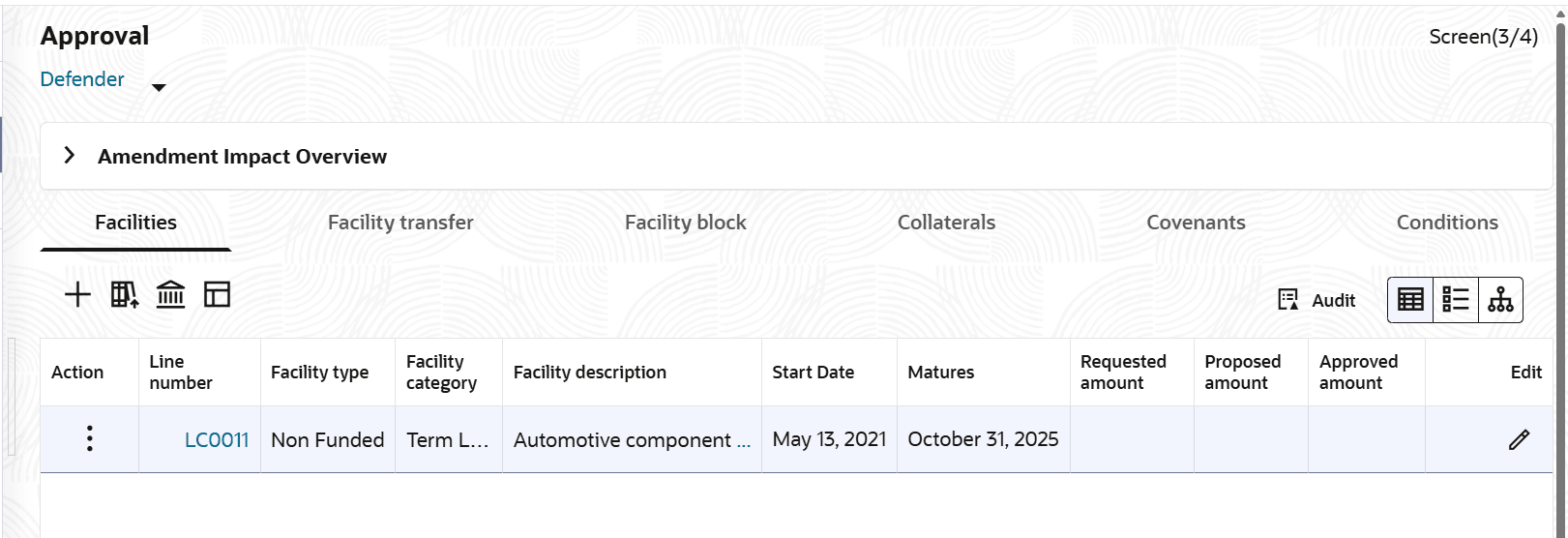
- To transfer the facility to another entity or merge with different facility,
click Facility Transfer.
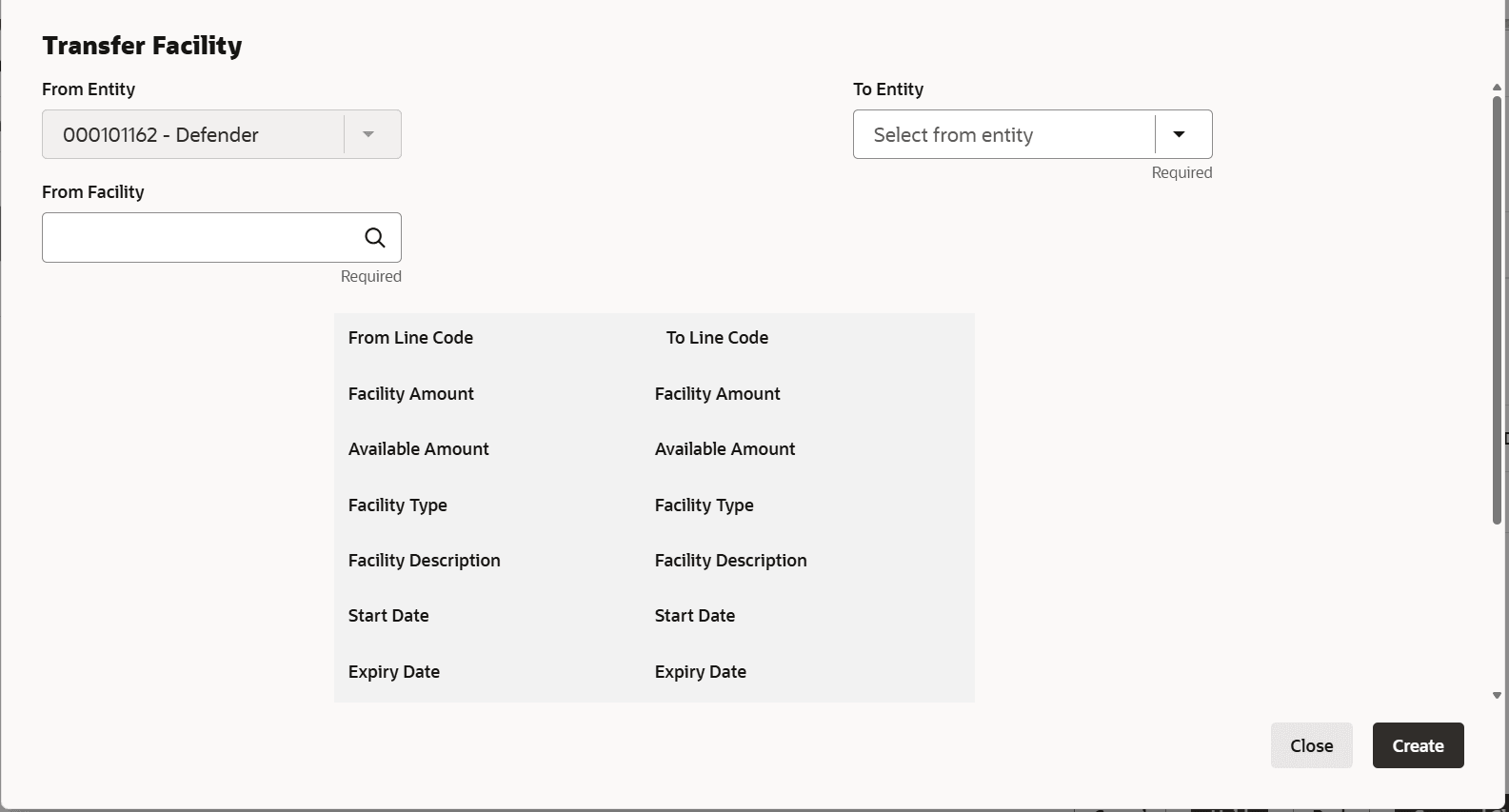
- Click the Add icon.The Transfer Facility window is displayed.
For field level information refer the below table.
Table 7-1 Transfer Facility
Fields Description From Entity In the Transfer Facility window, Party ID is automatically populated in the From Entity field. You cannot modify the From Entity detail. To entity Select the entity to which the facility has to be transferred from the To entity drop-down list. From entity Select the facility from which amount has to be transferred from the From Facility drop-down list. Facilities available under the From entity are displayed in the list. To Facility Select the facility to which the amount has to be transferred from the To Facility drop-down list. Facilities available under the selected To entity are displayed in the list. On selecting the entity and facilities, the system displays the following information about the from and to facilities:- Line Code
- Facility Amount
- Available Amount
- Facility Type
- Facility Name
- Start Date
- Expiry Date
Transfer Currency Select the Transfer Currency in which the amount has to be transferred. Transfer Amount Specify the amount to be transferred in the Transfer Amount field. Effective From Click the calendar icon in the Effective From field and select the date on which the transfer should happen. Expiry Date Click the calendar icon in the Expiry Date field and select the date on which the transferred amount should expire. Create Click Create. Specified amount will be transferred to the target facility and the transfer details will be displayed in the Facility Transfer page. Edit To update the facility transfer details, select the required item and click the Edit icon. The Transfer Facility window appears. Update Modify the required details and click Update. You can optionally post comments while updating the transfer details, if required.
Delete To delete the transfer details, select the required item and click the Delete icon. Table View To change the layout of Facility Transfer page to table view, click the Table View icon. Facilities To go back to the Facilities page, click Facilities next to the Facility Transfer. Facilities page appears. Note: For information on more actions that can be performed in the Facilities page and for Information on viewing and managing Collateral, Covenants and Terms and Conditions, refer Basic Info.
Entities To view the party details, click the Entities tab in Summary page.
Parent topic: Proposal Structuring