3.11 Projections
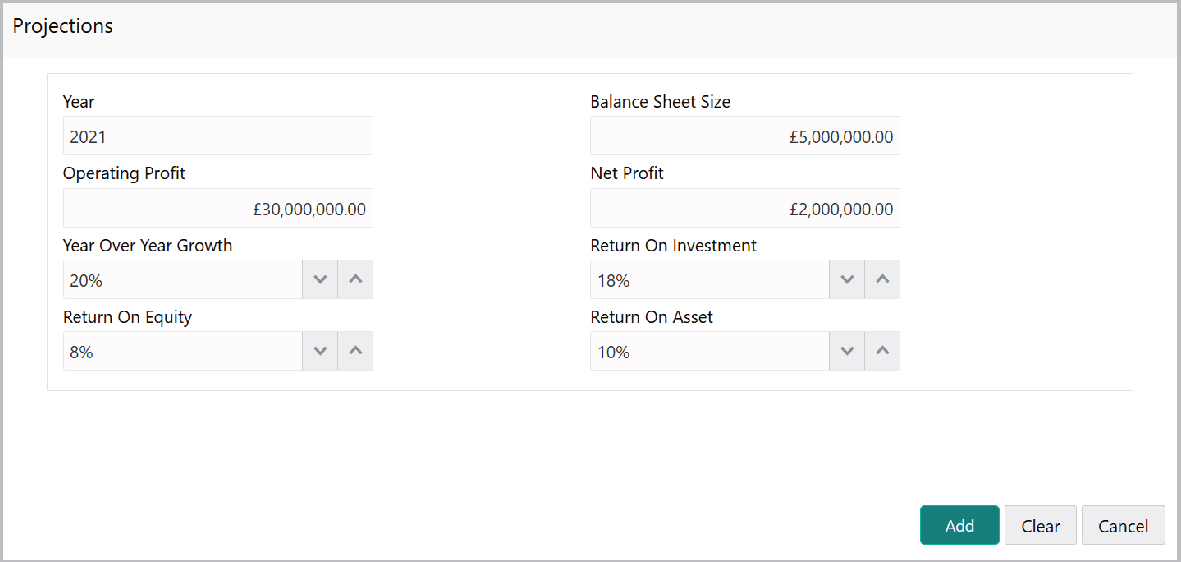
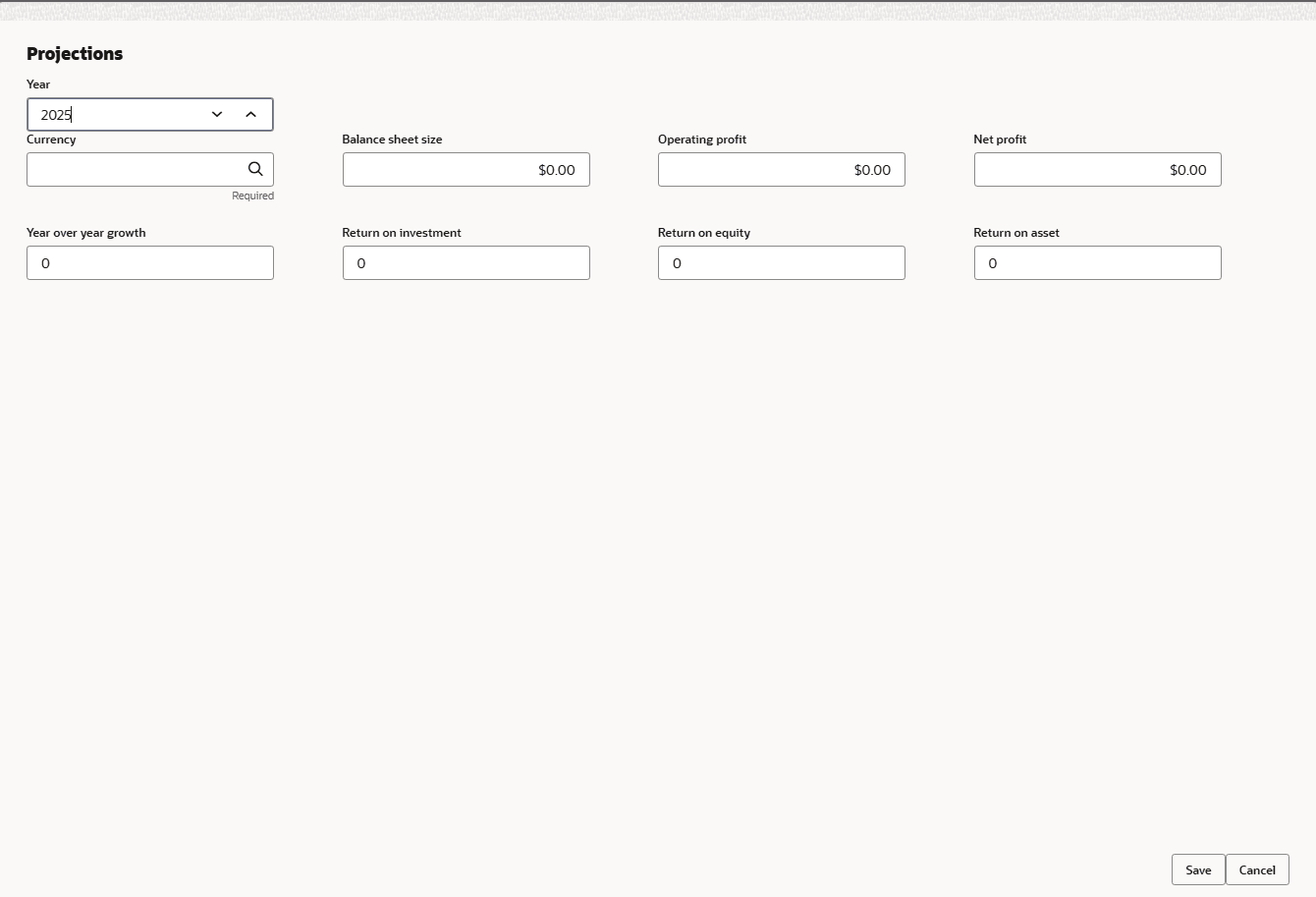
- To configure projection details, click Projections from the left menu
and then click the Add icon.The Projections window is displayed.
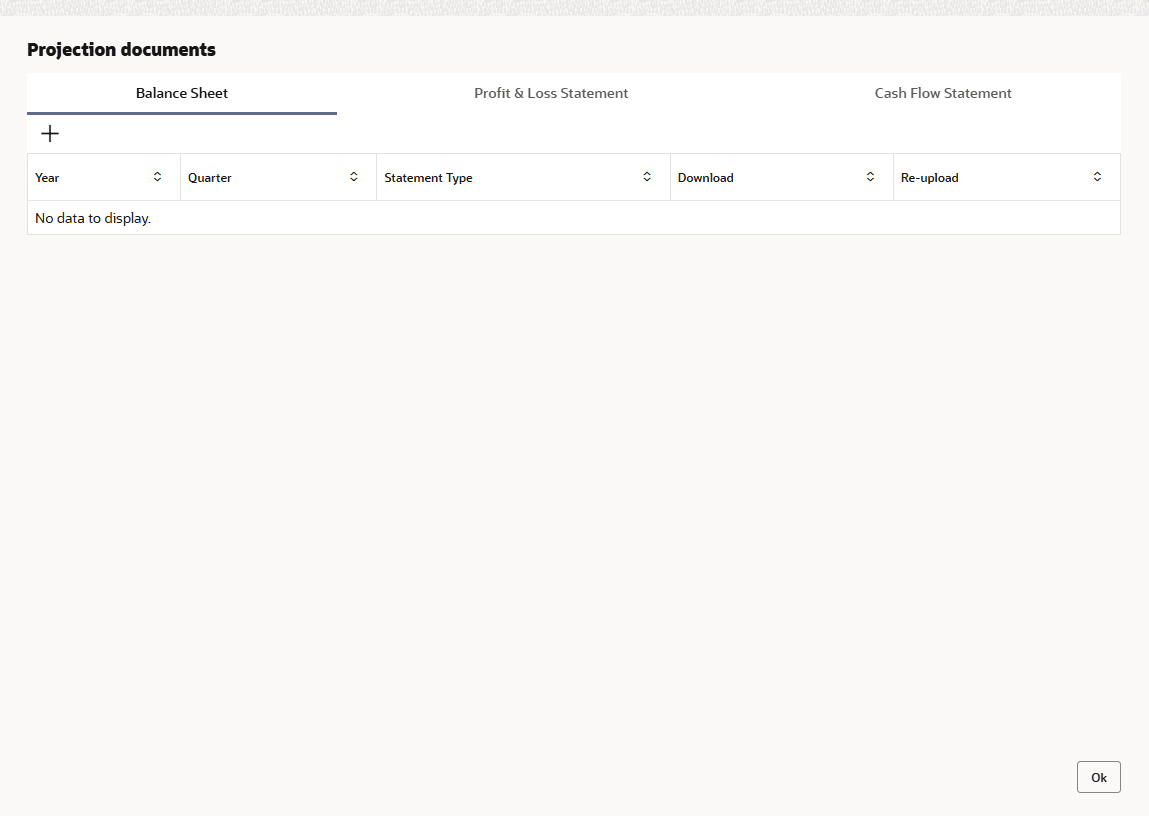
- Click Upload Projection Document to add projection documents.The Projection Documents window is displayed.
In the Projection Documents window, the user can Add the following documents by clicking respective tabs.
- Balance Sheet
- Profit & Loss Statement
- Cash Flow Statement
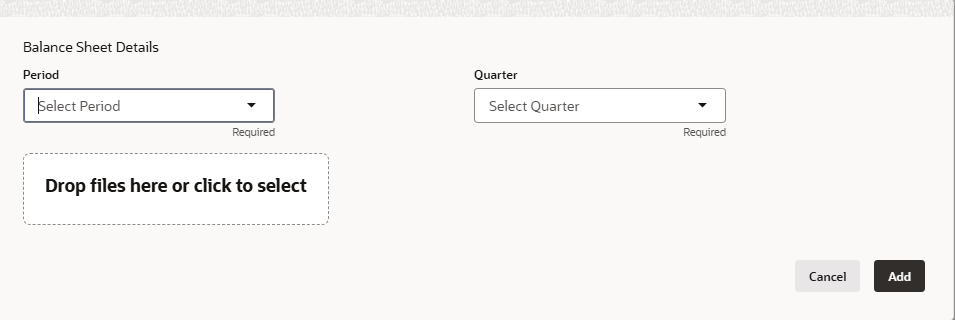
- Click Add in any of the above tabs, the following window to upload
documents appears:
For field level information refer the below table.
Table 3-9 Balance sheet details
Fields Description Period Select the Period for which the projection document is to be added. Quarter Select the Quarter for which the projection document is to be added. Drop files here or click to select In Drop files here or click to select section, drag and drop or click and upload the projection document. Add Click Add. Document is added. Chart view In the Business Projection screen, click the Chart view icon to change the List view to Chart view. Note: To Edit, Delete or View the added Projections. click the hamburger icon in the required list item and select the required option.
Parent topic: Proposal Initiation