3.1 Steps to initiate Facility Review
To initiate Facility Review process, perform the following steps:
- Login to OBCFPM.
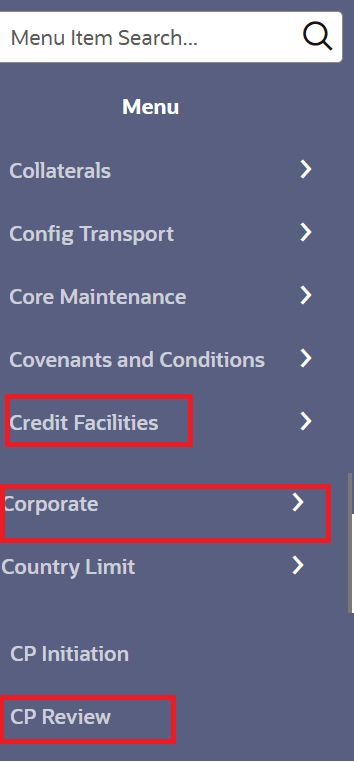
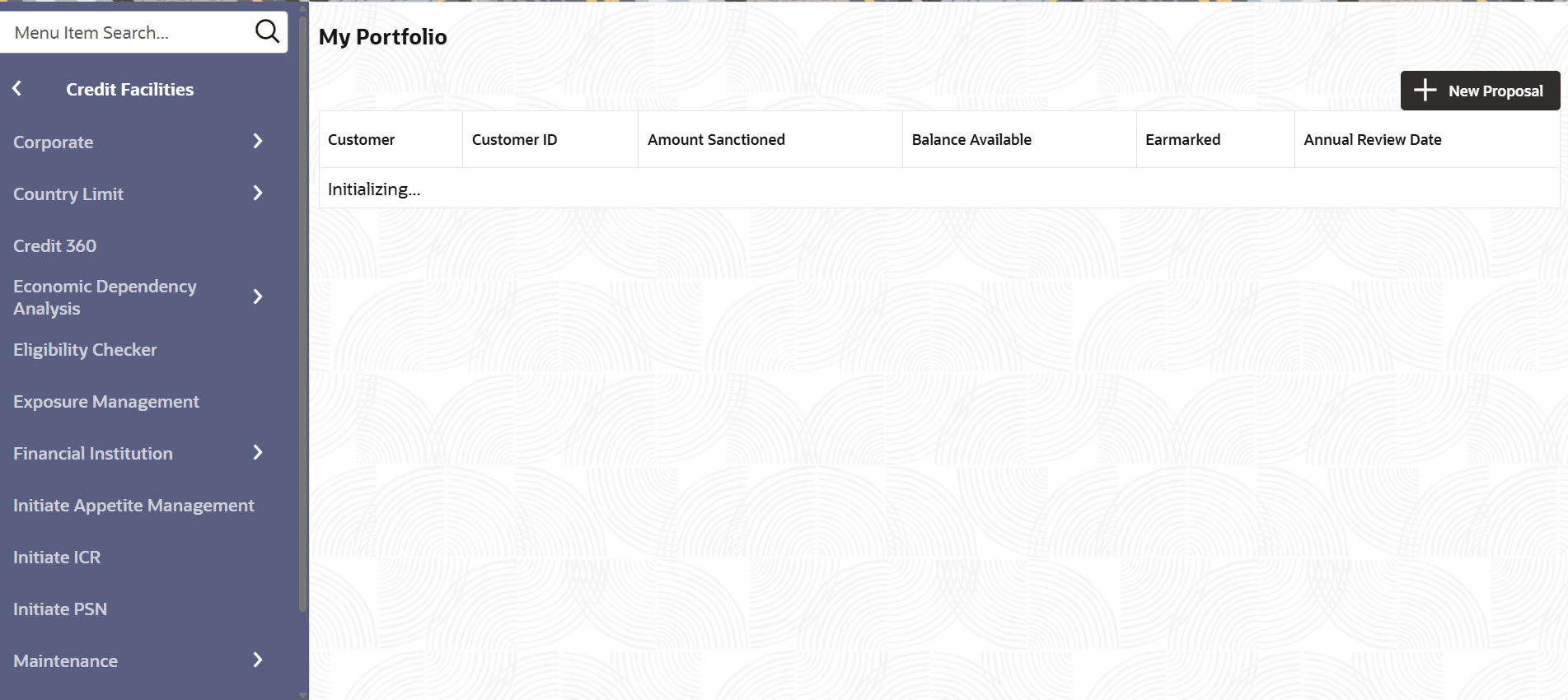
- Navigate to Credit Facilities > My Portfolio from the left menu.The My Portfolio page is displayed.
- Click the Initiate Facility Review button.The Facility Review Initiation page is displayed.
Figure 3-2 CP Review
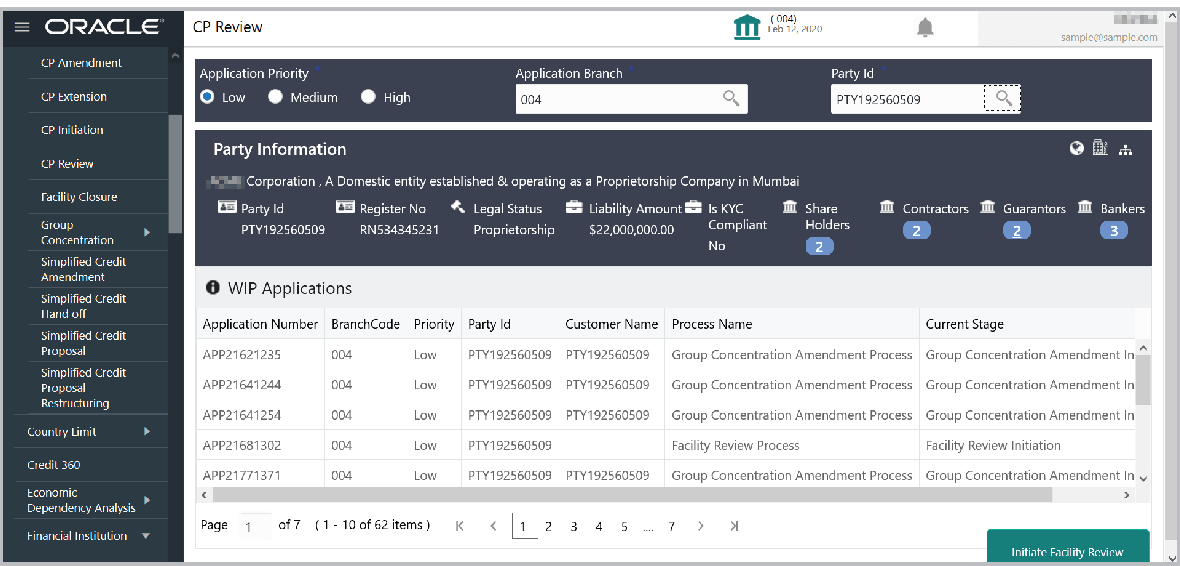
Description of the illustration obcfpm-facility-review-user-manual_img_10.pngFor information on fields in the CP Review page, refer the below table.
Table 3-1 CP Review
Fields/Icon Description Application Priority Select the facility review Application Priority. The options available are: Low, Medium, and High. Application Branch Search and select the Application Branch. Bank branches maintained in the system are displayed in the drop-down list. Initiate Facility Review Search and select the required customer / party for facility review. The system displays all the WIP applications for the selected party and enables the Initiate Facility Review button.
Parent topic: Proposal Initiation