3.1 Customer Info
This topic provides systematic instructions about the Customer Info data segment in Group Concentration Limit Amendment process.
This data segments allows the user to view and manage all the information about the group entity added in Group Concentration Limit Initiation process.
Figure 3-3 Initiation_Customer Info
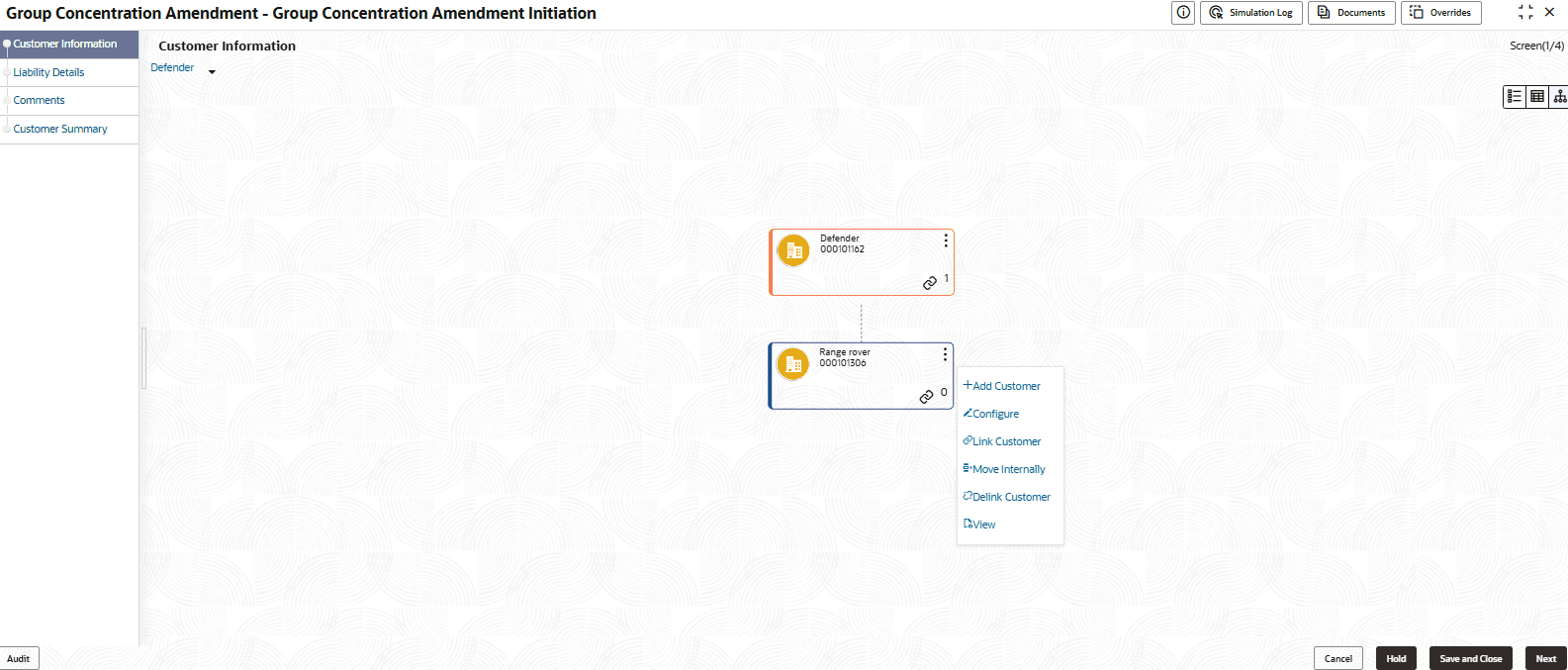
In the Customer Info page, you can add any number of customers (child party) to the party / child party. If a child party is marked as a joint customer while adding customer to the party / child party, you cannot add customers to that child party.
- To add a child party to the party / child party, click Add Customer.
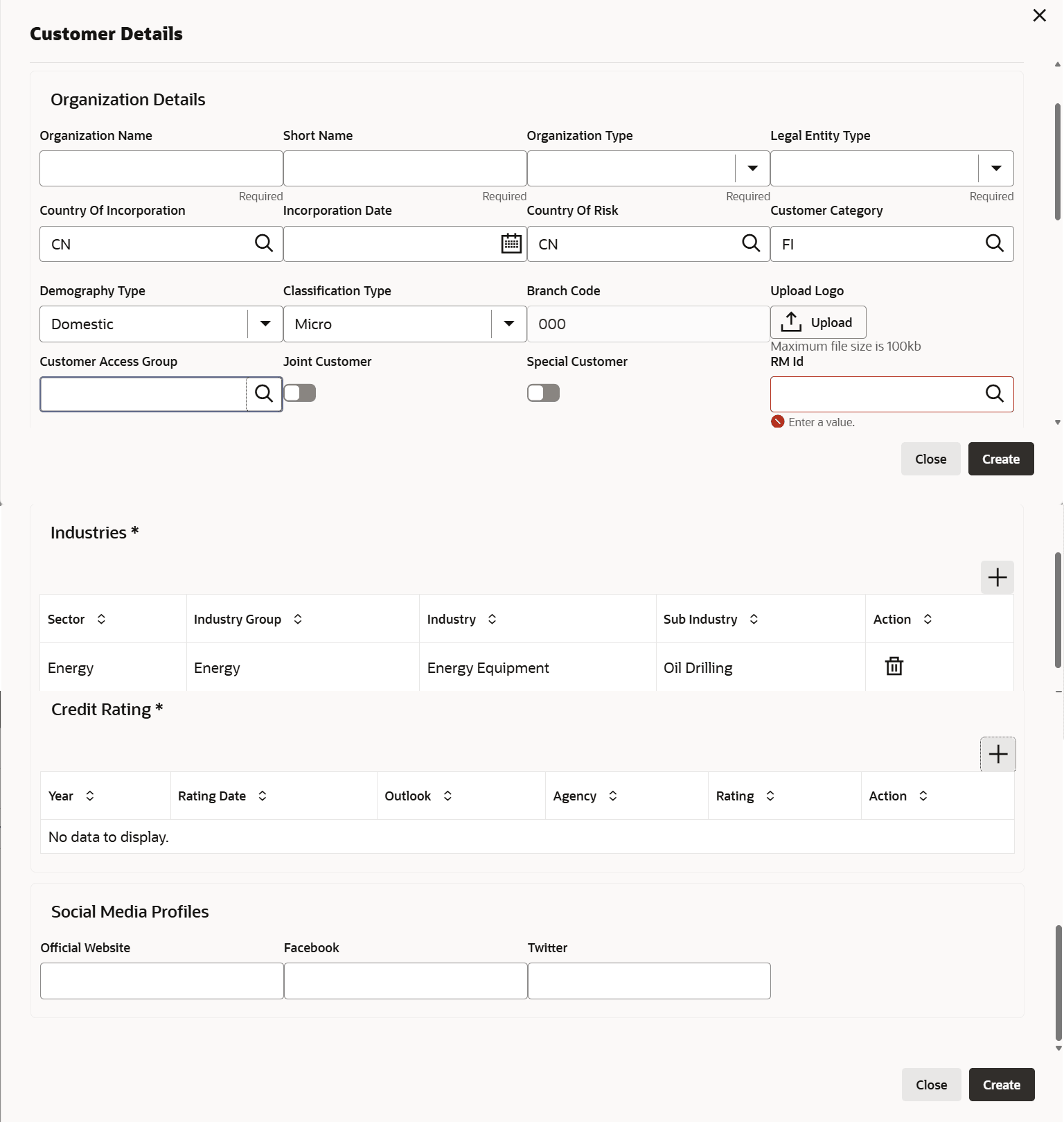
The Customer Details window is displayed.
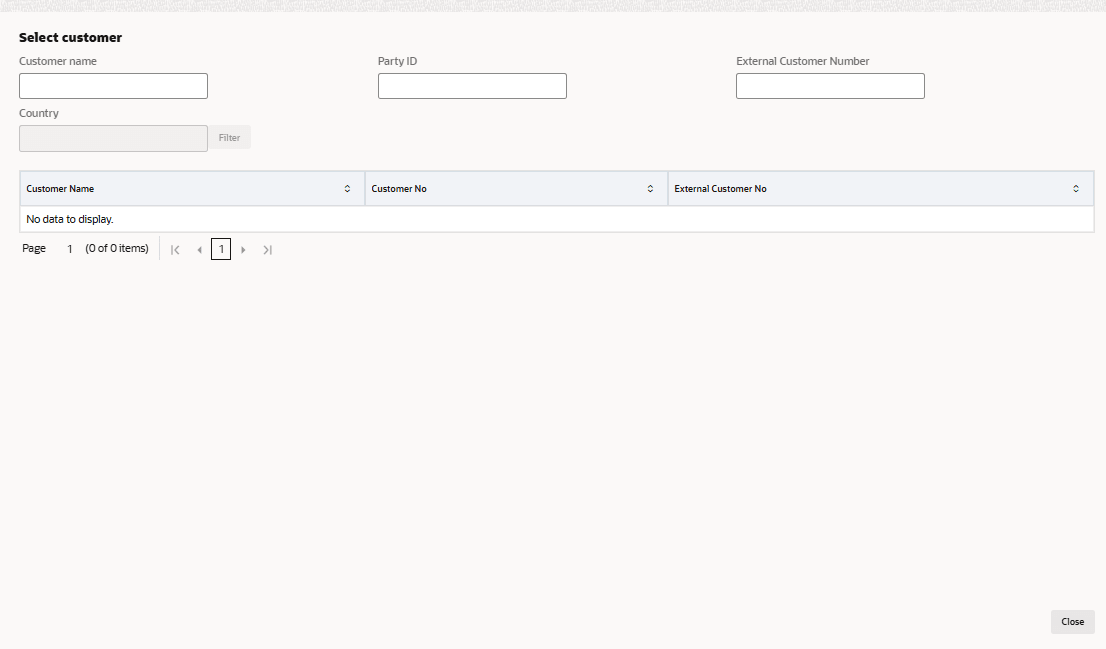
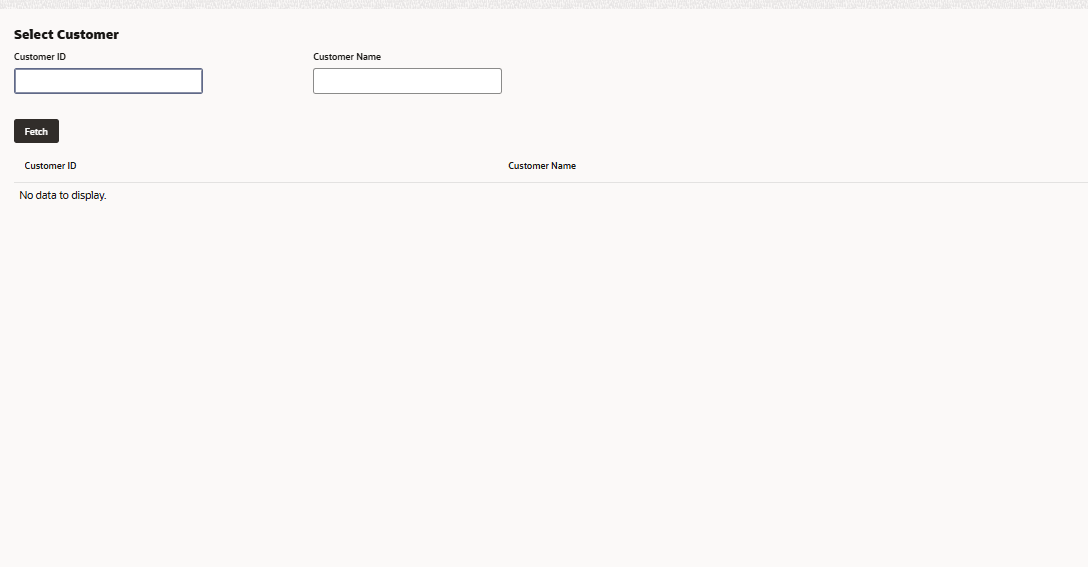
- Click the Select Customer link. The Select Customer window is
displayed.
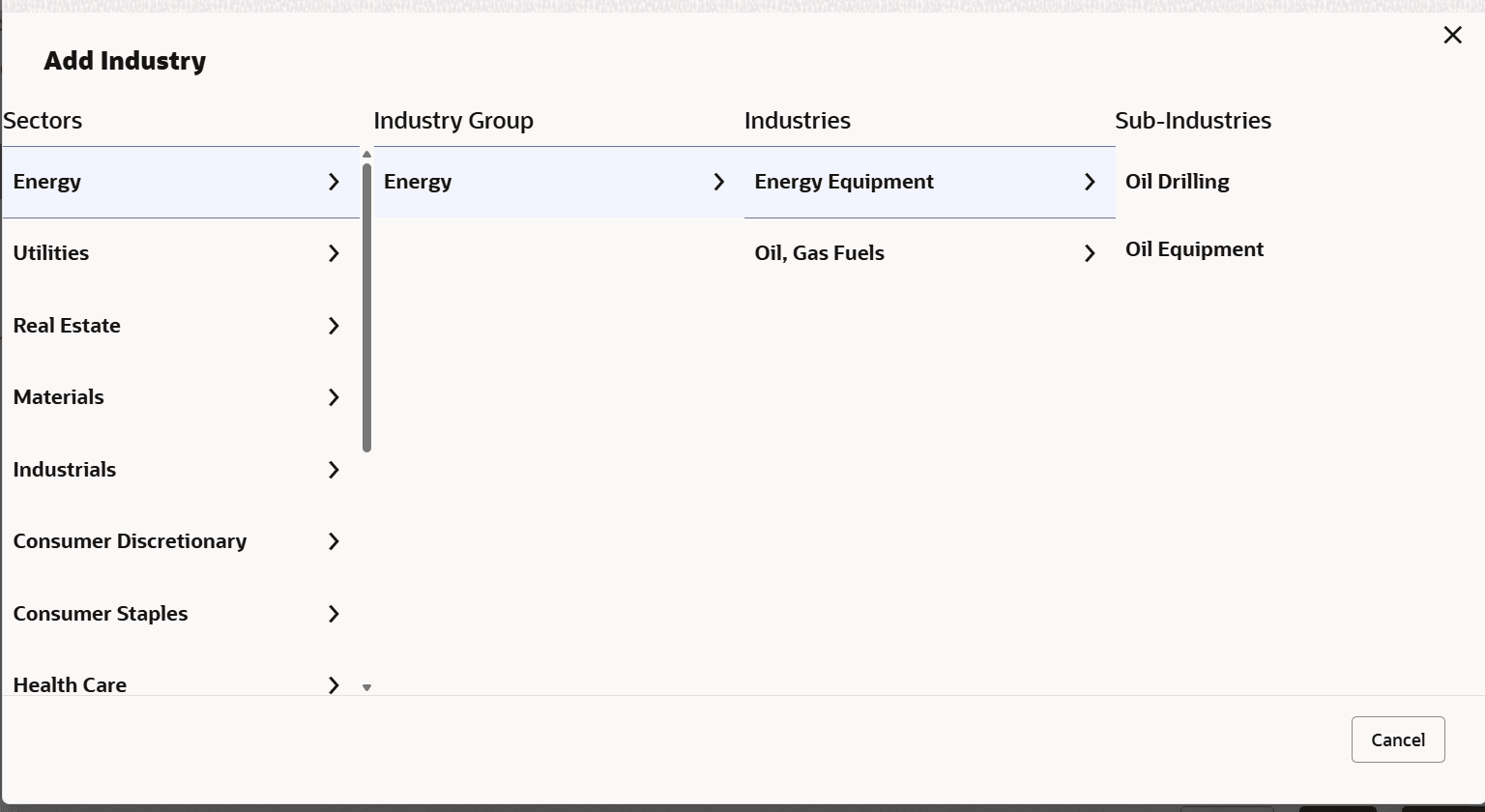
- Click +Add sector to capture industry and rating details of the group
entity.The Add Industry window is displayed.
- Select the sub-industry of the group entity. Industry details are added and displayed in Industry section as shown below:
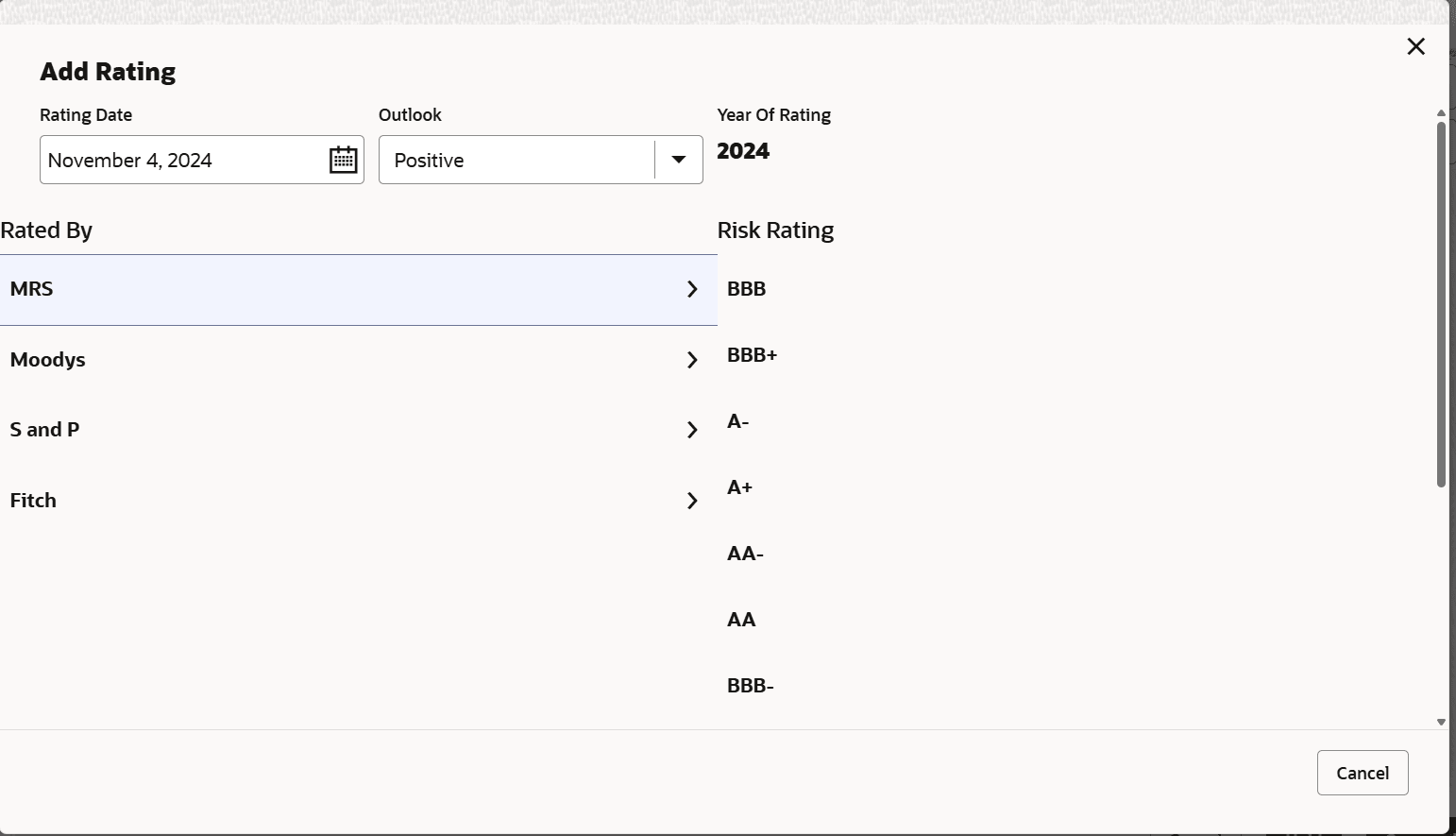
- Click the +Add ratings link to add customer’s rating information.The Add Rating window is displayed.
- Select the following details:
- Rating Date
- Outlook
- Risk Ratings
- Rated By
The Year Of Rating is automatically populated based on the selected Rating Date.
Upon selection of the above details, the rating is added and displayed in the ratings section as shown below:


RM Details
User Id of the logged in user gets defaulted in this field. You can modify the RM Id, if required.
Link Customer
If you want to link a customer that is already a part of different entity group to a party in this group, you can select the Link Customer option.
Using this option, both the existing customers for which parent party is not available and the existing customers that already have parent can be linked to a new party.
Linkage of existing customers that already have parent party with a new party can be done in the case of mergers and acquisitions, etc. In order to perform this, the party to be linked to the new party must be delinked from its current parent party.
Refer Delink Customer” for information on delinking a child party from its parent party.
- To link existing customer, right click the party icon and select Link
Customer. The Select Customer window is displayed.
- Click Fetch and select the required customer record. Selected customer
is linked to the parent party as shown below:
Figure 3-11 Customer Info

Note:
After linking existing customer, the following actions can be performed by right clicking the linked party icon:- Add Customer for the child party
- Link Customer for the child party
- View child party details
- Quick View child party details
- Configure child party information
- Move (child party) Internally
- Undo linkage
Move Internally
Existing customers linked to a new party can be internally moved within the hierarchical structure by using this option.
- Right click on the linked party icon and select Move Internally. The
following window is displayed.
Figure 3-12 Move Internally

Delink Customer
For linking a party under a particular group entity to different group entity, it must be delinked from its current hierarchy using Delink Customer option.
To delink a child party:
Layout Options
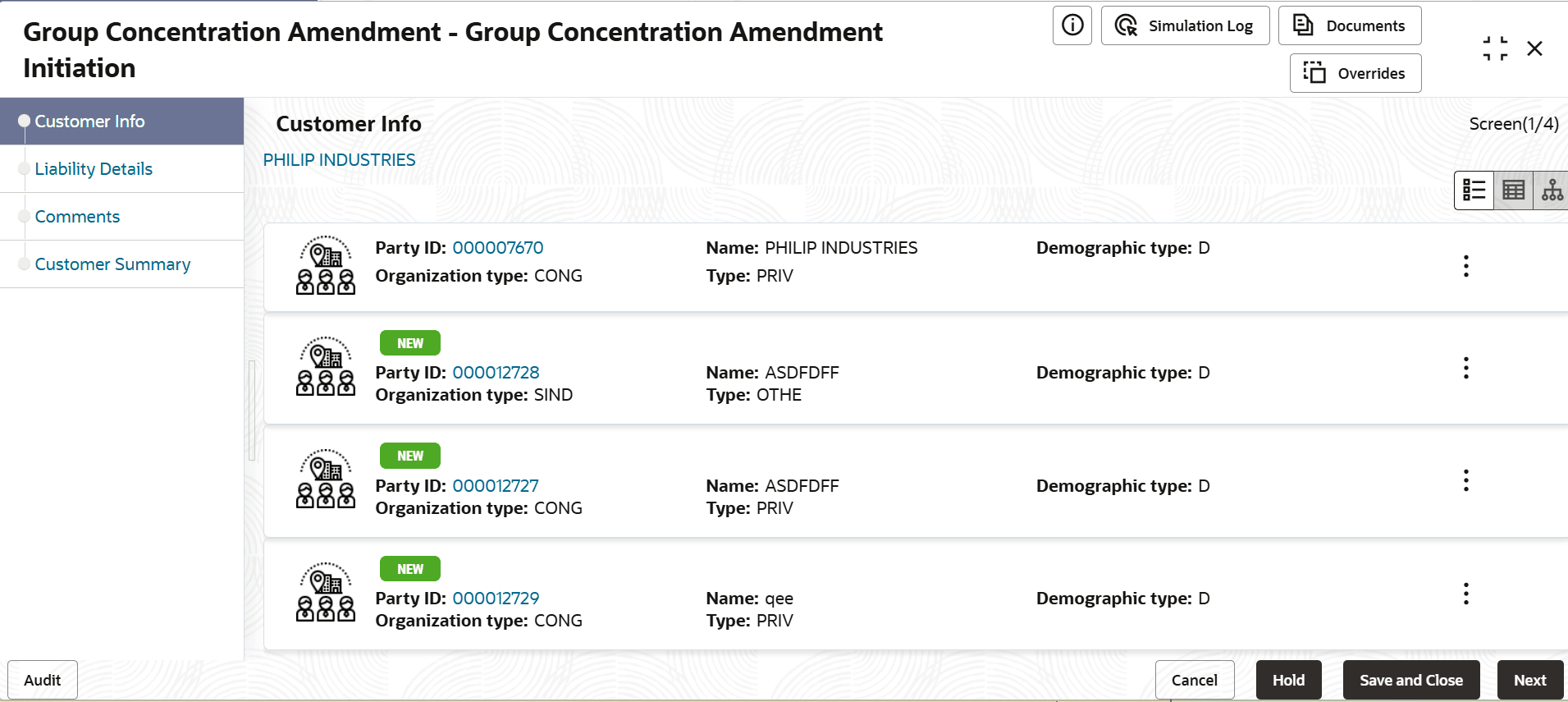
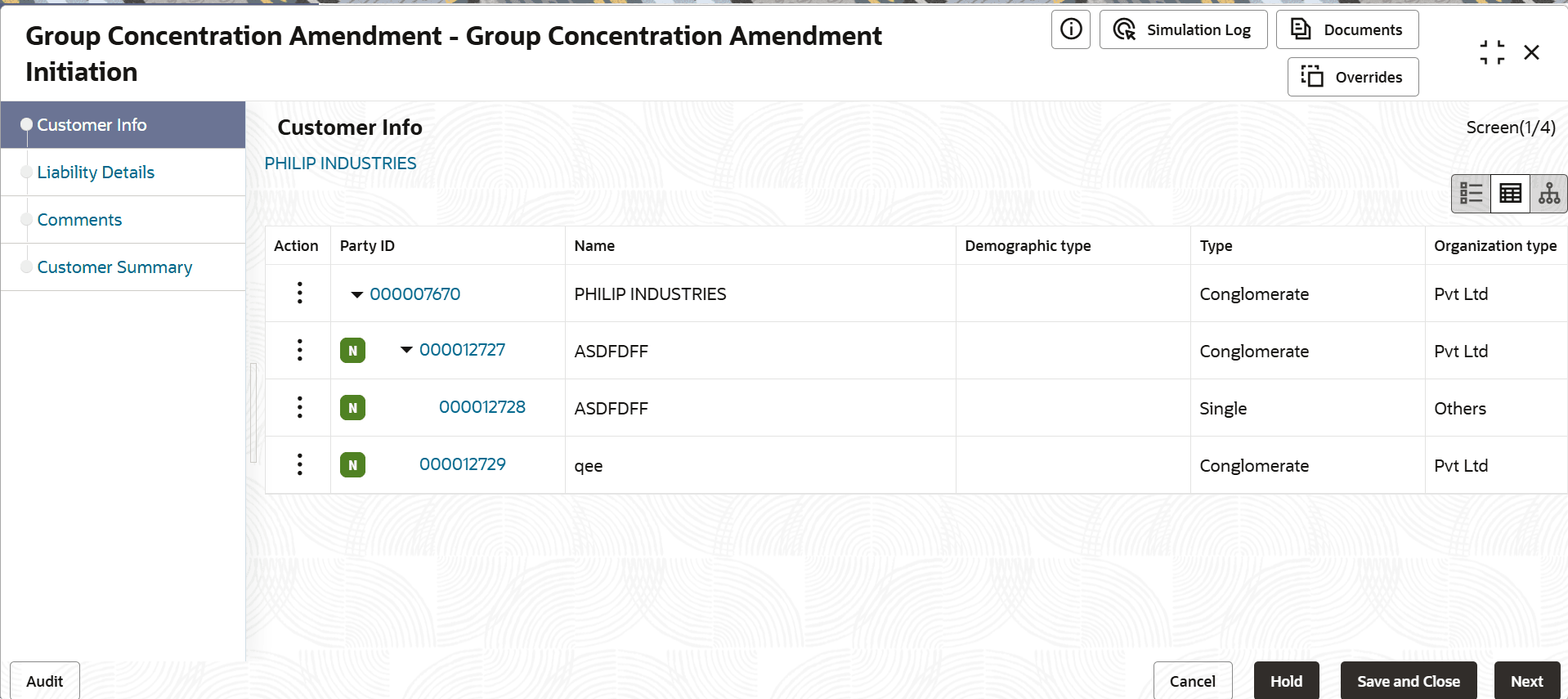
You can view the party information in three different layouts, such as List View, Table View and Tree View.
- To change the layout of Customer Info page to list view, click the List
View icon.
- To change the layout of Customer Info page to table view, click the Table
View icon.
Parent topic: Amendment Initiation