2.2 Enriching Application
This topic provides systematic instructions about the Enriching Application of the Group Concentration Limit Initiation.
Oracle Banking Credit Facilities Process Management allows you to enrich the already submitted application at any time or enrich the credit application to be submitted during the application creation process itself.
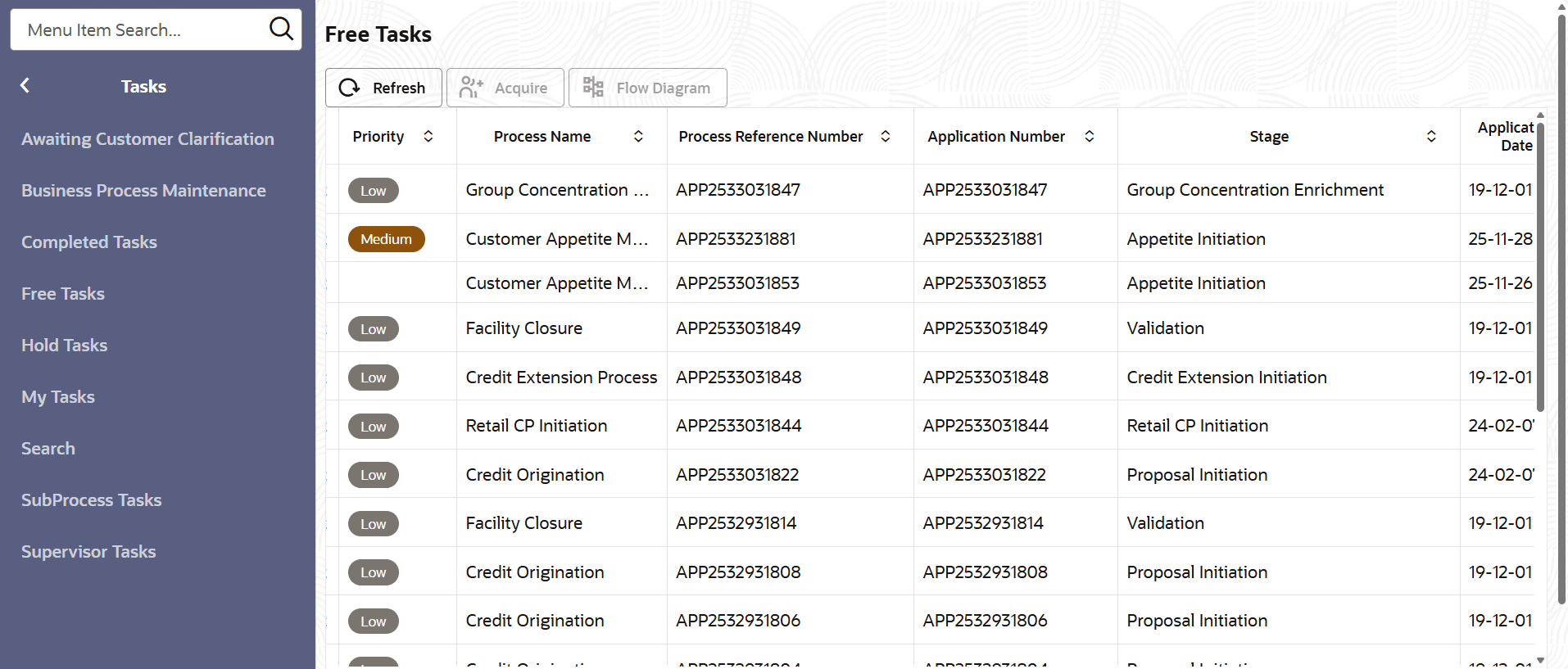
- To enrich the already created application, from Home
screen, click Tasks. Under Tasks, click Free
Tasks.The My Tasks page is displayed.
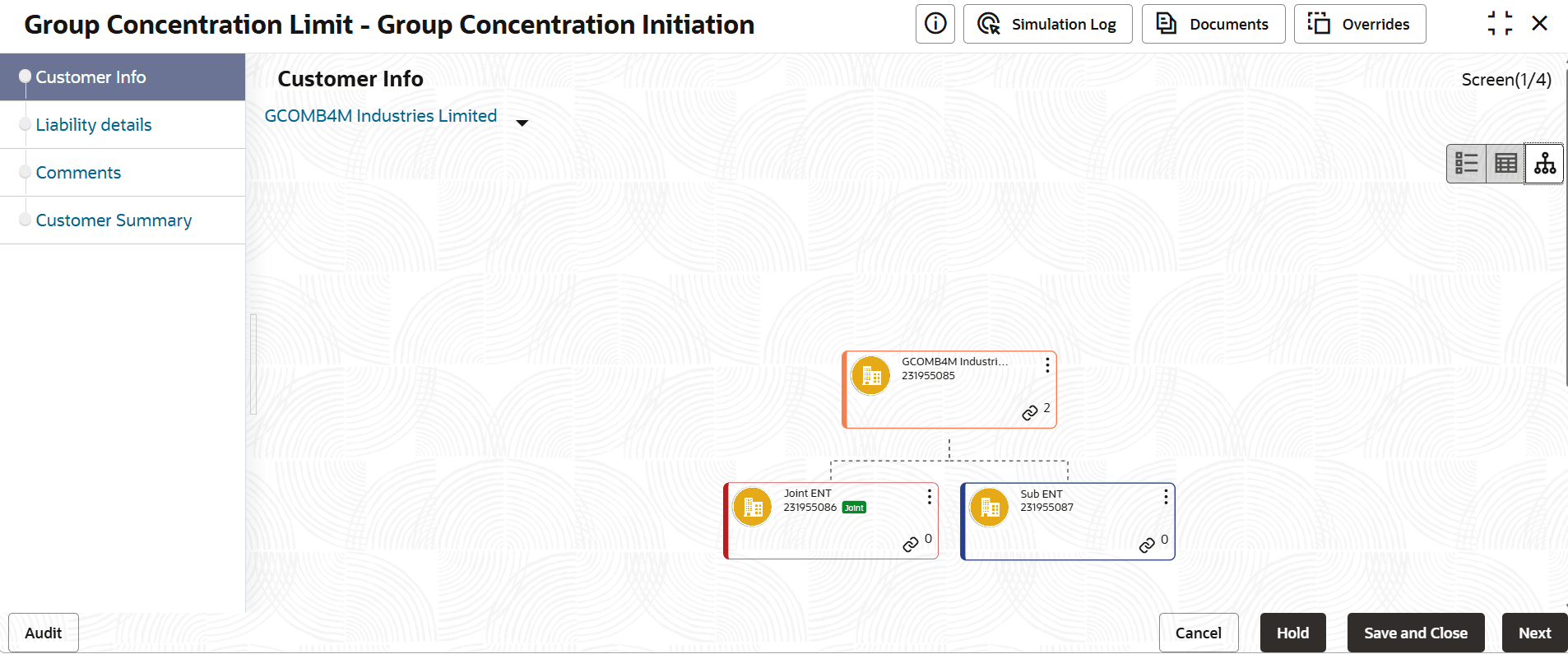
Customer Info
In this page, you can add more information about the party, and add / link child parties.
Figure 2-9 Customer Info
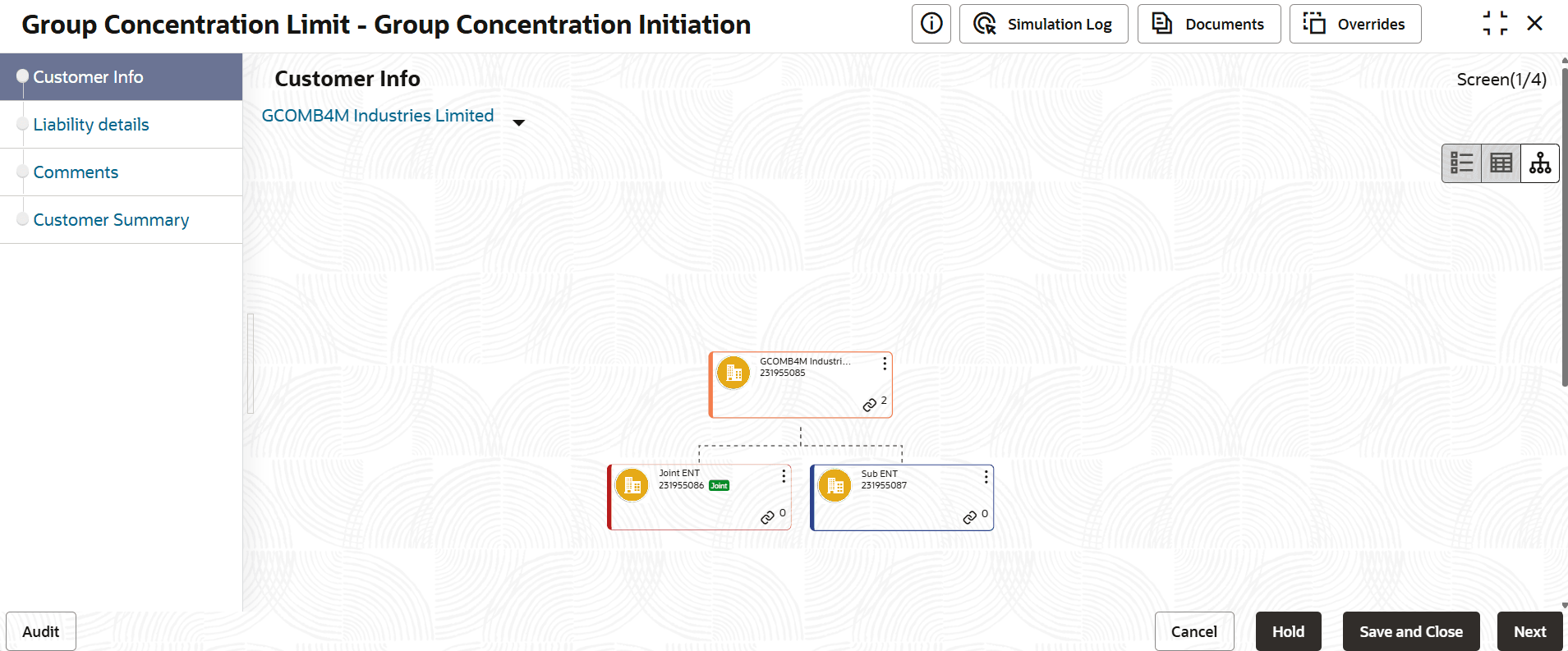
Mouse hovering on the party icon displays basic information about the group entity.
Add Customer
In the Customer Info page, you can add any number of customers (child party) to an organization / entity (party) and then add customers to the child party as well. If a child party is marked as a joint customer while adding customer to the party / child party, you cannot add customers to that child party.
Link Customer
This option allows you to directly link the existing customers on-boarded through party onboarding process and the child parties under different group entity to the parties in this application.
Using this option, both the child party for which parent party is not available and the child party that already have parent can be linked to a new party.
Linkage of child party that already have parent party with a new party can be done in the case of mergers and acquisitions, etc. In order to perform this, the party to be linked to the new party must be delinked from its current parent party
Refer Group Concentration Limit Amendment User Guide for information on delinking a child party from its parent party.
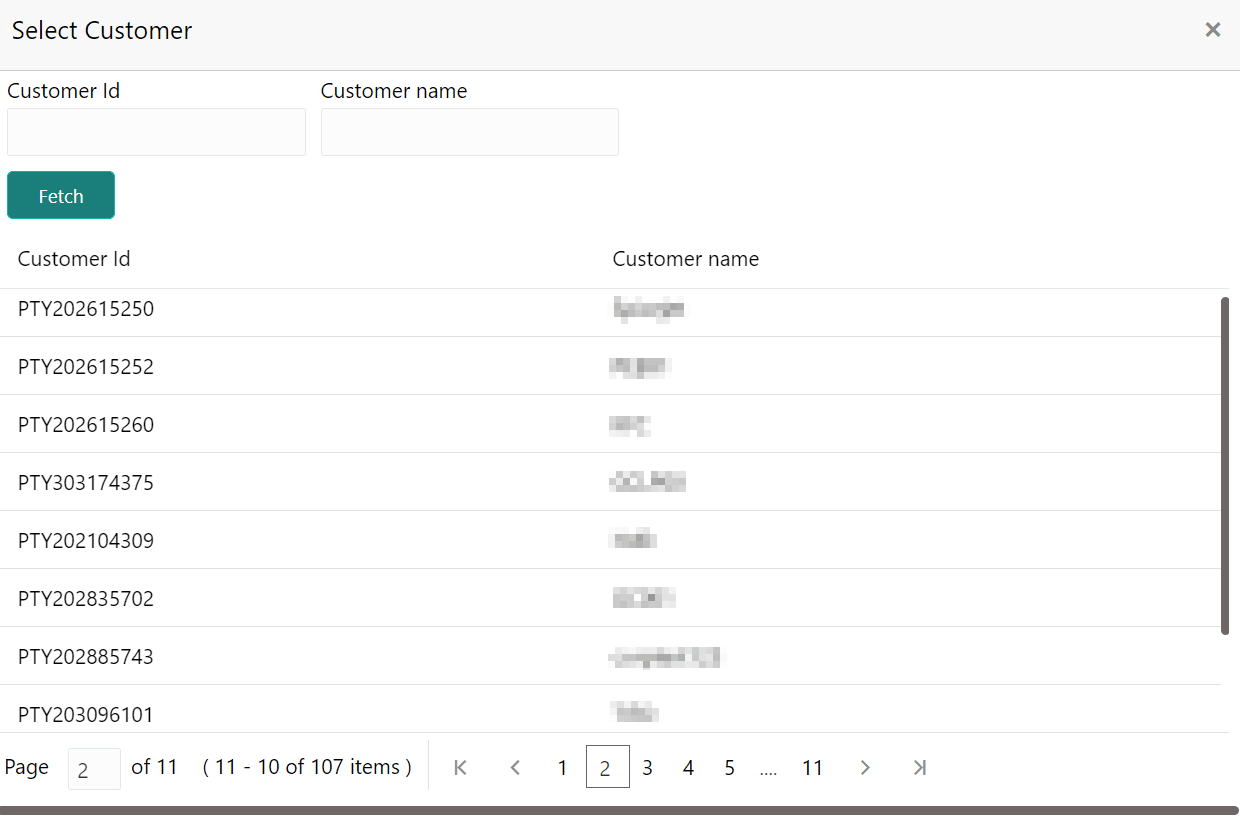
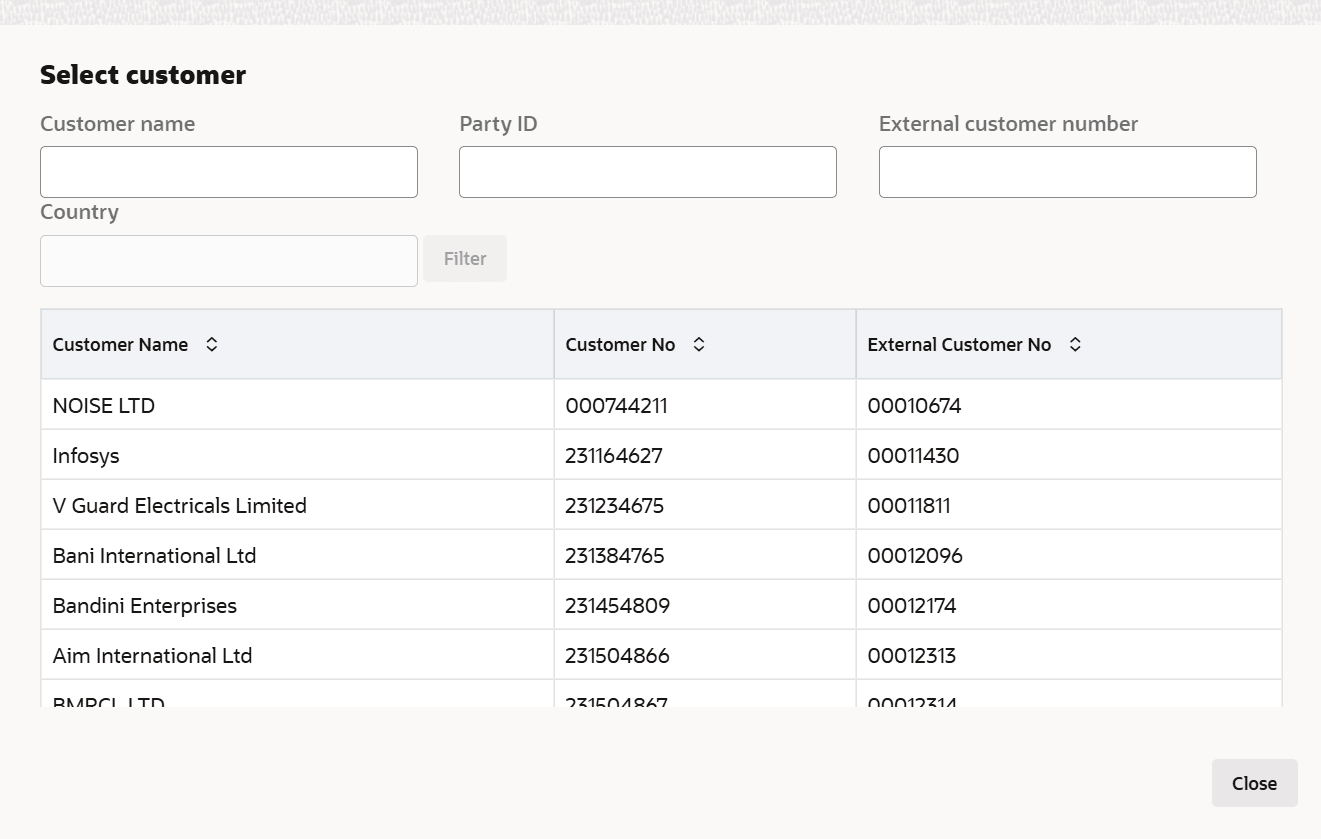
- To link existing customer / child party under different group entity, right
click the party icon and select Link Customer. The Select Customer
window is displayed.
- Click Fetch and select the required customer record. Selected customer
is linked to the parent party as shown below:
Note:
After linking existing customer / child party, the following actions can be performed by right clicking the linked party icon:- Add Customer for the child party
- Link Customer for the child party
- View child party details
- Quick View child party details
- Configure child party information
- Move (child party) Internally
- Undo linkage
Move Internally
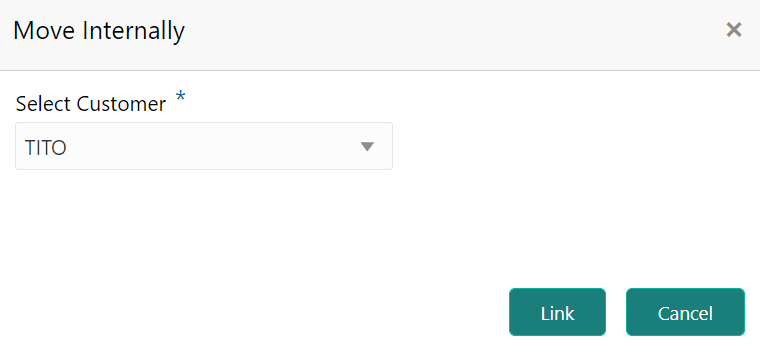
Existing customers / child parties linked to a new party can be internally moved within the hierarchical structure by using this option.
- Right click on the linked party icon and select Move Internally. The
following window is displayed.
Undo
You can always undo the link established between the existing customer / child party and the new parent party.
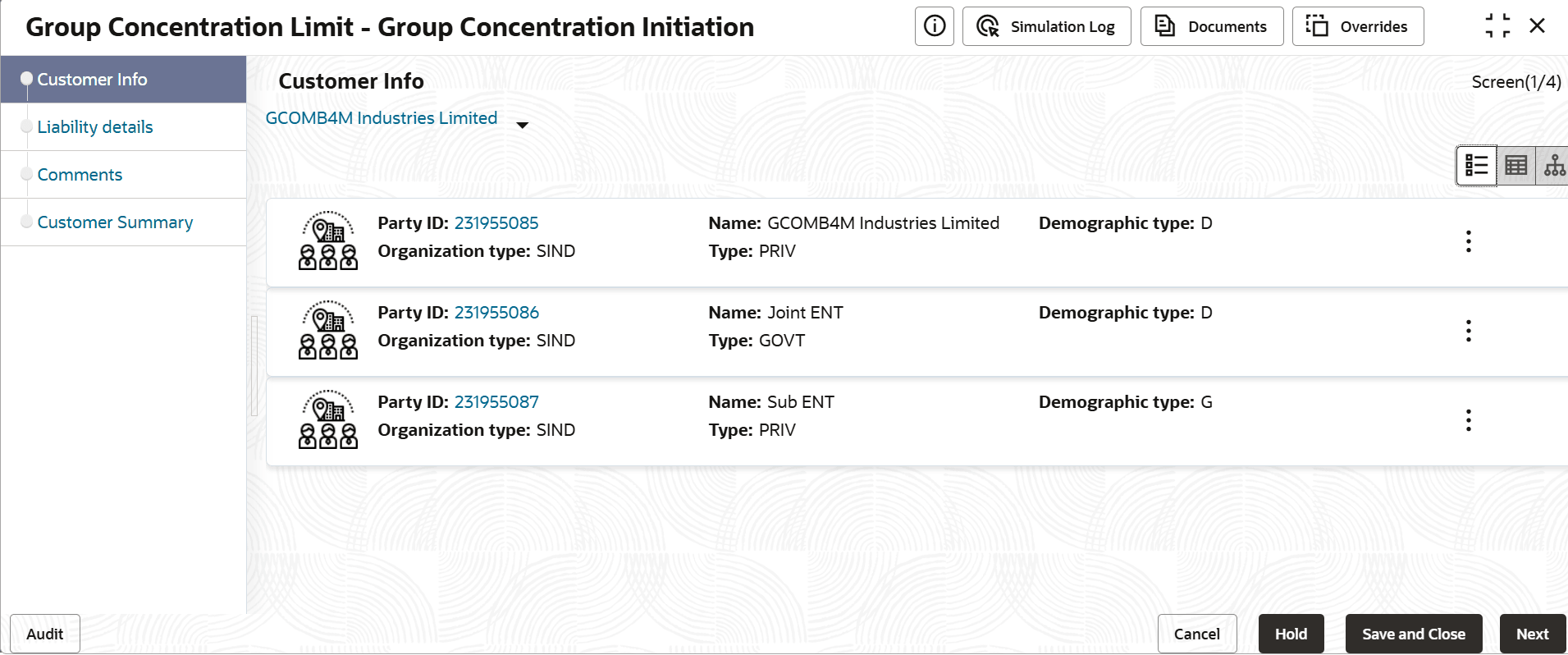
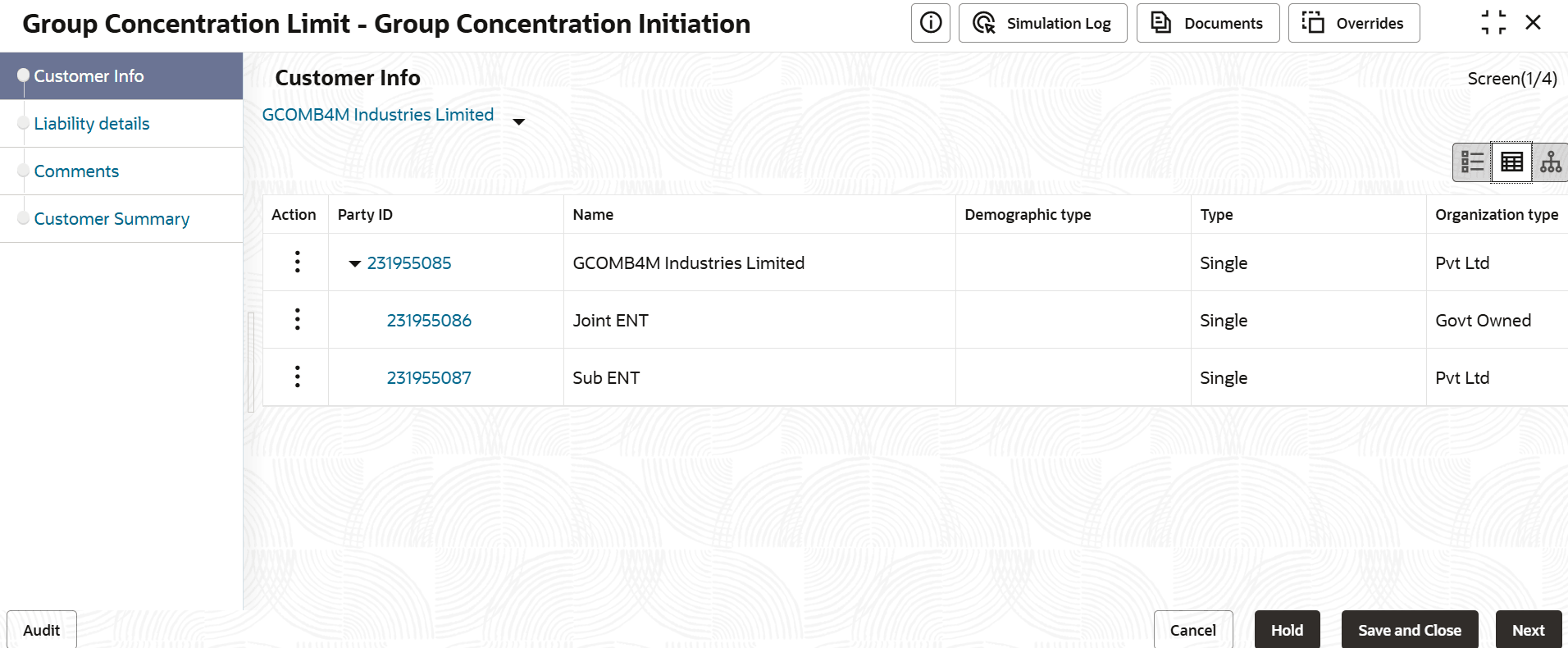
You can view the party information in three different layouts, such as List View, Table View and Tree View.
- To change the layout of tree view, click the settings icon at the right corner.
Layout options appear as shown below.
- To change the layout to list view, click the List View icon at the top
right corner. The customer information appears as shown below:
- To change the layout to table view, click the Table View icon at the top
right corner. The customer information appears as shown below.
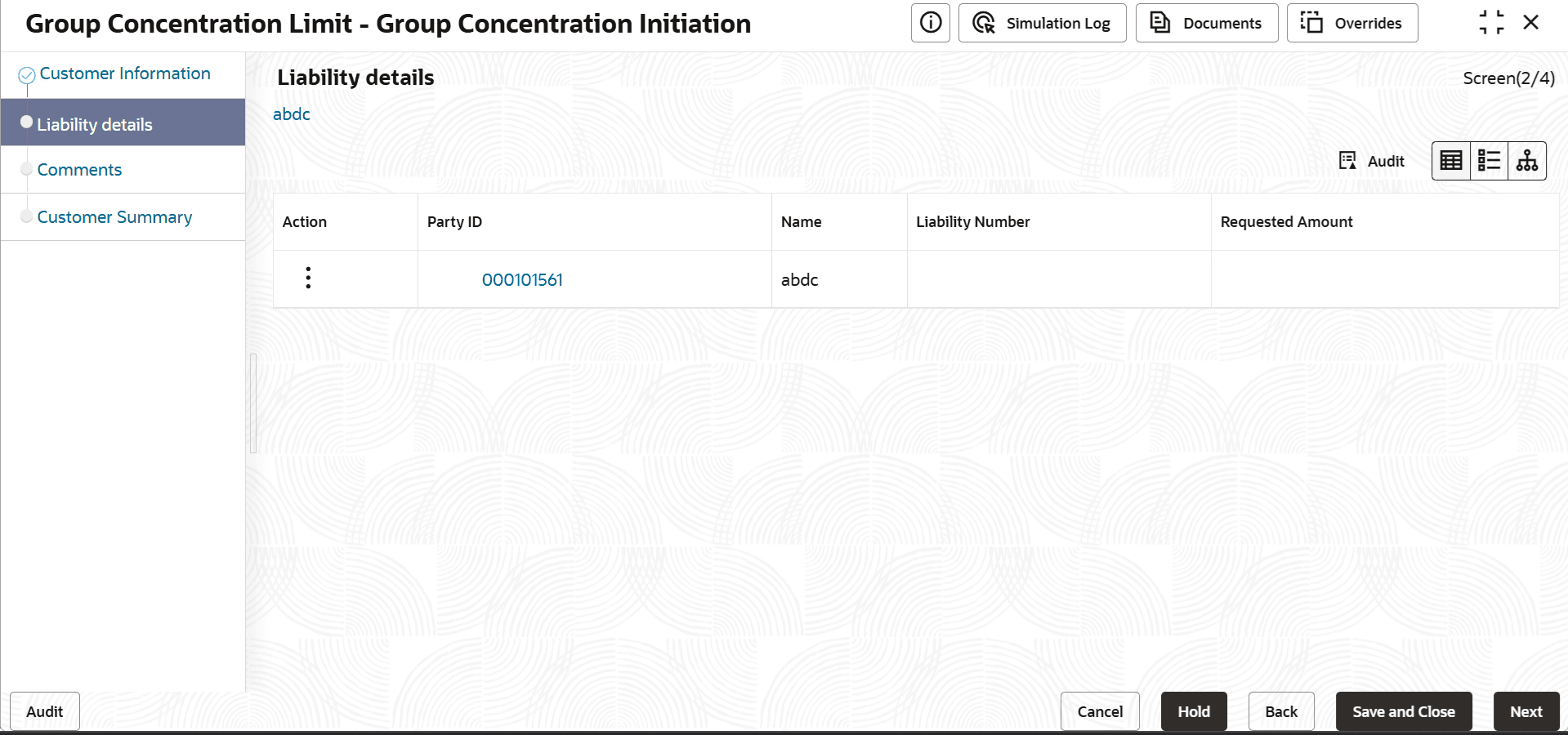
- To go to the next stage, click Next. You can capture the liability
details for the party / child party in this data segment.The Liability Details page is displayed.
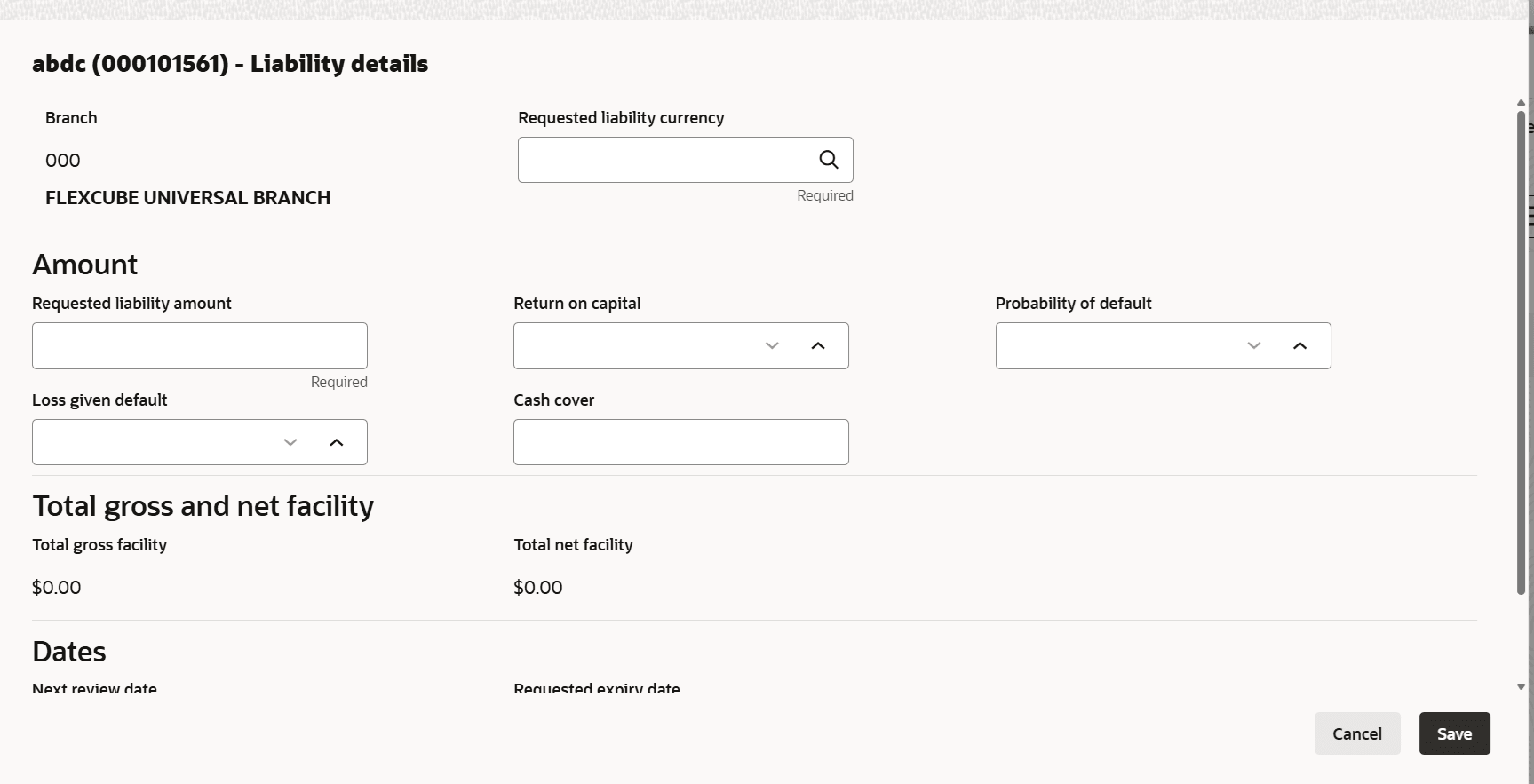
- Click Edit. The Liability Details screen is displayed.For more information on fields, refer to the field description table below.
Table 2-6 Liability Details
Fields Description Requested Liability Amount Specify the liability amount requested by the entity. Return On Capital select the ratio calculated by dividing the after tax operating income by the average book-value of the invested capital. Probability Of Default Estimate of the likelihood that the entity will be unable to meet its debt obligations. Loss Given Default Amount of money a bank or other financial institution loses when a borrower defaults on a loan. Cash Cover Amount deposited by the entity in your bank. Total gross facility Displays the total gross facility. Total net facility Displays the total net facility. Next Review Date Select the review date. Requested Expiry Date Select the requested expiry date. Note:
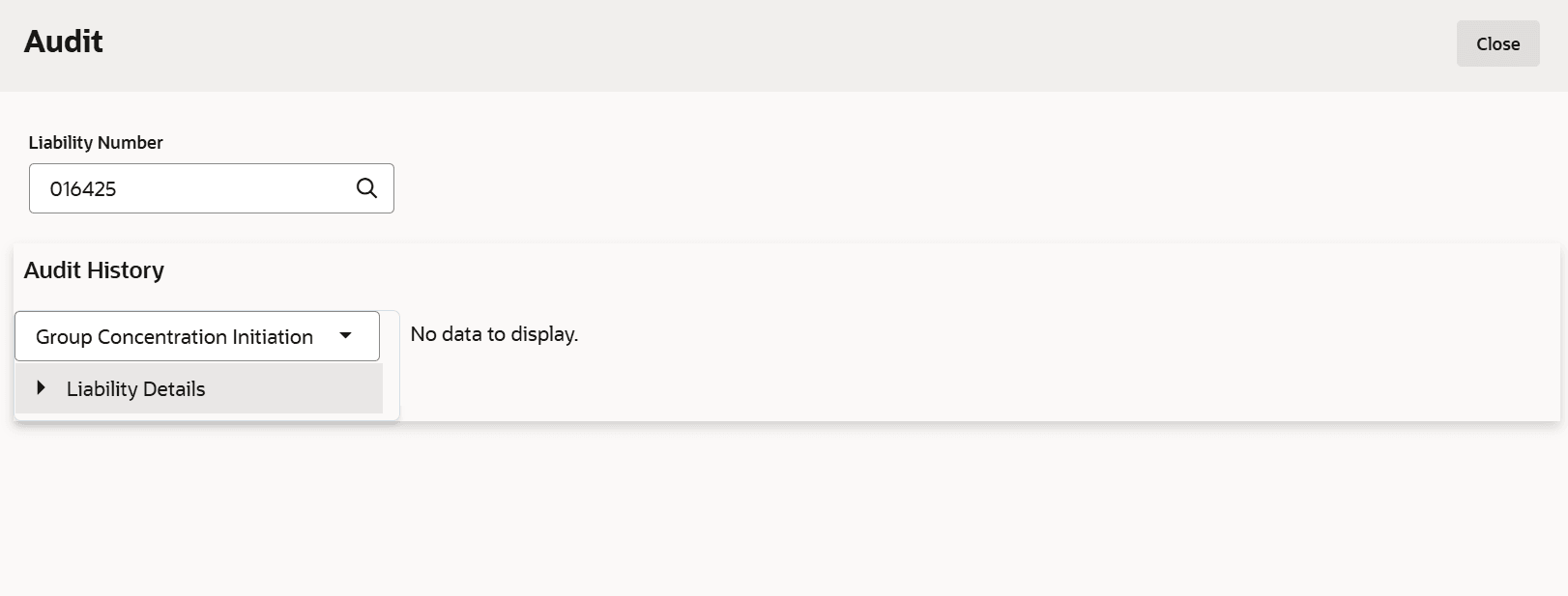
For more information on fields, refer Field Configuration Parameters - Click Audit.The Audit screen displays.
Comments
In this page, you can mention the actions performed in this stage with justification. Posting comments help the user in next stage to better understand the application.
Figure 2-19 Comments
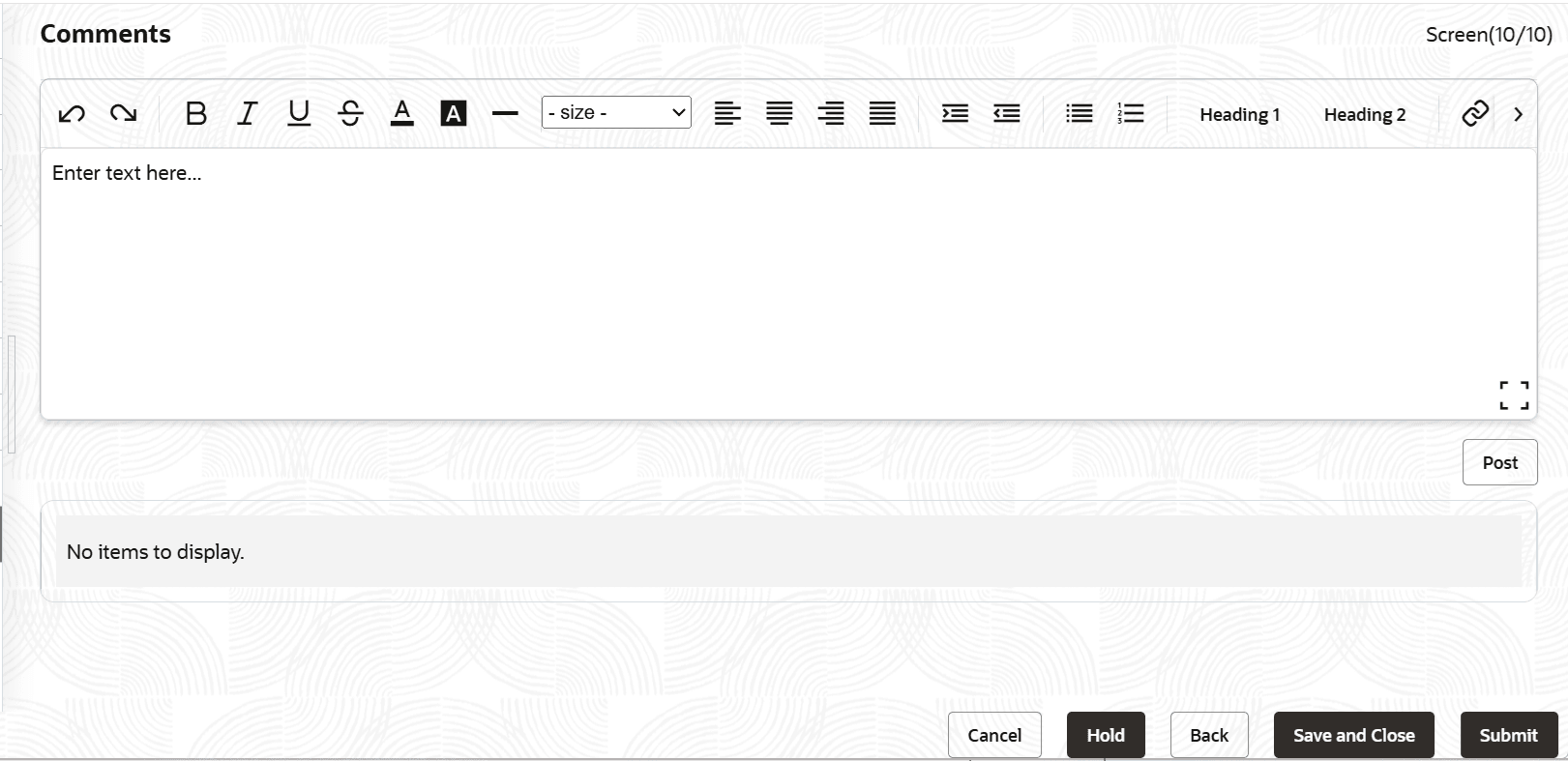
Description of "Figure 2-19 Comments"
For information on fields in the Comments screen, refer the below table.
Table 2-7 Comments
| Fields | Descriptions |
|---|---|
| Post | Type the necessary comments in the text box and click Post. Comment is posted. |
| Hold | To hold the enrichment operation, click Hold. |
| Back | To go back to the previous page, click Back. |
| Next | To go to the next page, click Next. |
| Save & Close | To save the process and exit the page, click Save & Close. |
| Cancel | To exit the process without saving the information, click Cancel. |
Upon clicking Next, the Customer Summary page is displayed:
Customer Summary
The Customer Summary page displays all the entities (e.g. liabilities) added in the initiation stage for verification purpose.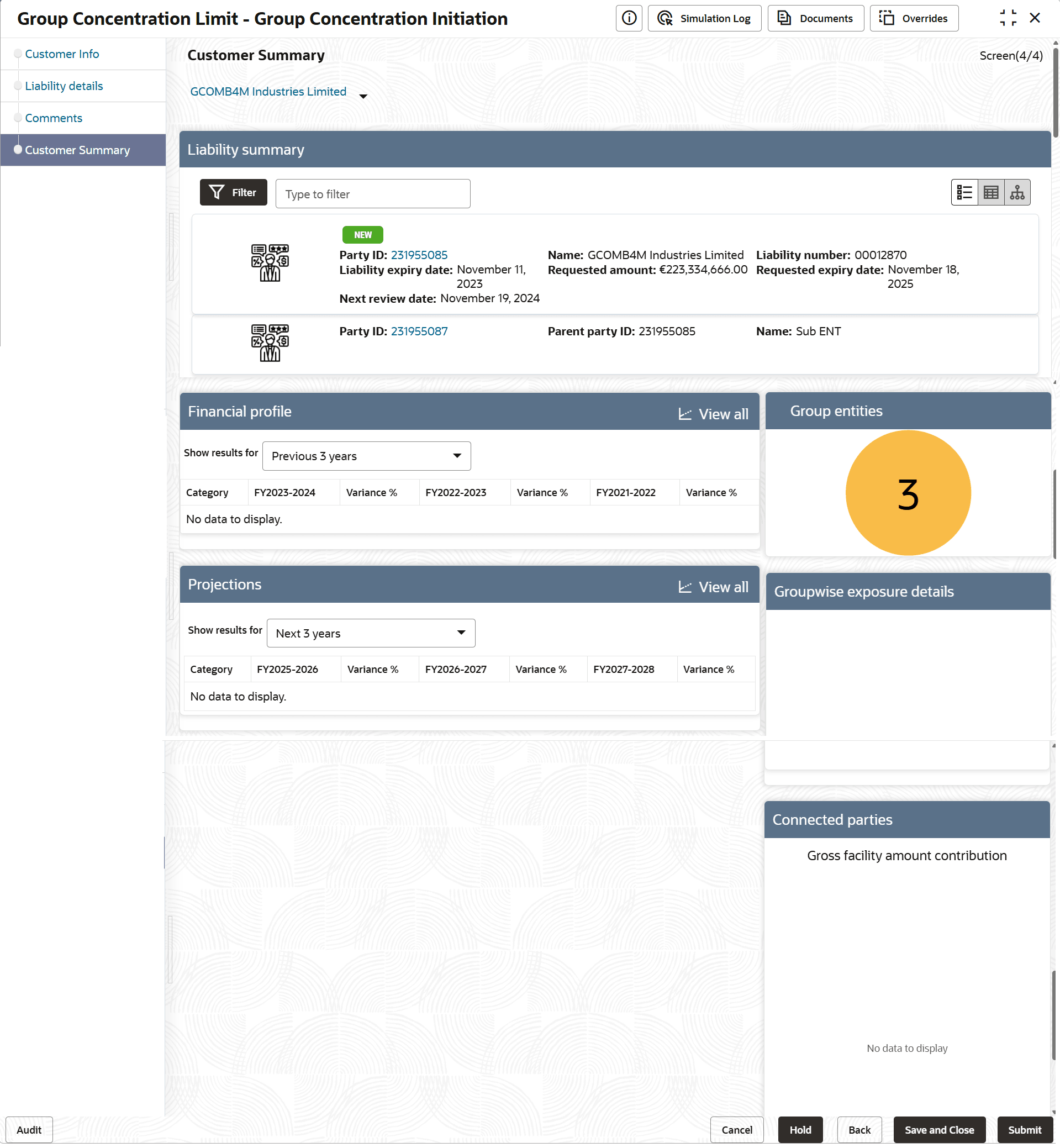
For information on fields in the Customer Summary screen, refer the below table.
Table 2-8 Customer Summary
| Fields | Description |
|---|---|
| Filter | To filter a required liability, click the Filter icon in the Liability Summary widget and specify the filter parameters, or directly type the filter parameter in Type to filter text box. |
| Party Id | To view more details about the liability, click the party Id in the Liability Summary widget. |
| Liability Summary | To change the layout of Liability Summary widget, use the List View, Table View, and Tree View icons. |
| Hold | To hold the initiation operation, click Hold. |
| Back | To go back to the previous page, click Back. |
| Save & Close | To save the process and exit the page, click Save & Close. |
| Submit | To submit the Group Concentration Limit Proposal application, click Submit. |
| Cancel | To exit the process without saving the information, click Cancel. |
Note:
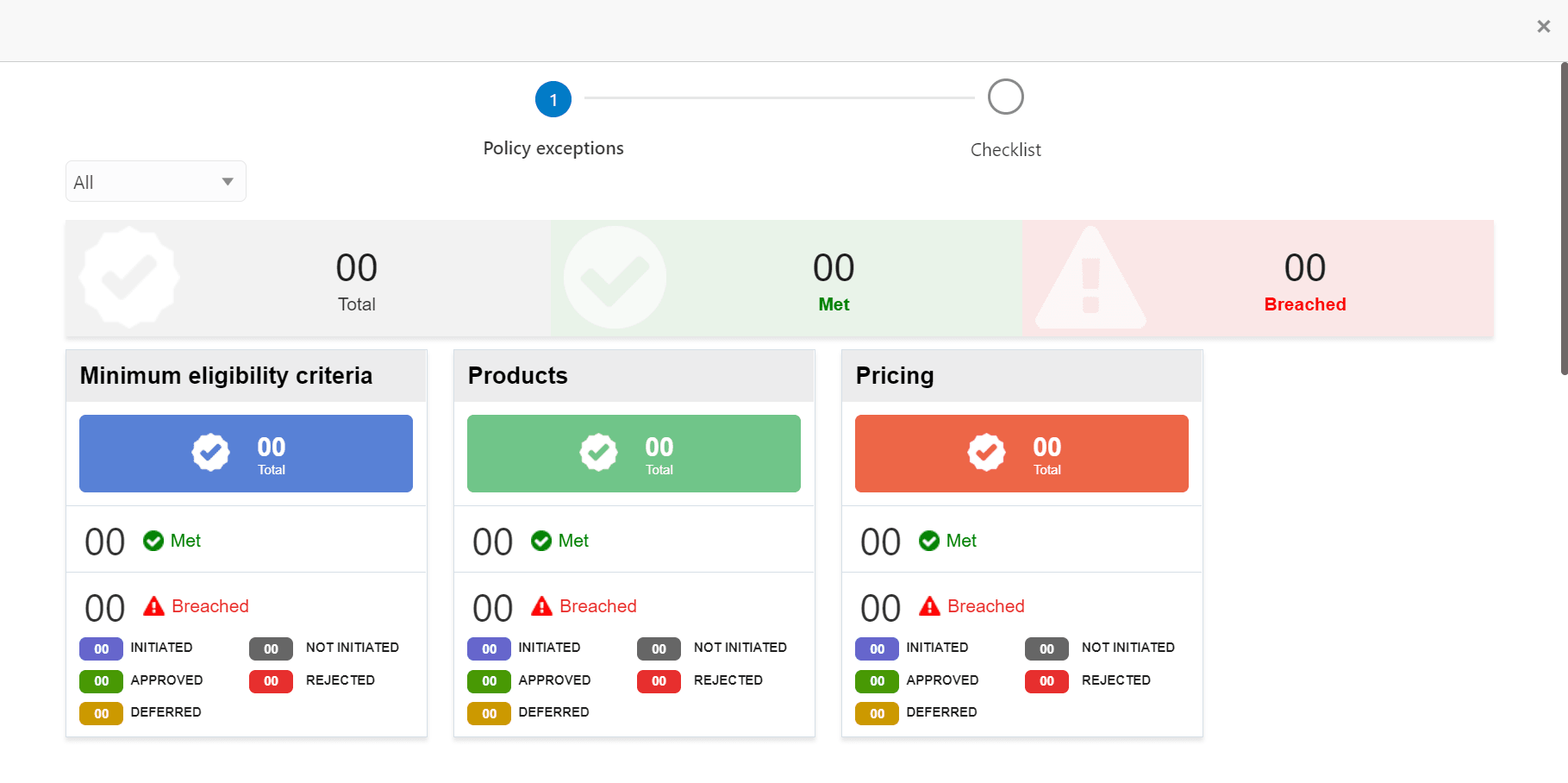
For information on more actions that can be performed in the Customer Summary page, refer Credit 360 User Manual.Click Submit, the Policy Exception Summary / Business window appears based on Business Process Maintenance.
Figure 2-21 Policy Exception
Description of "Figure 2-21 Policy Exception"
By default, policy exceptions are displayed for both the organization (party) and its child party.
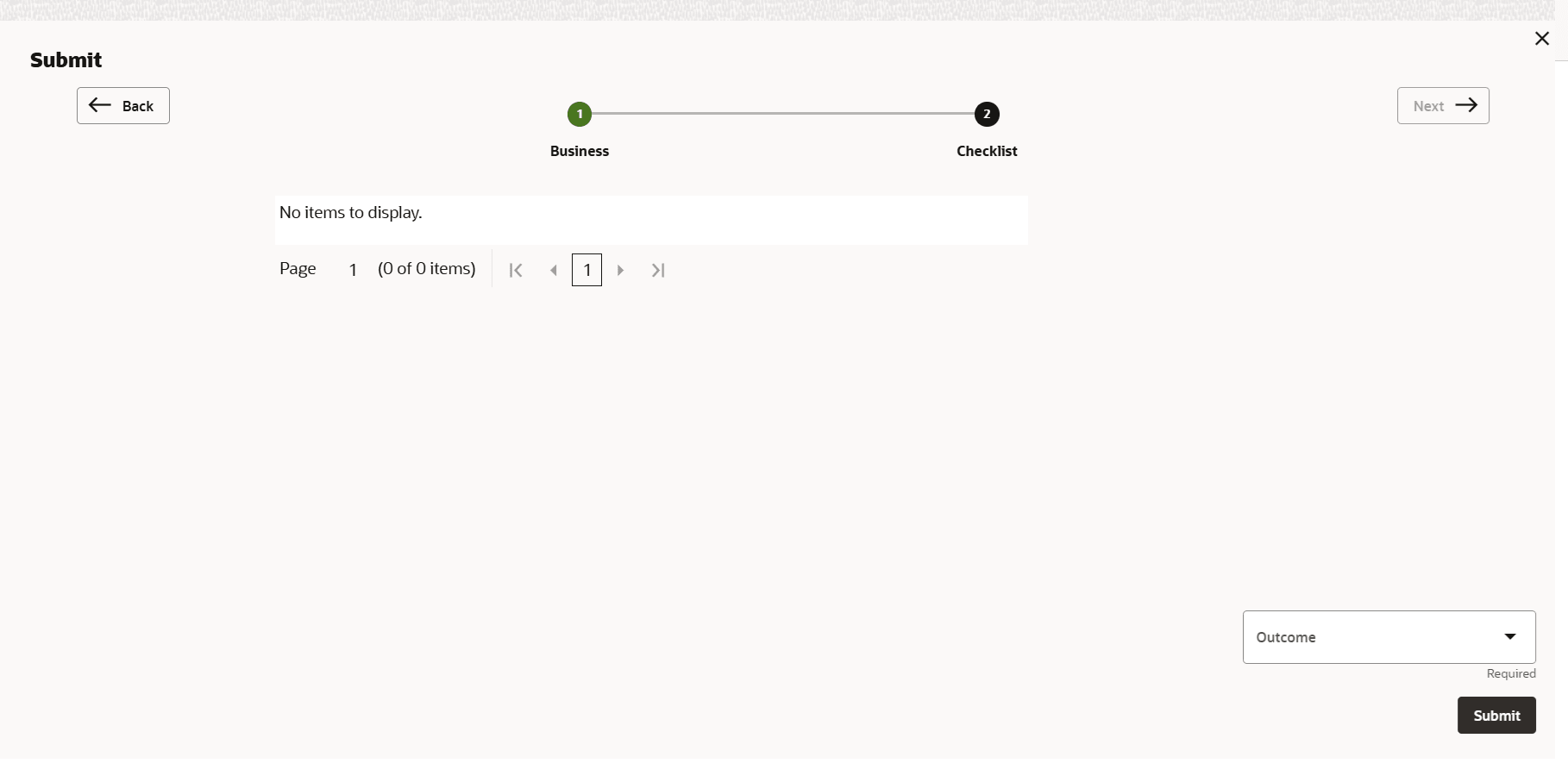
- To Submit the application, click the Checklist data
segment.
Parent topic: Group Concentration Limit Initiation