3 Group Concentration Limit Enrichment
This topic provides systematic instructions about the Limit Enrichment of the Group Concentration Limit Proposal.
In this stage, the Group Concentration Limit Proposal application can be further enriched by modifying the already added basic information or adding new information about the parent and child parties.
- From Home screen, click Tasks.
Under Tasks, click Free Tasks.
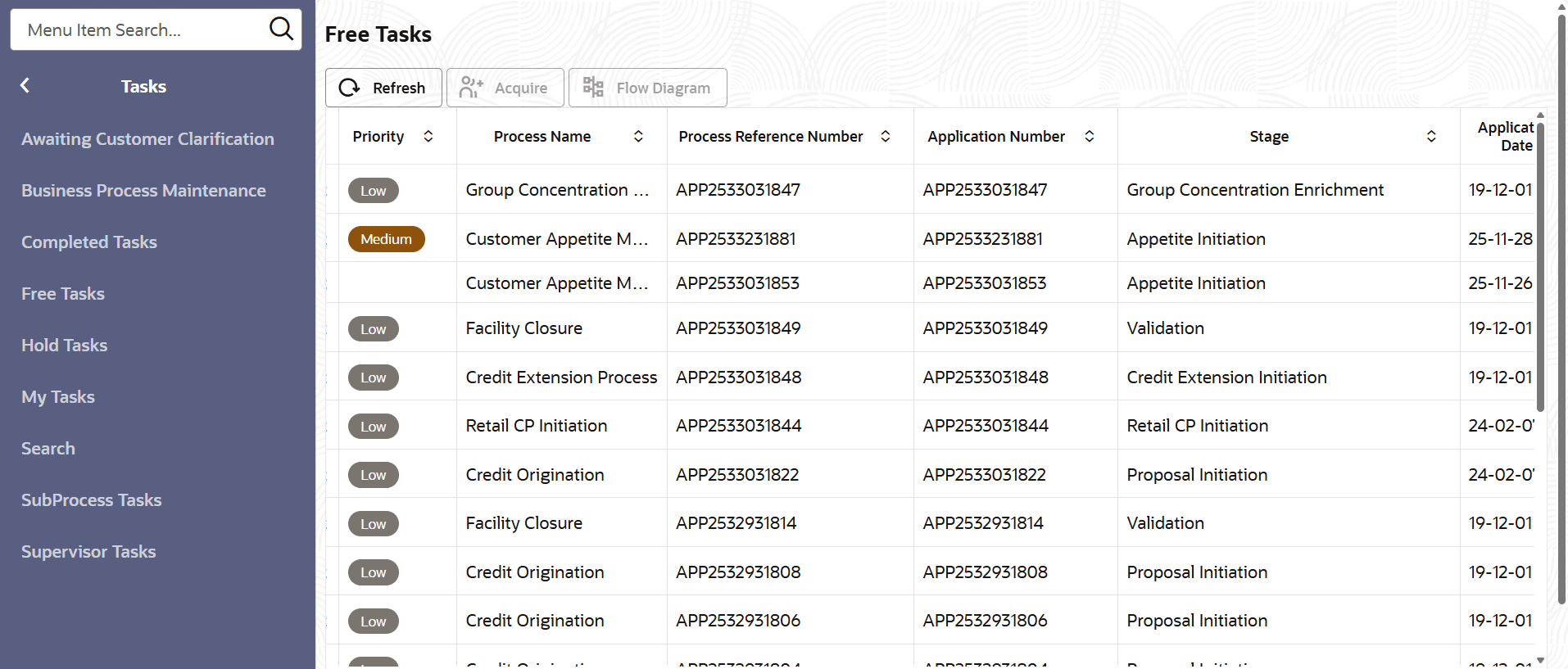
In this page, you can enrich the party or child party details captured in the initiation stage.
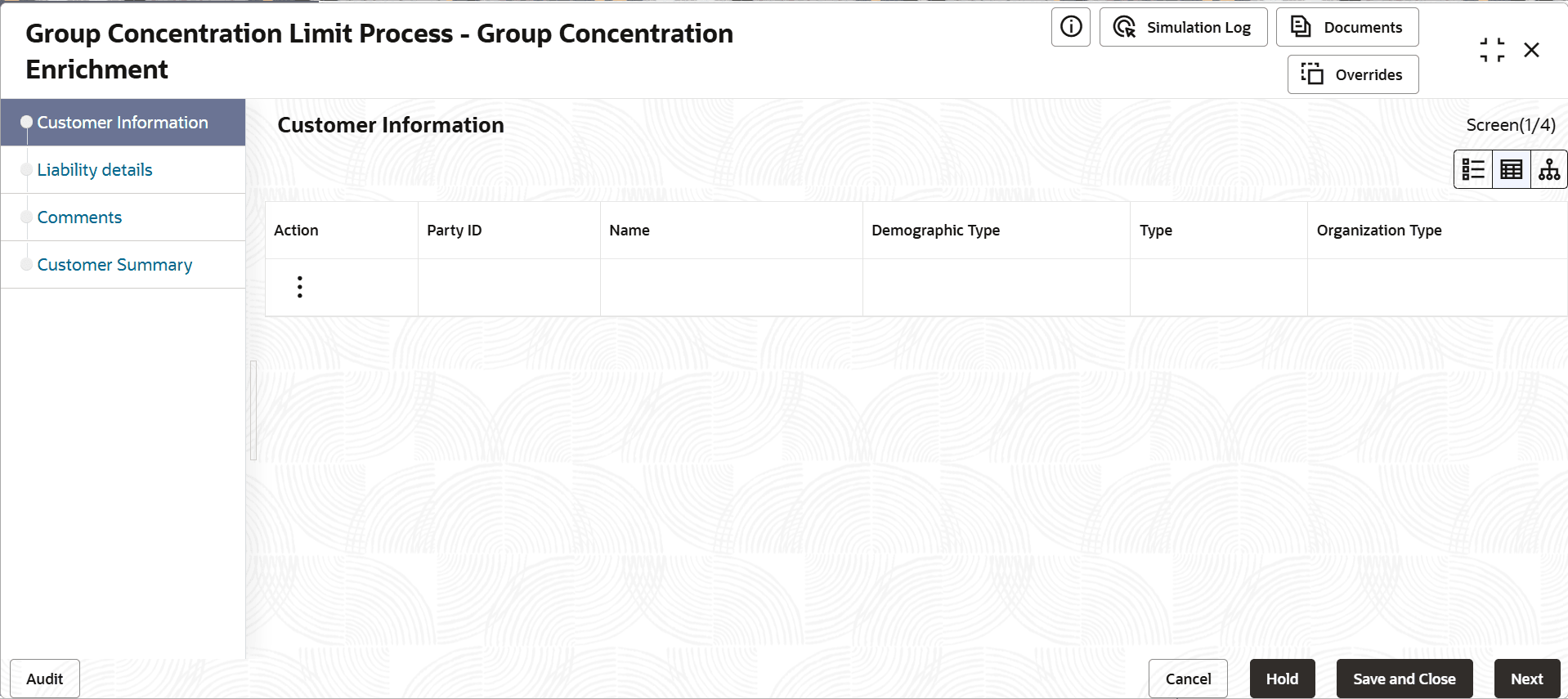
Mouse hovering on the party or child party icon displays the basic information about the party / child party.
- Right click on the party or child party icon and click Configure. The
following window is displayed.
For more information on fields in the KYC Details screen, refer the below table.
Table 3-2 KYC Details
| Fields | Description |
|---|---|
| Received | Enable the Received switch, if KYC verification details are received for the customer. |
| Verification Date | Click the calendar icon and select the KYC Verification Date and Effective Date. |
| Verification Method | Type the KYC Verification Method. For example: Field verification. |
| Listed Company | Click Save. |
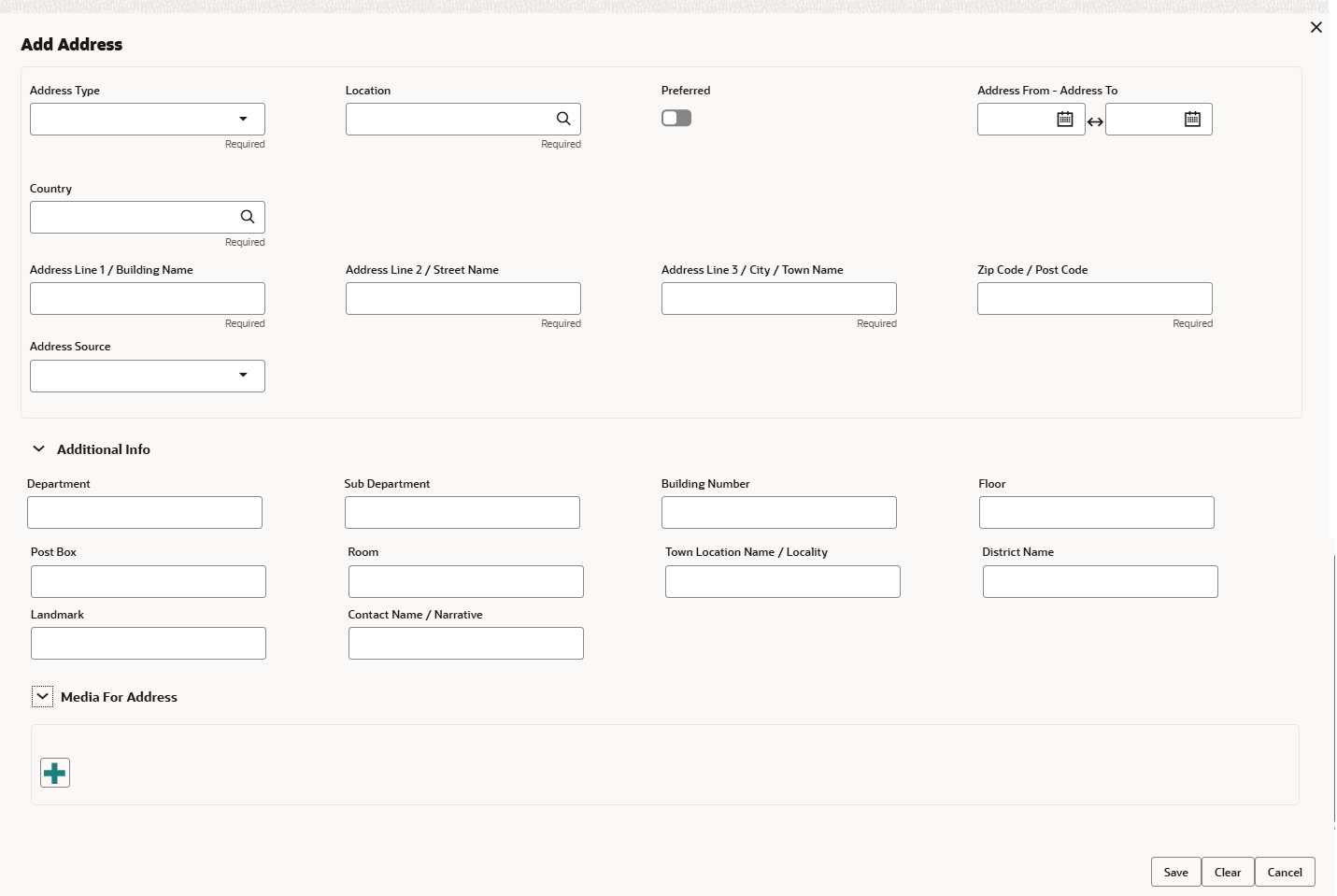
- To add address details of the party, click the Address tab and then click the
Add icon. The Address Details window is displayed:
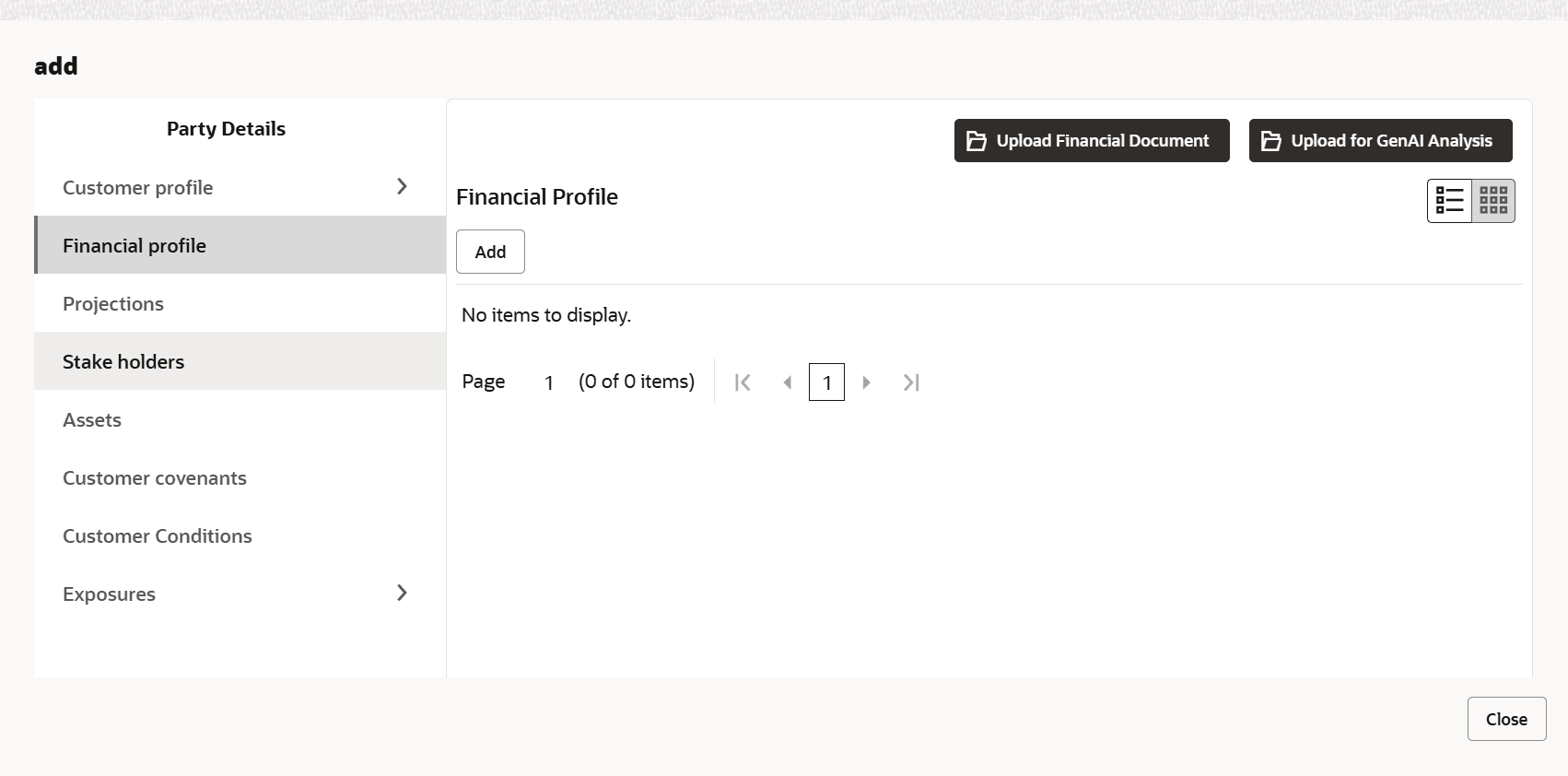
- To configure party’s financial details, click Financial Profile in left
menu. The Financial profile screen is displayed:
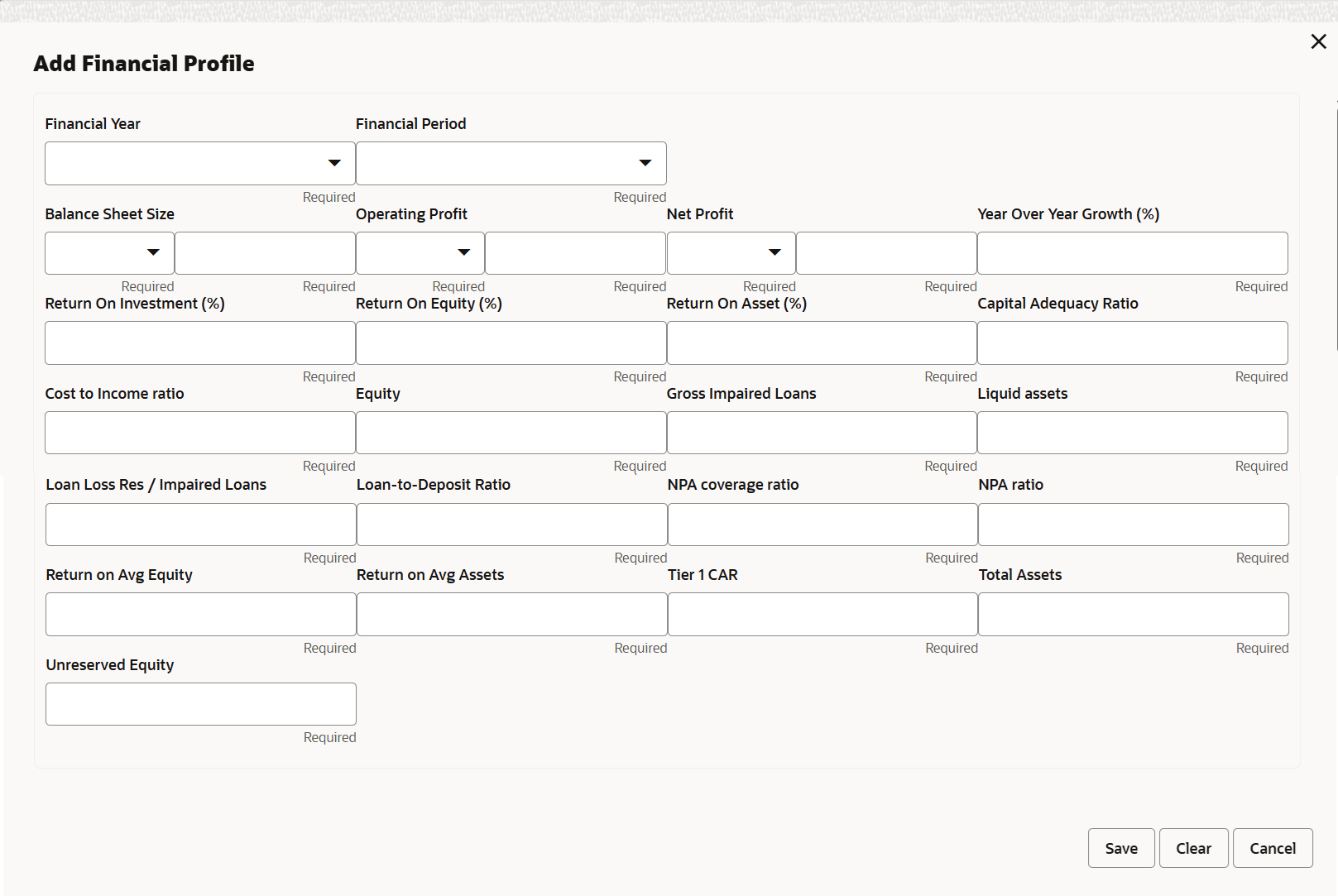
- Click the Add icon. The Finacial Profile screen displays.
For information on fields in the Financial Profile screen, refer the below table.
Table 3-3 Financial Profile
Fields Descriptions Year Specify the Year for which the party’s financial details are to be added. Currency Search and select the Currency for the financial information. Details Specify the following Details in the corresponding fields: - Balance Sheet Size
- Operating Profit
- Net Profit
- Year Over Year Growth
- Return On Investment
- Return On Equity
- Return On Asset
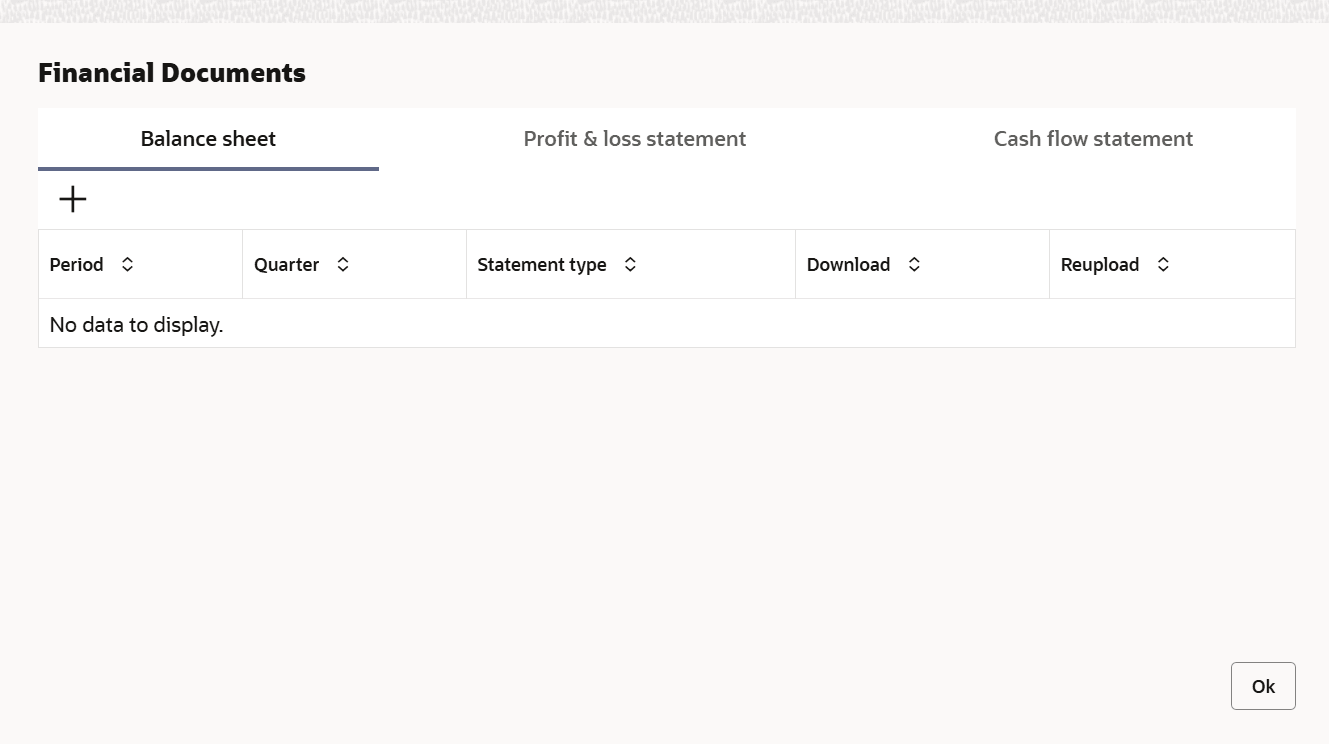
Add Click Add. Party’s financial details are added. - To add financial documents, click Upload Financial Document. The Financial Documents screen is displayed.
In the Financial Documents window, you can Add the following documents by clicking respective tabs.
- Balance Sheet
- Profit & Loss Statement
- Cash Flow Statement
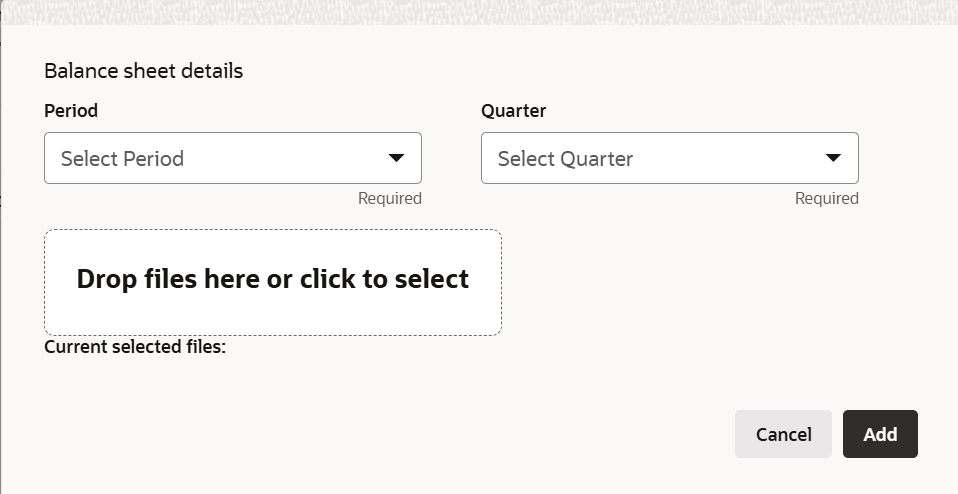
Click Add in any of the above tabs, the following window to upload documents is displayed:For information on fields in the Balance Sheet Details screen, refer the below table.Table 3-4 Balance Sheet Details
Fields/Icons Descriptions Period and Quarter Select the Period and Quarter for which the financial document is to be added. Drop files here or click to select In Drop files here or click to select section, drag and drop or click and upload the financial document. Add Click Add. Document is added. Chart view In the Financial Profile screen, click the Chart view icon to change the List view to Chart view. Note: To Edit, Delete or View the added Financial Profile. click the hamburger icon in the required list item and select the required option.
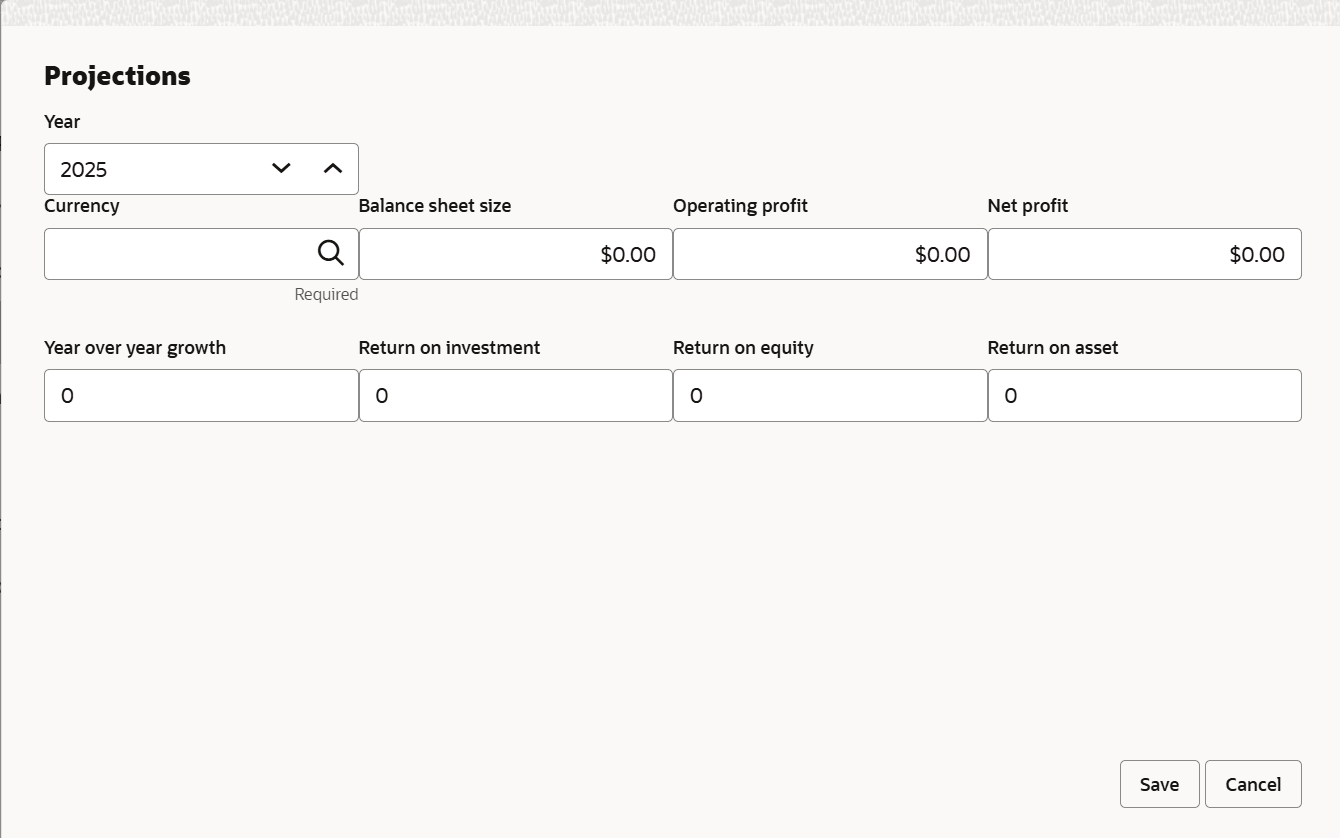
- To configure projection details, click Projections from the left menu
and then click the Add icon. The Projections screen is displayed.For information on fields in the Projections screen, refer the below table.
Table 3-5 Projections
Fields Descriptions Year Specify the Year for which the party’s projection details are to be added. Currency Search and select the Currency for the projection details. Details Specify the following Details in the corresponding fields: - Balance Sheet Size
- Operating Profit
- Net Profit
- Year Over Year Growth
- Return On Investment
- Return On Equity
- Return On Asset
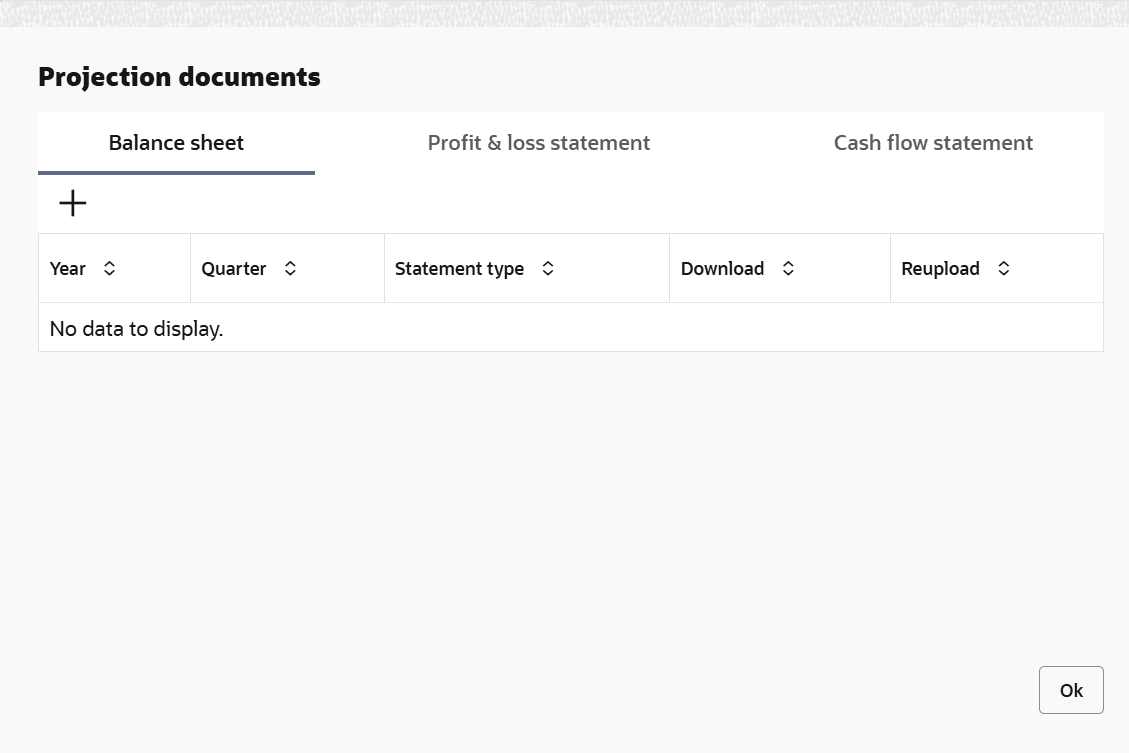
Add Click Add. Party’s projection details are added. - To add projection documents, click Upload Projection Document.The Projection Documents screen is displayed.
In the Projection Documents window, you can Add the following documents by clicking respective tabs.
- Balance Sheet
- Profit & Loss Statement
- Cash Flow Statement
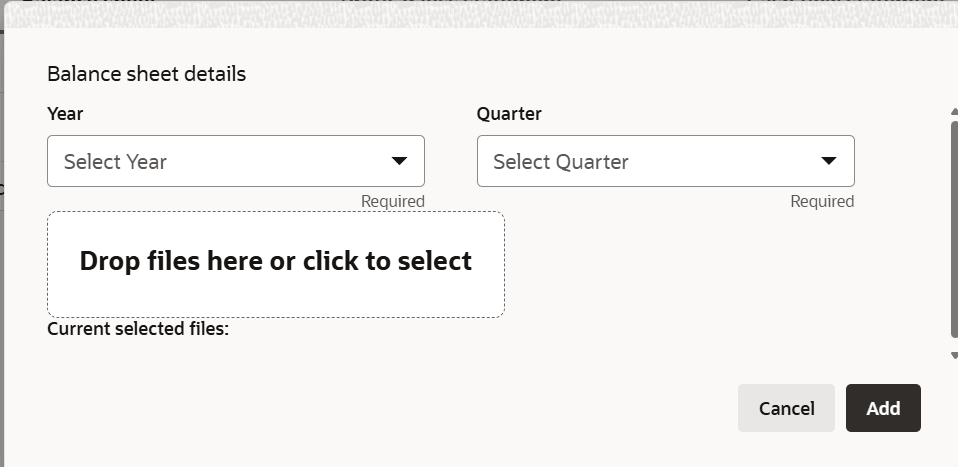
- Click Add in any of the above tabs, the following window to upload
documents appears.
- To add rating information of the party, click Rating in the left menu
and click +Add Ratings. The Add Ratings screen is displayed.
Figure 3-12 Add Ratings
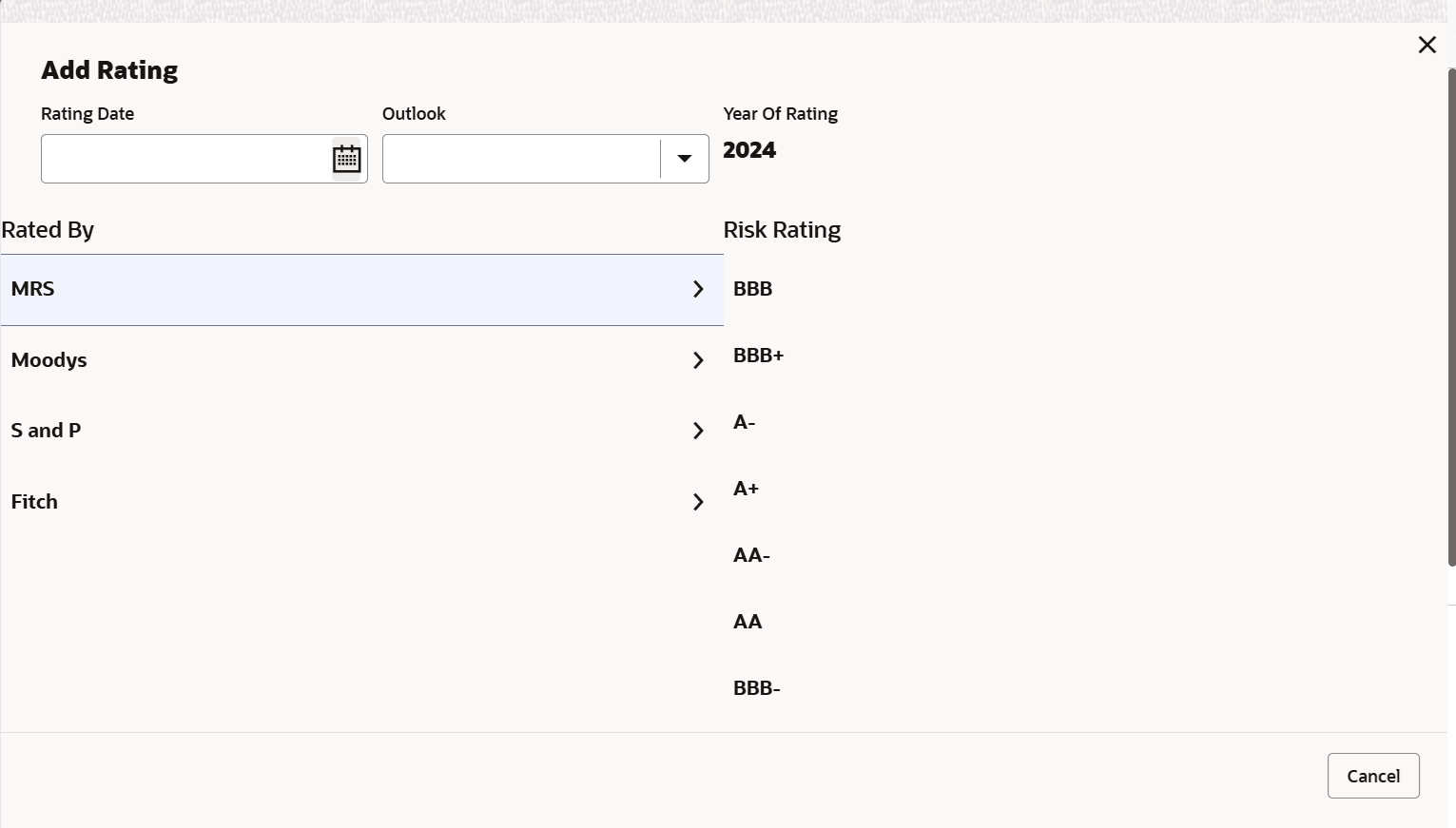
- Select the following details of the rating:
- Rating Date
- Outlook
- Risk Ratings
- Rated By
The Year Of Rating is automatically populated based on the selected Rating Date.
Select the Rated By organization, the rating is added and displayed as shown below.

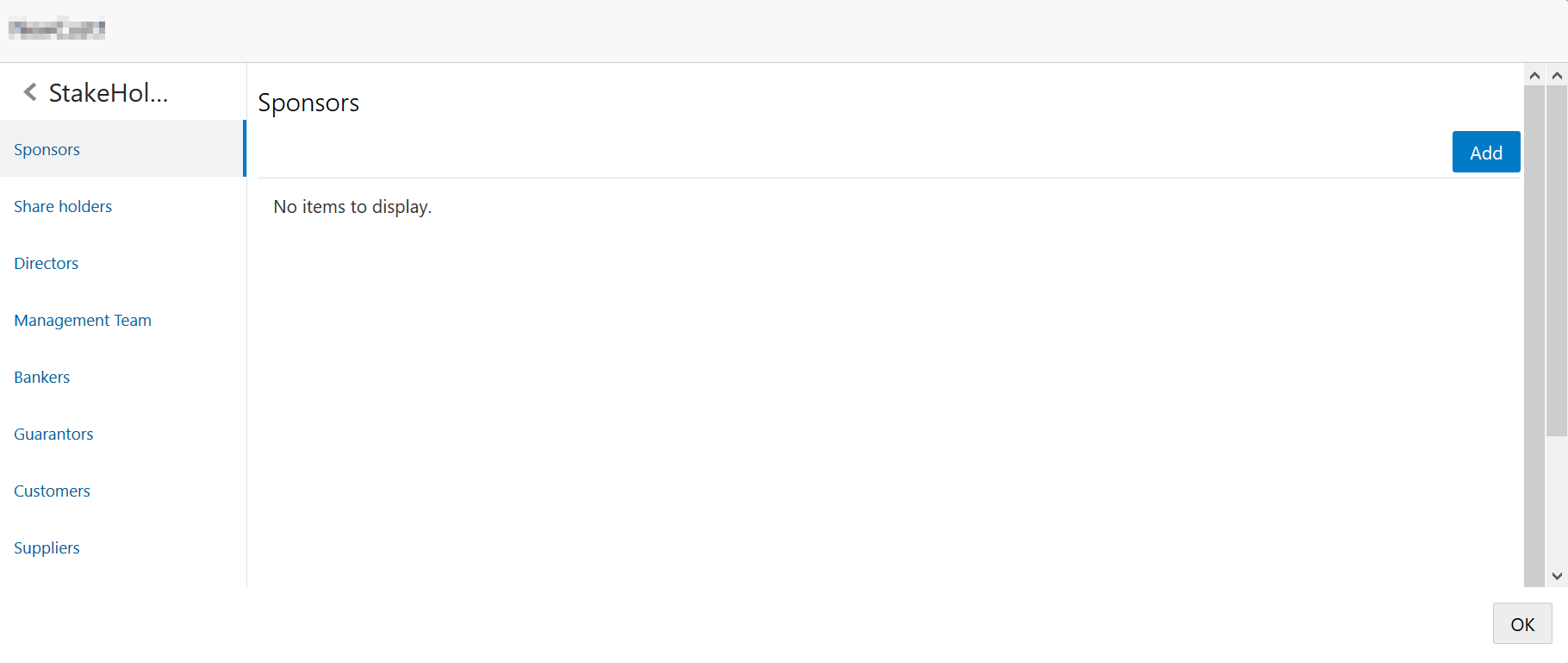
You can add information about the following stakeholders of the party by clicking the Stakeholders menu:
- Auditors
- Sponsors
- Share holders
- Directors
- Management Team
- Bankers
- Guarantors
- Customers
- Suppliers
Figure 3-14 Sponsors
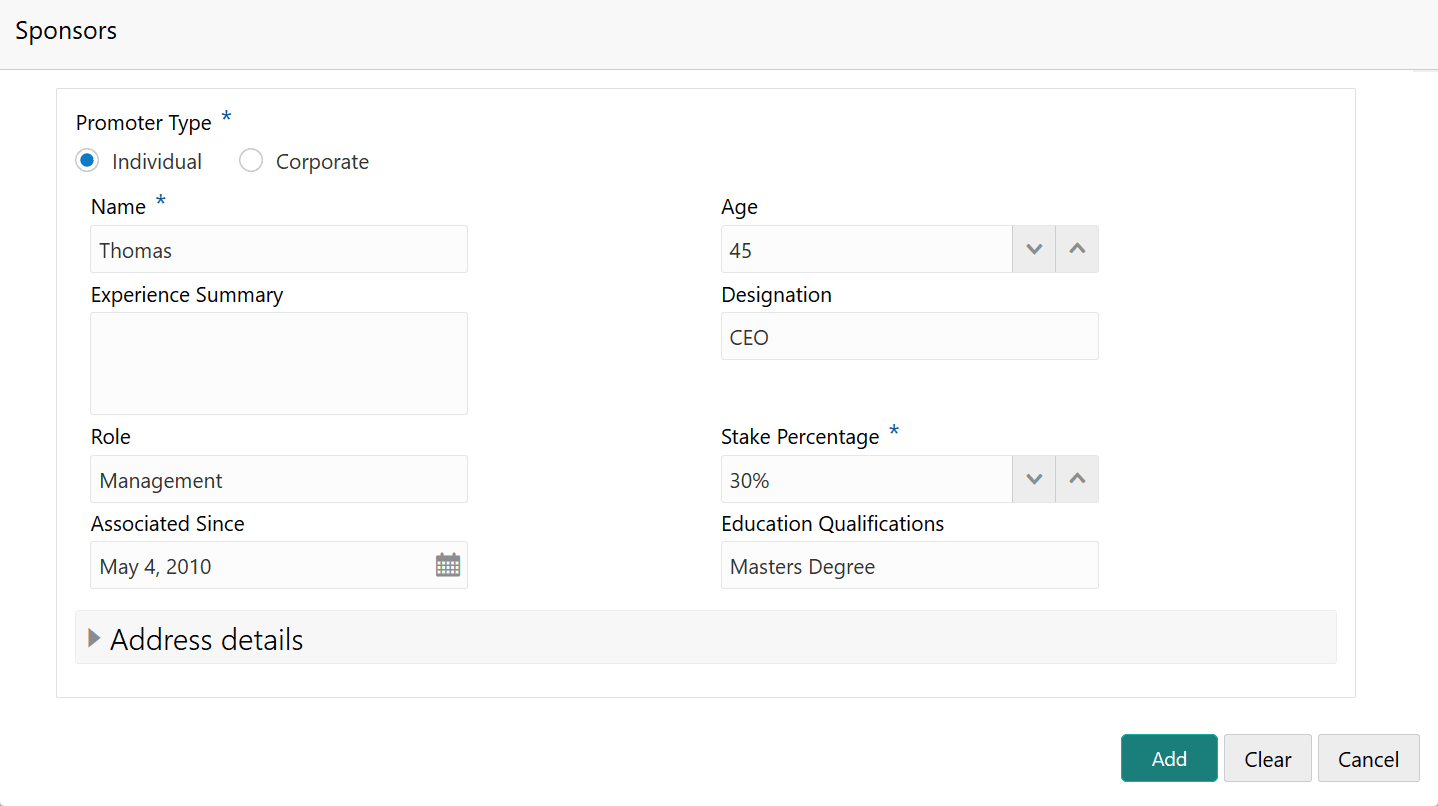
- To add sponsor details, click Sponsors from the left menu and then click
Add.The Sponsors screen is displayed.
Figure 3-15 Sponsors
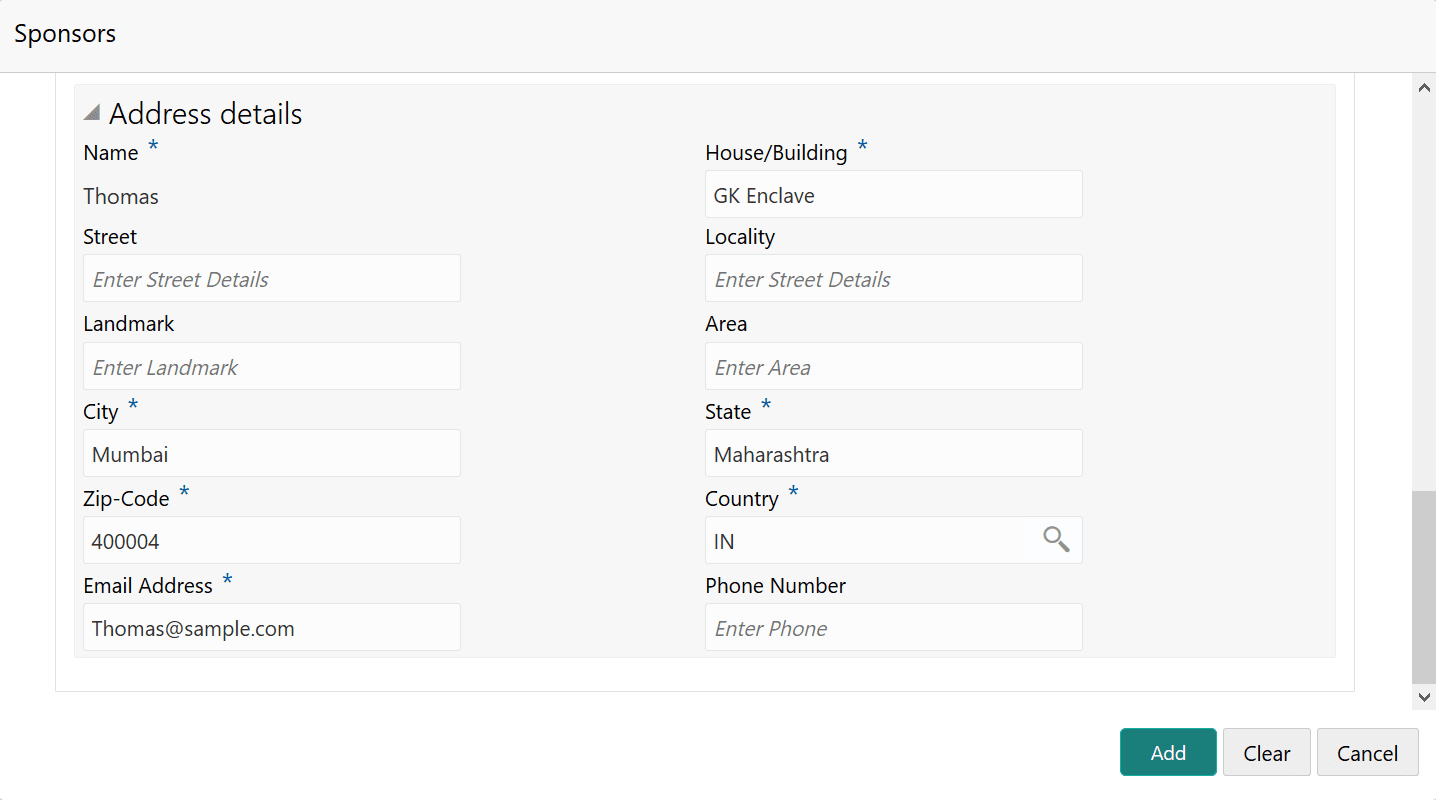
- Click and expand the Address details section.
Figure 3-16 Sponsors
- To add asset details of the party, click Assets from the left menu and
then click Add. The Assets window is displayed.
Table 3-6 Assets
Fields Description Name Type the Name of the Asset. Currency Search and select the Currency for the asset value. Value Specify the asset Value. Description Type the asset Description. Add Click Add. Asset details are added. Note:
To Edit, Delete or View the added Assets. click the hamburger icon in the required list item and select the required option. - To add covenant details of the party, click Customer Covenants from the
left menu. The Customer Covenantsscreen is displayed.
- Click the add icon. The Covenant Details window is displayed.
- Click and expand the Covenant details section.
- To capture monitoring information for the covenant, click and expand the
Monitoring Information Details section.
Figure 3-21 Monitoring Information Details

- To build a formula and validate the party against it, expand the Formula
Details section.
Figure 3-22 Formula Details
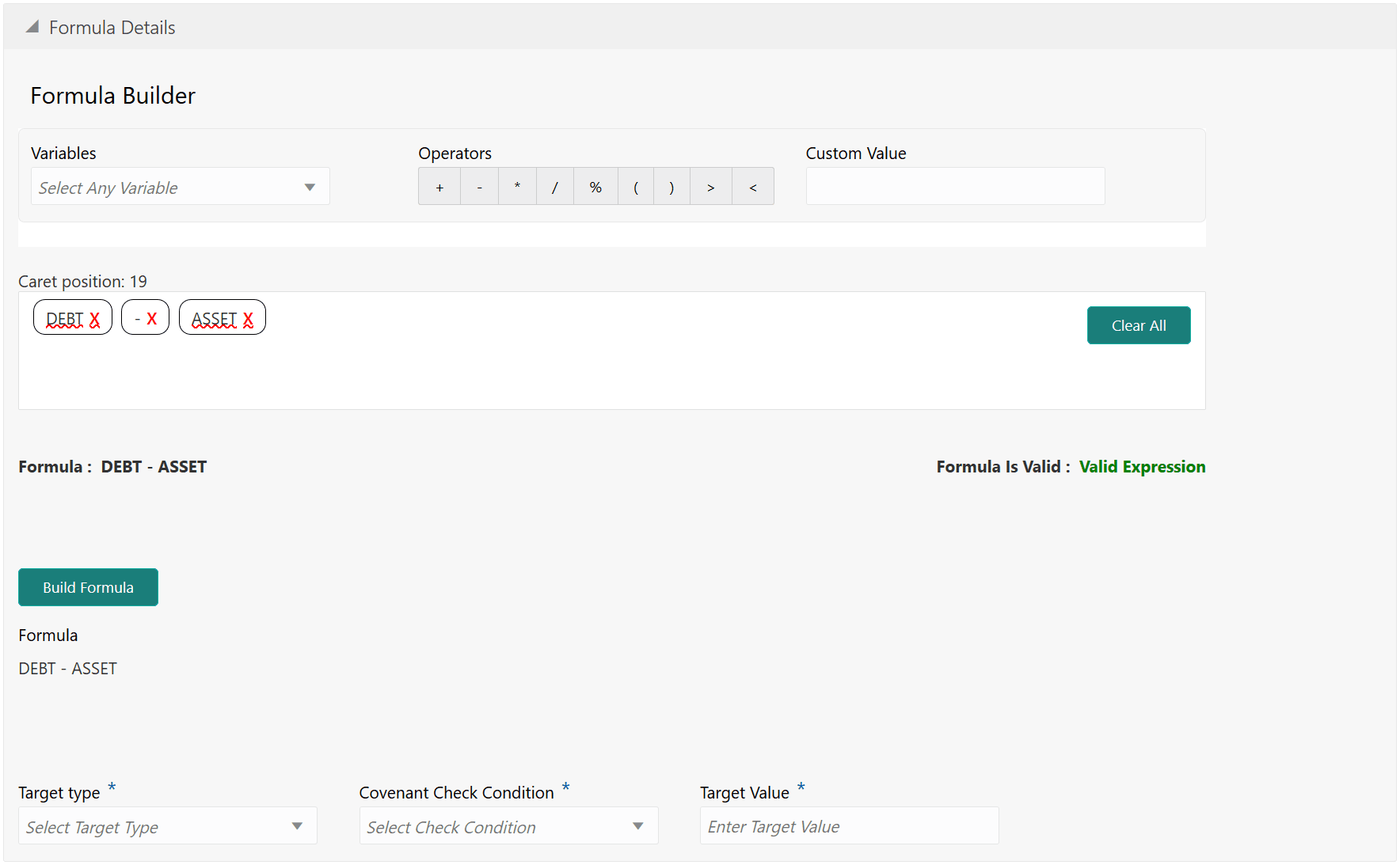
For information on fields in the Formula Details screen, refer the below table.
Table 3-7 Formula Details
Fields Description Variable Select a Variable from the drop down list. The options available are Debt, Asset, Debt Ratio and Asset Ratio. Operators Select the required operator from the available Operators. Custom Value Provide a Custom Value, if you want to use it in the formula. Build Formula Click Build Formula. The formula is built and displayed below the formula box. The system will also display whether the formula is valid expression or invalid expression below the formula box. You must change the formula in case it is invalid expression.
Target Type Select the Target Type from the drop down list. The options available are: Value, Percentage, and Ratio. Covenant check condition Select the Covenant check condition from the drop down list. The options available are: Greater than, Greater than or equal to, Between, Less than or equal to, Equal to, and Less than. If Between is selected as the covenant check condition, Target Value 1 and Target Value 2 fields appear. You need to specify the range of target values.
Target Value(s) Specify the Target Value(s). The system will periodically derive the built formula with the values obtained from party’s financial documents and validate it against the set target values based on covenant check condition.
- To add other covenant details, expand the Others section.
Figure 3-23 Others
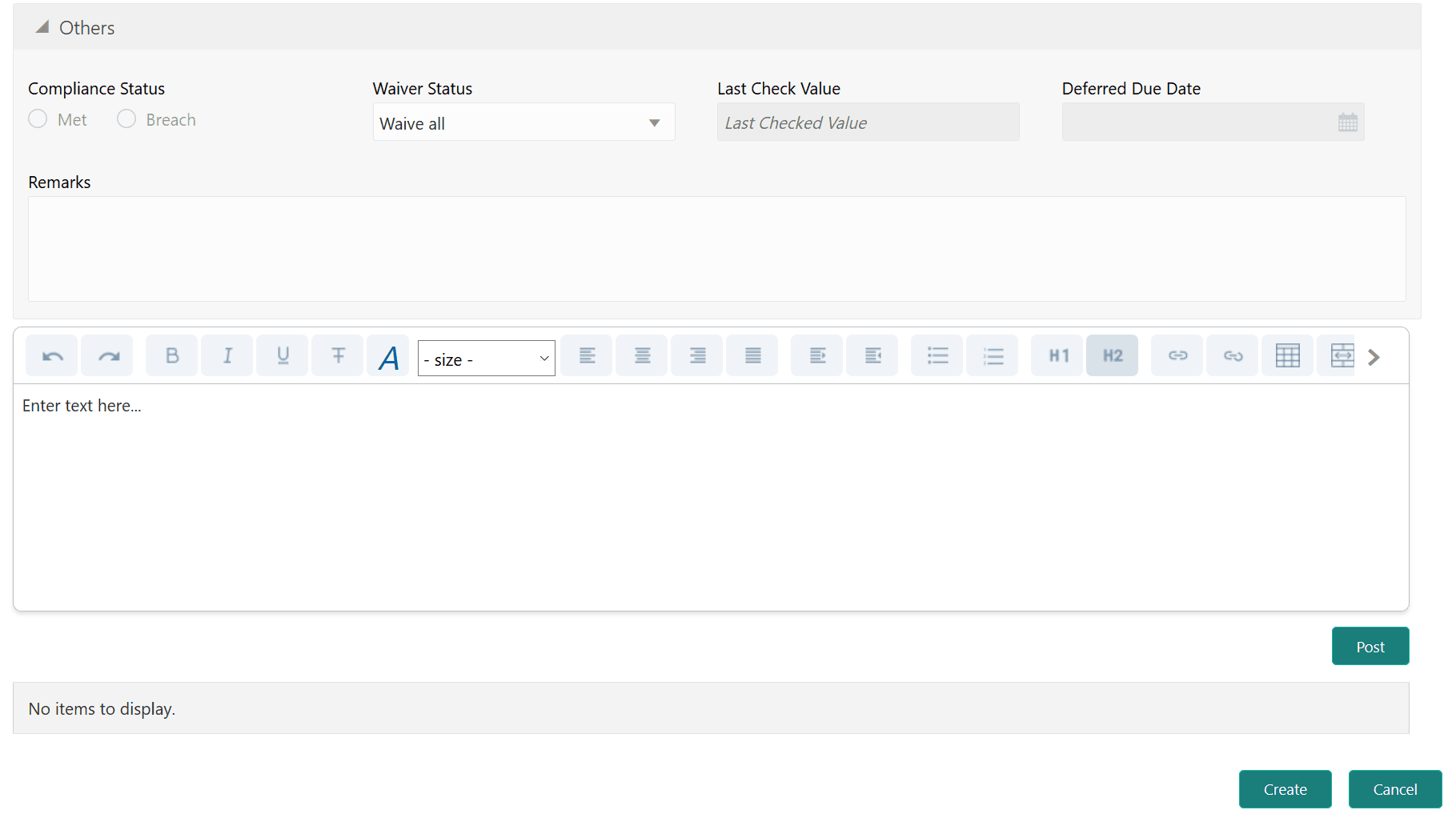
For information on fields in the Others screen, refer the below table.
Table 3-8 Others
Fields Description Compliance Status Select the current covenant Compliance Status of the party. The options available are: Met and Breach. Waiver Status Select the Waiver Status from the drop down list. The options available are: Waive and Waive all. Last Check Value Specify the target value observed during the last covenant check in the Last Check Value field. Deferred due date Specify the Deferred due date. The covenant review can be postponed till the mentioned date. Remarks Capture overall Remarks for the covenant. Create Click Create. Covenant details are added. Note:
For information about filter, add, edit, delete, and layout options, refer any section in Initiation Chapter.
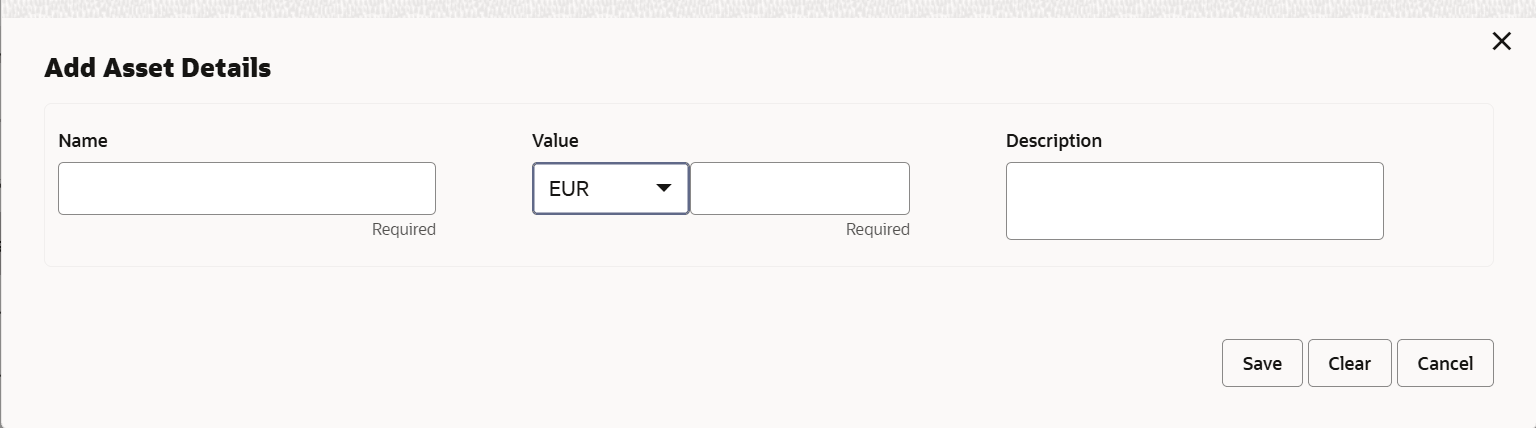
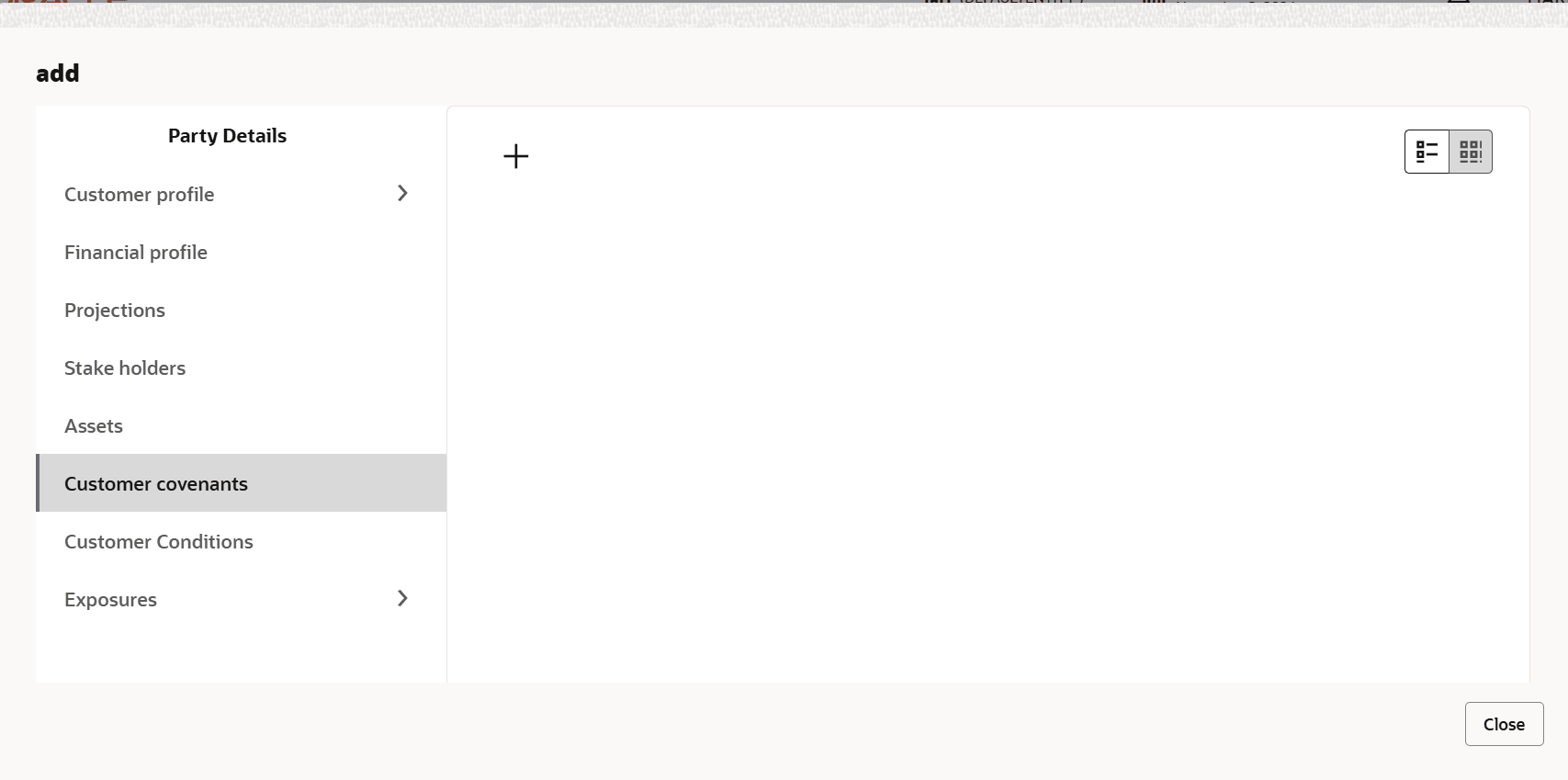
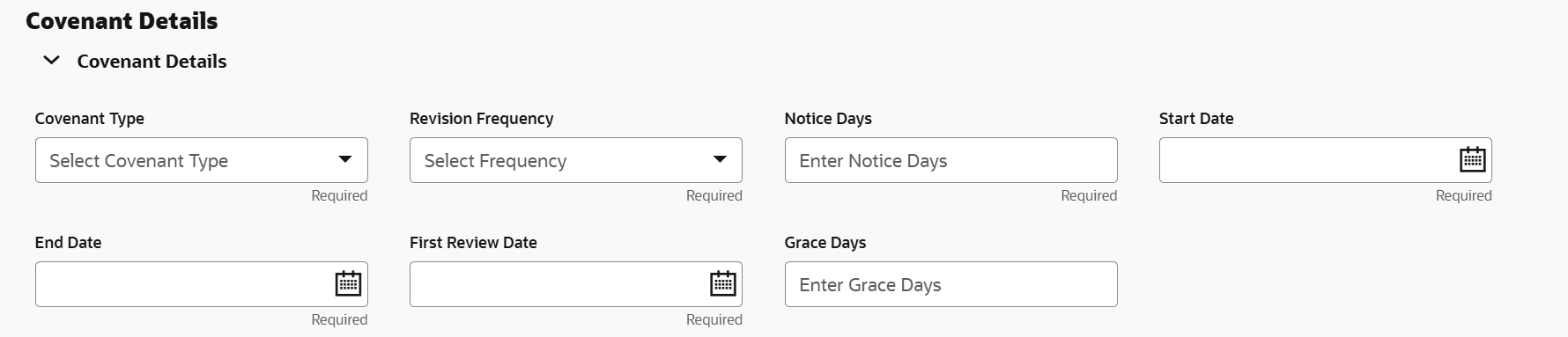
Figure 3-24 Party Details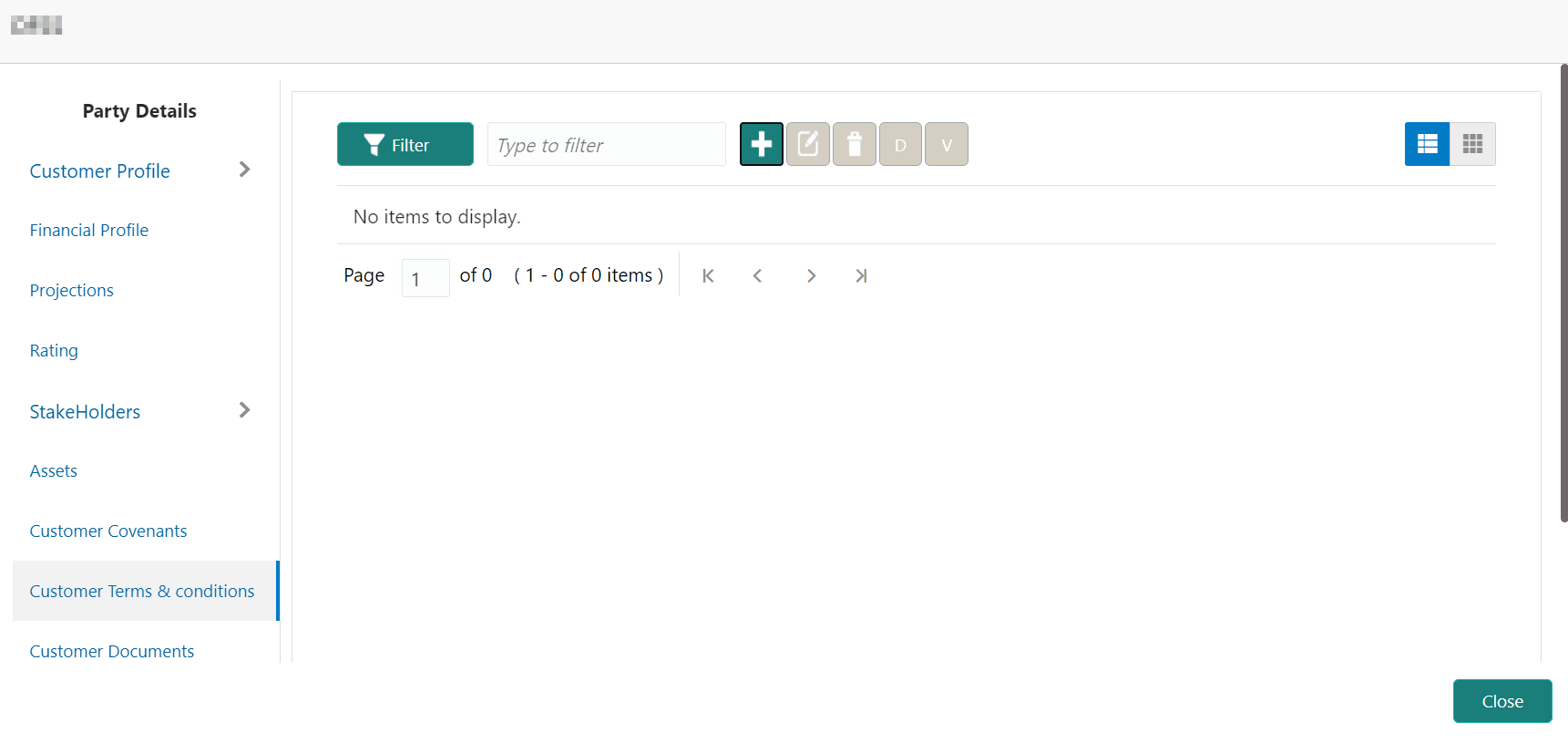
- To link terms and conditions to the party, click Customer Terms &
Conditions in the left menu and then click Add icon.The Add Terms And Conditions screen is displayed.
Figure 3-25 Add Terms And Conditions
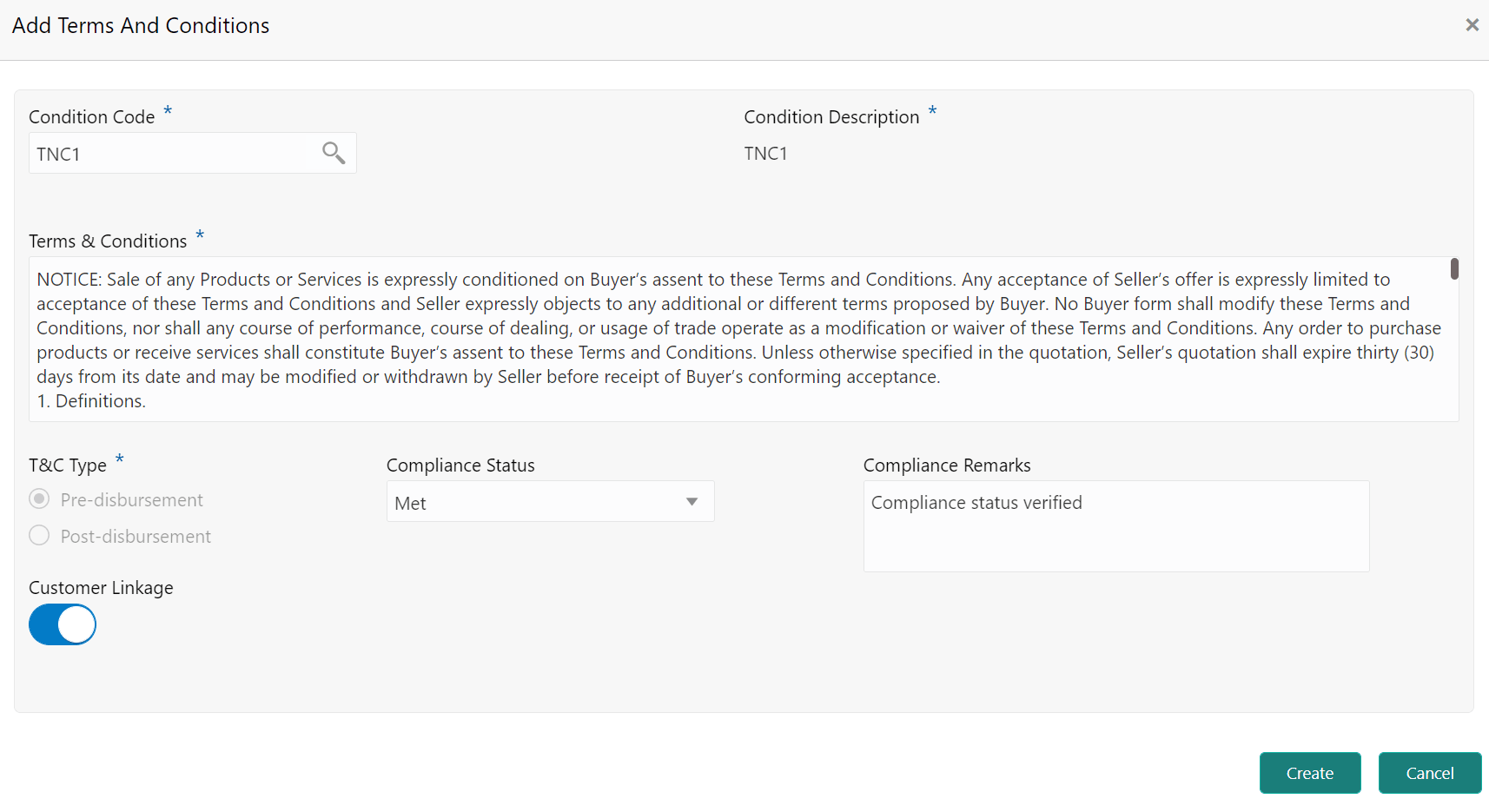
For information on fields in the Add Terms And Conditions screen, refer the below table.
Table 3-9 Add Terms And Conditions
Fields Description Condition Code Search and select the Condition Code. Terms and Conditions maintained in the Maintenance module are displayed in the LOV. Condition Description Upon selecting the Condition Code, Condition Description, Terms & Conditions, and T&C Type maintained for the condition code get defaulted. Terms & Conditions To modify the terms and conditions specific to customer, edit the required text in the Terms & Conditions text box. Compliance Status Select the Compliance Status of terms and conditions. The options available are Met and Breached. Compliance Remarks Specify the Compliance Remarks. Customer Linkage By default, the Customer Linkage flag is enabled. You can disable it if you want to link the terms and conditions to the facilities. Disable the Customer Linkage flag, facility details table appears as shown below:
Figure 3-26 Add Terms And Conditions
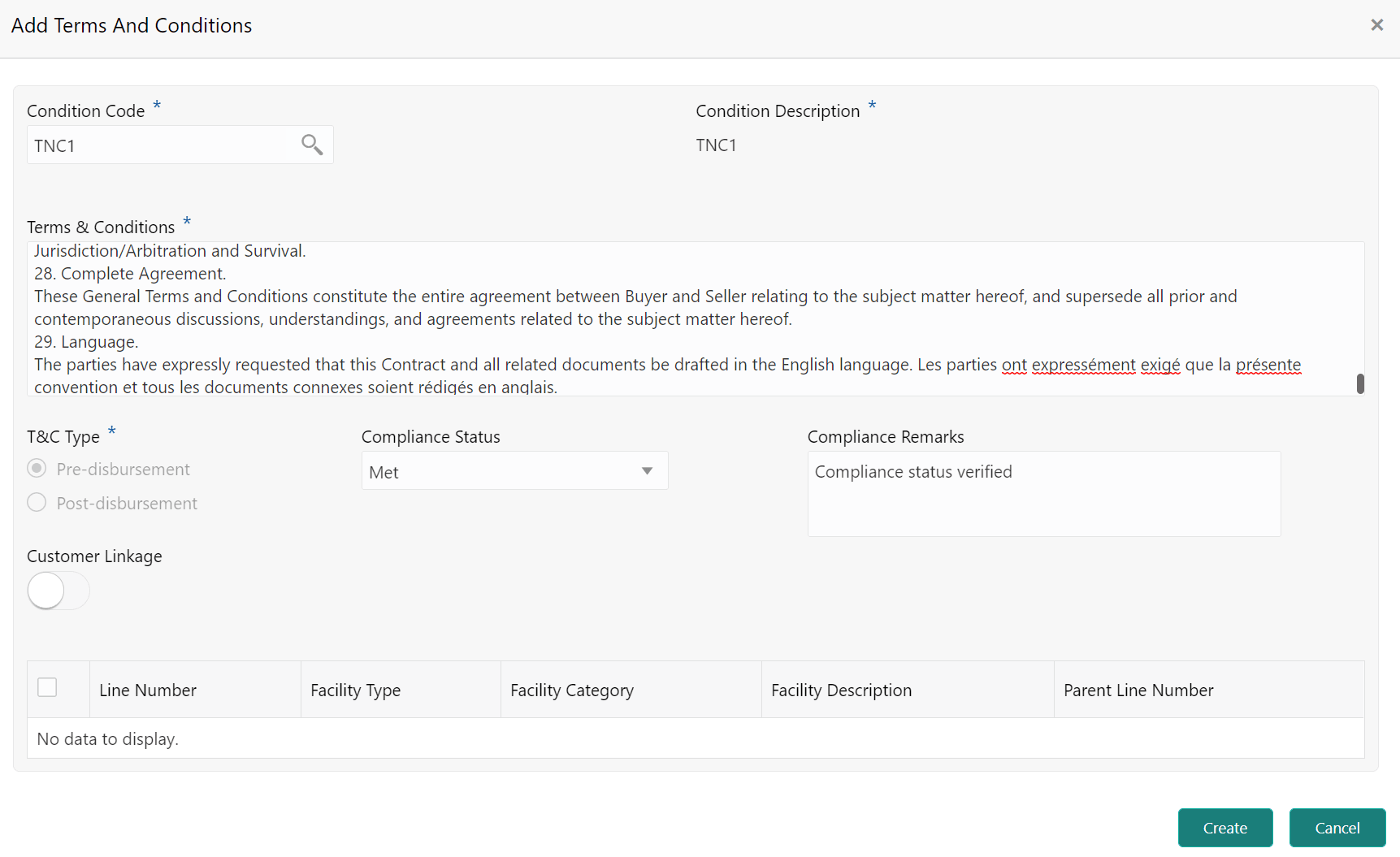
- Click Create. Terms and conditions are linked to the customer or
facility and displayed as shown below: The Terms & Conditions screen displays.
Figure 3-27 Terms & Conditions
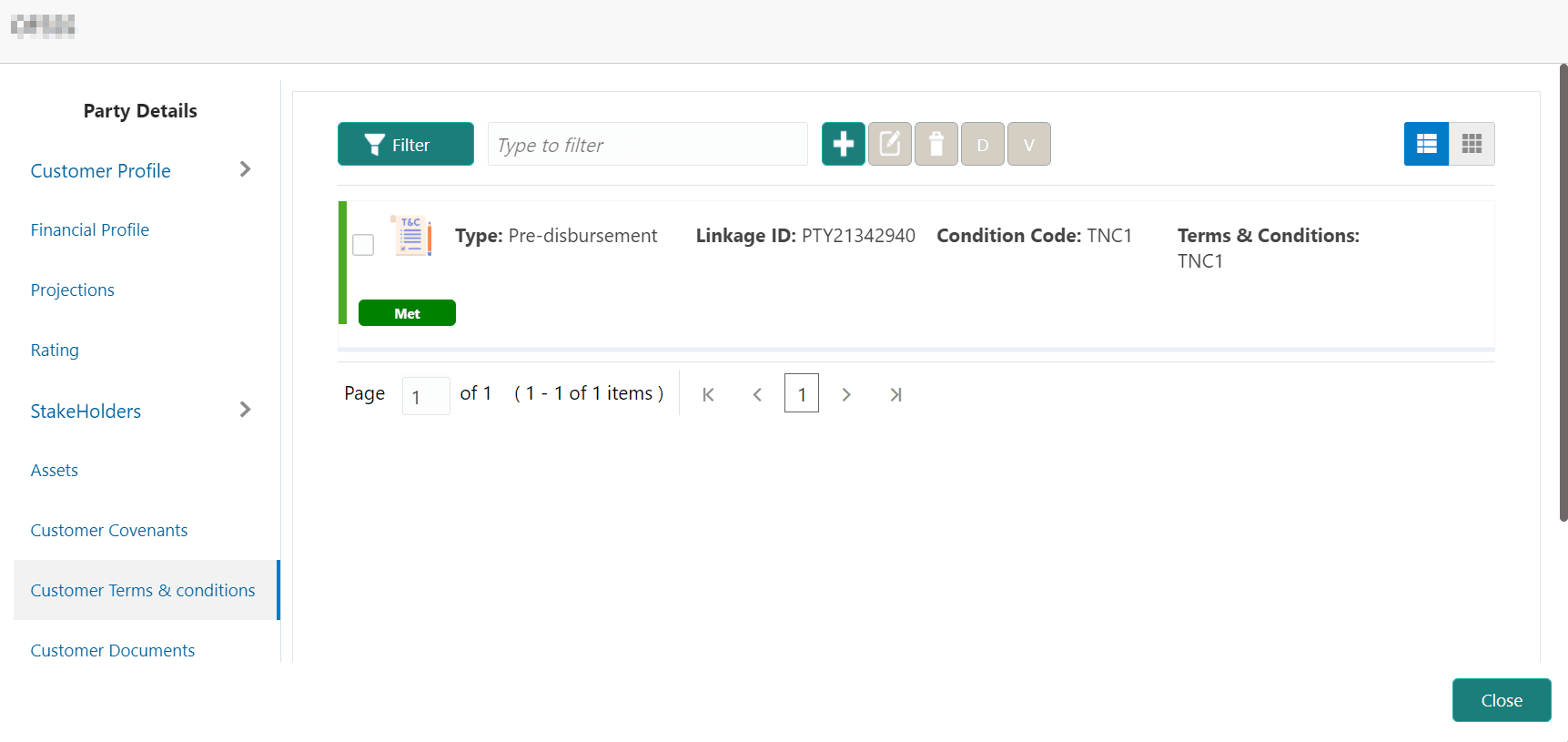
Note:
For information about filter, edit, delete, and layout options, refer any section in Initiation Chapter. - To add non-financial documents of the party, click Customer Documents
from the left menu.
Figure 3-28 Party Details
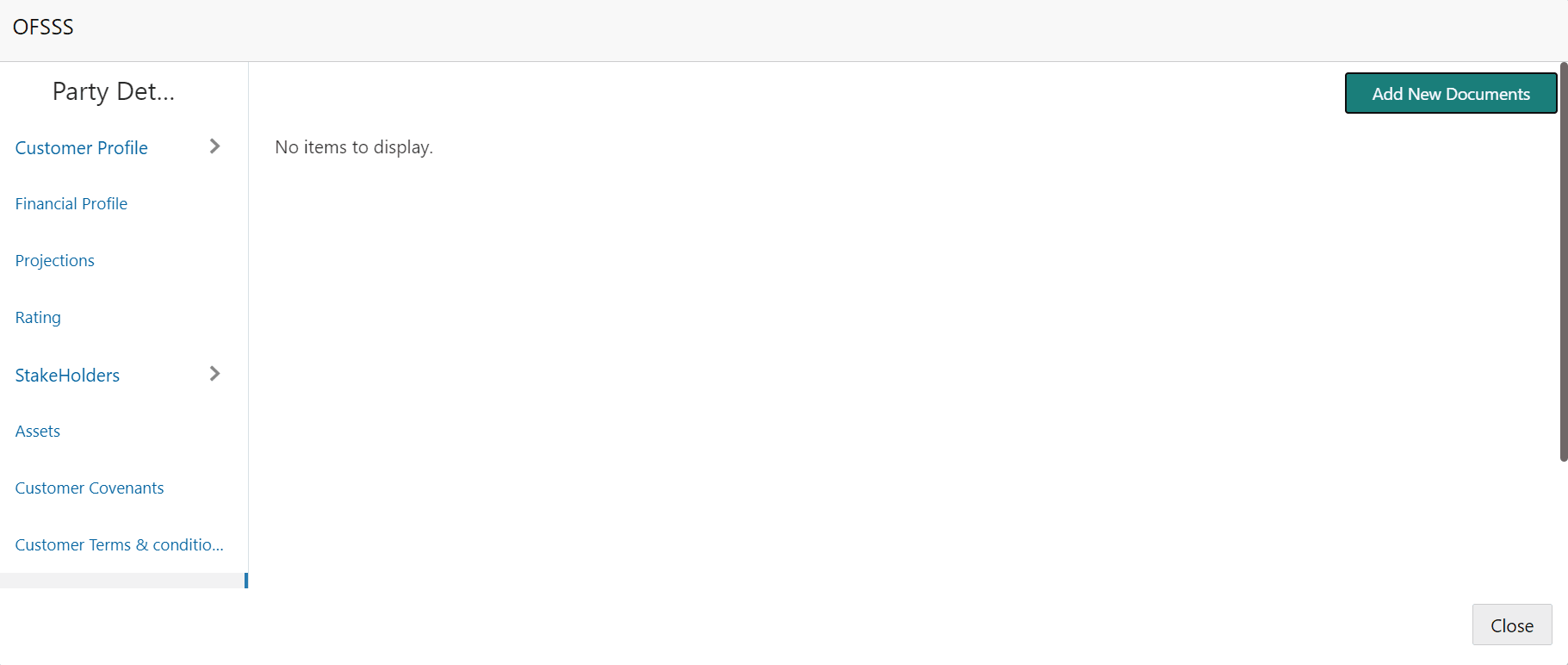 If the necessary document list is maintained in the Maintenance module, it appears in the above screen. You can directly upload the documents by clicking upload / add option in the respective record.
 - To add documents that are not in the list, click Add New Documents. The
following window appears:
For information on fields in the Document screen, refer the below table.
Table 3-10 Document
Fields Description Document Type and Document Code Search and select the Document Type and Document Code. Document types and codes maintained in the maintenance module are displayed in the respective LOVs. DocumentType Description and Document Code Description DocumentType Description and Document Code Description get defaulted based on selected Document Type and Document Code, respectively. Document Expiry Date Click the calendar icon and select the Document Expiry Date of customer documents. Remarks Specify Remarks for the customer documents, if any. Drop files here or click to select Drag and drop or click and upload the customer documents in the Drop files here or click to select box. Selected Files count is displayed at the bottom of the Drop files here or click to select box. Upload Click Upload. Documents are uploaded and displayed in the Customer Documents window. Note:
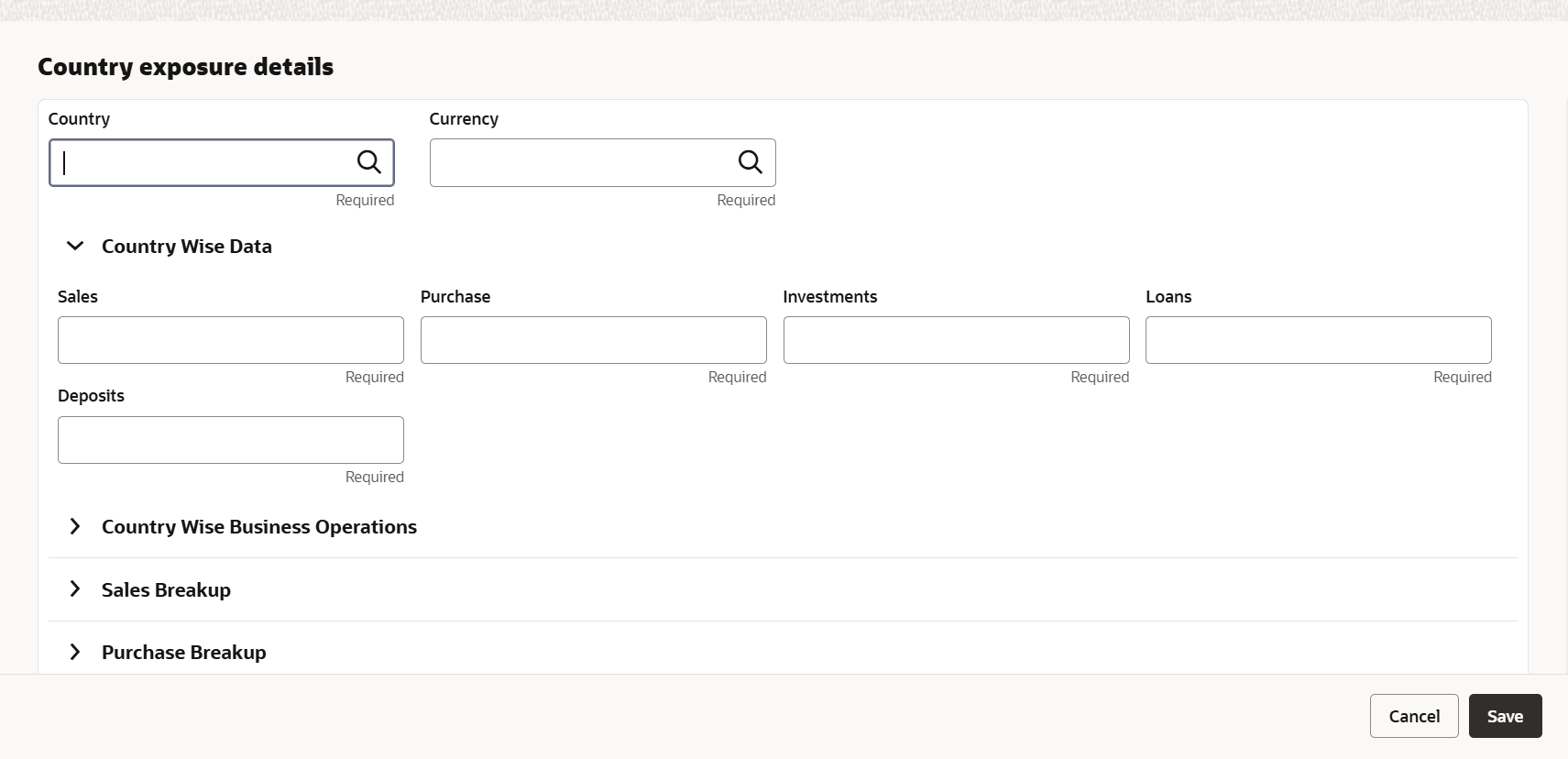
For information about filter, edit, delete, and layout options, refer any section in Initiation Chapter. - Click Country exposure and then click the add icon. The Country Dependency Details screen is displayed.
Figure 3-30 Country Dependency Details
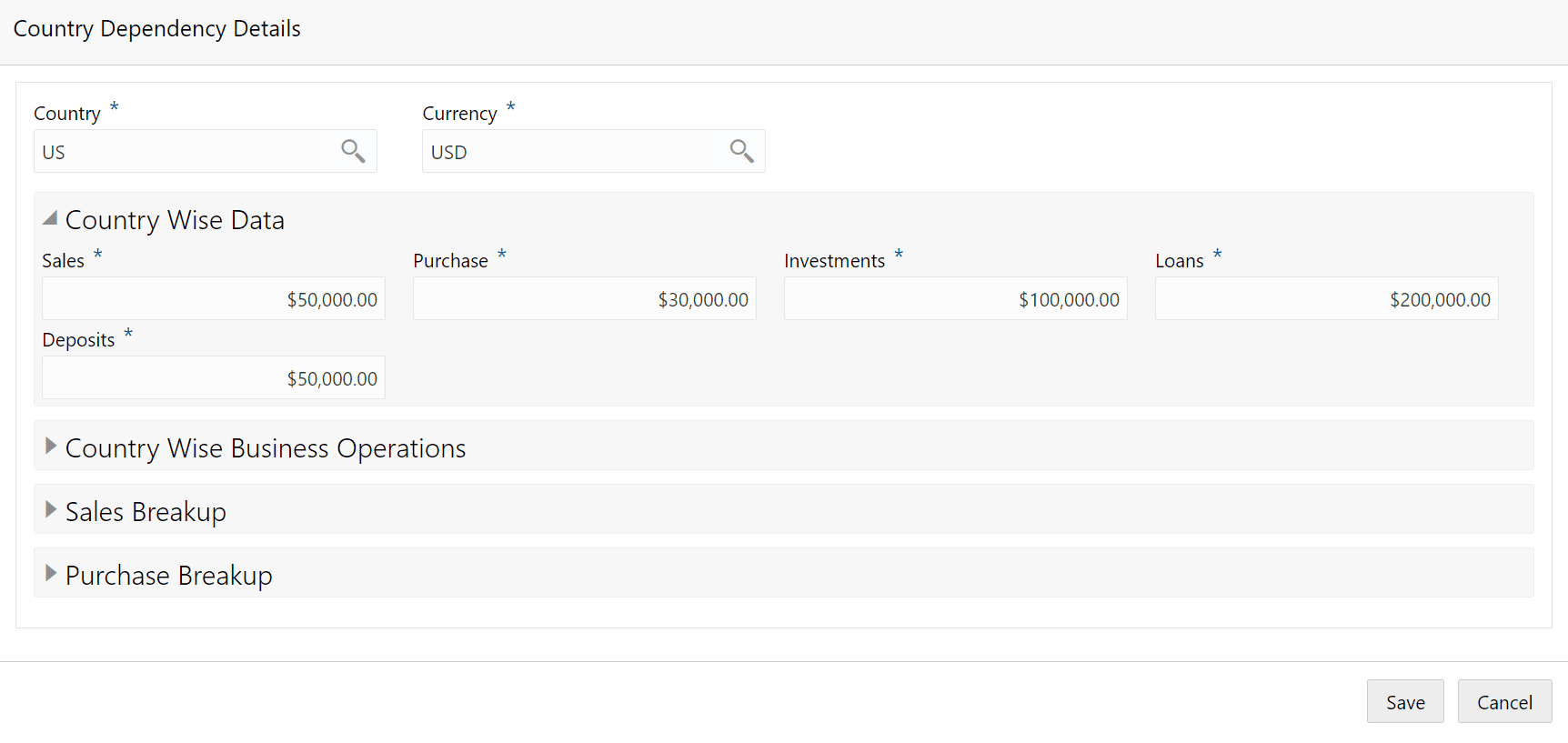
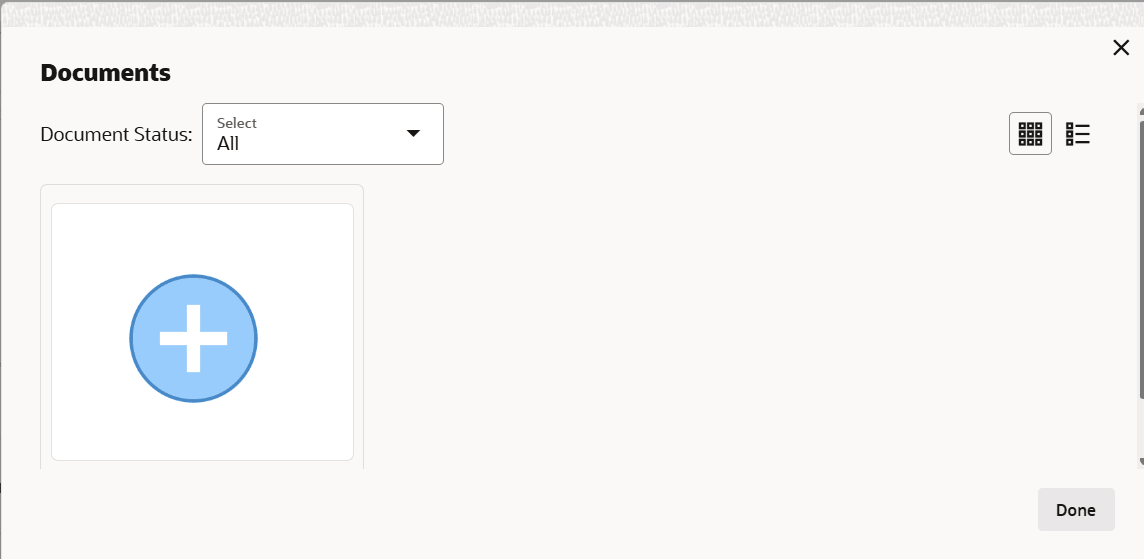
Figure 3-31 Country Wise Business
Operations
For information on fields in the Country Wise Business Operations screen, refer the below table.
Table 3-12 Country Wise Business Operations
| Fields | Description |
|---|---|
| Market Share Percentage | Specify the party’s Market Share Percentage in selected country. |
| Presence for Years | Specify the party’s Presence for Years in selected county. |
| Major Products Sold | Specify the Major Products Sold by the party in the selected country. |
| Associated Since | In the Associated Since field, specify the date on which association between party and selected country is established. |
In this section, you must add details of all the party’s customers in the selected country.
Figure 3-32 Sales Breakup
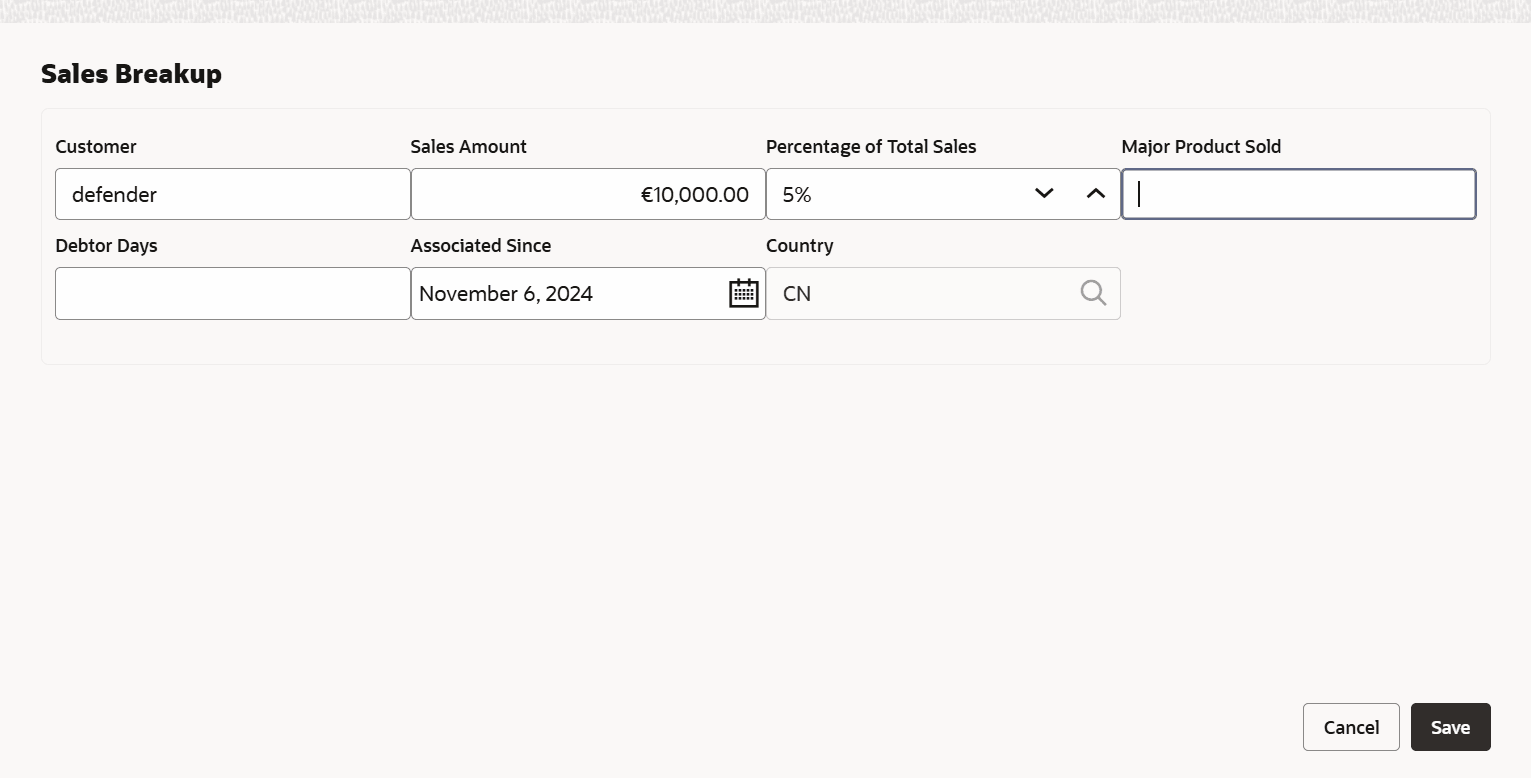
- Click the add icon. The Sales Breakup window is displayed.
For information on fields in the Sales Breakup screen, refer the below table.
Table 3-13 Sales Breakup
Fields Description Customer Specify the party’s Customer name. Sales Amount Specify the Sales Amount recorded for the specified customer. Percentage of Total Sales Specify the Percentage of Total Sales recorded for the specified customer. Major Product Sold Specify the Major Product Sold to the specified customer. Debtor Days Specify the Debtor Days for the specified customer. Associated Since In the Associated Since field, search and select the date on which association between the party and its customer is established. Save Click Save. Sales breakup is added and displayed in the Sales Breakup section. - Click the add icon. The Purchase Breakup window is
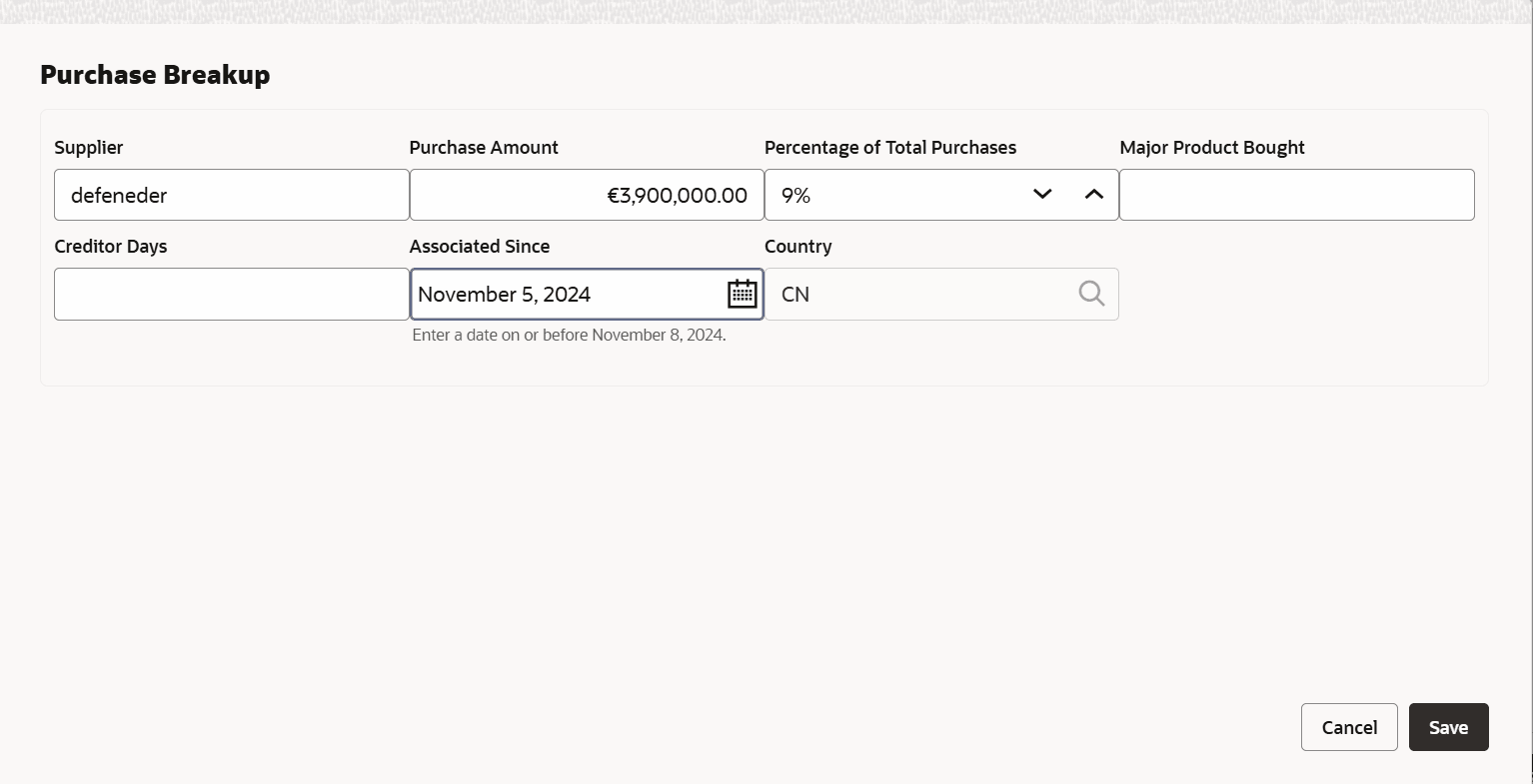
displayed.
For information on fields in the Purchase Breakup screen, refer the below table.
Table 3-14 Purchase Breakup
Fields Description Supplier Specify the name of Supplier. Purchase Amount In the Purchase Amount field, specify the amount of products / services purchased by the party from the supplier. Percentage of Total Purchases Specify the Percentage of Total Purchases from the supplier. Major Product Bought Specify the Major Product Bought by the party from the supplier. Creditor Days Specify the Creditor Days for the supplier. Associated Since In the Associated Since field, search and select the date on which association between the party and its supplier is established. Save Click Save. Purchase breakup is added and displayed in the Purchase Breakup section. - In the Country Dependency Details window, click Save. The details are
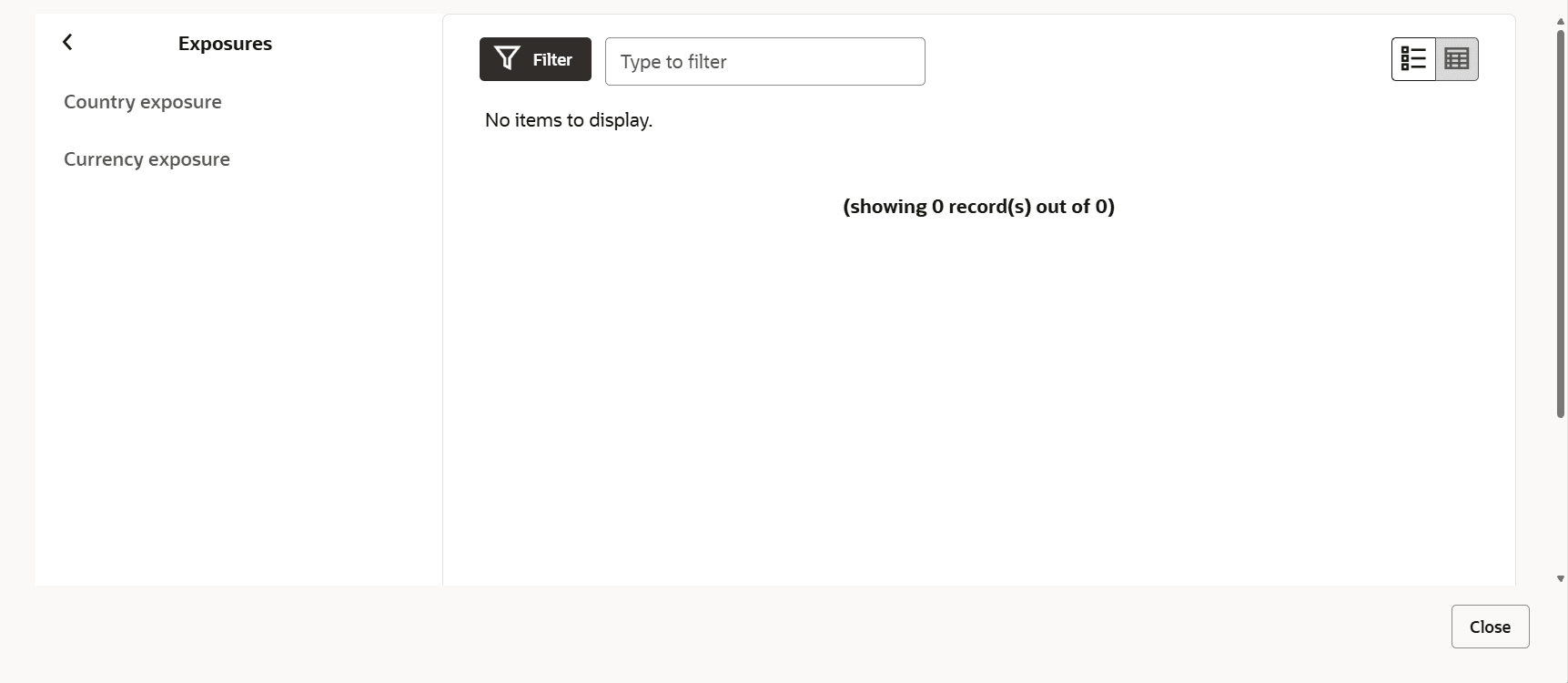
added and displayed as shown below. The Exposures screen displays.
- To capture the currency dependency details, click the Currency Exposure
sub menu. The Currency Dependency Details window is displayed.The Currency Dependency Details screen displays.
- Search and select the Currency.
For information on fields in the Currency Dependency Details screen, refer the below table.
Table 3-15 Currency details
Fields/ Icons Description Sales Amount Specify the party's Sales Amount in the selected currency. Sales Percentage Specify the party's Sales Percentage with respect to the selected currency. Purchase Amount Specify the party's Purchase Amount in the selected currency. Purchase Percentage Specify the party's Purchase Percentage with respect to the selected currency. Loan Amount Specify the Loan Amount availed by the party in selected currency. Loan Percentage Specify the party's Loan Percentage with respect to the selected currency. Investment Amount Specify the party's Investment Amount in the selected currency. Investment Percentage Specify the party's Investment Percentage with respect to the selected currency. Deposit Amount In the Deposit Amount field, specify the amount deposited by the party in selected currency. Deposit Percentage In the Deposit Percentage field, specify the percentage of amount deposited by the party in selected currency. Hedging Details
For information on fields in the Hedging Details screen, refer the below table.Table 3-16 Hedging Details
Fields Description Credit Outstanding Specify the Credit Outstanding amount in the selected currency. Debit Outstanding Specify the Debit Outstanding amount in the selected currency. Variance Upon entering the Credit and Debit Outstanding amounts, the system calculates and displays the Variance. Hedging required Enable the Hedging required switch, if hedging analysis is required.

Future Currency Requirement - Loan Repayment
Figure 3-38 Future Currency
Requirement - Loan Repayment Table 3-17 Future Currency
Requirement - Loan Repayment Figure 3-39 Future Currency
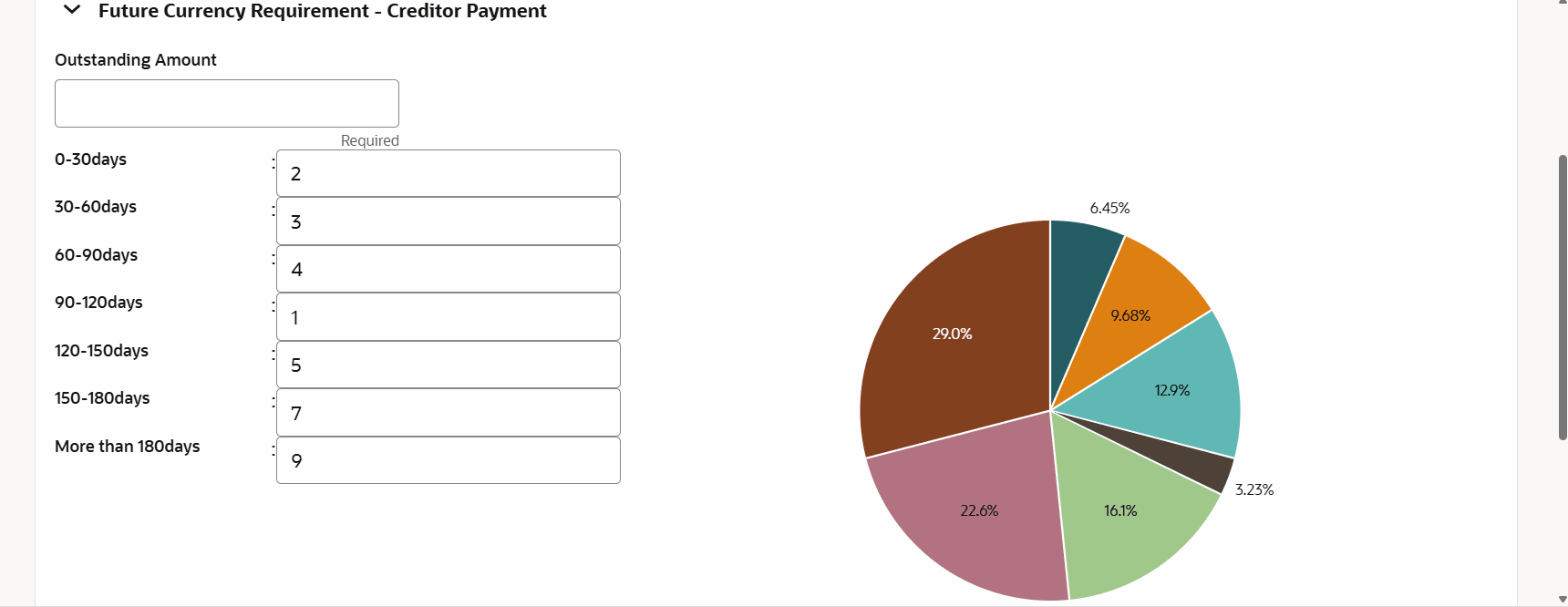
Requirement - Creditor Payment Table 3-18 Future Currency
Requirement - Creditor Payment
Future Currency Requirement - Creditor Payment
Fields
Description
Outstanding Loan Amount
Specify the party's Outstanding Loan
Amount in selected currency.
Repayment in current year field
In the Repayment in current year field,
specify the loan amount to be repaid in the current
year.
Repayment in Next 3 Years
In the Repayment in Next 3 Years field,
specify the loan amount to be repaid in next three
years.
For information on fields in the Future Currency Requirement - Creditor
Payment screen, refer the below table.
Fields
Description
Outstanding Amount
Specify the Outstanding Amount to be paid
by the party’s creditor in selected currency.
0-30 days
Specify the outstanding amount to be paid in
0-30 days.
30-60 days
Specify the outstanding amount to be paid in
30-60 days.
60-90 days
Specify the outstanding amount to be paid in
60-90 days.
90-120 days
Specify the outstanding amount to be paid in
90-120 days.
120-150 days
Specify the outstanding amount to be paid in
120-150 days.
150-180 days
Specify the outstanding amount to be paid in
150-180 days.
More than 180 days
Specify the outstanding amount to be paid after
180 days in the More than 180 days field.

Future currency credit - Debtor payment
Figure 3-40 Future currency credit - Debtor payment
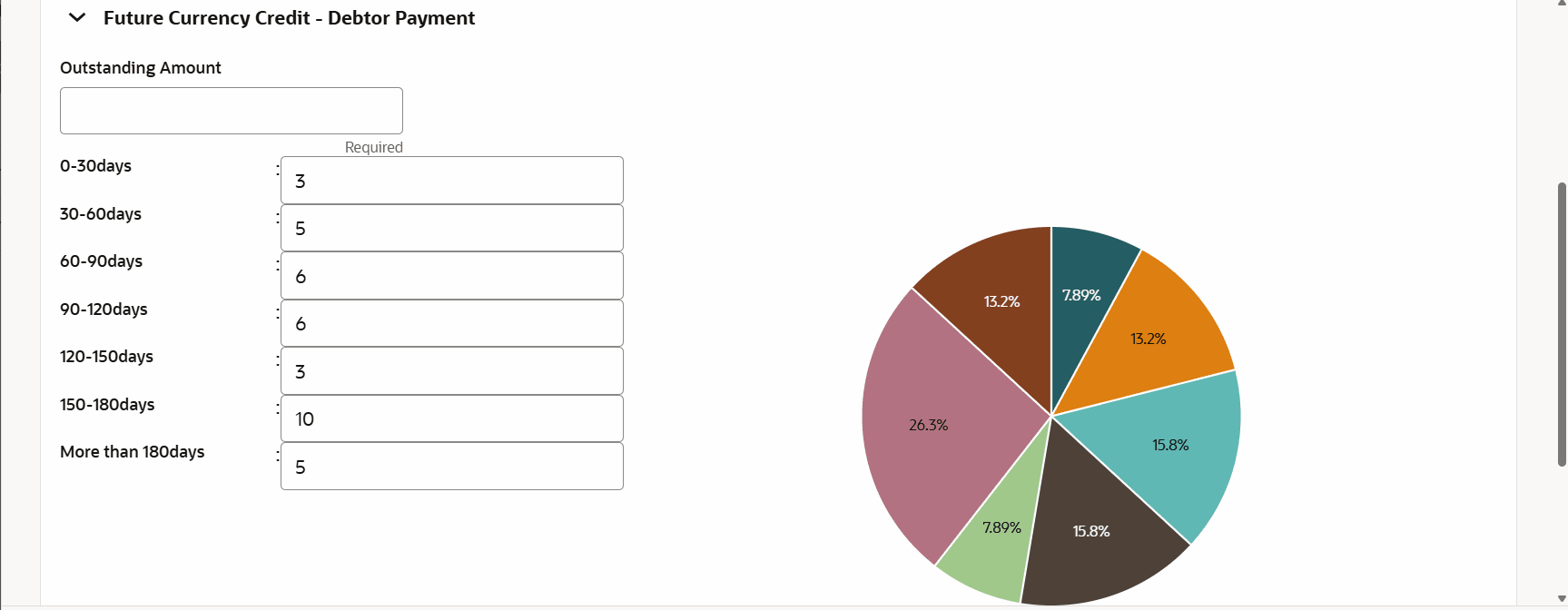
For information on fields in the Future currency credit - Debtor payment screen, refer the below table.
Table 3-19 Future currency credit - Debtor payment
| Fields | Description |
|---|---|
| Outstanding Amount | Specify the Outstanding Amount to be paid by the party’s debtor in selected currency. |
| 0-30 days | Specify the outstanding amount to be received in 0-30 days. |
| 30-60 days | Specify the outstanding amount to be received in 30-60 days. |
| 60-90 days | Specify the outstanding amount to be received in 60-90 days. |
| 90-120 days | Specify the outstanding amount to be received in 90-120 days. |
| 120-150 days | Specify the outstanding amount to be received in 120-150 days. |
| 150-180 days | Specify the outstanding amount to be received in 150-180 days. |
| More than 180 days | Specify the outstanding amount to be received after 180 days in the More than 180 days field. |
Future Currency Credit - Interests
Figure 3-41 Future Currency Credit - Interests

For information on fields in the Future Currency Credit - Interests screen, refer the below table.
Table 3-20 Future Currency Credit - Interests
| Fields | Descriptions |
|---|---|
| Investment amount interests | In the Investment amount interests field, specify the interest to be received for the amount invested in selected currency. |
| Interest expected in current year | In the Interest expected in current year field, specify the interest to be received in the Current year. |
| Interest expected in next 3 years | In the Interest expected in next 3 years field, specify the interest to be received in the next 3 Years. |
| Save | Click Save in the Currency Dependency Details window. The details are saved and displayed in Currency Dependency Details page. |
| Edit, Delete and View | To Edit, Delete and View the added currency exposure details, select the record and click the respective icons or click the hamburger icon and select the corresponding option. |
| Ok | Click Ok in the Party Details window. |
| Hold | To hold the enrichment operation, click Hold. |
| Next | To go to the Next page, click Next. |
| Save & Close | To save the provided information and exit the page, click Save & Close. |
| Cancel | To exit the page without saving the information, click Cancel. |
- Liability Details
This topic provides systematic instructions about the Liability Details of the Group Concentration Limit Enrichment. - KYC Check
This topic provides systematic instrucions about the KYC Check of the Group Concentration Limit Proposal.