3.1 Liability Details
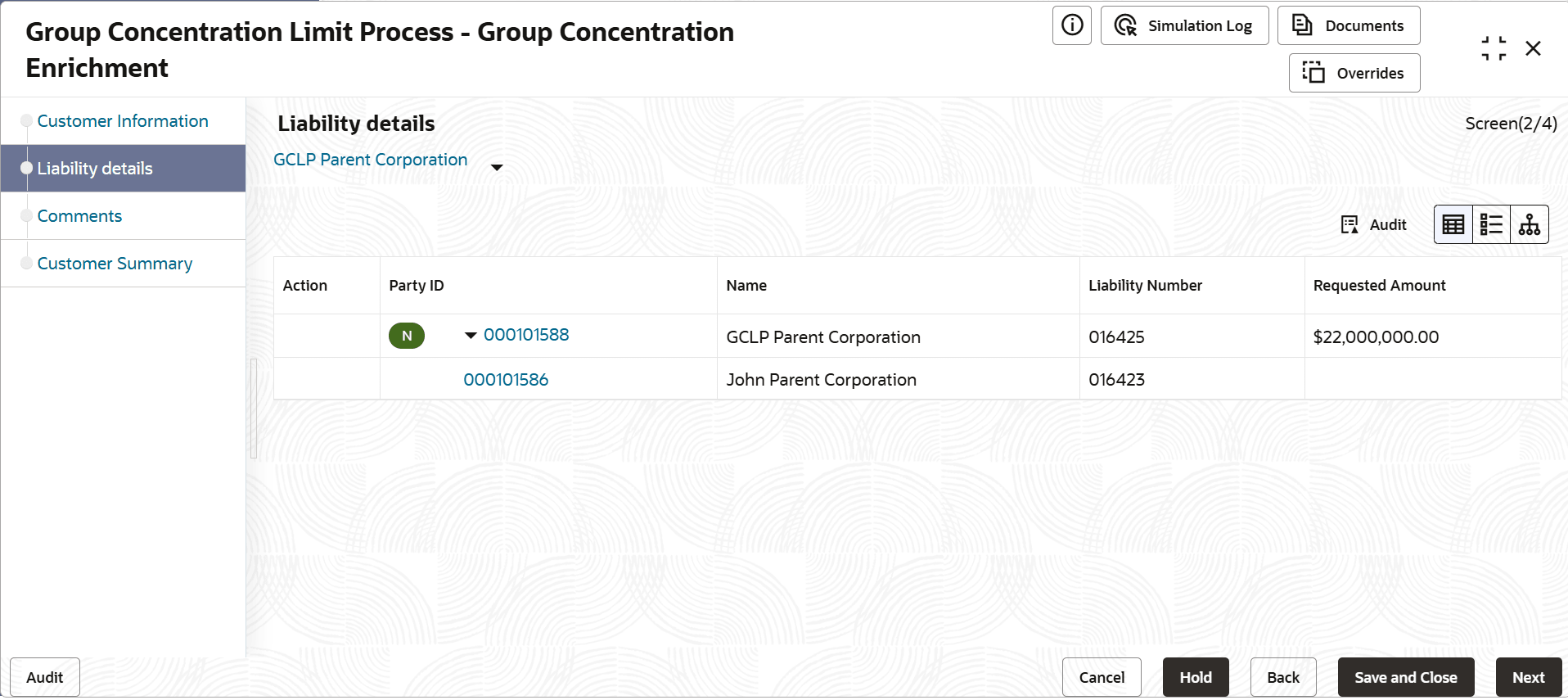
This topic provides systematic instructions about the Liability Details of the Group Concentration Limit Enrichment.
In this page, you can enrich the liability details added in the initiation stage.
Note:
For more information on fields, refer Field Configuration Parameters- Refer Liability Details in initiation chapter to enrich the liability details.Click Next in the Liability Details page, The Comments page is displayed.
Comments
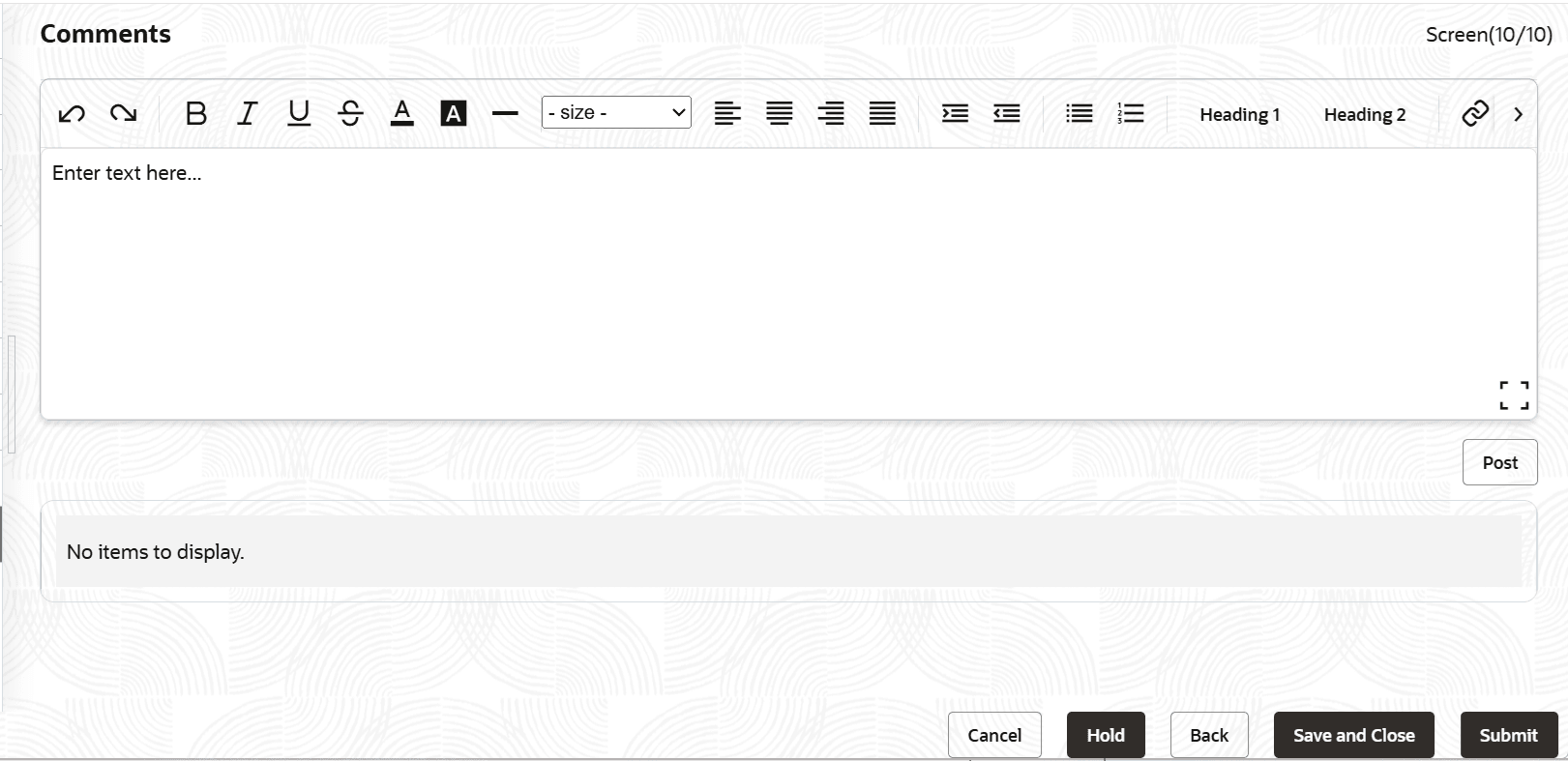
In this page, you can mention the actions performed in this stage with justification. Posting comments help the user in next stage to better understand the application.
For information on fields in the Comments screen, refer the below table.Upon clicking Next, the Customer Summary page is displayed:Table 3-21 Comments
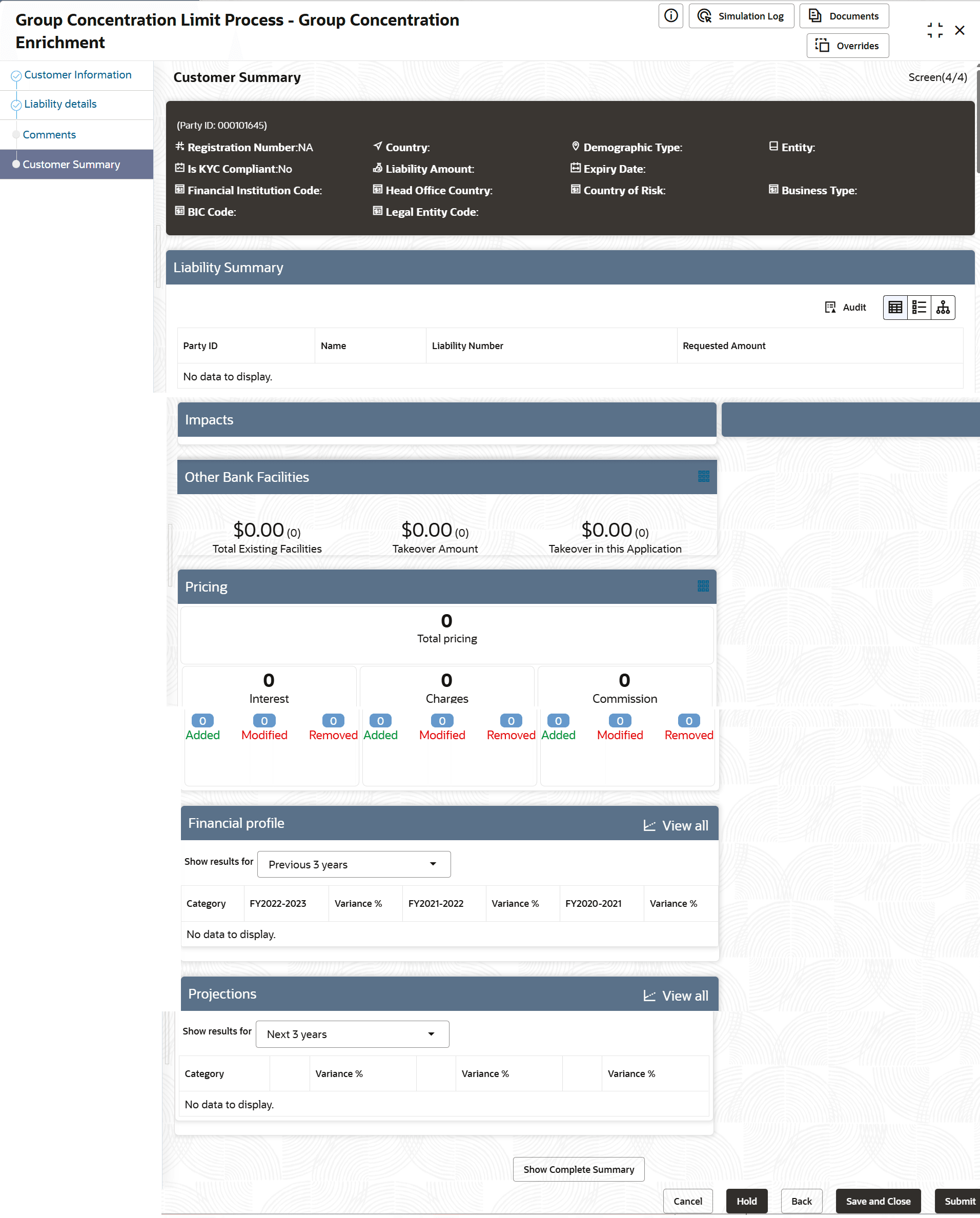
Fields Descriptions Post Type the necessary comments in the text box and click Post. Comment is posted. Hold To hold the enrichment operation, click Hold. Back To go back to the previous page, click Back. Next To go to the next page, click Next. Save & Close To save the process and exit the page, click Save & Close. Cancel To exit the process without saving the information, click Cancel. Customer SummaryThe Customer Summary page displays all the entities modified / added in the enrichment stage.
Figure 3-44 Group Concentration Limit Process-Group Concentration Enrichment
For information on fields in the Customer Summary screen, refer the below table.
Table 3-22 Customer Summary
Fields Description Filter To filter a required liability, click the Filter icon in the Liability Summary widget and specify the filter parameters, or directly type the filter parameter in Type to filter text box. party Id To view more details about the liability, click the party Id in the Liability Summary widget. List View, Table View, and Tree View To change the layout of Liability Summary widget, use the List View, Table View, and Tree View icons. Hold To hold the enrichment operation, click Hold. Back To go back to the previous page, click Back. Save & Close To save the process and exit the page, click Save & Close. Submit To submit the Group Concentration Limit Proposal application, click Submit. Cancel To exit the process without saving the information, click Cancel. Click Submit, the Policy Exception Summary / Business window appears based on Business Process Maintenance.Note:
For information on more actions that can be performed in the Customer Summary page, refer Credit 360 User Manual.Figure 3-45 Policy Exception Summary / Business
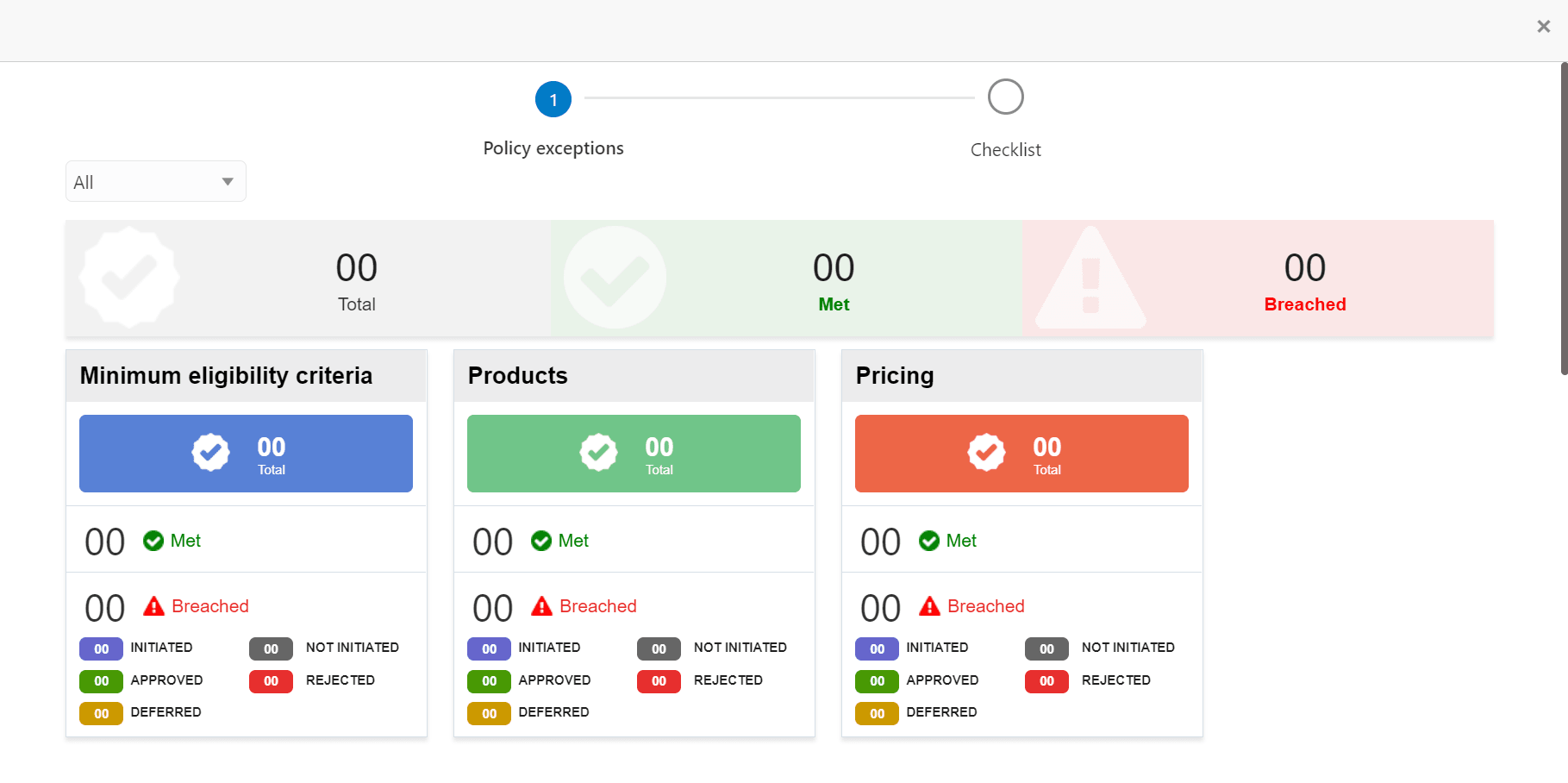
Description of "Figure 3-45 Policy Exception Summary / Business"By default, policy exceptions are displayed for both the organization (party) and its child party.
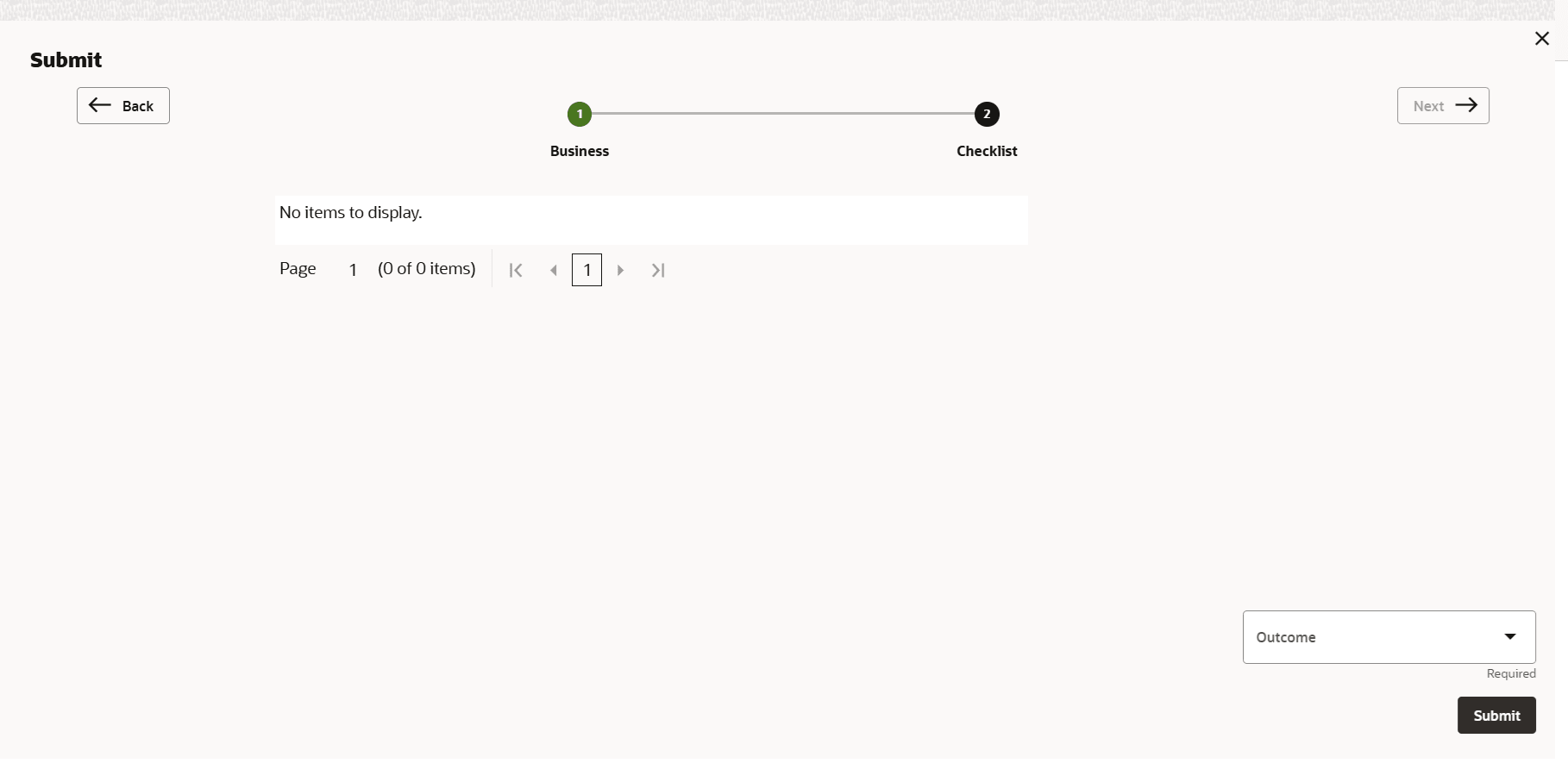
- To Submit the application, click the Checklist data
segment.
Parent topic: Group Concentration Limit Enrichment