6 Extension Approval
This topic provides systematic instructions about the Extension Approval stage in the Group Concentration Extension Process.
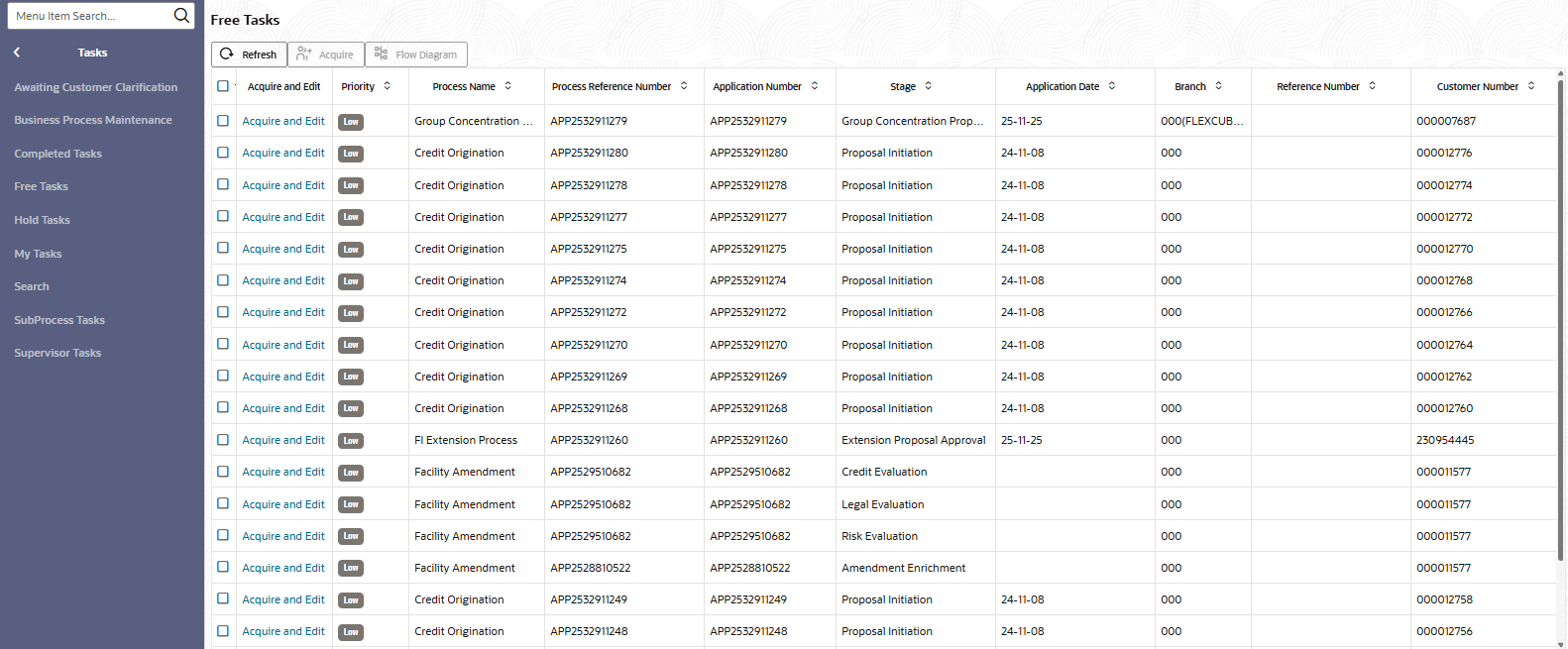
- From Home screen, click Tasks.
Under Tasks, click Free Tasks.The Free Tasks page is displayed.
-
Acquire & Edit the required Approval task.
Note:
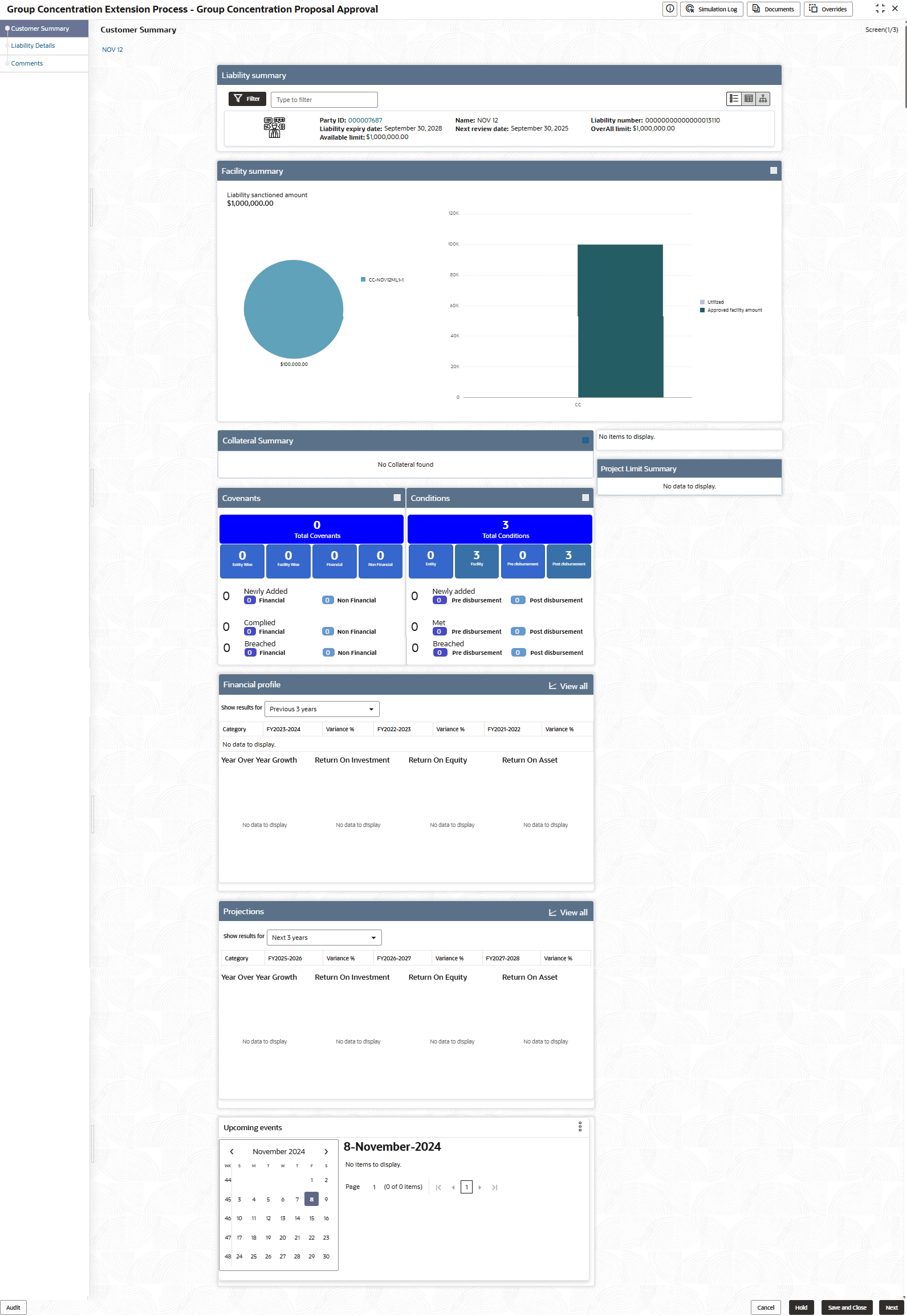
For information on the actions that can be performed in the Customer Summary page, refer Credit 360 User Manual. - View the Customer Summary and click Next. The Liability
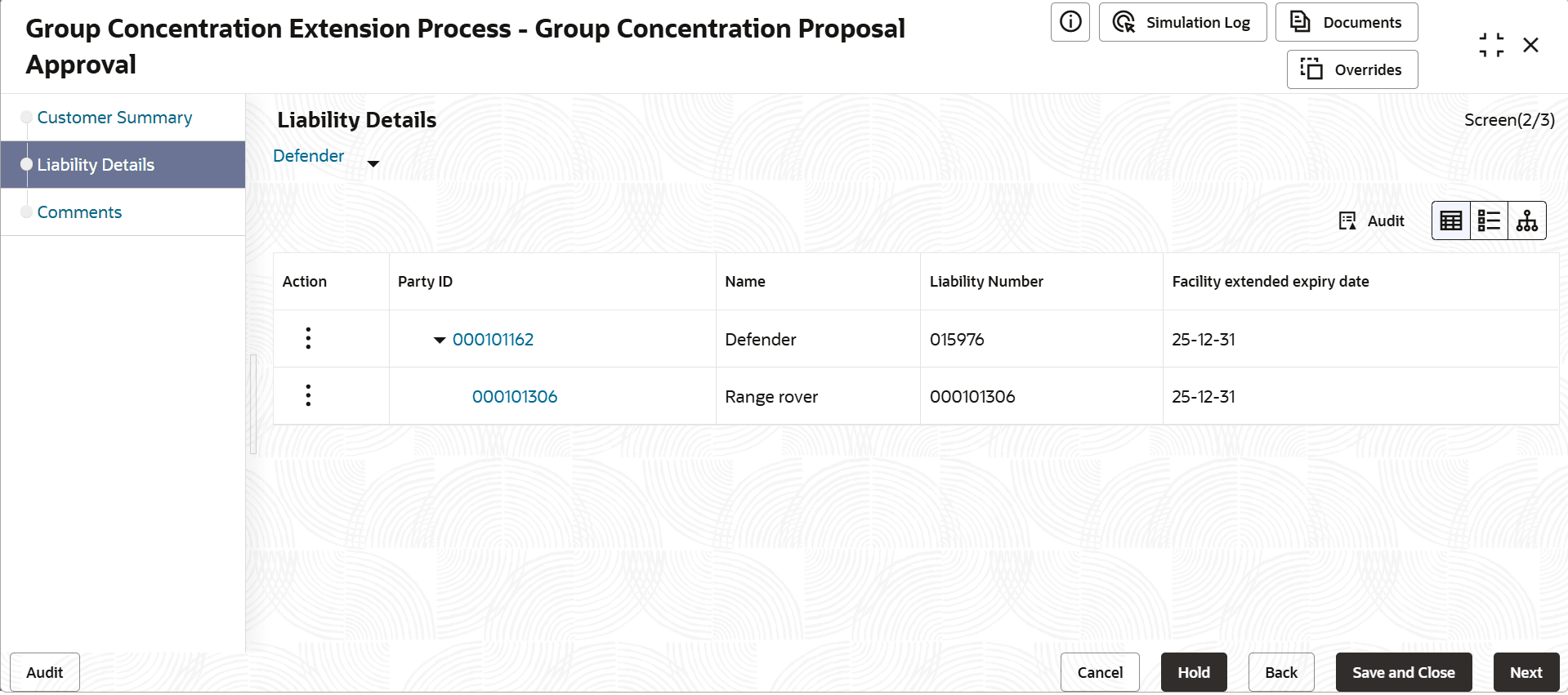
Details page is displayed.The Liability Details page is displayed.
- To modify the liability expiry date, click the Hamburger icon in the
corresponding record and selectEdit. The Liability Details window
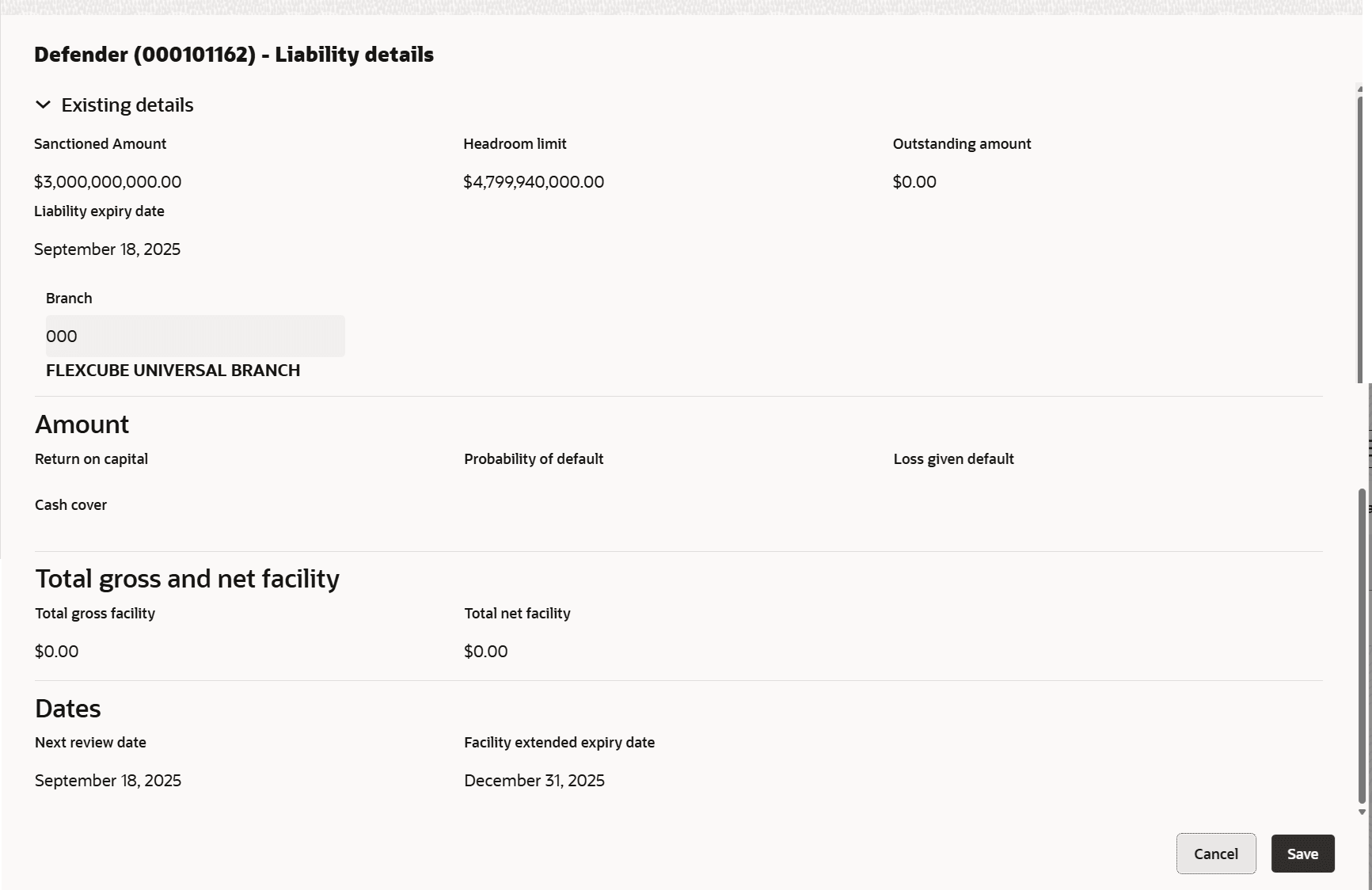
is displayed.The Liability Details screen displays.
Table 6-1 Liability Details
Fields Description Sanctioned Amount Specify the sanctioned amount. Headroom Limit Specify the amount of headroom limit. Outstanding Amount Displays the outstanding amount. Liability Expiry Date Displays the liability expiry date. Branch Displays the branch code. Return on Capital Ratio calculated by dividing the after tax operating income by the average book-value of the invested capital. Probability of Default Estimate of the likelihood that the entity will be unable to meet its debt obligations. Loss Given Default Amount of money a bank or other financial institution loses when a borrower defaults on a loan. Cash Cover Amount deposited by the party in your bank. Total Gross Facility Displays the total gross facility. Total Net Facility Displays the total net facility. Next Review Date Select the next review date when the party's liability needs to be reviewed. Facility Extended Expiry Date Select the facility extended expiry date for the liability based on your party request.
In the Dates section:
Table 6-2 Liability Details - Dates
Fields
Description
Approved Expiry Date
Modify the Approved Expiry Date.
Save
Click Save. The approved liability
details are displayed in the Liability Details page.
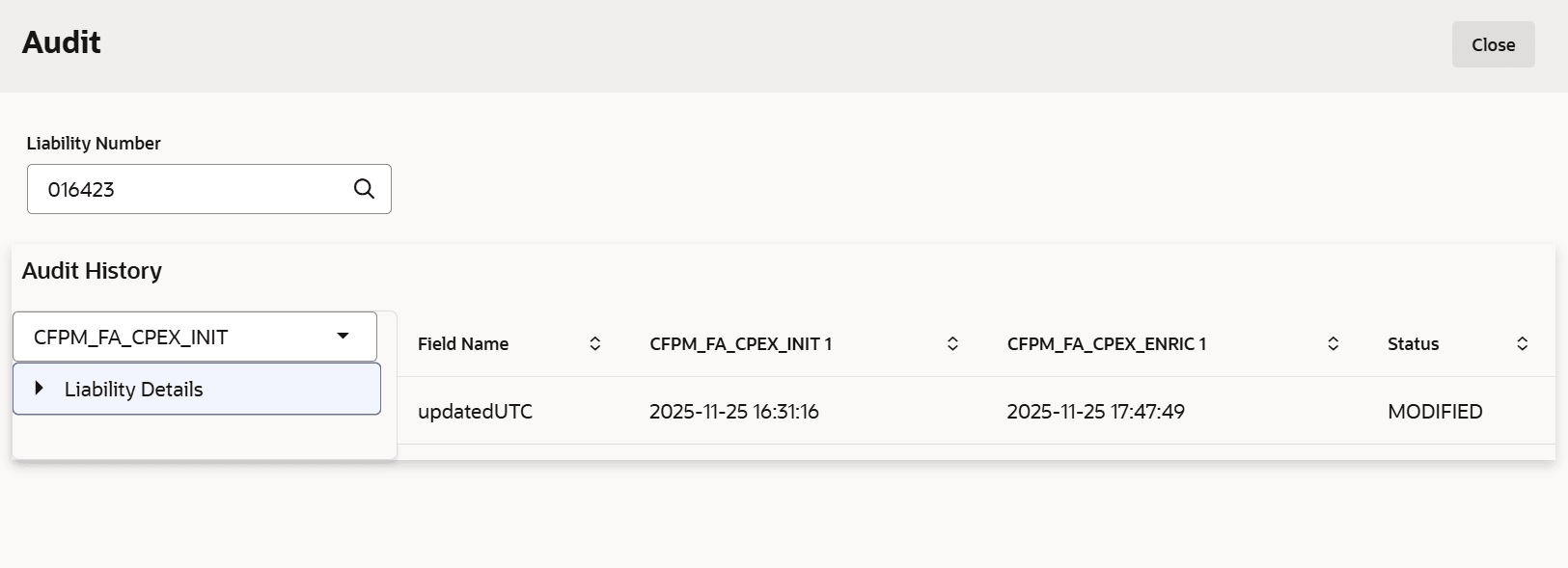
- Click Audit.The Audit screen displays.
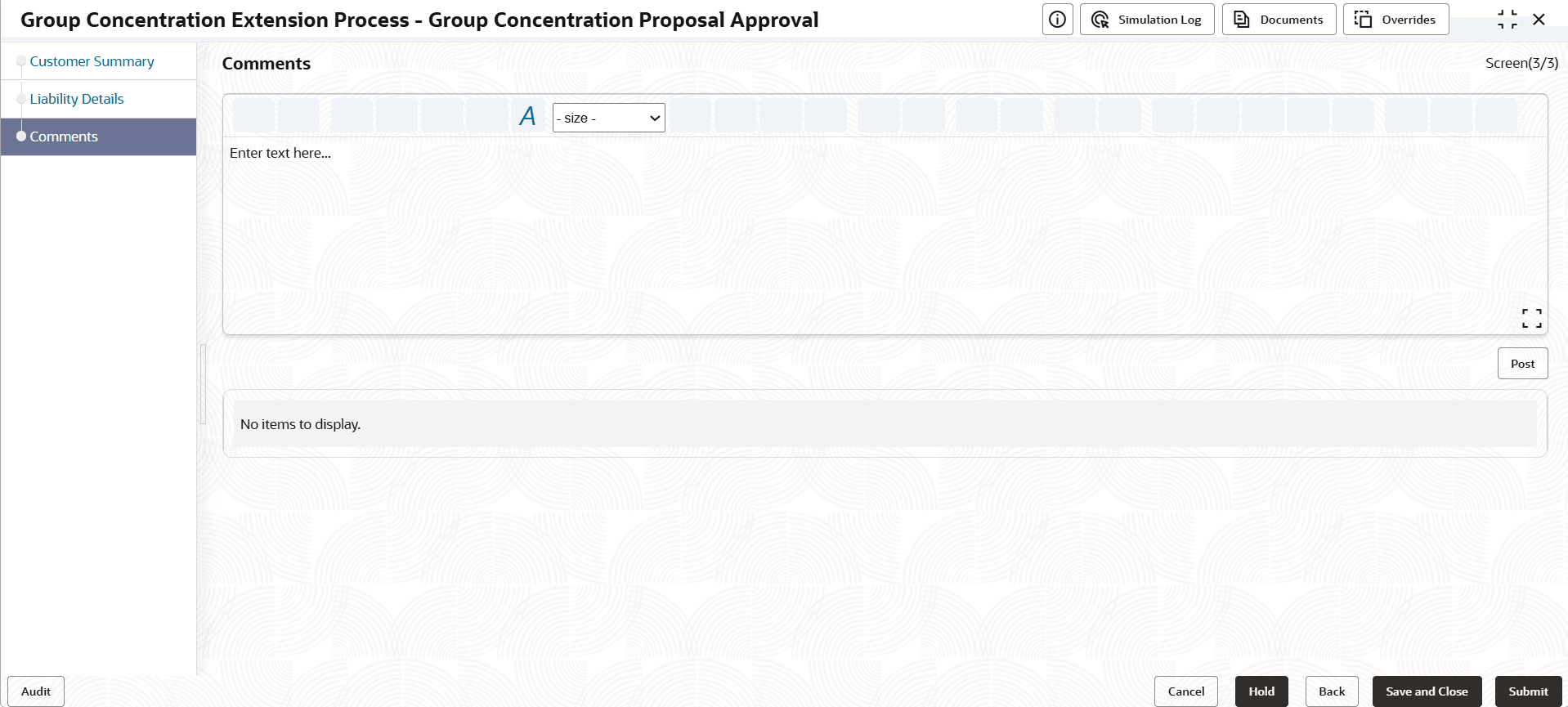
- Click Next in the Liability Details page. The Comments page is displayed.
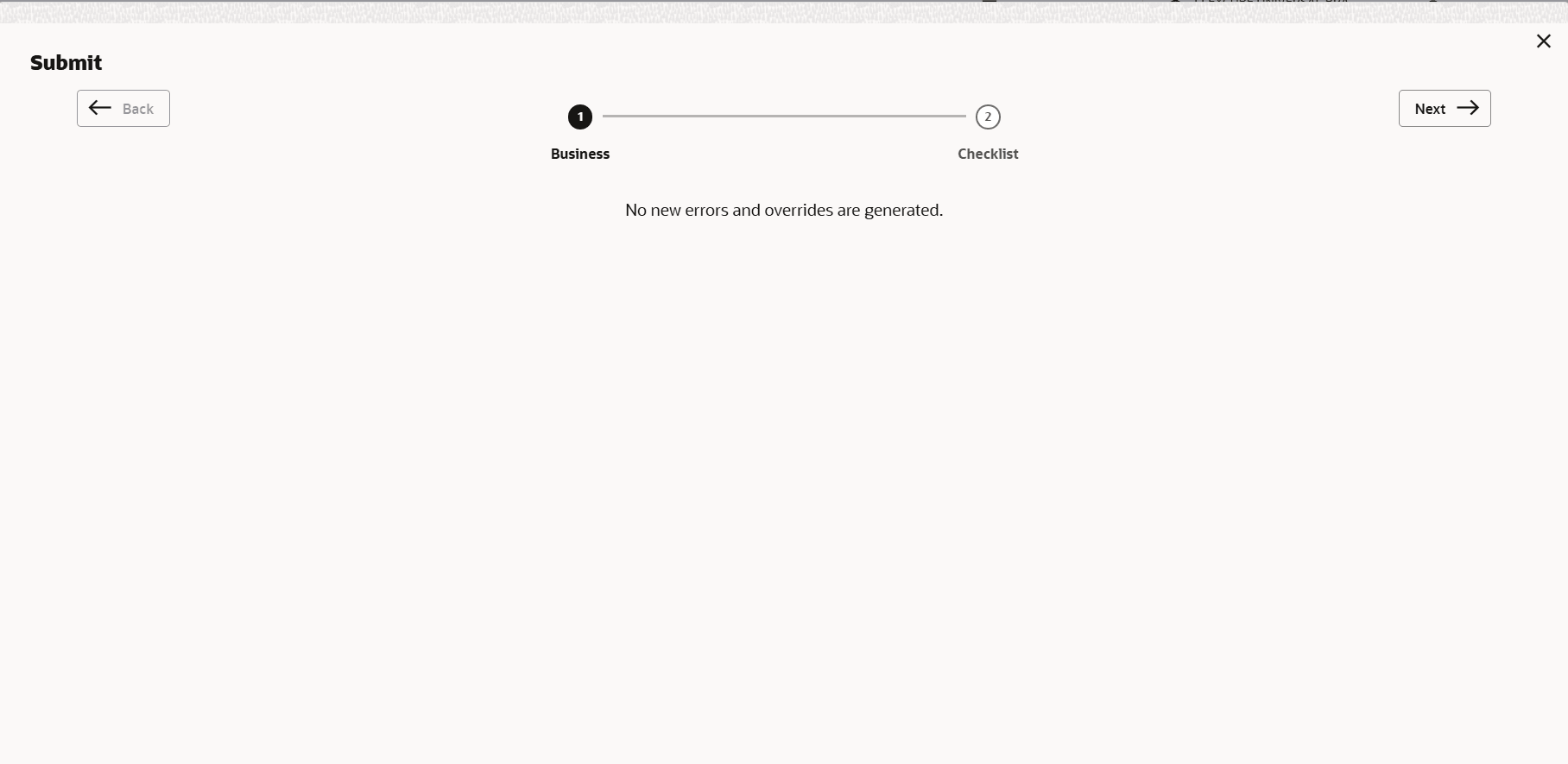
- Click Submit. The Policy Exception window is displayed.
By default, policy exceptions are displayed for both the party and child parties. To view the policy exceptions for particular party / child party, select the required party / child party from the drop down list at top left corner.
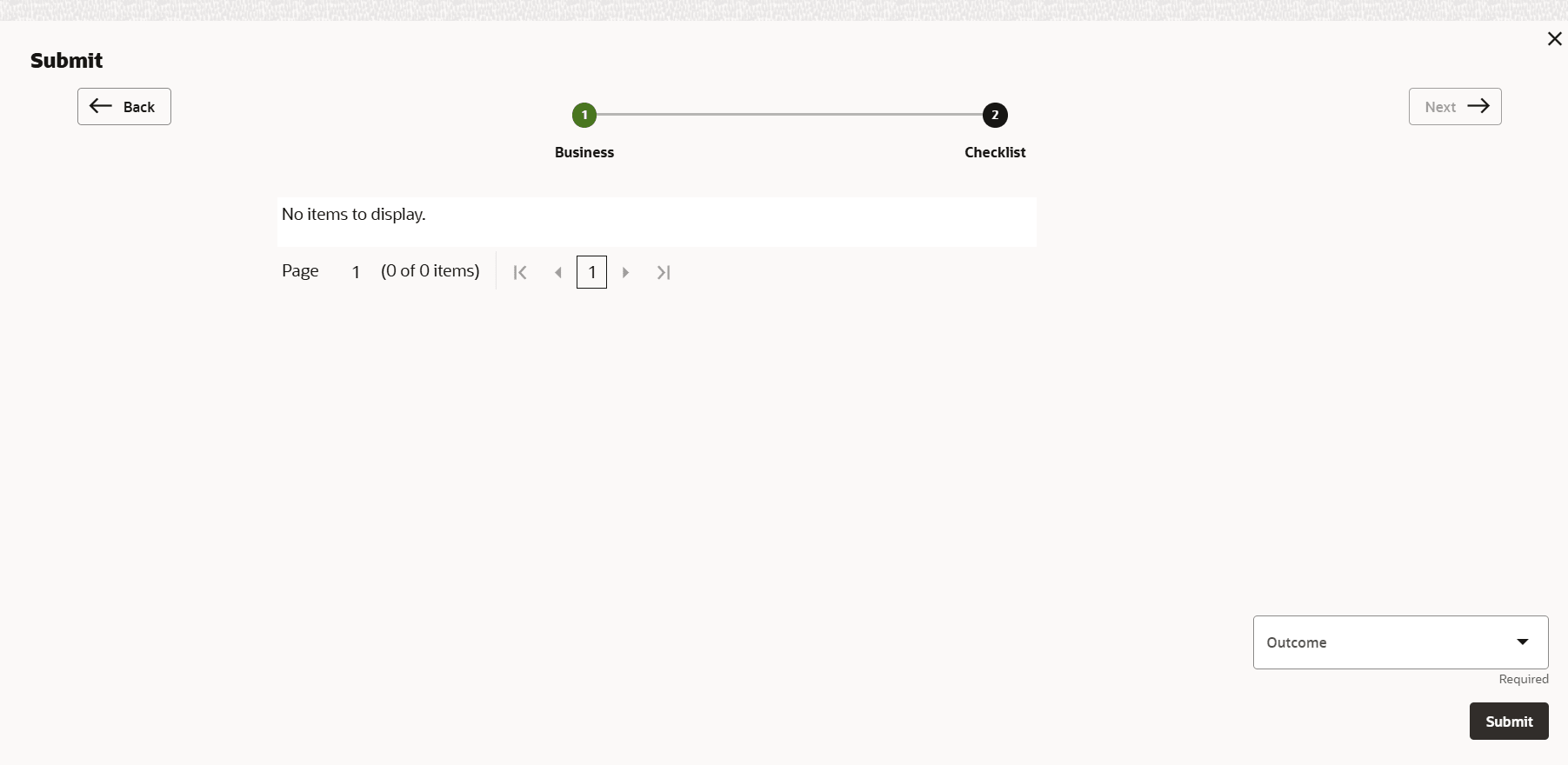
- Click the Checklist data segment.