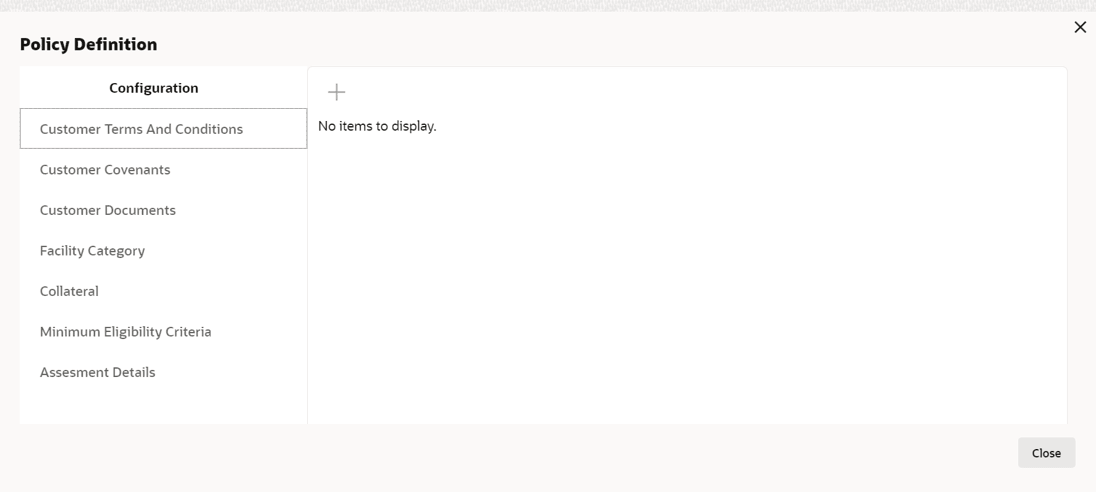
4.1 Policy Definition Configuration
- To capture business recommendations for the terms and conditions, click
Terms And Conditions from the left menu.
- Select the required terms and conditions and then click Edit icon.
Terms And Conditions window is displayed.
For information on fields in the Terms And Conditions screen, refer the below table.
Table 4-2 Terms And Conditions
Fields/Icons Description Business Recommendations View the details and enter Business Recommendations. Save Click Save, to save the details. Customer Covenants To capture business recommendations for Customer Covenants, click Customer Covenants from the left menu. - Select the required customer covenant and then click Edit icon.
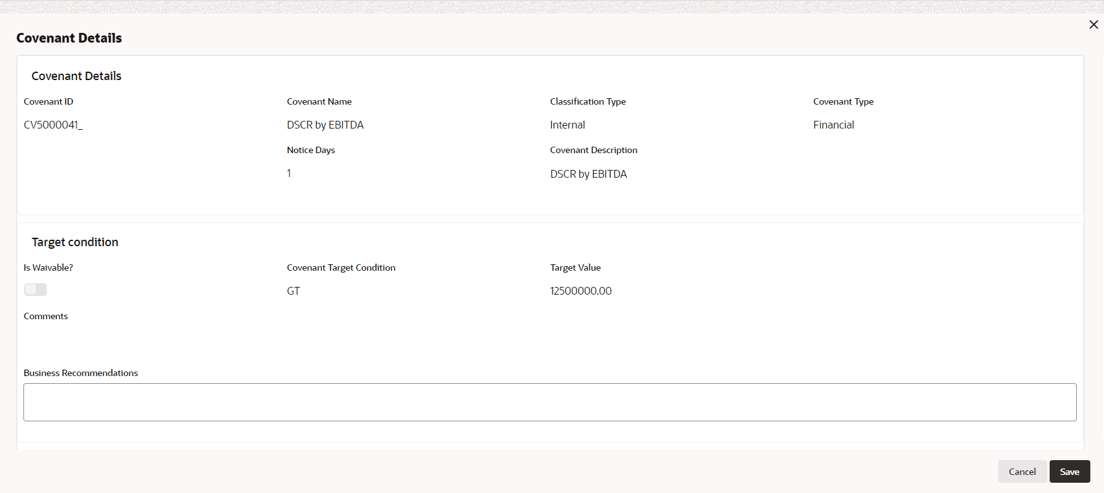
Covenant Details window is displayed.
For information on fields in the Covenant Details screen, refer the below table.
Table 4-3 Covenant Details
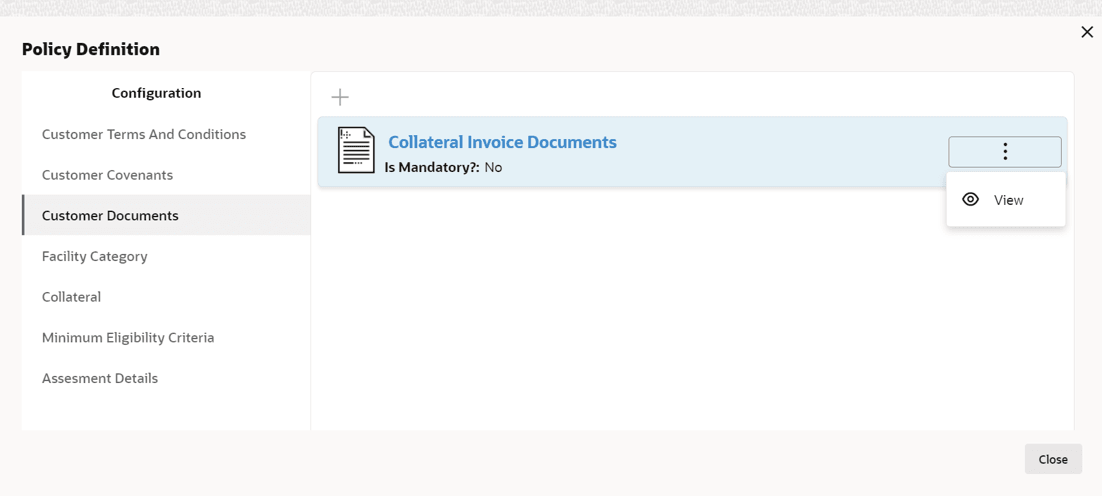
Fields/Icons Description Business Recommendations View the details and enter Business Recommendations. Save Click Save, to save the details. - Click Customer Documents from the left menu.In Customer Documents window, either new customer document details can be added or the already added customer document details can be viewed.
For information on fields in the Customer Documents screen, refer the below table.
Table 4-4 Customer Documents
Fields/Icons Description Add To add new document details, click + icon. View To View the document details, select the detail and then click View icon. Facility Category To capture business recommendation for the Facility Category, click Facility Category from the left menu. - Select the Facility Category and then click Edit icon.
Facility Category window is displayed.
For information on fields in the Facility Category screen, refer the below table.
Table 4-5 Facility Category
Fields/Icons Description Business Recommendations View the details and enter Business Recommendations. Save Click Save, to save the details. Collateral To capture business recommendations for the collateral, click Collateral from the left menu. - Select the required collateral details and then click the Edit icon.
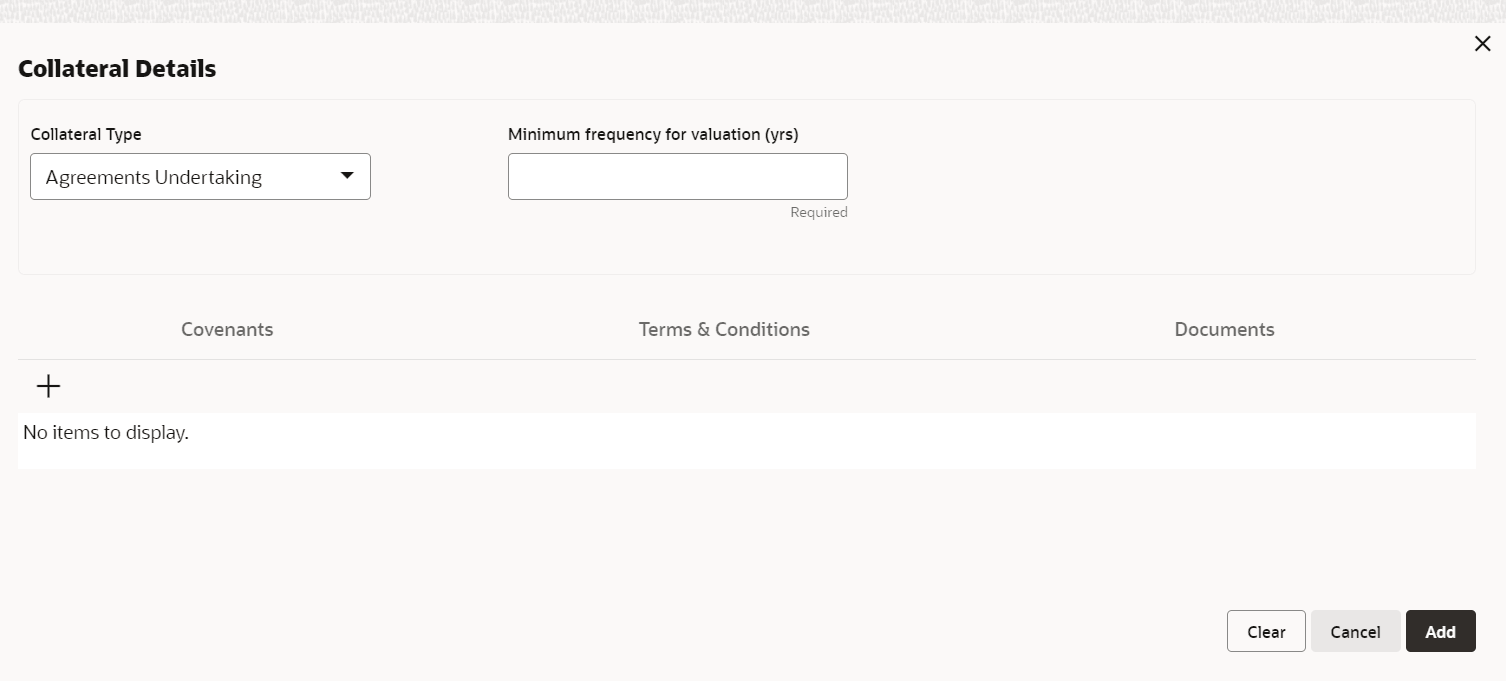
Collateral Details window is displayed.
For information on fields in the Collateral Details screen, refer the below table.
Table 4-6 Collateral Details
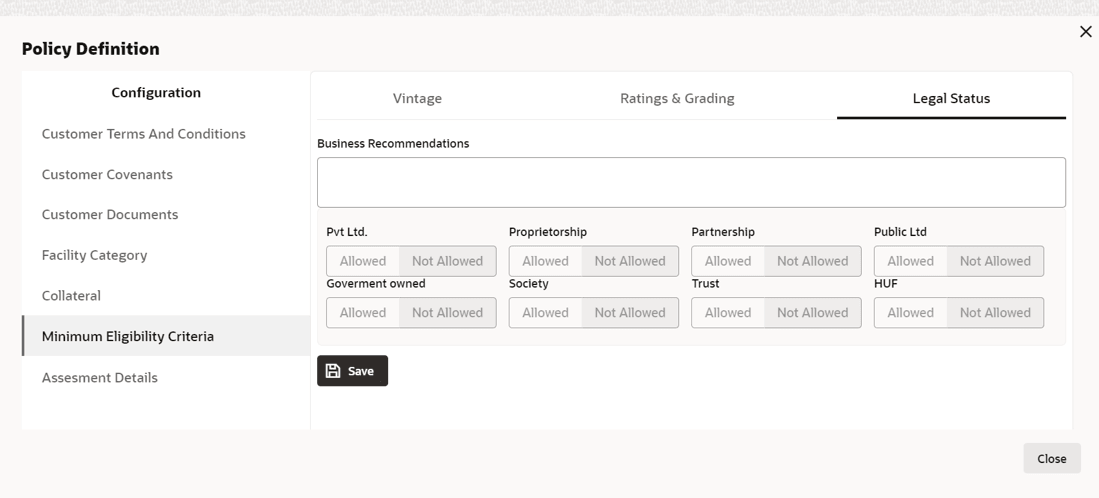
Fields/Icons Description Business Recommendations View the details and enter Business Recommendations. Save Click Save. - To capture business recommendations for the minimum eligibility criteria, click
Minimum Eligibility Criteria from the left menu. Vintage
window is displayed.
For information on fields in the Minimum Eligibility Criteria screen, refer the below table.
Table 4-7 Minimum Eligibility Criteria
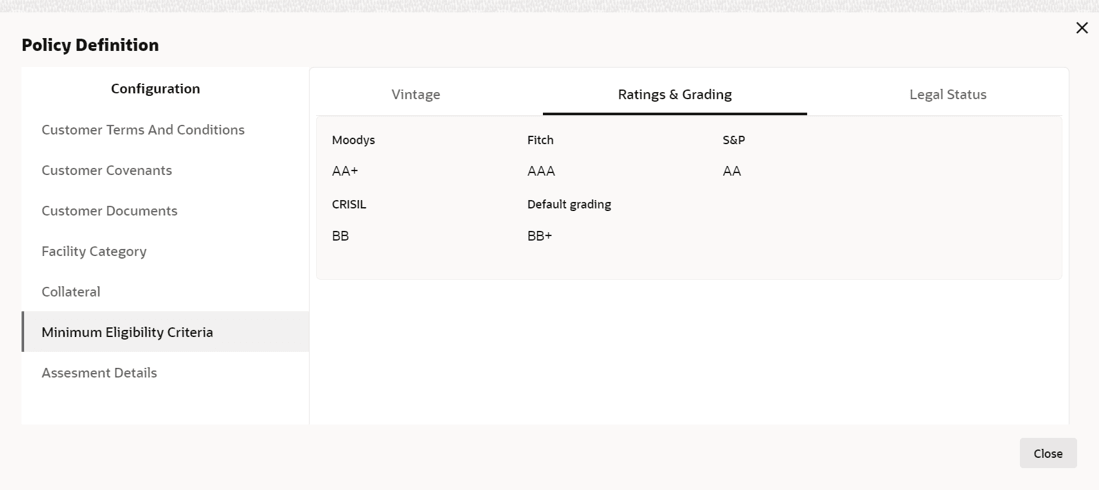
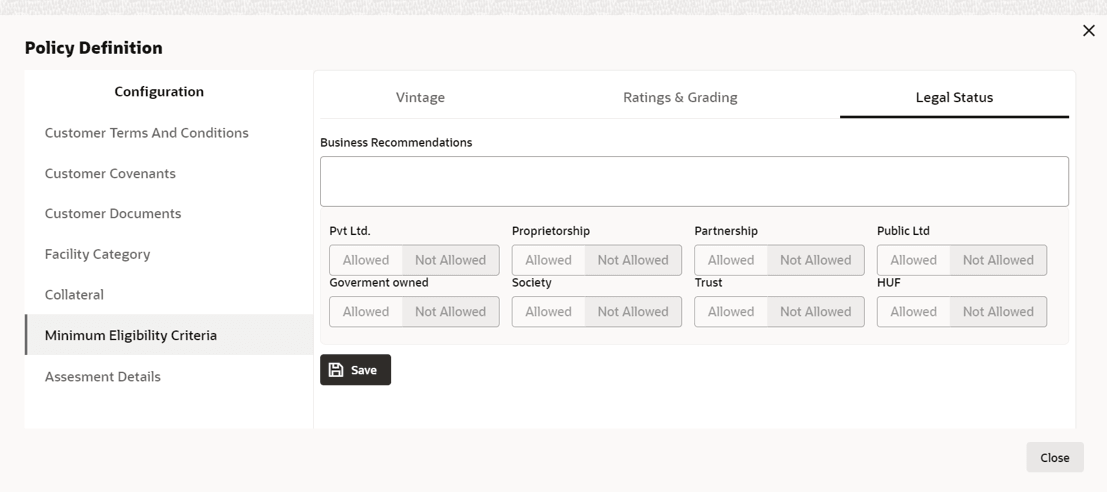
Fields/Icons Description Business Recommendations View the details and enter Business Recommendations. Save Click Save and then click Submit. Ratings & Gradings To capture business recommendations for Ratings & Gradings, click right arrow at the top right corner. Ratings & Grading window is displayed. - To view Legal Status, click right arrow at the top right corner.
Legal Status window is displayed.
Note: Business Recommendation remark is captured only in Legal Status screen and in Vintage and Rating & Grading screens remarks cannot be captured you can only view the screens.
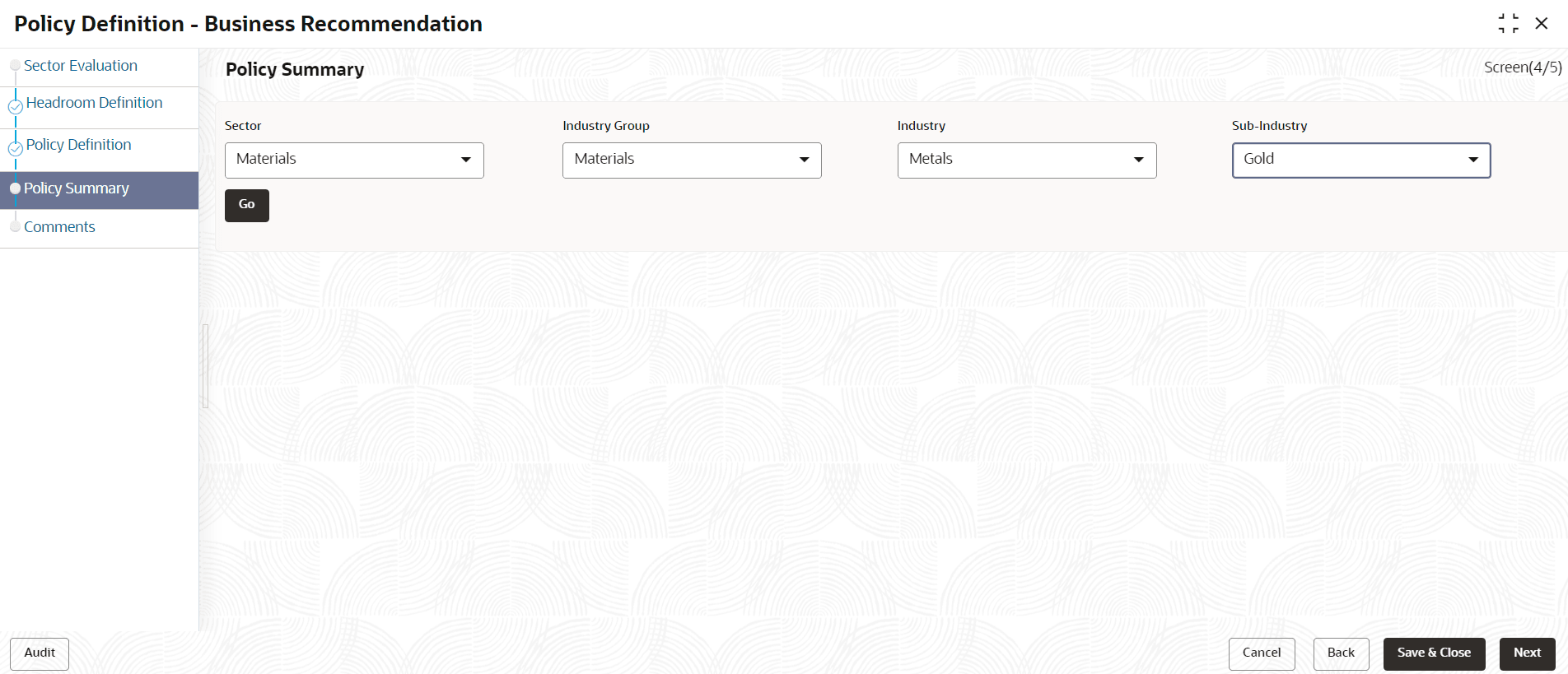
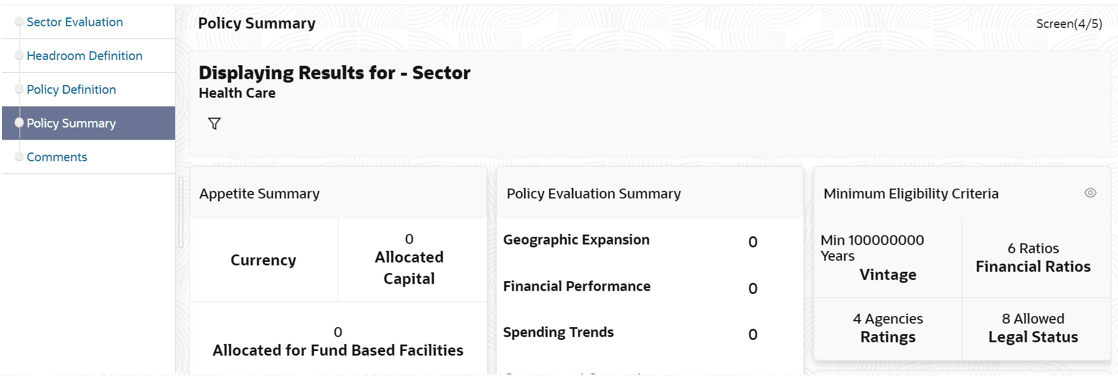
- To view Policy Summary, click Next in Policy Definition
page.
Figure 4-18 Business Recommendation_Policy Summary
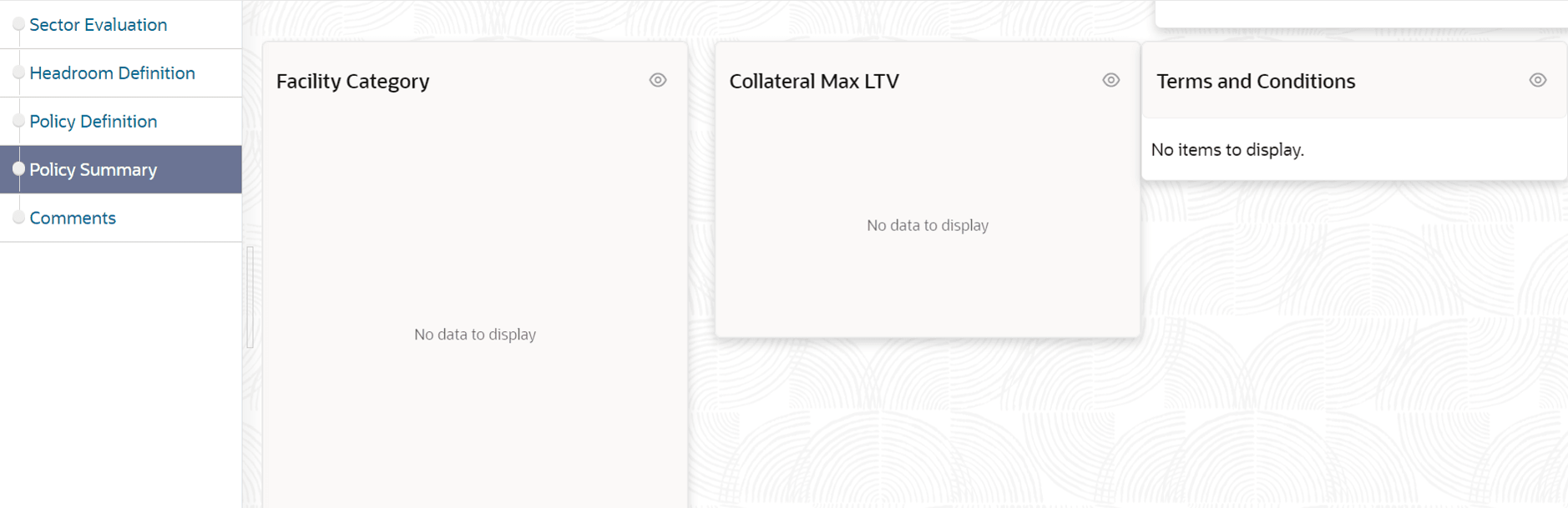
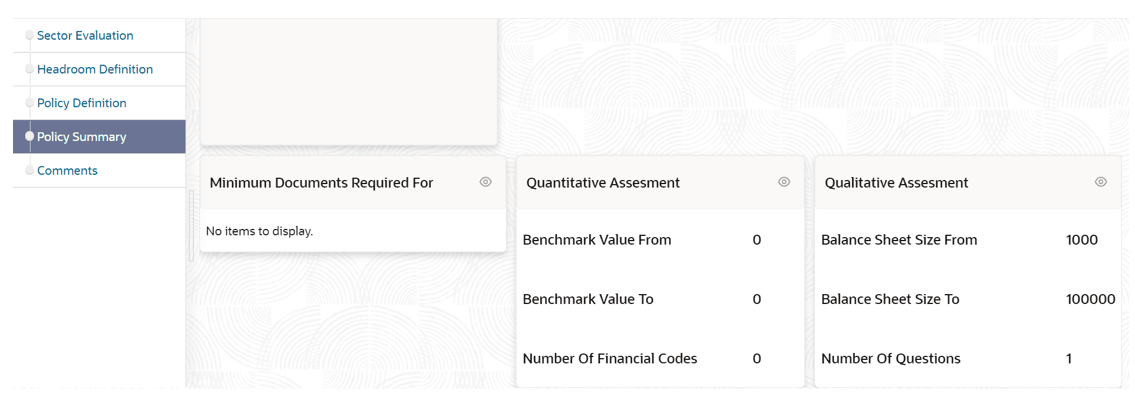
Figure 4-19 Business Recommendation_Policy Summary
For information on fields in the Policy Definition screen, refer the below table.
Table 4-8 Policy Definition
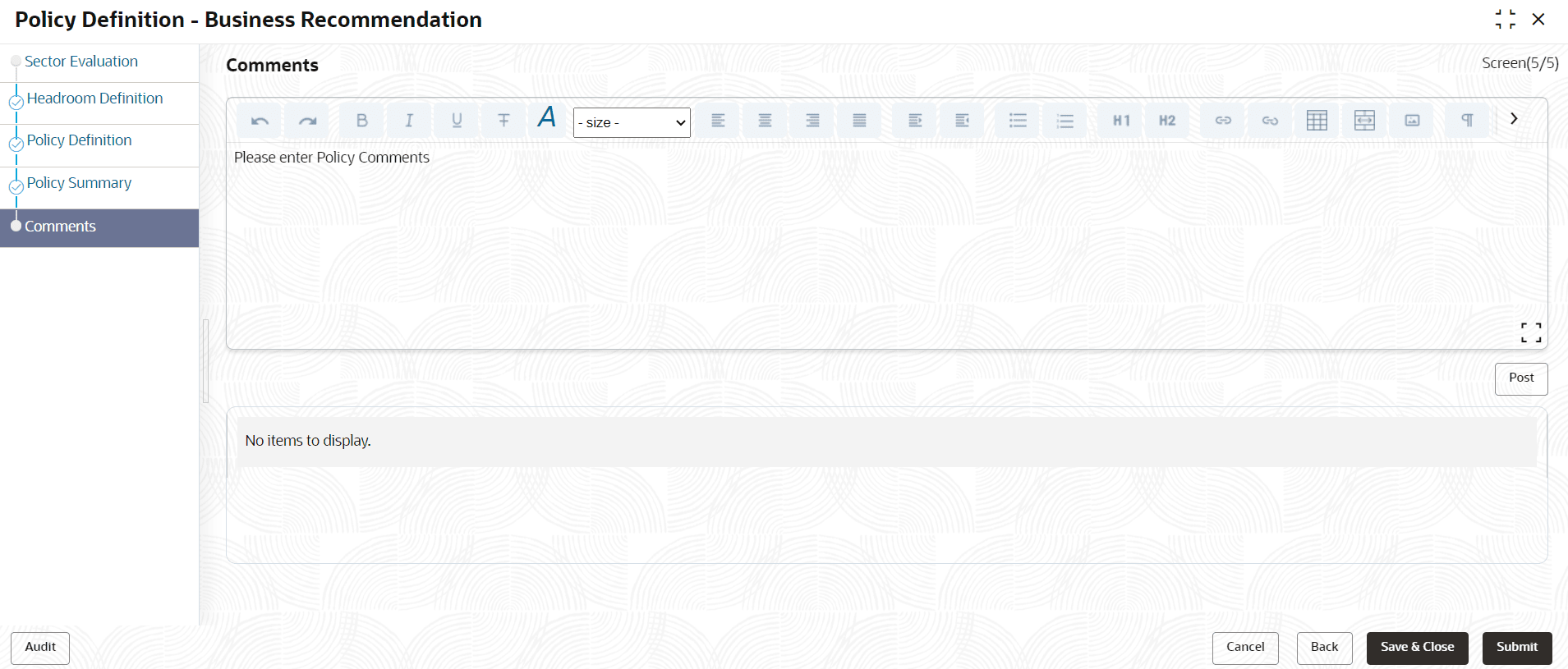
Fields/Icons Description Go Select the sector, industry group, industry and sub - industry and then click Go. Policy Summary is displayed. Policy Summary View the Policy Summary and click Next after verifying all the details. Back To modify the necessary details, click Back. Cancel To cancel the policy definition process, click Cancel. Save & Close To save the entered details and close the process, click Save & Close. Click Next button in Policy Summary page, Comments page is displayed.Figure 4-22 Business Recommendation_Comments
For information on fields in the Comments screen, refer the below table.
Table 4-9 Comments
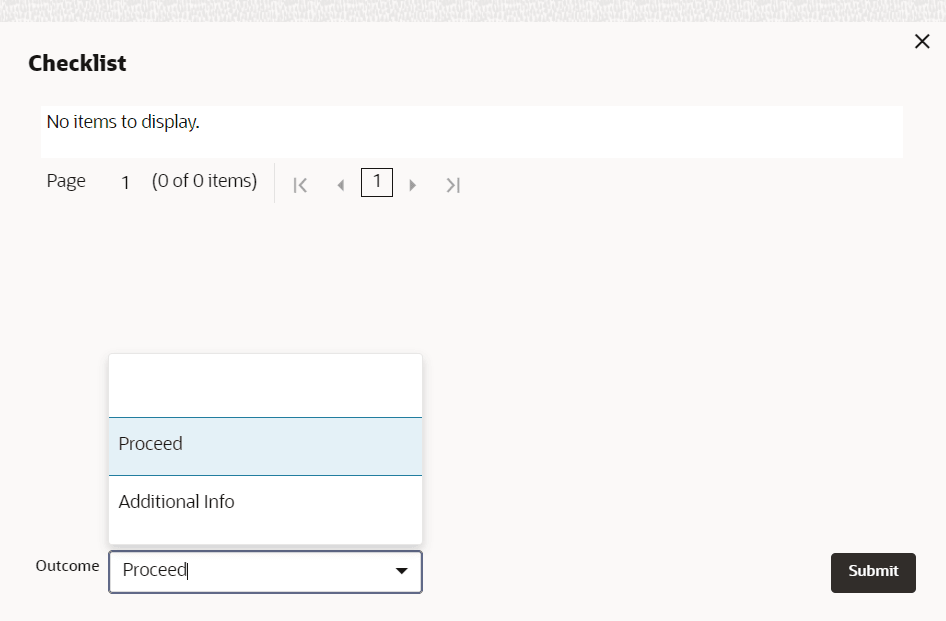
Fields/Icons Description Post Post the Comments for this stage. Posted comments appear at the bottom of the Comments box. Submit Click Submit. Checklist related to the policy definition process is displayed. For information on fields in the Checklist screen, refer the below table.
Table 4-10 Checklist
Fields/Icons Description Outcome Select the Outcome. The options available are: - Proceed
- Additional Info
If Proceed is selected as Outcome, the policy is moved to the Credit Approval stage.
If Additional Info is selected as Outcome, the policy is moved back to the Policy Initiation stage. The Policy Manager has to modify the policy details and submit it again for Business Recommendation stage.



Parent topic: Business Recommendation