3.4.1 Configuring Customer Terms and Conditions
Configuring Customer Terms and Conditions
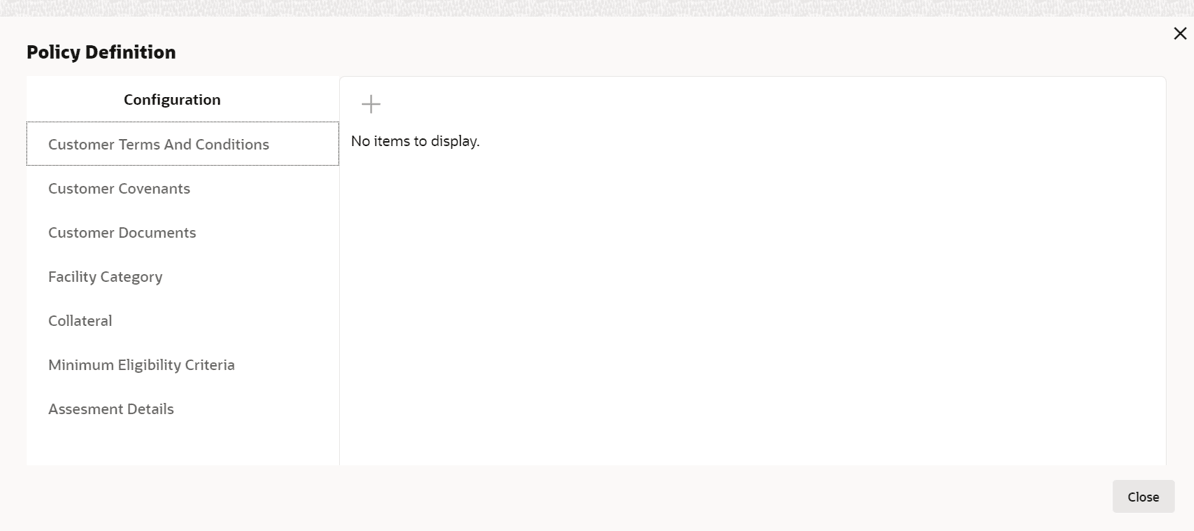
- To add terms and conditions, click Customer Terms And Conditions from the
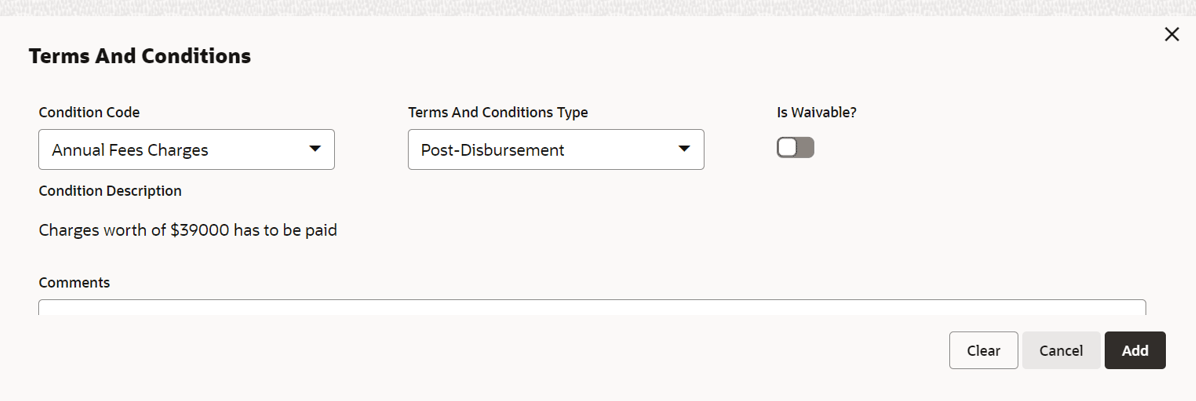
menu and click + icon. Terms And Conditions window is displayed:
For information on fields in the Terms and Conditions screen, refer the below table.
Table 3-3 Terms and Conditions
Fields/Icons Description Condition Code Select Condition Code from the drop-down list. Customer Terms And Conditions Type Select Customer Terms And Conditions Type from the drop-down list. The options available are: - Pre-Disbursement
- Post-Disbursement
Is Waivable? Enable Is Waivable? check box, if waive off option is allowed for the terms and conditions. Condition Description and Comments Enter Condition Description and Comments to help Approvers in making quick decision. Add Click Add. Terms and conditions are added and displayed in the Terms And Conditions window. Edit To modify the added terms and conditions, click Edit icon. Delete To delete the terms and conditions, click Delete icon. View To view the added terms and condition, click View icon. - Default and ValidationThe following fields will get defaulted from Policy Definition to the OBCFPM processes which are linked to policy definition and policy validation.
- Code
- Type
- Is Waivable?
The following fields will get validated against policy definition and the compliance will be reported in Policy Exception- Code
- Type
- Is Waivable?
Parent topic: Policy Definition