3 Proposal Initiation
This topic provides systematic instructions about the Proposal Initiation stage in the Simplified Credit Proposal Evaluation Restructuring Process.
To initiate Simplified CPER process, perform the following steps:
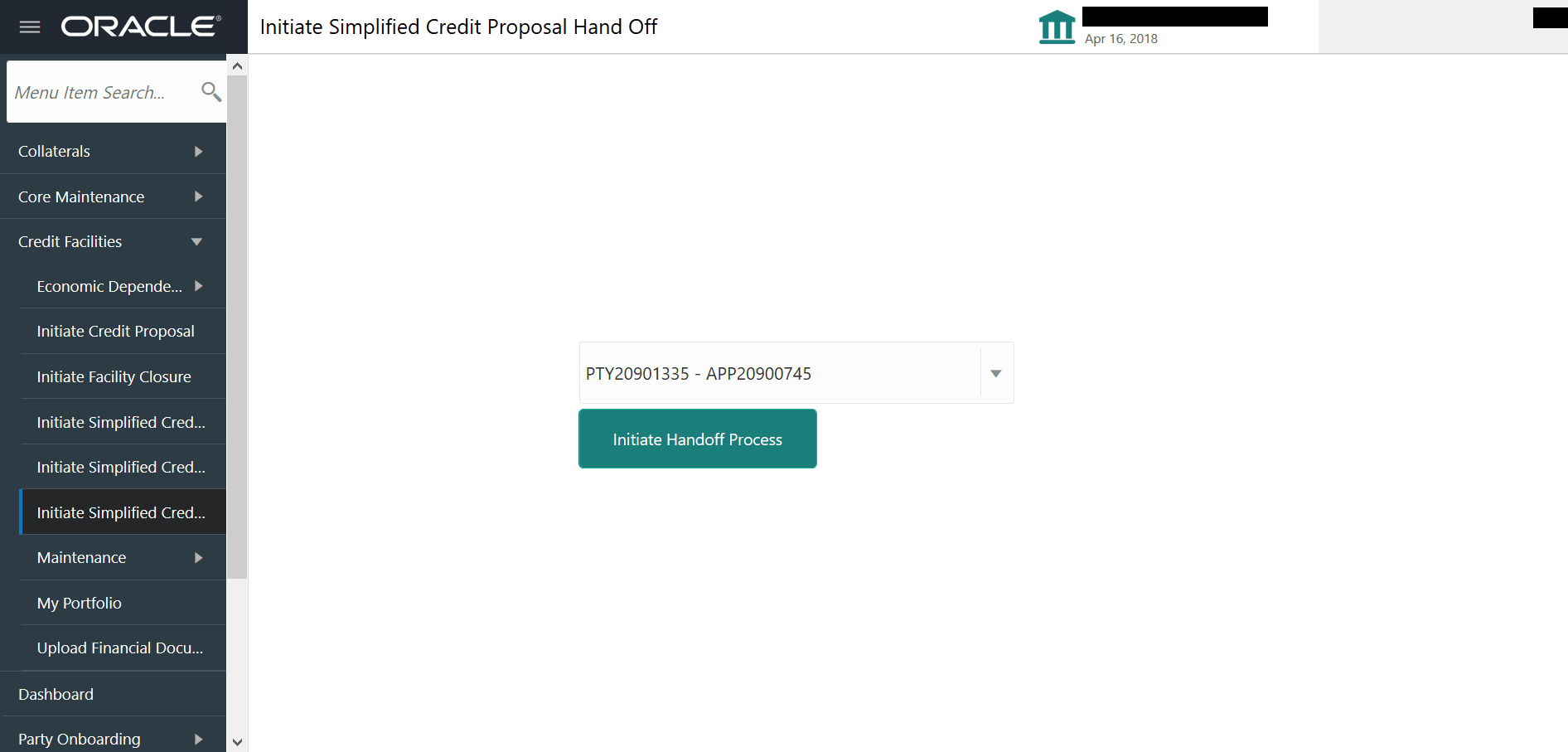
- In OBCFPM, navigate to Credit Facilities > Simplified Credit Proposal
Evaluation Restructuring.The Initiate Restructuring page is displayed.
- Click the Initiate Restructuring Process button. Customer Info page with
organization and connected party details added in simplified CPEP is
displayed.
Mouse hovering on the organization icon displays the basic information about the organization.
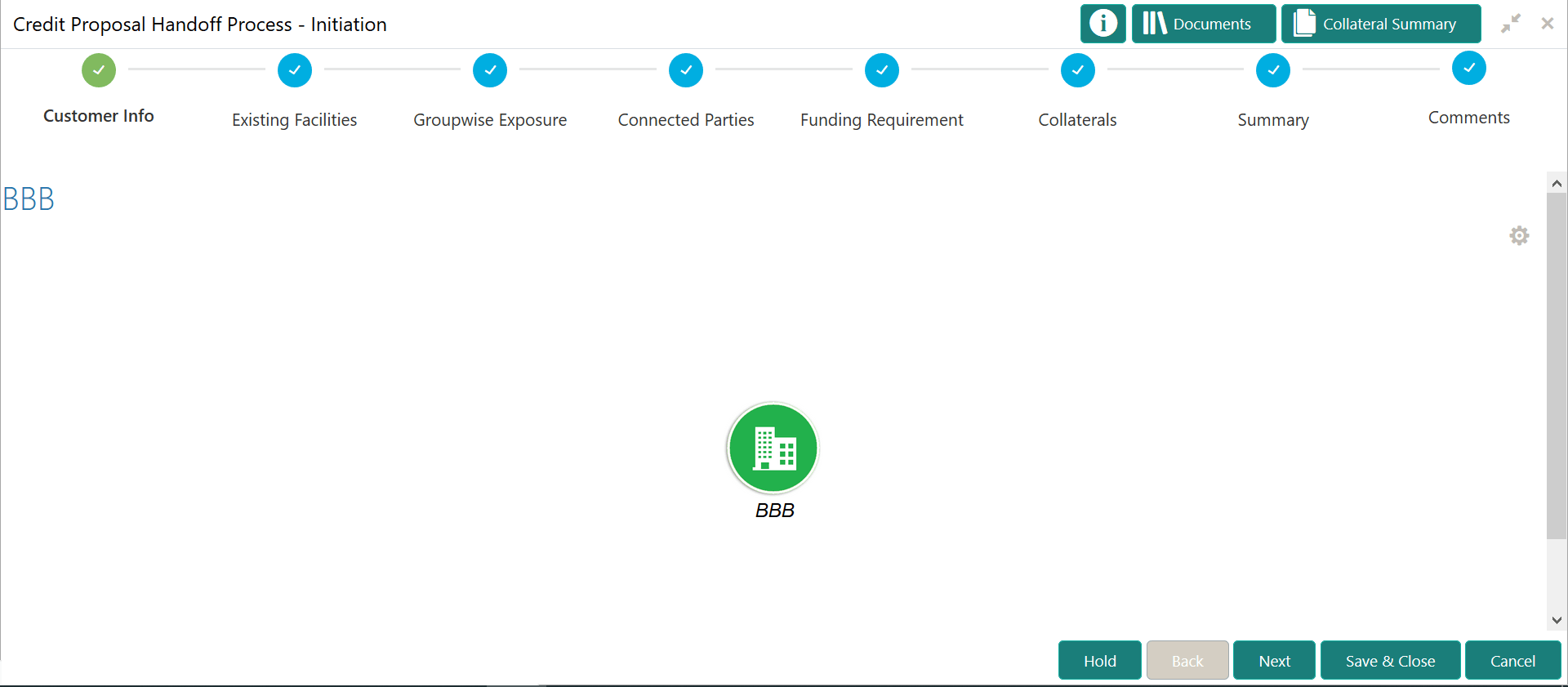
Add Customer
- To add a customer (child party) of the organization (party), click Add
Customer. The Customer Details screen is displayed.
For information on fields in the Customer Details screen, refer the below tables.
Table 3-1 Customer Details
Fields Description Organization Name Type the Organization Name.. Organization Type Select the Organization Type from the drop down list. The options available are Single and Conglomerate. Entity Type Select the Entity Type from the drop down list. The options available are Proprietorship, Pvt Ltd, Public Ltd, Govt Owned, Trusts, Clubs, Society, Associations, Limited Liability Partnership, Foreign Bodies, NGO and Others. Demography Type Select the Demography Type from the drop down list. The options available are Domestic and Global. Upon selecting Global option, Geographical Spread field is displayed.
Fields Description Geographical Spread Search and select all the countries in which the organization is operating as Geographical Spread. Country of incorporation Select the Country of incorporation. Incorporation date Click the calendar icon and select the Incorporation date. Country of risk Select the Country of risk for organization from the drop down list. Special customer Enable the Special customer switch, if the customer is a special customer for your bank. RM Id RM Id is automatically populated based on the login details. fields Type the following addresses in respective fields: - Website Address
- Facebook Address
- Twitter Address
- To capture industry details of the organization, click Add below the
addresses fields. The Add Industry screen is displayed.
Figure 3-4 Add Industry
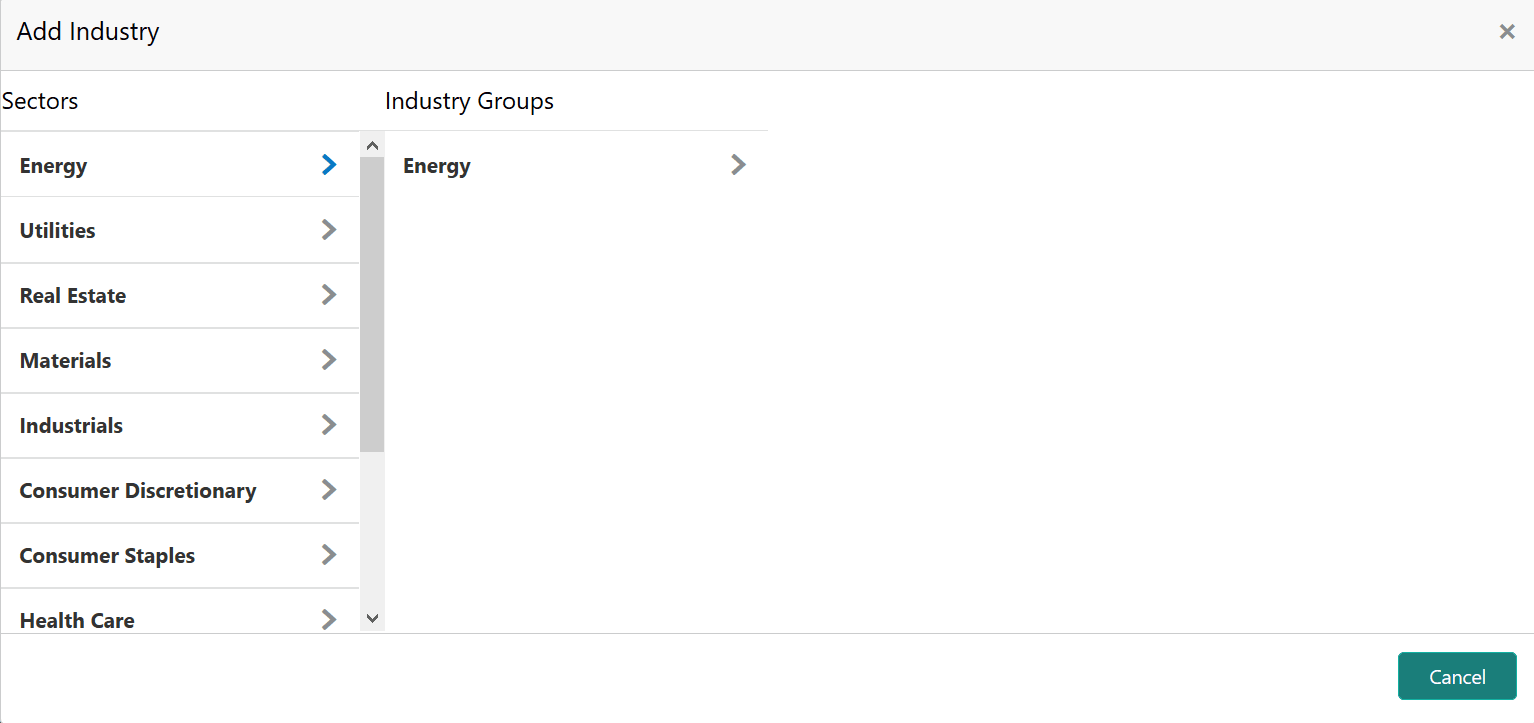
Description of the illustration add-industry.pngFor information on fields in the Add Industry screen, refer the below table.
Table 3-2 Add Industry
Fields Description Industry Groups Select a sector of the organization. Available Industry Groups appear. Industry Group Select the Industry Group of the organization. Available Industries appear. Sub-Industries Select the Industry of the organization. Available Sub-Industries appear. Industry details Select the sub-industry of the organization. Industry details are added: Delete To delete the added industry, click the delete icon. Note: If the organization is into different sectors, the user has to capture all the sector details while initiating facility amendment. To add another sector information, click Add again.
The industry added first will be considered as the default industry.
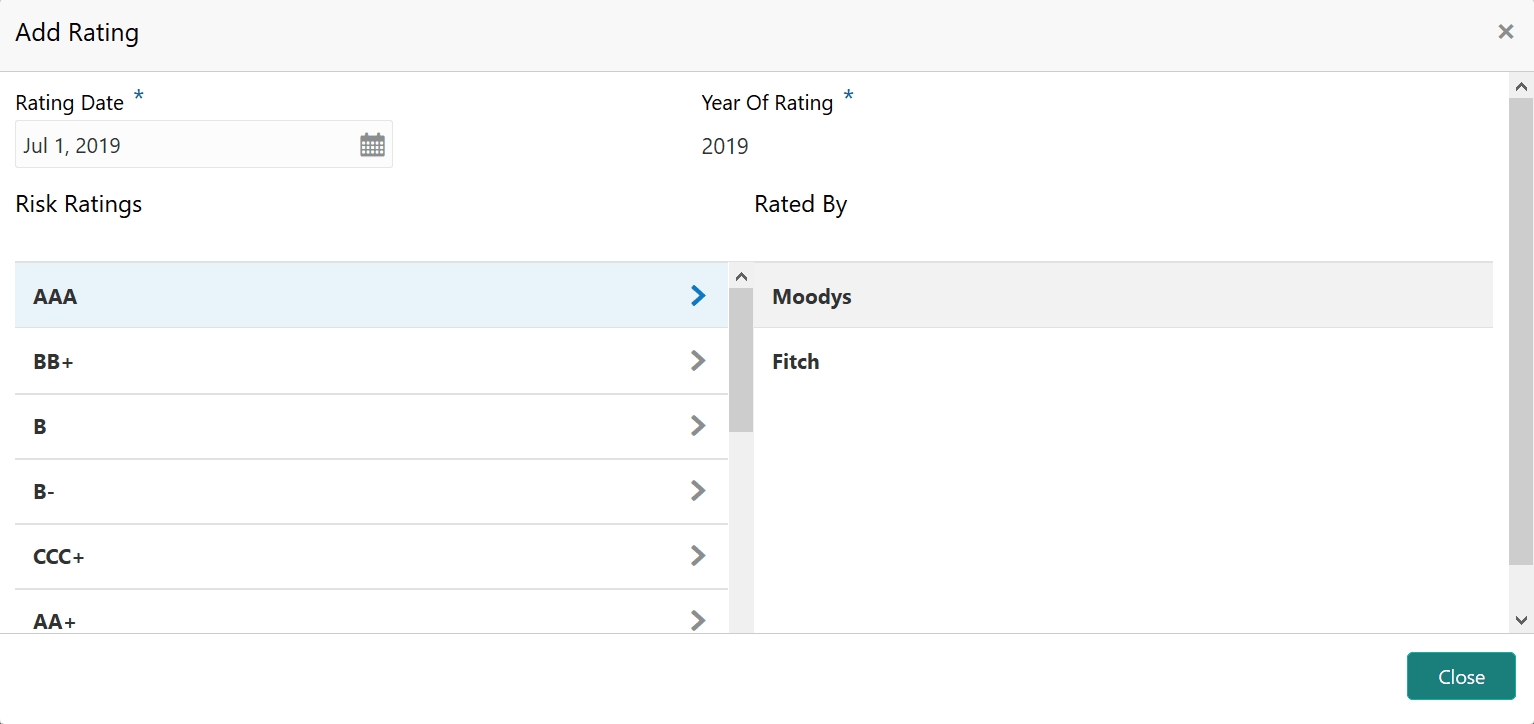
- To capture rating information of the organization, click +Add below the
sector information.The Add Rating screen is displayed.
For information on fields in the Add Rating screen, refer the below table.
Table 3-3 Add Rating
Fields Description details Select the following details: - Rating Date
- Outlook
- Risk Ratings
- Rated By
Year Of Rating The Year Of Rating is automatically populated based on the selected Rating Date.
Upon selection of the above details, the rating is added and displayed in the Customer Details window:
edit To modify the added rating, click the edit icon and change the required details. Delete To delete the added rating, click the delete icon. Note: If the organization is rated by different rating firms, all the rating information must be captured while initiating credit proposal. To add another rating information, click +Add again.
The industry added first will be considered as the default industry.
close To close the Customer Details window, click the close icon.

For information on fields in the View, Quick View and Delete Customer screen, refer the below table.
Table 3-4 View, Quick View and Delete Customer
| Fields | Description |
|---|---|
| Delete | To View, Quick view, Configure and Delete the child party information, right click the child party icon and click the respective option. |
| Configure | To View, Quick view, and Configure
the organization information, right click the organization icon
and click the respective option.
Note: Parent customer (party / entity) cannot be deleted. |
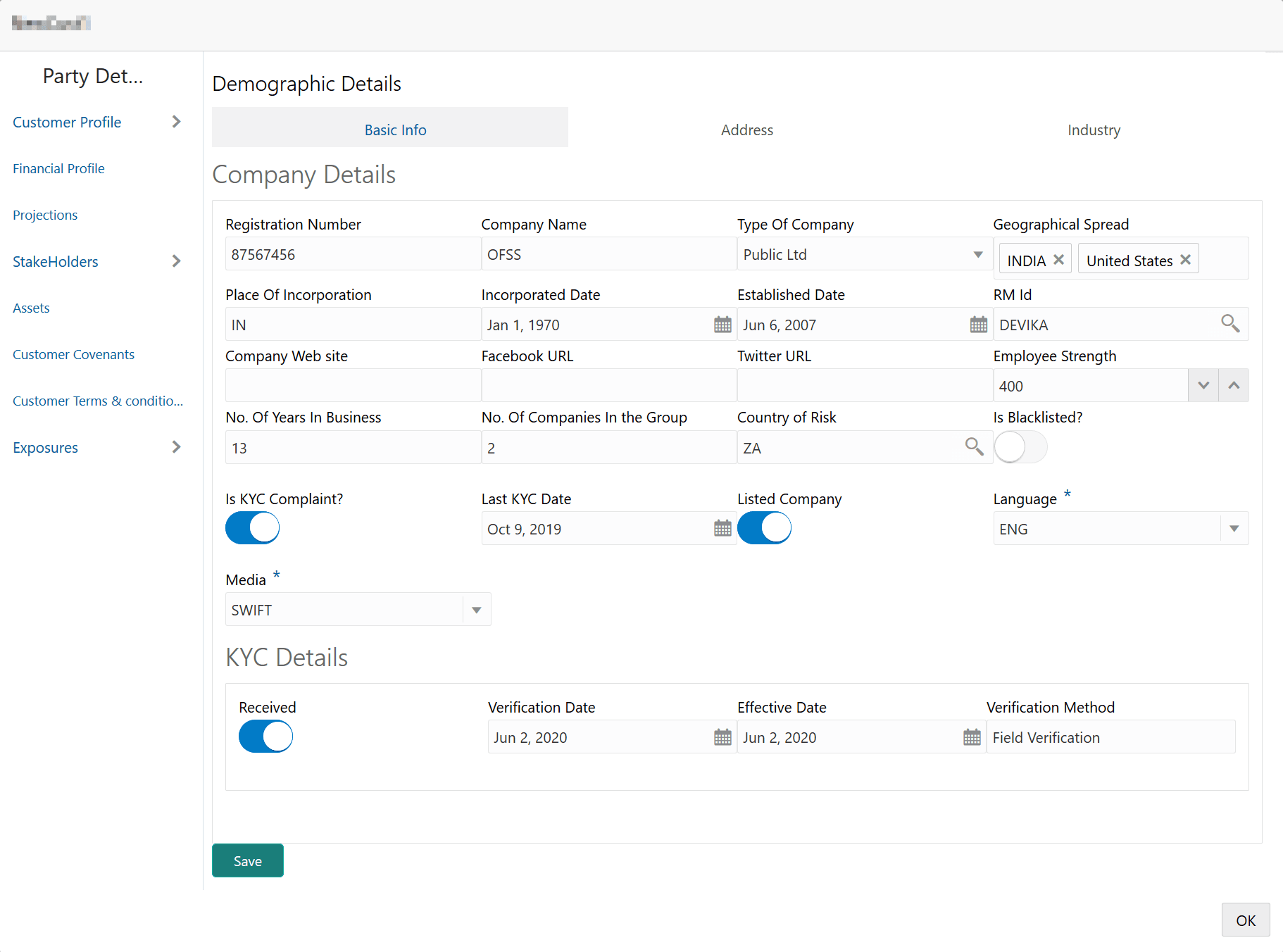
- To configure the organization (entity), right click on the organization icon
and click Configure.
The Facility Details screen is displayed.
For information on fields in the Facility Details screen, refer the below table.
Table 3-5 Facility Details
Fields Description Company Details Enter / select the following details in the corresponding fields: - Registration Number
- Company Name
- Type Of Company
- Geographical Spread
- Place Of Incorporation
- Incorporated Date
- Established Date
- RM Id
- Company Website
- Facebook URL
- Twitter URL
- Employee Strength
- No. Of Years In Business
- No. Of Companies in the Group
- Country of Risk
Is Blacklisted? Enable the Is Blacklisted? switch, if the company is blacklisted. Is KYC Compliant? Enable the Is KYC Compliant? switch, if the company is KYC Compliant. Last KYC Date Click the calendar icon and select the Last KYC Date. Listed Company Enable the Listed Company switch, if the company is listed. Language Select the Language from the drop down list. Media Select the Media for transactions from the drop down list. Table 3-6 KYC Details
Fields Description Received Enable the Received switch, if KYC verification details are received for the customer. KYC Verification Date and Effective Date. Click the calendar icon and select the KYC Verification Date and Effective Date. Verification Method Type the KYC Verification Method. For example: Field verification. Save Click Save. - To add the company address details, click the Address tab and then click the
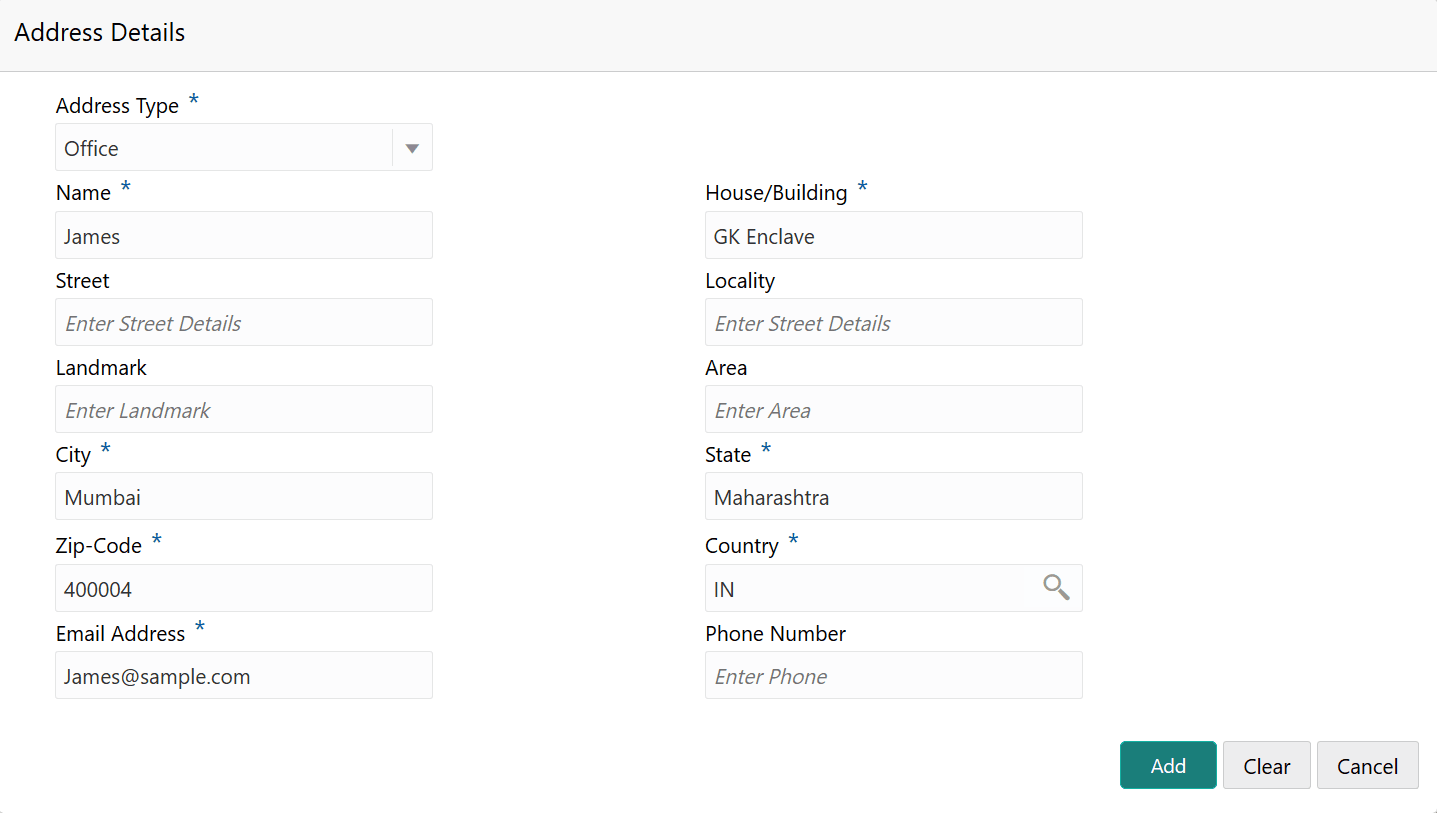
Add icon.The Address Details screen is displayed.
For information on fields in the Adrees Details screen, refer the below table.
Table 3-7 Adrees Details
Fields Description Adrees Details Type or select the following details in the corresponding fields: - Address Type
- Name of the contact person
- House/Building name
- Street
- Locality
- Landmark
- Area
- City
- State
- Zip-Code
- Country
- Email Address
- Phone Number
Add Click Add. Address details are added. Industry To add the industry details, click the Industry tab and select the required details. Note: To Edit, Delete or View the added Basic Info, Address, and Industry. click the hamburger icon in the required list item and select the required option.
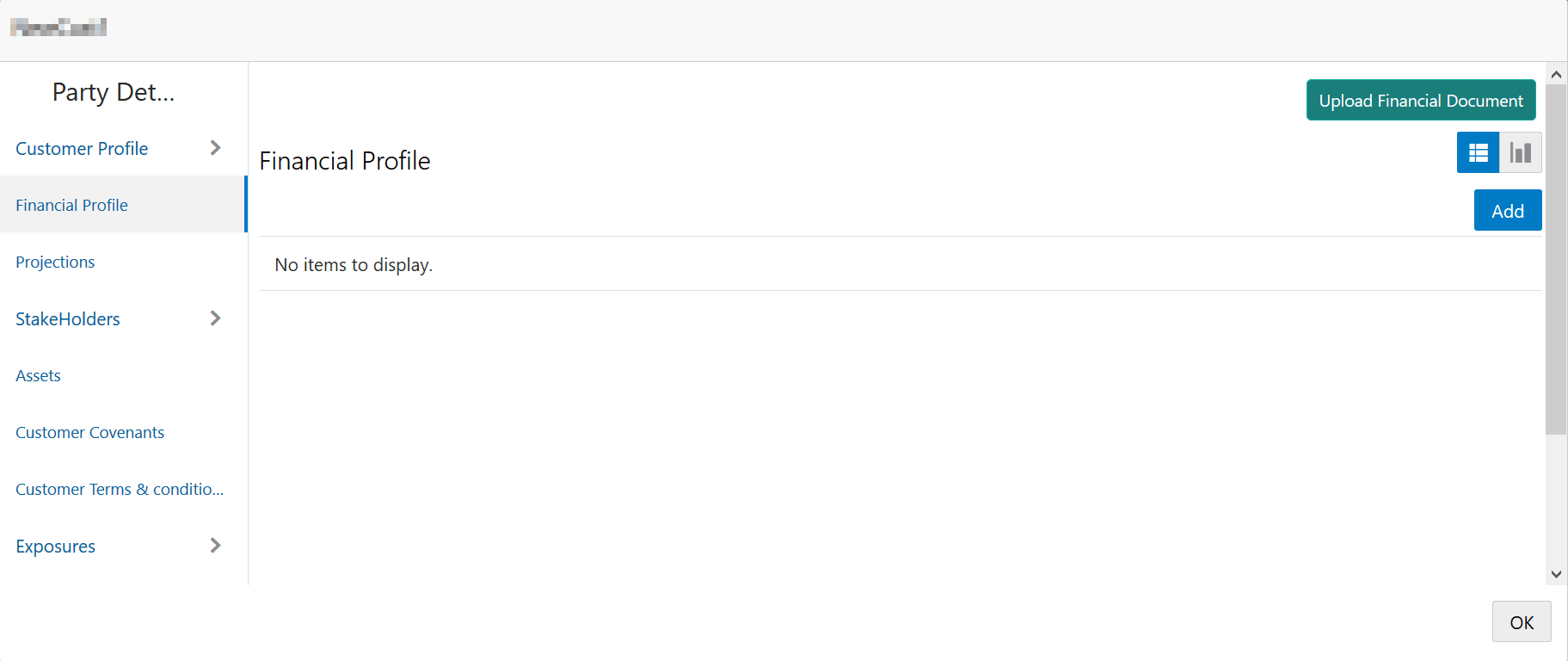
Customer Profile To view the organization’s business details, click the Customer Profile in menu and select Business sub-menu. - To configure organization’s financial details, click Financial Profile
in left menu.The Financial profile screen is displayed.
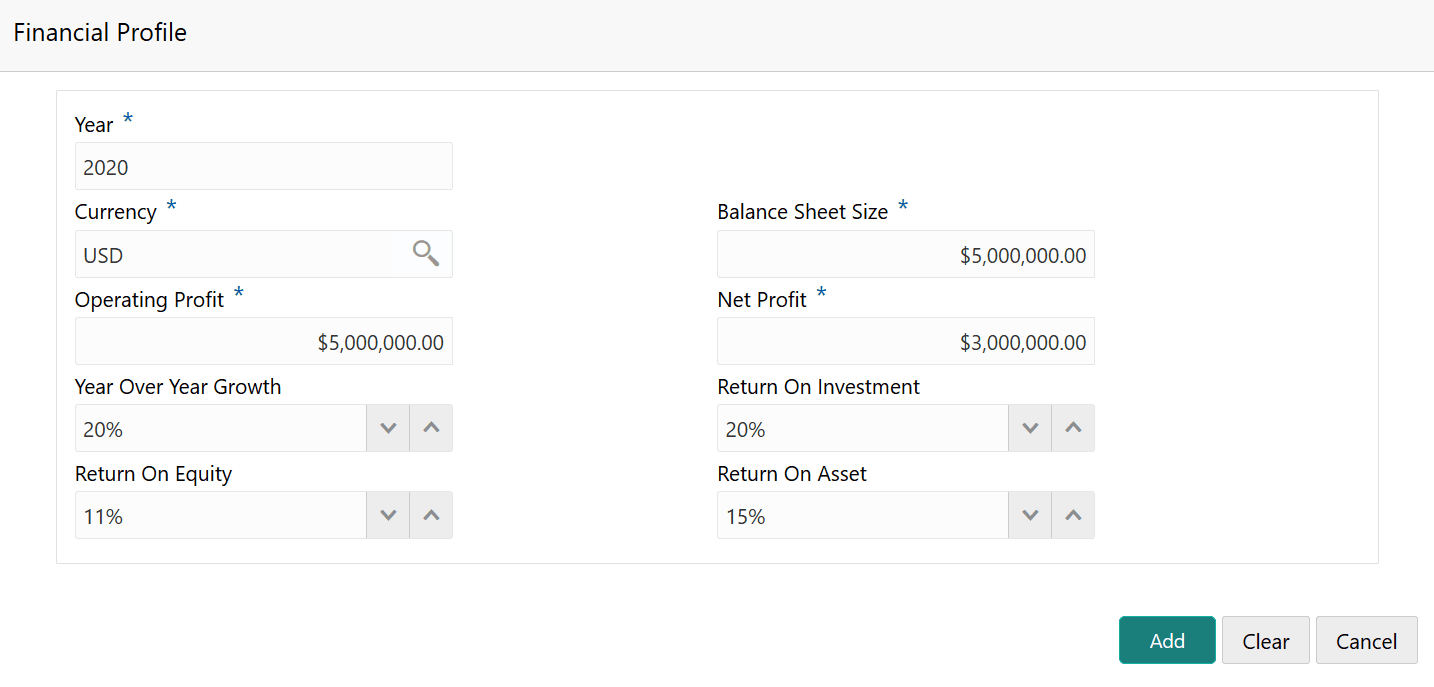
- Click the Add icon. The following window is displayed.
For information on fields in the Financial Profile screen, refer the below table.
Table 3-8 Financial Profile
Fields Description Year Specify the Year for which the organization’s financial details are to be added. Currency Search and select the Currency for the financial information. Details Specify the following details in the corresponding fields: - Balance Sheet Size
- Operating Profit
- Net Profit
- Year Over Year Growth
- Return On Investment
- Return On Equity
- Return On Asset
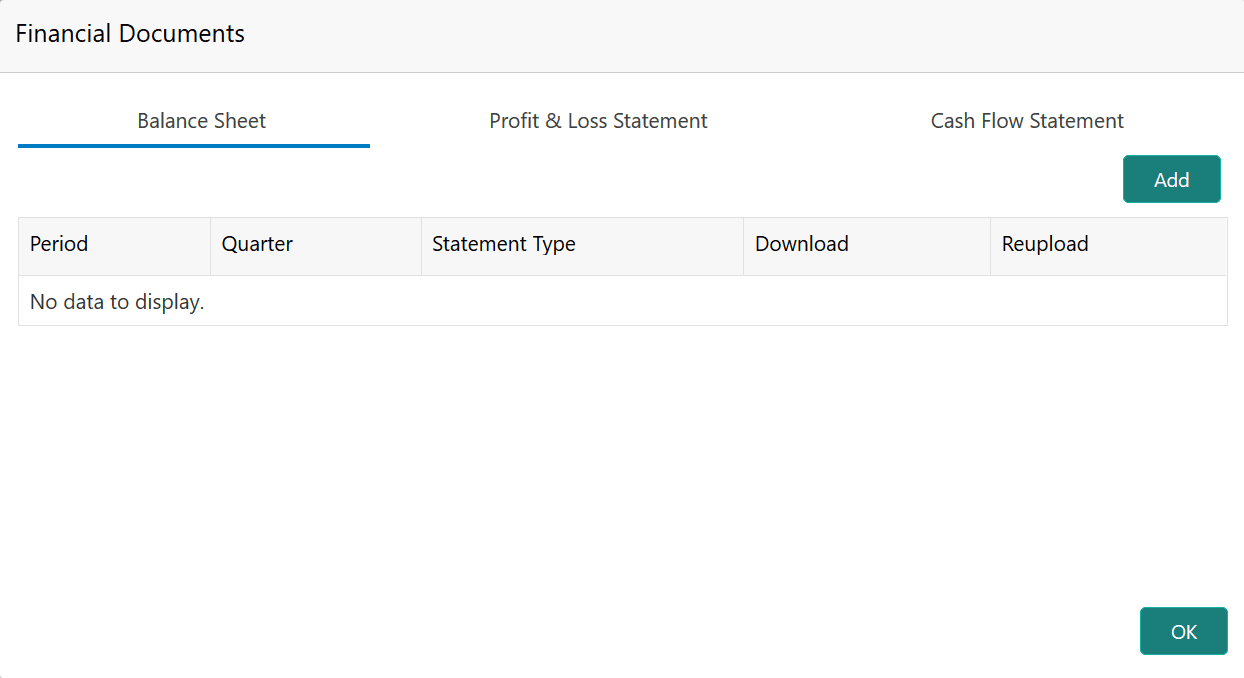
Add Click Add. Organization’s financial details are added. - To add financial documents, click Upload Financial Document.The Financial Documentsscreen is displayed. In the Financial Documents window, the user can Add the following documents by clicking respective tabs.
- Balance Sheet
- Profit & Loss Statement
- Cash Flow Statement
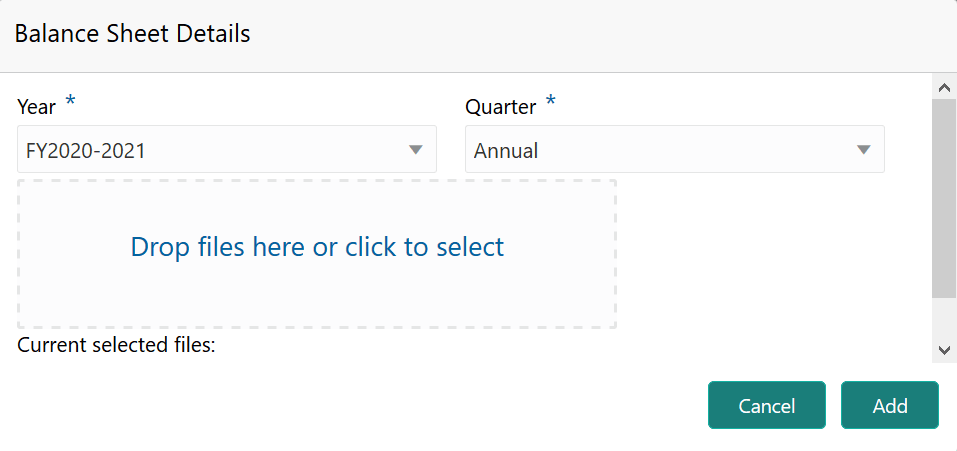
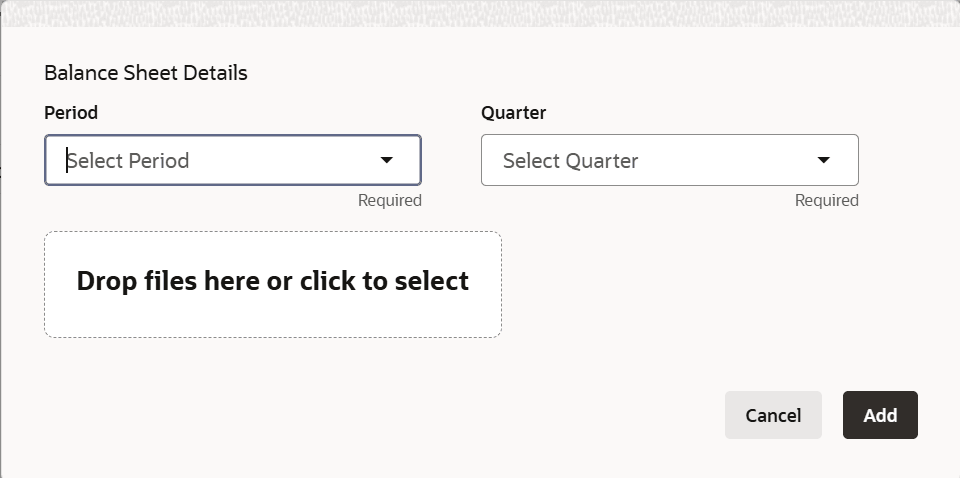
For information on fields in the Balance Sheet Details screen, refer the below table.
Table 3-9 Balance Sheet Details
Fields Description Period Select the Period for which the financial document is to be added. Quarter Select the Quarter for which the financial document is to be added. Drop files here or click to select In Drop files here or click to select section, drag and drop or click and upload the financial document. Add Click Add. Document is added. Chart view In the Financial Profile screen, click the Chart view icon to change the List view to Chart view. Note: To Edit, Delete or View the added Financial Profile. click the hamburger icon in the required list item and select the required option.
Note:
To Edit, Delete or View the added Financial Profile. click the hamburger icon in the required list item and select the required option.
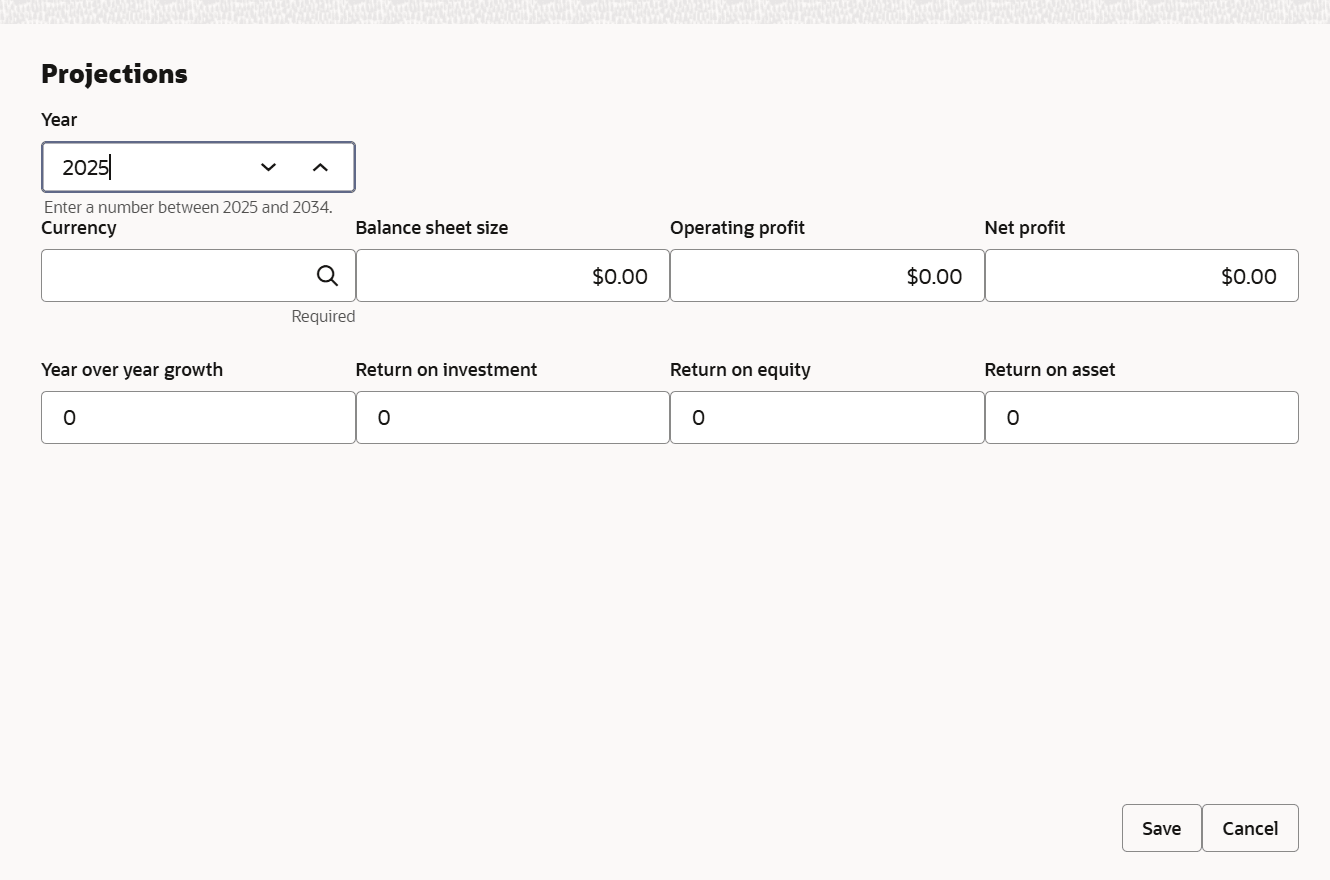
- To configure projection details, click Projections from
the left menu and then click the Add icon.The Projections window is displayed.
For information on fields in the Projections screen, refer the below table.
Table 3-10 Projections
Fields Descriptions Year Specify the Year for which the organization’s projection details are to be added. Currency Search and select the Currency for the projection details. Details Specify the following details in the corresponding fields: - Balance Sheet Size
- Operating Profit
- Net Profit
- Year Over Year Growth
- Return On Investment
- Return On Equity
- Return On Asset
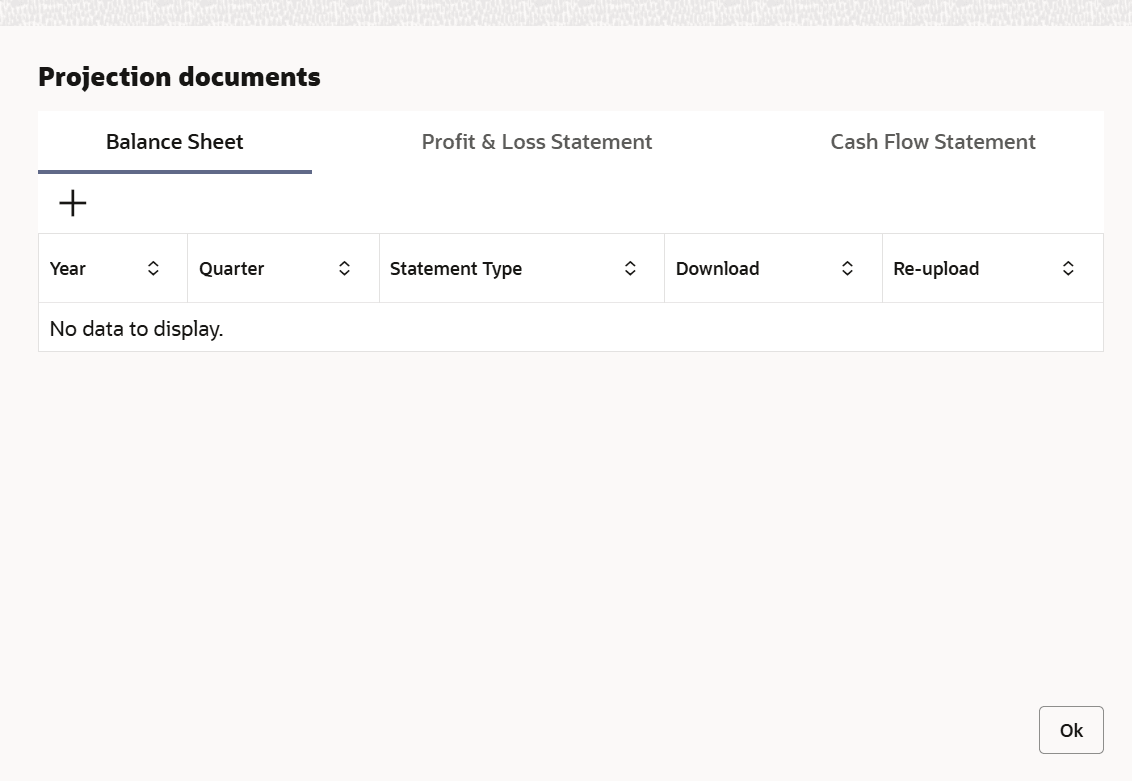
- To add projection documents, click Upload Projection Document.The Projection Documents window is displayed.
In the Projection Documents window, the user can Add the following documents by clicking respective tabs.
- Balance Sheet
- Profit & Loss Statement
- Cash Flow Statement
For information on fields in the Balance Sheet Details screen, refer the below table.
Table 3-11 Balance Sheet Details
Fields Description Period Select the Period for which the projection document is to be added. Quarter Select the Quarter for which the projection document is to be added. Drop files here or click to select In Drop files here or click to select section, drag and drop or click and upload the projection document. Add Click Add. Document is added. - To configure stakeholders information, click
Stakeholders in the left menu.
The user can add information about the following stakeholders by clicking the Stakeholders menu:
- Sponsors
- Share holders
- Directors
- Management Team
- Bankers
- Guarantors
- Customers
- Suppliers
Figure 3-15 Sponsors
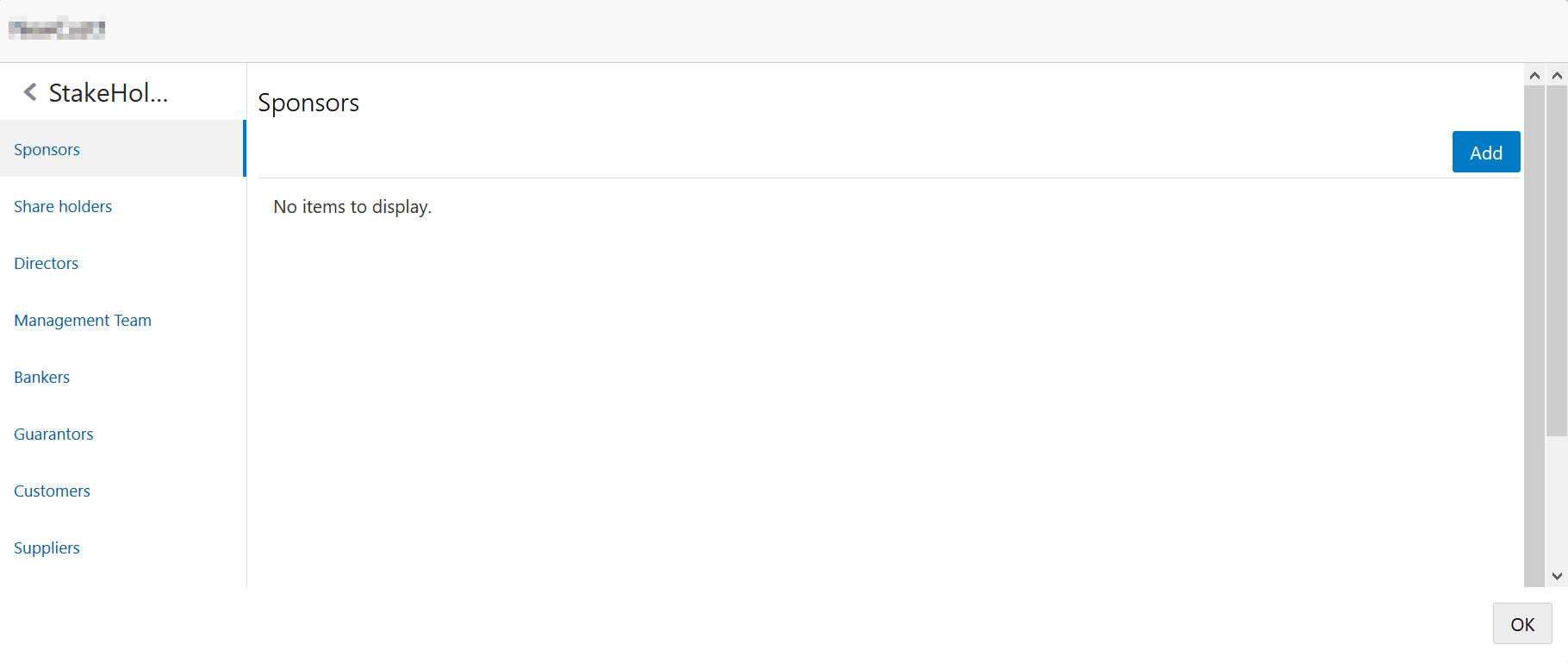
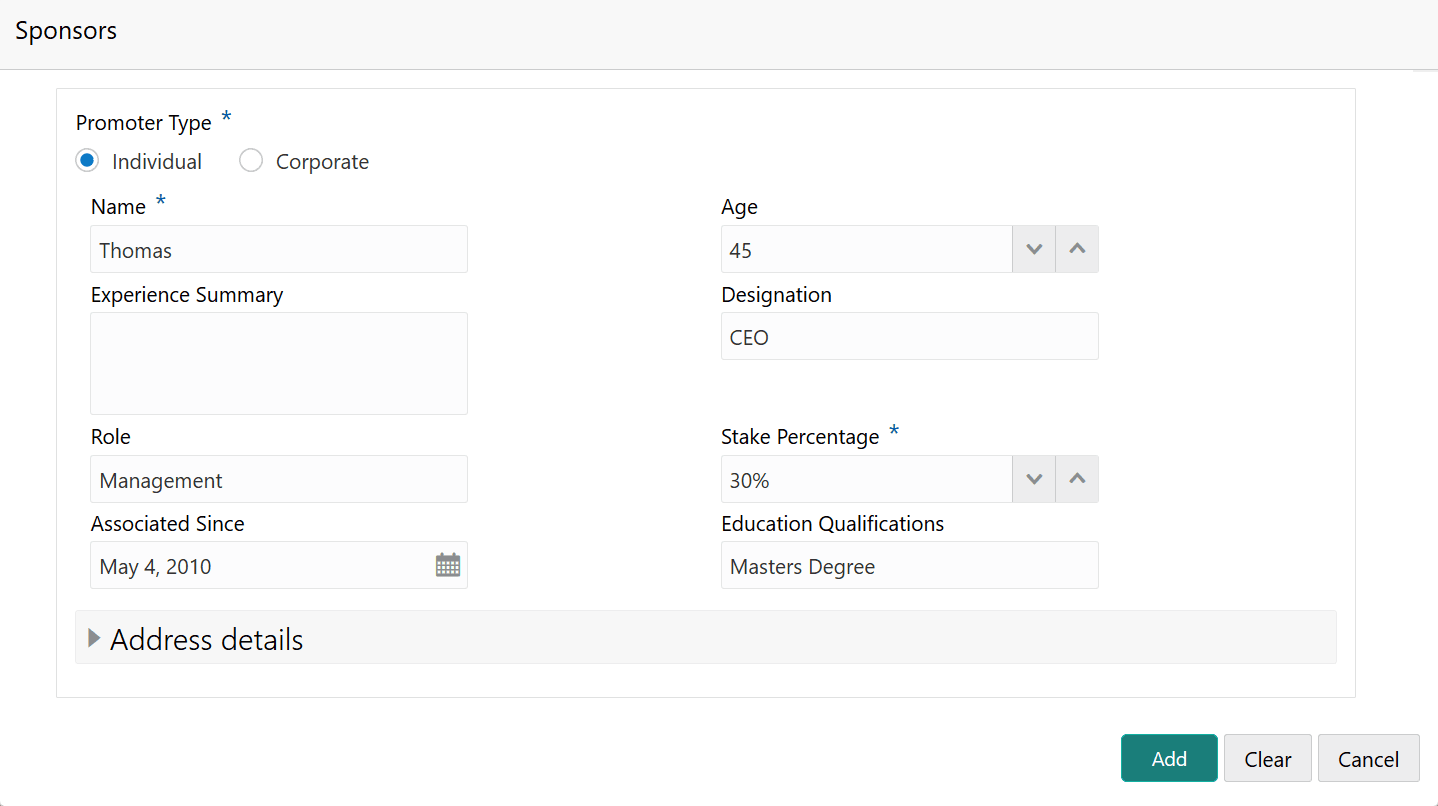
Description of the illustration configure_stakeholders.png - To add sponsor details, click Sponsors from the left menu and then click
Add.The Sponsors window is displayed.
For information on fields in the Sponsors screen, refer the below table.
Table 3-12 Sponsors
Fields Description Individual If the sponsor is an individual, select or type the following sponsor details in the corresponding fields: - Promoter Type (select Individual option)
- Name
- Age
- Experience Summary
- Designation
- Role
- Stake Percentage
- Associated Since
- Education Qualification
Corporate If the sponsor is an entity, select or type the following sponsor details in the corresponding fields: - Promoter Type (select Corporate option)
- Name
- Stake Percentage
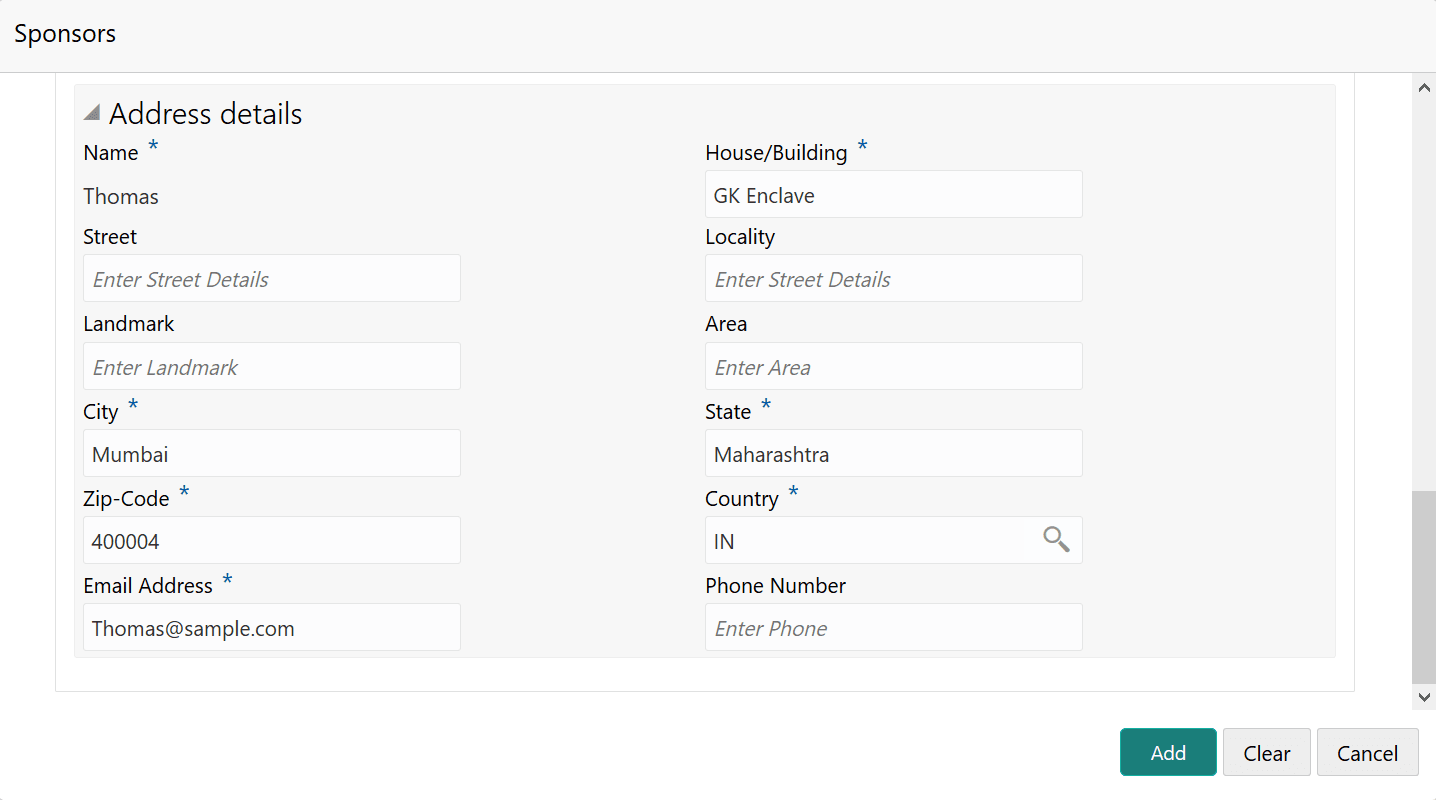
- Click and expand the Address details section.
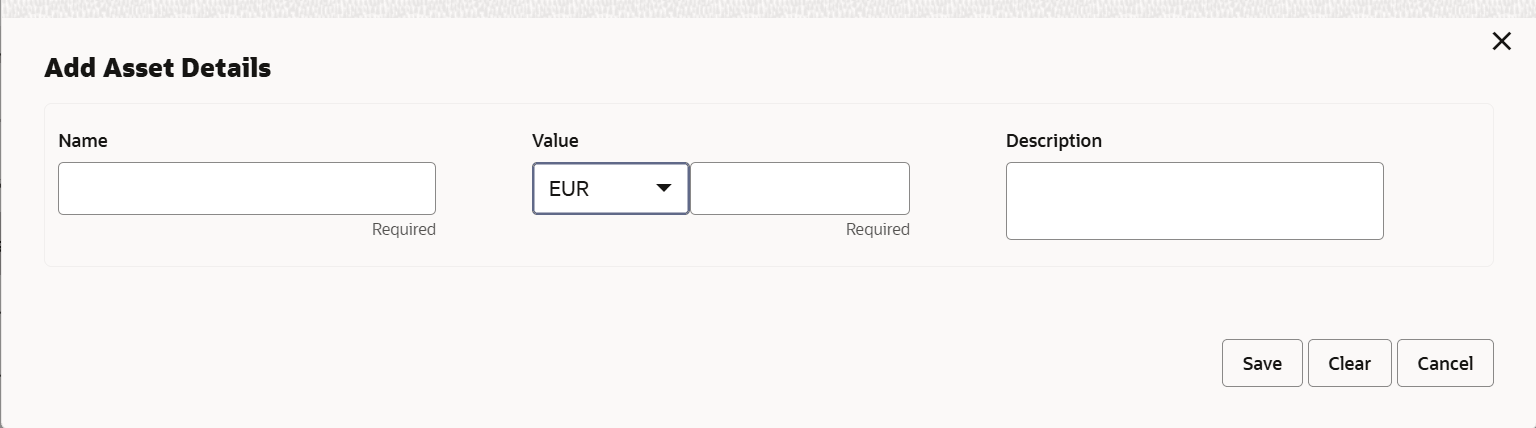
- To add asset details, click Assets from the left menu
and then click Add.The Assets window is displayed.
For information on fields in the Assets screen, refer the below table.
Table 3-13 Assets
Fields Description Name Type the Name of the Asset. Currency Search and select the Currency for the asset value. Value Specify the asset Value. Description Type the asset Description. Add Click Add. Asset details are added. Note:
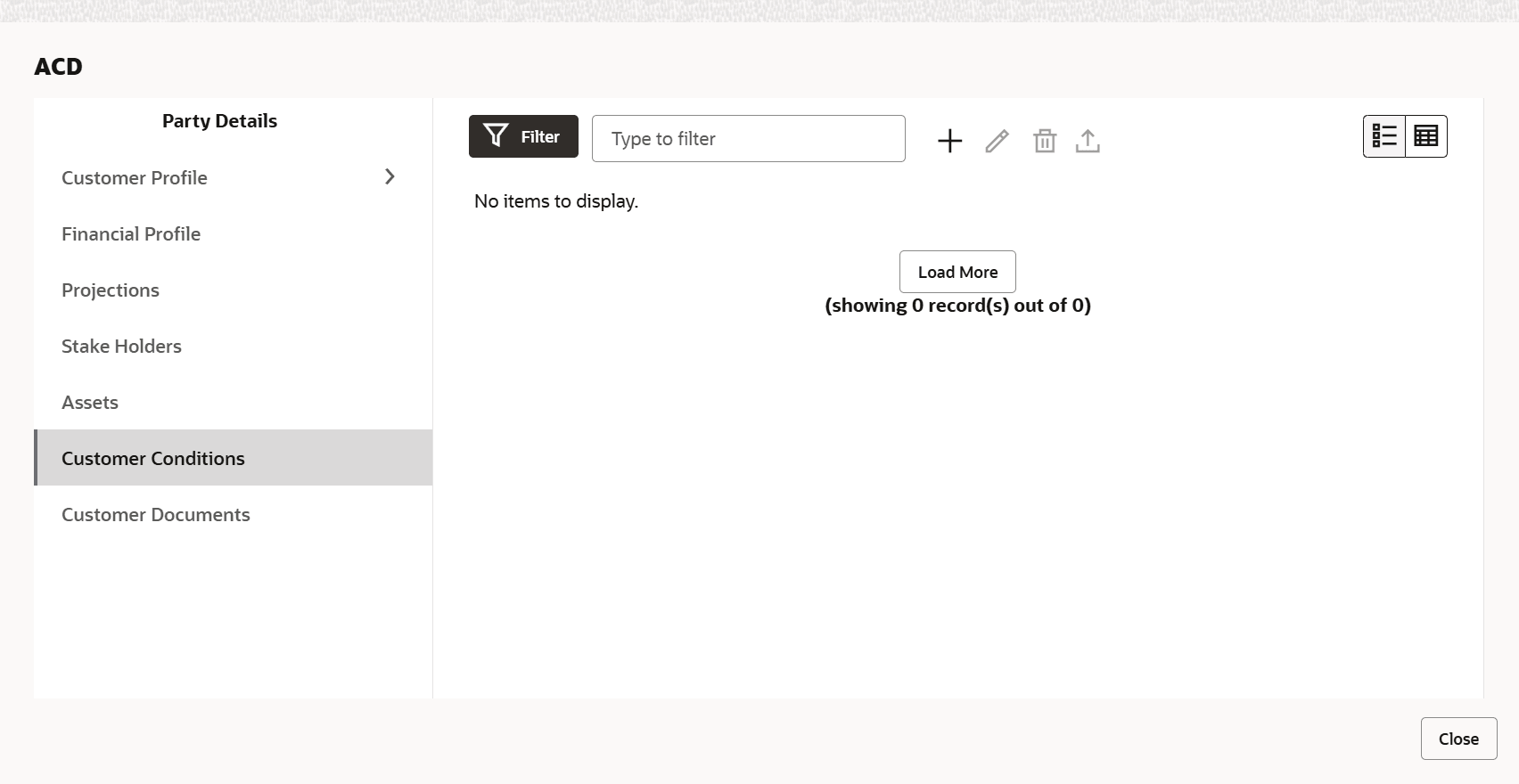
To Edit, Delete or View the added Assets. click the hamburger icon in the required list item and select the required option. - To add covenant details, click Customer Covenants from the left
menu.The following screen is displayed.
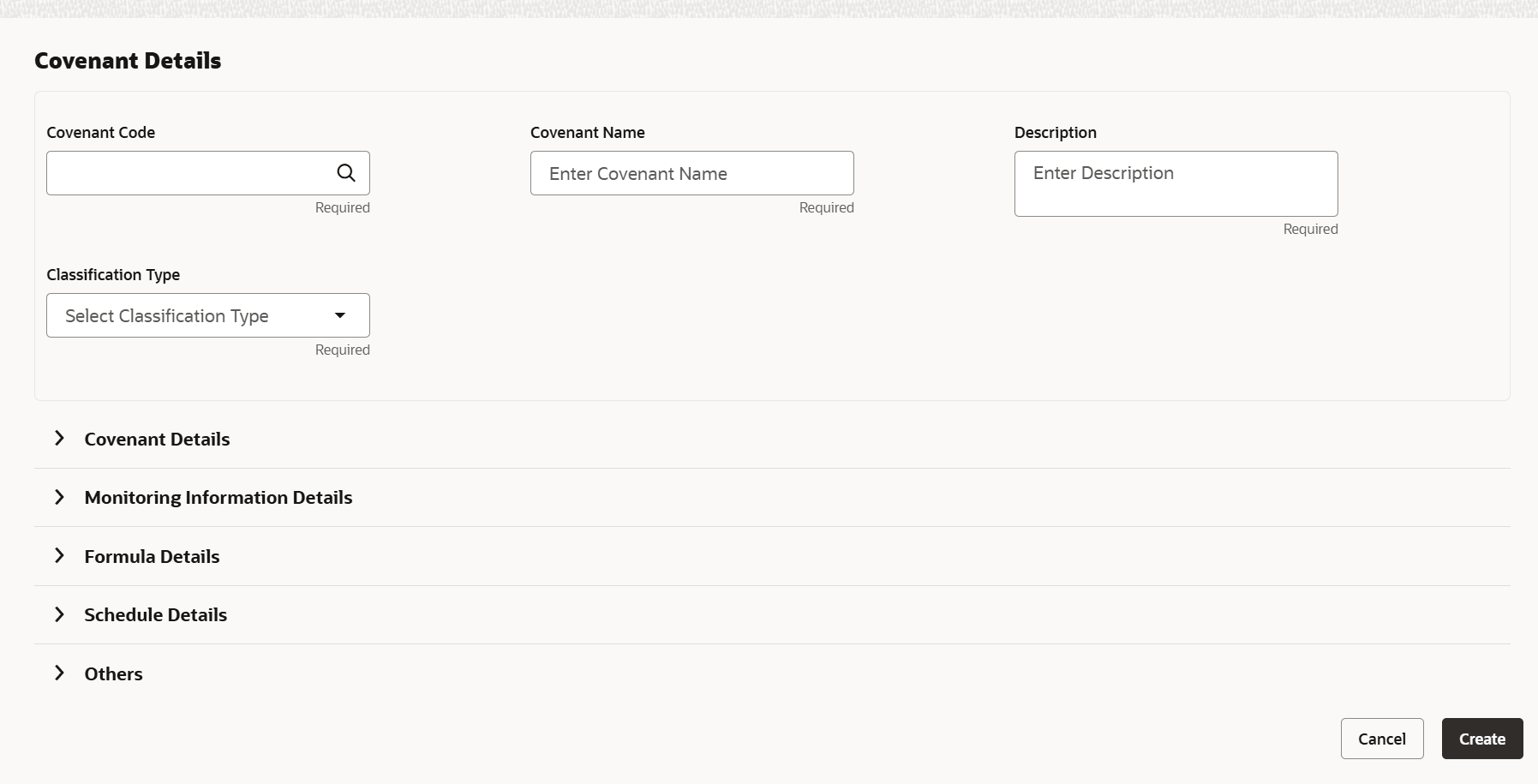
- Click the add icon. The Covenant Details window is displayed.
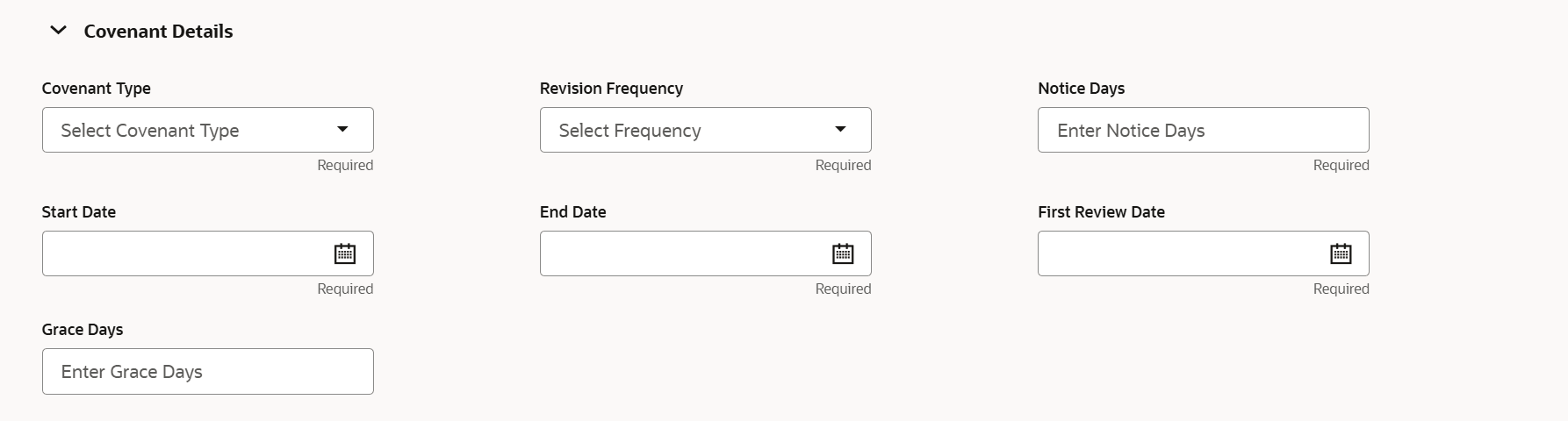
- Click and expand the Covenant details section.
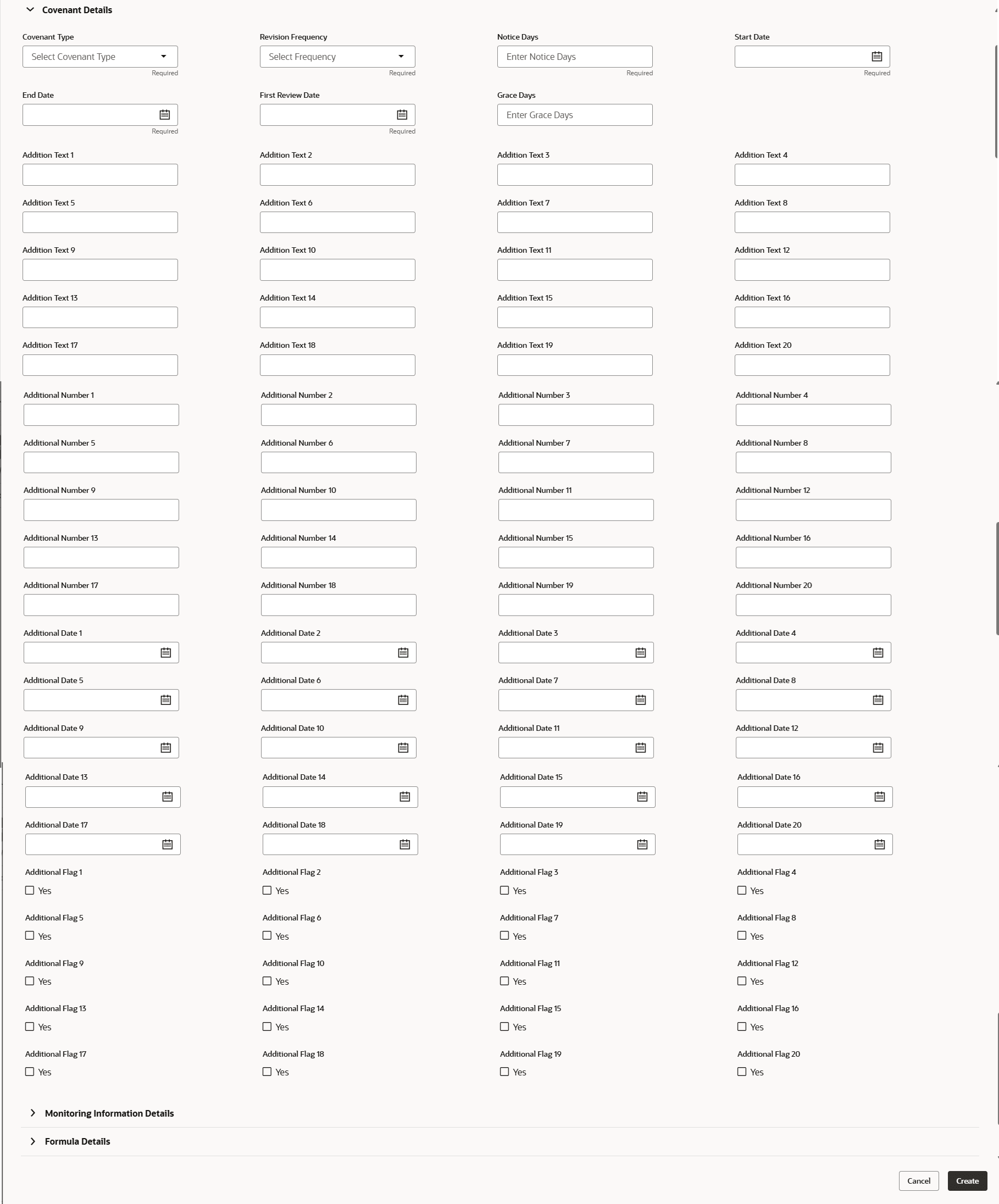
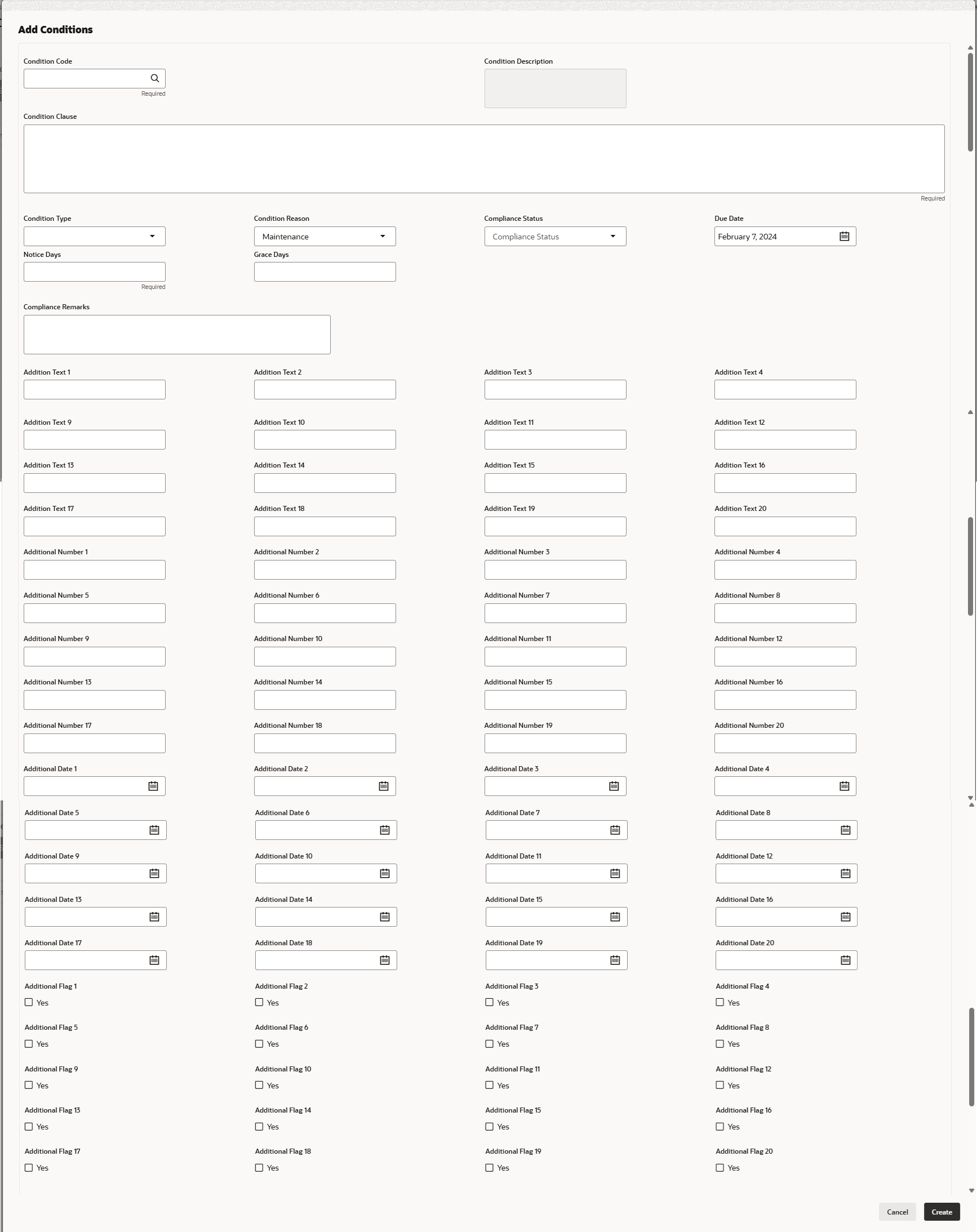
For process Covenant Details, user can set up extra placeholder fields in the Maintenance screen. For more information on managing these placeholders, refer to the Maintenance User Manual.
The system supports configuration of up to 20 fields each for the following data types:- Text
- Numeric
- Boolean
- Date
Each field type allows a minimum of 0 and a maximum of 20 fields per Covenant details, based on the requirements. These fields displays in the Covenant Details screen only if they are configured. If no additional fields are defined, the screen will display only the standard covenant details fields.
For example, we maintained 20 additional fields each for text, numeric, boolean, and date.
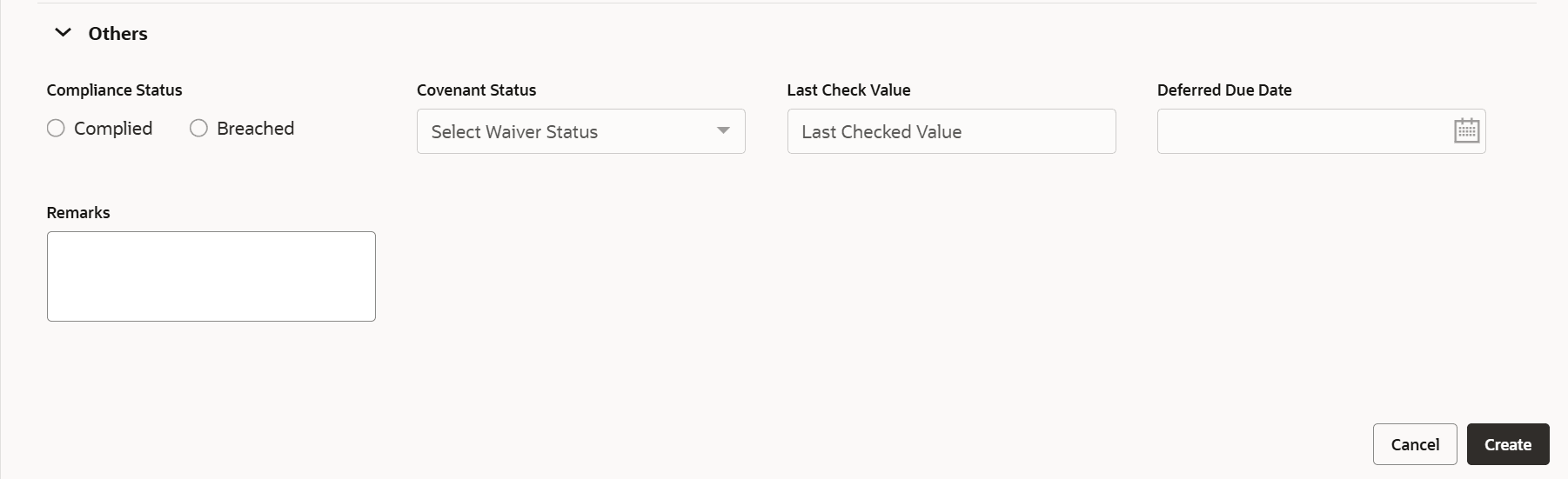
The Covenant Details screen displays. - Click and expand the Others section.
- To capture the monitoring information for the covenant, click and expand the
Monitoring Information Details section.
Figure 3-24 Monitoring Information Details
- To configure conditions for the customer, click Customer
Terms & Condition in the left menu and then click Add. The Add Conditions window is displayed.For process Conditions Details, user can set up extra placeholder fields in the Maintenance screen. For more information on managing these placeholders, refer to the Maintenance User Manual. The system supports configuration of up to 20 fields each for the following data types:
- Text
- Numeric
- Boolean
- Date
Each field type allows a minimum of 0 and a maximum of 20 fields per Conditions details, based on the requirements. These fields displays in the Conditions Details screen only if they are configured. If no additional fields are defined, the screen will display only the standard Conditions details fields. For example, we maintained 20 additional fields each for text, numeric, boolean, and date.
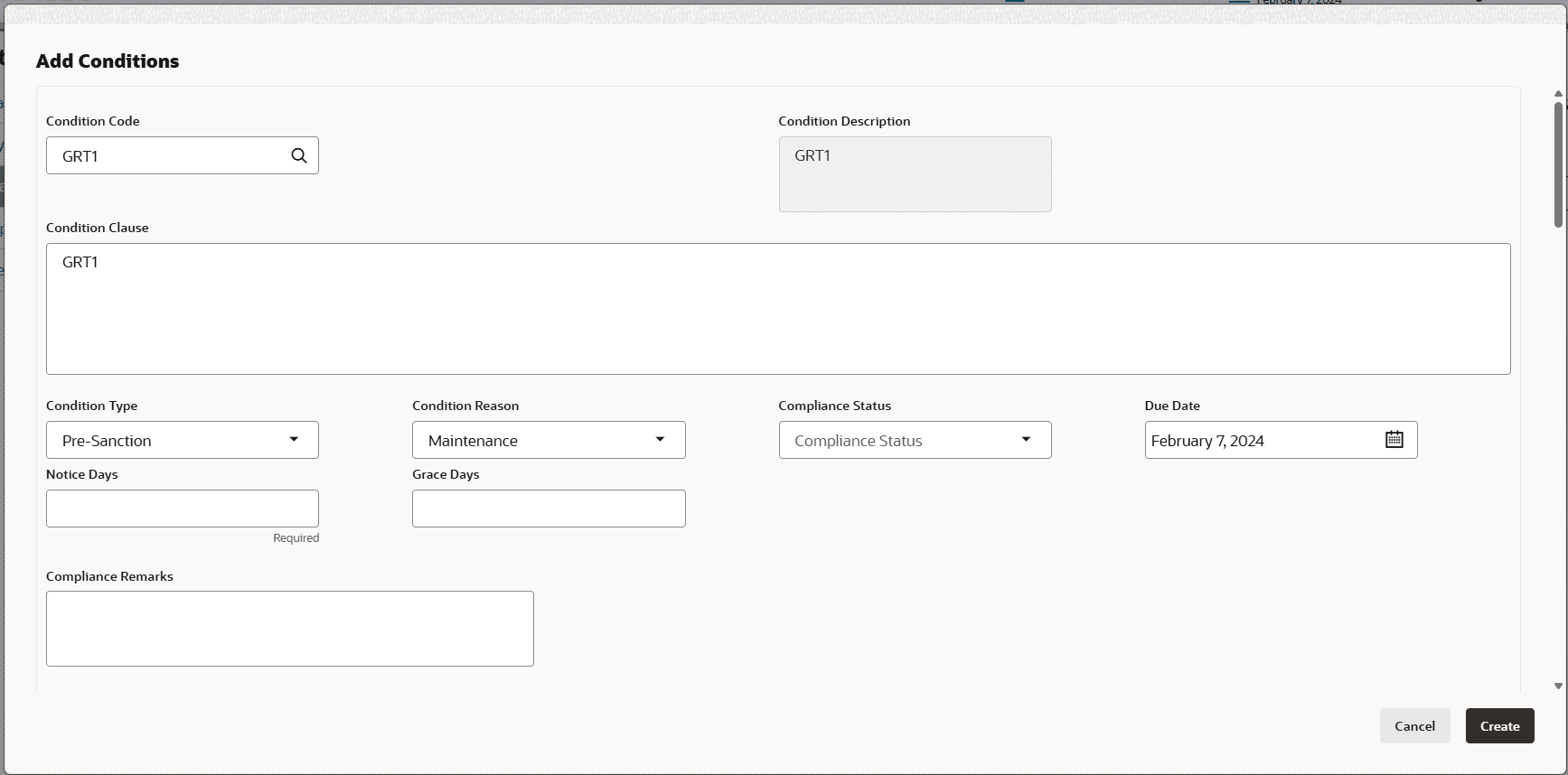
The Add Conditions screen displays. - If the Customer Linkage switch is not enabled, the Facility Id
field appears as shown below: For information on fields in the Add Conditions screen, refer the below table.
Table 3-14 Add Conditions
Fields/ Icons Description Conditions Code Search and Select Conditions Code. Conditions Description and Conditions are defaulted based on the selected Conditions code. Conditions Description Display the Conditions description. The Conditions description will be defaulted from Conditions maintenance based on the selected Conditions Code and cannot be modified. Conditions Clause Specify the Conditions clause. This field defaulted based on the selected Conditions code. The user can input up to 250 characters. Notice Days Specify the number of notice days are the number of days before the Due date of a Conditions for the Conditions tracking. Grace Days Specify the grace days. The user must update the compliance status within grace days after the due date. If not complied, the status will be marked as breached and the compliance date will be updated to the current date during the end-of-day process using the batch “tncTrackingOverdueBreachJob”. Conditions Type Click Create. Conditions are linked to the party and displayed in the Conditions tab. Cancel Conditions Type is defaulted based on selected Conditions code. The options available are: • Pre-disbursement
• Post-disbursement
• Pre-SanctionCompliance Status Select Compliance Status from drop-down list. The options available are:
• Met
• BreachedDue Date Select the due date. Compliance Remarks Enter Compliance Remarks, if required. Customer Linkage Customer Linkage details are displayed by default based on selected Conditions code. Create Click Create. Conditions are linked to the party and displayed in the Conditions tab. Cancel Click the Cancel to cancel and exist the screen. Note:
To filter the required information, click the filter icon and provide the filter parameters or directly type first three characters of the parameter in Type to filter text box.To view, edit, or delete a list item, click the hamburger icon in the required list item and select the required option.
To change the list view to chart view, click the Chart view icon.
Note:
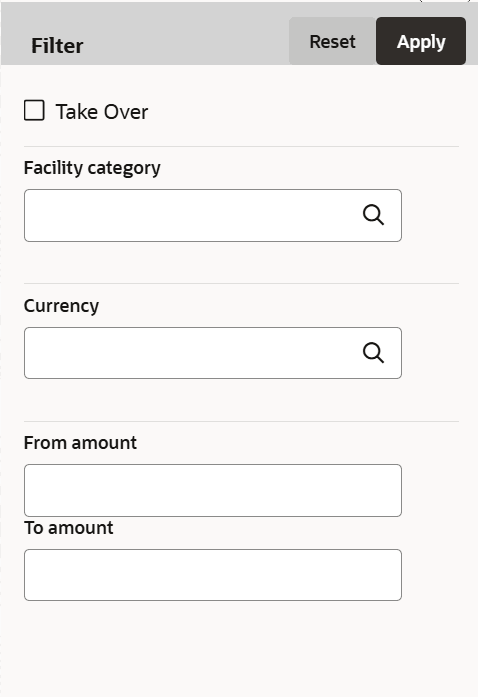
For information on adding Exposures detail, refer Economic Dependency Analysis User Manual. - To filter the required facility from all the available existing facilities,
click Filter button. The Filter window is displayed.
- To filter the required groupwise exposure from the list, click Filter
button. The Filter window is displayed.
- To modify the provided information, click Back and edit the required
information.Upon clicking the Next, the Comments page appears.
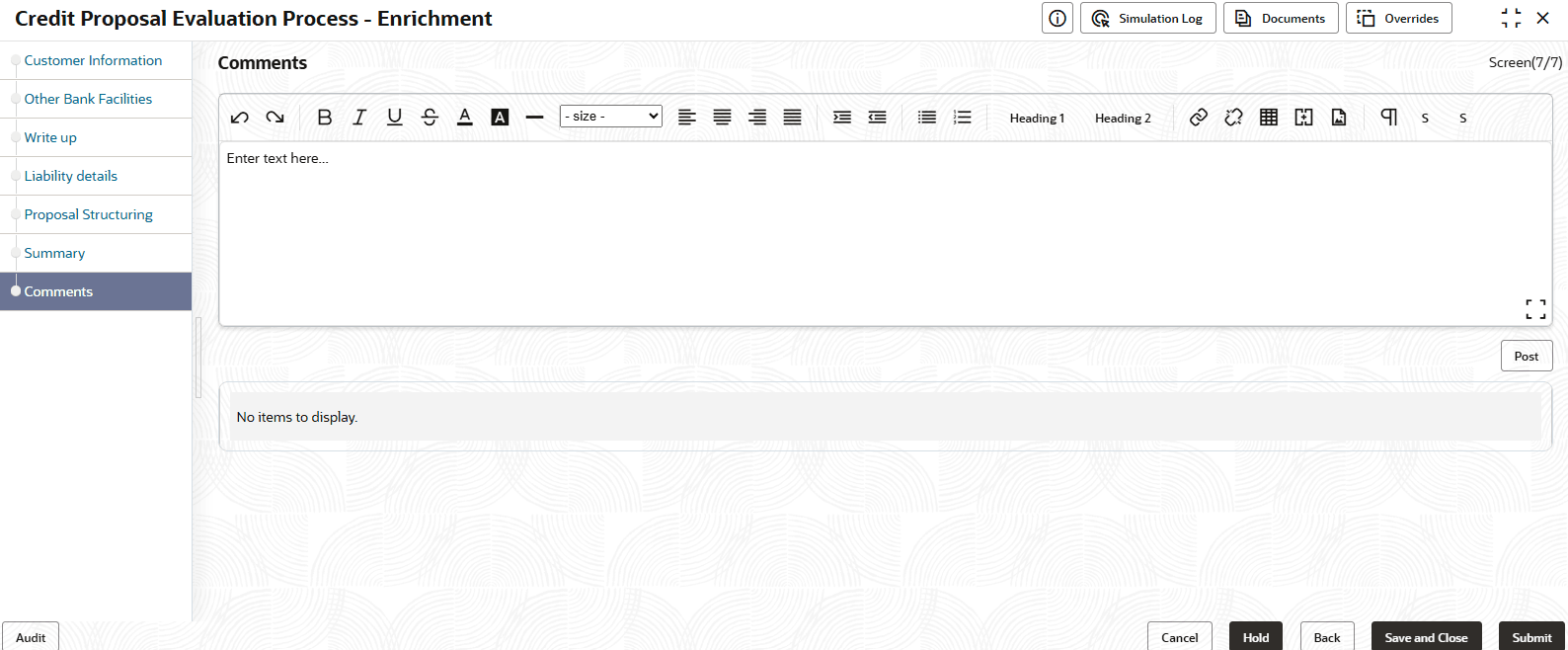
The Comments page allows to capture the remarks for the overall process. Posting comments help the user in next stage to better understand the application.
For information on fields in the Comments screen, refer the below table.
Table 3-15 Comments
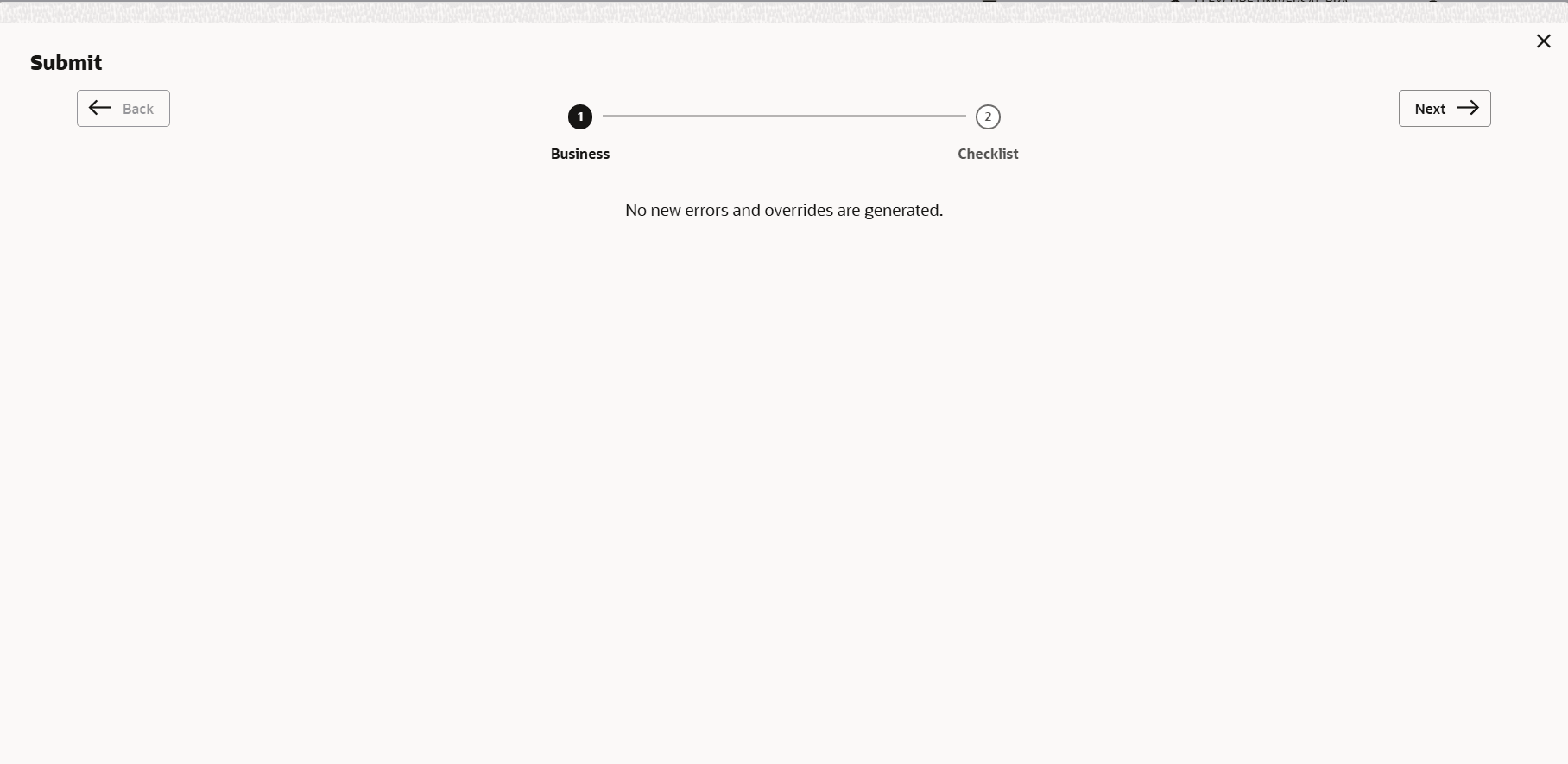
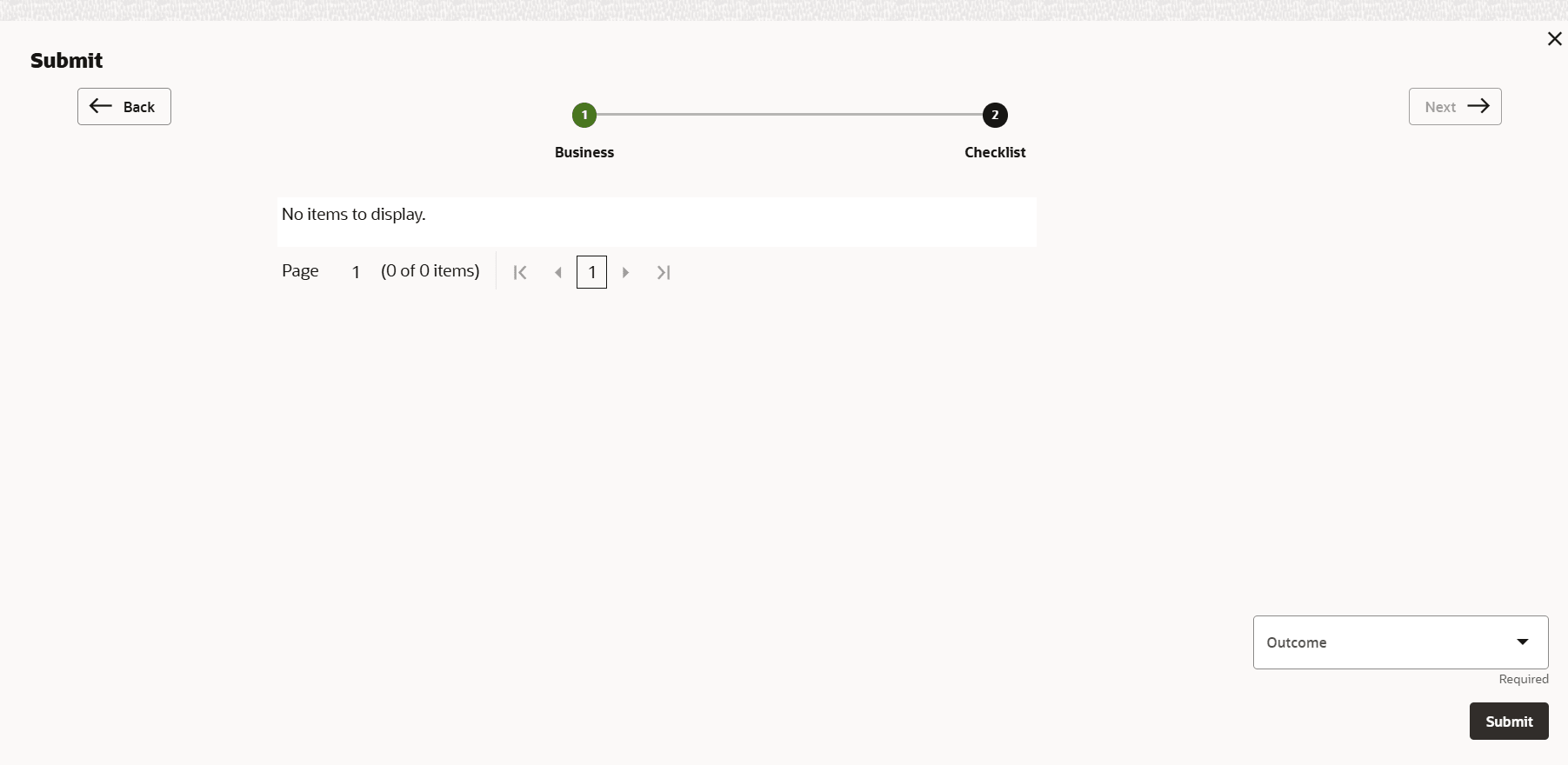
Fields Description Post Type the necessary comments in the text box and click Post. Comment is posted. Hold To hold the credit proposal initiation process, click Hold. Back To go back to the previous stage, click Back. Save & Close To save the process for future edit, click Save & Close. Submit To submit the enriched application for evaluation, click Submit. Cancel To exit the process without saving the information, click Cancel. Upon clicking the Submit, the Policy Exception window is displayed.By default, policy exceptions are displayed for both the organization (party) and its child party.
- Click the Checklist data segment.