5.2 Write Up
This topic provides systematic instructions about writeup screen.
The Write up screen is displayed only if it is configured in the Maintenance module. You can add any additional information related to the party or facility in this screen.
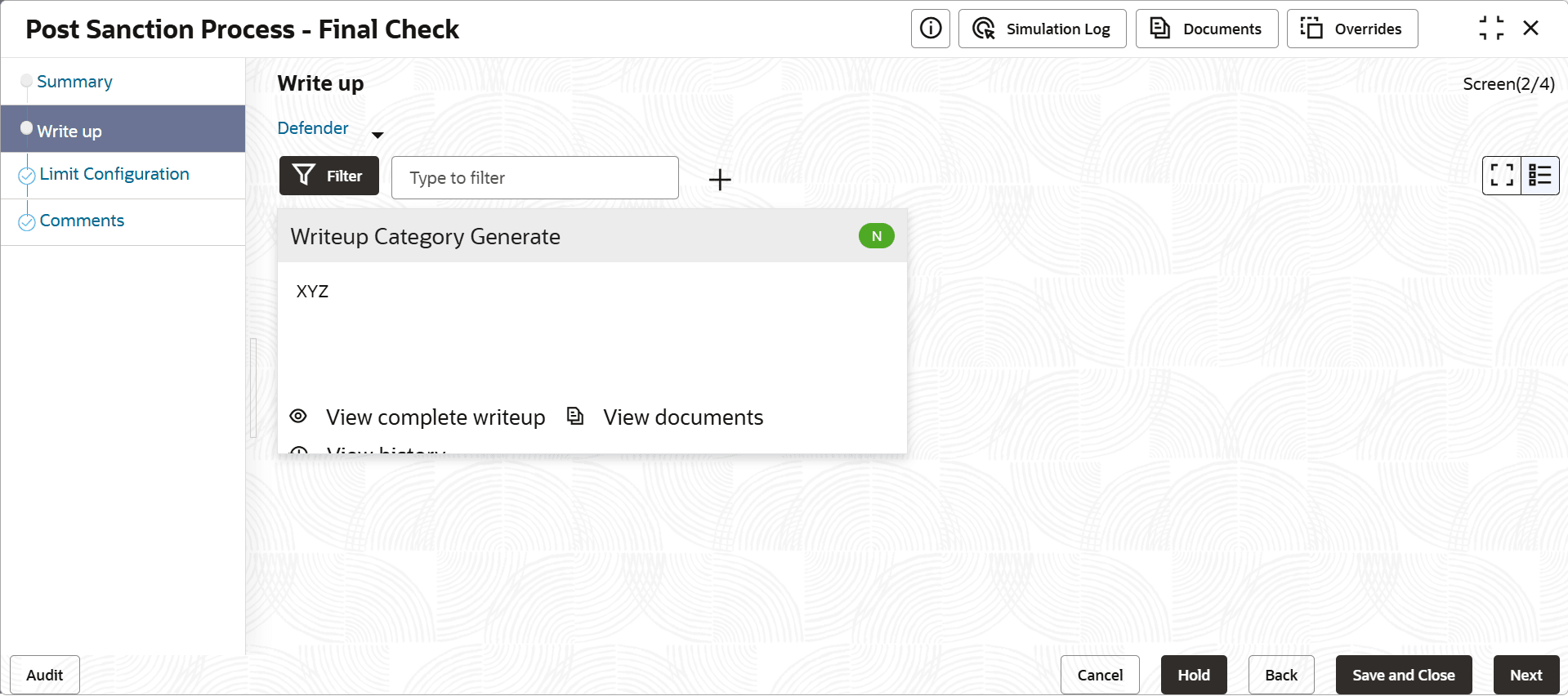
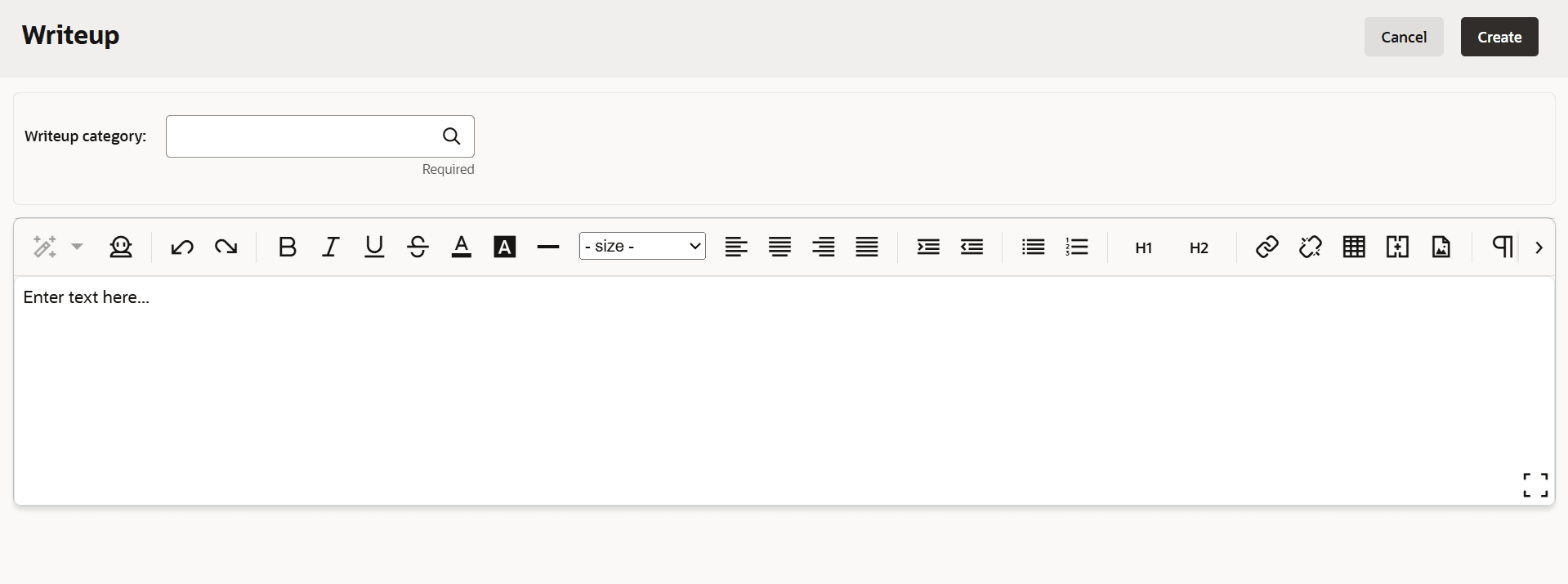
- To add write-up, click Add icon. The Write Up window appears
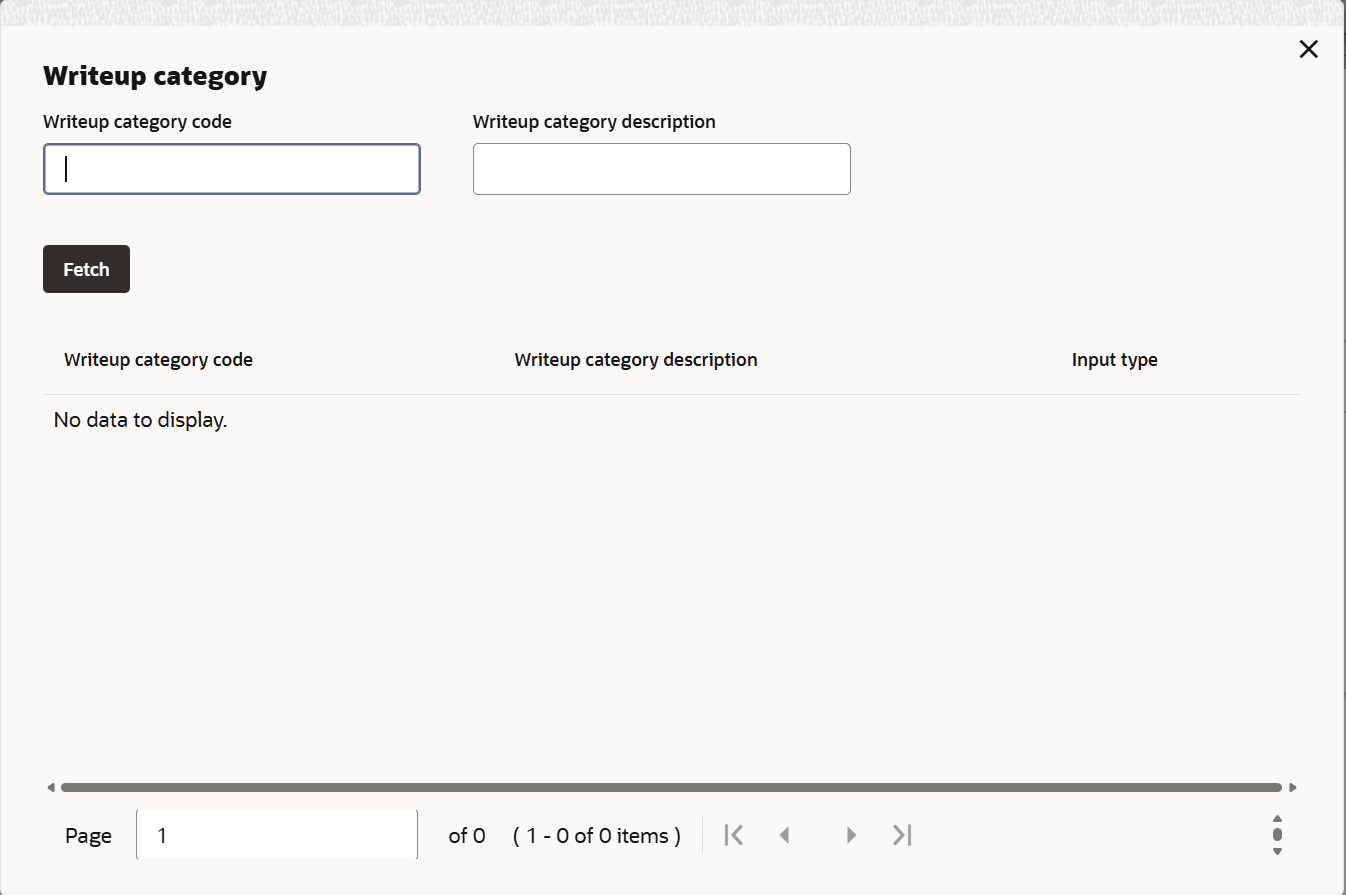
- Click Search icon in Writeup Category field. The list
of categories maintained in the Maintenance module is displayed in Writeup
Category window.
- Click on the required category code. Selected code is displayed in Writeup Category field
- Enter the observations in the text box and click Create. The
observations are added in Write Up page as shown below:
- To change the layout of Write Up data segment to the
expanded view, click the Expanded View icon at the top right corner. The
write up is expanded as shown below:
Similarly, you can change it to Tile View and Complete View by clicking layout icon at top right corner.
- To modify the writeup, click Edit icon and change the information.
- To delete the writeup, click Remove icon. A confirmation message appears.
- Click Yes. The writeup is removed.
- To view the writeup history, click View History icon.
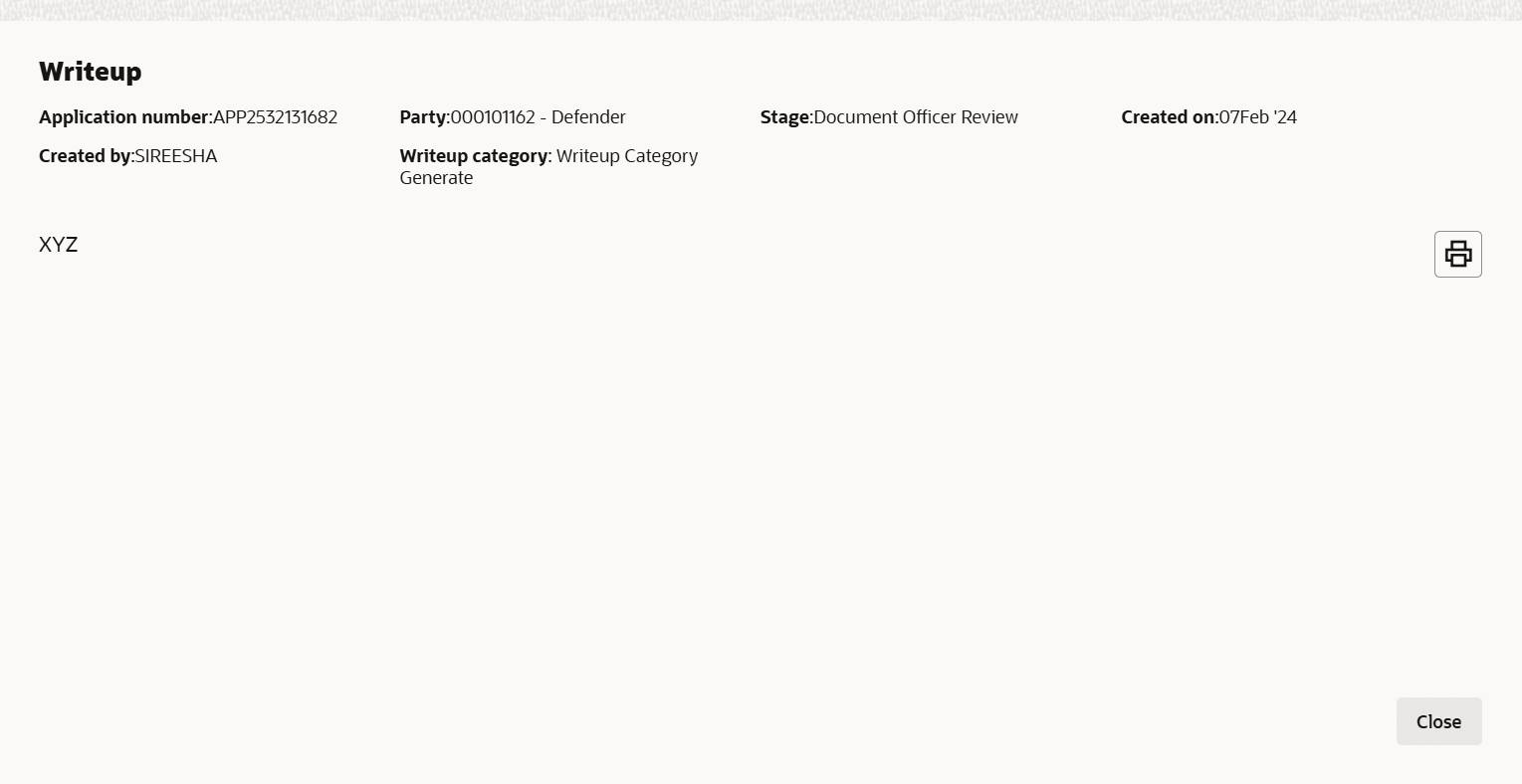
- To print the write up, click Print icon.
Note:
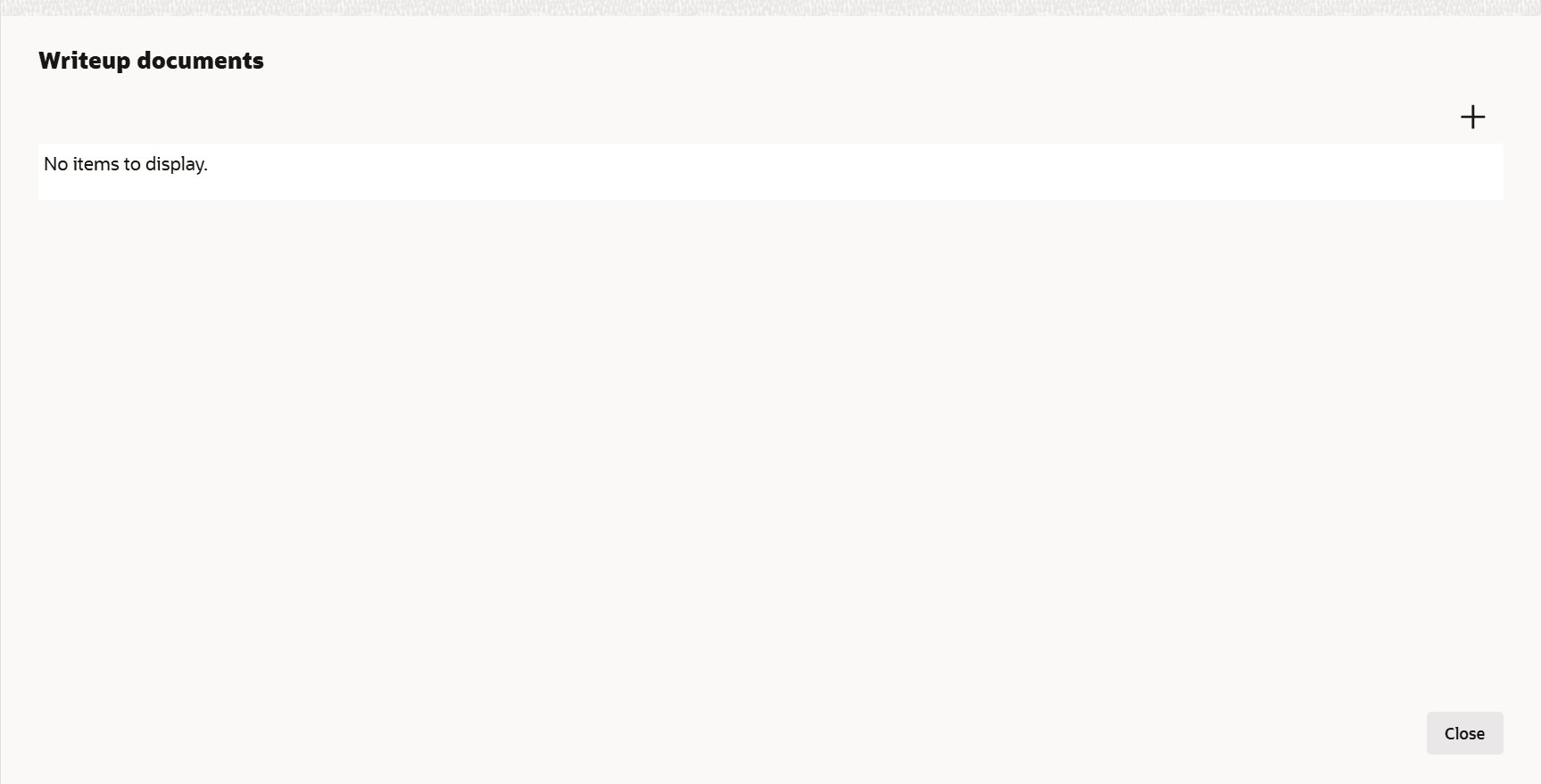
To print the write up from tile view, click the View complete writeup icon and then click the Print icon. - To attach or view writeup related documents, click View
Documents icon. The following window appears:
- To add new documents, click Add New Documents.
- To exit Writeup Documents window, click Close.
- To go to the next page, click Next. The Limit Configuration page appears.
Parent topic: Document Officer Review